

Spotify finally supports true lossless streaming, but it is still not clear how to actually export those songs as local FLAC files on your computer. That is exactly what this guide will help you with.
We will cover the most practical methods to convert Spotify to FLAC on both desktop and mobile. More importantly, we will also point out which methods preserve the original lossless quality while converison and which ones simply repackage compressed audio into FLAC codec. So you can understand what each method delivers and choose the workflow that fits your needs.
How to Convert Spotify to FLAC on Desktop
Currently, there are three main ways to convert Spotify to FLAC on desktop and each method is suitable for a different need. Here is a quick overview before we look at all of them in detail.
• Drag-and-drop workflow
• Stable batch downloads
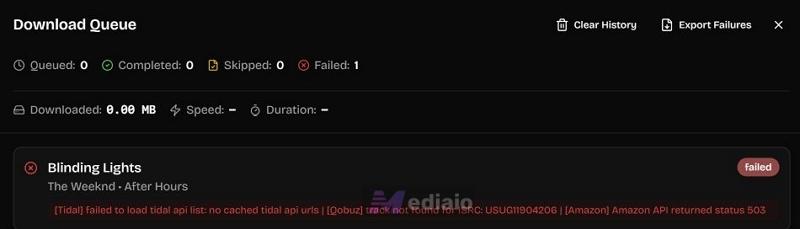
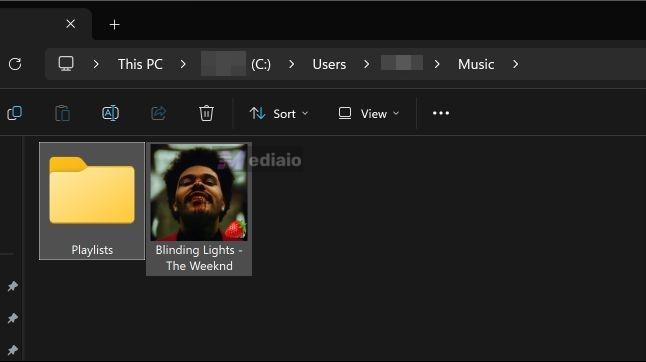
We only managed to fetch one song (“Blinding Lights”) when the Qobuz backend briefly worked. Proper FLAC fetched from Qobuz/TIDAL/Amazon Music backends Extremely inconsistent.
We had to make multiple retries before achieving a successful download.
One song conversion was quick, though. Pulls metadata through MusicBrainz. • Simple GUI
• Requires manual Spotify links
• Reliability depends on backend uptime
• Better for one-off recordings only
Way 1. Use Spotify Converter - MedVioo Audio Converter
MedVioo Audio Converter is built specifically to pull Spotify’s original stream and deliver it directly to your computer. So, when using MedVioo, you get the same 24-bit/44.1 kHz FLAC quality you hear on Spotify in Lossless quality.
MedVioo connects to your Spotify library through its built-in player. So you don’t need to copy playlist links or paste song URLs—you can simply drag and drop playlists and albums to export them as FLAC files. Every exported track keeps all metadata—album art, artist names, song titles, album tags, and other details, so your offline FLAC library remains organized.
MedVioo also supports 30x faster conversion speeds, which matters a lot for FLAC conversions because lossless exports naturally take longer and generate much larger files. So even large Spotify libraries can be converted quickly while preserving audio quality and metadata. You can also use the tool to export audio from SoundCloud, Apple Music, Amazon Music, YouTube Music, Pandora, Deezer, and more.
Steps to Download Spotify as FLAC with MedVioo Audio Converter
Step 1. Open MedVioo Audio Converter. Select Spotify from the services list.

Step 2. Sign in to your Spotify account.
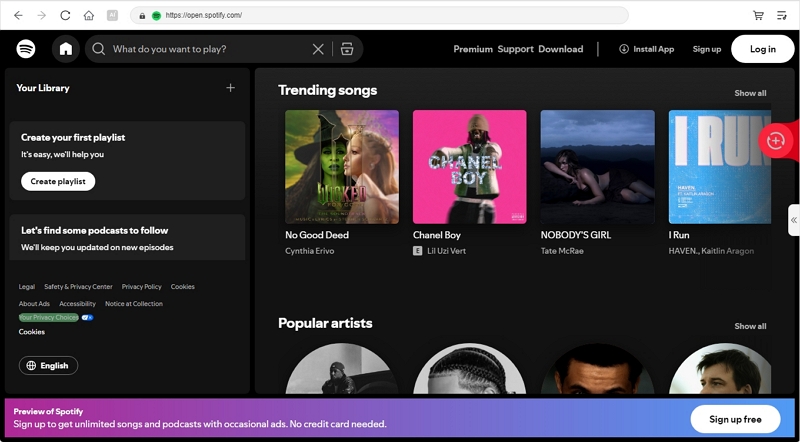
Step 3. Highlight your songs and drag them toward the floating + button on the right. MedVioo will instantly pull the tracks into the conversion queue.

Step 4. Click the left arrow in the middle part and the conversion panel will open completely. Select FLAC as output.
Step 5. Hit the Convert All button at the bottom.

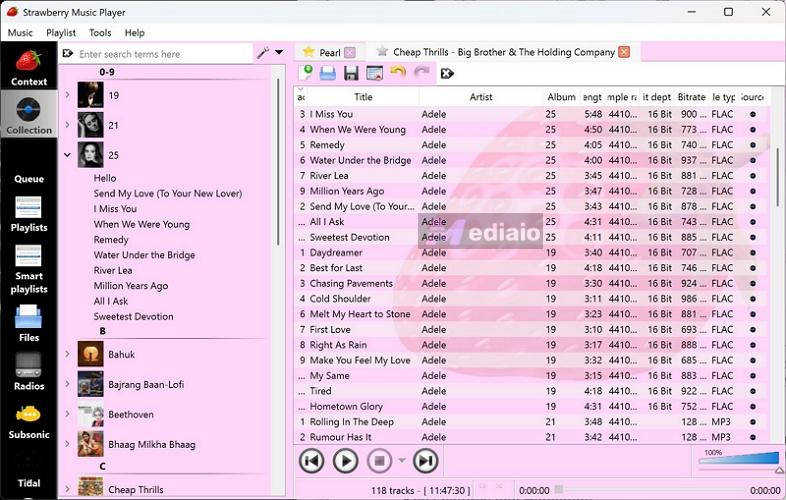
MedVioo will process the tracks in FLAC quality to your local drive. You can play them through any player, like Strawberry Music Player or Foobar2000. The songs will also appear properly organized with all metadata.
Review:
MedVioo is the most reliable tool for this job. It pulls Spotify’s original lossless FLAC stream, preserves perfect metadata, and delivers blistering 30x conversion speeds. Most importantly, the software remains extremely stable throughout the process. It does not randomly fail during downloads or waste your time midway through large FLAC exports.
Way 2. Use GitHub Tool - SpotiFLAC
SpotiFLAC is one of the few GitHub Spotify tools that comes with a proper GUI that is modern. You will just find a link box on the main interface. Once you paste a Spotify link there, the tool will fetch the same songs in FLAC from TIDAL, Qobuz, or Amazon Music. So it does not pull songs directly from Spotify.
If you need more control, you'll find all the advanced settings hidden behind the Settings toggle. Besides, a small contribution to the project gives you access to SpotiFLAC Next. This upgraded version receives more backend updates and supports downloading tracks from Apple Music and TIDAL as well. So, you will not be limited to Spotify links alone.
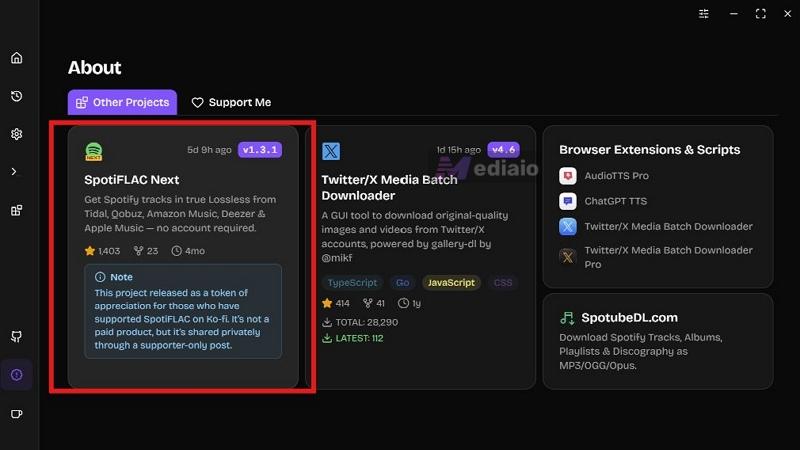
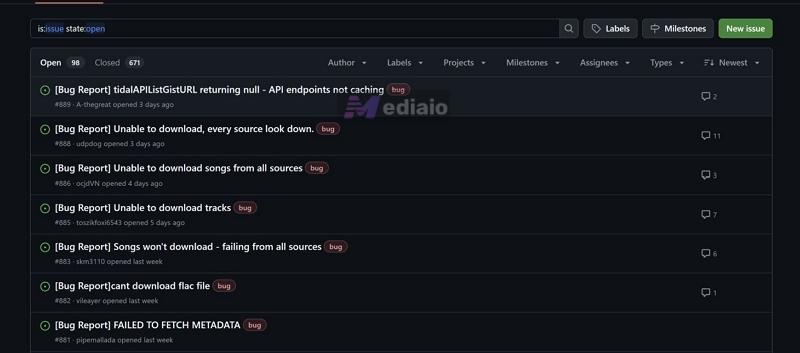
However, the biggest problem with SpotiFLAC, including the contributor versions — is reliability. It does not always work consistently. This is because it heavily relies on third-party APIs and constantly changing backend music sources, so downtime is common. You will regularly encounter failed fetches, broken queues, metadata errors, and tracks that refuse to download entirely. Still, when everything works correctly, SpotiFLAC is impressive and can deliver proper FLAC files.
Steps to Save Spotify as FLAC Files Using SpotiFLAC
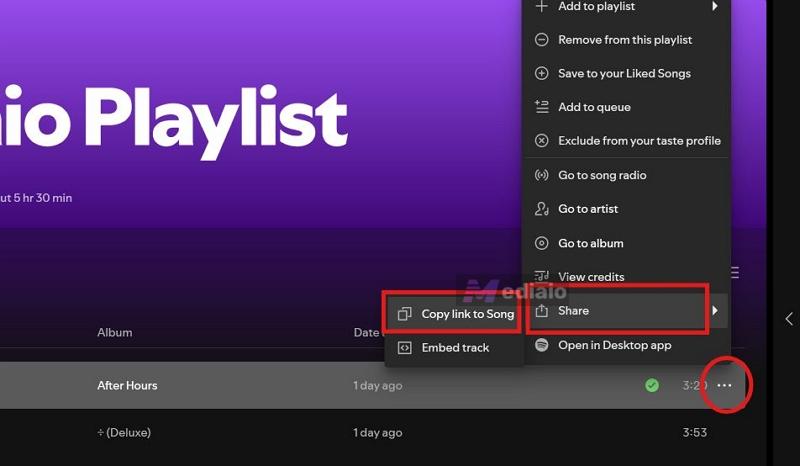
Step 1. Open Spotify. Copy the song link you want to convert using the Share > Copy Link option.
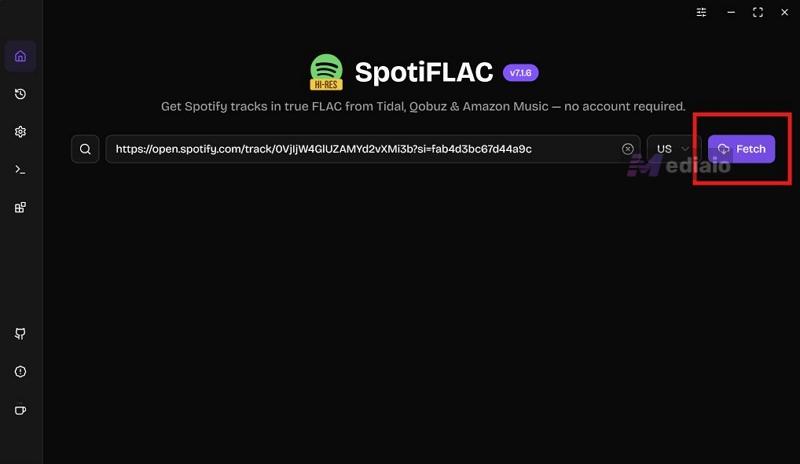
Step 2. Launch SpotiFLAC. Paste the copied Spotify URL into the main search field.
Step 3. Press the Fetch button. SpotiFLAC will now try to locate matching FLAC sources from supported music services.
Step 4. Hit the Download icon when you see the track details.
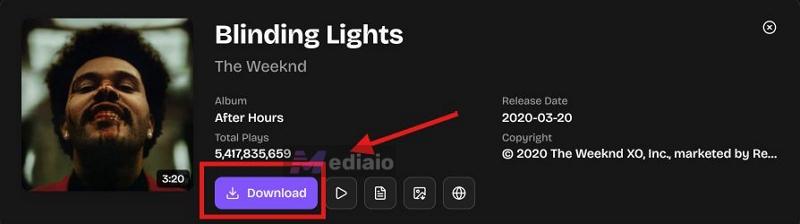
Step 5. If the source servers are working properly, the songs will download directly to your computer, preserving metadata and album artwork.
Review:
SpotiFLAC is genuinely impressive when everything works correctly. The GUI is clean and the fetching process feels simple. But reliability is the biggest issue here. Backend source failures, broken APIs, and failed queues are still common, so downloads are unpredictable and depend on the day.
Way 3. Use Audacity Spotify to FLAC Recorder
Audacity is simply an audio recorder. It records whatever audio is currently playing on your computer internally. So you can use it to record Spotify playback directly from your system. That also makes this audio-recording process very time-consuming. A 5-minute song still takes 5 minutes to record in real time. So Audacity is suitable when you need one or two songs or specific audio portions for editing projects (like short sections or background loops).
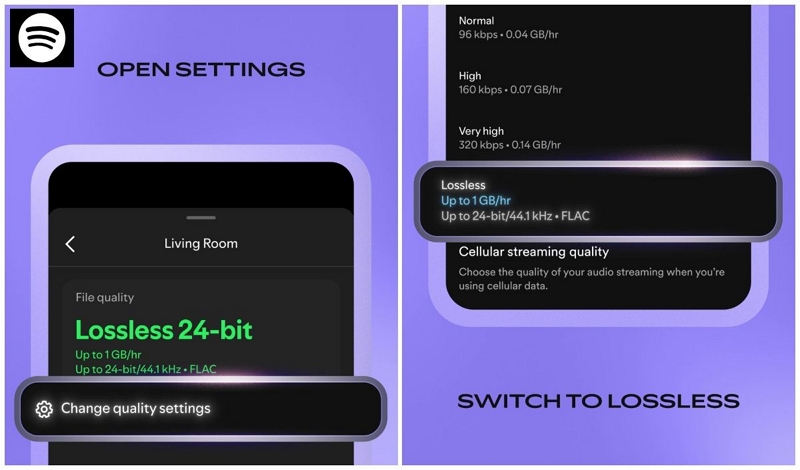
However, the biggest limitation is that Audacity only makes sense when you have Spotify Premium. This is because Audacity can only capture what’s playing internally. With Premium, you can set Spotify playback to Lossless quality (24-bit/44.1 kHz streaming) and let Audacity capture true FLAC. Without Premium, Spotify will stream in compressed 160 kbps OGG. So Audacity will capture that compressed stream. You can still make it export the recording as a FLAC file afterward, but that simply creates a bloated FLAC-sized file, not a true lossless track.
And unlike MedVioo, Audacity does not even preserve any metadata. You will have to manually enter the track information. Also, Audacity is only suitable for Windows users. On macOS, Audacity will need additional virtual audio routing tools like BlackHole or Loopback, so it’s not recommended to Mac users.
Steps to Record Spotify as FLAC with Audacity
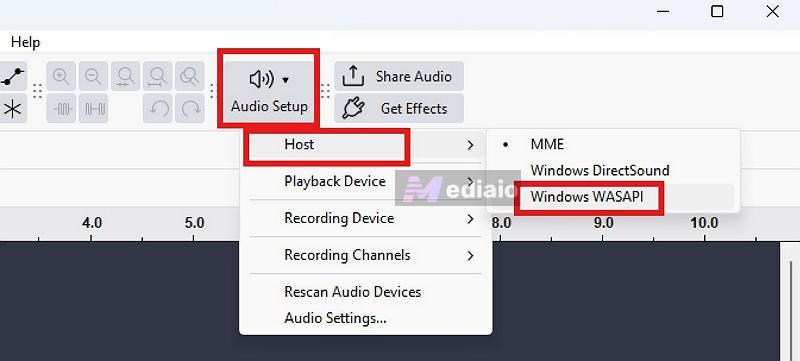
Step 1. Inside Audacity, move to the Audio Setup button on the top toolbar. Under Host, select Windows WASAPI.
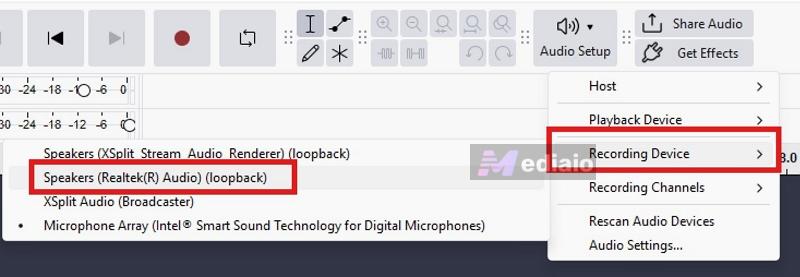
Step 2. Return to the Audio Setup menu. This time, move to Recording Device and choose your speaker output with (loopback) beside its name.
Step 3. Now switch back to the Spotify Desktop app. Make sure to first set the streaming quality to Lossless quality.
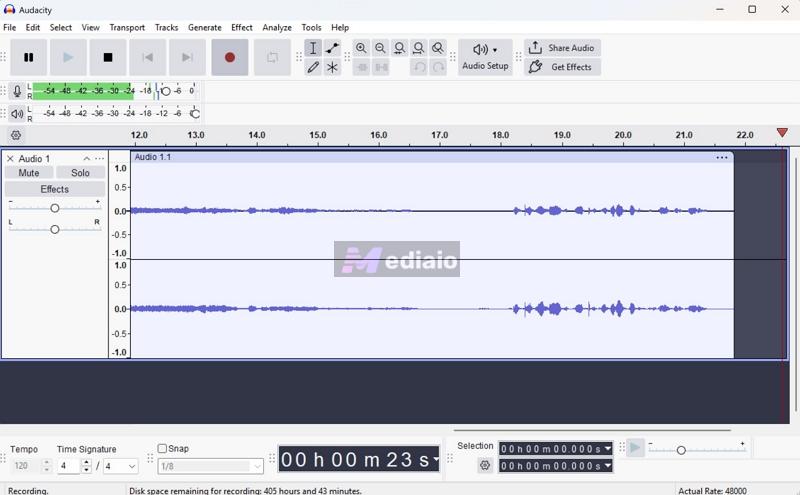
Step 4. Hit the red Record button inside Audacity. Then, start playing the Spotify song you want to capture. With WASAPI loopback enabled, Audacity will capture the exact audio playing on your computer. Your microphone or external room sounds will not be recorded.
Step 5. Press the Stop button to end recording. You can trim unwanted sections inside Audacity itself.
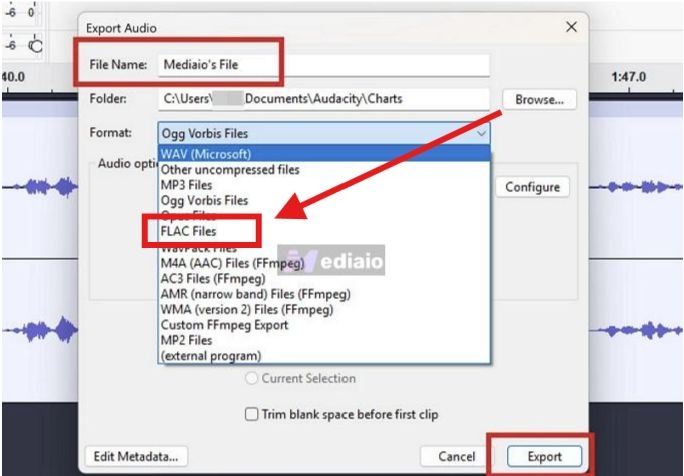
Step 6. Move to File > Export Audio. In the Export menu, choose FLAC Files as the output format. Rename the file and click Export again.
Review:
Audacity works well when you only need a few songs or specific audio sections for editing work. It is reliable because it records directly from the system audio. But the process is slow, manual, and impractical for anything beyond getting one or two songs.
How to Convert Spotify to FLAC on Mobile
Converting Spotify tracks to FLAC on mobile is very tedious. The simplest solution is to convert songs on your computer and transfer them to your iPhone or Android by USB or your preferred method. This gives you high-quality FLAC files, accurate metadata, and stable batch downloads. And this workflow is much faster than generating FLAC files directly on iOS or Android.
Still, if you specifically want to do everything directly on Android or iPhone, here are the current working methods.
On Android
On Android, most Spotify download tools use SpotDL as the backend for downloading Spotify tracks. Of course, SpotDL itself is a command-line tool, so using it directly is difficult for regular users. Apps like Spowlo simplify that process by packaging the SpotDL backend into a much cleaner GUI that is easier to operate.
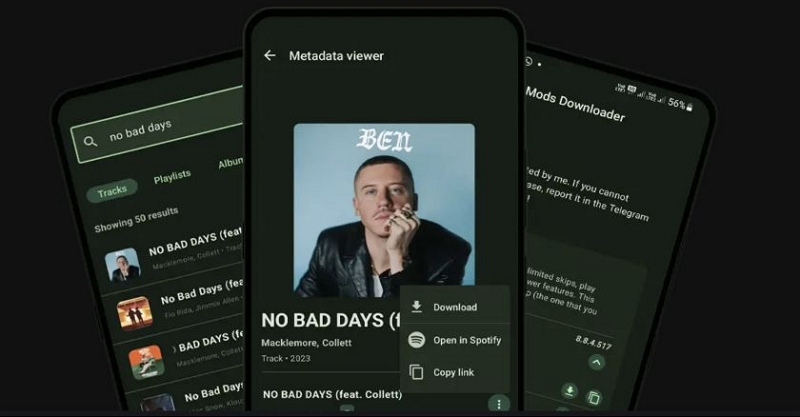
As a result, Android tools still cannot deliver true Spotify FLAC streams. SpotDL basically matches Spotify metadata and then scrapes the actual audio from YouTube. So what you usually get is compressed YouTube audio (typically Opus or AAC) transcoded into a FLAC container but not a real lossless Spotify stream.
The even bigger issue is stability. Tools like Spowlo depends heavily on external APIs and YouTube matching systems, so technical problems are extremely common. You will regularly encounter module errors, failed progress bars, traceback logs, broken downloads, or songs that refuse to process entirely.
Still, if you specifically want an Android-based workflow, Spowlo remains one of the easier GUI options available compared to using SpotDL directly.
Steps to Save Spotify Music as FLAC with Spowlo
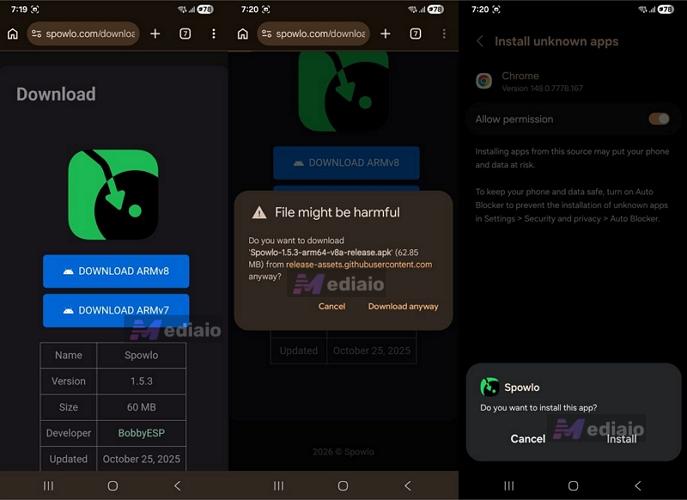
Step 1. Search for Spowlo on Google and open the official download page. From there, select the ARMv8 APK version. Android will show the usual third-party warning message, just press Download anyway and continue with the installation.
Once prompted, allow Install unknown apps permission for Chrome, return and finish installing Spowlo normally.
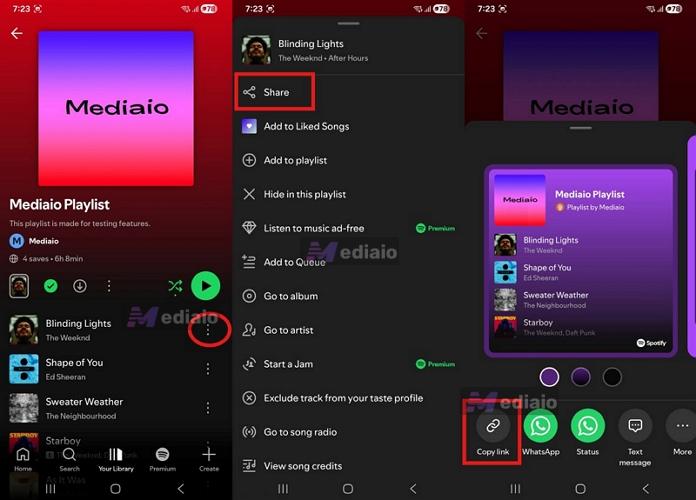
Step 2. Head to Spotify and open the playlist you want to save. Tap the three-dot menu next to the track, choose Share and press Copy link from the share sheet.
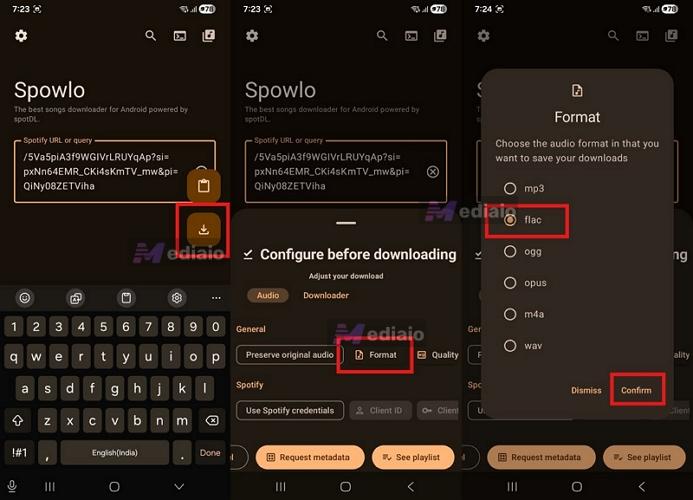
Step 3. Return to Spowlo and paste the Spotify link into the search box. Then hit the floating Download button near the bottom-right corner.
A download configuration panel will now appear.
Step 4. Inside the configuration window, open Format and switch the output type to FLAC. Confirm the selection to continue.
Step 5. Spowlo will show track information. Press the three-dot menu next to the song and start the download. If everything works properly, the FLAC file will be saved locally on your Android’s Internal Storage.
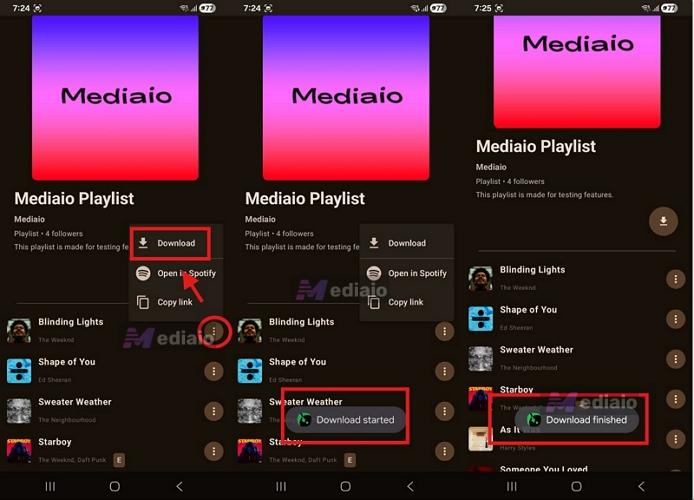
Conversion Results of “Binding Lights”
On iOS
On iOS, the technical reality is that getting true Spotify FLAC streams is not really practical. The closest thing to a proper Spotify FLAC app on iPhone involves sideloading modified apps through AltStore or Sideloadly, which is a fairly complicated process and also forces you to refresh the app every 7 days.
The other option is buying premium Spotify-to-FLAC shortcuts from various websites (names deliberately avoided). But even those mostly rely on SpotifyDL underneath. And SpotifyDL itself simply matches Spotify metadata and pulls the actual audio from YouTube. So at the end of the day, those paid shortcuts are still giving you YouTube rips inside a FLAC container but not true Spotify lossless streams. So, a much simpler free workaround is using YT-dlp-based iOS shortcuts. For instance, you can use Downloader by CageCell. Again, this shortcut also pulls audio from YouTube internally. But at least it is free. It is a shortcut to process YouTube to MP3, FLAC, WAV, etc. You cannot use the Spotify link directly. Instead, you will have to search for the exact match on YouTube and use that version. So there could be occasional mismatches, but realistically, SpotifyDL-based shortcuts would return the same source anyway.
Steps to Convert Spotify Songs to FLAC on iPhone with Shortcuts
Step 1. Before processing any music, access your iPhone’s Shortcuts app and tap the three dots on your installed yt-dlp script to open the editor. Locate the command-line parameters within the script and change the audio extraction argument to --audio-format flac to force the output container.
Step 2. Navigate to the Spotify app. Note the song name and artists. Search for that matching audio on YouTube and copy the direct video link to your clipboard.
Step 3. Trigger your newly modified iCloud shortcut and paste the copied URL into the text prompt.
Step 4. Allow the background script to run. The transcoded FLAC file will automatically process and save directly to your native Files app.
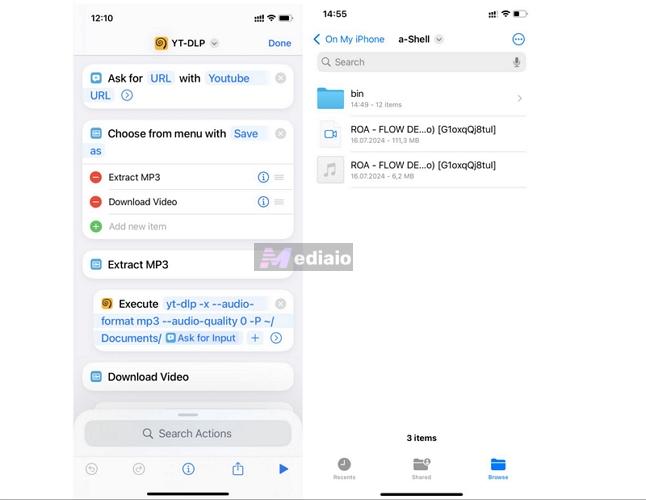
Conversion Results of “Aro Flow De Vera”
FAQs
There is a lot of confusion around FLAC playbacks. These FAQs will help clear that.
Which Devices Can You Play Local Spotify FLAC Music On?
Most modern devices can play FLAC files natively. On Windows PCs, Macs, and Android phones, you just have to open them in a FLAC-compatible music player. Popular options include Poweramp, MusicBee, and Strawberry. You can also transfer them to Hi-Res music players like the Shanling M0 Pro and play without any compatibility problems.
iPhone also supports FLAC playback, but it is a little different. The Music app will refuse to accept FLAC when syncing via Finder or iTunes. Still, if you have the FLAC files in the Files app, you can listen to them. You can even open it using a player like VLC.
Can You Tell the Difference Between MP3 and FLAC?
That depends entirely on two things:
- The actual source quality of the file.
- And the audio equipment you are listening through.
As you saw in this guide, mobile “Spotify to FLAC” tools do not deliver true FLAC. They simply repackage YouTube in a FLAC container. So it will sound like a low-quality MP3, no matter how expensive your headphones are.
Even when you have sourced a true FLAC using tools like MedVioo Audio Converter, you will still need:
- A good DAC,
- Quality headphones or IEMs,
- Or at least a capable music player like Poweramp or Foobar2000.
Once everything comes together, FLAC will start to sound the way it's meant to.
When Is It Recommended to Convert Spotify to FLAC Using Online Tools?
Practically never. Web-based converters follow the same logic as the mobile shortcuts discussed above. They read your Spotify link, scrape the compressed version from YouTube audio, and then artificially transcode it into a FLAC file. So you simply end up wasting massive amounts of storage space on terrible audio quality.
Conclusion
So those are the most practical ways to convert Spotify to FLAC. Honestly, the mobile workflows are inconsistent for true lossless audio.
The only consistently reliable way to obtain real FLAC files is on desktop. And even there, MedVioo Audio Converter remains the most dependable option. It pulls Spotify’s original FLAC stream directly, preserves metadata properly, and makes it genuinely easy to build a clean offline lossless music library from Spotify.