

MP3 is a compressed audio format. Even then, the files can feel larger than you need them to be. Perhaps you want to meet a strict upload limit—like Discord's 10 MB cap or Gmail's 25 MB attachment restriction. Or you simply have hundreds of songs and want to save valuable storage space.
Whatever the reason, there are several ways to shrink MP3 file size without compromising the sound quality. This guide covers the best options for desktop, mobile, and online use. So you can find what works for you.
Before Shrinking MP3 File Size
Shrinking an MP3 file is easy but doing it right makes all the difference.
The right approach depends on your needs. If you need to compress a single file to meet an upload limit, you’ll have to use the right tool. And compressing a 500-song library requires a different process altogether. So here are some pointers to guide you.
First Step: Choose the Best Method
This guide covers every type of MP3 compressor—online tools, desktop software, and mobile apps. Here’s a table below for a quick comparison.
Works from Windows, Mac, Chromebook, and even mobile browsers. Files are uploaded to a third-party server. That means privacy risks.
Many tools also remove album art and other ID3 metadata. Quick one-off compression jobs.
Your audio file doesn’t contain anything sensitive or confidential.
Good tools preserve album art, file names, and other ID3 tags.
Offers precise control over bitrate and output quality. You have to install a tool. Large music libraries or archives.
Or when you’re looking for more control over the final file.
Often ad-supported.
Limited batch processing.
Some apps do not preserve metadata properly. Occasional compression jobs when you only have your phone available.
Step 2: Backup Originals
MP3 compression permanently discards audio data. That is why you end up with smaller files. And you cannot bring back the lost data. So it is always best to back up your original, higher-quality versions. Most tools compress duplicates by default. But it's still wise to manually back up originals in a separate folder.
Step 3: Understand Audio Quality and Bitrate
Mindlessly compressing a 300 MB file down to 25 MB just to meet Gmail's upload requirements, or compressing it too much, often distorts the audio so badly that it becomes unlistenable. So you must understand at what bitrate your audio will still sound good.
Meanwhile, the ideal bitrate, depends on what you’re looking to compress: podcasts, music tracks, a voice recording, etc. Here’s a general overview:
(Assuming a 320 kbps source) The MP3 encoder removes frequencies that couldn’t be heard unless you have high-end headphones or IEMs. At these ranges, you won’t notice a significant drop in quality for casual listening or on standard headphones.
If compressed further, the algorithm starts deleting audible frequencies. You will lose important details, such as the instruments' punchiness and depth.
Keep in mind that a high bitrate does not mean good audio. The cleanliness of your original MP3 also plays a role in determining the ideal bitrate to keep the audio clear.
Pro Tip: Always check the final quality of the file when you’re compressing it too much and make sure the output is clear enough before deleting the originals.
How to Shrink MP3 File Size Online
Online tools are ideal for one-off tasks. The convenience is unmatched. You just upload the MP3, set a target size, and receive a smaller version in minutes. Since this all happens in a browser, you can use any device.
There is a catch, though. While they are convenient, online tools require you to upload files to their servers for processing. And that means privacy risks. Yes, reputable services claim to cache uploaded MP3 files for only a few and then delete them automatically. But if the audio contains confidential info, it’s best to avoid it.
Beyond privacy issues, another drawback: online compressors often strip most ID3 tags. Plus, they're unusable for big jobs. For instance, uploading dozens of 200 MB audio files to a server and then downloading them back is painfully slow.
If you have a single 20 MB MP3, online compressors are practical. Most online utilities offer basic MP3 shrinking. XConvert’s free version, for instance, handles a one-time job and files up to 1 GB in size.
How to Reduce MP3 File Size to 14MB with XConvert
Step 1. Open your browser and head to XConvert. Choose Compress from the I WANT TO box.
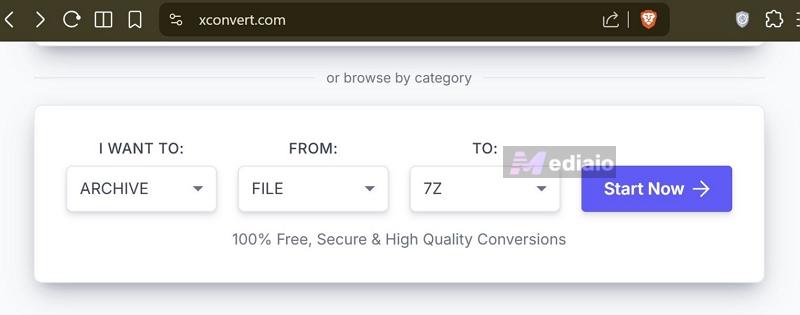
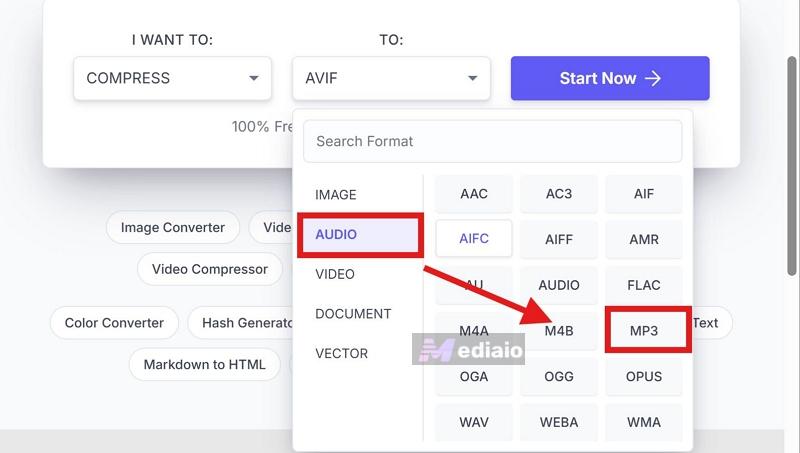
Next, switch the format category to Audio > MP3. Then press Start Now.
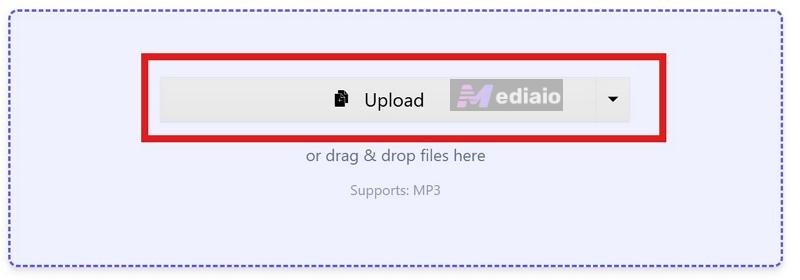
Step 2. Add the file that you want to shrink. You can upload it from local storage. You can also fetch the MP3 from Google Drive and Dropbox if it’s there.
Step 3. Scroll down to the Advanced Options. You’ll find several file compression options:
This is suitable when you want a predictable bitrate and file size.
VBR is suitable when you want a balance between sound and file size.
For example, you can choose Specific File Size and enter 14 MB as the target. XConvert will adjust the compression and deliver a final MP3 at or below that limit.
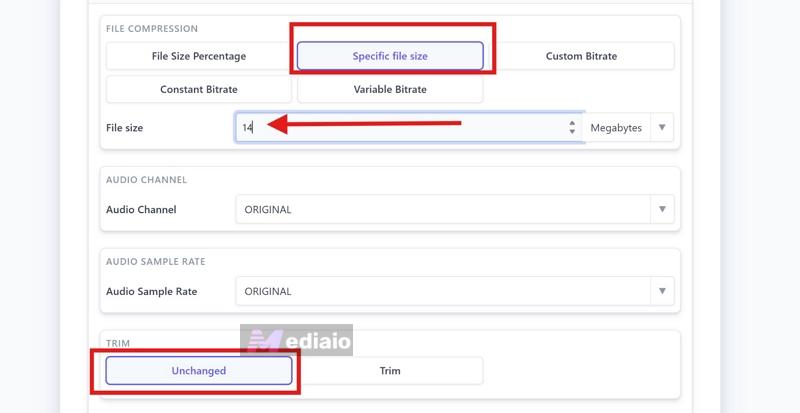
Step 4. Mark the Unchanged option in the Trim section.
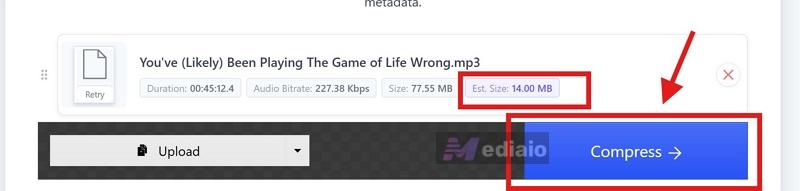
Step 5. Move back to the top of the page and click Compress. Wait for XConvert to process the file. It will take a minute or two.
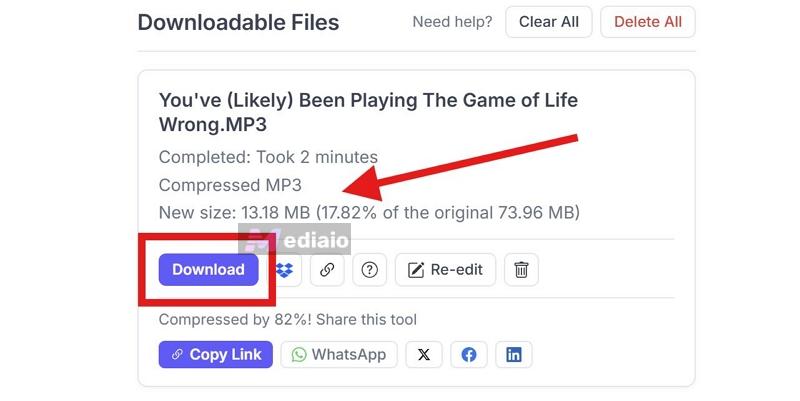
Step 6. Use the Download button to save the compressed MP3 to your device. Or click on the WhatsApp or LinkedIn icon to share the finished compressed file directly.
How to Shrink MP3 File Size on Desktop
Desktop converters are ideal when you need to shrink a vast library of MP3 files. Dependable utilities can efficiently process large batches of MP3s at once. Crucially, some also retain all ID3 tags accurately.
Take Eassiy Video Converter Ultimate as an example. Eassiy provides all the standard options needed to compress MP3 files. You can reduce file size using a slider or specify a bitrate target. In addition, it offers tools for noise removal, volume boosting, and more. So you can make other audio adjustments as well.
Eassiy is also rated as the best tool for high-quality audio conversion. So you can use it even to convert FLAC or WAV to MP3 while applying your preferred compression settings.
Another benefit is GPU acceleration. By using your Windows or macOS hardware, it can compress files 60x faster than online or mobile options. Plus, Eassiy also preserves metadata accurately. It retains song titles, artist names, album details, and artwork. For audiobooks, chapter data and other embedded details stay unchanged.
How to Compress an MP3 File Using Eassiy
Whether you're trying to meet specific upload limits for Discord or Gmail, or just want to shrink files while keeping audio quality, you can use Eassiy to apply a custom compression rule across multiple files. Here’s how:
Step 1. Launch Eassiy Video Converter Ultimate on your Windows or Mac. Switch to the Toolbox tab from the top menu. Then, select Audio Compressor.
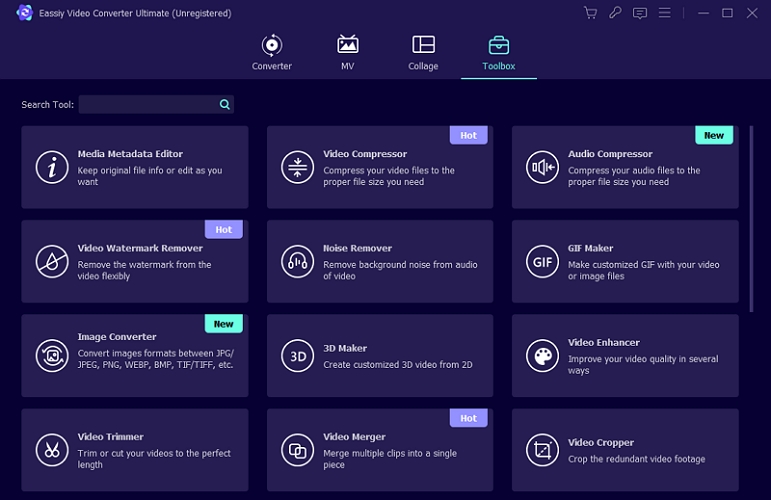
Step 2. Add the MP3 file whose size you want to reduce in the pop-out.
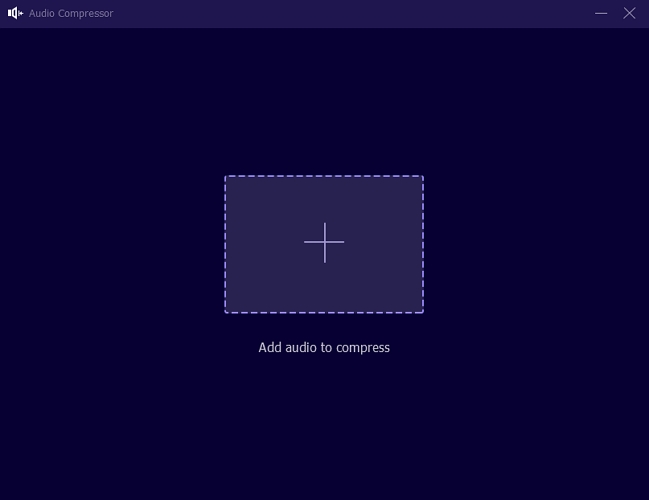
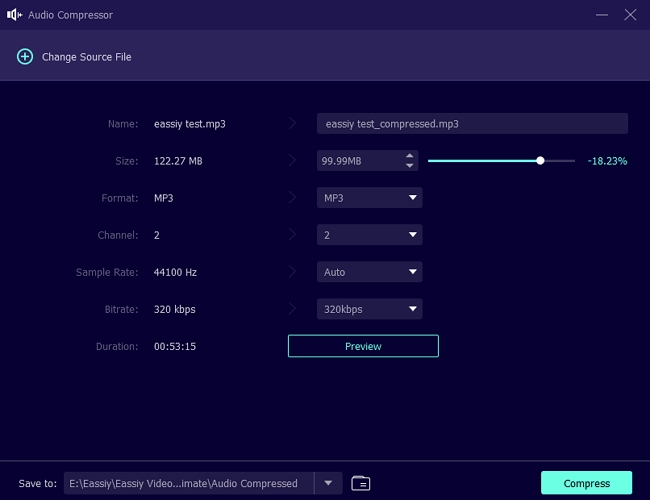
Step 3. A dedicated Audio Compressor window will open. Here:
- Drag the size slider to reduce the file size. As you move the slider, Eassiy will show the estimated size and bitrate in real time. So you can balance audio quality with file size.
- If you want more precise control, you can just specify a bitrate.
- Eassiy also lets you choose a different output format. For example, you can export your file as AAC, as it delivers better compression efficiency. Or you can keep it as an MP3.
Step 3. After setting your preferences, upload your audio files to Eassiy. Hit Compress.
That’s it. Eassiy automatically saves the output files to the designated folder and keeps all important metadata intact. Your files simply take up less storage space than before.
How to Shrink MP3 File Size on Mobile
While you can use the online tools via mobile browsers, apps are usually the most convenient option. Most of them are free to use and can handle basic compression tasks without much setup.
That said, like online converters, they come with a few trade-offs. Batch processing is often limited or unavailable. And most apps don't preserve ID3 tags properly. So if you're compressing audio, you will end up with files named something like "compressed.mp3."
When it comes to compression settings, some allow you to specify a specific bitrate. Some give you dedicated buttons without granular controls. So you can install the tool that best meets your needs.
How to Shrink MP3 File Size via Mobile Audio Compressor
Step 1. Install a compression app on your device. There is no single popular app that you can install on both Android and iPhone. We tested many options and here are the best options for each device:
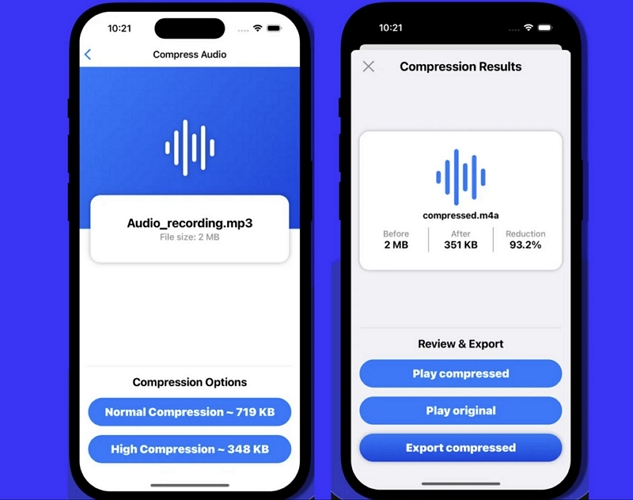
- On iPhone: you can use Audio Compressor - MP3 Shrink.
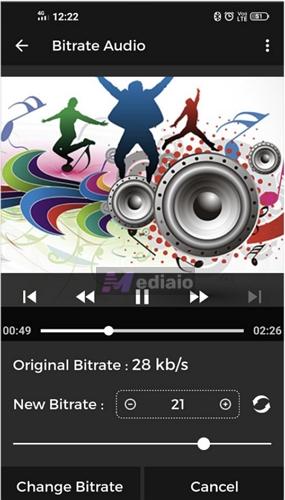
- On Android: Audio MP3 Compressor by Apps Cloud Zone is a solid option.
Install it. Then, grant the required permission.
Step 2. Bring the MP3 into the app. Simply, use the Select File or Choose Audio option to load the audio you want to compress.
Step 3. Adjust the compression settings.
- On iPhone, Audio Compressor - MP3 Shrink keeps things simple with options, such as Normal Compression and High Compression. Choosing High Compression will produce the smallest file size. If you want granular controls, you can install some other apps like AnyCompress from the App Store.
- On Android, Audio MP3 Compressor offers more control. For one, you can select a custom bitrate. So just use the Choose Bitrate option and enter a target.
Step 4. Start the compression process. Wait for the app to finish processing the file.
Step 5. You can export the compressed file as MP3 or another format as needed.
How to Save Audio as Small MP3 File
You can simply save the small MP3 files from the start if you don’t want to end up with manual compression later. 128 kbps or 256 kbps is sufficient when you’re saving music in MP3 from CDs or the internet. And you can go even lower when you’re downloading speech-based content, such as audiobooks or podcasts.
This will save you from having to compress the files later. Plus, it also makes it easier to store them on a USB drive or your MP3 player. Certainly, you may worry about that a smaller MP3 file means sacrificing audio quality. Actually, that is not the case. You just have to use the right tools. Here are two good examples, whether you have songs stored on CDs or get your music online.
For CD
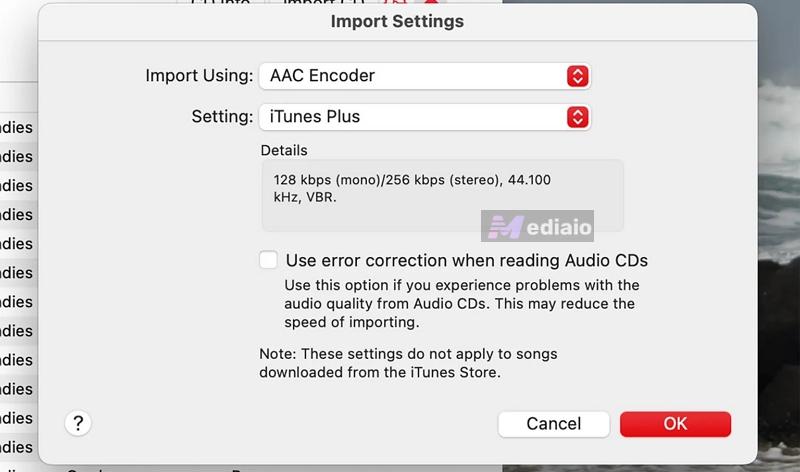
Before ripping music, just adjust the import settings. The default options, the Windows Media Player and Apple Music, offer excellent quality controls for this.
So you can compress an entire 70-min album down to a fraction of its original size. For instance, the Media Player on Windows gives you ready-made settings you can use to rip music to a smaller size. For instance, AAC (128-256 kbps range) and WMA (96-128 kbps).
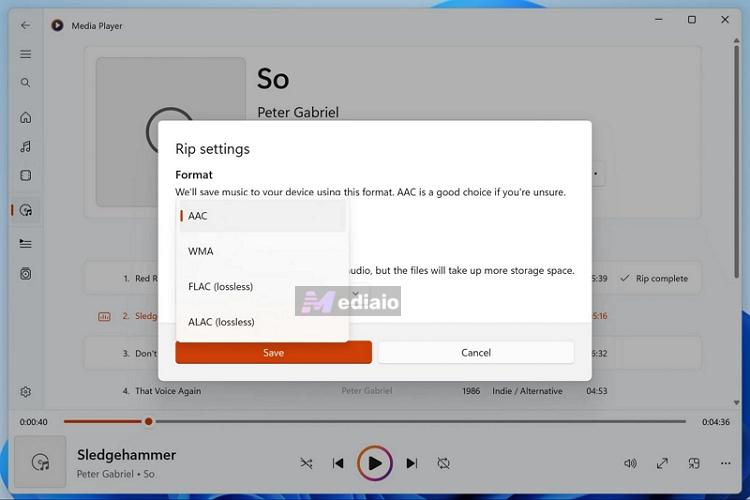
However, the problem with the new Windows Media Player is that it doesn’t let you import MP3s. But you can always rely on the Legacy version that gives similar options and lets you rip CDs in MP3.
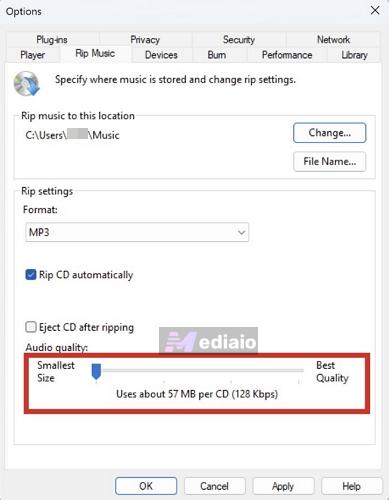
Similar options are also available in Apple Music and iTunes. Plus, you can get the output in MP3 directly.
For Online Music
If you need to download music offline, use a dedicated converter like MedVioo Audio Converter. Using MedVioo gives you 3 main benefits.
First, you can save your favorite tracks directly as MP3s to your computer from any of the nine supported platforms. It comes with built-in support for Spotify, YouTube Music, Apple Music, and other popular services.
Second, you can also decide the quality and file size when exporting music from MedVioo. For example, you can export at 128 kbps if you need small files or select 256 kbps for a balance of quality and size.
Third, MedVioo preserves song information during export. Whether you export an album or a playlist, your offline MP3 files are automatically organized on your computer. You can transfer them to your phone or other devices and listen without internet or ads.
Conclusion
Now you know the best ways to shrink MP3 files. Use mobile or online compressors for one-time jobs. Use desktop tools like Eassiy Video Converter Ultimate to downsize a large archive or protect confidential audio. This distinction will let you choose the right tool for your needs.
Additionally, it’s important to get the MP3 files at the right quality from the beginning. For instance, you can rip CDs by configuring the right settings. And when exporting music from Spotify or Apple Music, using MedVioo Audio Converter ensures you start with high-quality files. As MedVioo sources original files from music platforms, the resulting file sounds good even at lower bitrates.
Excellent, thank you!
You're welcome! We're glad the article was helpful to you.