

Although lossless audio formats carry music exactly as it was mastered, lossless files are large and not practical for all devices. They aren’t suitable if you want smaller files for your phone, play them on older car stereos or use apps that only support MP3 or AAC. Well, that's where high-quality audio converters come in. These tools allow you to convert from lossless to lossy without ruining the output’s sound. So, you can get smaller files, wide compatibility, and sound that still feels closer to the original.
We tested and reviewed eight of the best high-quality audio converters to help you make that switch easily. Whether you need a simple “one-click” free tool, a paid professional suite, or one that automatically finds missing metadata and album art while converting, you will find the right tool for your specific needs in this guide.
What Is High-Quality Audio Converter Software
A high-quality audio converter does the same basic job as any regular converter. It changes one audio format into another, for example, turning a WAV or FLAC file into an MP3.
The difference is in how the conversion is done. High-quality audio converters use better encoding engines than basic or online tools, so the audio is processed more carefully. This matters most when converting from lossless (FLAC, WAV, or ALAC) to lossy (MP3 or AAC) formats. These conversions usually shrink the file size by 80–90%, so a large amount of data is removed. And online or basic converters often lose important details during this step. High-quality converters are designed to avoid that, keeping the output’s sound closer to the original source file.
8 High-Quality Audio Converter Software for PC/Mac
Below you will find the 8 high-quality converters names, along with our testing process and detailed reviews on each tool.
The Audio Converters We Test
To give you a brief idea of the tools we picked, here’s a simple comparison. This table is only about availability and cost. Actual audio quality, workflow, speed, and usability are covered in the sections that follow.
 Paid(US$55.99/lifetime) and free trial included.
Windows 7+/macOS 10.12 (Sierra) and newer
Paid(US$55.99/lifetime) and free trial included.
Windows 7+/macOS 10.12 (Sierra) and newer
 Free (branding in free version)
Windows only (11, 10, 8, 7)
Free (branding in free version)
Windows only (11, 10, 8, 7)
 7-day free trial, then paid license($99.95/year)
Windows · macOS
7-day free trial, then paid license($99.95/year)
Windows · macOS
 Home license: US$35 · Commercial license: US$60
Windows · macOS
Home license: US$35 · Commercial license: US$60
Windows · macOS
 Free
macOS only
Free
macOS only
 US$395
macOS 10.13 (High Sierra) and later
US$395
macOS 10.13 (High Sierra) and later
 100% free
Windows · macOS
100% free
Windows · macOS
 Freeware
Windows · macOS (Android & iOS apps are playback-only, not for conversion)
Freeware
Windows · macOS (Android & iOS apps are playback-only, not for conversion)
How We Test High-Quality Audio Converters
For every converter, we started with two types of audio files.
First, a music track in a lossless format (FLAC or WAV) was converted to MP3 or AAC. This gives a good idea about the output’s sound quality, bitrate handling, and reduction in file size.
We also used a second file, such as a podcast, audiobook, less common formats and so on, depending on the converter’s strength.
For every tool, we include a Performance Data section that explains how it performed. It shows how clean the audio sounded at common settings, such as MP3 320kbps and AAC 256kbps. And whether metadata and artwork were kept and how fast the conversion ran.
That’s it.
Test Results of High-Quality Audio Converters
Now moving on to the 8 tools—it is not a ranking. The order here is based on ease of use.
Some tools are simple, quick to understand, and still deliver high-quality conversions, so we placed them higher because more users look for them. There are also tools that offer deeper controls, but then again, they require setup, technical knowledge, and manual configurations. So they appear later.
In short, the list lets you find a converter that matches your comfort level and needs easily.
1. Eassiy Audio Converter
Eassiy focuses on getting conversions right without making things complicated. It supports over 1000 formats. So you will find all common lossless formats, like FLAC, WAV, AIFF and ALAC, along with the everyday formats like MP3, M4A (AAC), and OGG.
What sets Eassiy apart is the control it offers. You get the "click and go" simplicity of a basic converter when speed matters. Or you can adjust sample rate, bitrate, and audio channels or even split and merge the audio when you want more control. In both cases, the output will sound exactly the same.
Under the hood, Eassiy uses GPU acceleration (NVIDIA, AMD, Intel) to process the audio at 60x faster than standard CPU converters. Batch conversion is handled well too, so working with a large library stays fast, whether you’re converting lossless files or changing them to everyday formats.
Beyond conversion, Eassiy also includes basic audio editing tools such as trimming and volume adjustment.
Overall, Eassiy Audio Converter is actually tucked inside the Eassiy Video Converter Ultimate suite. So on the side, you will also get tons of video editing tools too, all packed into the same thing, making it a practical all-in-one tool for fast, accurate audio conversions with minimal effort.
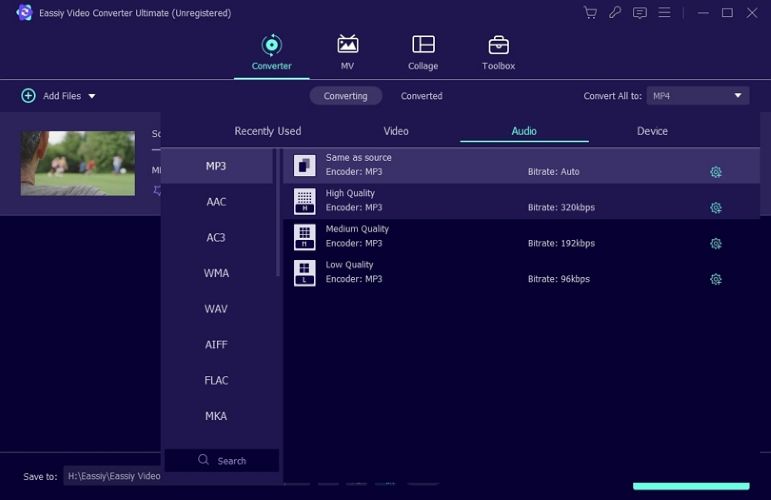
Eassiy Audio Converter — Performance Data
1. Audio Quality of File A: Taylor Swift - Anti-Hero.flac
- Input: 40 MB FLAC (24-bit/48kHz)
- Output: 7.6 MB MP3 (320kbps CBR)
The conversion was instant. It reduced the file size up to 80%, but it retained the full quality and the transient details. There were no clipping or encoding artifacts detected. All the metadata (album art, artist) was also preserved perfectly to be added to any platform.
2. Audio Quality of File B: Daft Punk - Give Life Back to Music.wav
- Input: 139 MB (24-bit/88.2kHz Stereo, 4:35 song)
- Output: 8.5 MB M4A (AAC 256kbps)
Eassiy properly downsampled and encoded to M4A (AAC) without altering the original tone balance. The file size dropped by over 90%, but the resulting M4A was crisp, clear, and similar to the source.
3. Metadata Retention
It preserves the existing metadata and artwork during high-quality conversion.
4. Speed
GPU acceleration is real and the conversion speed is faster than many standard open-source alternatives.
5. Extra Features
Creator's Toolkit: Beyond audio conversion, it includes an Audio Compressor, Noise Remover, and simple cut and merge tools.
Choose Eassiy Video Converter Ultimate if you are looking for a professional "all-in-one" media station. It gives you speed, can handle high-resolution audio correctly, and even works with video when you want it to.
2. Freemake Audio Converter
Freemake Audio Converter is built for beginners on Windows. You will not find complicated settings that are common in many audio converters. Instead, the interface comes with colorful buttons like “to MP3”, “to FLAC”, “to WAV”, etc. The idea is simple: drop a file, click the output format button, and the conversion is done.
Freemake supports more than 50 audio formats overall. You will find common lossless formats (like FLAC and WAV) as well as lossy formats (MP3, M4A, and AAC), and even less common ones like AMR.
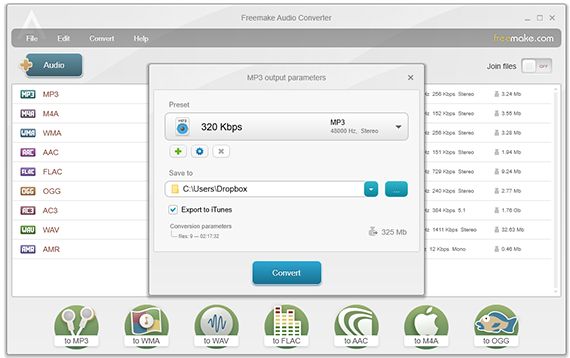
Freemake Audio Converter — Performance Data
1. Audio Quality of File A "GarageBand Demo File.wav":
We converted this 45 MB Rock Demo to test the default “to MP3” settings. The output was a lightweight 4 MB file. Overall, the result was adequate for casual listening, but the 128kbps MP3 did lose some depth in the cymbals compared to the original.
2. Audio Quality of File B "Nokia Voice Memo.amr":
We took an old 2 MB recording from a Nokia phone (8kHz) that modern players couldn't open. Freemake successfully converted it to a 3 MB MP3. While the audio quality didn't magically improve, the file became universally playable on PC and mobile.
3. Metadata:
Artist and title information from the WAV file was preserved during MP3 conversion. However, there is no advanced tag editor, no ReplayGain handling, and no artwork management.
4. Speed:
Moderate. The short WAV file finished almost instantly, and the small AMR file took only a moment. There was no noticeable throttling in single uploads. However, larger batches are processed sequentially rather than using all CPU cores.
5. Extra Features:
It has a “Join Audio” switch to merge multiple audio files. You can also extract audio from video files. Some of these features belong to the wider Freemake ecosystem and require paid upgrades.
Freemake Audio Converter is best for Windows users who want a true “click and go” experience. It is not meant for users who care about fine audio control, tagging depth, or maximum quality preservation.
3. Movavi Audio Converter
Movavi Audio Converter does not belong in the same category as pure audio tools like fre:ac or XLD. Like Eassiy, it is part of a larger video-focused suite.
It supports 40+ audio formats, covering all common lossy formats and major lossless ones, including FLAC, WAV, AIFF, and Monkey’s Audio (APE). The reason it stands out is not depth or precision, but ease of conversion.
The interface follows the same beginner-friendly idea as Freemake. Audio presets are exposed as buttons: MP3, WMA, FLAC and Audio for Apple. You can also convert audio using device-based presets, like iPad or car audio systems. There’s even an option to set a target output size and Movavi will automatically adjust the bitrate to match that size, helpful when file size matters more than manual tuning.
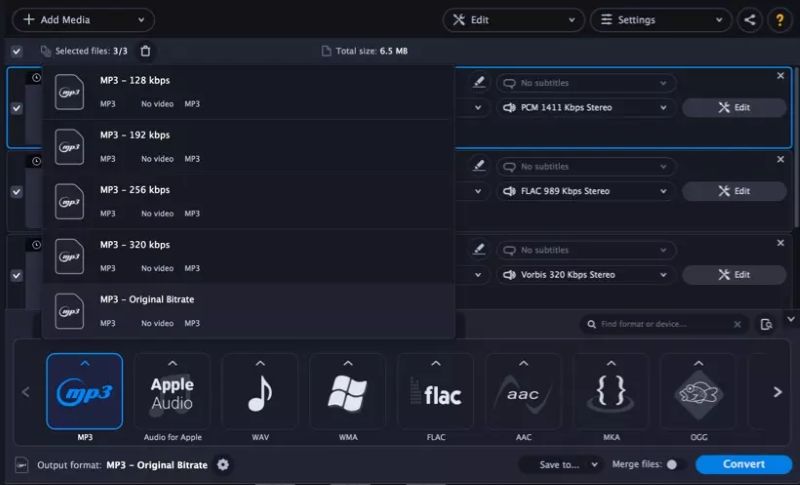
Movavi Audio Converter — Performance Data
1. Audio Quality of File A: Billie Eilish "Bad Guy.wav":
- Input: 3:14, 24-bit/96kHz, 105 MB
- Output: OGG Vorbis (Quality 9), 8.5 MB
OGG Vorbis handles low-frequency content better. However, not many tools are optimized to handle this. Movavi reduced the size by 92%, while preserving sub-bass punch without audible distortion.
2. Audio Quality of File B: To Kill a Mockingbird Chapter-1.flac:
- Input: 16-bit/44.1kHz, 140 MB
- Output: MP3(VBR V0, Avg 245–260 kbps), 28 MB
Variable bitrate allocated more data to spoken passages and less to pauses. The file ended up 5× smaller with no loss in voice clarity, which is critical for spoken-word content.
3. Metadata
Editable. Movavi allows batch renaming using smart templates.
4. Speed
Fast. Utilize up to 80% CPU during batch jobs without slowing the system.
5. Extra Features
AI noise removal (paid plugin), trim & cut timeline, volume normalization, and full video-suite tools.
Overall, Movavi Audio Converter is recommended for users who want a fast and modern experience. As long as you don’t mind the premium, Movavi is a good choice.
4. Switch Audio Converter
Switch Audio Converter (by NCH Software) is strictly designed for audio-only workflows. It supports over 75 audio formats, including many legacy and proprietary types still used in older transcription systems.
Even for regular conversions, it offers a solid range of features. For advanced workflows, Switch provides a command-line plugin that lets you convert or compress audio through other software or scripts.
However, Switch is not a free tool. The Home Edition (personal use) costs US$30, while commercial use will require a license priced at US$60.
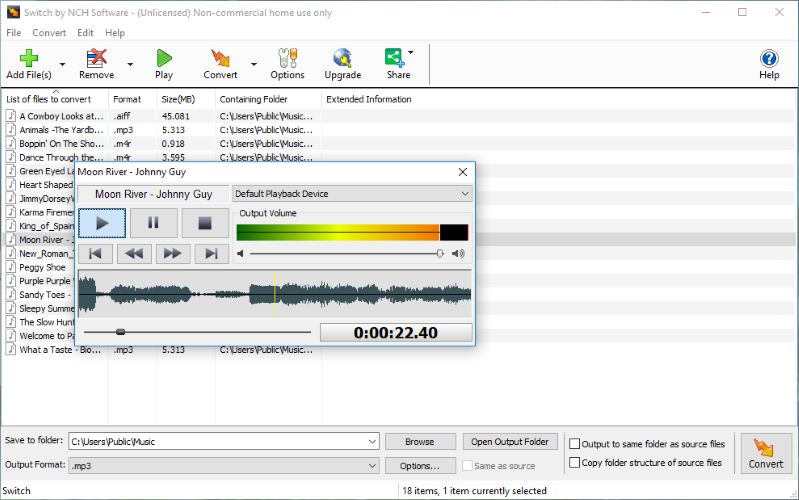
Switch Audio Converter — Performance Data
1. Audio Quality of File A "HotelCalifornia.wma":
- Input: 40 MB Classic Rock (6:30, Lossless WMA)
- Output: Converted to M4R (iPhone Ringtone), 0.9 MB (30-second trimmed clip), ~245 kbps
We used the M4R preset to make it a valid iPhone ringtone. The internal trim option came in handy for selecting a 30-second section. After transferring via Finder, the file was immediately recognized and appeared in the iPhone ringtone settings.
2. Audio Quality of File B "Dictation Medical.dct":
- Input: 5 MB Proprietary Dictation (5:00, Encrypted .dct)
- Output: Converted to WAV(PCM-44.1 kHz 16-bit), 50 MB
Switch is one of the few consumer tools capable of opening .dct files. The converted file was compatible with modern software and suitable for professional use. This makes Switch useful for very specific scenarios involving legacy or proprietary audio formats.
3. Metadata:
Fair. Switch can attempt to fetch standard tags from online databases if metadata is missing.
4. Speed:
Fast. The app opens instantly and converts files quickly due to its lightweight engine.
5. Extra Features:
Audio normalization. Command-line interface for automated scripts.
Switch Audio Converter is helpful if you work with rare, old, or proprietary formats like DCT or legacy WMA files. It does not come with a modern interface, but when compatibility matters, Switch does the job.
5. XLD (X Lossless Decoder)
XLD is a gold-standard, audio-first utility for Mac users. It is not a general media converter and is not built for ease of use or raw speed. Instead, it is built for mathematical verification and lossless accuracy.
When you submit a file in XLD, it will decode the lossless source, verify the data, and then convert it into an output format, such as MP3, M4A, or another selected codec. XLD also works well with advanced workflows involving DSD files and CUE sheets.
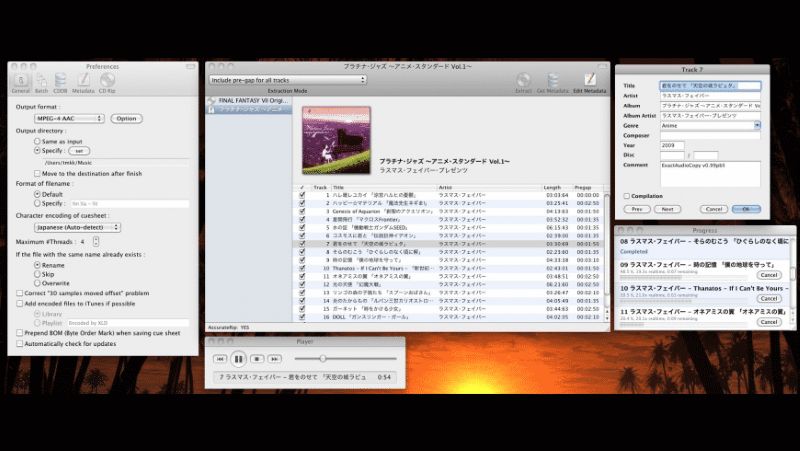
XLD — Performance Data
1. Audio Quality of File A "DarkSideMoon.dsf":
- Input: 250 MB DSD64 file (6:00, 1-bit/2.8 MHz)
- Output: Converted to FLAC (24-bit/88.2 kHz)
XLD handled the DSD file without issues. The 1-bit DSD stream was cleanly downsampled into a playable PCM format. This is one of the few consumer tools that performs this conversion correctly while maintaining mathematical precision.
2. Audio Quality of File B "Beatles_AbbeyRoad.cue":
- Input: 500 MB single WAV + CUE sheet, 47:00
- Output: Converted to ALAC (Apple Lossless), split into 17 tracks
XLD read the CUE sheet accurately and split the album into individual tracks. Track gaps were preserved, file names were assigned correctly, and track numbers were tagged automatically. This workflow is handled poorly by many general-purpose converters, but XLD executes it reliably.
3. Metadata
Preserve ISRC codes (unique identifiers for commercial recordings). Handles complex tags, such as sort artist and album ordering, which simpler converters often discard.
4. Speed
Transcoded the DSD file in about four seconds. CD ripping is slower by design to ensure data integrity.
5. Extra Features
AccurateRip verification, detailed ripping and conversion logs, DSD-to-PCM downsampling engine, CUE sheet splitting and CD burning support.
XLD is best suited for Mac users who need “bit-perfect” conversions rather than convenience. It is especially valuable if you work with DSD files, CUE sheets, or archival-grade audio where verification matters more than speed.
6. Audio Ease’s BarbaBatch
BarbaBatch is not your everyday format converter. It is an industrial-strength audio engine designed for professional workflows. The reason it belongs here is simple: some users deal with long-term archives or require true audio tools rather than convenience utilities. In those cases, BarbaBatch is the right choice.
It uses SRP algorithms (sample rate conversion), which prevent digital gloss and aliasing artifacts that cheaper tools introduce when downsampling high-resolution audio, for example, 96 kHz to 48 kHz.
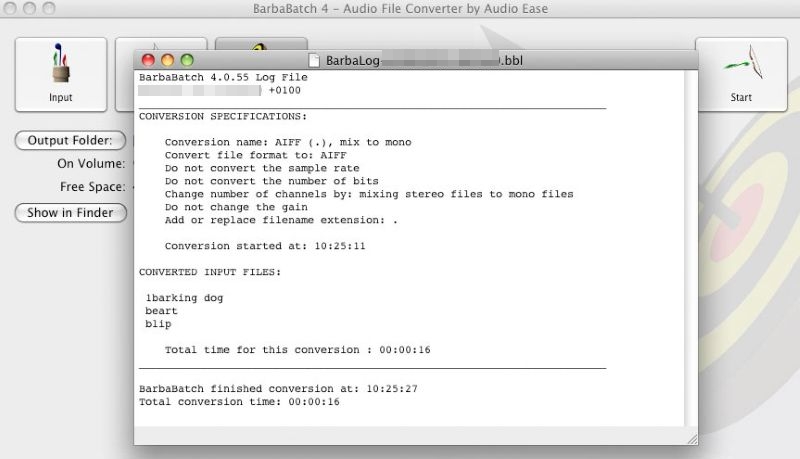
BarbaBatch — Performance Data
1. Audio Quality of File A "Pink Floyd – Time , WAV":
- Input: 160 MB wave file (7:05, 32-bit float/96 kHz)
- Output: Converted to Broadcast WAV (BWF) at 48 kHz, 81MB
BarbaBatch downsampled the high-resolution source cleanly and produced an 81 MB broadcast-ready file. High-frequency detail was preserved throughout the conversion, even the delicate ticking clocks in the song’s intro remained clearly defined after conversion to 48 kHz.
2. Audio Quality of File B "Michael Jackson – Beat It, AIFF":
- Input: 48 MB AIFF file (4:18, 24-bit/44.1 kHz)
- Output: Converted to 4-bit ADPCM
This test was done for a size-restricted delivery workflow. BarbaBatch compressed the track by nearly 90%. While the noise floor increased, the transient punch of the drums remained surprisingly intact for such an aggressive format.
3. Metadata
BarbaBatch goes beyond artist and title tags. It handles timecode data, scene information when required (suitable for video, broadcast, and game-engine pipelines).
4. Speed
Heavy 96 kHz files process quickly. The real strength is stability. BarbaBatch can process queues of 10,000+ files without interruption.
5. Extra Features
Audit logs that generate detailed conversion reports and flag corrupt source files. Look-ahead limiter to prevent clipping during conversion.
BarbaBatch is recommended if you need master-grade quality in a converter.
7. MediaHuman Audio Converter
MediaHuman Audio Converter is good when you live in the Apple ecosystem, though it is available even for Windows users. It is completely free on both platforms and has certain extra features, like adding converted tracks directly into the Music app for Mac users.
Also, it does not give you a lot of confusing options. It's streamlined for simplicity: you drop the files, choose a preset format, and convert. That’s it!
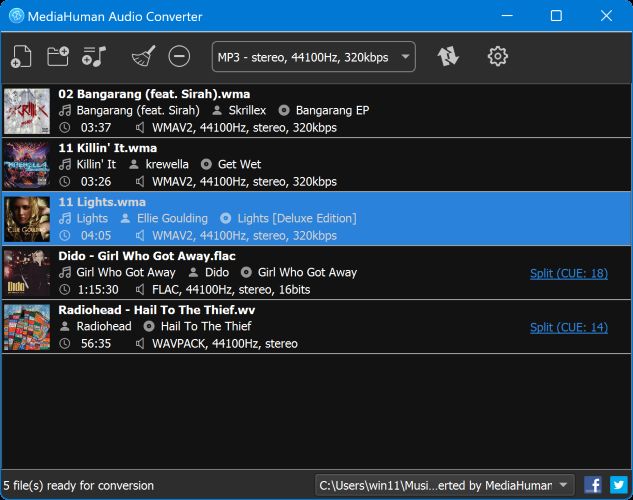
MediaHuman — Performance Data
1. Audio Quality of File A "Kendrick Lamar - DNA.flac":
- Input: 16-bit, 44.1 kHz, 25 MB (3-minute song in FLAC)
- Output: ALAC (M4A), 26 MB, 16-bit 44.1 kHz
Converting to ALAC did increase the file size slightly (26 MB). However, the audio remained identical to the ears. The one convenient thing is that the tracks appear in your Apple Music library and are ready to sync.
2. Audio Quality of File B "Classical Chopin Masterclass (Instrumental)":
- Input: 85 MB OGG Vorbis (60 minutes)
- Output: 86 MB MP3 (192 Kbps)
Even when converting from lossy (OGG) to another lossy format (MP3), MediaHuman handled the transition smoothly. There were no audible artifacts, which are very common when using online converters.
3. Metadata Retention
It retained the original existing tags (title, artist, album tags) for both files. For the classical Chopin track, it even searched the online database to ensure that the correct album art was added before being accepted to Apple Music.
4. Speed
Reliable, but not aggressively multi-threaded like Eassiy or dBpoweramp.
5. Extra Features
CUE splitting, simple format presets, batch converts with folder drag-and-drop.
Choose MediaHuman Audio Converter if your goal is compatibility. You will not get any flexible controls, because it has preset profiles of sample rate and bitrates for each format.
8. foobar2000
foobar2000 is a legend in the audio community. It is primarily an advanced audio player, but it also has a converter component which you can install separately.
Arguably, it is one of the most powerful tools available for free. For example, you can install components to add support for obscure formats (like game audio or SACD ISOs) or advanced DSP effects. However, it is difficult to use. The complex interface gives you granular control that MediaHuman or any other free tools cannot simply match.
For example, you can chain multiple processing steps (e.g., downmix to stereo > normalize volume > then convert to MP3) into a single click.
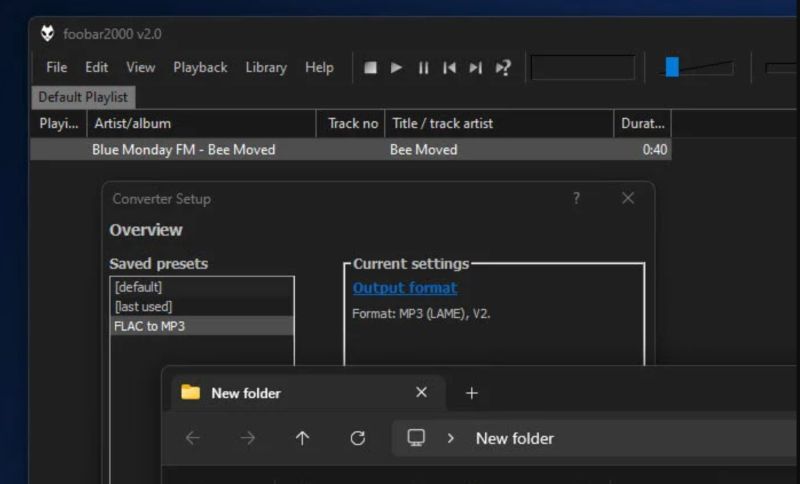
foobar2000 — Performance Data
1. Audio Quality of File A "Metallica - Enter Sandman.wav":
- Input: 5 minute 31 second song, 60 MB, WavPack
- Output: Opus (160 kbps), 6.5 MB
We tested Foobar with Opus at a very low bitrate. The tool compressed the 60 MB lossless file down to a tiny 6.5 MB file, but it did not destroy any heavy guitar distortion.
2. Audio Quality of File B "Nirvana - Teen Spirit.flac":
- Input: 24-bit/96kHz, 5 minute 1 second song, 170 MB
- Output: MP3 (V2 Standard)
We used the Foobar2000 DSP chain to downsample this high-resolution file to a standard 44.1kHz MP3 and we also applied volume normalization during the conversion. The result was a standard MP3 that sounds decent.
3. Metadata Support
One of the best tag editors in the business. You can even script complex tagging rules (e.g., "if artist is empty, use folder name").
4. Speed
Extremely lightweight.
5. Extra Features
DSP Chain: You can add effects, like crossfader, downmixer and equalizer directly into the conversion process.
foobar2000 is recommended for “power users” who need total control. It is not beginner-friendly. There are very few video tutorials available. So if you are new to audio conversion, it can take time to understand how its components, encoders, and DSP chains work. However, once learned, it will give you a level of control that most free tools cannot provide.
Final Words
All eight tools on this list can convert a song from one container to another. You should choose one depending on your workflow:
- For an all-in-one station: Eassiy Video Converter Ultimate is the most robust choice. It can handle high-speed batch conversion and metadata editing without crashing. Plus, it delivers studio-grade results while staying simple to use.
- For Apple purists: MediaHuman Audio Converter or XLD are suitable. They come with features that are convenient when you’re in the Apple ecosystem.
- For audiophiles: If you want to script complex DSP chains or normalize volume during conversions, Foobar2000 offers a level of control that even paid software often doesn't match.