

Lossless audio is the new standard, but the problem is simple: there is no “universal” lossless format. Files stored in FLAC, WAV, AIFF, or ALAC don’t work equally well across all devices. Some formats refuse to play on certain platforms. Others are simply too large for comfortable, portable listening.
The good news is that this is easy to manage with the right converter. A proper lossless audio converter lets you move your music into a more compatible format, and even reduce file size by up to 40 percent, without dropping a single bit of audio quality.
That’s where this guide comes in. We tested the 12 most popular lossless audio converters across Windows, macOS, iOS, and Android, and picked the 9 best, so you can choose the one that actually fits your needs.
Overview of Lossless Audio Converters
A lossless converter lets you move your high-fidelity audio—like songs in FLAC or WAV—into a new container (such as ALAC or AIFF) without dropping a single bit of information.
Here, precision matters. Think of moving water from a glass mug into a ceramic one. Only the “container” will change. The water inside will remain exactly the same. In the same way, lossless converters keep the output mathematically identical to the source file in quality and detail.
You can use these tools on the desktop, browser, or as a mobile app. Each comes with its own benefits and trade-offs. Here's a table to help you choose the one for you.
Uses your full CPU power.
Process huge files freely. Requires installation.
Takes up disk space.
Works on PC, Mac, or Mobile. You must upload files to the web.
Dependent on your internet speed.
Often restricted (e.g., max 100MB).
Save the converted file to your music folder. Algorithms are not fine-tuned for “bit-perfect” conversion.
Differences Between Lossless Audio Formats
Lossless itself means that they will preserve audio quality perfectly. And the sound is identical. They only differ in compatibility and the file size. So, your choice should depend on where you play the files and how much storage you have. Here’s a table:
 Lossless
 (identical to source) Compressed
(50 to 60% of original size) Gold standard for storing and archiving music.
Save space without losing quality.
Note: It isn't natively supported by many devices like iPhone.
 Lossless
(uncompressed PCM)
Uncompressed
Lossless
(uncompressed PCM)
Uncompressed(100% size, files are huge) Require no decoding processes.
Preferred in editing and mixing tools.
 Lossless
(identical to source) Compressed
(50 to 60% of original size) Apple's "FLAC".
Who wants high resolution audio inside iTunes, Apple Music, or on iPhone.
 Lossless
(uncompressed PCM) Uncompressed
(100% size) Very much similar to WAV. But has better metadata support.
Used by professionals on Logic Pro or Final Cut.
Lossless Audio Converters: How and What We Test
Before moving on to the actual reviews first, let's look at what type of tools we looked at and why. This section will explain this to you.
What We Test
We didn't pick up the first few names that came from a Google search. To really find out the best in class tools, we scanned Reddit pages, Rate Your Music, Gearspace, and other platforms to come up with the tools that actually are used by actual users. From there, we made a shortlist of the 12 candidates—professional tools and popular mobile apps.
But we then examined each based on the platform support, format compatibility (like lossless codecs like FLAC, ALAC, WAV and AIFF), and their unique support. So here is a full breakdown of every tool we considered for this review.
 Windows, macOS
30 + (including FLAC, WAV, AIFF, ALAC, APE, WMA)
Trial or US$39.99/year
GPU acceleration (60×), noise removal, video-to-audio
Windows, macOS
30 + (including FLAC, WAV, AIFF, ALAC, APE, WMA)
Trial or US$39.99/year
GPU acceleration (60×), noise removal, video-to-audio
 Windows, macOS, Linux
FLAC, APE, WavPack
Free
Portable mode, chapters, USB-ready
Windows, macOS, Linux
FLAC, APE, WavPack
Free
Portable mode, chapters, USB-ready
 Windows, macOS
FLAC, ALAC, WAV, AIFF, APE
Free
iTunes auto-import, folder retention, CUE splitting
Windows, macOS
FLAC, ALAC, WAV, AIFF, APE
Free
iTunes auto-import, folder retention, CUE splitting
 macOS
FLAC, AIFF, DSD, etc.
Free
AccurateRip, secure ripping, detailed logs
macOS
FLAC, AIFF, DSD, etc.
Free
AccurateRip, secure ripping, detailed logs
 Windows, macOS
FLAC, ALAC, WAV, DSD, and more
US$39
DSP effects, metadata batch editing
Windows, macOS
FLAC, ALAC, WAV, DSD, and more
US$39
DSP effects, metadata batch editing
 Windows
FLAC, WAV, AIFF, ALAC, DSD, etc.
US$40
Parallel processing, disc burning, ReplayGain
Windows
FLAC, WAV, AIFF, ALAC, DSD, etc.
US$40
Parallel processing, disc burning, ReplayGain
 Web (Browser)
FLAC, WAV, AIFF, ALAC
Freemium
Cloud-based, API access, no install
Web (Browser)
FLAC, WAV, AIFF, ALAC
Freemium
Cloud-based, API access, no install
 Android
FLAC, WAV, AIFF, ALAC
Free (Ads)
Offline conversion, mobile batch jobs
Android
FLAC, WAV, AIFF, ALAC
Free (Ads)
Offline conversion, mobile batch jobs
 iOS
FLAC, WAV, AIFF
Freemium
Local + cloud processing, “Open In” support
iOS
FLAC, WAV, AIFF
Freemium
Local + cloud processing, “Open In” support
 Windows, macOS, Android, iOS
All (component-based)
Free
Deep customization, ReplayGain, gapless
Windows, macOS, Android, iOS
All (component-based)
Free
Deep customization, ReplayGain, gapless
 Windows, macOS, Android
75+ formats (incl. DCT, DSS)
Freemium
CLI automation, normalization
Windows, macOS, Android
75+ formats (incl. DCT, DSS)
Freemium
CLI automation, normalization
 Windows, Android
FLAC, APE, WavPack, TAK
Free
Tag editor, scheduler, built-in player
Windows, Android
FLAC, APE, WavPack, TAK
Free
Tag editor, scheduler, built-in player
How We Test
We understand that different users have very different goals. Archivists care about bit-perfect accuracy. Casual listeners usually just want compatibility and a simple-to-use tool. Some users focus on speed, while others care more about metadata and long-file stability.
To cover all these cases, we converted the following three files using all the above tools to evaluate the speed, accuracy, and metadata retention:
Test File 1: Everyday Music Conversion
File: Taylor Swift’s AntiHero (FLAC)
Specs: 3:20 duration | 24-bit / 44.1kHz | 40 MB

To test the basic conversion speed (FLAC to ALAC) and how well each tool manages metadata (track information, album art, etc.).
Test File 2: High-Resolution Studio Master
File: DaftPunk by Give Life Back To Music (Wav)
Specs: 4:35 duration | 24-bit / 88.2kHz | 150 MB
This track is famous for its dynamic range. So we tested if the converters could really preserve the non-standard (88.2kHz) sample rates without forcefully downsampling to 48kHz.
Test File 3: Long-Form Audio Stress Test
File: JoeRogan Podcast — Elon Musk Ep.1169 (AIFF)
Specs: 157:29 | 16-bit / 44.1kHz | 1.6 GB

Long, uninterrupted audio files often expose stability issues. We used this one-hour AIFF excerpt to see how each tool handled large files over 500 MB. We used the long podcast file because many tools crash or freeze when processing a single file larger than 500 MB.
Evaluation Criteria
Throughout the testing process, we graded each tool on the following criteria:
- Security (data privacy)
- Audio quality (bit-perfect accuracy)
- Metadata retention (ID3 tags and album art)
- Conversion speed
- Software usability
- Batch processing capability
After completing these tests, we eliminated three tools. One example is AIMP, whose conversion features are too buried for average users. We ultimately shortlisted the nine best lossless audio converters, which you’ll see in the detailed results below.
9 Best Lossless Audio Converters [Online/Desktop/Mobile]
Now it’s time to look at the tools themselves. Let’s move through them one by one.
1. Eassiy Video Converter Ultimate
Eassiy Video Converter Ultimate’s audio converter stands at the top of the list, because it is the most referred platform for simple and bit-perfect conversions.
Eassiy Video Converter Ultimate comes packed with features: video suite (20+ editing tools), video converters, video and audio production features, and a dedicated audio converter. When it comes to lossless audio conversion, Eassiy decodes the original PCM data and rewraps it into the target container. It keeps the original sample rate and bit depth intact unless you explicitly tell it to change. Before converting the audio format, you can edit the audio, such as adjusting the sound quality, or splitting and merging audio files.
Eassiy is suitable for both beginners and advanced users. For instance, if you are converting files for Apple devices or editing software compatibility, the default settings are enough and the interface will not overwhelm you.
And the best thing is that Eassiy utilizes hardware acceleration to even handle large libraries without freezing.
Testing Experience
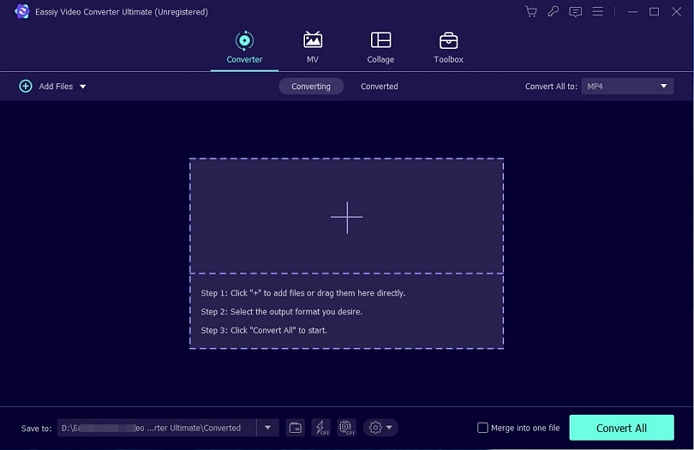
Using Eassiy Video Converter Ultimate is refreshingly straightforward. It does not overwhelm you with tons of options or confusing panels. You can simply drag a song and set your output settings and then convert them to another lossless codec.
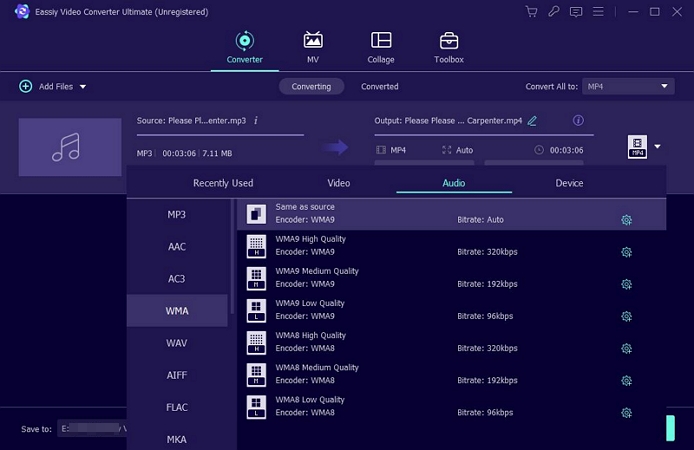
It doesn't matter whether you have uploaded one or hundreds of songs, it can handle the function smoothly. If you need advanced settings, it will give you each of them. You can adjust the bitrate, the sample rate, channel settings, etc.
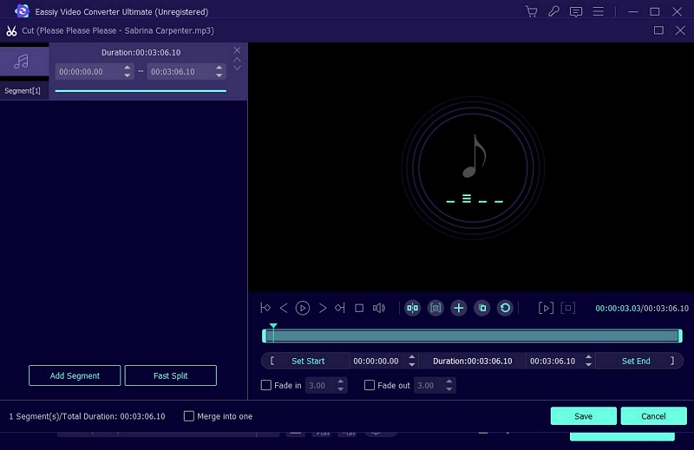
All converted files come out with all the metadata intact, including the cover art, artists information, with no missing or altered tags.
We also specifically tested Eassiy’s CUE sheet handling. Eassiy correctly read the CUE data, split the long file into individual tracks, and saved them as separate files with proper titles and metadata.
2. fre:ac
fre:ac is a plain-looking tool with strong options for lossless audio conversion. It supports all important lossless formats: FLAC, WAV, AIFF, WavPack, and others —making it suitable for clean format-to-format conversion without quality loss.
Another important point is that fre:ac works fully offline. Everything happens on your computer, making it suitable when you are working with sensitive files.
No login required.
Open-source (GPL).
All files will stay on your local machine.
WAV and AIFF output produce identical PCM data.
FLAC / ALAC: Full Vorbis-style tagging support
WAV: Limited tagging, stored in RIFF chunks
AIFF: Better tag compatibility with Apple software
WAV and AIFF convert faster due to no compression.
fre:ac — Testing Experience
Opening fre:ac feels like stepping back into the Windows 98 era. The interface is dated, but it remains functional and predictable.
- For simple conversions, the workflow is easy. You drag your tracks into the main window, choose an output format, and start the conversion.
- fre:ac also provides advanced options depending on the codec. Various compression levels (0-8) when converting to FLAC. WAV and AIFF handling is simpler. Still, you can select bit depth—16-bit or 24-bit, the 32-bit.
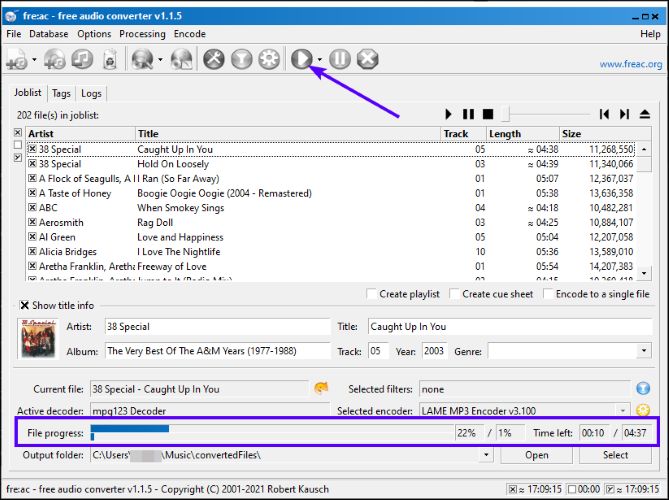
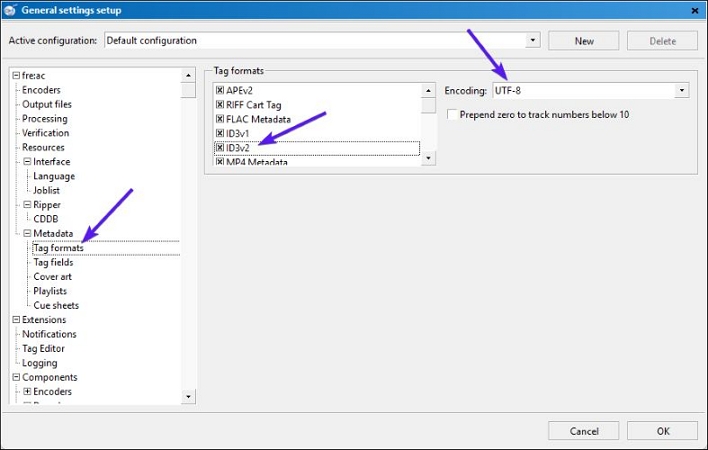
Across both single-file and large library conversions, fre:ac behaved consistently during testing. The folder structures were preserved as-is and files were written sequentially. The best thing is that it does not modify the original files.
3. MediaHuman Audio Converter
MediaHuman Audio Converter is the exact opposite of fre:ac (but still 100% free). It will suit you if you are an Apple ecosystem user. In fact, it is really famous among Mac users and Windows users who manage iPhones. At the same time, it also works well for anyone looking for a powerful lossless-to-lossless converter that is simple to use.
That simplicity, however, comes with limits. MediaHuman relies on preset profiles, where you’ve to select the output format and a fixed profile defining sample rate and bit depth, and the conversion will happen strictly at that level.
So unlike fre:ac, it does not offer manual compression controls for formats like FLAC. Instead, it focuses on clean lossless conversion: decode the source to PCM and re-encode it into other lossless formats.
No account login.
Supports:
FLAC to ALAC
WAV to AIFF
FLAC to WAV without compression.
WAV/AIFF output supports up to 32-bit with sample rates up to 192 kHz.
Can auto-fetch missing cover art via online databases (like Discogs/Last.fm) when enabled.
Tag handling is strongest for FLAC, ALAC, and AIFF. WAV tagging depends on the container.
Optional folder structure preservation options.
Handles multi-album CUEs without manual interventions.
MediaHuman Audio Converter - Testing Experience
It is really simple to use: you drop a file, select your format profile (such as a WAV Standard, FLAC profile, or ALAC profile) along with the bitrate (up to 32 bits for lossless conversions), and hit the convert button, and MediaHuman will change the container.
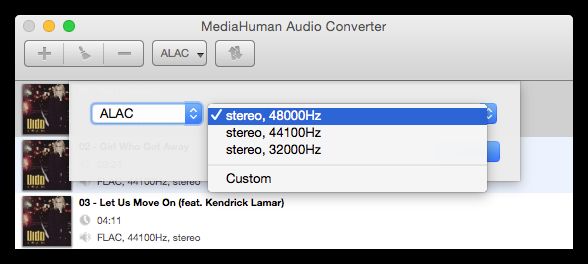
Like fre:ac, it also does not overwrite your original files. It also handles batch files, keeps the original folder structure after conversion, and lets you control whether tags will be written or skipped.
The "Add to iTunes or Music app" button makes it convenient for Apple users to save the converted albums in their library with all the artwork and meta tags intact.
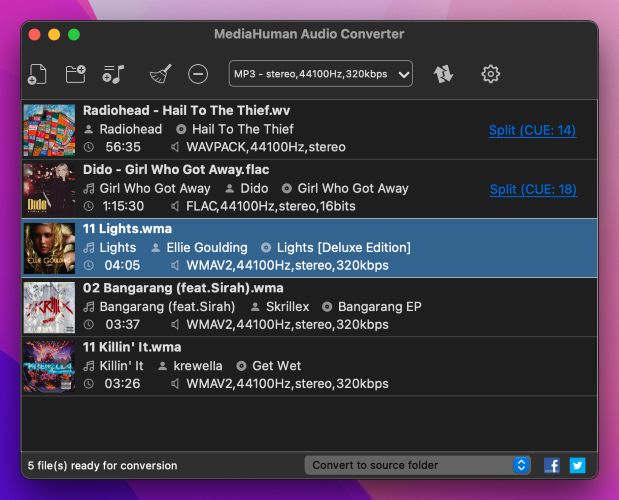
MediaHuman is also really famous for its CUE sheet handling. So we also submitted a 60-minute WAV file paired with a CUE file (tiny text file).
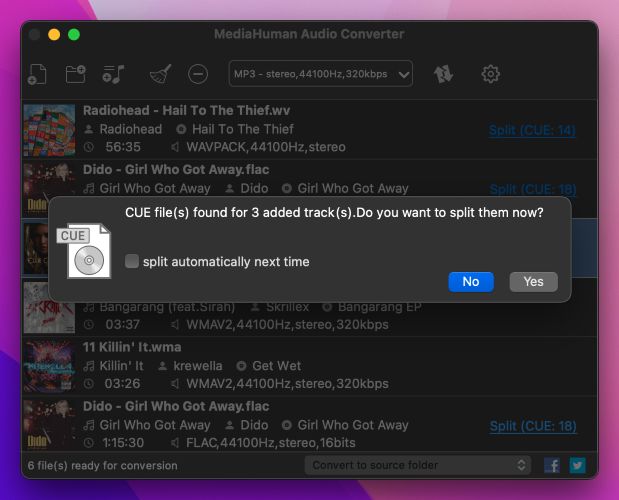
MediaHuman automatically reads the CUE file, splits the tracks and saves them as separate files with proper metadata (in our case, 14 separate tracks). Keep in mind that most basic converters simply change codec without reading the CUE file, but MediaHuman will handle this on its own.
4. XLD (X Lossless Decoder)
XLD (X Lossless Decoder) is a Mac-exclusive lossless audio converter. It is built with a very specific mindset: precision first. The entire design focuses on mathematically accurate lossless conversion, album integrity, and verification of results. Because of that focus, XLD is not as simple to use as MediaHuman.
When it comes to lossless formats, XLD supports everything you would expect: AIFF, WAV, FLAC, Monkey’s Audio (APE), WavPack, and more.
Runs 100% locally with no network dependency.
Trusted by the Mac audio community for over 15 years.
Produce bit-perfect lossless output.
Support exotic formats like DSD (.DSF) and SACD ISOs.
Integrates with MusicBrainz.
Support advanced tags (composer, sort artist, etc.) relied on by Apple Music and iTunes.
Transcoding is fast. Secure ripping is intentionally slower to ensure accuracy.
You can drop unlimited folders onto the Dock icon and XLD will process them recursively.
Handle 32-bit float files and high-resolution masters without crashing.
XLD — Testing Experience
XLD barely has a visible interface. Most of its configuration lives inside Preferences. You set your output format once, choose how files should be decoded and verified, and from that point on, XLD will work automatically.
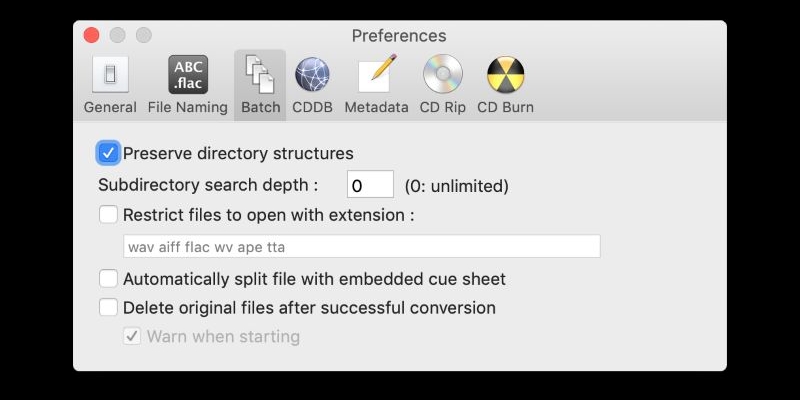
Once configured, usage is simple in practice. You just have to drag files or folders onto the XLD Dock icon. XLD will start the conversion using your predefined rules and save the output.
We also tested XLD with DSD files (.dsf)—a format commonly used in Super Audio CDs and sold on platforms like HDtracks. Many converters cannot open these files at all while XLD handled them without issue. It allowed us to downsample a 1-bit DSD stream into a playable 24-bit/88.2 kHz FLAC file. And the resulting audio was clean and detailed.
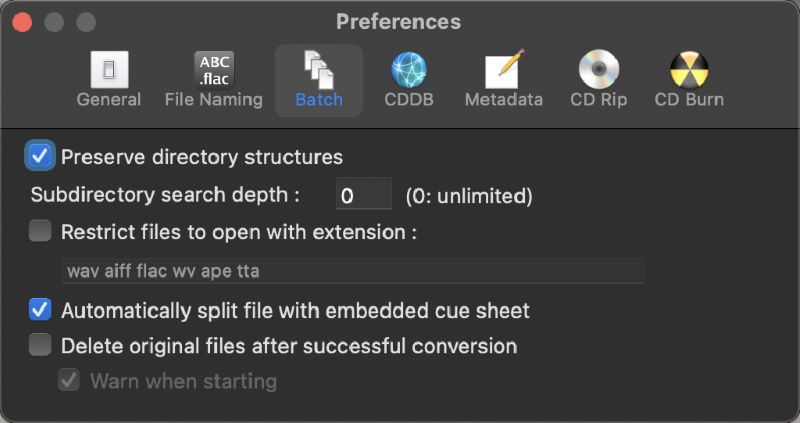
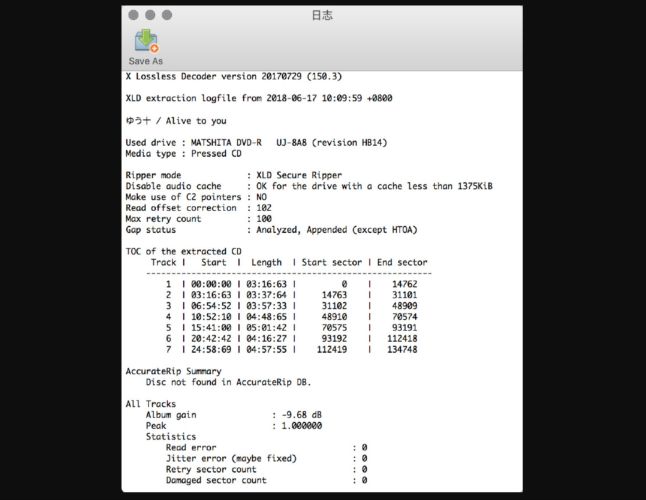
Another important detail is logging. XLD will generate clear logs for every operation, showing either a “No Errors” or “Decode failed” message. So you can identify issues easily.
Overall, XLD is built for Mac users who prioritize precision over convenience.
5. dBpoweramp Music Converter
dBpoweramp Music Converter is a professional-grade audio conversion tool. Unlike FreeAC or XLD, this is a paid application, but it offers a fully functional 21-day trial. After the trial, the Reference version costs US$36.
What makes dBpoweramp stand out is its history and focus. It is the tool that invented AccurateRip, a system that verifies audio against a global database to confirm that your rip or conversion is bit-perfect.
Another area where dBpoweramp excels is metadata. It uses PerfectMeta to simultaneously search multiple databases—Discogs, MusicBrainz, GD3, etc.—to automatically select the most accurate tags.
Support dynamic naming rules.
Utilize every CPU core on Windows and macOS.
You can queue extremely large libraries and walk away.
Corrupt files are logged and skipped without stopping the process.
dBpoweramp — Testing Experience
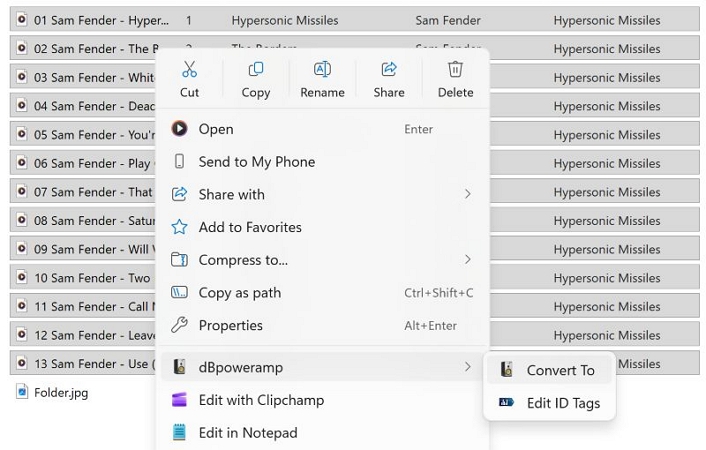
dBpoweramp is one of the easiest tools to use in this category. After installation on Windows or macOS, conversion will be integrated directly into the system. You can select your music files or folders in Finder or File Explorer, right-click, and choose Convert With dBpoweramp.
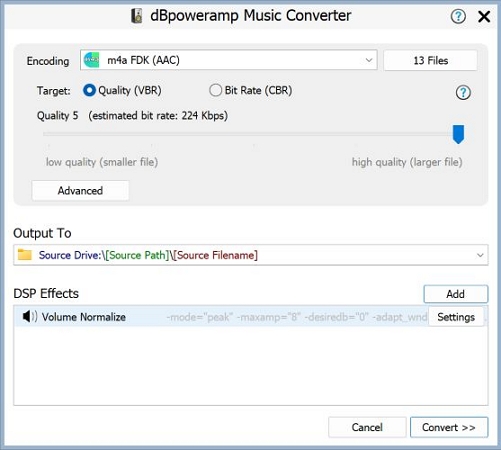
The conversion window lets you pick the output codec, adjust the bitrate, and choose the destination folder. There are also 20 DSP effects you can apply to the outputs, like graphic equalizer, volume normalization and ReplayGain.
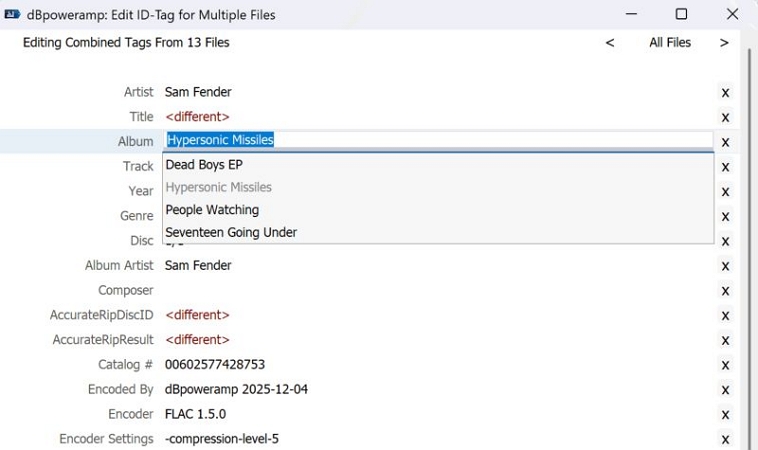
Tag editing follows the same right-click workflow. You can edit tags for a single file or auto-fill metadata for entire albums at once. Internet artwork search is built into the same editor, so covers and album data can be fixed without leaving the app.
So files named something generic like Track01.flac will automatically be renamed using proper metadata—like Bob Dylan – Like a Rolling Stone.flac (complete with high-res artwork and correct year).
6. EZ Audio Converter
EZ Audio Converter comes from a Finnish software company focused on high-quality audio conversion and CD-ripping tools. It is clearly polished for today’s systems, but it is Windows-only.
The tool is available in both a free version and a paid version. The paid license costs US$ 40 (lifetime purchase). It also includes 24× support, faster processing, premium metadata handling, and full access to its CD-ripping and archive features.
One-time license purchase.
No cloud uploads.
Verifies rips against a global database.
DSD decoder is among the best available on Windows.
Full support for high-resolution and gapless audio.
Note: The free version has very limited metadata sources compared to the paid version.
Paid version unlocks parallel processing (up to 64 files at once). One of the fastest tools in this list after Eassiy.
EZ Audio Converter—Testing Experience
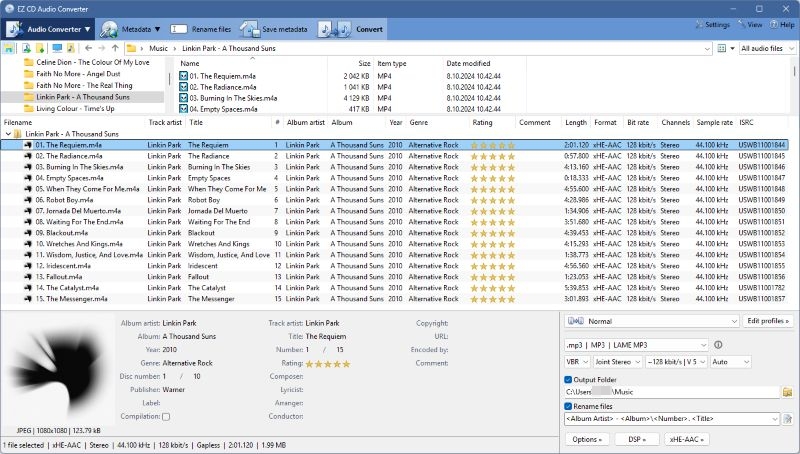
Even if you’re a beginner, EZ Audio Converter will feel straightforward. You open the app, browse to where your audio files are stored, and click Convert. You can adjust output settings before conversion, disable metadata writing if needed, or define your own tag rules.
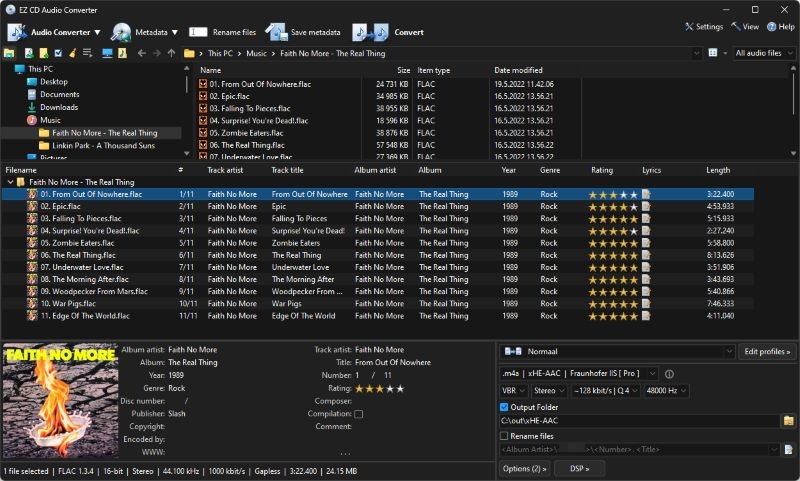
One useful detail is preset saving. You can create profiles such as FLAC archive, WAV archive, or ALAC archive, and reuse them later with a single click.
Speed is where the free and paid versions feel very different. In the free version, files are processed one by one. When testing the paid version, parallel processing immediately kicked in. On our system, it converted eight files at the same time (matching our 8-core CPU). The entire album finished in around three seconds. If you are running a 16-core system, this tool will become a monster.
EZ Audio Converter also has a clear advantage with DSD. Unlike dBpoweramp, which often requires extra codec downloads, EZ Audio Converter handles DSD files out of the box.
Overall, EZ Audio Converter sits close to dBpoweramp in capability. If you want a more “studio-like” interface where you can visually manage tags, profiles, and conversions in one place, EZ Audio Converter is the better pick.
7. CloudConvert
CloudConvert is an online audio converter. It supports more than 200 audio formats (including FLAC, ALAC, WAV, and AIFF).
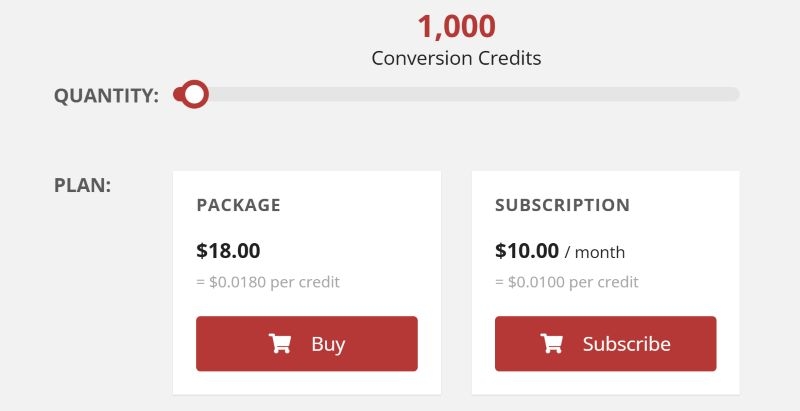
That said, it is not really a free tool. The free tier is limited to 25 conversions per day. After the 25 free conversions, you either move to a pay-as-you-go credit system or a subscription starting at around US$10 per month (only 1000 credits/mo). So CloudConvert is impractical for frequent or large-scale use.
Uses ISO 27001–certified infrastructure.
Files still leave your machine.
Output matches source data when converting between lossless formats.
No unwanted compression applied to FLAC or ALAC.
Heavy metadata such as embedded lyrics will be stripped to reduce bandwidth usage.
Real bottleneck is upload and download speed.
No folder structure preservation.
CloudConvert servers are generally reliable.
CloudConvert — Testing Experience
Using CloudConvert feels completely different from desktop converters. Everything will happen in the browser. So there is nothing to install. You can just visit the site, click Select File, upload them via computer or pull directly from Google Drive or Dropbox, choose the output format, and start the conversion.
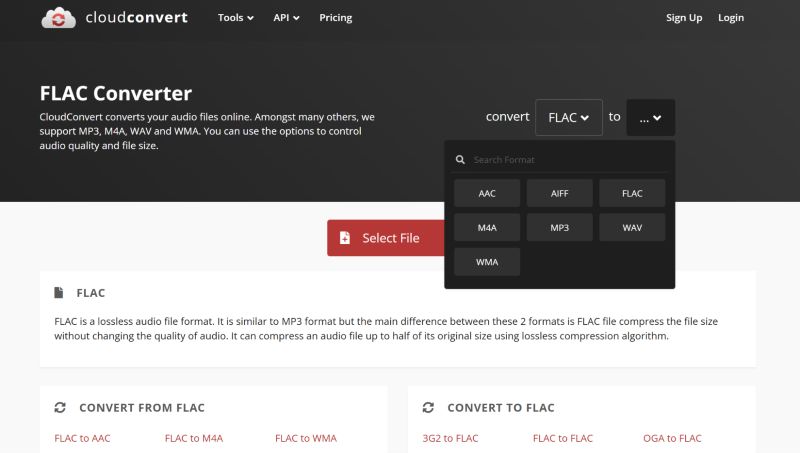
You’ll also find a few lightweight tools when you set out to convert, such as trimming audio by start and end timestamps. These features are not essential for lossless conversion, but they are useful in small cases, like trimming a WAV file down to a 25 MB sample to share with someone via email.
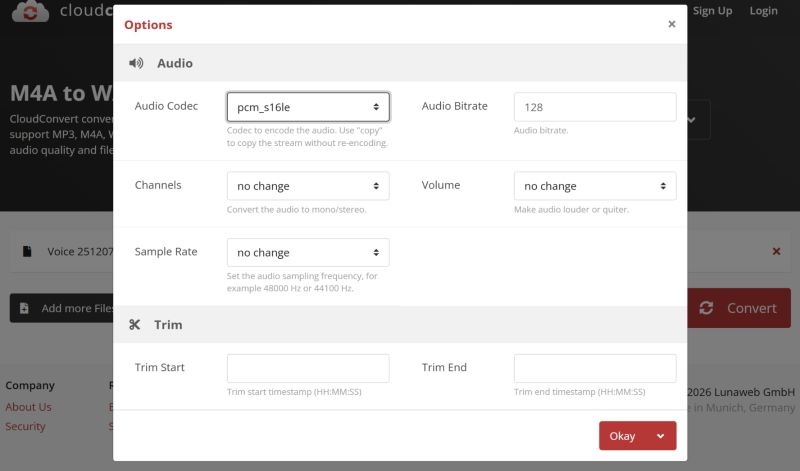
Even though batch upload is supported, processing will still happen file by file on CloudConvert’s servers. Because of this, conversion time can be long, especially with large lossless files. Also, there are no advanced batch rules or metadata editing options. This makes CloudConvert unsuitable for large libraries or serious archive work.
8. Audio Converter by BDroid Team (Android)
Finally moving to mobile, Android is a mixed bag when it comes to audio converters. Many apps that claim to be converters simply upload your files to a server and process them remotely, much like cloud tools. Those are not real offline converters.
Audio Converter by BDroid Team is one of the few prominent Android apps that actually converts audio on the device itself. It has over 5 million downloads ( 4.5-star rating/22K+ users). That rating largely comes from one thing: its offline engine.
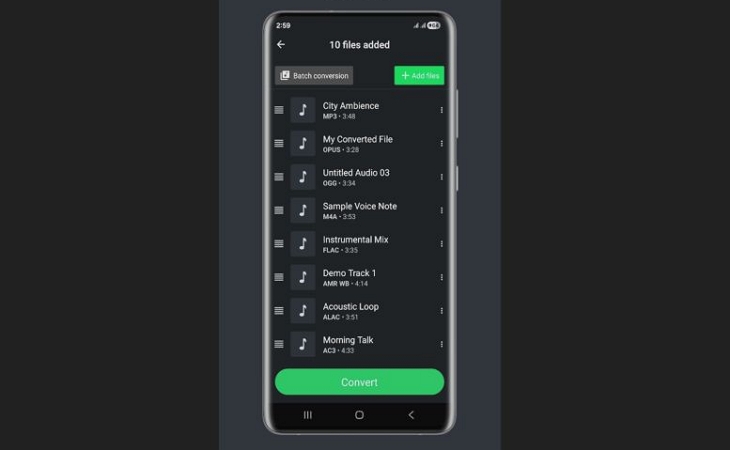
You can select up to around 20 files at once.
Audio Converter by BDroid Team—Testing Experience
Audio Converter by BDroid Team uses a straightforward, mobile-first interface. The workflow is simple. You pick a file from your phone’s storage, choose an output format, tap Convert.
You will get basic controls for bitrate, sample rate, and channel layout. Volume normalization is also available, though it is inconsistent and not for precise audio work. Still, the options are there.
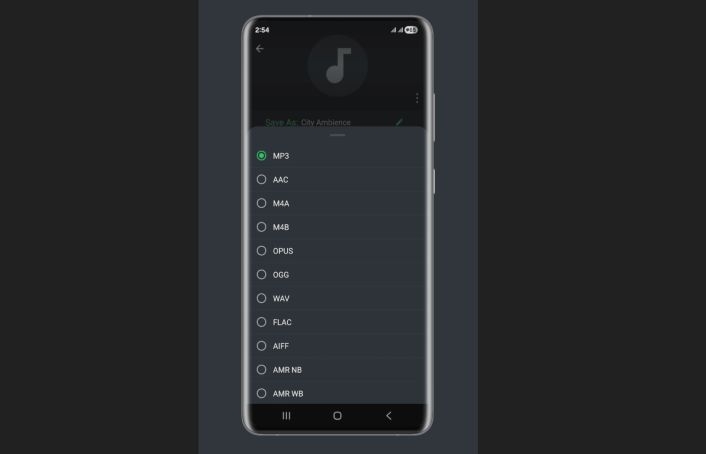
Batch conversion works, but it is not as smooth as desktop tools. Files are processed one by one, and the queue system feels basic. That said, for a mobile app, it does the job.
The main downside is advertising. After converting a few files, you will see a five-second full-screen ad.
9. The Audio Converter (by Float Tech)
Audio Converter by Float Tech is an iOS-only audio converter, built specifically for iPhone users. It only supports limited lossless formats: WAV, FLAC and AIFF.
This app uses a hybrid conversion model. Common formats like MP3 or M4A are converted locally on the device. When you convert heavier lossless formats, such as WAV to FLAC or FLAC to AIFF, the files are uploaded and processed on Float Tech’s cloud servers.
Audio Converter by Float Tech integrates cleanly with On My iPhone, iCloud Drive, and local folders, so you can easily select and convert files without leaving the app.
This tool is meant for simple situations. For example, when an audio file does not play on an iPhone and you want to make it compatible quickly. It is not designed for advanced workflows. Do not expect deep encoder settings, detailed metadata editing, or library-level control.
The Audio Converter (by Float Tech)—Testing Experience
The free version of the app comes with file-size limits. So converting lossless formats requires upgrading to the premium version because of the larger file size. The entry price starts at US$3.99. And there’s even a lifetime option at US$29.99.
Most lossless-to-lossless conversions happen in the cloud. In our test, converting a Daft Punk took 46 seconds over a 5G connection, including upload and processing time.
The workflow itself is simple. However, there are no advanced metadata editors and no flexibility like what is available in BDroid’s Android tool.
In all, use this app only for quick fixes but not for managing or converting a serious lossless music library.
Final Words
If there is one thing we learned from testing these nine lossless audio converters, it's that sound quality isn't the deciding factor. Every tool performs the change mathematically losslessly. So, a FLAC file that you convert with fre:ac or XLD will sound exactly the same.
The real difference lies in the workflow—speed, interface, and other features that you need.
- For speed, large libraries, and tons of editing features: Eassiy Video Converter Ultimate is the clear winner. It works on both Windows and Mac plus it is simple to use. Its hardware acceleration makes it the only tool good for even batch converts.
- For Apple users: You can go with MediaHuman Audio Converter. It bridges the gap between FLAC and the Music app seamlessly.
- For archivists: XLD on Mac and dBpoweramp on Windows are the industry standards.
Ultimately, there isn’t a best tool for everyone. Pick the one that matches your needs and start enjoying your music in the format you prefer.