

Want to download Spotify on your Chromebook? The answer depends on what you mean by “download Spotify.” If you simply want to use Spotify, you can download and install the Spotify app on supported Chromebooks, or access Spotify through your browser without installing anything. But if you mean downloading Spotify music, the process is different. Spotify Premium lets you download songs for offline listening within the app, while saving songs as regular local audio files requires another approach. In this guide, we’ll cover the different ways to download Spotify on Chromebook, from installing the Spotify app and using Spotify Web Player to downloading Spotify music for offline playback.
How to Download and Install Spotify App on Chromebook
Chromebooks can run the Spotify app in different ways depending on the device and its supported features. If your Chromebook supports Android apps, you can install Spotify through the Google Play Store. Alternatively, some Chromebooks allow you to use Linux to install the desktop version of Spotify. The suitable method depends on your Chromebook’s configuration.
With Google Play
Most Chromebooks today come with Google Play Store access, but it’s often disabled by default. Once you turn it on, installing Spotify is as easy as it is on any Android device.
You might think the Android version means a cramped interface, but it’s not. The layout you’ll see is spacious and clean, designed for larger screens. Keep in mind that the Android version is actually better than the web, given you’ll have more control over the Spotify playback. Here are the steps to get the Spotify’s Android version app on Chromebook:
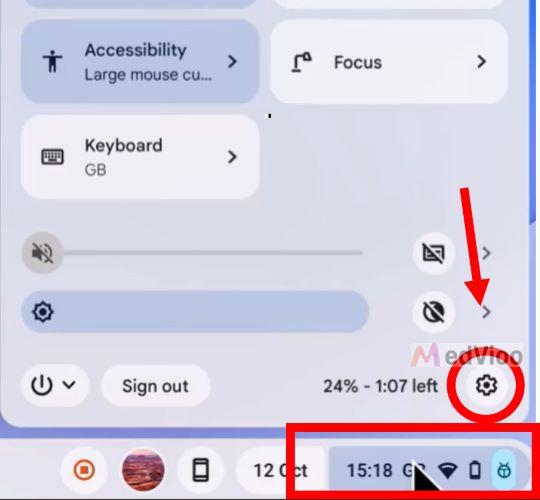
Step 1. Click on the clock in the bottom-right corner of your Chromebook screen. This opens the Quick Settings menu. Then, select the gear icon to open your Chromebook’s main Settings menu.
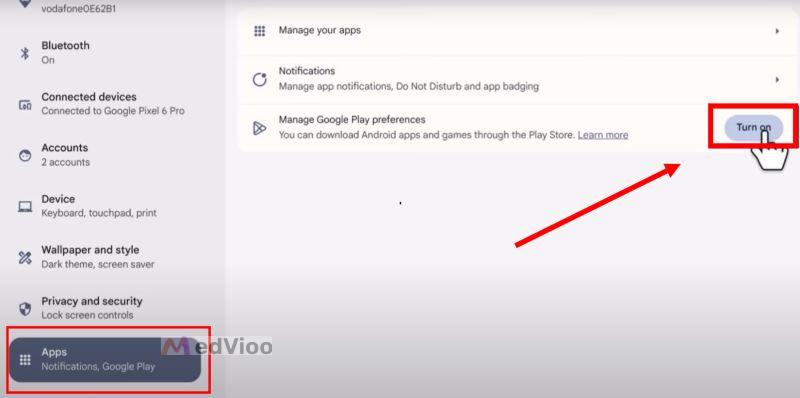
Step 2. In the left-hand sidebar, choose Apps. Find the option labeled Google Manage Google Play Preferences and select Turn On.
Step 3. A pop-up will appear asking you to agree to Google Play’s terms of service. Accept the terms. And the Play Store will open automatically.
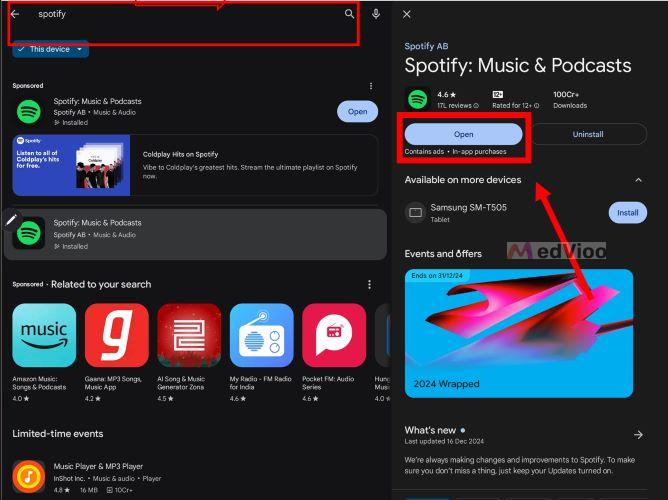
Step 4. Search for Spotify using the search bar of Play Store. Click Install to begin the download.
Step 5. Once installed, open Spotify, log in with your account for accessing your library.
Without Google Play
Some earlier Chromebook don’t have Play Store options. Or you might simply prefer a full desktop interface, much like on Windows or macOS. If that’s the case, Linux-based installations offer a robust alternative. The steps are straightforward. Let’s begin:
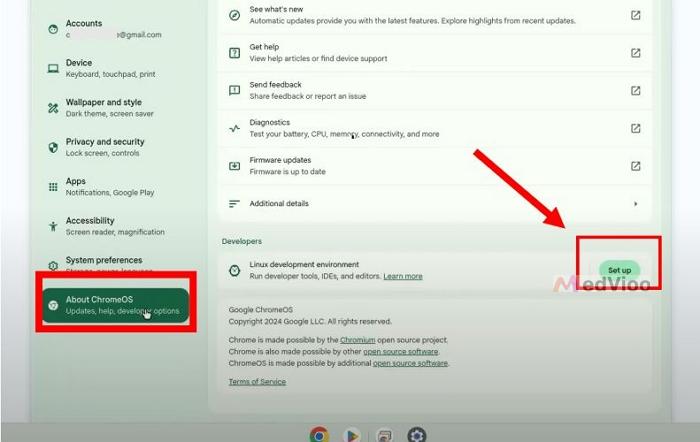
Step 1. Enable Linux Development Environment
- Open Settings menu. Locate and select About ChromeOS in the left sidebar.
- Under Developers, find Linux Development Environment. Click the Setup button next to it and follow the instructions.
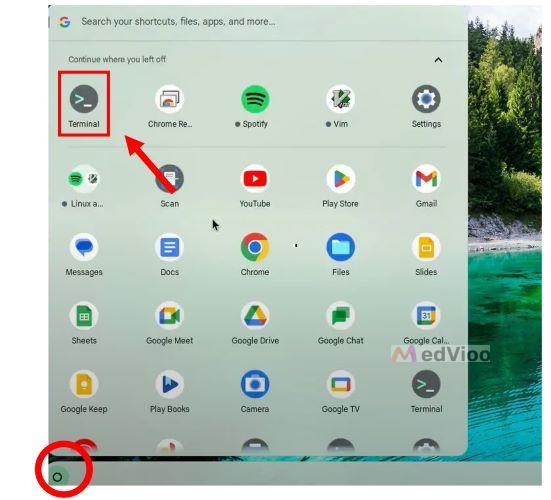
Step 2. Once setup is complete, find Terminal in your launcher. Open it.
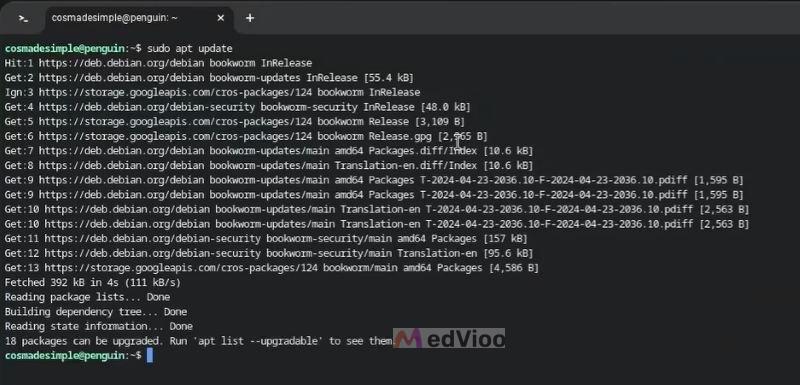
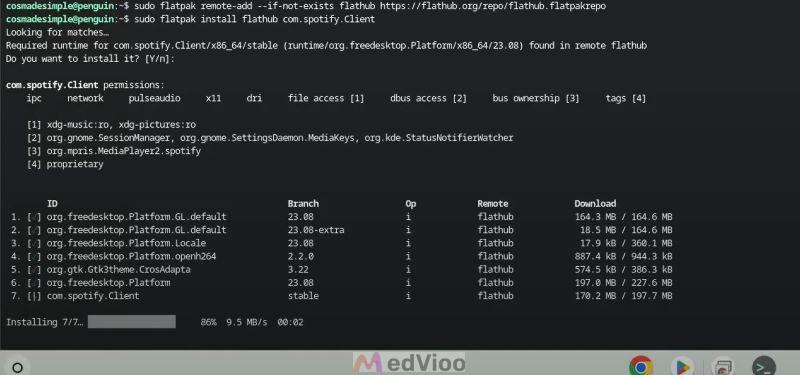
Step 3. Now you’ll install Spotify through Flatpak. This method makes it easier than Spotify's to manage updates and gives access to other apps. Here are the commands in order:
- Update your package list. In the Terminal, type: sudo apt update
- Press Enter. This will ensure your system is ready to install new software.
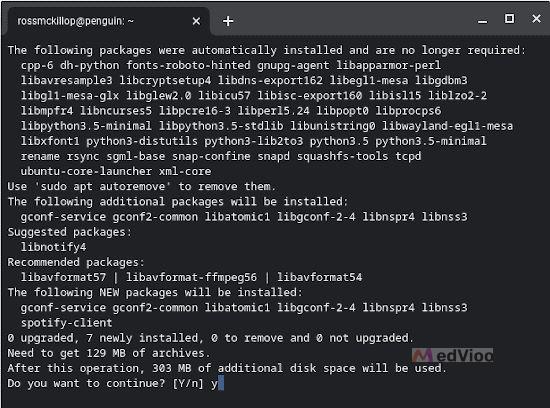
- Once you see your username again on the screen, proceed to install Flatpak. Run the command: sudo apt install flatpak
- And press Enter to confirm installation.
- Flathub hosts Spotify’s installation files. Add it by typing: sudo flatpak remote-add --if-not-exists flathub https://flathub.org/repo/flathub.flatpakrepo
- Press Enter, then type Y when prompted.
- Type the command to install the Spotify client via Flatpack: sudo flatpak install flathub com.spotify.Client
- Press Enter. You will see an Installation complete message upon installation.
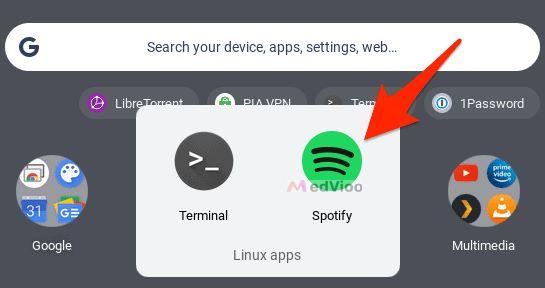
Step 4. Find Spotify in the Linux Apps section of your launcher. Open it, log in it and start streaming.
Tip: How to Use Spotify on Chromebook Without the App
Spotify on a Chromebook actually doesn’t even require installations to stream music. You can play music with Spotify web player like you’d on any device. Simply open your browser, type spotify.com, and log in. That’s it. Your playlists, saved songs, and albums load instantly.
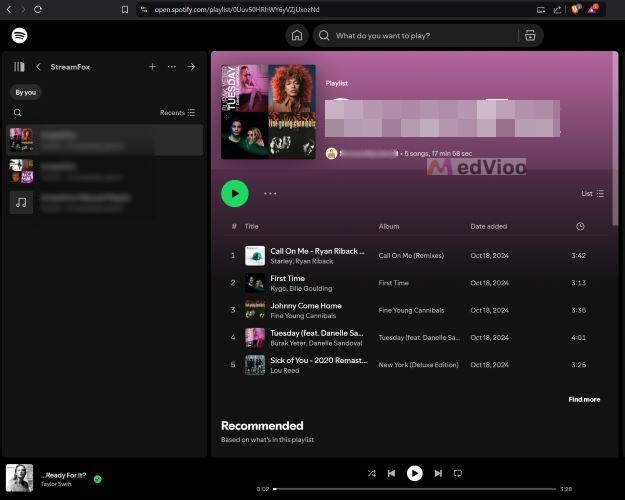
Alternatively, you can use Spotify's Chrome Store version to get a standalone version of the web player. Once you install it, it will appear in your Chromebook’s launcher for quick access. You can just open it, log in if you haven’t already via your browser and play your music.
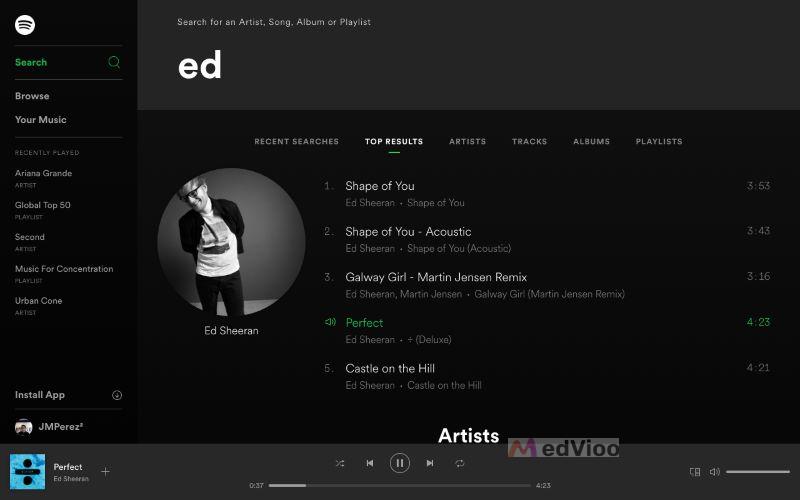
How to Download Spotify Songs on Chromebook
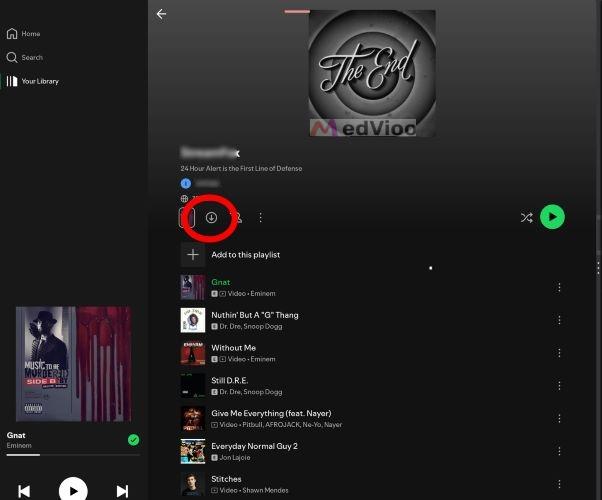
Spotify allows subscribers to save playlists and albums for offline use within the Spotify app. With enough storage space, your Chromebook can hold up to 10,000 songs. Here’s how:
Step 1. Open Spotify. Navigate to the collection you want to download. It could even be from your Spotify library. Select any playlist or album from your library. Look for the download icon in the playback controls. Click it.
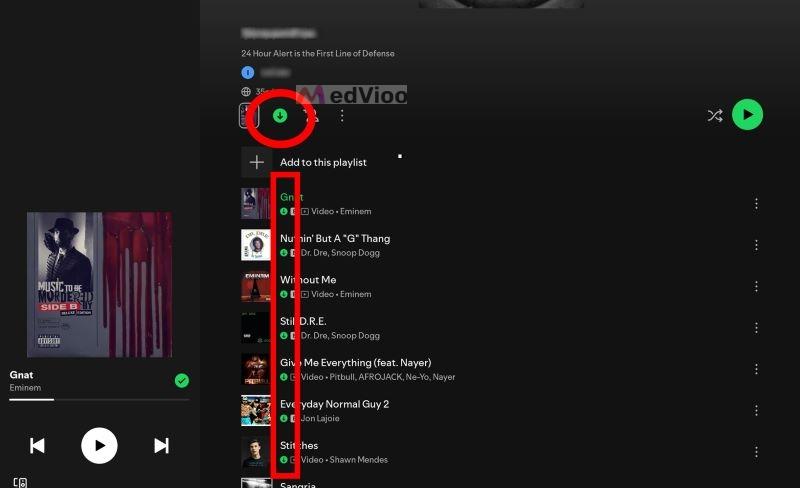
Step 2. Once it turns green, it means your downloads are complete. You will also see the green arrow next to each song.
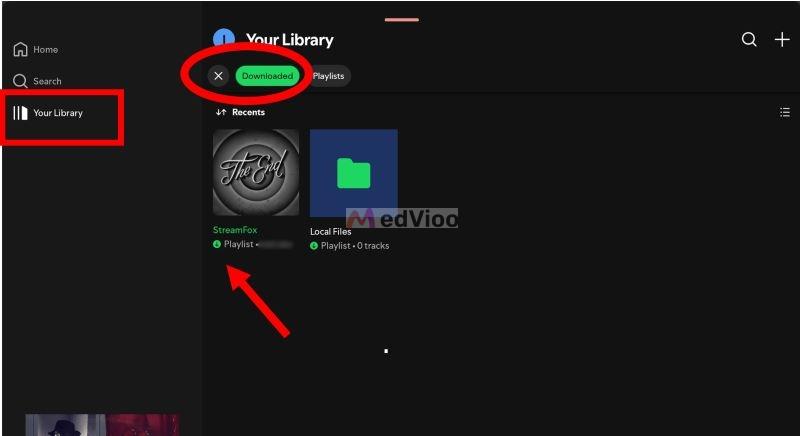
Step 3. You can filter by downloaded tracks in Your Library for future access.
How to Put Spotify Playlist on Hard Drive on Chromebook
To export Spotify playlists to your Chromebook’s hard drive, you need to save the songs as local audio files first. MedVioo Audio Converter can convert songs from Spotify playlists to MP3 and other common formats, which you can then transfer to your Chromebook’s internal storage. The converted songs retain their original playlist order and preserve full ID3 metadata, including song titles, artists, and cover art. You can also choose up to 320 kbps or lossless audio quality. With conversion speeds of up to 30×, MedVioo can process your selected songs quickly.
Steps to Save Spotify Playlists as Local Files on Windows or Mac
Step 1. Download and install MedVioo Audio Converter on your Windows PC or Mac. The setup will be quick and easy to complete.
Step 2. Open the application and choose Spotify from the main screen.

Step 3. Log into your Spotify account through the built-in browser. Enter your Spotify account credentials and you can access your Spotify library without leaving MedVioo.
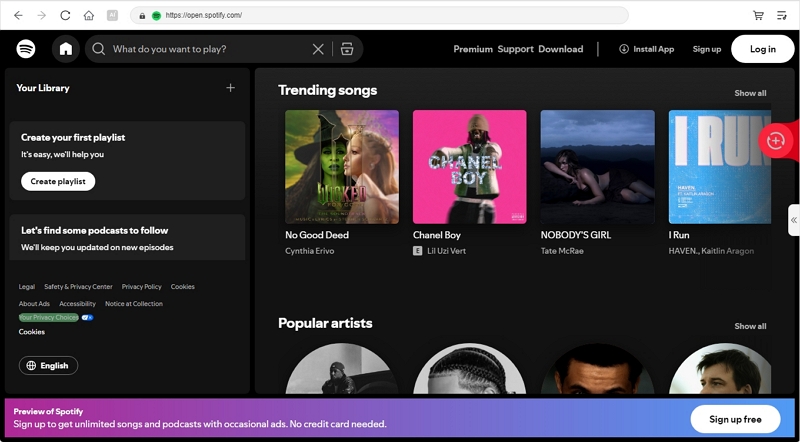
Step 4. Add the playlists you want to save by clicking Add to Convert.

Step 5. In the conversion pane, set the desired output format, audio quality and storage location.

Steps to Transfer Spotify Playlists to Chromebook
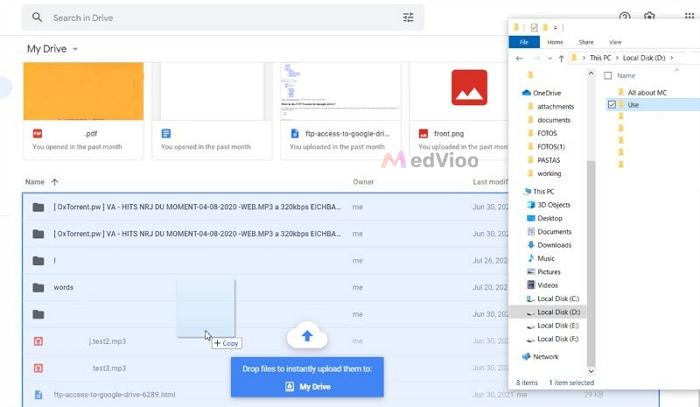
Step 1. Upload the downloaded playlists to Google Drive from your Windows or Mac computer by dragging them in or using the upload button.
Step 2. Open My Drive in the Files app on Chromebook. Ensure you're logged in with the same account used to add the music downloads earlier, you will find your uploaded music.
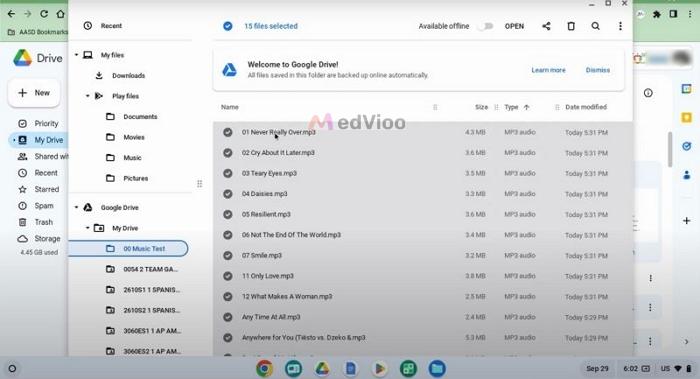
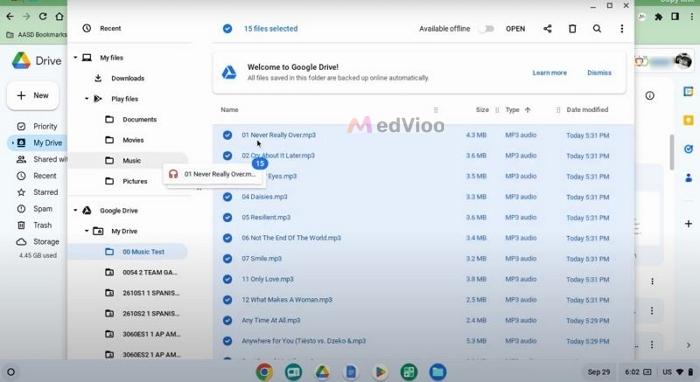
Step 3. Copy the tracks into the Play Files folder, which will save the music directly onto your Chromebook.
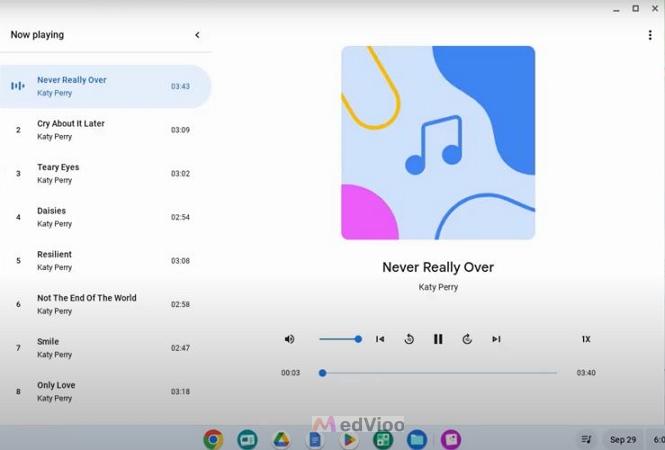
Now, open the Gallery app on your Chromebook and choose the Listen to audio option.
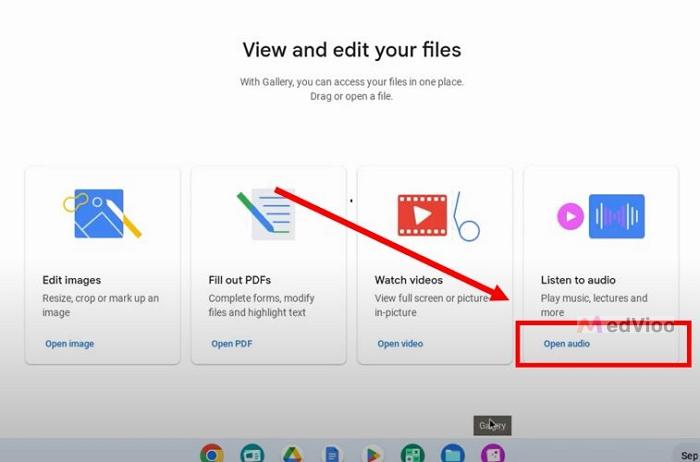
You can play your Spotify music without even installing any third-party app. The built-in player itself gives you enough controls to listen to music seamlessly.
Conclusion
By now, you should know how to download Spotify on a Chromebook, whether you want to install the Spotify app or save Spotify music. If you want to keep Spotify songs as local files on your Chromebook, MedVioo Audio Converter is a useful option. You can use it on Windows or Mac to save Spotify music as MP3, FLAC, and other formats, then transfer the files to your Chromebook via Google Drive or a USB drive.