

When downloading music from YouTube Music on a Windows or Mac computer, you need to sign in to the YouTube Music web player and complete the download process there. However, when you try to play these downloaded songs offline, you may still need to access YouTube Music through a browser and rely on an internet connection for verification or loading. In this sense, it is not truly offline playback.
Because of this limitation, you may prefer to download music from YouTube Music directly to your computer in formats such as MP3 or FLAC, so you can play it completely offline using Windows Media Player, VLC, or other local media players. Next, we will introduce three methods to achieve this.
You May Also Like
How to Download Online Music from YouTube Music to a Computer
Online music on YouTube Music is any song, playlist, album, or podcast that needs a network connection to play. Many people save this music locally on their computers for easy access anytime without an internet connection, to transfer it to older music players, or to add music to their video or slide projects.
There are multiple options for downloading YouTube Music songs on desktop. Some are simple and run without software installation. While others provide more control, such as better audio, batch downloads, and various format options.
Way 1. MedVioo Audio Converter (Desktop Tool)
How This Way Works: It directly extracts music from YouTube Music and converts it into local audio files, such as MP3, M4A, WAV, FLAC and AIFF.
As a desktop-based tool, MedVioo provides a more stable downloading experience. Its built-in YouTube Music player lets you save songs as local files such as MP3, FLAC, and WAV in just three steps. You don’t have to worry about browser instability causing download failures. The output quality can be set to 256kbps or 320kbps, depending on your preference. At the same time, full metadata is preserved, making it easier to identify tracks during offline playback, especially useful when managing a large downloaded library. When saving playlists with hundreds or even thousands of songs, you also don’t need to worry about long conversion times, thanks to MedVioo’s 30× faster processing speed.
Steps to Export Songs from YouTube Music as 320kbps MP3
Step 1: Open the MedVioo website and download MedVioo Audio Converter for Windows and Mac.
Step 2: Once installed, open it up to get several music options. Now, click YouTube Music to save music offline, and it will take you to the built-in YouTube Music browser.

Tip: MedVioo provides you with 3 free trials so that you can test it thoroughly!
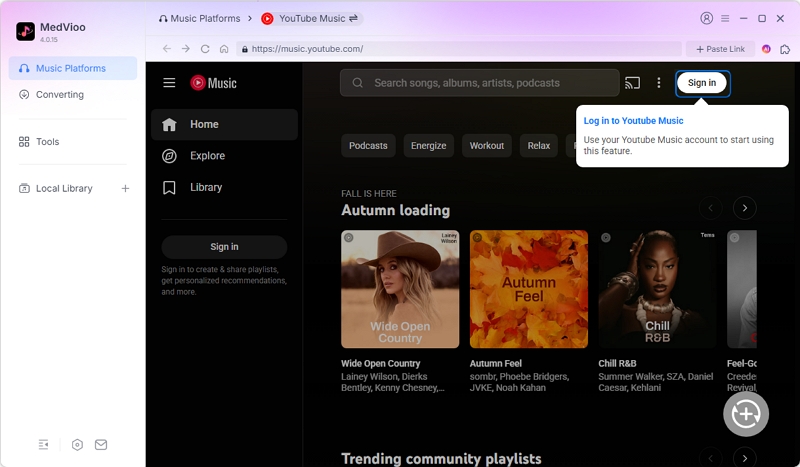
Step 2. Login YouTube Music with your free account. Premium also works here.
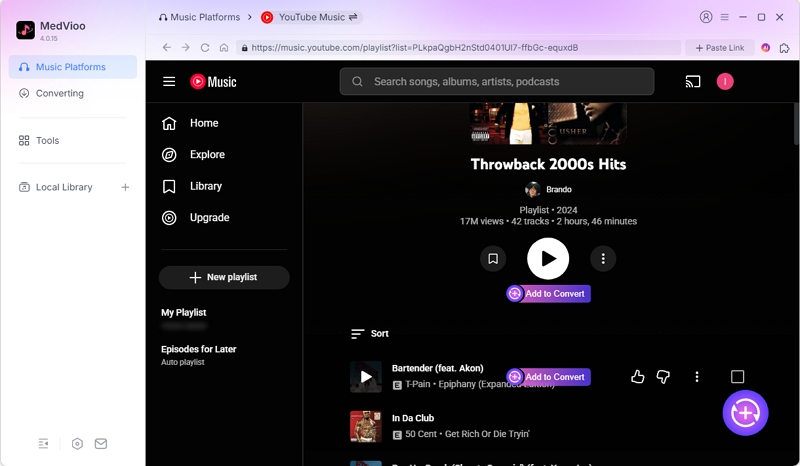
Step 3. Add the desired songs, playlists, albums, or podcast to convert and download. You can hover over the audio and click on Add to Convert. Or drag and drop the track to the “+” button. The selected songs will be shown in the conversion list. You can click Convert Now to directly save them locally.
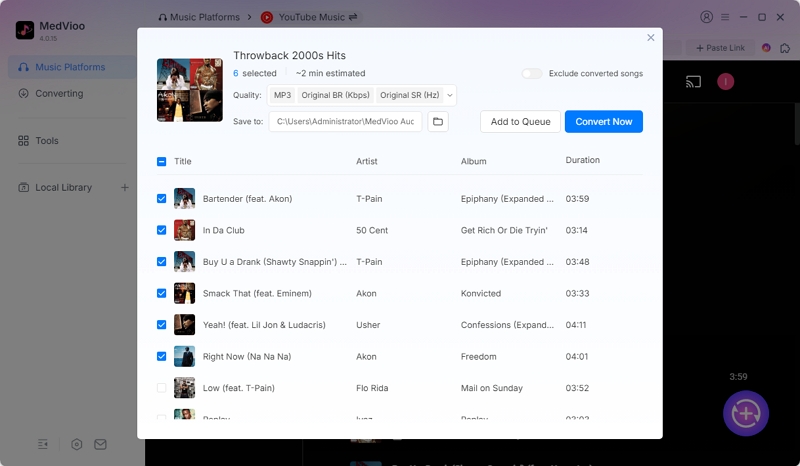
Step 4. Alternatively, you can set the output quality, audio format or storage location before conversion. Finally, hit Convert to start the downloading.
Way 2. Y2Mate (Online Tool)
How This Way Works: This method uses a browser-based converter to process YouTube Music links into downloadable MP3 files. It relies on publicly available or stream-based audio sources, meaning that its audio quality can’t be ensured and could be low.
Convenience is a great feature that many users appreciate about online tools like Y2Mate. Y2Mate can turn a YouTube Music link into a local MP3. It is compatible with most browsers and has no setup or technical requirements. However, there are some drawbacks. Ads and pop-ups are fairly common, download quality may vary from track to track, and playlist support is generally more limited than desktop software. At the same time, you may also notice that the website address keeps changing over time or even gets shut down completely.
Steps to Save YouTube Music Songs as MP3
Step 1: Copy the link of the song from YouTube, either from the address bar or by clicking on the share button below the video and choosing Copy.
Step 2: Go to Y2Mate “https://v3.y2mate.nu/” from your browser.
Step 3: After that, paste your copied link on Y2Mate. Now here you will see 2 options: MP3 Converter and MP4 Converter. Click on the MP3 option. This will convert your link to MP3.
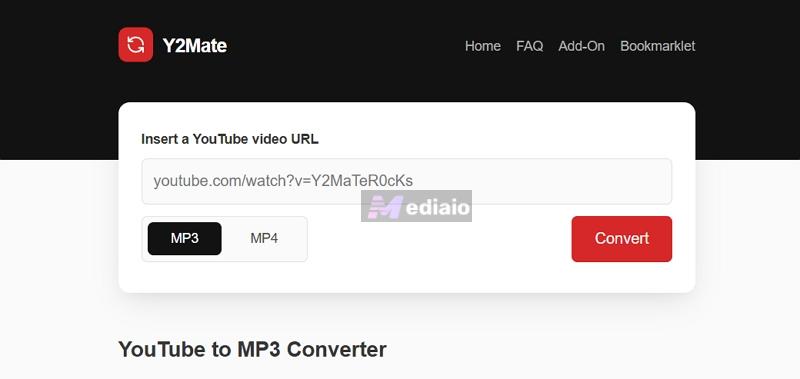
Step 4: After that, the Download option will appear below, press on it.
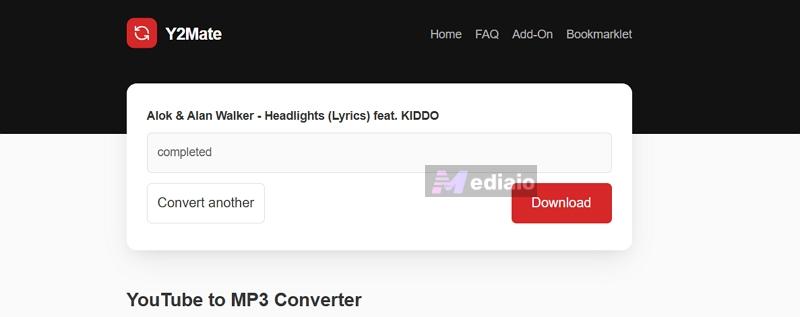
Step 5: A pop-up will appear asking you the Saved Destination of the downloaded music. You can select the folder of your choice and click OK.
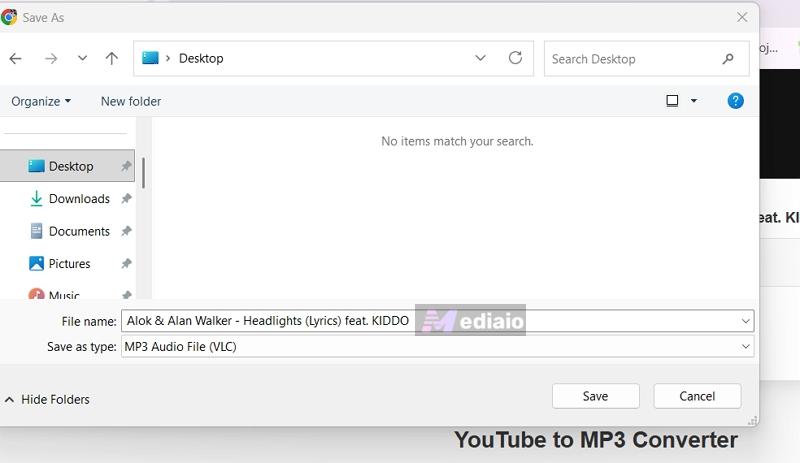
Your song will be downloaded as an MP3 and saved in your folder after a few minutes.
Way 3. YT-DLP (GitHub Tool)
How This Way Works: YouTube Music URL links are used to download audio streams via command-line and convert them to local files with YT-DLP. It processes the audio stream from the provided YouTube Music URL and saves it in the selected output format.
YT-DLP is a free, open-source command-line video and audio downloader, available on GitHub. It is popular for downloading videos from YouTube and other sites and is a widely used option for high-end users who want to have complete control over the quality of the download, format, and output.
Unlike simple online converters, it has commands to run and setup to get it running. Therefore, if you are familiar with CMD, you can try this method.
Steps to Download YouTube Music Songs as MP3
Step 1: Go to the official YT-DLP GitHub page and download the Windows version.
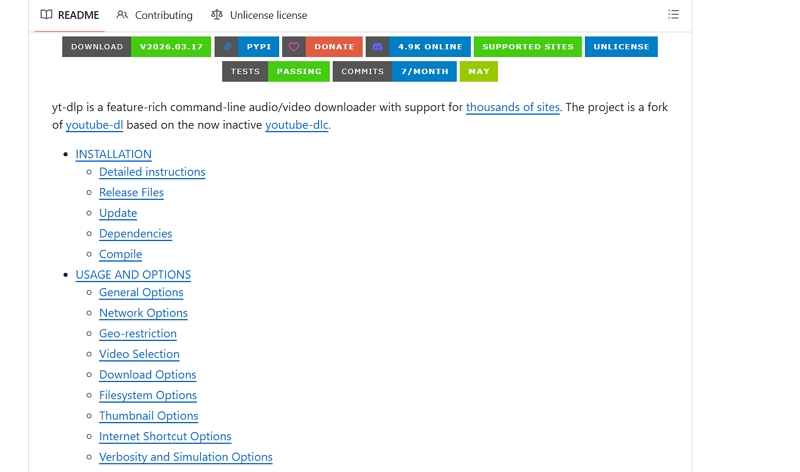
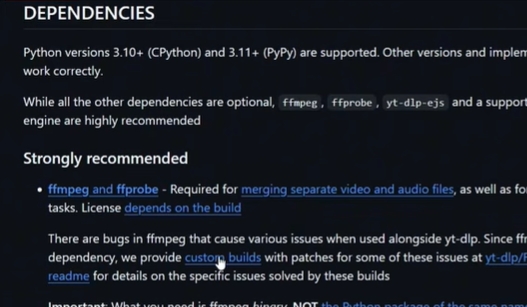
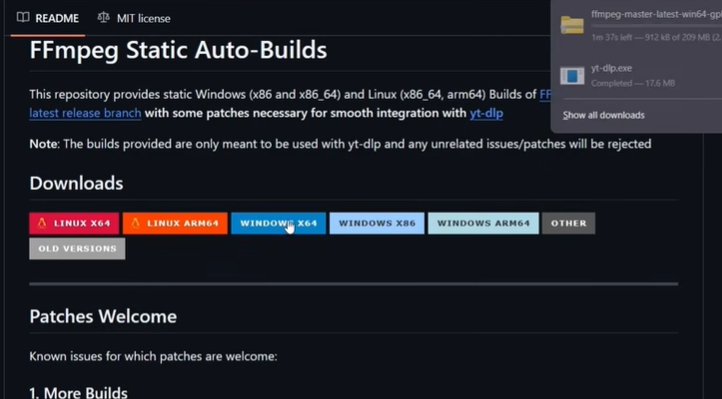
Step 2: After that, download FFmpeg because without it, the MP3 conversion wasn't really working properly.
To download FFmpeg, scroll the page up and go to dependencies. From there, click on custombuild and then click on FFmpeg for Windows to download.
Step 3: Before downloading any music, it is better to create a dedicated folder where all files will be saved. Open Command Prompt and use the following command to choose your preferred download location: cd ""
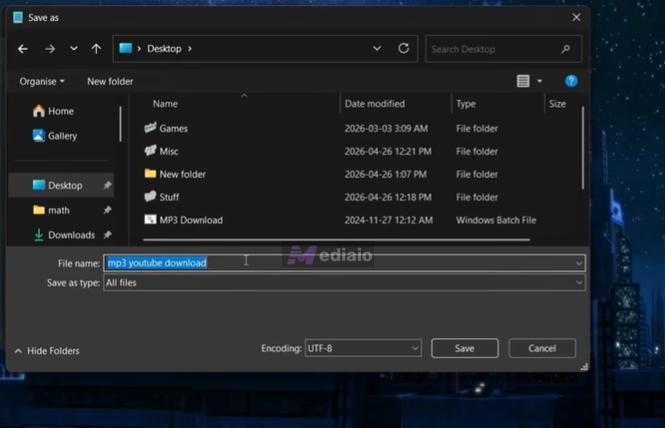
This helps keep all downloaded tracks organized in one place instead of being saved in different system folders.
Step 4: Create 2 folders on PC and name one of them as YT-DLP and the other as FFmpeg
Then:
- move yt-dlp.exe into the YT-DLP folder
- extract the FFmpeg zip and move the extracted FFmpeg files into the FFmpeg folder
Step 5: To make the yt-dlp and FFmpeg commands work properly from Command Prompt, both folder paths need to be added to the system PATH. To do this, open Settings > System > About > Advanced System Settings > Environment Variables > Path > New, then enter the addresses of both folders and click OK.
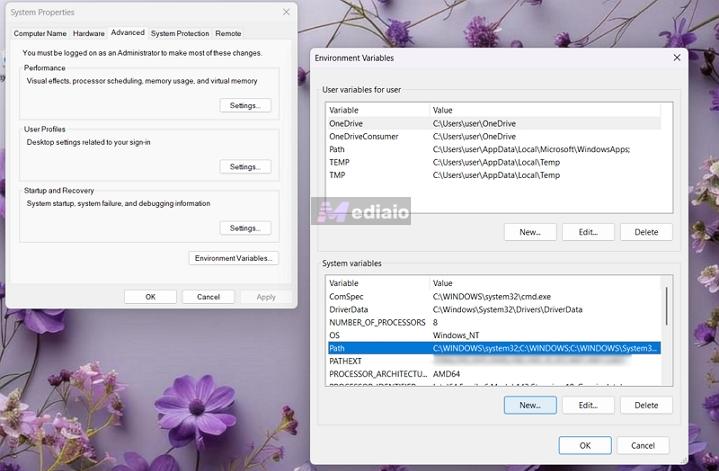
Tip: If you skip this part, Command Prompt usually won’t recognize the yt-dlp command at all.
Step 6: To download YouTube Music as MP3, copy the YouTube Music link and use this: .
It will download the audio directly as MP3.
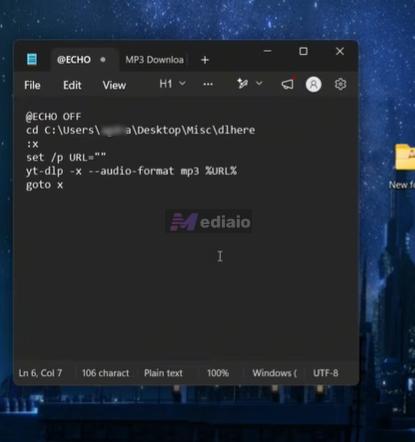
Tip: If the tool randomly stops downloading stuff because of the outdated status, enter the command: . After that, it started working normally again.
How to Download Uploaded Music from YouTube Music to a Computer
To back up your local songs or listen to music in one place, you may upload your personal recordings, songs purchased and downloaded from iTunes or Amazon Music or tracks ripped from CD to YouTube Music. These uploaded tracks can become a lifesaver when your local backups are lost because of computer crash or accidental deletion, a damaged storage drive or device reset.
To download the uploaded YouTube Music songs, you can use Google Takeout, the official way to recover files uploaded to YouTube Music. It enables users to export the tracks in a zip file.
Steps to Download Uploaded YouTube Music Songs with Google Takeout
Step 1: Open Google Takeout and click Deselect all.
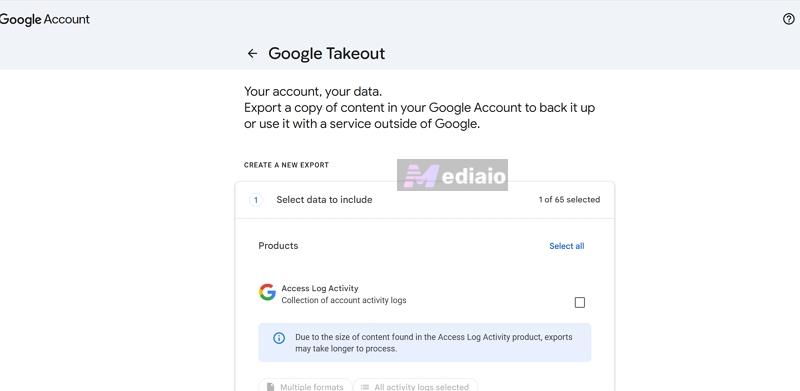
Step 2: Scroll down and select YouTube and YouTube Music.
Step 3: Click All YouTube data included.
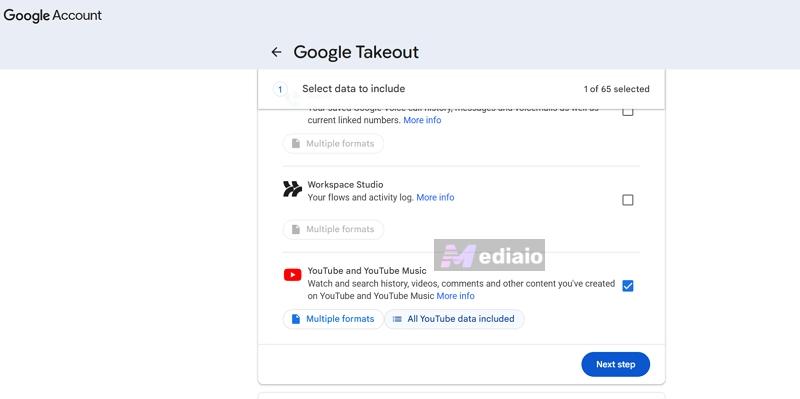
Step 4: Deselect all again, select only music-uploads and click OK.
Step 5: Scroll down and press Next step. After that, choose:
- File type: ZIP
- Delivery method: Email download link
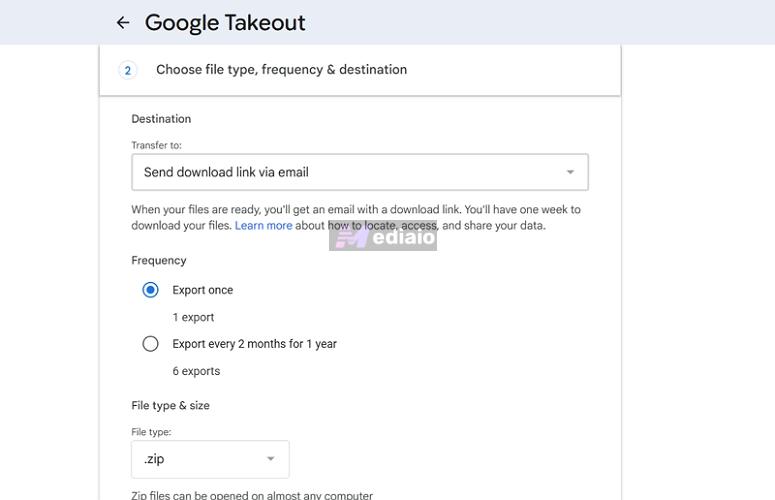
Step 6: Click Create export.
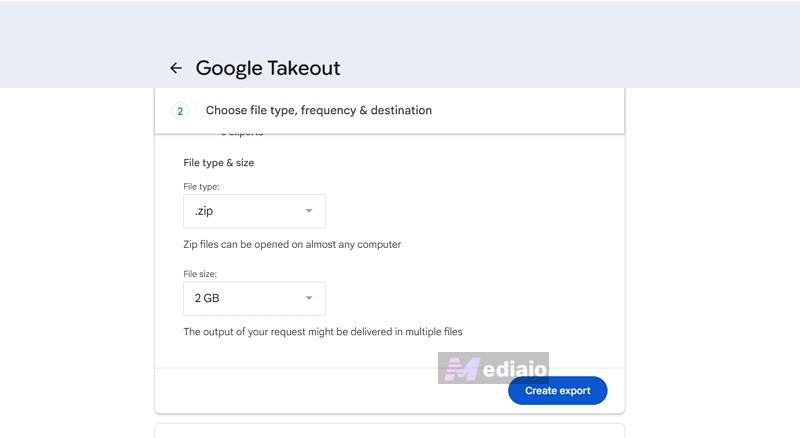
Step 7: Google will send an email once the export file is ready. Open the email, click the provided download link, and download the ZIP file to your computer.
Step 8: Extract the ZIP file on your computer to access your uploaded music.
Bonus: How to Download Music from YouTube Music on a Computer
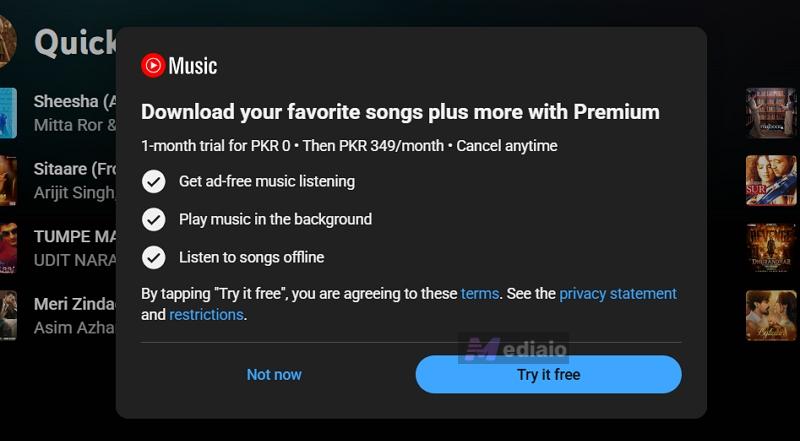
The YouTube Music app is not yet available on a dedicated Windows or Mac. Rather, it primarily operates via the web player that is based in the browser. Many users prefer to use the YouTube Music web player as a browser application, which can be used like a desktop app and launched directly from the computer. The music that is downloaded is not of the standard type of music files, such as MP3 or WAV. Rather, the files stay encrypted and can just be opened inside the YouTube Music browser.
Steps to Download Music from YouTube Music on a Computer
Step 1: Go to the browser and search for YouTube Music.
Step 2: Then install it by clicking on the app icon in the address bar.
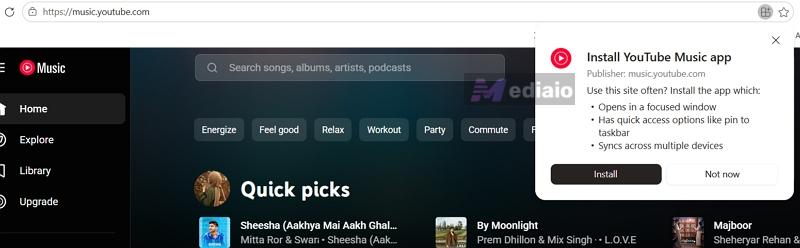
After that, YouTube Music works as a web application on the computer, allowing users to stream and download music easily. Sign in it with your Premium account.
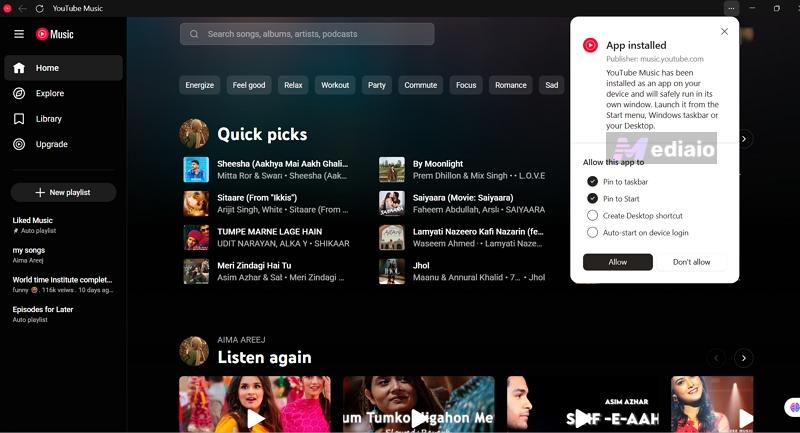
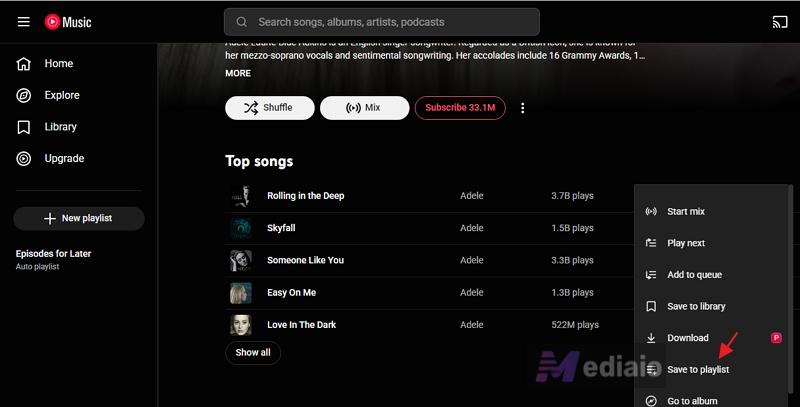
Step 4: Locate the song or open the playlist or album page. Then click the 3-dot icon and choose Download.
Conclusion
You can listen to music offline, build your own music library, transfer music to older devices, and more with online music downloaded from YouTube Music to your computer. Typically, the most effective way is dependent on what is most important to the user.
Y2Mate is a browser-based service that is quicker and easier to use for occasional downloads, while different audio quality options, playlist support and complete metadata are offered by the desktop applications like MedVioo. YT-DLP might be more suitable for advanced users who are familiar with CMD operations.