

Spotify keeps your playlists locked inside its app. You cannot export them as MP3s. But what if you want to play your favorite Spotify playlists on an old iPod or a car stereo that only reads MP3s? You will need tools that can convert Spotify playlist to MP3. And this guide is where you will find exactly that. We tested the most popular Spotify playlist to MP3 converters on the internet and listed the ones that deliver the best audio quality and speed on desktop and mobile.
How to Convert Spotify Playlist to MP3 on Windows/Mac
We have included four solid options for desktops. Some methods will be suitable if you are trying to build a full offline library. Others are suitable when you just need one Spotify playlist quickly. So regardless of what you need, you will find the tool in this list.
Choose the Best Method Based on Our Testing
We tested more than 30 Spotify playlist converter tools for Mac and Windows using the same parameters and ranked the best ones. We converted The Eminem Show, a 20-track album running about 77 minutes, across all 30 of them. Then we shortlisted these four tools in each category (Windows, Mac, online) and included the ones that give you the best results.
Test Results of 4 Spotify Playlist MP3 Downloaders
So here's how all four options rank against each other when it comes to audio quality, metadata accuracy, and speed.
Maintains original playlist structure ~2 minutes Yes Building a permanent offline library. You want quick conversions on large playlists. You want songs in actual Spotify quality.
It can export as 320 kbps Good metadata; optional artwork 5–6 minutes Yes, but may skip songs or fetch the wrong track version Audio quality is not a top priority. You are okay with YouTube quality.
You will always have to right-click and save individual songs manually to your computer. One or two convenient conversions when you already use Telegram.
Below, we break down each tool in detail — how it works, how to use it, and what it actually feels like in practice.
Way 1. Use MedVioo Audio Converter
MedVioo Audio Converter offers you the smoothest way to convert your Spotify playlists and save them as MP3, FLAC, WAV, M4A, etc.
For a smoother user experience, MedVioo comes with an embedded Spotify player. So you can log into your Spotify account, browse your library, and save the songs or playlists you want. For a smoother conversion, MedVioo supports 30x playlist download speed and batch conversions. This way, you can convert multiple Spotify playlists in one go. For a smoother listening experience, MedVioo delivers playlists in Spotify’s original quality. You can export each song in a playlist in true 320 kbps MP3, and the audio will match what you hear on Spotify. It also supports FLAC and WAV, since Spotify now streams in lossless. For a smoother music management and organization, MedVioo ensures that every exported song also keeps its full metadata, such as high-resolution cover art, song name, and album name.
Steps to Convert Spotify Playlist to 320 Kbps MP3
Step 1. Install MedVioo Audio Converter on your Windows PC or Mac.
Step 2. Open the app. Pick Spotify from the platform selection screen and log in with your credentials.

After that, the embedded Spotify player will load your full library.
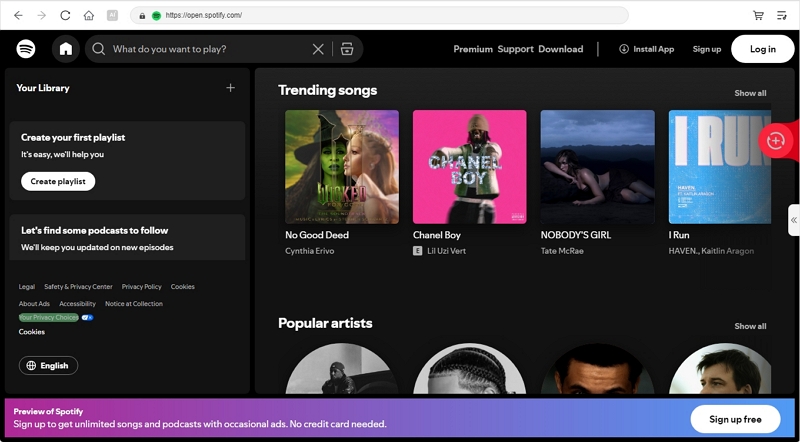
Step 3. Browse your playlists. Open the one you want and click the Add to the conversion list button under the playlist banner.

Step 4. Switch to the conversion panel by clicking the left arrow. Every playlist you added shows up here. Pick the output format as MP3 and set the bitrate as 320 kbps.
Click Convert All. The app processes every song in the playlist and drops them into your output folder. Each playlist gets its own subfolder with the track order intact.

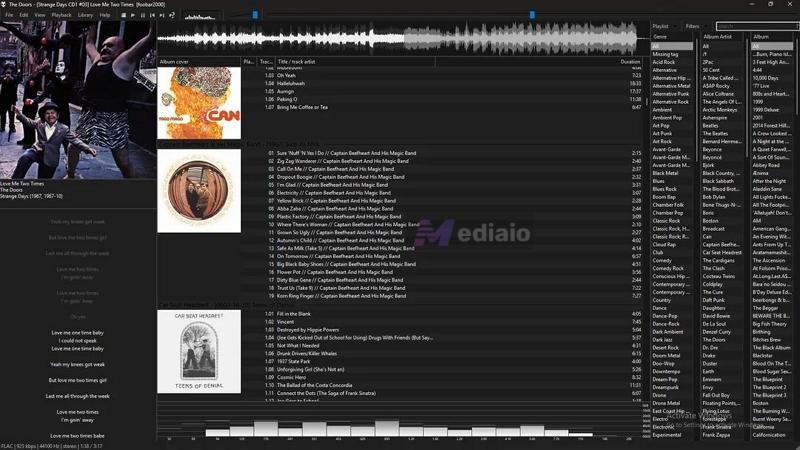
Now, you can play the songs using any desktop music player. Also, when you open the folder in any media player — Strawberry, Winamp, Foobar2000, or whatever you use, you will find them organized. You can now enjoy these playlists without internet, without subscriptions, and without any manual sorting.
Transfer Playlist MP3 to Your Phone
Since MedVioo converts the songs in open formats, you can move them to your other devices. Here’s how to transfer to your phone:
For Android:
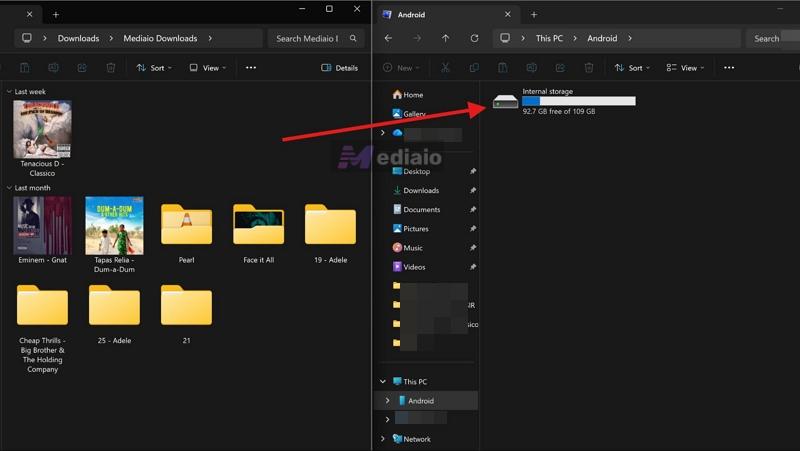
- Connect your phone to the computer with a USB cable.
- Drag your downloaded music folders into any folder on your phone storage.
- Now open any media player on your Android and start playing the songs.
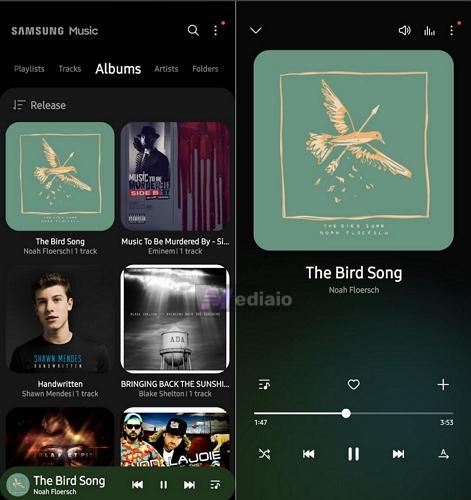
For iPhone:
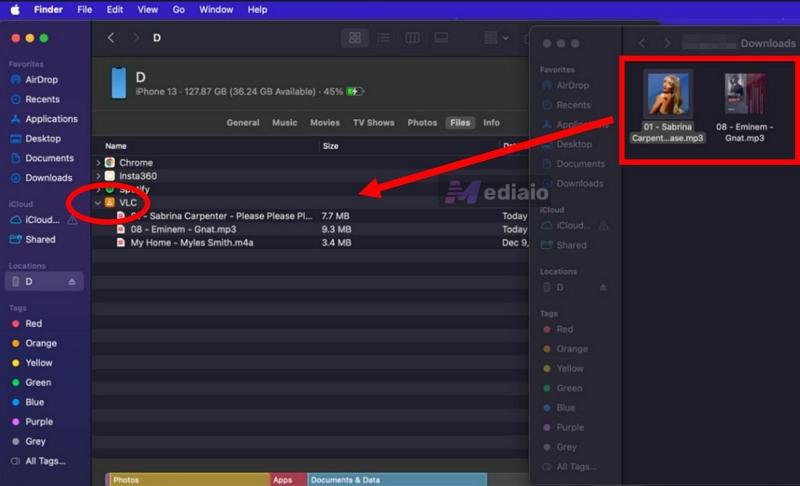
You have a few paths on iOS. The most straightforward is syncing music via VLC through the Apple Devices app or Finder
- Connect your iPhone to your computer.
- In Finder or Apple Devices, move to the Files section.
- Expand the arrow next to VLC.
- Drag your downloaded MedVioo playlist folders into the VLC folder.
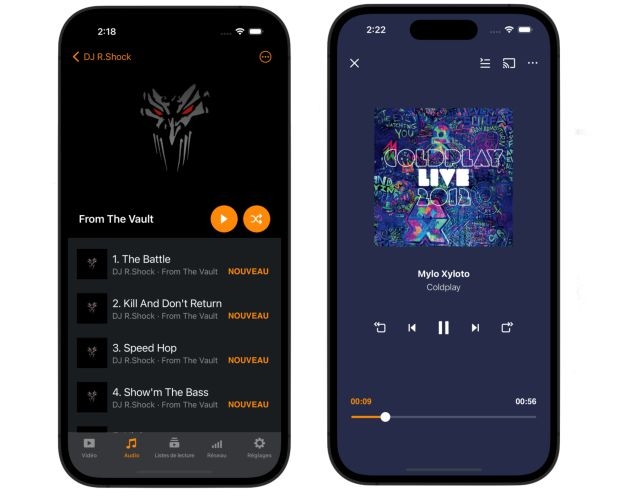
- Now open the VLC app on your iPhone.
- All the transferred songs will be there.
Feedback
MedVioo makes the Spotify playlist conversion simple from start to finish. You do not copy or paste links, unlike many converters. You can just log into your own account and drag the playlists you want straight to the converter.
But what really stands out about MedVioo is the speed it offers. It can convert playlists quickly while keeping every playlist properly tagged and organized. So you can just play the songs as you hear on Spotify, but without internet or ads.
Way 2. Use GitHub CSVMusic
GitHub tools are known for their raw power. However, there aren’t many reliable ones for Spotify playlist conversion. The listed ones often break or deliver low-quality YouTube rips. CSVMusic, although functional and actively updated, is no different on that front. What it does is simple. It accepts a Spotify playlist link and converts the playlist songs into M4A or MP3 files.
However, the songs themselves come from YouTube. The tool matches each track's metadata there and rips the audio using yt-dlp. So the real sound quality will be around 128-256 kbps, decent for casual listening, not for audiophiles. Yes, you can choose to get the MP3s at 320 kbps CBR, but the number is only on paper and the underlying source audio is still YouTube's.
Save Spotify Playlist as MP3 Using GitHub Tool
Step 1. Download CSVMusic from its GitHub page. The Windows zip already includes yt-dlp, FFmpeg, and the CSVMusic app together. Just unzip it and launch CSVMusic. Don't delete anything else in the folder.
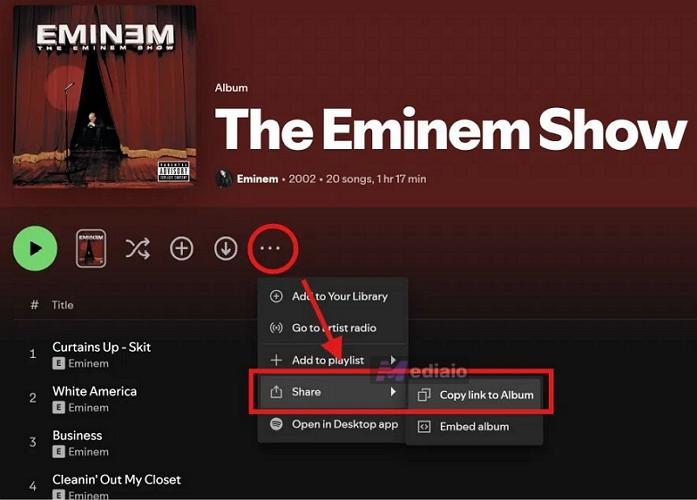
Step 2. Open your Spotify playlist page. Hit the three-dot menu in the playlist controls and go to Share > Copy link to playlist.
Note: This GitHub tool will not accept individual Spotify song links.
Step 3. Back in CSVMusic and paste the link in the Source field. Then, pick a save folder under Output and choose your format — m4a or mp3.
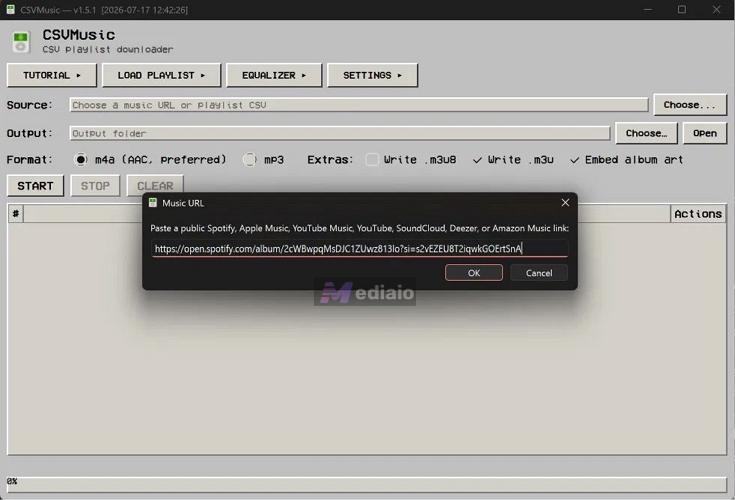
Step 4. Click START.
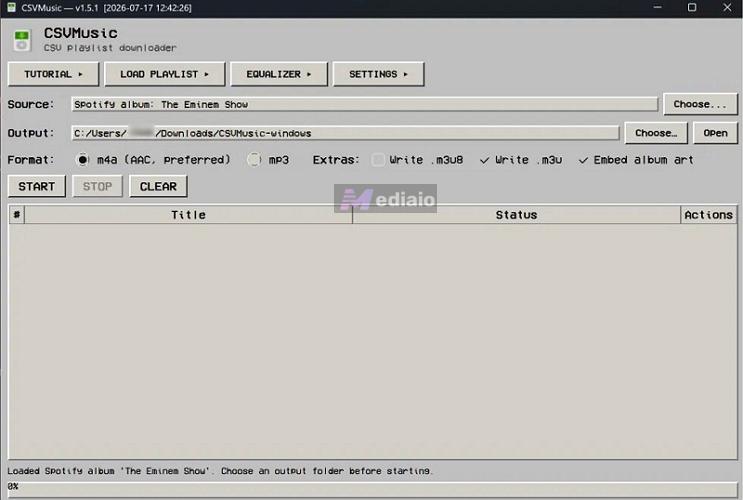
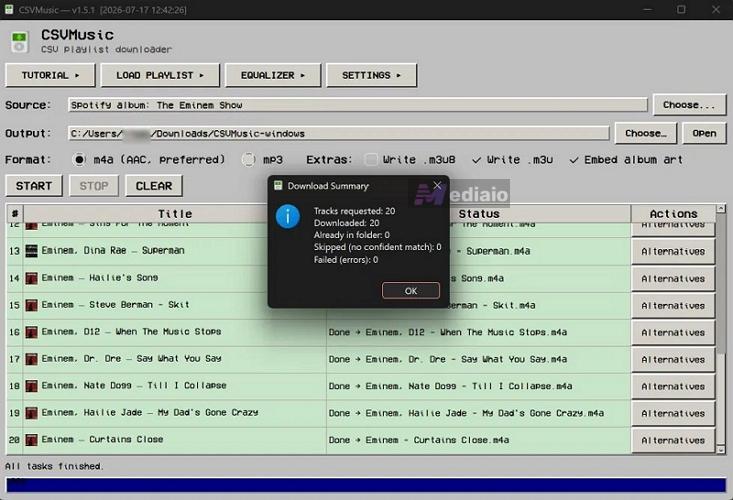
The playlist tracks will convert one by one. A download summary will appear at the end. You can review and see how many tracks were downloaded and whether any failed or were skipped.
Feedback
The interface of CSVMusic threw us off at first — but then again, it is made for users who want more music on their iPod, so the old-school look makes sense.
Since everything is sourced from YouTube, CSVMusic can convert a mismatched version of the song sometimes. As for conversion settings, there aren’t any advanced options like those in a professional tool like MedVioo Audio Converter here. So use CSVMusic only if audio quality isn't your top priority. Still, you can keep or drop the embedded artwork. And the really good part is CSVMusic keeps the .m3u playlist writing, so your iPod, a Shanling M0 Pro, or any capable music player will recognize and keep the original Spotify playlist structure, not a loose pile of MP3 files.
Plus, errors like "failed to parse CSV" can also pop up once or twice.
Way 3. Use Telegram SpotSeekBot
Telegram bots work the same way CSVMusic works. You paste a Spotify playlist link and the bot will match the song against YouTube before handing you the closest version it can find. As a result, audio quality will be low.
The real weak point isn't quality, but it's reliability. A Telegram bot running fine today can throw errors tomorrow, so keep two or three bookmarked if you are planning to use them. In all, they are most suitable for grabbing one or two songs quickly, without installing anything. As for SpotSeekBot, it has stayed one of the steadier names around, so that's the one we included.
Export Spotify Playlist as MP3 with Telegram
Step 1. Open Telegram. Search for SpotSeekBot and tap Start.
Step 2. Paste your Spotify playlist link straight into the chat.
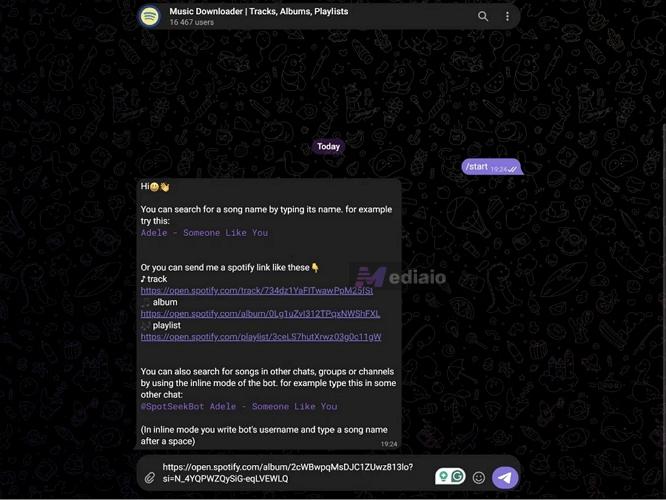
Step 3. The bot confirms your link but asks you to join its channel first.
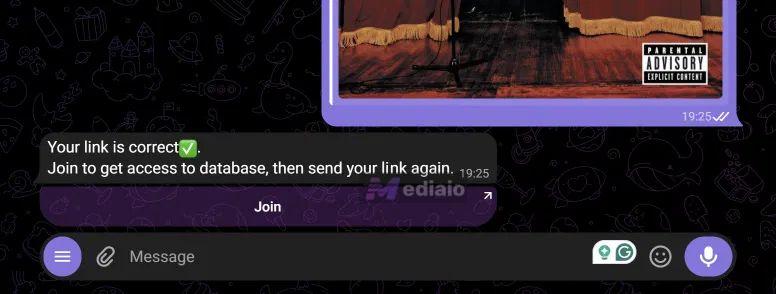
Tap Join, then Subscribe once the channel opens.
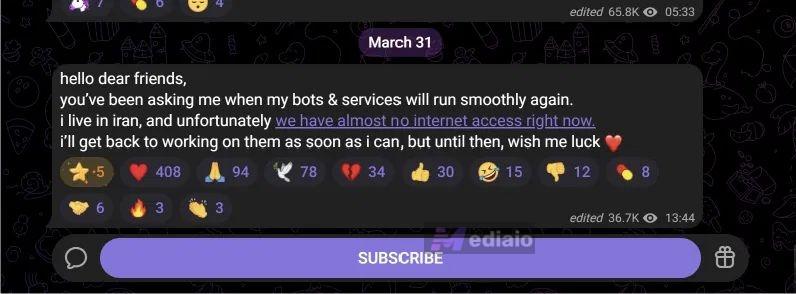
Step 4. Head back to the bot and send your link again. If everything goes right, your playlist songs land right in the chat. You need to right-click each file and save it on your computer.
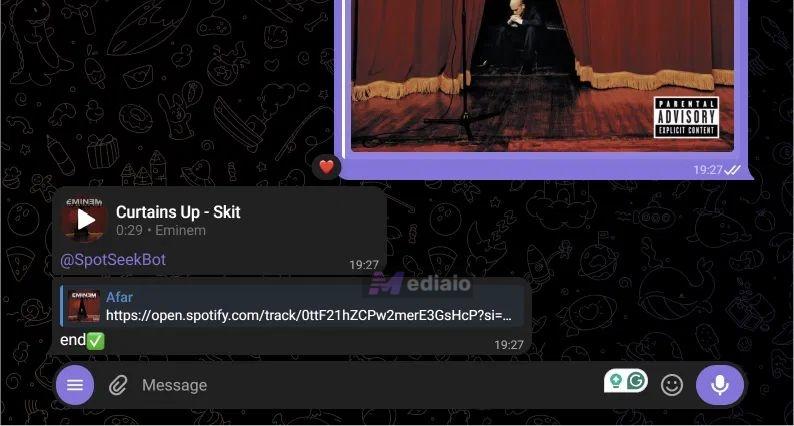
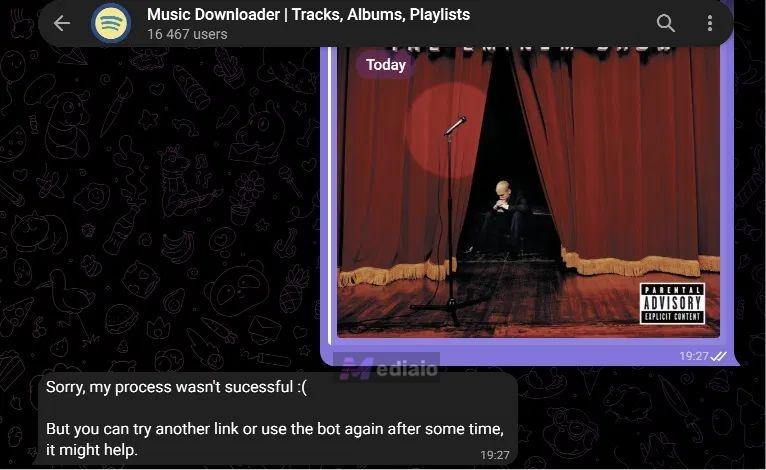
A note worth remembering: SpotSeekBot sometimes fails to process playlist and album links. You can still make it work for individual track links. So the workaround is to paste each song's link one by one, then build your playlist manually afterward. This workaround is a bit more time-consuming, but such steps are often necessary when working with Telegram bots.
Feedback
SpotSeekBot, like most Telegram bots, is built for quick, one-off needs — pulling a single song to share or edit, right from your phone or browser. So it is not suitable for building an offline library.
Also, keep in mind that Telegram bots don’t offer any customizations. So you will just get an MP3 file with the track name (some bots even add their own name to the file’s metadata and you must clean it on your own).
Way 4. Use SpotiSaver Online
Most web-based Spotify converters are designed only to handle one track at a time. However, one recent platform, SpotifySaver, breaks that pattern. You can feed it an entire Spotify playlist link and it will batch-process up to 20 or 30 songs in one go.
The main downside with SpotifySaver or any other web Spotify converter is the same one you have seen before with CSVMusic and Telegram Bots - pull audio from YouTube and other public sources. So most of the time you will get the final audio in YouTube’s streaming quality.
SpotifySaver comes in two flavors: free and premium. Both tiers give you the songs in the same quality. The only real difference is the convenience the premium tier adds. Free users will have to sit through long loading periods. Premium users can convert more songs in a single session at 2x speed and get their finished playlist emailed as a ZIP file.
Steps to Convert Spotify Playlist to MP3 Online
Step 1. Open Spotify and copy your playlist link. Tap the three-dot menu, hit Share, then Copy link to playlist.
Step 2. Go to SpotifySaver.net. Paste the link into the search bar and press Load.
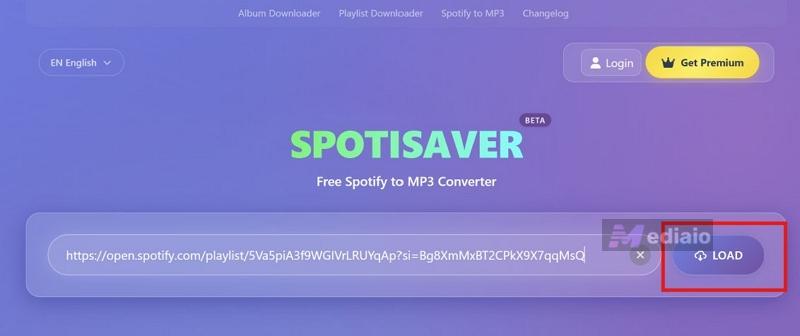
Step 3. Wait a few seconds while the site reads the metadata and builds a visual track list. Scroll to the bottom to find the master controls.
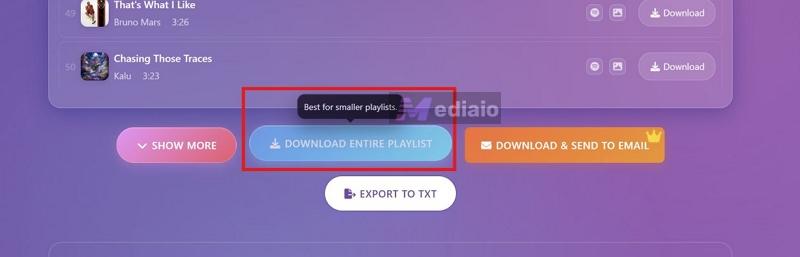
Step 4. Click Download Entire Playlist. Premium users can also hit Download and Send to Email to get the ZIP delivered straight to their inbox.
Step 5. If you are on the free plan, keep the browser tab open. The tool processes songs one by one, and this takes a while.
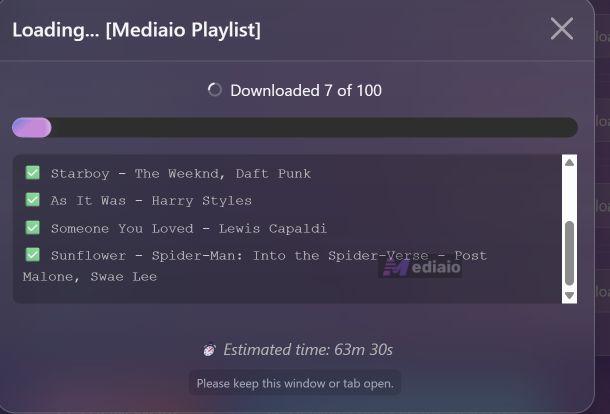
Note: The Premium version promises 2x speed. However, it still caps you at 1,000 tracks per playlist and only works with Spotify links.
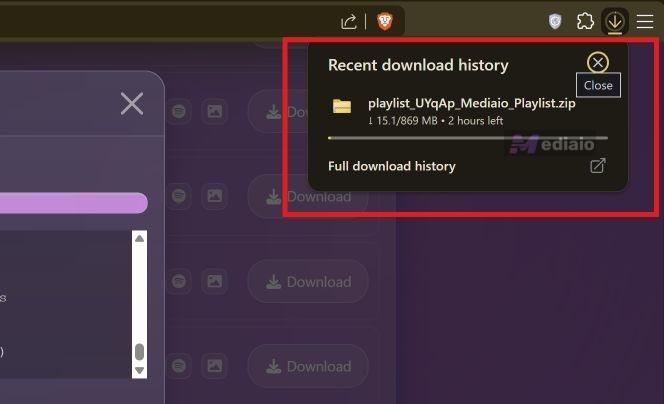
Step 6. Once conversion finishes, the site shows how many songs went through and flags any missing files. Click Download ZIP to grab the complete package.
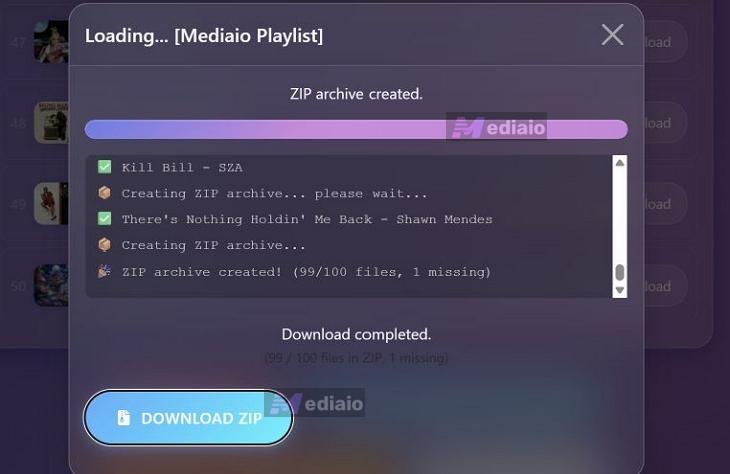
The ZIP download to your computer’s storage can also take time depending on your connection.
Feedback
SpotifySaver’s interface is clean and modern, and with an ad blocker enabled, you will not see a single banner. But the conversion wait time will kill your mood. For instance, processing a 20-song playlist can take hours. And then, the final ZIP download adds another delay.
The premium email feature is handy if you want to start the conversion and don’t mind getting the ZIP file later. Still, keep in mind that you’re paying the subscription amount here for this convenience only. Because the final audio quality will be the same as what you get with the free version. Also note that SpotiSaver clearly admits that 320 kbps is only available when the source audio allows it.
Overall, SpotifySaver works for casual one-off jobs. But if you want faster conversions and more control over quality, a desktop tool like MedVioo will give you more for your money.
How to Convert Spotify Playlist to MP3 on iPhone/Android
You can run Telegram bots and online converters on your phone too. However, the problem is the interface. The small screens, pop-up ads, and chat-based workflows will make the experience clumsy.
So if you want a smoother path, you can use dedicated mobile options for both iOS and Android. However, keep in mind that they work the same way as Telegram bots and online Spotify converters under the hood — they match the song’s metadata against public sources and fetch the audio from there. That said, they wrap the process in a native app or shortcut that feels more natural on a phone.
Way 1. Use Shortcuts (iPhone)
On iPhone, you can rely on Shortcuts app. Free and community-built to convert Spotify playlists and save them to your Files app.
The catch is that these iOS shortcuts don’t come with advanced features. So they are not built for building a serious offline library. Some even watermark the final MP3 file. Others skip the cover art. Plus, the audio quality is whatever the source site offers. Still, for a quick handful of songs, it beats juggling browser tabs on a small screen.
One shortcut that handles Spotify playlists is Spotify Playlist DL. You can get it from RoutineHub.
Shortcuts Performance on a Playlist Conversion
Steps to Use Shortcuts for Spotify Playlist to MP3 Conversion
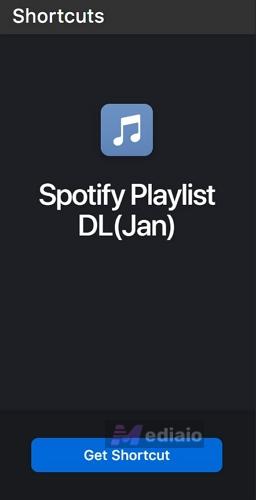
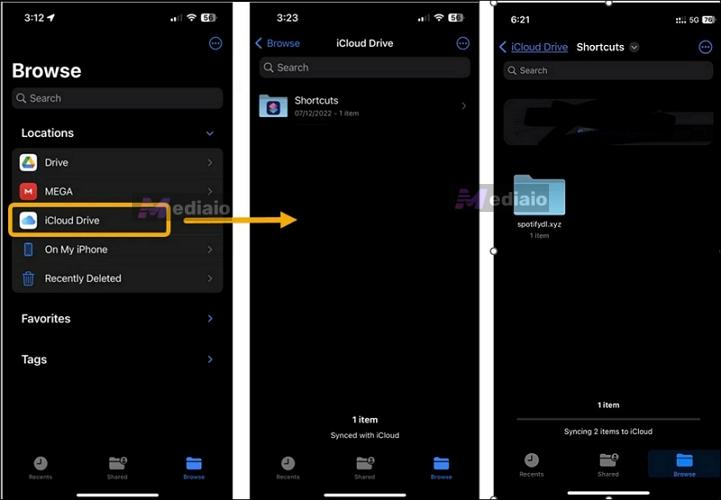
Step 1. Install the Spotify Playlist DL shortcut from RoutineHub. After tapping Get Shortcut. it will appear in your Shortcuts app.
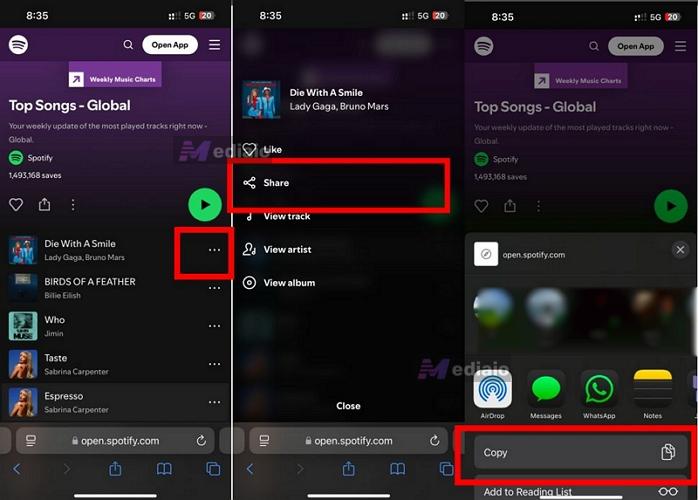
Step 2. Open the Spotify app. Find the playlist you want, tap the three-dot menu, then Share > Copy Link.
Step 3. Open the Shortcuts app, run Spotify Playlist DL, paste the copied link into the prompt and tap Done.
Step 4. Tap Always Allow, so it can read the playlist metadata.
Step 5. Wait while the shortcut processes each playlist track. It will fetch and save the audio files one by one.
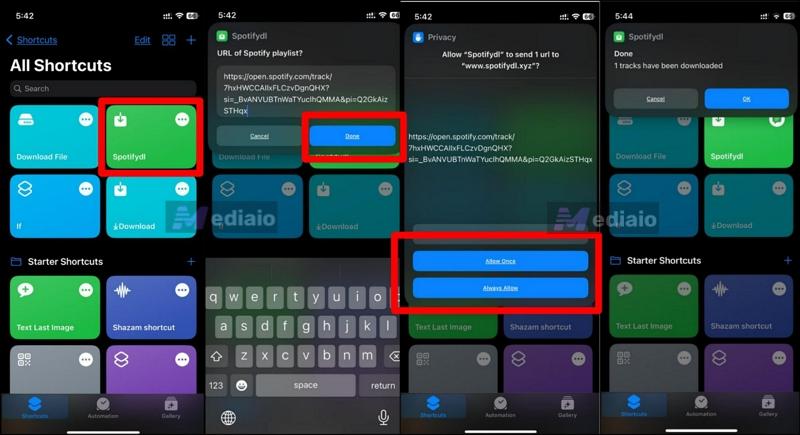
Step 6. When it finishes, open the Files app. Look for a folder named Spotify DL. Your Spotify songs will be inside.
Way 2. Use Fildo (Android)
On Android, you have more freedom. You can use an easy-to-use app that supports Spotify playlist conversion. One such app is Fildo.
Fildo does not ask you to paste a playlist link. Instead, it links directly to your Spotify account. You log in Spotify inside the app, import your playlists, and download the tracks from there.
The free version shows ads. The premium tier, called Gold, costs around US$10 and removes ads and unlocks other features like crossfade and themes. Yes, Fildo also packs its own uic player, so you do not need a separate app to listen. The quality is solid, though the files still come from matched sources rather than Spotify itself.
Fildo Performance on Spotify Playlist to MP3 Conversion
FLAC
Steps to Use Filo to Download Spotify Playlist
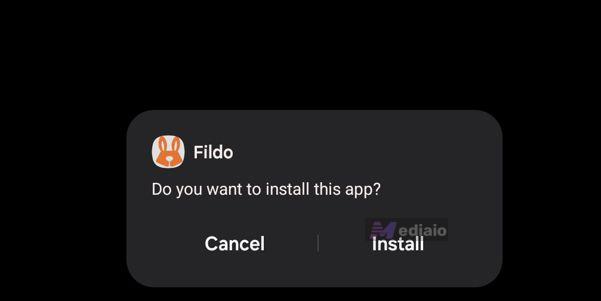
Step 1. Download and install the Fildo APK from its official site. Allow installation from unknown sources if your phone asks.
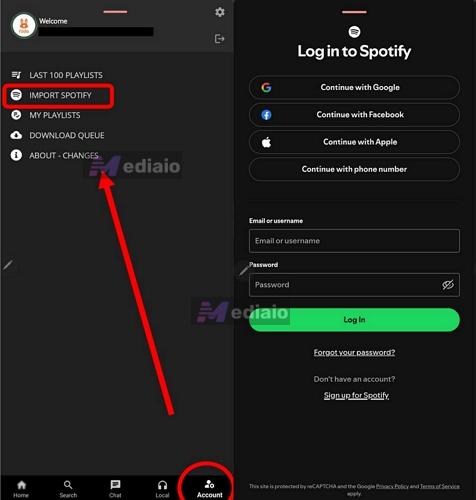
Step 2. Open Fildo. Tap the Account tab at the bottom. Then select Import Spotify.
Step 3. Log into your Spotify account through the in-app browser.
Step 4. After logging in, Fildo will show your Spotify library. Pick the playlist you want and tap Import.
Step 5. Open the imported playlist. Tap the three-dot menu at the top right, then select Download All.
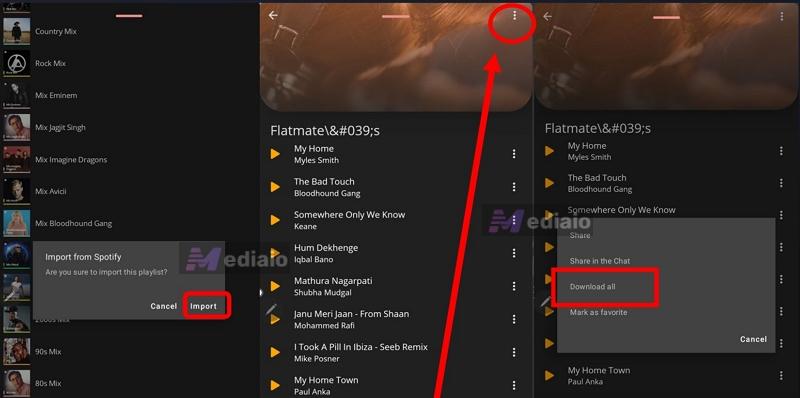
Step 6. Watch the ad if you are on the free plan. Then, the download will begin.
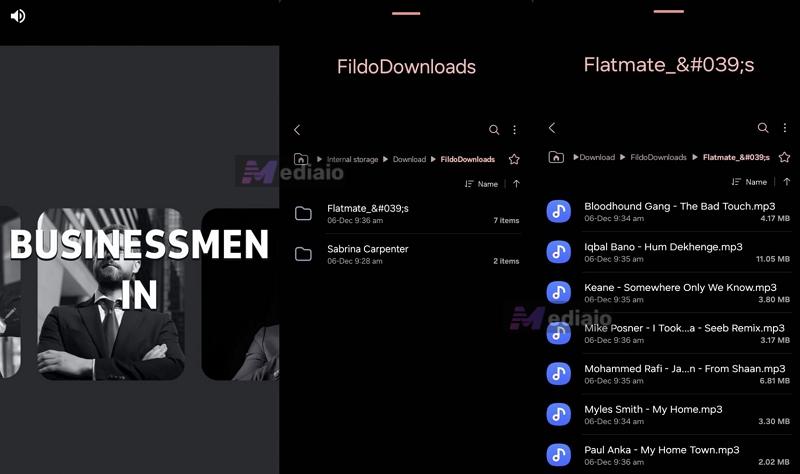
Files will be saved to your internal storage under FildoDownloads. You can also play them directly inside the Fildo app itself.
Final Words
There is no single Spotify playlist to MP3 converter that is perfect for everybody. That is why we showed you how to convert Spotify playlist to MP3 across every platform — Windows, Mac, iPhone, and Android.
If you want the best audio quality, the fastest speed, and a library that organizes itself, MedVioo Audio Converter is the clear pick. You log into your Spotify account, pick your playlists, and export them. The exported Spotify playlists come out in original quality and sorted into folders. You can play the music with any player and even transfer them to other devices you own.