

When it comes to storing and sharing audio files, MP3 remains the most widely supported and user-friendly format. It works on almost every device, is easy to share, and doesn’t lock you into a specific ecosystem.
However, you may have come across another audio format called M4P, especially if you’ve downloaded music from Apple Music or iTunes. If you’ve tried to convert an M4P file to MP3 and failed, you’re not alone.
In this guide, we’ll clearly explain what M4P files are, why some of them can’t be converted, and what your real options are when converting M4P to MP3—whether the file is DRM-protected or not.
Part 1:Quick Answer – Can You Convert M4P to MP3?
Yes—but it depends on the file.
You can convert M4P to MP3 only if the file is not protected by Apple’s DRM.
If the M4P file comes from Apple Music and is DRM-locked, standard converters will not work.
Here’s the simple rule:
- Non-DRM M4P files → Can be converted to MP3
- DRM-protected M4P files → Cannot be converted using free or built-in tools
So before trying any converter, the most important step is to identify where your M4P file came from. This determines whether conversion is possible and which method you should use.
Part 2: What Is an M4P File? (Quick Explanation)
An M4P file is an Apple-specific audio format that uses Advanced Audio Coding (AAC) and includes digital rights management (DRM) protection.
The letter “P” stands for “Protected.”
This means M4P files are designed to work only within Apple’s ecosystem, such as:
- Apple Music
- iTunes / Music app on macOS
Because of this protection, M4P files usually cannot be played, shared, or converted freely outside Apple’s apps.
In short: M4P is not a bad audio format—but its DRM restrictions are what make conversion difficult.
Part 3:Check First – Is Your M4P DRM-Protected?
Before you attempt any M4P to MP3 conversion, it’s essential to check whether the file is DRM-protected. This quick check can save you a lot of time and frustration.
Your M4P file is likely DRM-protected if:
- You cannot play or import it in common audio players outside Apple apps
- It only works in Apple Music or iTunes
- The file information shows “Protected” in iTunes or macOS Finder
If your file matches these signs, it means the M4P file is locked by Apple’s DRM, and free converters or basic methods will not work.
Once you’ve confirmed this, you can choose the right conversion method instead of trying tools that are guaranteed to fail.
Quick check:
- Downloaded from Apple Music → DRM-protected
- Purchased from iTunes Store before 2009 → DRM-free
- Plays in VLC / Windows Media Player → likely DRM-free
Part 4:Method 1 – Convert M4P to MP3 (Non-DRM)
If your M4P file is not protected by DRM, converting it to MP3 is relatively straightforward. These files usually come from older iTunes purchases or third-party sources rather than Apple Music.
Here are two workable options—though each has its limitations.
Option 1: Burn the M4P File to a CD Using iTunes
This is a classic workaround supported by iTunes itself.
How it works:
1. Open iTunes and create a new playlist.
2. Add the non-DRM M4P songs to the playlist.
3. Insert a blank CD into your computer.
4. Go to File > Burn Playlist to Disc.
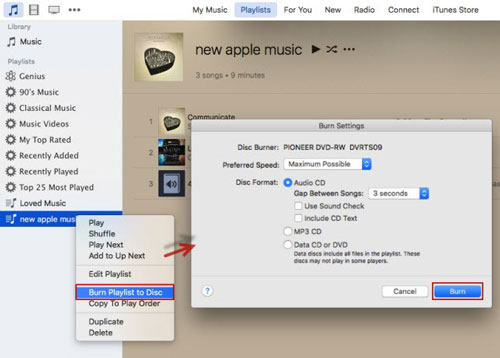
5. Once burned, re-import the CD as MP3 files.
This method works best if you only need to convert a few non-DRM tracks.
Option 2: Record the Audio During Playback
Another workaround is to play the M4P file in iTunes and record the audio using a screen or audio recorder.
Why this isn’t ideal:
- Playback happens in real time
- Audio quality may drop
- Track metadata is often lost
This approach is time-consuming and inefficient, and only makes sense as a last resort.
Part 5:Method 2 – DRM-Protected M4P (Reality Check)
If your M4P file comes from Apple Music, it is almost certainly DRM-protected. In this case:
- iTunes conversion methods won’t work
- Online free converters will fail
- Burning to CD is blocked
To convert DRM-protected M4P files to MP3, you need a dedicated Apple Music converter that can legally remove playback restrictions while preserving audio quality. If you’ve tried free tools and they failed, this is usually because of DRM—not a mistake on your end.
Recommended Solution: Mediaio Audio Converter
Mediaio Audio Converter is designed specifically for handling DRM-protected Apple Music files, making it a reliable option when standard tools fail.
If your M4P files are locked by Apple Music, Mediaio Audio Converter offers one of the most efficient and user-friendly ways to convert them to MP3 without sacrificing sound quality.
For personal offline listening only. Always respect local copyright laws.
Part 6:M4P to MP3 on Mac and Windows – What Actually Works
Convert M4P to MP3 on Mac (What You Can Do)
On macOS, the built-in Music app can convert M4P files—but only if they are DRM-free.
Steps:
1. Open the Music app.
2. Go to Settings > Files > Import Settings.
3. Select MP3 Encoder.
4. Choose the songs in your library.
5. Click File > Convert > Create MP3 Version.
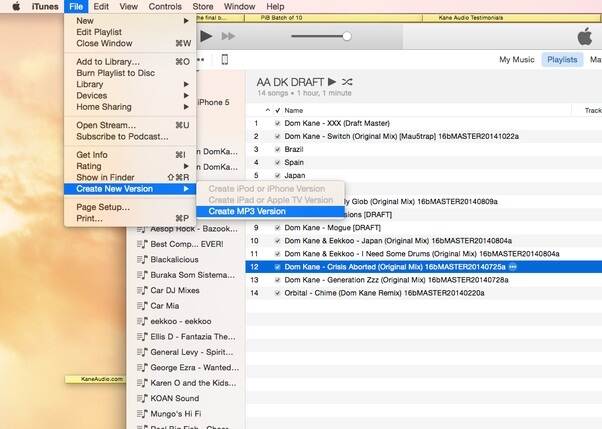
If your M4P file comes from Apple Music, this method won’t work due to DRM restrictions.
Convert M4P to MP3 on Windows
On Windows, you'll have to try a third-party tool to help you convert files, especially if they are DRM-protected. In such a scenario, you should consider trying out Mediaio Audio Converter.
Quick Comparison: Which M4P to MP3 Method Should You Use?
FAQS
If you're dealing with M4P files that don’t have DRM restrictions, you can use the Music app on macOS or a free audio converter on Windows to convert them to MP3 at no cost.
Yes. iTunes can convert M4P files to MP3 by burning the tracks to an audio CD first. After that, you can re-import the songs from the CD as MP3 files and save them to your device.
Most M4P files are protected by Apple’s DRM, which prevents standard converters from processing them. To convert DRM-protected M4P files to MP3 smoothly, you’ll need a reliable third-party tool such as Mediaio.
Conclusion
Converting M4P to MP3 is easy only when DRM is not involved. Unfortunately, Apple Music files are protected by default, making free tools ineffective.
If you’re dealing with DRM-protected M4P files and want a reliable, high-quality solution, a specialized converter like Mediaio Audio Converter offers a practical and efficient way to convert your music to MP3 without unnecessary hassle.