

After updating my iPhone to iOS 17, I spent a good 10 minutes wondering why the Apple Music widget simply refused to appear on my lock screen.
The app was installed.
I had an active Apple Music subscription.
Yet when I tapped the widget area, Apple Music wasn’t even listed — while Spotify showed up just fine.
If you’ve ever thought:
- “I just updated my iPhone — why is the widget gone?”
- “Other people have it, why don’t I?”
- “Did Apple quietly remove this feature?”
You’re not alone — and no, Apple didn’t remove it.
This guide shows why the Apple Music widget disappears, how to add it back on iOS 16, 17, and 18, and how to fix the real-world issues most tutorials skip.
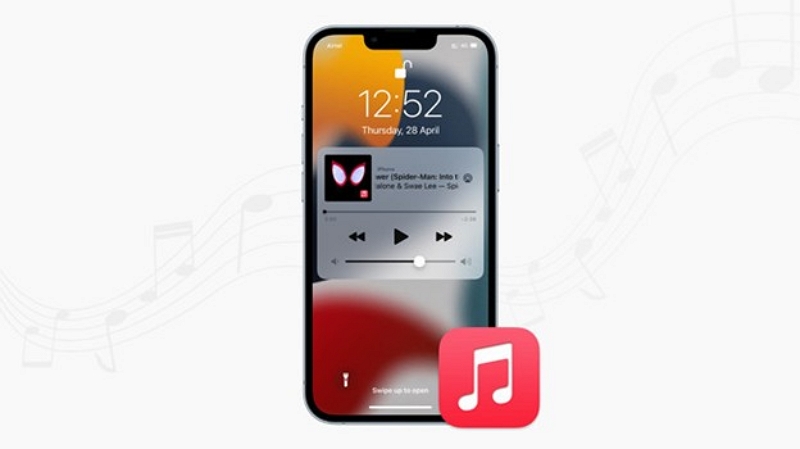
Part 1: What Is the Apple Music Lock Screen Widget?
The Apple Music lock screen widget gives you persistent, one-tap access to your music — even when nothing is playing.
Unlike the temporary Now Playing bar (which only appears during playback), this widget stays on your lock screen once added.
Here’s what it’s genuinely useful for:
- Play or pause music without unlocking your iPhone
- See what’s currently playing at a glance
- Jump straight into Apple Music with one tap
- Keep music controls visible even after playback stops
If you often listen during workouts, commutes, or background focus time, this widget saves real friction.
Part 2: Requirements Before Adding the Apple Music Widget (Important)
Before you try adding the widget, make sure all three conditions below are met — one of them is commonly missed.
1. Your iPhone is running iOS 16 or later
2. The Apple Music app is installed
3. You’ve played at least one song in Apple Music
Why the “play once” step matters
Apple doesn’t surface lock screen widgets for apps it considers unused.
Until Apple Music generates local playback data, iOS treats it as inactive — even if the app is installed and you’re subscribed.
That’s why the widget won’t appear unless you’ve actually played something.
Quick check:
Open Apple Music → play any song for a few seconds → lock your screen → try again.
Part 3: How to Add Apple Music Widget to Lock Screen (Step-by-Step)
Once the requirements above are met, adding the widget takes less than a minute.
Step 1: Wake your iPhone and touch & hold the lock screen
Step 2: Tap Customize → choose Lock Screen
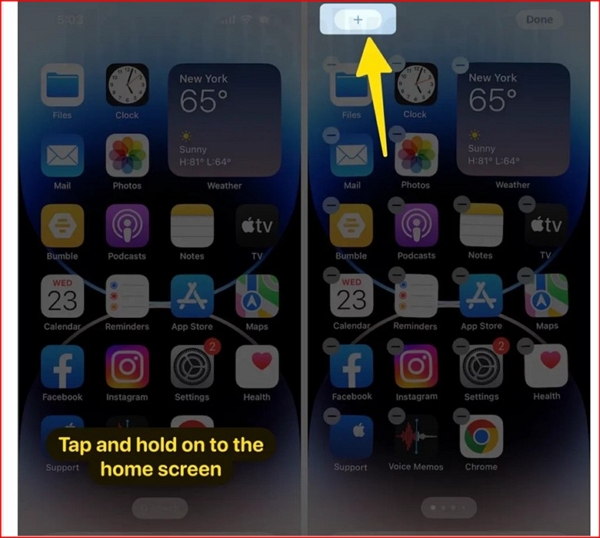
Step 3: Tap the widget area below the clock
Step 4: Scroll and tap Apple Music
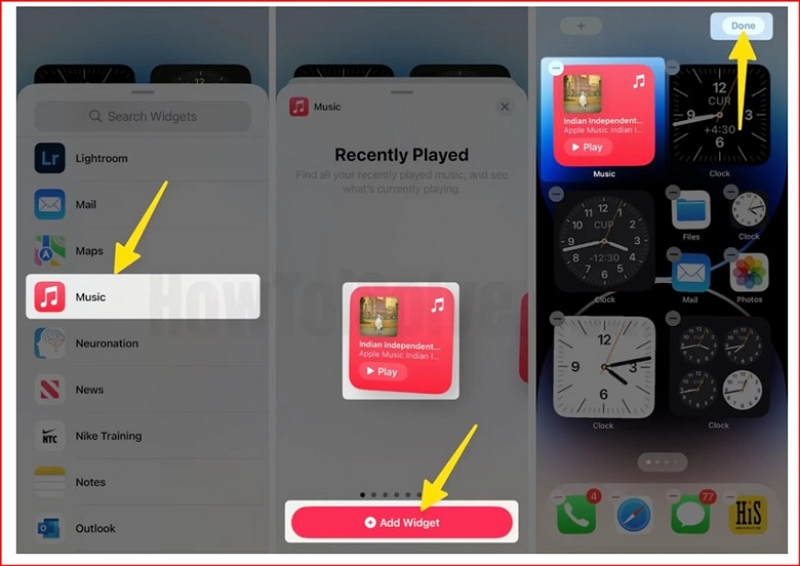
Step 5: Choose a widget size (small or wide)
Step 6: Tap Done to save
Please Note: If you don’t see Apple Music listed, make sure you’ve opened the app and played a song at least once.
Part 4: Apple Music Widget Not Showing or Not Working? (Real Fixes)
If the Apple Music widget isn’t showing up or working as expected, here are some common issues and how to fix them.
Situation 1: Apple Music isn’t listed at all
Why it happens: The app hasn’t generated playback data.
Fix:
- Open Apple Music
- Play any song
- Lock your screen and re-enter Customize mode
Situation 2: The widget shows, but doesn’t control playback
Why it happens: Another app (Spotify, YouTube, etc.) was the last active audio source.
iOS prioritizes the most recent audio session — not the widget you tap.
Fix:
- Force-close other music apps
- Open Apple Music and start playback
- Lock your screen and try again
Situation 3: The widget disappeared after an iOS update
Why it happens: iOS updates don’t always preserve older lock screen layouts.
Fix: Re-customize the lock screen and add the widget again — nothing is broken.
Situation 4: The lock screen looks “broken” after adding widgets
(clock misaligned, widgets missing)
Why it happens: The lock screen style didn’t save correctly.
Fix: Re-enter Customize mode and tap Done again to force-save the layout.
Part 5: Apple Music Lock Screen Widget vs Dynamic Island
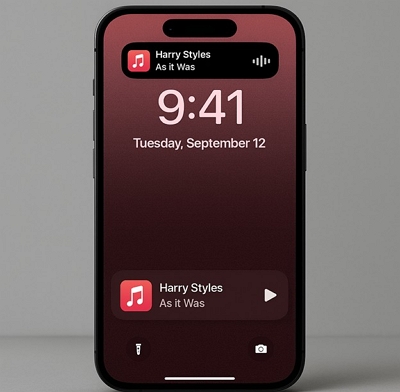
If you’re using an iPhone 14 Pro or newer, you might wonder which one you actually need.
Which should you use?
- If you want quick access without starting playback, the lock screen widget is better.
- If you care about real-time controls while listening, Dynamic Island shines.
Good news: you can use both at the same time — they don’t conflict.
Part 6: Tips for a Better Apple Music Lock Screen Experience
Use darker album art
Improves text and widget visibility on the lock screen.
Reduce notification clutter
Too many alerts can push widgets off the screen. Clean notifications = stable layout.
Pair with Focus Mode
Create a Focus that shows the Apple Music widget only during workouts or commutes.
Bonus: Widget stacking
You can stack Apple Music with Battery, Weather, or Calendar widgets.
Just drag one widget onto another while customizing, then swipe through them as needed.
Pro move: Set a Focus mode that auto-switches lock screens — your music widget appears only when you actually need it.
FAQ
No, the Apple Music lock screen widget is only available on iOS 16 and later. iOS 15 does not support lock screen widgets.
This usually happens after an iOS update or if you’ve switched lock screen styles. You may need to re-add the widget manually. In addition, if Apple Music hasn’t been used recently, the widget may not appear in the widget list.
Yes, you can add multiple widgets, including Apple Music and third-party music apps like Spotify. However, lock screen space is limited, so you may need to prioritize or use widget stacks.
No. As of iOS 16–18, lock screen widgets are only supported on iPhones. iPads support widgets on the Home Screen and Today View, but not on the lock screen.
Conclusion
The Apple Music lock screen widget isn’t gone — it’s just easy to miss if you don’t know how iOS decides which widgets to show.
Once you understand the hidden requirements and how iOS prioritizes audio apps, adding (or fixing) the widget takes less than a minute.
If your widget is now visible and responsive, you’re all set.
If not, the issue is almost always tied to unused playback data or audio app conflicts — not your iPhone.