

Every January, I see the same questions pop up:
- “Where is Apple Music Replay?”
- “Why can’t I find my Replay in the app?”
- “Why does Spotify Wrapped show everything, but Apple doesn’t?”
If you’ve ever gone looking for your Apple Music Replay and ended up tapping around the app with no results, you’re not alone. Apple Music Replay works very differently from Spotify Wrapped — and Apple doesn’t exactly make that clear.
This guide walks you through where Apple Music Replay actually lives, why it sometimes doesn’t show up, and what you can realistically do with your Replay playlist once you find it — without hype, shortcuts, or misleading promises.
What Is Apple Music Replay?
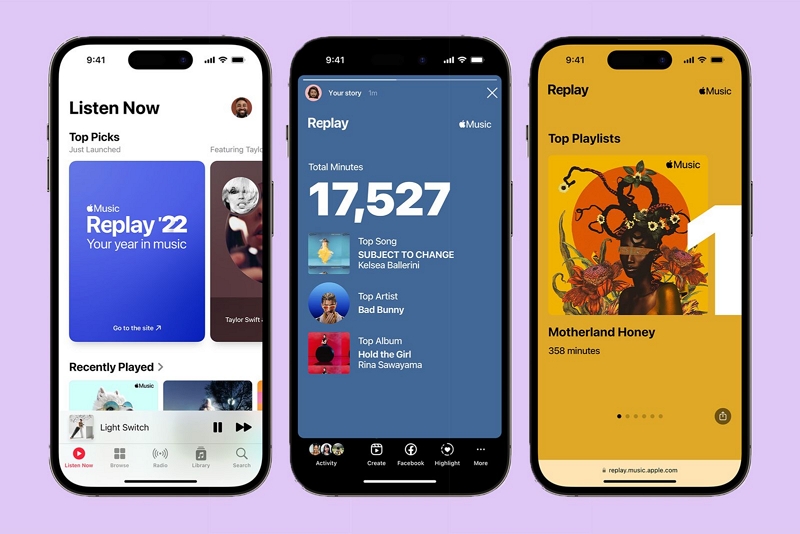
Apple Music Replay is Apple’s year-in-review feature that tracks your listening habits over time and summarizes them into stats and playlists.
Unlike Spotify Wrapped, which appears once a year as a visual, shareable story, Apple Music Replay is a rolling dashboard. Your data updates weekly throughout the year, and your year-end Replay playlist reflects what you actually listened to most, not just what you played recently.
What makes Replay different?
- It updates all year, not just in December
- It focuses on raw listening data rather than visuals
- It’s designed for personal reflection, not social sharing
In short: Replay is quieter, more analytical, and easier to misunderstand.
What Data Does Apple Music Replay Track?
Apple Music Replay includes:
All data is tracked between January 1 and December 31, and your Replay playlist updates weekly — meaning what you listen to in March or October still matters.
Apple Music Replay vs Spotify Wrapped (A Quick Reality Check)
If you’re looking for visuals and social media cards, Spotify Wrapped does that better.
If you want ongoing, data-driven insights, Apple Music Replay serves a different purpose.
Where to Find Apple Music Replay (Official Location)
Apple Music Replay is not located inside the Apple Music app. The only official place to view your Replay stats is Apple’s web portal: https://music.apple.com/replay
You’ll need to sign in using the same Apple ID linked to your Apple Music subscription.
How to Find Apple Music Replay on iPhone or iPad
Even though Replay isn’t built into the app, it’s easy to access on iOS.
1. Open Safari (or any browser)
2. Go to music.apple.com/replay
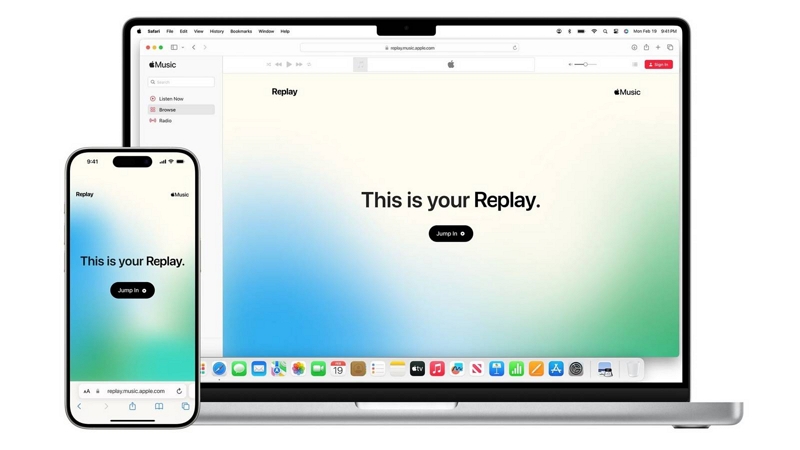
3. Sign in with your Apple ID
4. View your Replay dashboard, including:
- Top songs, artists, and albums
- Total minutes listened
- Your Replay playlist (which you can add to your library)
Tip: You don’t need to wait until December. Replay updates weekly all year.
How to Find Apple Music Replay on Mac or Windows
Replay also isn’t available inside the Apple Music desktop app.
- Open any web browser
- Visit music.apple.com/replay
- Sign in with your Apple ID
As of early 2026, the Replay page shows finalized 2025 stats, while your 2026 Replay playlist is already tracking and updating weekly.
Can You Find Apple Music Replay Inside the Apple Music App?
Short answer: No.
There is no Replay dashboard or stats page inside the Apple Music app — unlike Spotify Wrapped.
What does appear in the app?
Once Apple has enough data, it automatically generates a Replay playlist for the year.
To find it:
- Open the Apple Music app
- Go to Library
- Tap Playlists
- Look for Replay [Year]
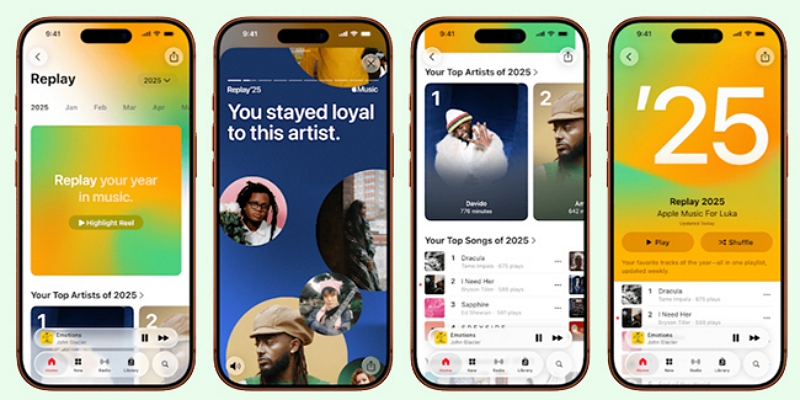
This playlist contains your most-played songs, but not your listening stats.
Why You Can’t Find Your Apple Music Replay
If your Replay isn’t showing up, it’s usually for one of these reasons.
1. You Haven’t Listened Enough Yet
New subscribers or recently renewed accounts may not have enough data. This is especially common in January.
2. Apple Music Listening History Is Turned Off
Replay relies on your listening history. If you have disabled this setting, Apple can’t track your activity to build your Replay.
How to check on iPhone/iPad:
- Open the Settings app.
- Scroll down and tap Music.
- Make sure Use Listening History is toggled on.
This is the most common reason Replay appears incomplete or missing.
3. Not Logged in With the Correct Apple ID
Replay is linked to your Apple ID. If you’re signed in with a different account than the one you use for Apple Music, your Replay won’t show up.
- Different Apple IDs ≠ Same Replay: Double-check that you’re signed in with the same Apple ID used for your Apple Music Subscription.
- Family Sharing caveat: Replay data is not shared across family members. Each person’s replay is unique to their individual Apple ID.
What to Do Once You Find Your Apple Music Replay
Once you’ve found your Replay playlist, here are your realistic options.
Option 1: Keep It Inside Apple Music (Recommended)
- Download for offline listening
- Sync across Apple devices
- Fully supported and risk-free
For most users, this is all you need.
Option 2: Download Purchased Songs Only
Songs bought from the iTunes Store are not DRM-protected and can be saved as files. Subscription tracks are different.
Option 3: Keep Replay Tracks Outside Apple Music (Advanced Users)
Some users want to play Replay tracks on:
- Non-Apple devices
- Local MP3 players
- Offline libraries outside the Apple ecosystem
This requires third-party tools and is intended only for personal playback or backup.
About Converting Apple Music Replay to MP3 (What to Know First)
Apple Music streaming tracks are DRM-protected. Apple does not officially support exporting them as MP3 files.
If you explore third-party solutions, keep these points in mind:
- They are not Apple-supported tools
- Use should be limited to personal playback
- Always respect local copyright laws and Apple’s terms
Some users choose tools like Mediaio Audio Converter for format conversion, but this step is optional, not required, and not suitable for everyone.
FAQs About Apple Music Replay
Your Apple Music Replay playlist updates weekly and starts refreshing every Sunday.
Yes, you can share your Apple Music Replay, but only manually. There are no built-in sharing features like Spotify Wrapped.
Yes. A new Apple Music Replay starts tracking your listening data on January 1 each year.
This usually happens if your listening history is turned off or if Apple Music hasn’t collected enough listening data yet.
Yes, but only if you’ve purchased the songs or use a third-party tool such as Mediaio to convert Apple Music tracks to MP3 format.
Conclusion
Apple Music Replay isn’t flashy, and it isn’t obvious — but once you know where to find it, it offers a clear, honest look at how you actually listen to music.
For most people, Replay is best enjoyed inside Apple Music, as a personal reflection tool. If you have more advanced needs, it’s important to understand the limitations before going further.
Either way, knowing how Replay works saves you time, confusion, and unrealistic expectations — and lets you focus on the music itself.