

Running out of storage because Apple Music keeps growing? You’re not alone.
I ran into this issue on a 128GB iPhone while keeping several playlists downloaded for travel. Apple Music alone had quietly expanded to 38GB, even though I hadn’t added much new music. The culprit wasn’t “too many songs” — it was audio quality settings and cached downloads.
This guide shows you what actually works to reduce Apple Music song sizes on iPhone, iPad, Android, and Mac, without sacrificing everyday listening quality. No myths, no gimmicks — just methods that survive real-world use.
Why Apple Music Songs Take Up So Much Space (Real Reasons)
Apple Music isn’t “bloated” by accident. Its storage usage grows because of how it prioritizes sound quality and offline reliability.
Here’s what actually increases file size:
1. Lossless & Hi-Res Downloads
If Lossless is enabled, offline songs are downloaded as ALAC instead of AAC.
In my testing:
- AAC (256 kbps): ~6–8MB per song
- Lossless: ~25–30MB per song
- Hi-Res Lossless: 50MB+ per song
2. Automatic Caching (Even Without Downloads)
Apple Music caches streamed tracks for smoother playback. Over weeks or months, this can silently grow into several gigabytes.
3. Album Art & Metadata
High-resolution artwork and metadata are stored locally and counted as “Documents & Data.”
4. Limited Cache Control on iOS
iOS doesn’t allow manual cache clearing for Apple Music. The system should purge cache when storage is low — but in practice, it’s inconsistent.
Most real-world storage spikes happen when users enable Lossless once and forget to turn it off.
Check Your Current Apple Music Download Quality
Many people assume Apple Music uses “standard quality” by default. It doesn’t — especially if you’ve ever enabled Lossless.
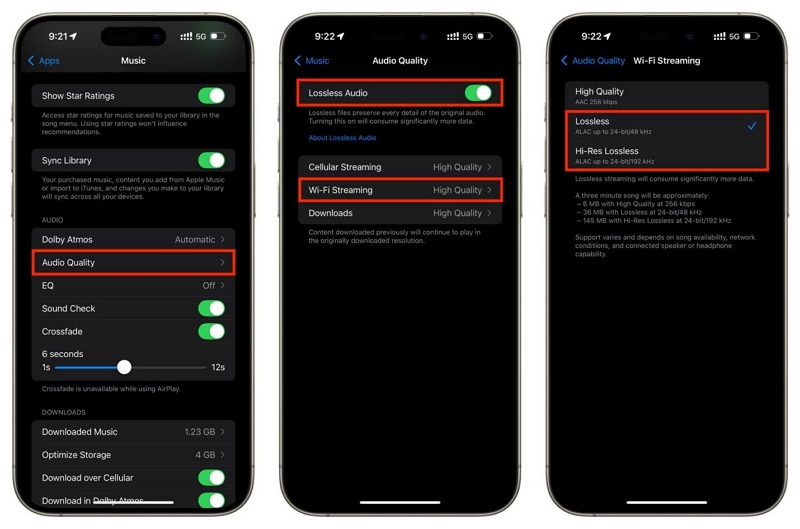
On iPhone / iPad
- Open Settings
- Tap Music
- Tap Audio Quality
- Check Downloads
Options you’ll see:
- High Efficiency
- High Quality (256 kbps AAC)
- Lossless
- Hi-Res Lossless
Important: If Lossless or Hi-Res Lossless is enabled here, every offline song is stored at that size.
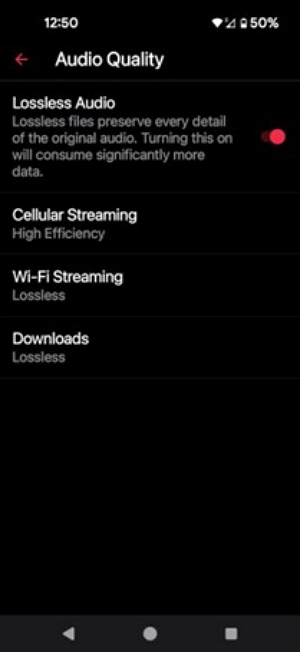
On Android
- Open Apple Music
- Tap ⋮ > Settings
- Tap Audio Quality
- Check Download quality
Lossless downloads on Android also consume 2–3× more storage than AAC.
Reality check: If you’re using Bluetooth headphones (including AirPods), you cannot hear true Lossless anyway due to Bluetooth compression.
3. Reduce Apple Music Song Size by Lowering Download Quality
Lossless audio sounds great, but it’s overkill for most users, especially if you’re listening on Bluetooth headphones or earbuds. Lowering your download quality can shrink song sizes by up to 70% without a noticeable drop in everyday listening quality.
Recommended Settings (Best Balance)
Actionable advice: Most Bluetooth headphones, including AirPods, do not support Lossless. They cannot stream true lossless audio over Bluetooth due to compression. Stick with High Quality for the best mix of sound and storage savings.
4. Turn Off Lossless Downloads (If You Don’t Need Them)
This single change prevents future storage bloat.
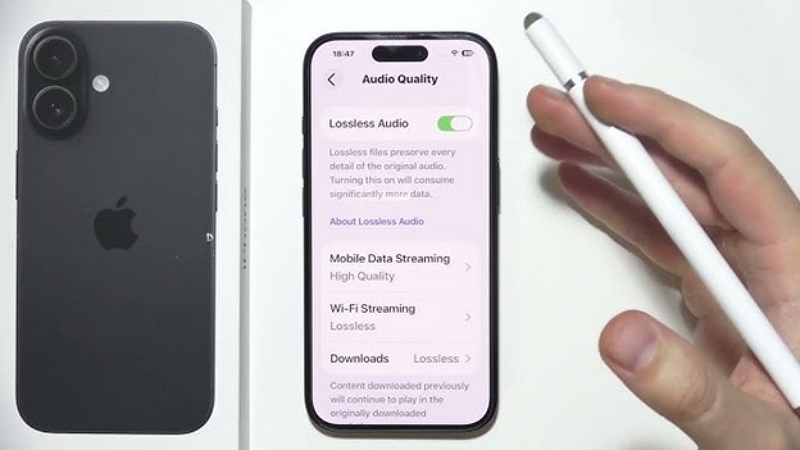
On iPhone or iPad
- Settings > Music > Audio Quality
- Toggle Lossless Audio OFF
- Set Download Quality to High Quality
On Android
- Apple Music > Settings > Audio Quality
- Disable Lossless
- Choose High Quality or High Efficiency
Changing this setting does not resize existing downloads. That’s the mistake most users make.
Shrink Existing Downloads (The Step People Miss)
If your storage didn’t change after lowering quality, this is why.
Correct Workflow (Tested)
1. Remove existing downloads
Apple Music > Library > Downloaded > Edit > Remove Downloads
2. Confirm your new quality setting
3. Re-download playlists or albums
After doing this on my iPhone:
- Before: 38GB (Lossless)
- After re-download (AAC): 14GB
- Audible difference on AirPods Pro: None
Save Space Without Deleting Your Library (Optimize Storage)
If you want offline access without micromanaging downloads, enable Optimize Storage.
Enable Optimize Storage
- Settings > Music > Optimize Storage
- Turn it ON
- Set a minimum size (e.g. 8GB or 16GB)
What it does:
- Removes rarely played downloads automatically
- Keeps your library and playlists intact
- Prioritizes music you actually listen to
Extra tips that actually help:
- Download playlists, not entire albums
- Avoid auto-downloading everything you add to your library
- Review the “Downloaded” section once a month
Why You Can’t Manually Compress Apple Music Files
Trying to shrink Apple Music files using a third-party compressor? Unfortunately, it won’t work, and here’s why.
- Apple Music downloads are encrypted: All downloaded songs are protected by FairPlay DRM, which prevents them from being opened or modified outside the Apple Music app.
- Cannot be accessed as audio files: Even though they appear as music files, Apple Music downloads aren’t accessible as MP3 or AAC files. You can’t drag them into a file compressor or audio editor. They’re sandboxed within the app.
- No third-party compressor works directly: No legitimate third-party app can compress or convert Apple Music downloads directly. Doing so would require breaking Apple’s DRM, which violates their terms of service and could compromise your account.
When Apple Music’s Built-In Options Aren’t Enough (Advanced Users Only)
This section is not for everyone.
If you:
- Want permanent offline files
- Prefer MP3 storage
- Don’t want to rely on Apple Music’s app ecosystem
Then third-party converters (such as Mediaio Audio Converter) are an alternative path, not a replacement for Apple’s built-in tools.
Trade-offs you should understand:
- Files won’t sync with Apple Music features
- You manage storage manually
- This is outside Apple’s official ecosystem
Quick Decision Guide (Read This If You’re in a Hurry)
- Fastest fix: Turn off Lossless → Remove downloads → Re-download
- Frequent traveler: High Quality + Optimize Storage
- Bluetooth headphones: Never use Lossless for downloads
- Wired DAC / studio setup: Keep Lossless, but download selectively
FAQ
Apple Music does not have a fixed file-size limit, but Lossless and Hi-Res tracks can exceed 100 MB each.
No, it is not for most users. Bluetooth can’t stream true Lossless, and the storage tradeoff is steep.
Apple Music caches more data and supports Lossless formats, which are much larger than Spotify’s compressed files.
Yes, you can. Enable Optimize Storage to automatically remove unplayed downloads, or switch to a lower quality setting for future downloads.