

Apple Music works well — until it starts downloading songs you never asked for, or blasting music the moment you start your car or open the app.
Whether you’re trying to save mobile data, free up storage, or just want a quieter drive, these behaviors can feel intrusive. In this 2026 guide, you’ll learn how to stop Apple Music from auto-downloading and auto-playing on iPhone, CarPlay, and Windows, with clear, step-by-step fixes for real-world situations.
Part 1. Why Apple Music Keeps Auto Downloading or Auto Playing
Why does Apple Music download songs automatically?
Apple Music is designed to enhance your listening experience by preloading content it thinks you’ll want to listen to offline. Usually, you would have Automatic Downloads or Add Playlist Songs enabled. That’s nothing new. But what happens when you do that? Any song or album you add to your library may be downloaded to your device without asking. It happens when:
- Automatic Downloads is toggled on in Settings > Music.
- You’ve enabled Download over Cellular, allowing downloads even without Wi-Fi.
- You’ve turned on Sync Library, which mirrors your Apple Music library across devices.
Yes, these settings make it more convenient for you, but they can quickly eat up storage or data if left unchecked.
Why does Apple Music play automatically?
Apple Music may start playing on its own due to several default behaviors.
- Autoplay is enabled: Whenever a song or playlist ends, Apple Music queues up similar tracks and keeps playing.
- Bluetooth triggers: Connecting your iPhone to a car’s Bluetooth or headphones can automatically launch playback.
- CarPlay or Infotainment systems: Many vehicles are set to auto-launch the last used media app – often Apple Music – when the engine starts.
- Siri Suggestions: if enabled, Siri may proactively suggest or resume playback, based on your habits.
Reality Check
In most cases, Apple Music auto-downloads songs because Automatic Downloads and Sync Library are both enabled at the same time.
Bluetooth, CarPlay, or Siri-triggered playback usually feels like a “bug,” but it’s almost always a default behavior, not a system error.
Part 2. How to Stop Auto Download on Apple Music (iPhone & iPad)
Not sure where to start?
Most users only need one of the following fixes — pick the one that matches your situation:
- Low storage space? → Turn off Automatic Downloads first
- Too many offline songs already? → Use Batch Remove
- Just want control (not deletion)? → Use Remove Download only
2.1 Turn Off Automatic Downloads (Step-by-Step)
If Apple Music keeps downloading songs without asking, it’s likely due to default settings that prioritize convenience over control. Here’s how to turn them off.
1. Open the Settings app on your iPhone or iPad.
2. Scroll down and tap Music.
3. Toggle off Automatic Downloads.
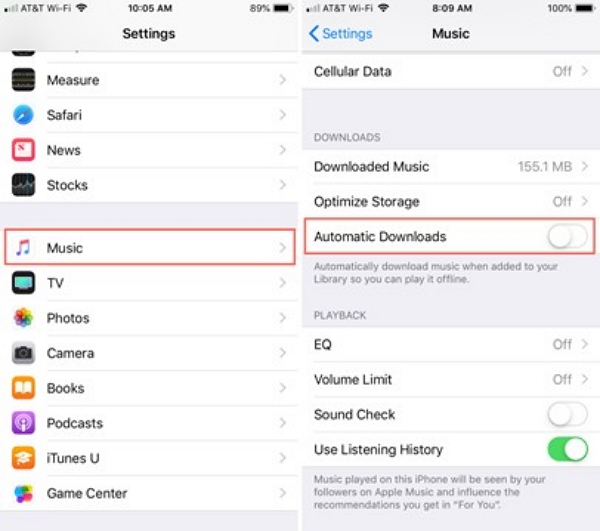
It is also recommended to close.
- Download over Cellular: Toggle off Download over Cellular
- Sync Library (if not required): Toggle it off if you don’t need your music mirrored across devices.
This is the best starting point if Apple Music keeps filling up your storage without asking.
2.2 How to Undownload Songs on Apple Music (Without Deleting from Library)
If you want to free up space without losing your saved tracks, Apple Music lets you remove downloads while keeping songs in your library. This way, you can still stream them anytime without having to re-add them.
Method 1: Remove downloads of individual songs
1. Open the Apple Music app.
2. Find the downloaded song or album.
3. Tap and hold the item, then select Remove.
4. Choose Remove Download (not Delete from Library)
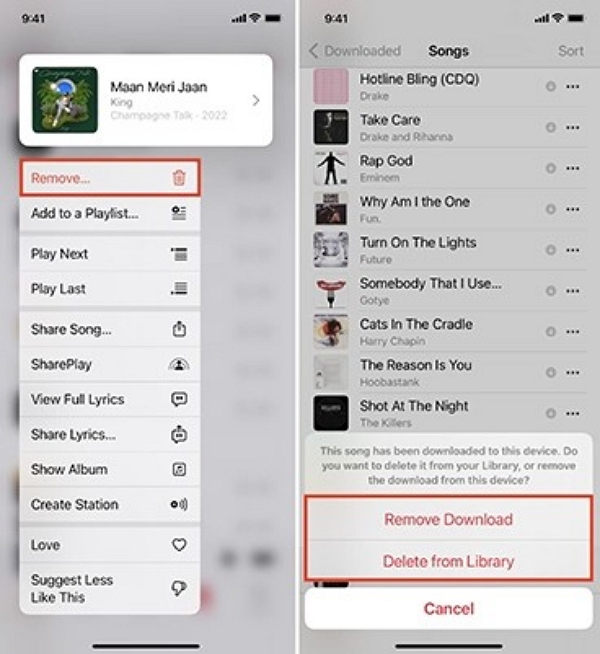
This removes the offline copy but keeps the song in your library for streaming.
Optional (advanced users only):
If you need certain tracks available offline outside of Apple Music (for example, for DJ software or audio editing apps), export them before removing Apple Music downloads.
Some users manage their personal audio files with tools like Mediaio Audio Converter in this situation.
Important: This is not required to stop Apple Music from auto-downloading. It only applies if you specifically need local audio files that Apple Music itself doesn’t allow you to use elsewhere.
Method 2: Batch Remove Downloads (Fastest System-Level Method)
This is the fastest way to reclaim storage without deleting songs from your library, especially if you’ve accumulated years of offline downloads.
If you have hundreds (or even thousands) of downloaded songs, removing them one by one is unnecessary. Apple Music lets you remove downloads in bulk directly from system settings.
How to batch-remove downloaded songs on iPhone or iPad:
1. Open Settings > Tap Music
2. Select Downloaded Music
3. Tap Edit in the top-right corner
4. Remove downloads by artist, album, or all at once using the red minus (–) icon
5. Tap Delete to confirm
This removes only the offline files, not the songs themselves. All tracks remain in your library and can be streamed anytime with an internet connection.
Important to know
- Songs are not removed from your library or playlists
- Only locally stored files are deleted
- Online playback and recommendations are unaffected
This method is ideal if you’ve accumulated years of offline downloads and just want your storage back — fast.
Part 3. How to Stop Apple Music from Auto-Playing on iPhone
3.1 Turn Off Apple Music Autoplay
Apple Music’s Autoplay feature automatically queues up similar songs after your current track or playlist ends. While it’s designed to keep the music going, it can be disruptive, especially if you prefer silence or want to control what plays next.
Let’s see how to disable Autoplay in Apple Music.
- Open the Apple Music app.
- Start playing any song.
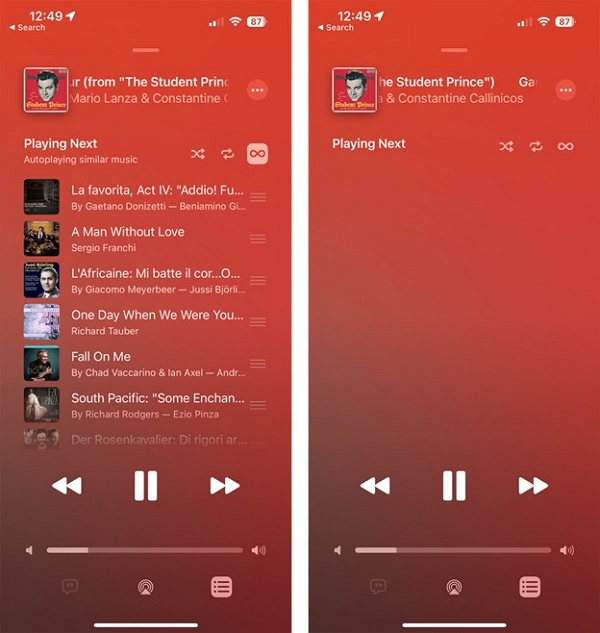
- Tap the Now Playing bar at the bottom to expand it.
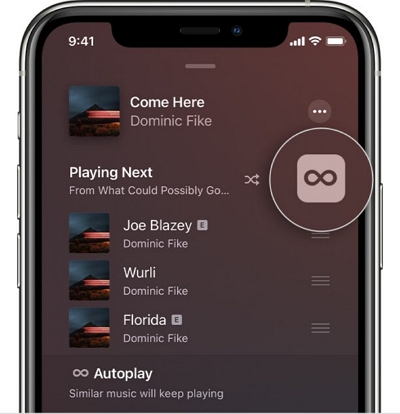
- Tap the Up next icon (three lines with dots) in the lower-right corner.
- If the infinity (∞) icon is highlighted, tap it to turn it off.
Note: Once disabled, Apple Music will stop automatically playing similar songs after your current queue ends. You’ll only hear what you’ve manually added.
3.2 Stop Apple Music from Automatically Playing When Opening the App
Sometimes, Apple Music starts playing the moment you open the app, even if you did not press Play. It usually happens when the app resumes the last session or when background activity is triggered by system behavior.
While there’s no single “master switch” to disable this, you can reduce or eliminate auto-launch behavior with these steps:
How to Prevent Auto-Playback on App Launch
Force Quit Apple Music after use:
- Swipe up from the bottom of the screen (or double-click Home button)
- Swipe away the Apple Music app to fully close it.
- This prevents it from resuming playback automatically next time.
Disable Background App Refresh:
- Go to Settings > General > Background App Refresh
- Find Music and toggle it off.
- This stops Apple Music from running in the background and auto-resuming.
Turn Off Siri Suggestions for Music (Optional):
- Go to Settings > Siri & Search > Music
- Toggle off Show App in Search, Suggest App, and Show on Home Screen.
- This reduces proactive playback triggers.
Common misconception
Many users turn off Autoplay once and expect it to fix music playing in the car.
In reality, Autoplay and Bluetooth-triggered playback are two different things, and both may need to be addressed separately.
Part 4. How to Stop Apple Music from Automatically Playing in the Car
If you’ve already disabled Autoplay but Apple Music still starts playing in your car, this isn’t a bug — it’s usually triggered by Bluetooth or CarPlay resuming the last audio source.
Start with the top option and only move down if the previous method doesn’t work for your car setup.
You don’t need all of these — for most users, disabling Autoplay alone is enough.
4.1 Turn Off Apple Music Autoplay with CarPlay
If your iPhone starts blasting music the moment you plug into CarPlay, you’re not alone. Almost everyone experiences this situation. This behavior is triggered by Apple Music’s autoplay and your car’s infotainment system resuming the last active audio source.
While there’s no single toggle to disable this across all vehicles, here are effective workarounds.
Option 1: Disable Autoplay in Apple Music Before Connecting
- Open the Apple Music app.
- Start playing any song.
- Tap the Now Playing screen.
- Tap the Up Next icon (three lines with dots).
- Tap the Infinity (∞) icon to turn off Autoplay.
This prevents Apple Music from queueing up similar songs after your playlist ends, even when you connect to CarPlay.
Option 2: Use Screen Time to Block Apple Music in the Car
- Go to Settings > Screen Time > Content & Privacy Restrictions.
- Tap Allowed Apps.
- Toggle off Music.
- Reconnect your iPhone to CarPlay.
This blocks Apple Music from launching at all when driving. It is ideal if you use other apps like Spotify or Podcasts instead.
Option 3: Use Silent Audio Track as Default.
You can trick CarPlay by creating a silent MP3 file and setting it as the first track in your library. When CarPlay auto-launches Apple Music, it plays silence instead of a song. This workaround proves handy if you can’t disable autoplay at the system level.
4.2 Prevent Apple Music from Starting When Connected to Bluetooth
If Apple Music starts playing automatically whenever your iPhone connects to your car’s Bluetooth, it’s likely because iOS handles media resumption. Fortunately, you don’t need to uninstall Apple Music to stop this behavior.
Try these fixes.
Option 1: Disable Autoplay in Apple Music
- Open the Music App.
- Play any song, then tap the Now Playing screen.
- Tap the Up Next icon (three lines with dots).
- Tap the Infinity (∞) to turn off Autoplay.
Option 2: Use Shortcuts to Block Playback on Bluetooth Connect.
- Open the Shortcuts app.
- Tap Automation > + > Create Personal Automation.
- Choose Bluetooth and select your car’s Bluetooth.
- Tap Next, then Add Action > Search for pause or Stop Playing.
- Tap Next, disable Ask Before Running, then tap Done.
This will stop Apple Music from playing the moment your phone connects to your car.
Option 3: Switch Default Audio App (Siri Workaround)
iOS doesn’t let you set a permanent default music app. However, Siri can learn your preferences over time. If you consistently request music from another app, such as Spotify, Amazon Music, or YouTube Music, Siri will start routing playback to that app instead of Apple Music.
How to train Siri to prefer another app:
- Activate Siri.
- Say something like – “Play (song) on Spotify. Or play my workout playlist using YouTube Music.
- Siri will ask for permission to access the app. Tap Yes.
- Repeat this a few times to reinforce your preference.
Over time, Siri will learn your preferences and default to your chosen app when you say “Play Music.” That reduces Apple Music’s automatic involvement, especially when using voice commands in the car.
Important Tip: If you just don't want to play Music every time you start the car, there's no need to uninstall Apple Music.
Part 5. How to Stop Apple Music Autoplay on Windows (iTunes)
On Windows, Apple Music behavior is mostly controlled by iTunes, which is why fixes feel more manual compared to iPhone.
5.1 Disable Autoplay in iTunes (Windows 10/11)
If you’re using Apple Music through iTunes on a Windows PC, you might notice songs or playlists continuing to play even after your selection ends. This is due to the Autoplay feature, which automatically queues similar tracks.
How to Turn Off Autoplay in iTunes:
1. Open iTunes on your Windows 10 or 11 PC. Start playing any song or playlist.
2. Click the Up Next icon (three horizontal lines with a play icon) in the top-right corner of the iTunes window.
3. Look for the infinity (∞) at the top of the Up next queue.
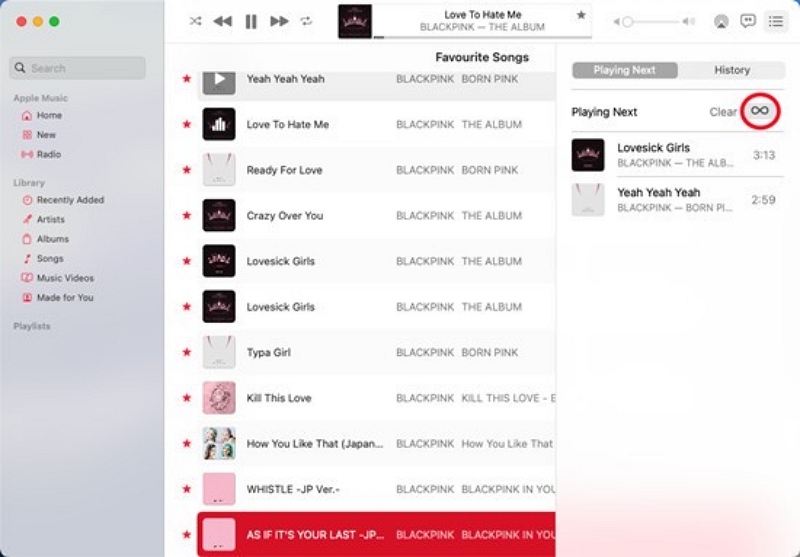
4. If the icon is highlighted, click it to disable Autoplay.
Once turned off, iTunes will stop automatically playing similar songs after your current queue ends. This setting is saved across sessions, so you won’t need to toggle it off every time.
5.2 Stop Apple Music from Launching Automatically on Windows
If Apple Music (via iTunes) opens by itself every time you start your PC or plug in your iPhone, it’s likely due to auto-launch settings in Windows or iTunes. Let’s see how to stop it.
Option 1: Disable iTunes from Startup.
1. Press Ctrl + Shift + Esc to open Task Manager.
2. Click the Startup tab.
3. Find iTunesHelper or iTunes in the list.
4. Right-click and select Disable.
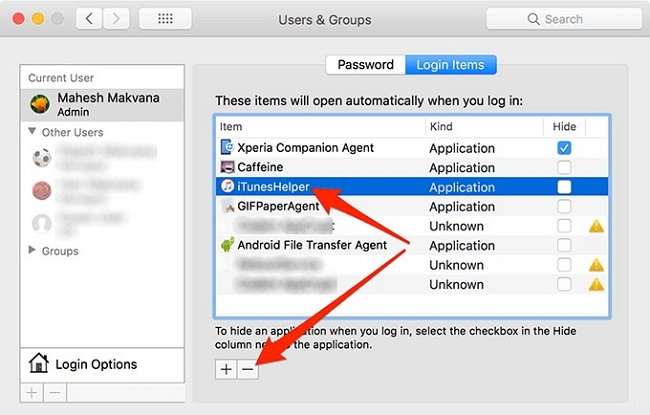
This prevents iTunes from launching automatically when your computer boots up.
Option 2: Turn Off Auto-Launch When iPhone Connects
1. Connect your iPhone to your PC.
2. Open iTunes.
3. Click the device icon.
4. Under the Options section, uncheck “Automatically sync when this (device) is connected.”
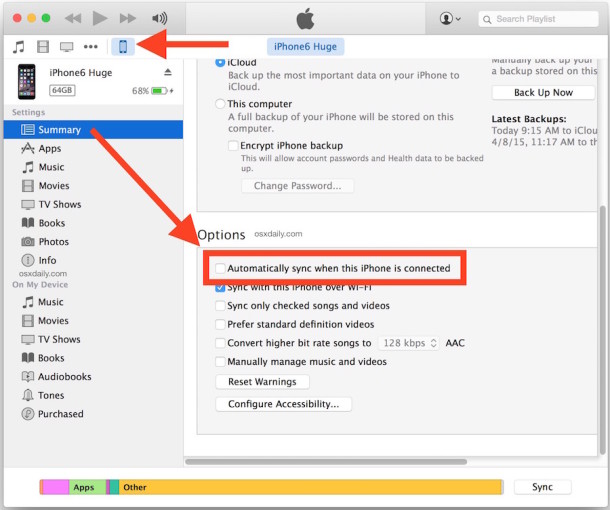
This prevents iTunes from opening and syncing whenever you plug in your iPhone.
Optional: Use Windows Settings to Block Background Launch.
1. Go to Settings > Apps > Startup.
2. Locate iTunes or Apple Music.
3. Toggle it off.
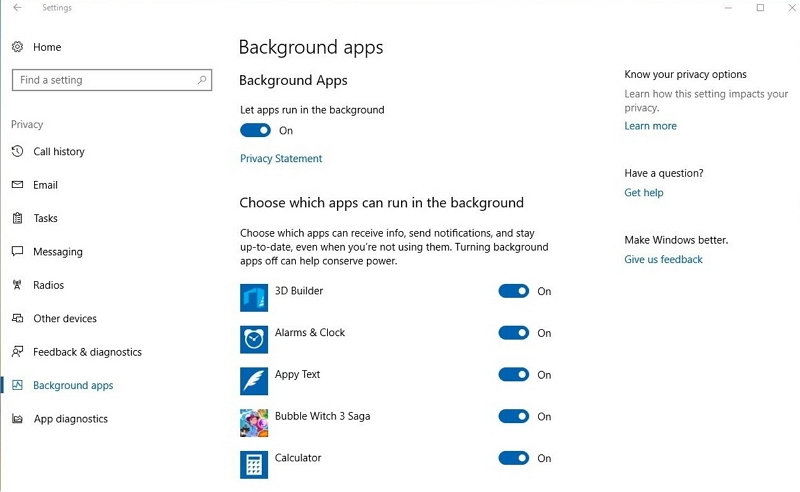
This adds another layer of control, especially if iTunesHelper is still triggering background activity.
Part 6. How to Disable Apple Music Completely (If You Don’t Use It)
Method 1: Remove the Apple Music App (feasible for iOS)
If you don’t use Apple Music at all and prefer other streaming platforms like Spotify or Amazon Music, the simplest way to prevent it from launching or interfering is to remove the app entirely. Simple, isn’t it? Here’s how to delete Apple Music from your iPhone or iPad.
1. Tap and hold the Apple Music app icon on your Home Screen.
2. Select Remove App.
3. Tap Delete App to confirm.
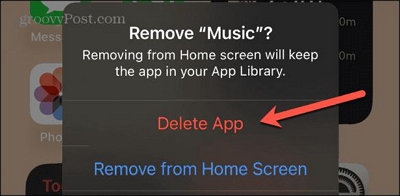
This removes Apple Music from your device and prevents it from auto-launching, syncing, or playing music in the background. You can always reinstall it later from the App Store if needed.
Method 2: Cancel Apple Music Subscription
If you no longer use Apple Music and want to stop being charged, canceling your subscription is the most direct way to disable the service across all devices. Let’s see how to cancel Apple Music on your iPhone or iPad.
1. Open the Settings app. Tap your Apple ID name at the top.
2. Select Subscriptions > Tap Apple Music.
3. Tap Cancel Subscription and confirm.
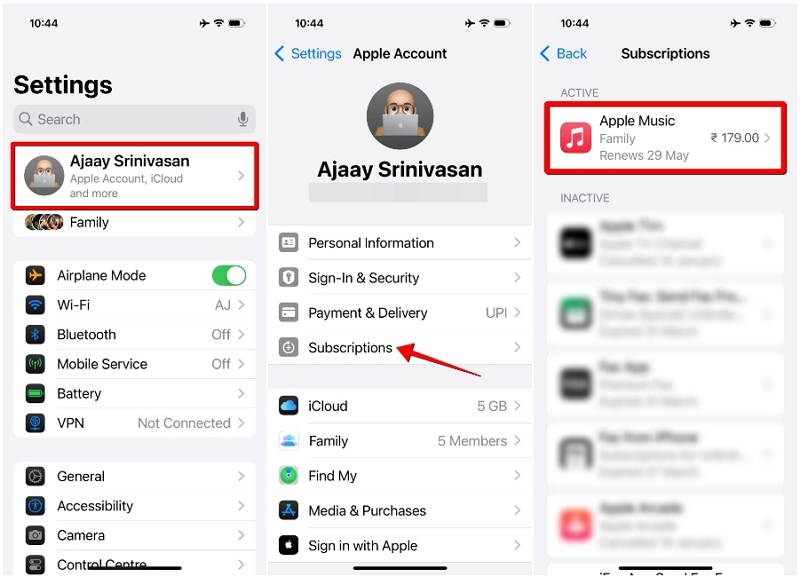
Here’s how you can cancel Apple Music via iTunes (Windows).
1. Open iTunes and sign in with your Apple ID.
2. Click Account > View My Account > Scroll to Settings > Subscriptions.
3. Click Manage. Find Apple Music and click Edit.
4. Click Cancel Subscription.
Once canceled, your access will continue until the end of the current billing cycle. You won’t be charged again unless you resubscribe.
Method 3: Hide Apple Music recommendations (Settings)
This method is suitable for: "Users who only use Spotify/Amazon Music."
If you’ve switched to Spotify, Amazon Music, or another streaming service, Apple Music’s persistent recommendations can feel intrusive, especially in the Music app or Spotlight search. You cannot completely remove Apple Music from the ecosystem without deleting the app. However, you can hide most of its suggestions. Here’s how you do it.
1. Open the Settings app. Tap Music
2. Toggle off Show Apple Music.
This removes Apple Music’s curated content, charts, and recommendations from the Music app.
Optional: Go to Settings > Screen Time > Content & Privacy Restrictions.
- Tap Allowed Apps.
- Toggle off Music to hide the app entirely.
This is best for users who exclusively use 3rd party music apps and want a cleaner, Apple Music-free experience across iOS.
Part 7. After Updates or Device Changes: Quick Checklist
Apple Music settings can reset after iOS updates, car system updates, or device re-pairing.
This quick checklist helps you regain control fast—without redoing the entire setup from scratch.
Issue: Settings are turned off, but Apple Music still plays automatically.
Quick Fixes:
- Force-quit the Music app after using it to prevent it from resuming in the background.
- Restart your iPhone to clear cached playback triggers.
- Disable Bluetooth auto-connect for your car or speaker in Settings > Bluetooth.
Issue: After updating iOS, the settings were reset.
Quick Fixes:
- Revisit Settings > Music and recheck for Automatic Downloads, Autoplay, and Download over Cellular.
- Reopen Shortcuts > Automation to confirm your “Stop Playing” automation is still active.
- If needed, reset all settings via Settings > General > Transfer or Reset iPhone > Reset > Reset All Settings (this won’t delete your data).
Issue: The CarPlay settings are not synchronized with the iPhone.
Quick Fixes:
- Unplug and reconnect your iPhone, then reconfigure CarPlay settings.
- Go to Settings > General > CarPlay, select your car, tap Forget This Car, then re-pair.
- Ensure iOS and your car’s firmware are both up to date.
- Recheck Autoplay settings in both Apple Music and your car’s infotainment system.
These quick fixes help resolve persistent autoplay or download issues that linger even after toggling off the right settings.