

Quick Answer: Does Amazon Music Work on Apple CarPlay?
Yes. Amazon Music works on Apple CarPlay.
Just install/update the Amazon Music app > connect your iPhone to CarPlay (USB or wireless) > open Amazon Music on the CarPlay screen > tap Play.
You can also say: “Hey Siri, play [song] on Amazon Music.”
Part 1: Does Amazon Music Work on Apple CarPlay?
Yes. Amazon Music is fully compatible with CarPlay on any supported vehicle or aftermarket head unit.
On CarPlay, you can:
1. Play playlists, albums, stations, and podcasts
2. Use Siri for voice control
3. Access recommendations from your Amazon Music Home screen
4. Stream over cellular or Wi-Fi
Both Amazon Music Free, Prime Music, and Amazon Music Unlimited work on CarPlay, although available features vary by plan.
Part 2: How to Use Amazon Music on Apple CarPlay
Step 1. Prepare Your iPhone
- Install or update the Amazon Music app from the App Store.
- Open Amazon Music and sign in to your Amazon account.
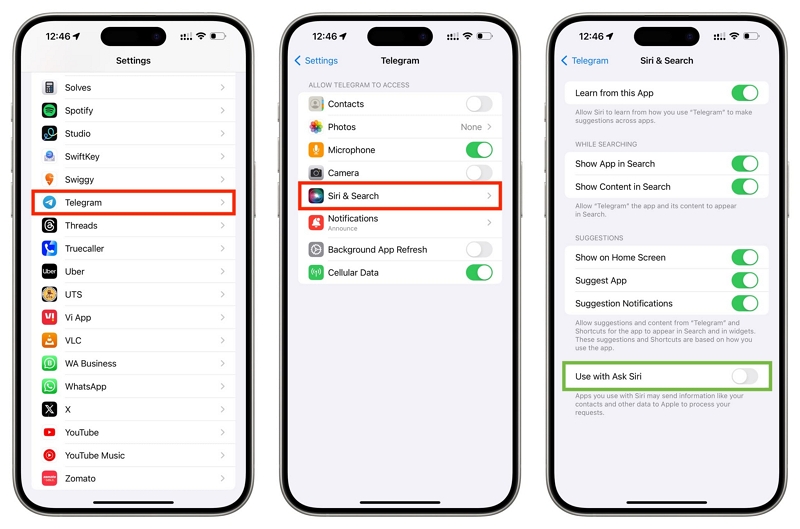
- Go to Settings > Siri & Search > Amazon Music > enable Use with Ask Siri.
- If you plan to stream while driving, enable: Settings > Amazon Music > Cellular Data.
Step 2. Connect iPhone to CarPlay
Option A. Wired CarPlay (Most Stable)
- Use a certified Lightning or USB-C cable.
- Plug it into your car’s USB port.
- Tap Allow on your iPhone when prompted.
Option B. Wireless CarPlay
1. On iPhone: Settings > General > CarPlay.
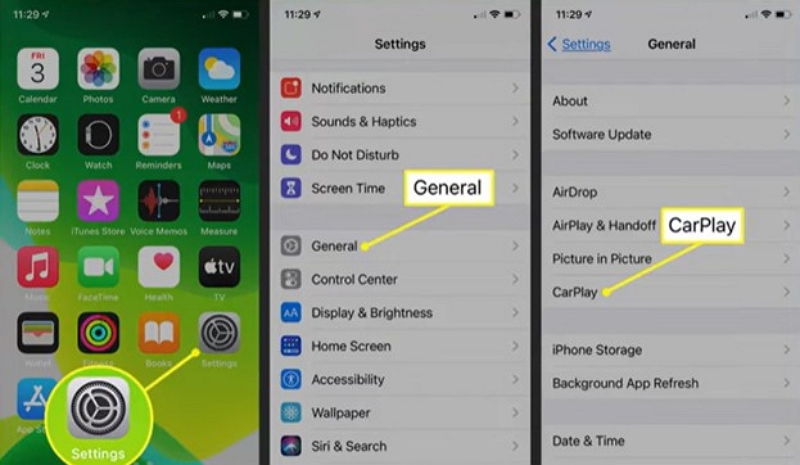
2. Select your car from the list.
3. Ensure Wi-Fi + Bluetooth are enabled and complete pairing.
Step 3. Play Amazon Music on CarPlay
1. On your car’s display, open the Amazon Music app.
2. Browse Home, Library, Playlists, Stations, or Recently Played.
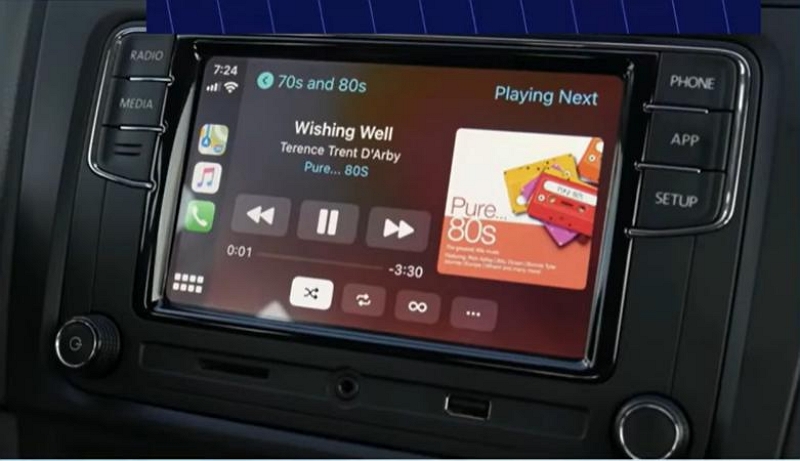
3. Tap a song or playlist to start playing.
4. Control playback using:
- Steering wheel controls
- Car touchscreen
- Or Siri: “Hey Siri, play my Driving playlist on Amazon Music.”
Part 3. Amazon Music CarPlay Troubleshooting
Quick Checklist
Before diving deeper, verify these essentials:
✔ Amazon Music is installed and logged in
✔ CarPlay is enabled (Settings > General > CarPlay)
✔ Try a different certified cable (for wired)
✔ Update iOS + Amazon Music app
✔ Restart iPhone & car’s infotainment system
If the issue continues, find the matching scenario below.
1. Amazon Music App Opens But Won’t Play
Try the following:
Fix 1. Check your network
- Toggle Wi-Fi / Cellular
- Disable Airplane Mode
Fix 2. Restart Amazon Music
Fix 3. Sign out and sign back in
Amazon Music > Settings > Sign Out > log in again.
Fix 4. Reinstall the app
Settings > General > iPhone Storage > Amazon Music > Offload App (or Delete App > reinstall).
2. Amazon Music Not Showing Up on CarPlay
Fix 1. Re-enable Amazon Music on CarPlay
- Settings > General > CarPlay > Your Car
- Make sure Amazon Music is allowed
- Drag it onto the CarPlay Home screen if hidden
Fix 2. Check Screen Time Restrictions
Settings > Screen Time > Content & Privacy Restrictions. Ensure CarPlay is not restricted.
3. Siri Won’t Play Amazon Music
Fix 1. Allow Siri Integration
Settings > Siri & Search > Amazon Music > enable: Use with Ask Siri & Show App in Search (optional)
Fix 2. Test with app open
Open Amazon Music on iPhone > Try: “Play jazz on Amazon Music.”
4. Audio Sounds Poor or Quiet
Fix 1. Use USB instead of Bluetooth
USB offers better quality; Bluetooth compresses audio. Ask your car dealer whether your model supports: AAC, aptX, aptX HD
Fix 2. Check volume & audio source
Make sure the car is set to USB or CarPlay, not AUX/Bluetooth.
Fix 3. Toggle microphone permission (diagnostic)
Settings > Privacy > Microphone > Amazon Music > Disable
Sometimes this prevents the app from routing through the “hands-free” low-quality channel.
5. CarPlay Keeps Disconnecting
- Use a different certified cable
- Try a different USB port (some ports only charge)
- Update your car’s infotainment firmware
- Reset network settings: Settings > General > Transfer or Reset iPhone > Reset Network Settings
Part 4: Offline Options: Legal Ways to Listen in the Car
Official Offline Downloads
Amazon Music (Prime and Unlimited) allows offline downloads inside the Amazon Music app only.
These downloads:
- Play offline
- Are encrypted
- Require an active subscription
They cannot be copied out to USB or other players.
If you want MP3 files you own
You can legally:
- Buy MP3s from Amazon Music Store
- Rip your own CDs for personal use
- Use USB playback if your car supports it
Offline Method: Convert Amazon Music to MP3 and Play in Any Car
To enjoy Amazon Music in your car without depending on internet streaming, the simplest method is to download your songs as MP3 files. This enables you to play your music on any device, including older car stereos that lack app support.
Mediaio Audio Converter is a robust application created specifically for this task. It allows you to transform your favorite songs, playlists, and albums into standard MP3 files for offline playback. In contrast to basic recording techniques, it maintains the original sound quality and artist, and transforms music rapidly, allowing you to save time.
Download Amazon Music as MP3 and Play in Your Car
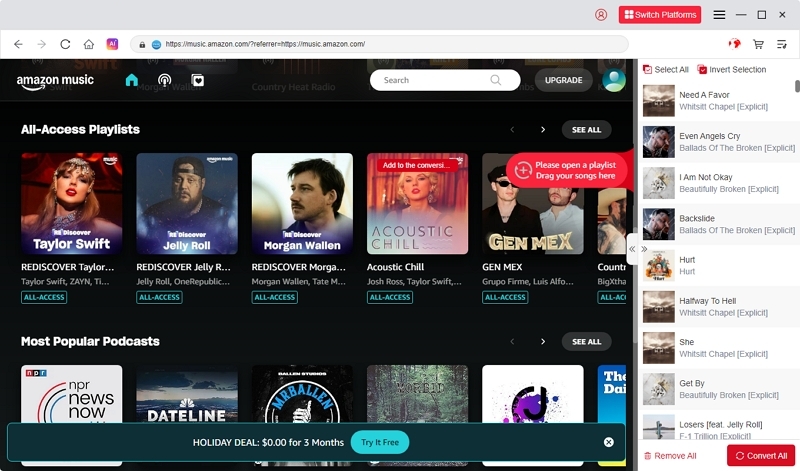
Select Amazon Music from the available platforms on the main screen to begin the process.
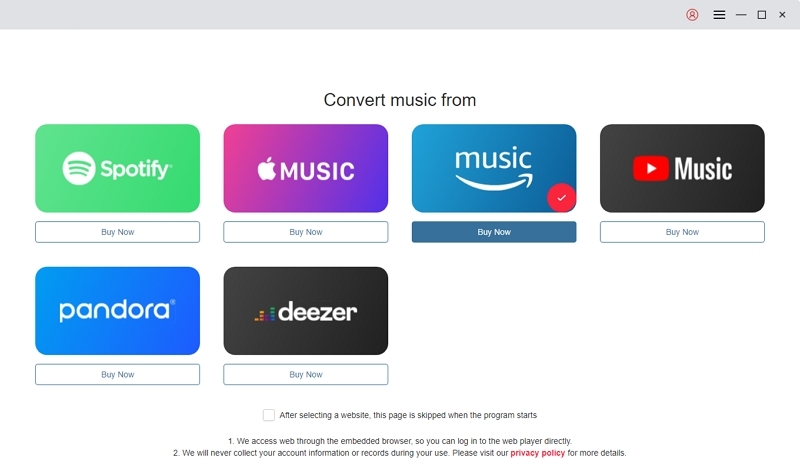
Browse Amazon Music and locate the songs, albums, or playlists you want to download. Drag and drop them onto the “+” icon to add them to the conversion list.
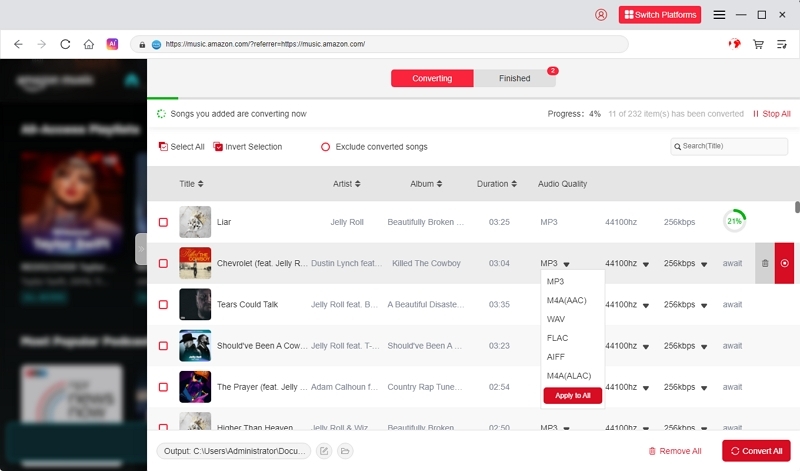
Choose MP3 as the output format (or another preferred format) and set the destination folder before starting the conversion.
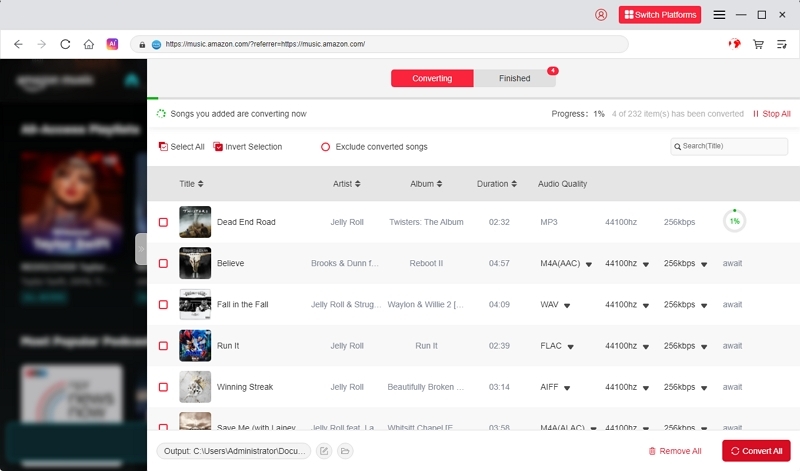
Click “Convert All” to begin transforming your Amazon Music tracks into MP3 files.
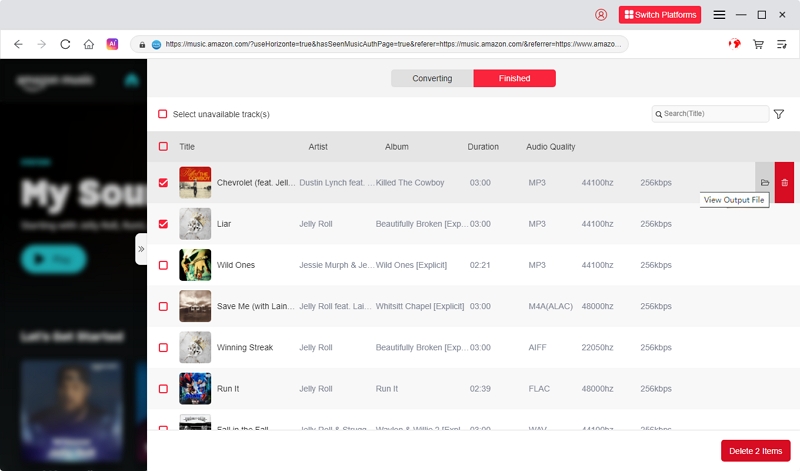
Once the conversion is complete, open the Finished tab to view and access all your downloaded MP3 files.
Move Amazon Music Files from PC to Your Phone (and Play Them in the Car)
If you converted Amazon Music to MP3 using Mediaio Audio Converter and want to play the files in your car through your phone, follow the steps below.
Step 1. Launch File Explorer on your PC. Go to the folder where Mediaio saved your converted music files.
Step 2. Choose the songs or folders you want to move. Connect your phone (Android or iPhone that supports file transfer) to the PC with a USB cable.
Step 3. On your phone, select a mode such as File Transfer, MTP, or Transfer Files. Your phone should now appear in File Explorer as a portable device.
Step 4. In File Explorer, click your phone → Internal Storage (or similar). Find or create a folder named Music.
Step 5. Drag and drop (or copy and paste) the MP3 files from your PC into the Music folder on your phone. Wait until the transfer is fully completed.
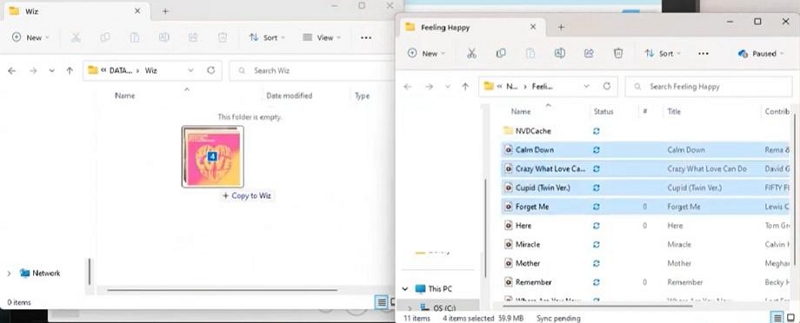
Step 6. In File Explorer, right-click on your phone’s device name and choose Eject / Safely Remove.
Then unplug the USB cable.
Step 7. Launch any app that supports local files (Google Play Music alternatives, VLC, Samsung Music, etc.).
Step 8. Open the folder where you copied the files. You can now play the tracks directly from the app.
Step 9. Play Music in Your Car
Choose one of the following connection methods:
- USB: Connect your phone to your car’s USB port → select “USB” or “iPod/Android” on car stereo → press play.
- Bluetooth: Pair your phone with the car’s Bluetooth → start playback in the music app → sound plays through your speakers.
- AUX cable: Connect a 3.5 mm cable to your phone (or use an adapter) and plug the other end into the car’s AUX port.
You may also interested in download Amazon Music on Android
Bonus: Burn Amazon Music to CD
After converting Amazon Music to MP3, you can burn the songs to a CD for use in cars with CD players.
Step 1. Insert a Blank Disc
Place a CD-R (recommended) or CD-RW into your computer’s CD/DVD burner.
Step 2. Open CD-Burning Software
Start your CD-burning program (e.g., Windows Media Player, iTunes for Windows, or any CD burner).
Choose to create a Music (Audio) CD or Data CD, depending on what your car stereo supports.
Step 3. Add Music Files
Import the MP3 or WAV files into the burn list.
Make sure the total time does not exceed 80 minutes if you are burning an Audio CD.
Step 4. Choose the Correct CD Format
- Audio CD → for older car stereos that only read standard CDs.
- MP3 / Data CD → for car stereos that support MP3 playback.
Step 5. Burn the CD
Select a slower burn speed for improved compatibility.
Click Burn and wait until the disc is finished.
Test the CD in your car stereo to ensure it plays correctly.
FAQs
Yes. You can download songs, albums, and playlists in the Amazon Music app on your iPhone, and they will play offline through Apple CarPlay.
This usually happens due to:
• Incorrect Amazon Music region settings
• Siri not being allowed to access Amazon Music
• Regional restrictions on some voice commands
Make sure the Amazon Music app and Siri permissions match your actual Apple ID region.
Many users notice lower volume or “tinny” audio in CarPlay. Two common fixes are:
• Disable microphone access:
Go to Settings → Privacy → Microphone → turn off Amazon Music
• Turn off “Hands-Free with Alexa” inside the Amazon Music app
These settings sometimes force Amazon Music into a low-quality audio route. Turning them off restores normal sound.
No. CarPlay does not support Alexa as a built-in assistant.
If you want Alexa voice control in your car, use an external device like Echo Auto, connected via Bluetooth or AUX.
There is no official, consistent confirmation.
Amazon mainly promotes HD/Ultra HD for Alexa-supported devices rather than CarPlay.
Most users report that CarPlay plays in standard quality, not Ultra HD.
Conclusion
Apple CarPlay makes it easy to enjoy Amazon Music while driving. This guide covered setup, playback, troubleshooting, offline listening, and additional options such as transferring MP3s to your phone or burning them to a CD.
For the most reliable offline experience, Mediaio Audio Converter helps convert Amazon Music into standard MP3 files that you can play anywhere—on your phone, in your car, or even on a CD player.