

You’ve probably noticed that small “E” mark sitting next to certain songs on Spotify. It shows up on some tracks, but not all. And Spotify doesn’t really explain what it’s about. So it’s normal to wonder — is it tied to a specific genre? Should you be concerned if it shows up in your playlist?
This guide breaks all of that down. You’ll find what the E mean on Spotify and how to choose whether those tracks play or get skipped. And it doesn’t stop there. We’ll also cover other icons and settings related to Spotify content, so you can fine-tune your experience.
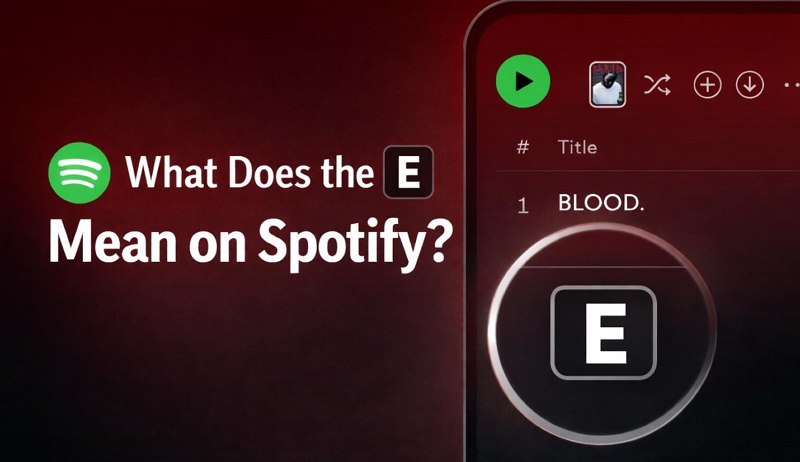
What Does the E Mean on Spotify
At its simplest, the “E” on Spotify stands for Explicit, meaning the track contains content that is not suitable for all listeners. But it’s more than just a basic “adult content” label. This section breaks it down properly.
You’ll see what kind of content actually gets marked with an “E” and how Spotify decides which tracks receive this label and which don’t.
What the E Means in Spotify
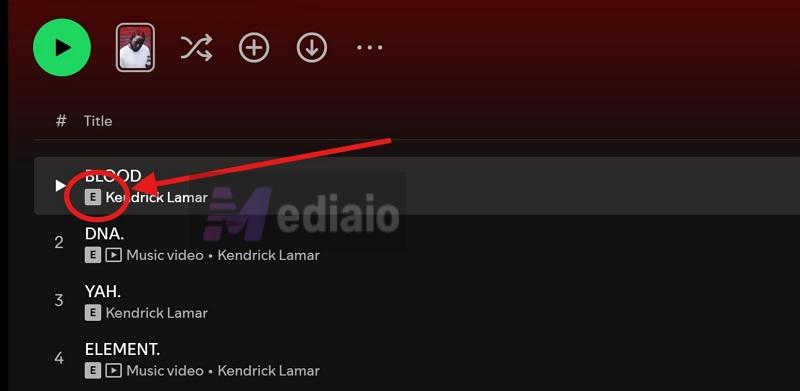
The “E” label on Spotify stands for Explicit. You can think of it as Spotify’s digital version of the old “Parental Advisory: Explicit Content” sticker you used to see on CDs.
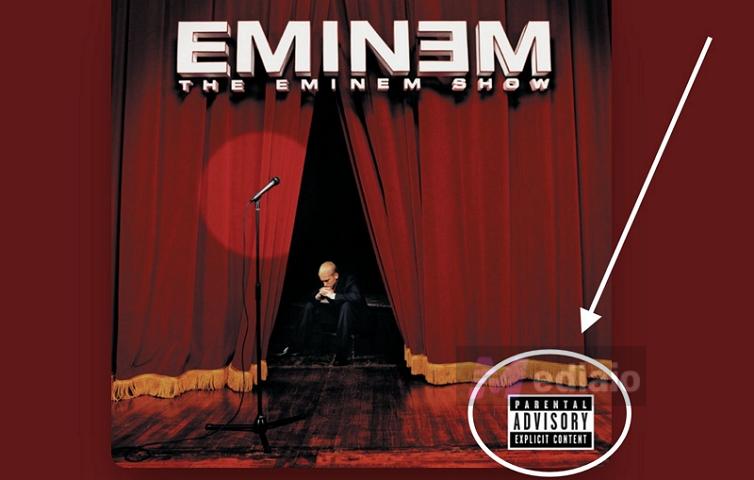
What it’s telling you is simple. The track’s lyrics include strong or sensitive content. This usually means:
- Heavy or repeated profanity
- Sexual references
- Drug-related themes
- Other mature or sensitive language
And even a single word in a track can be enough for it to be marked explicit.
Spotify obviously uses the “E” label, so listeners can make a quick decision before playing something. It also helps parents filter or restrict such content, especially on shared devices or family plans.
Who Determines If a Track Is Marked with an E
Most of the time, the “E” label doesn’t come from Spotify directly. Its terms and conditions actually require the artists or record distributors (like DistroKid or TuneCore) to declare whether the song contains explicit content. They have to check a box confirming it. If marked, Spotify will automatically attach the “E” label next to the track name.
Is Each Song Properly Marked with an E?
No, not always. Even major releases are not perfectly labeled.
And most of the time, the issue is not intentional. It usually comes down to gaps in tagging or older metadata. For example, a lot of older catalogs, like classic rock or 90s rap, were digitized later. Back then, metadata systems were not as structured, so some tracks never got properly tagged. Users on Reddit have pointed out major releases, like The National’s album Sleep Well Beast, where tracks contained multiple f-bombs but had zero explicit tags upon release.
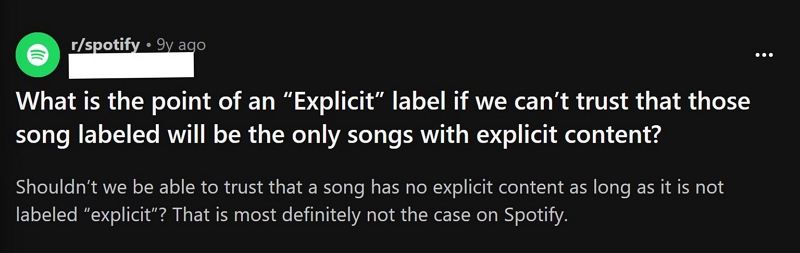
Even today, mistakes can happen. Record labels or distributors can miss it. Independent artists often forget to mark a track as explicit. There are also cases where a song is uploaded as a “clean version” or “radio edit”, but the audio engineer missed a background swear. In that case, the track will still appear without the “E” label even though it should have one.
That’s why Spotify relies on a feedback system. You can report a song if it feels off. Spotify typically asks you to choose a reason:
- Sexual content
- Violent or dangerous content
- Hateful or abusive content
- Deceptive content
- Or simply content you don’t like.
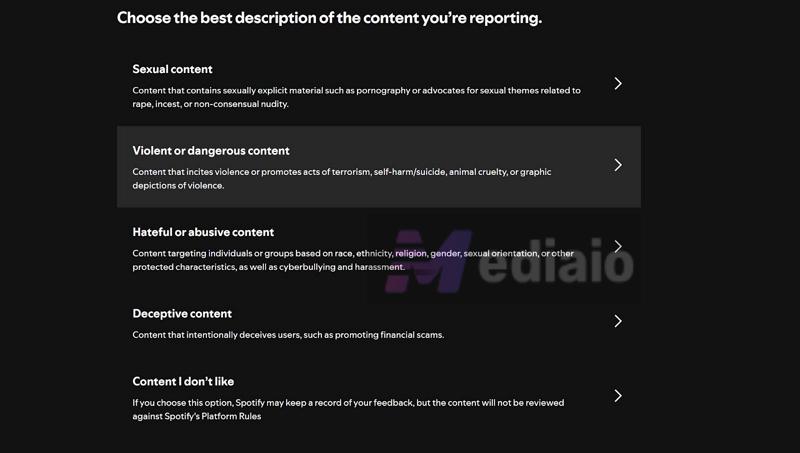
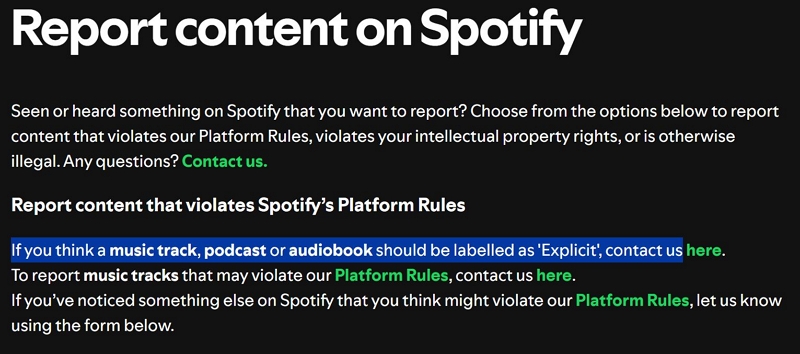
Then, you can share the song URL with their support team: Spotify Support.
Spotify’s moderation team will review it. And this system is not limited to only songs. You can report podcasts or audiobooks as well if they contain sensitive or miscategorized content.
How to Turn off or Allow Explicit Content on Spotify
Spotify gives you a dedicated toggle to allow or block explicit content (songs, podcasts, audiobooks). By default, this setting depends on your account age (the age you entered while signing up). You only need to change it once, on your phone or computer, and it will automatically sync across all your devices. There’s also added control in Family plans. The plan managers can adjust these settings remotely for their children. Here’s everything explained in detail.
On Mobile
Use these steps in the Spotify app on Android or iPhone:
Step 1. Open Spotify app.
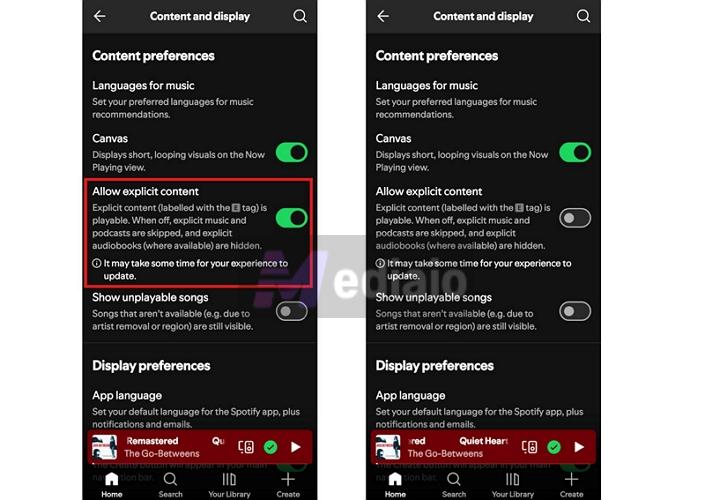
Step 2. Tap your profile picture. Choose Settings and privacy.
Step 3. From there, open Content and display.
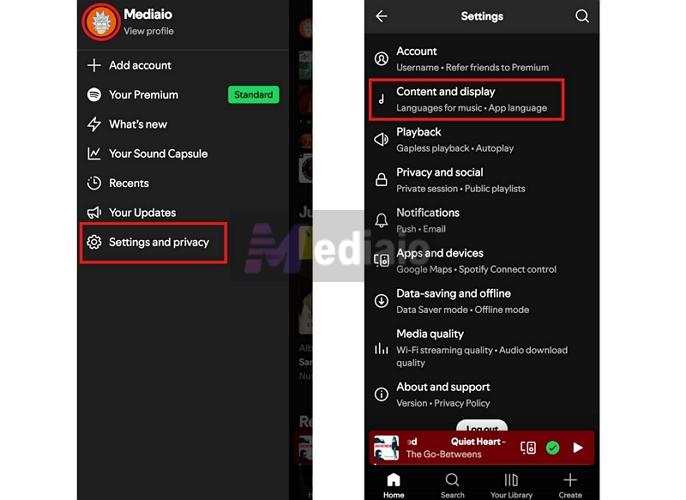
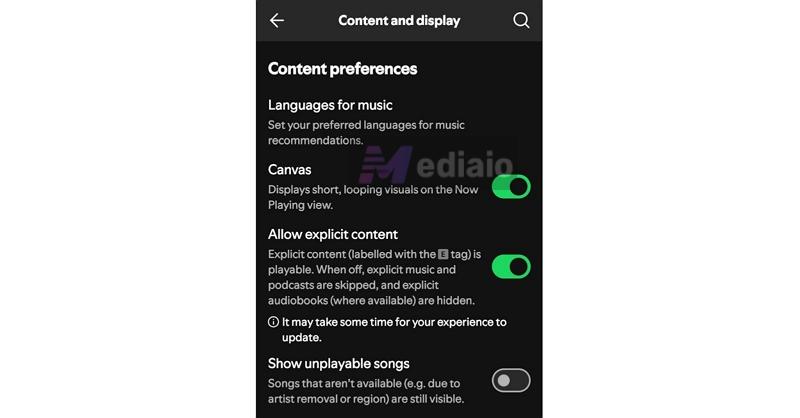
Here, you’ll find the Allow explicit content toggle.
- When it’s ON (green), explicit tracks are allowed. You can play anything marked with an “E” without restriction.
- When it’s OFF (grey), explicit tracks are blocked. Songs with the “E” label will appear grayed out. They won’t play. And if they’re in your playlists, they’ll be skipped automatically from now on.
That’s all it takes.
On Desktop
On desktop, this setting is only available inside the Spotify app (Windows or Mac). You won’t find it on the web player. Here are the steps.
Step 1. Open the desktop app.
Step 2. Click your profile picture.
Step 3. Go to Settings.
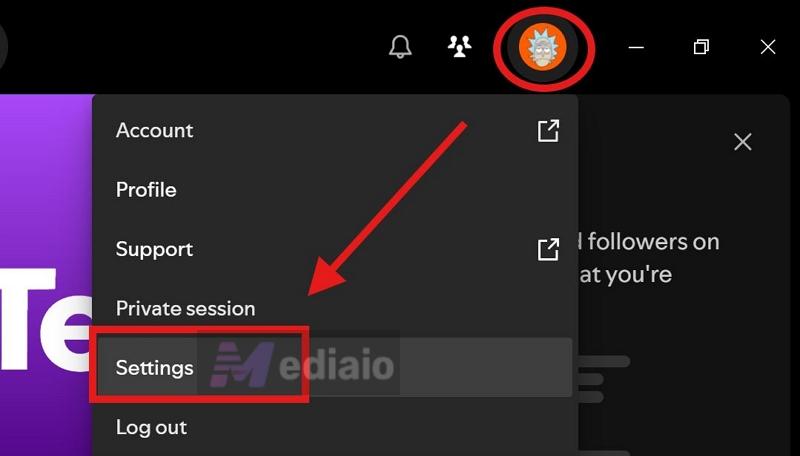
At the top itself, you’ll see the Explicit content section:
- Switch it to green to allow explicit tracks.
- Turn it to grey to block them.

For Family Plan
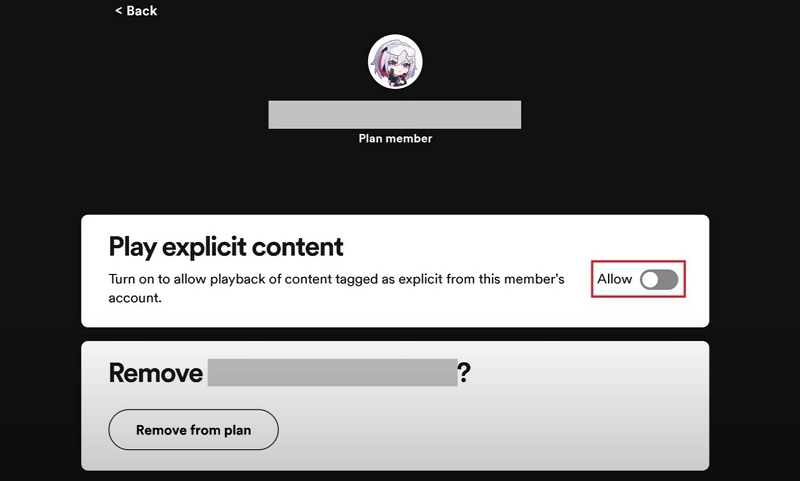
If you’re the plan manager, you also get control over this for other members in your Family plan. You can allow or block explicit content for each member. Here’s how:
- Visit Spotify in a browser. Sign in.
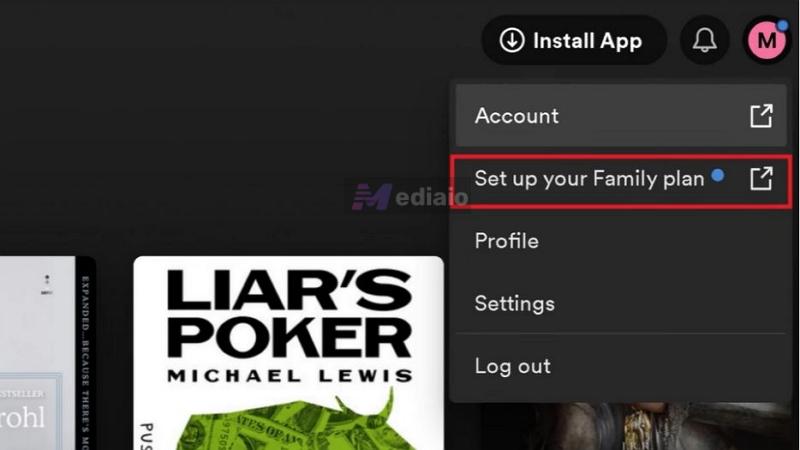
- Tap your profile picture.
- Select Set up your Family plan.
- On the Family plan page, scroll to the Plan members section.
- Choose the member you want to manage.
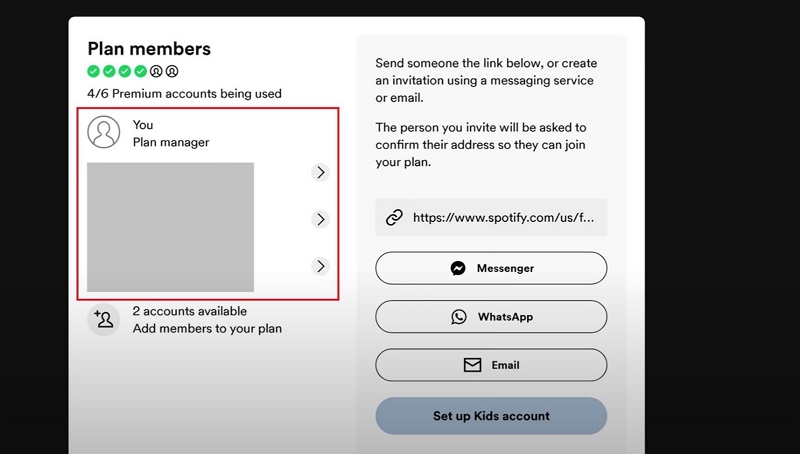
You’ll see an option to play explicit content. Use the toggle to allow or block it for that account. Once changed, the setting will apply instantly to their profile.
Other Ways to Control Content on Spotify
Turning off explicit content is only a starting point. There are other ways to create a more personalized experience while listening to Spotify songs, whether it’s on your own device or your child’s. This section shows you how to do exactly that.
For Your Own Listening
There are a few content controls on Spotify worth knowing. They help you clean up your playlists and guide Spotify’s algorithm towards what actually reflects your taste.
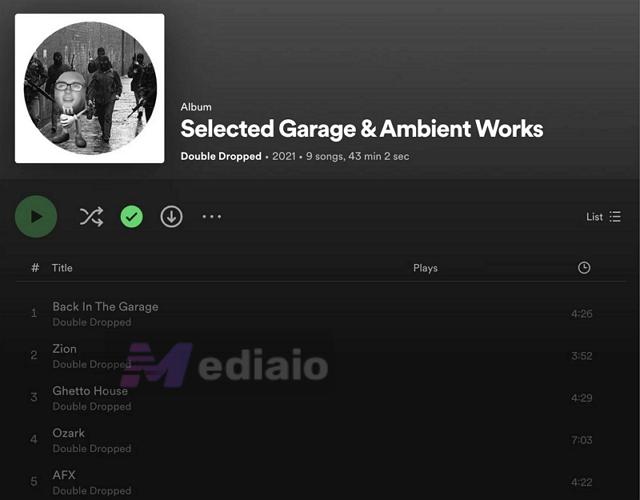
1. Show Unplayable Songs
These are tracks that can’t be played for different reasons. For instance:
- Sometimes they’re not available in your region due to licensing.
- Sometimes they’re blocked because you turned off explicit content.
- Or it could be a song from an artist you’ve blocked.
In all these cases, if the Show unplayable toggle is turned on — such tracks will show up as faded or grayed out. This can get annoying for some. So you have the option to turn it off and hide them completely.
But at the same time, many users prefer keeping it on. There are times when tracks suddenly become unavailable because of licensing agreements. So, this toggle helps to see what’s missing instead of wondering where your playlist tracks went.
So it works both ways. To control this:
Step 1. Go back to Content and display.
Step 2. Just below Allow explicit content, you’ll find the Show unplayable songs toggle.
- Turn it on (green) to show grayed-out tracks.
- Turn it off (grey) to hide them from your playlist view.
2. Block Specific Artists
Another useful control is the ability to block an artist entirely. This is useful if you don’t want to enjoy someone’s music but their songs keep showing up in your Discover Weekly, Release Radar, and other personalized mixes.
After you block an artist, their entire catalog will be filtered out of your listening experience. You will still see their music in your playlists and recommendations, but Spotify will skip them. The only exception is if they’ve collaborated with other artists on a track that song will play.
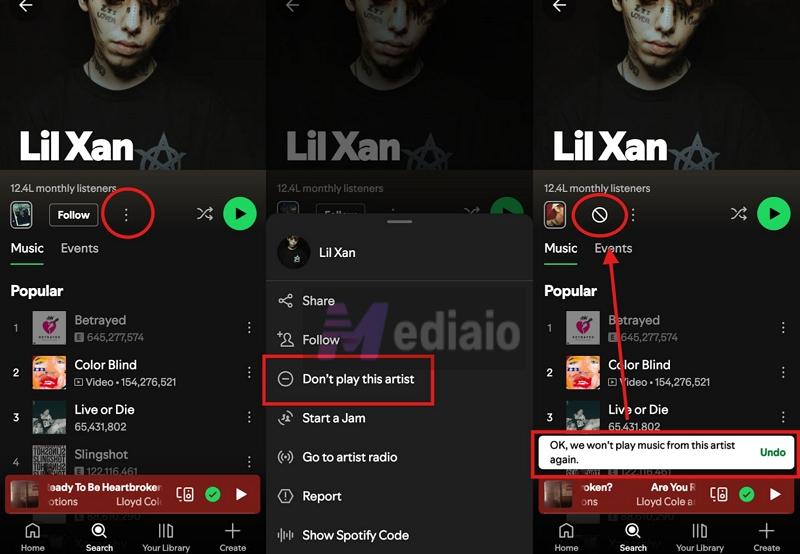
To Block a Spotify Artist:
- Go to Search and type the artist’s name. Pick the correct artist from the results. This will open their profile.
- Tap the three-dot menu.
- Select Don’t play this artist.
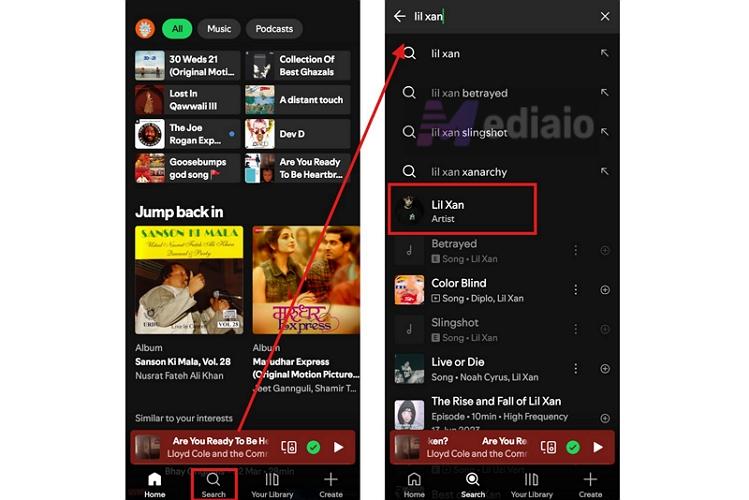
That’s it. You’ll see a confirmation saying “okay we won’t play music from this artist again.” Even the following button will reflect that block.
3. Exclude Tracks from Your Taste Profile
Sometimes you play white noise, something for your toddler, or just a random track you needed once. So you don’t want Spotify thinking that’s your taste and filling your recommendations with it later. That’s where this feature comes in.
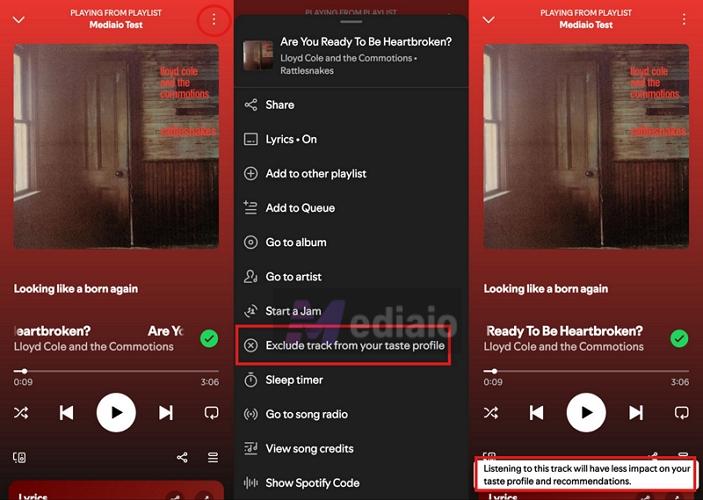
You can tell Spotify, in simple terms, don’t use this to judge my taste. The song will still play like normal. It will even stay in your playlists. The only thing that changes: Spotify will stop using that track to shape your recommendations. Over time, this will help your suggestions stay clean and actually reflect what you listen to regularly. Setting this up is simple:
- Open the track from the Now Playing screen.
- Tap the three-dot menu at the top right.
- Scroll a bit and select Exclude track from your taste profile.
Once applied, Spotify will show a small confirmation that this track will have less impact on your recommendations.
For Your Kids
Handing over the regular Spotify app to younger listeners isn’t enough. No matter how many settings you adjust, it doesn’t fully control what they’re exposed to. And at that age, even small things can influence what they pick up. So instead of relying only on toggles, you can take full control. This section shows you how to do that while still letting them enjoy music and stories in a way that fits their age.
Use Spotify Kids
Spotify offers a separate app called Spotify Kids. Yes, it’s a different app with a fully controlled environment.
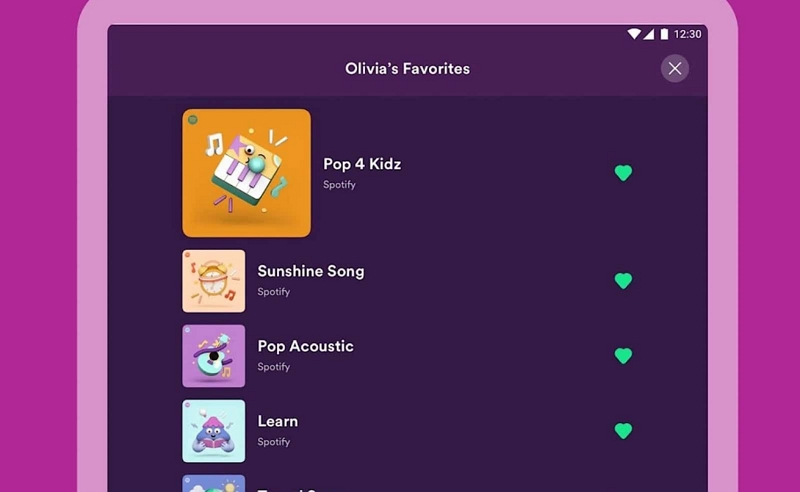
The content is curated for children (ages 0-12). So you’ll find age-appropriate tracks, sing-alongs, and even bedtime stories. There are also themed playlists — for study time, playtime, and different activities. But there’s one condition. You can only use Spotify Kids if you have a Spotify Premium Family plan. The kid’s profile on the Spotify Kids app will count as one of the six available member slots. You can set it up like this:
Step 1. Install Spotify Kids on your kid’s tablet from App Store or Google Play Store.
Note: This app is only available in some countries.
Step 2. Set a pin, so you can control advanced settings inside the app.
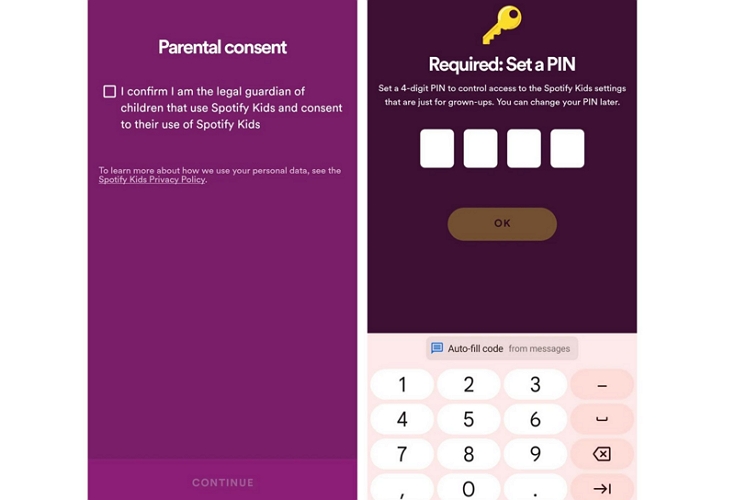
Step 3. You have to log in using the Plan’s Manager credential (the person who managed the Family plan).
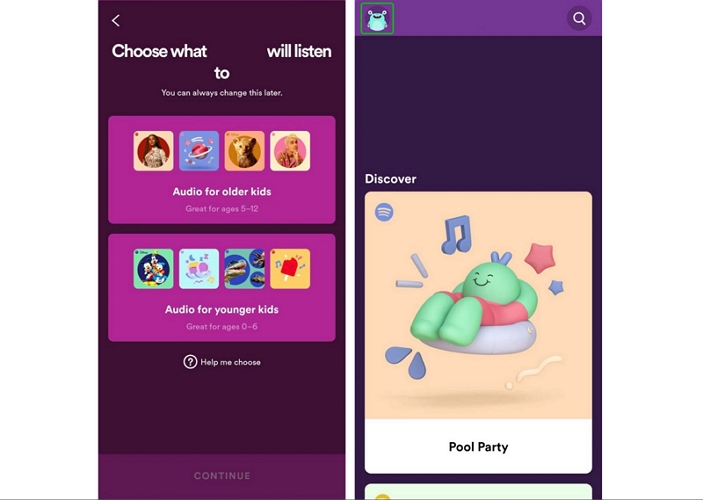
Step 4. Enter your child’s name and birthday (optional).
Step 5. Choose a content filter: 0-6 or 5-12. Tap Continue.
Choose Exactly What They Hear (Export as MP3)
If Spotify Kids isn’t an option or you want to choose the content for your kid’s device, you can use Mediaio Audio Converter.
Mediaio lets you export any Spotify songs or titles and save them in regular formats like MP3 or M4A. This means you can pick exact songs, audiobooks, and sing-alongs that you want on your child’s device.
All the exported content keep its original metadata, including the original playlist order or audiobook chapters. So when you play them through any media player, like VLC, they are automatically organized and look appealing. And the best part is you don’t need the internet to play Mediaio exports. This also means that there will be no ads or interruptions.
Other Content Icons/Labels on Spotify
The “E” tag is the one most people notice, but there are several small badges across albums, playlists, and tracks. Most of them don’t have any options to control them with toggles. Still, understanding them will help you navigate Spotify better.
 On release cards, under album titles, or artist profiles
A release built around one main track (sometimes with a few extras)
On release cards, under album titles, or artist profiles
A release built around one main track (sometimes with a few extras)
 Next to the track title
A song or cover recorded by artists at Spotify Studios (an exclusive program)
Next to the track title
A song or cover recorded by artists at Spotify Studios (an exclusive program)
 On artist pages and discography sections
Stands for Extended Play — usually 3 to 7 tracks, shorter than an album, themes may vary
On artist pages and discography sections
Stands for Extended Play — usually 3 to 7 tracks, shorter than an album, themes may vary
 Below release titles on artist pages or when you open a release
A full-length project with multiple tracks, released as one complete body of work
Below release titles on artist pages or when you open a release
A full-length project with multiple tracks, released as one complete body of work
 On the Now Playing screen or below the track title
Lets you switch from audio to video playback (like a full-screen video, similar to YouTube)
On the Now Playing screen or below the track title
Lets you switch from audio to video playback (like a full-screen video, similar to YouTube)
 Included in track or album titles (e.g., “Live at…”)
A recording from a live performance instead of a studio version
Included in track or album titles (e.g., “Live at…”)
A recording from a live performance instead of a studio version
 Added below song or album titles
An older track updated for improved sound quality
Added below song or album titles
An older track updated for improved sound quality
 Mentioned in album titles (e.g., Deluxe Edition)
An extended version of an album with extra tracks
Mentioned in album titles (e.g., Deluxe Edition)
An extended version of an album with extra tracks
 Shown as a category on artist pages
A collection of songs grouped from different releases
Shown as a category on artist pages
A collection of songs grouped from different releases
 On the lyrics screen
Switches the lyrics to Karaoke mode
On the lyrics screen
Switches the lyrics to Karaoke mode
Conclusion
Now you know what the “E” means on Spotify, along with the other labels and symbols you’ll come across while using the app. You’ve also seen how to shape your listening, from filtering explicit content to fine-tuning what Spotify recommends and plays.
Mediaio Audio Converter helps when you want complete control over what you or your kids hear. You can export the exact Spotify titles and play them your way without ads or relying on an internet connection.