

Building a playlist takes effort. So it’s natural to wonder how many likes it has received so far and who’s actually listening. And then comes the bigger question: why doesn’t Spotify notify you about it?
This guide has all the answers. It will show you how to see who liked your playlist on Spotify by guessing. It will also share how to find other useful insights (like BPM and Key) about your playlists, so you can reorder tracks for consistent energy flow and smoother transitions.
Can You See Who Liked Your Playlist on Spotify?
Before moving to the answer, let’s clear one important detail. The term “Liked” a playlist is outdated now. It was used back when Spotify used to attach a heart icon below near the playlist controls — tapping it allowed you to add it to your library. But Spotify no longer uses the heart icon for playlists.

Now, in 2026, you’ll see a plus (+) button when visiting someone else’s playlist page. This is the Save to Library button. Of course, saving still means someone likes your playlist, but Spotify now calls it a “save”, not a “like”.
Now coming to the real question—can you see exactly who saved your playlist?
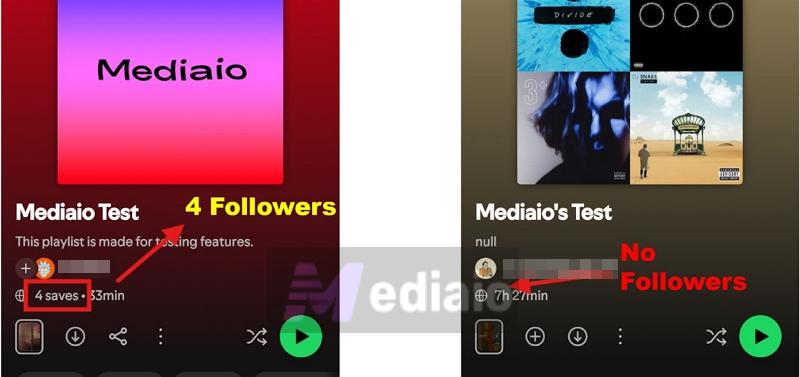
No. What you can see is the total number of saves. This appears directly on your playlist:
- On desktop: Right next to your profile name, you’ll see something like “4 saves · 9 songs · 33 min”.
- On mobile: Just below your name, along with the playlist details.

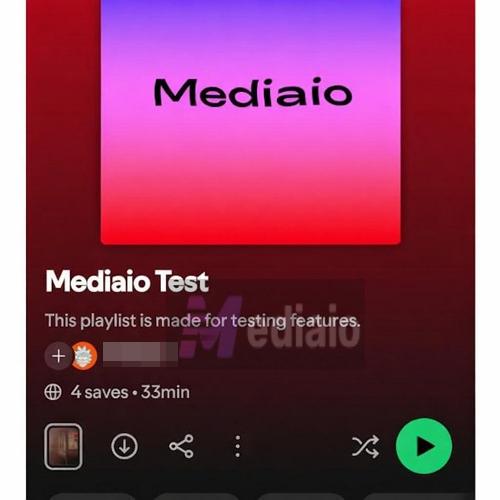
However, the number is only a count. You can’t click it to see a list of usernames. Spotify’s community moderators say it is to protect users’ privacy and keep their activity private.
There is one small exception to this. Spotify can occasionally send you a notification like: [Username] saved your playlist, [Playlist Name]. So, you can see that someone has recently saved your playlists, but this only happens if they’re your friend. That means either they follow you, or you follow them.
You can look for such notifications in your Your updates section:
- On desktop: Click your profile icon. You’ll find the Your Updates section below the main options.
- On mobile: Tap your profile. Go to Your Updates.
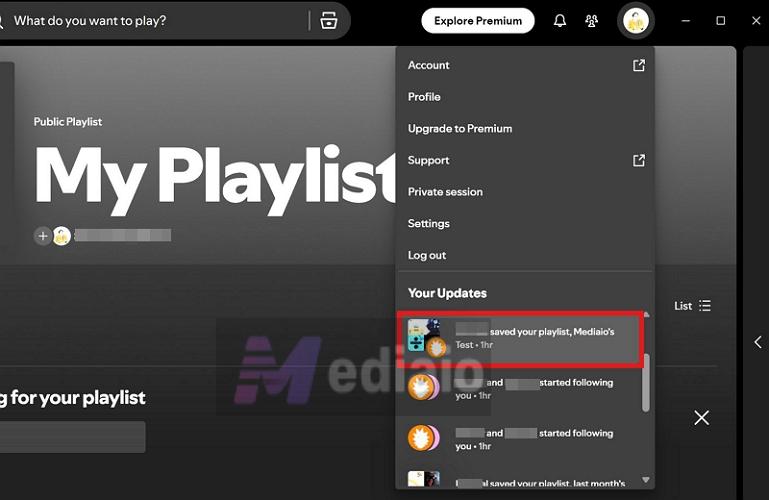
Outside of that, there’s no way to view a full list.
Funny Trick to Guess Who Likes Your Spotify Playlist
Spotify does not show you an official list and there’s no way to bypass that rule. But you can still pick up clues by using some tricks. But keep in mind that these tricks are only helpful if your playlist has a small number of “saves.” If it’s in the thousands, there’s no practical way to trace everyone.
Friend Activity Sidebar (Desktop Only)
The Friend Activity panel shows what your friends are currently listening to. However, it’s only showed if you’re following someone and they’ve enabled the “Share my listening activity” option.
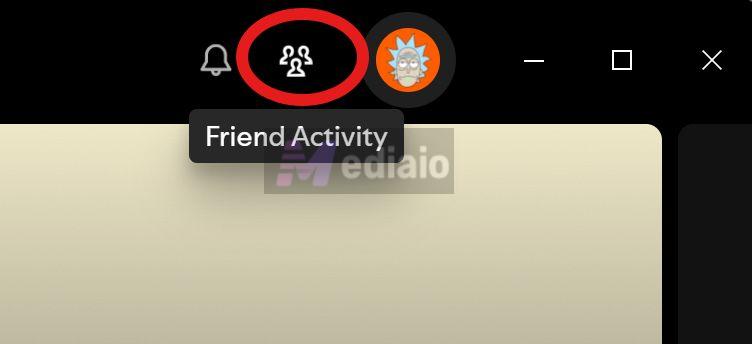
Now, here’s why this is a useful hint:
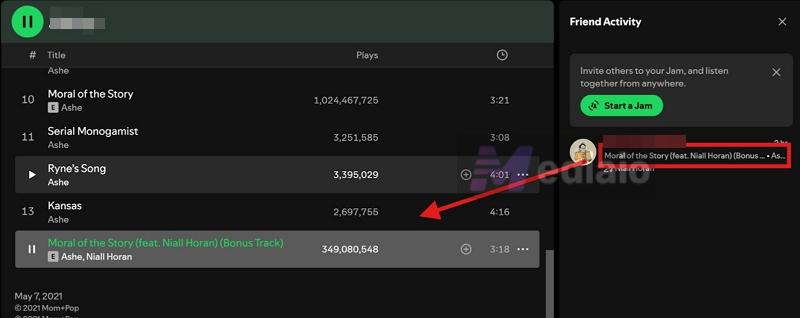
Click on the song name in that panel. Spotify will take you to the exact source it’s playing from, the album or the playlists. If it leads back to yours, it means they’re actively playing it.
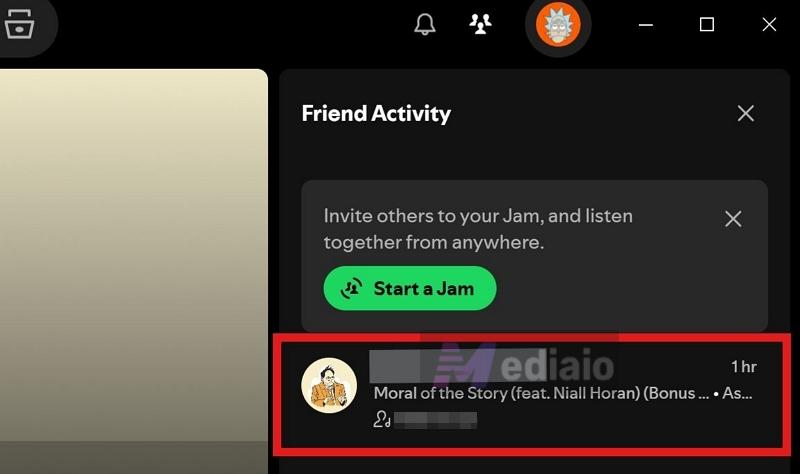
If your friends often listen to your songs, it shows they like your playlist. Saving it to their library makes it easier for them to access your playlist.
Profile Snooping (Works When Saves Are Low)
This method works best when your playlist has single-digit saves. At that scale, the chances are high that the saves came from people you already follow or who follow you.
Start from your profile on desktop:
- Click your profile picture > Profile.
- Open your Followers or Following list.
- Click on any profile to visit it.

Now, Spotify does not show its private library. But it lets you see all the playlists listed on their site. If they’ve pinned your playlists to their profile, you can be sure that they’ve added them to their library.
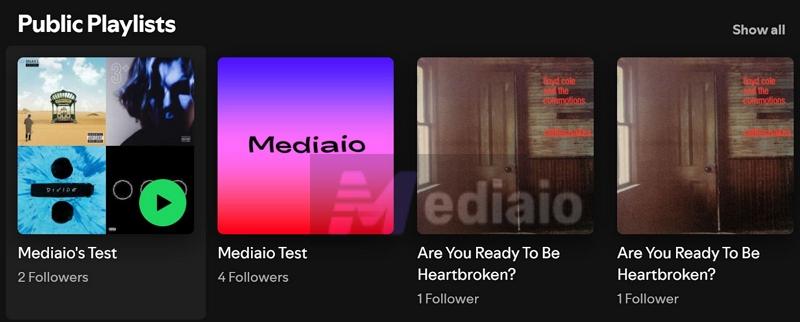
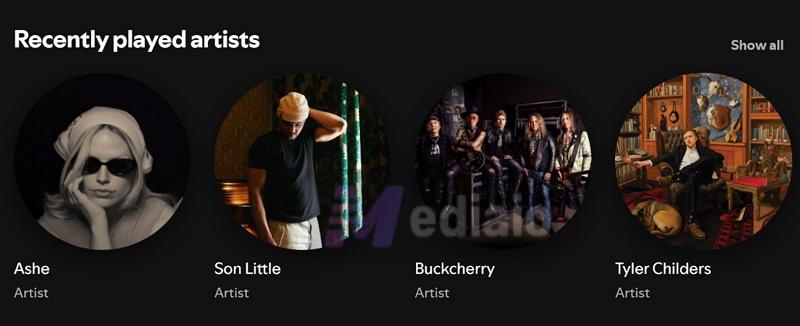
If they haven’t pinned your playlist, you can look at other hints. Check these signs:
- Look at their recently played artists
- Check recently played tracks
- See if those match the songs in your playlist
If it aligns, that’s another strong signal.
Follower + Timing Clues
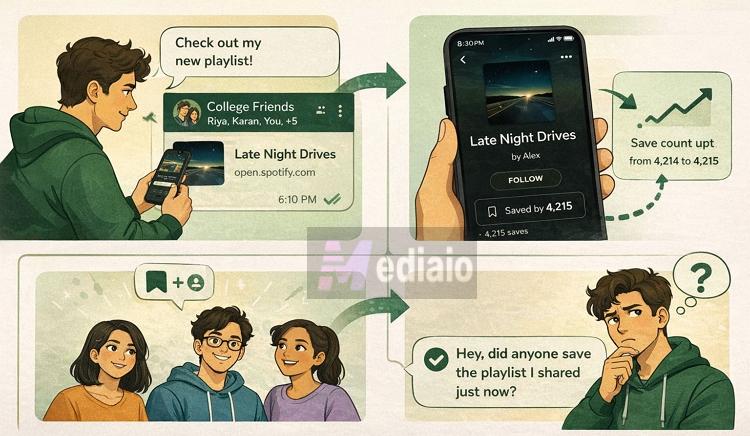
This one is straightforward. If you’ve just shared your playlist in a WhatsApp group or with a few friends and then see the save count increase, there’s a high chance someone from that group has added it.
Of course, this still doesn’t confirm anything. But the timing tells the story. If you really want certainty, just ask them directly.
Difference Between Followers, Saves, and Likes on Spotify
These terms—followers, likes, and saves, sound different, but they all show how many users have added your playlist to their own collection.
Over time, Spotify has simply changed the wording. But functionally, nothing has changed. Earlier, it used the term “followers” to show the playlist popularity. Then it shifted to likes. Now, it shows the save count. To make this clear, let’s look at each term and understand what it means now.
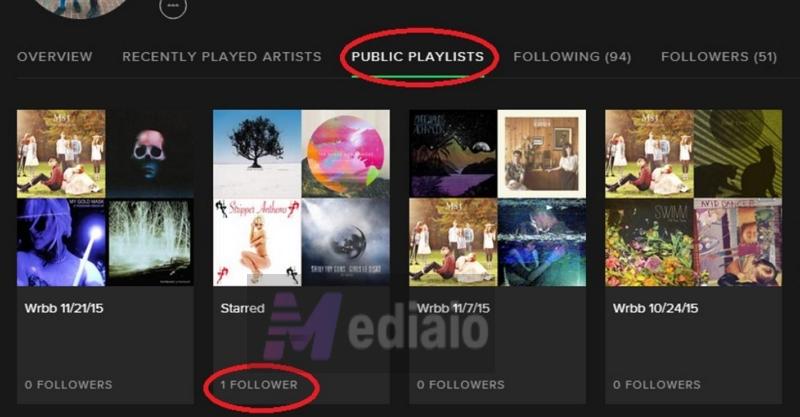
Pre-2020 Era: Spotify used “Followers”
Earlier, Spotify showed followers to indicate the number of saves. So you would see counts like 1 Follower or 1000 Followers.
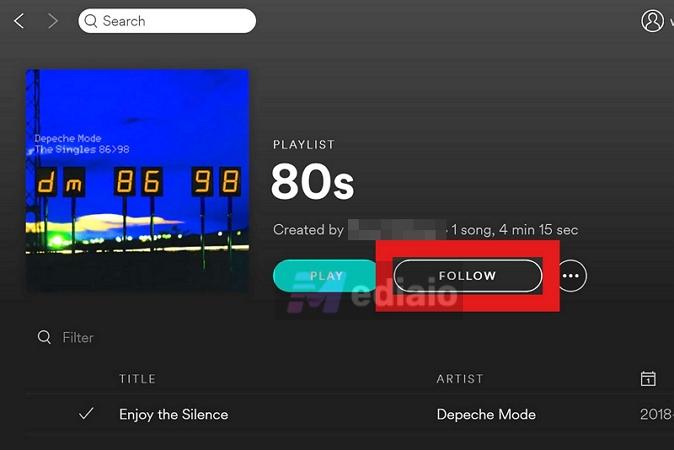
To add a playlist back then, you didn’t see the plus button. You saw a Follow button.
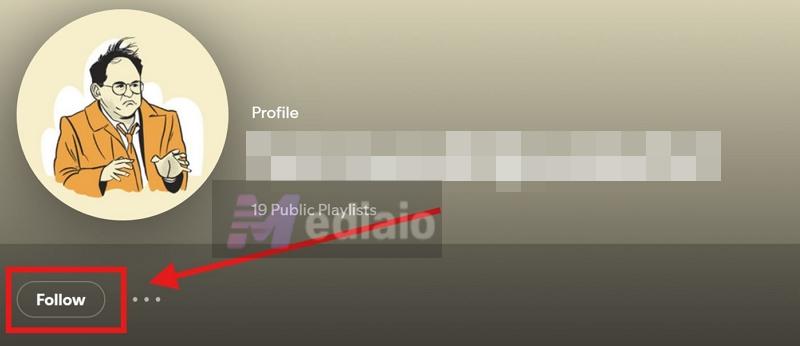
Today, the Follow button appears only on user profiles or an artist page.
Around 2020–2023: Spotify used “Liked” system.
After this, Spotify introduced the heart icon. It appeared next to songs or showed below playlists and albums. Tapping it added songs to Liked Songs or added playlists or albums to your library.
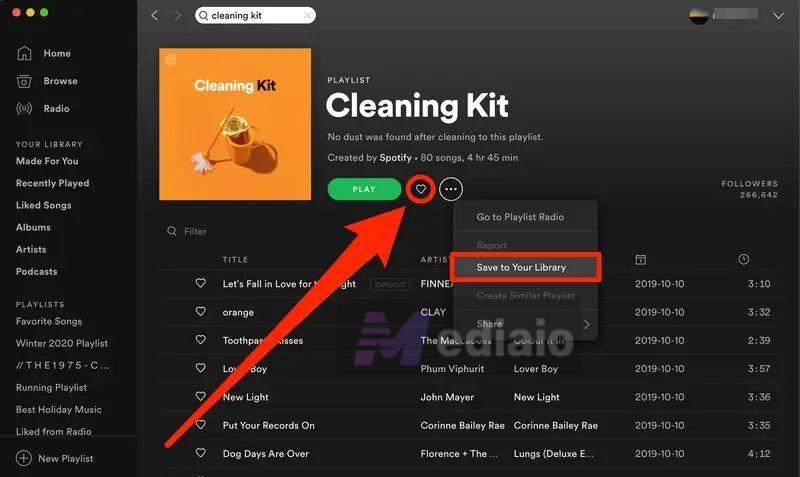
Today, this heart icon is no longer used. You’ll only see it inside the Liked Songs collection, like on its cover image or briefly when a song is added to it.

Current System: Spotify shows the + (Save) button.
Today, Spotify uses a unified Save system. You’ll see a plus (+) button instead of Follow or Like. And this button is used across the platform.
For playlists:
- Clicking it on a playlist adds it to your collection.
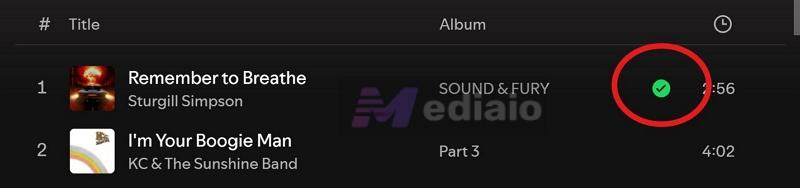
- And it shows up as a green checkmark. Clicking the checkmark will remove it from your library.


For songs:
- A single tap adds it to Liked Songs.
- You can also choose to place it into a playlist.
That’s the current system.
What Data Can You See About Your Spotify Playlists?
You can’t see exactly who saved your playlist. But you do get a few visible metrics that give you a clear idea of your playlist reach. Some are built inside Spotify itself, but sometimes you can use free third-party tools to get useful insights. These are the key things you can actually track.
1. Save Count (Followers Number)
As we covered earlier, Spotify shows how many people have saved your playlist, previously called the “followers” count. Here’s where to check:
On Desktop:
It appears just below the playlist title, next to your name. You’ll see your display name (or the playlist creator’s name), followed by the save count, total number of songs, and the overall runtime.

On Mobile:
The total saves appears below your name in the playlist header.
If no one has saved it yet, you’ll only see its visibility status (padlock or globe icon) along with the song count. That simply means it’s public and no one has followed it yet.
Once people start saving it, you’ll see:
- The globe icon
- The save count
- The total runtime
This will give you a quick snapshot of how many people have saved your playlist to their library for quick access.
2. Stream Counts
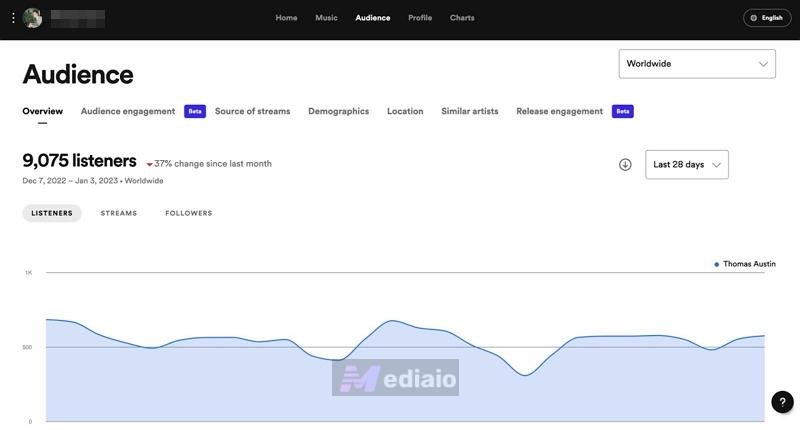
If you are an artist, Spotify makes it simple to view the total stream count of your songs from your dashboard.
3. Advanced Playlist Insights
Spotify has started showing some important features that are helpful to rearrange the playlists precisely for DJ-like transitions and settings like crossfade or Automix. On desktop, Premium users can enable BPM and Key from the columns view menu.
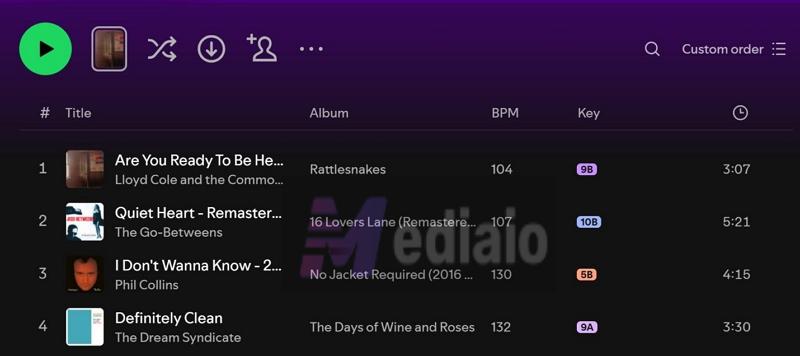
However, these options are not always enough. Plus, they are not available to free users at all. So, you can use free third-party tools to get much better insights. Here are some of the most useful ones.
Chosic Playlist Analyzer
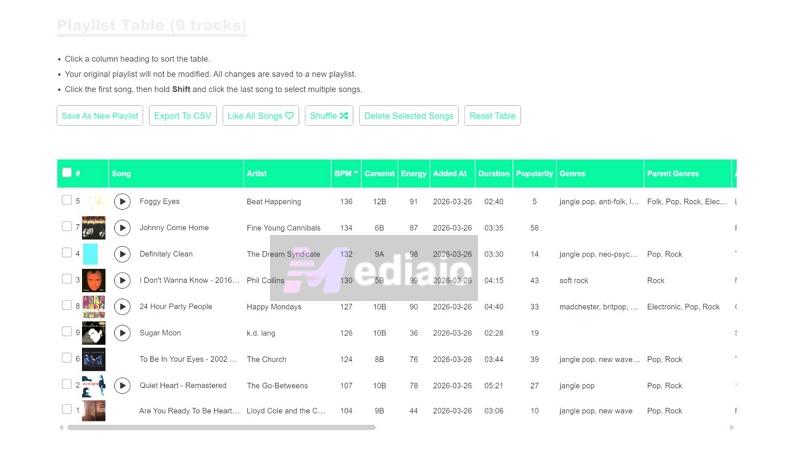
Chosic is a completely-free web tool. You just have to paste your playlist link, and it will build a full breakdown. It will show the overall mood, top genres, average tempo, etc. But scroll further, and you’ll find a detailed track table.
Each song from your playlists will be listed along with its BPM, Camelot key, energy, popularity, duration, and more. You can sort any column with one click and rearrange the playlist in new ways. From there, you can save it as New Playlists or Export as CSV.
GadgetKit Playlist Analyzer
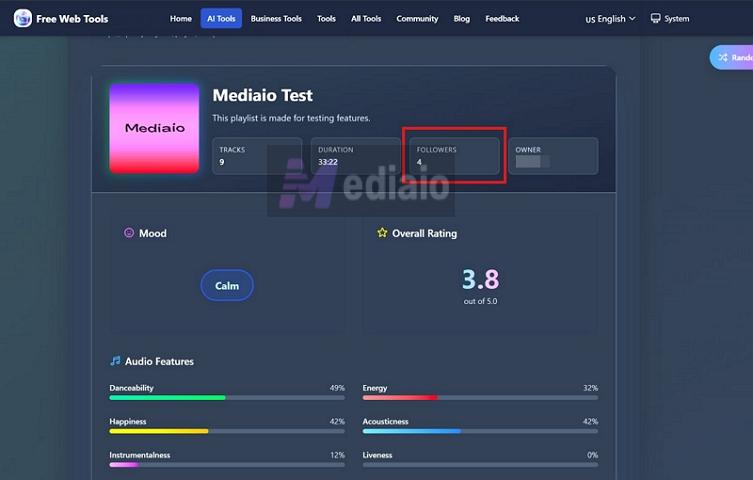
This one focuses on quick insights rather than deep control. You will see metrics like total duration, mood, follower count, and overall rating.
Musicstax
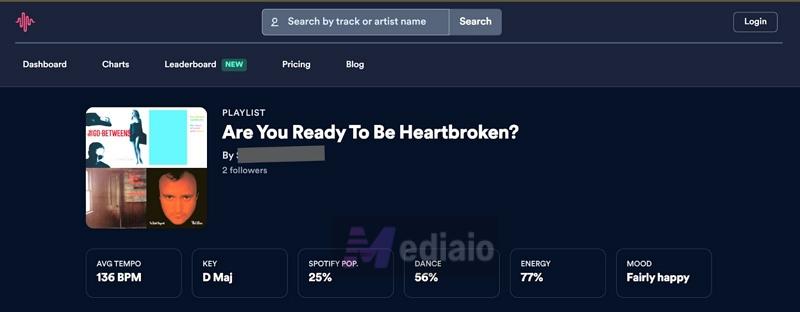
This lets you analyze tracks based on popularity, streams, and placement. You can sort songs using these metrics and identify stronger or weaker tracks.
How to Save Your Liked Spotify Playlists to MP3
If you want to make a copy or backup of your favorite playlists, saving them as MP3s with Mediaio Audio Converter is a good option.
Mediaio Audio Converter can convert your favorite playlists into local files like MP3, M4A and FLAC easily. It lets you access your Spotify library from within its interface, so you can easily choose any of your playlists and convert them into MP3 in a single go. Its built-in acceleration technology makes the process faster (up to 30X speed). Plus, Mediaio delivers excellent results, either. The original playlist structure and song metadata remain intact while being saved to your computer. Even the audio output also remains high.
You can listen to the converted MP3s via any music player, such as VLC, Foobar2000, Windows Media Player, Apple Music, etc. This also means you can listen to the playlists without ads or forced Shuffle mode like with Spotify free.
Beginner Tips: What Can Others See About Your Activities and Content on Spotify?
Spotify does show a fair amount of information about you that others can access. So it is better to know what is visible.
Your display name and profile picture
These are visible to anyone who comes across your profile or playlists, as they can see the original creator. The good part is you can change them anytime. You can choose a name and image you are comfortable showing publicly.
Public playlists on your profile
Any playlist you create with “Public” visibility settings — it gets added to your profile (unless you explicitly disable it). Spotify also gives you control here. You can use the menu options to add a playlist to your profile or remove it. Or you can turn this feature off entirely from settings.
Followers and following
Anyone visiting your profile can see how many followers you have (with their profile links). They can also see the list of people and artists you follow.
Listening activity
There are two settings here — “Share my listening activity on Spotify” and “Recently played artists.” If these toggles are turned on in your social settings, your activity becomes visible to others.
Note: You can enable a Private Session to hide your listening activity for up to six hours.
What Others Cannot See
- Your private playlists (unless you share the link directly).
- Your downloaded playlists(either the ones you saved via Spotify Premium or saved as MP3 files using Mediaio).
- Your Liked Songs collection.
- Playlists you have saved to your library from other users.
Final Words
So, there’s your clear answer: Spotify does not let you see who saved your playlist. You can only see the total count. But if you’re wondering whether your friends or family have saved it, just ask them.
And if there are a bunch of playlists you want to save in MP3, use Mediaio Audio Converter. It can convert any of your playlists into MP3 and store them on your computer in just a few clicks.