

You open Spotify, type a song name, press Enter. Instead of results, Spotify shows you the “Something Went Wrong” message. Everything else works fine: you can play songs from your Home screen or open tracks from your Library. This is the classic Spotify search not working issue. And it’s very common when using the Spotify app on Windows or Mac.
We’ll show you how to fix the issue, step by step. We’ll also tell you how to save your Spotify tracks as MP3 using MedVioo Audio Converter, so you can play them offline using any media player.
Quick Checks Before Fixing Spotify Search Not Working
Before changing settings or reinstalling anything, run these two immediate checks.
1. Check If Spotify Is Down
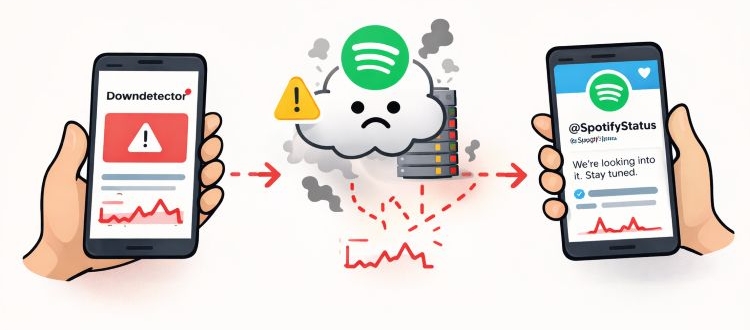
Sometimes the “something went wrong” error during search is not your fault at all. It can be a regional or global server outage.
What to Do:
- Head over to Downdetector. Or check the official @SpotifyStatus account.
- If there's a spike in reports, the issue is on Spotify’s end.
In that case, just wait for their engineers to resolve it.
2. Check Your Network
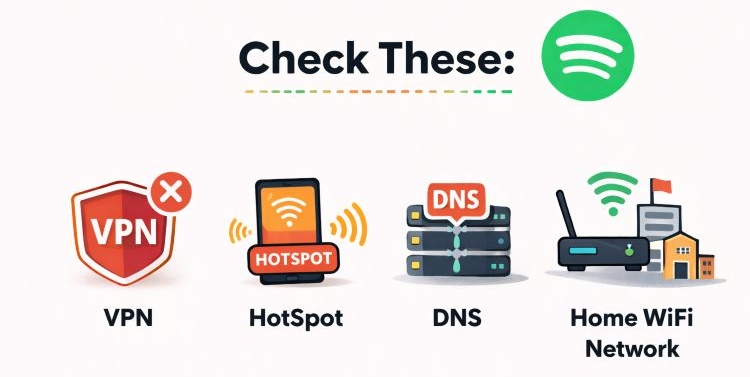
You are sometimes able to load Google or YouTube perfectly, but not Spotify. This is common when you’re on school Wi-Fi or corporate networks, as some networks block specific Spotify ports. Certain VPNs or custom DNS settings can also interfere. Here are some checks to ensure this is not the case:
- Make sure no restrictive VPN is active.
- Disable any unusual DNS configuration.
- If possible, switch to a different network or use mobile hotspot briefly to test.
If Spotify’s search starts working on another connection, you have found the cause.
Spotify Search Not Working on Windows PC/Mac: Tricks and Fixes
If there’s nothing wrong with the servers and you’re still seeing the “something went wrong” message when trying to search for a song or playlist, it’s time to fix it properly.
We will begin with a few quick tricks. These are temporary workarounds that let you search and play tracks immediately. So you can keep your music running in the background, and then move on to the proper fixes.
Trick 1. Use Spotify’s Quick Search Shortcut
This is one of those “invisible” tricks. That is, you can bypass the main visual search bar by using the built-in quick search. To activate it:
- On Windows: press Ctrl + K.
- On Mac: press Command + K or Command + L, depending on the version).
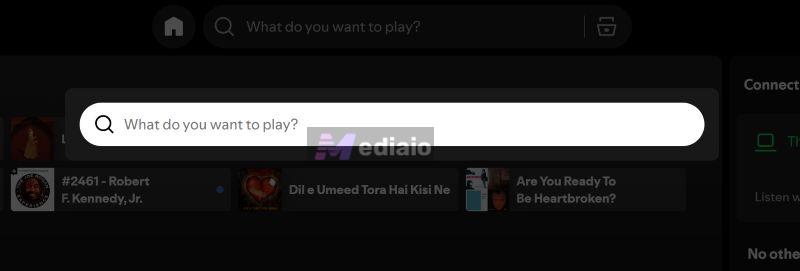
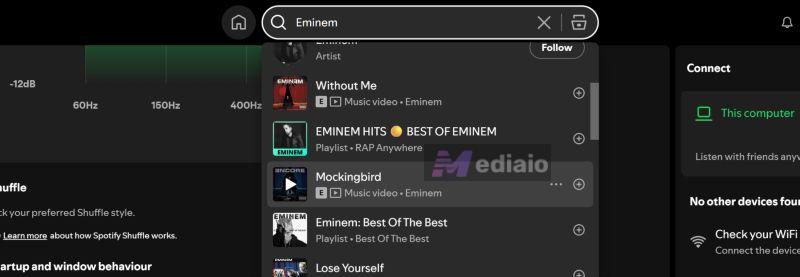
When you do this, a compact pop-up search box will appear. It will look different from the usual full search page. Plus, it’s more compact and keyboard-focused.
Now here’s the interesting part. Type any keyword — song name, artist name, album name, the results will show up in their own quick list. Here, you can use these navigation to play music instantly:
Note: On Mac or Windows, the same keys apply.
- Use ↑ / ↓row keys to move through results
- Press Enter to open
- Press Shift + Enter to play immediately
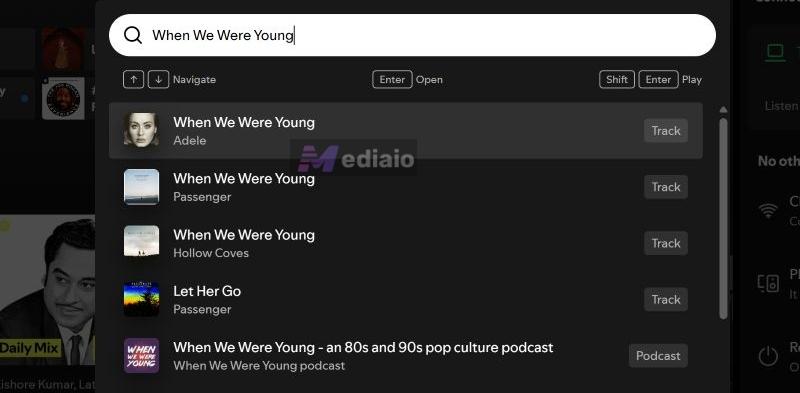
Yes, it is not a permanent solution, but it lets you play music while you apply the proper fixes below.

Trick 2. Switch to Spotify Web or Mobile App
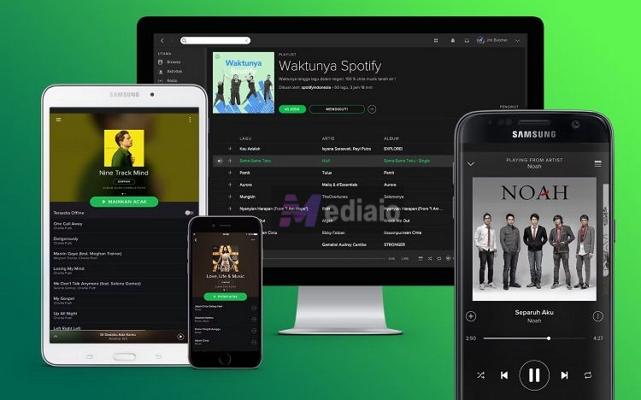
You can also play Spotify on mobile or the web player. That way, music will keep playing while you repair the issue permanently.
Fix 1. Restart Spotify Properly (Not Just Close It)
Restarting is the most cliché advice for any tech problem. But if Spotify search was working perfectly yesterday and today it suddenly shows a blank screen or throws a “Something went wrong” error, it is very likely a random temporary glitch — given the servers are not down, which you already checked above.
Now here’s the important part. Restarting Spotify — clicking the X button alone doesn’t fix the problem. The app often keeps background processes running. (Spotify has multiple background services and permissions — that’s a separate discussion.)
So instead of just closing and reopening the app, do this properly:
- First, manually quit Spotify.
- After that, restart your entire computer.
Yes, shut down the whole system. Once your PC or Mac boots fresh, relaunch Spotify. Try using the search bar again. In many cases, this will clear the issue immediately.

Fix 2. Update Spotify (Outdated Version Breaks Search)
Spotify updates its search algorithm and backend APIs frequently. Continuing to use outdated versions means it could no longer communicate properly with Spotify’s live backend servers. And the search feature can become unresponsive.
Here’s how to check and update the Spotify app:
Method 1. Look for the Blue Dot
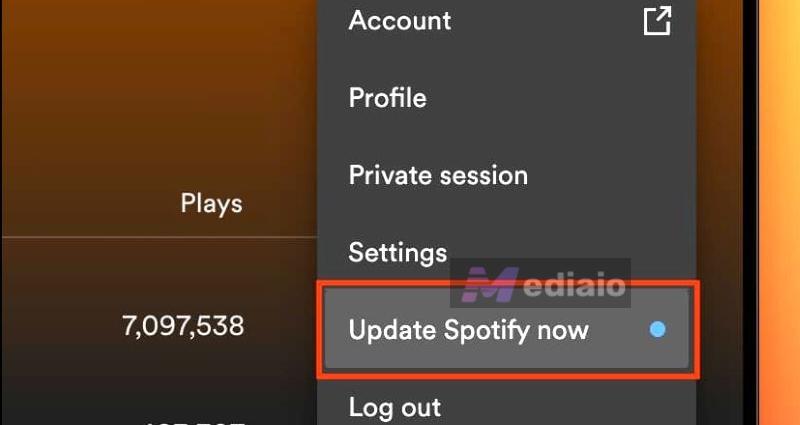
You often see a blue dot as the visual cue indicating there’s an update available. If you see it next to your profile picture, do this:
- Click your profile picture. A dropdown menu will open.
- Inside that menu, you should see: Update Spotify now. Just click it.
Spotify will restart itself and install the latest version.
Method 2. Manually Check via About Spotify
If you do not see the blue dot, you can manually check.
On Windows:
- Click the three dots in the top-left corner.
- Go to Help.
- Click About Spotify.
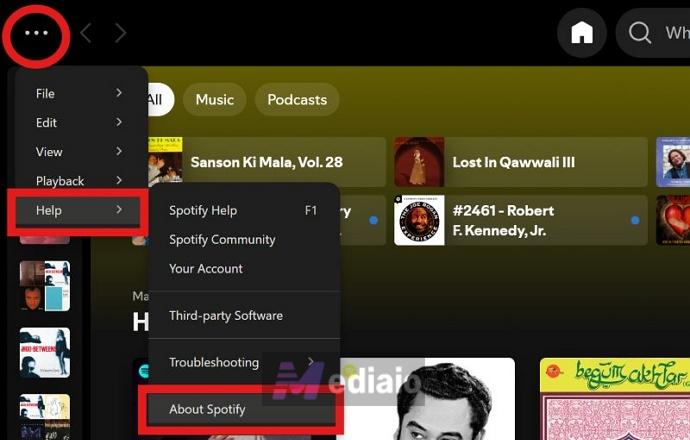
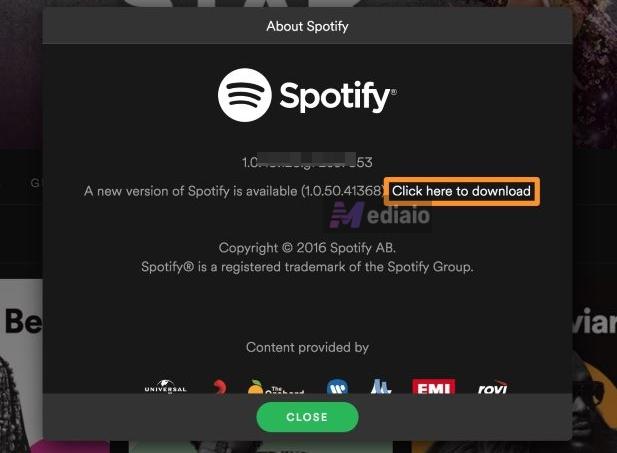
If an update is pending, you will see a message like “A new version of Spotify is available. Click here to download”, follow that link.
On Mac:
- Click Spotify in the top Apple menu bar.
- Select About Spotify.
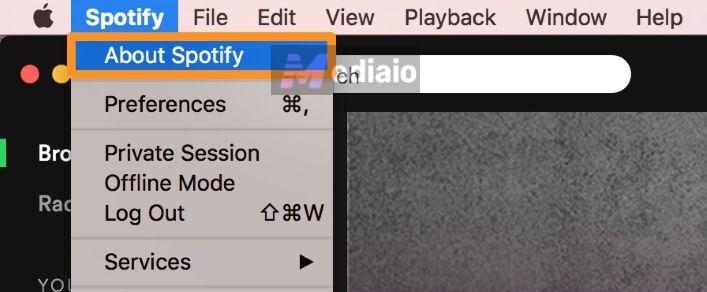
If an update is waiting, you will see a similar message about a new version being available. Install it.
After updating, relaunch Spotify and test the search bar again.
Fix 3: Clear Spotify Cache
Spotify saves temporary data to make the app load faster—things like album artwork, recently searched terms, and certain interface elements. All of that stored data is called cache.
Over time, the cache could become corrupted. When that happens, the search bar will fail to work because the app attempts to read those corrupted files. And you will see errors like “Something went wrong” or an unresponsive search panel.
The fix is simple - clear those temporary files. This does not delete your downloads and does not log you out. And it doesn’t even remove playlists or account data.
And in terms of speed, clearing cache does not meaningfully slow the app. In fact, clearing cache occasionally is good digital hygiene.
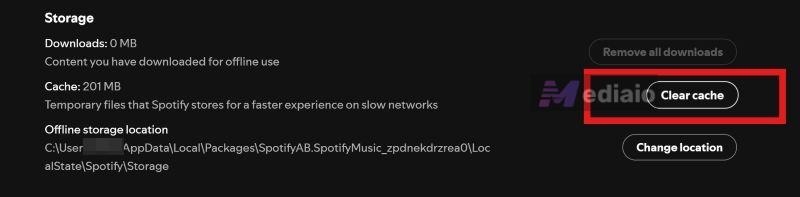
Here’s how to clear Spotify cache (Windows and Mac):
- Launch Spotify on your desktop.
- Head to your profile picture. Access Settings.
- Glide down to the Storage section near the bottom of the page.
- Next to Cache, click Clear cache.
- A confirmation box will appear. Click Clear cache again.
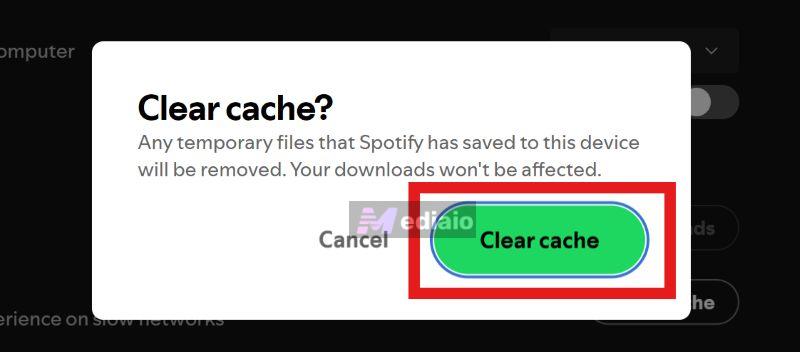
That’s it.
After clearing, you will notice the cache size drops dramatically — often to single digits in MB. Now try using the main search bar again. In many cases, it will start functioning normally without errors.
Fix 4: Relogin Spotify
Even after clearing cache and updating the app, one thing still remains untouched — your authentication token.
Spotify uses temporary login tokens to confirm that you’re allowed to request data, including search results. Sometimes that token glitches, causing that Spotify refuse to fetch results and show the “Something went wrong” error.
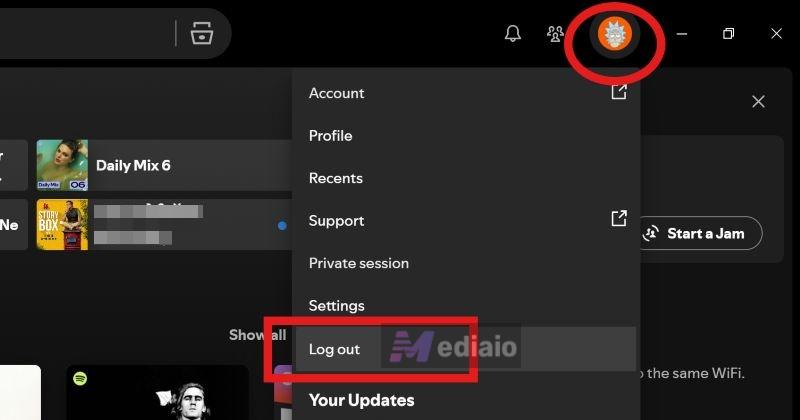
Logging out and signing back in will force Spotify to generate a fresh authentication session. Here’s how to do it:
- Head to your profile picture.
- Choose Log out.
- You’ll land on the login screen. You’ll have two options to sign back in. Simply choose the one that is best for you.

You can use the search bar again.

Fix 5: Reinstall Spotify from Microsoft/App Store
When all the basic resets fail, it is time to start over by reinstalling Spotify completely. This step will clear deeper system-level conflicts. However, it is important that you follow the right sequence. So choose the steps below.
For Windows Users
- Press Windows + I to open the Settings pane.
- Enter Apps, head into Installed apps and locate Spotify.
- Tap the three dots beside it and select Uninstall.

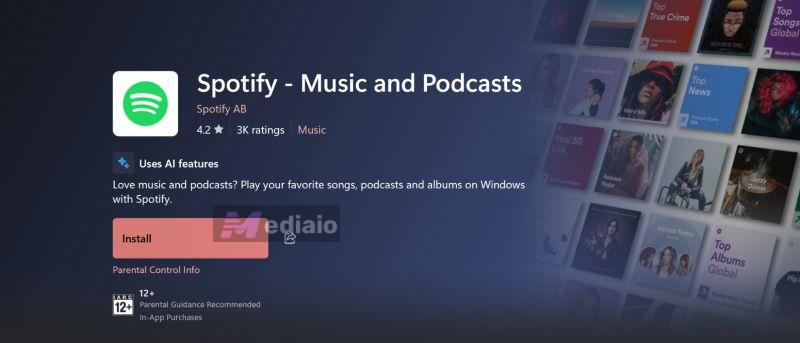
Let Windows remove it fully. Now head to the Microsoft Store. Search for Spotify and install it.
Note: Installing from Microsoft Store is important. The Microsoft Store version runs in a sandboxed environment. So it handles background permissions and app data differently. Sometimes that alone fixes a stubborn search issue.
For Mac Users
Mac users do not get a Mac App Store version of Spotify. So you can reinstall the .dmg file from Spotify’s website itself. This reinstallation still helps to refresh deeper system-level conflicts that could be breaking search. Here are the steps:
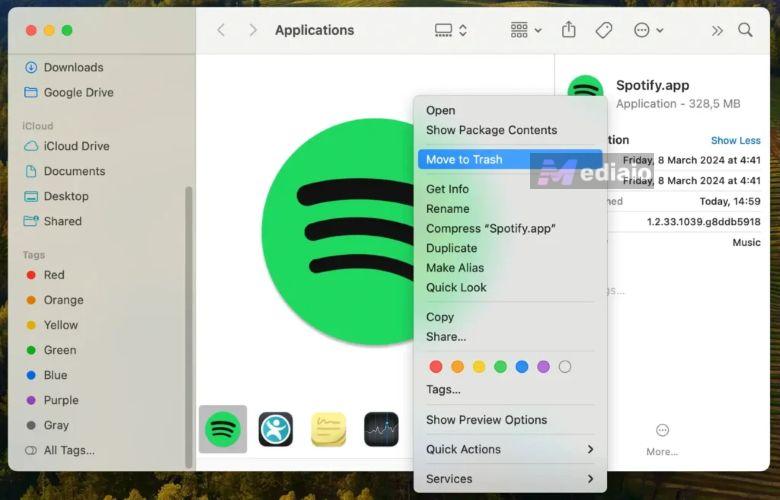
- Enter the Applications folder.
- Move Spotify to the Trash. Empty the Trash.
- Visit spotify.com/download. Download the latest .dmg installer.
- Sign back in to check if search works normally again.

Fix 6: Downgrade to Older Spotify
Spotify’s current desktop builds officially support:
- Mac: macOS 12.0 or above.
- Windows: Windows 10 (64-bit) and Windows 11.
So if you’re on older machines —macOS 11, Catalina, Mojave, or Windows 7/8/early 10 builds, the new app is not supported. Yes, the newest Spotify version can be installed, but features like Search bar will not behave properly and you’ll see the “something went wrong” message. The practical fix here is to downgrade Spotify to an older build.
Note: Downgrading does not delete your recent playlists, liked songs, or account data. Everything lives on Spotify’s cloud servers. You’re only changing the app version installed on your machine. So, everything else will remain intact. Here’s how to do it.
Step 1. Remove the Current Version
Uninstall the existing Spotify app completely first.
Step 2. Download an Older Build
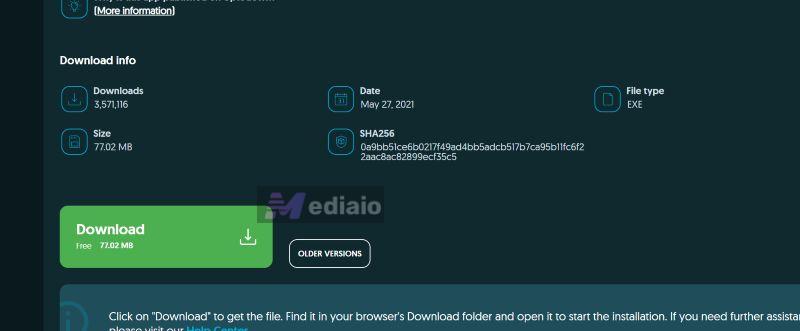
Spotify does not officially host older versions on its main site. So you’ll need to search online for: “Spotify older versions Windows” or “Spotify older versions Mac”. You’ll find version archives on sites, like Uptodown, which maintains previous builds. You just have to choose a version that is slightly older than your current one.
For example:
- Windows users can try versions in the 1.2.7x range
- Mac users can try builds around 1.2.79.x
After finding a desired version, download:
- .exe file for Windows
- .dmg file (or sometimes a .zip containing it) for Mac

Install normally. Sign in using your regular Spotify account. Everything will sync automatically.
Tip: Keep a Local Backup of Your Favorite Playlists
If you are tired of sudden app bugs on Spotify or seeing the “Something went wrong” messages, there is a workaround. You can take your favorite playlists offline — completely. That is, you can save the tracks as real local files (MP3, M4A, FLAC, WAV) on your computer. Dedicated tools like MedVioo Audio Converter can help you complete the music conversion and saving. Its embedded Spotify web player enables you to access your playlists and albums fast and pick the wanted ones to convert as local audio files. All ID3 tags — artist name, album art, track number, metadata, are preserved. You can then play the songs using any music player, such as VLC, foobar2000, WMP, etc. MedVioo also supports batch downloads. Plus, it converts up to 30× faster. So entire yet large playlists can be saved in one go without waiting endlessly.
FAQs
Before we close, here are some common questions people search when the Spotify search bar stops working and only shows empty results.
What Is the Search Limit of Spotify?
There is no search limit. You can search for as many items (songs, albums, artists, playlists, or podcasts) as you want. If results stop appearing, it is because of a glitch or cache issue. You can clear them by applying the above fixes.
Why Can’t I Search Profiles on Spotify?
Spotify’s main search bar prioritizes verified artists and popular songs. So when typing a display name, the name you see on their page, Spotify will show zero results. But you can still find profiles in 2026. Here’s how:
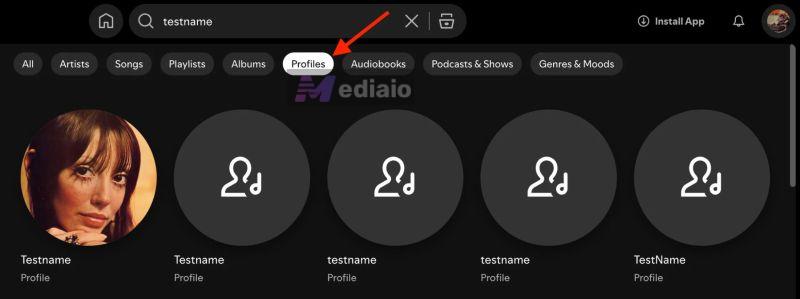
Use the filter method
Type your friend’s name. Then tap the Profiles filter bubble at the top. This forces Spotify to ignore songs and artists and show only users.
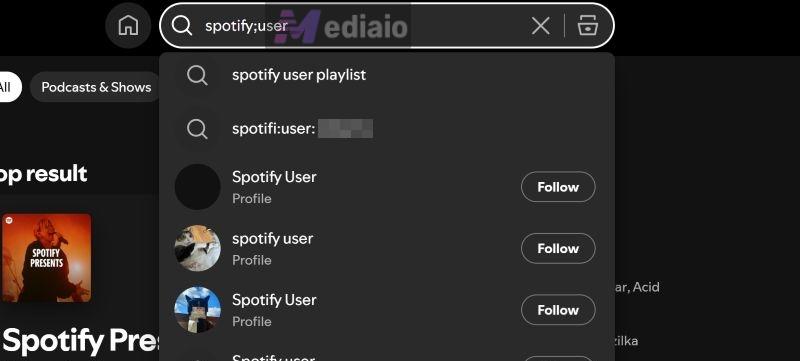
Use the exact username
Ask for their actual alphanumeric username. Then type: spotify:user:actualusername. This will work like a direct command. It will take you straight to the profile.
Use the playlist shortcut
- Ask your friend to share any playlist link.
- Open the playlist. Under the playlist details, click their name.
- You will land directly on their profile. From there, you can follow them.


3. Why Can’t I Find a Particular Song on Spotify?
There are a few real reasons for this.
Licensing expiration
Spotify does not own the music. It licenses streaming rights. When contracts expire, songs will disappear, even if you listened to them yesterday.

Regional restrictions
Some tracks are available only in certain countries.
Artist disputes or rebranding
Artists sometimes remove their own music. If a song is truly gone, it is usually a licensing or rights issue but not a search malfunction.
To Sum Up
That’s everything on this issue.
Use the quick tricks first to get your music playing. Then go fix by fix until the search bar works properly again and the “something went wrong” error disappears. And if you want to avoid streaming bugs or server crashes altogether, save your playlists as local files with MedVioo Audio Converter. This way, your music will stay offline. You can play it with any media player, avoiding playback, search or other issues on Spotify.