

Thinking about switching from Amazon Music to Spotify but don’t want to lose your playlists? You’re not alone. Many users prefer Spotify’s powerful discovery features, personalized recommendations, and wider device support — but manually recreating your Amazon Music playlists can take hours.
The good news? You can transfer Amazon Music playlists to Spotify quickly and automatically, without having to add songs one by one. In this guide, I’ll show you the best ways to move your playlists, including free tools, app-to-app transfer services, and a reliable method that avoids missing tracks or transfer failures.
Whether you’re moving one playlist or your entire library, here’s the simplest step-by-step guide to transfer Amazon Music to Spotify in 2025.
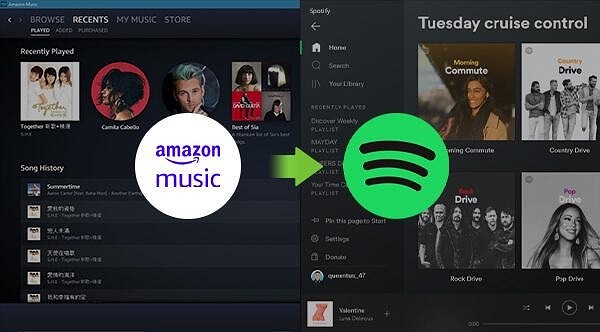
Part 1. Can you Transfer Music from Amazon to Spotify Directly?
If you’re hoping to move your Amazon Music playlists straight into Spotify, the short answer is no — neither app offers a built-in transfer feature. Amazon Music and Spotify operate on different ecosystems, and each platform stores music data in a closed format that cannot be exported or imported natively.
Limitations of the Native Amazon Music and Spotify Apps
Both services provide convenient playlist management, but they do not allow users to:
- Export playlists from Amazon Music as files
- Import playlists or songs into Spotify from external platforms
- Sync libraries between two streaming apps
- Transfer albums or liked songs across services
This means you cannot directly move songs, albums, or playlists from Amazon Music to Spotify using the apps alone.
You Can Transfer Amazon Music to Spotify Using Third-Party Tools
The good news is that third-party playlist transfer tools bridge this gap. These services connect to both platforms (with your permission) and automatically map, match, and move your music library from Amazon Music to Spotify.
With the right tool, you can transfer:
- Playlists
- Individual songs/singles
- Full albums
These tools automatically scan your Amazon Music content and recreate the same library inside Spotify — saving you the hours of manually rebuilding everything.
Part 2: 5 Best Ways to Transfer Amazon Music to Spotify (2025 Updated)
Below are the top 5 methods to move Amazon Music playlists, albums, and songs to Spotify in 2025. Each method fits different user needs, from quick online transfers to full-library MP3 backups.
Method 1. Transfer Amazon Music to Spotify via Free Online Tools
If you’re looking for a quick and installation-free solution, online playlist transfer tools are the easiest method. These services run directly in your browser and work on any device — Windows, Mac, iPhone, Android, or even tablets.
They are best suited for small playlists or casual transfers.
Tools Included
- Soundiiz (popular for multi-platform playlist management)
- TuneMyMusic (fast, clean UI, supports bulk playlist transfer)
How to Transfer Amazon Music to Spotify Using Soundiiz
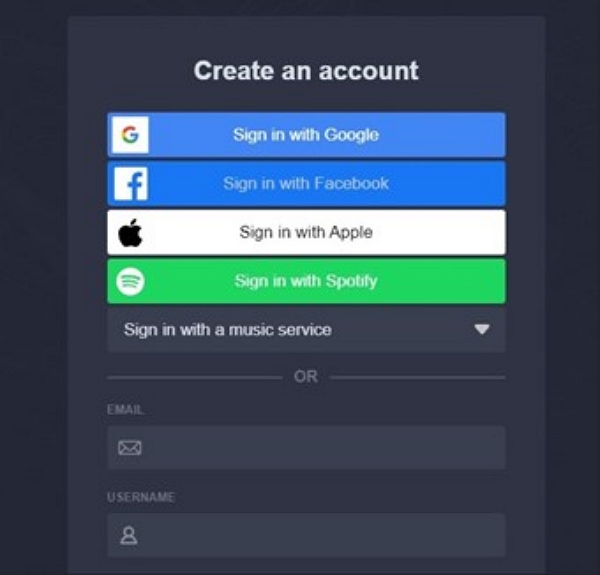
Step 1: Access Soundiiz and create an account using your email account.
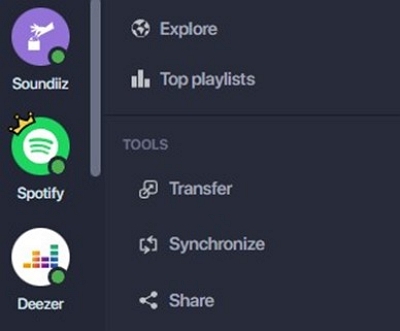
Step 2: In the left sidebar, go to Tools → Transfer.
Step 3: Click Select Source, choose Amazon Music, and authorize your account.Click Select Destination, choose Spotify, and authorize access.
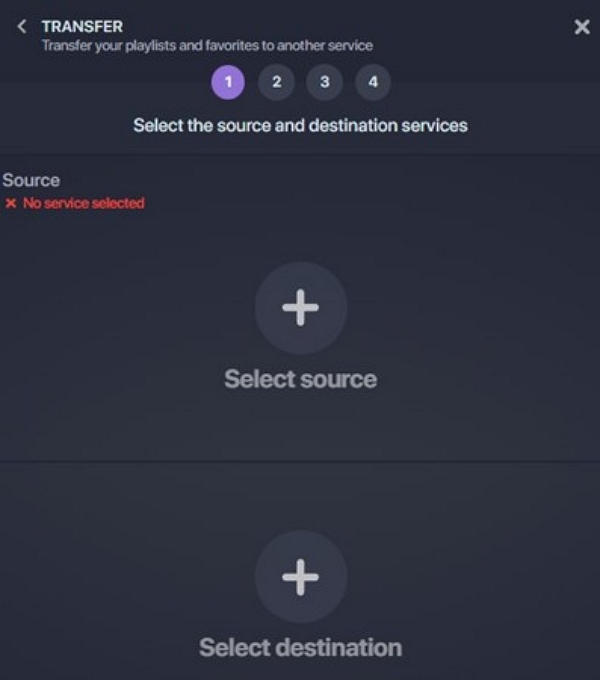
When both accounts show Connected, click Start.
Step 4: Soundiiz will scan your Amazon Music data. Select the playlists/albums/tracks you want to move.
- Free plan: one playlist at a time, up to 200 songs.
- Premium: multiple playlists, albums, artists, tracks at once.
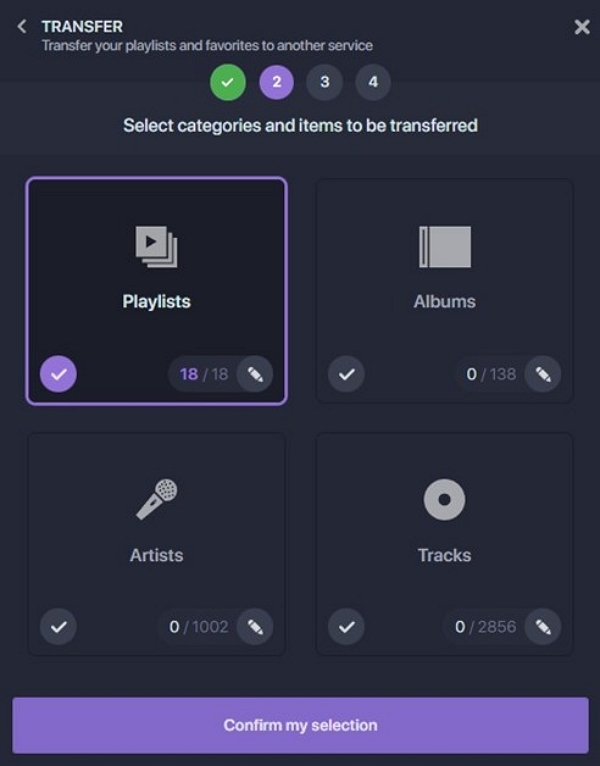
Step 5: Click Confirm My Selection → Begin the Transfer.
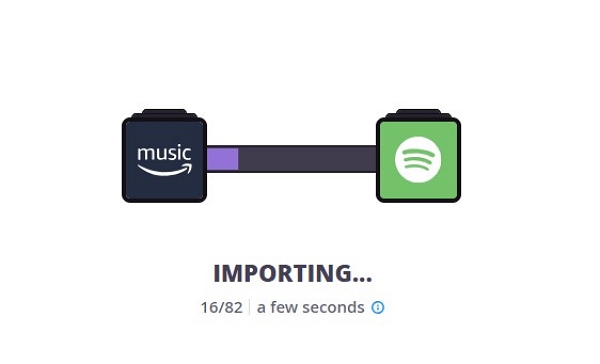
Step 6: Keep the tab open until the migration completes. You can check progress in Automation → My Batches.
Step 7: Once finished, you’ll receive a confirmation email.
Step 8: Open Spotify and verify that your playlist(s) are correctly transferred.
How to Transfer Amazon Music to Spotify Using TuneMyMusic
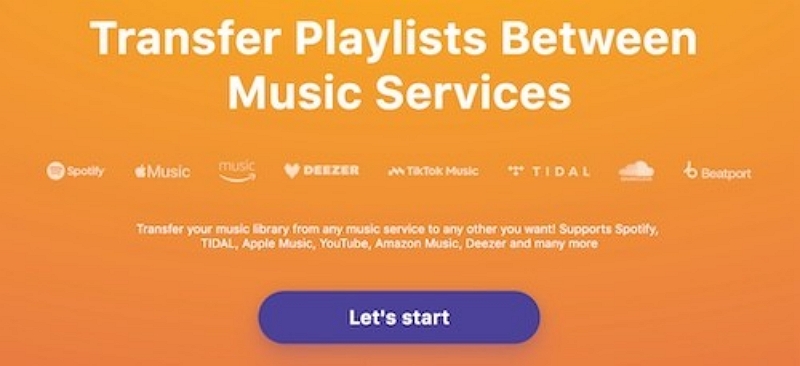
Step 1: Open TuneMyMusic in your browser and click “Let’s Start”.
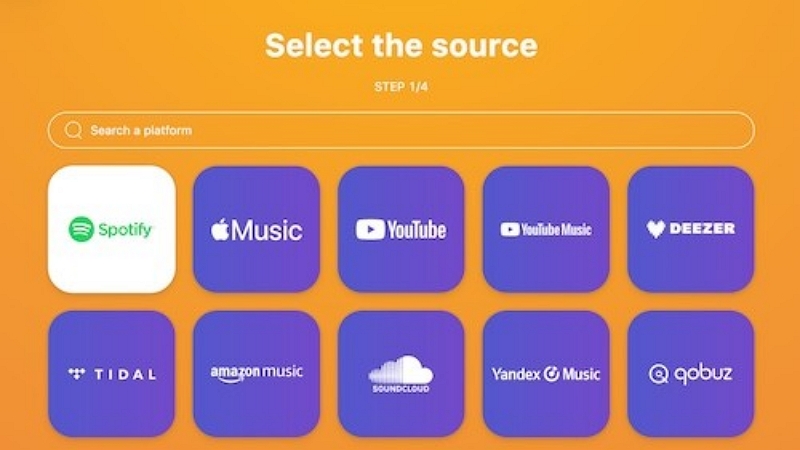
Step 2: Select Amazon Music as your source and log in to authorize access.
Step 3: Choose the playlist(s) you want to transfer.
- Free plan: one playlist at a time.
- Premium: multiple playlists in bulk.
Step 4: Click Choose Destination, select Spotify, and log in to authorize playlist creation.Step 7: Verify in Spotify.
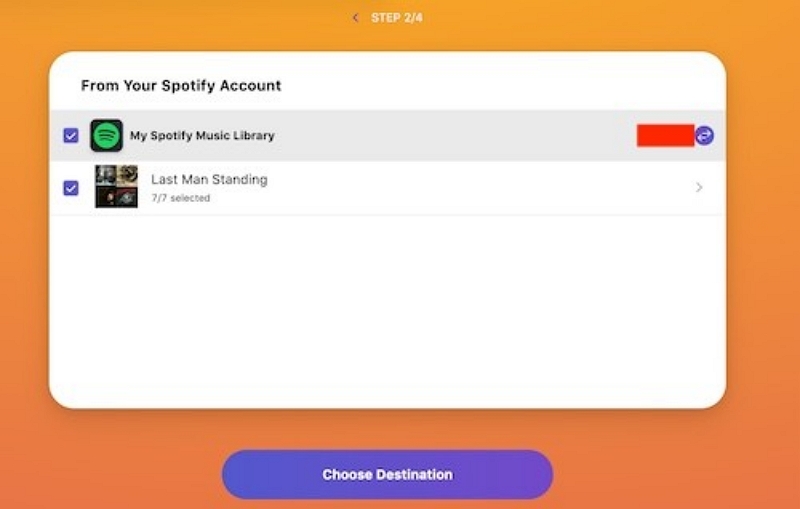
Step 5: Confirm your selection and click Start Transfer.
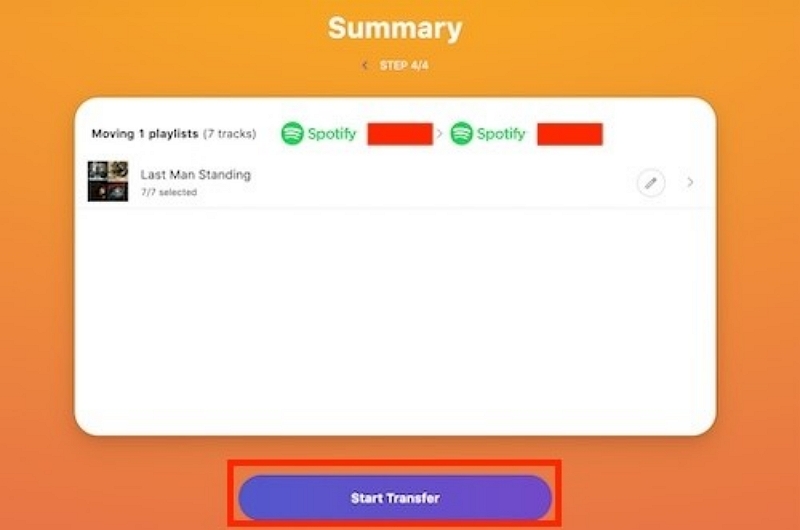
Step 6: Wait for TuneMyMusic to match and transfer the songs. A summary will show matched and unmatched tracks.
Step 7: Open Spotify to verify the transferred playlist.
Pros & Cons
Best For
- Casual users
- People transferring 1–2 playlists
- Users who prefer online solutions
Method 2. Transfer via Desktop App (Convert Amazon Music to MP3)
If you want the most stable and complete migration method—especially for large playlists (5,000+ songs) or your entire Amazon Music library—a desktop app works best.
This method also lets you keep permanent MP3 files, which can later be imported into Spotify.
Tool Used
Mediaio Audio Converter (converts Amazon Music tracks to MP3/FLAC/WAV)
Pros & Cons
Best For
- Power users
- People with thousands of songs
- Users who need offline MP3 backups
Method 3. Transfer Amazon Music to Spotify on iPhone
For iOS users who want everything done directly on their phone, a mobile app is the most convenient method.
Tool Used
SongShift
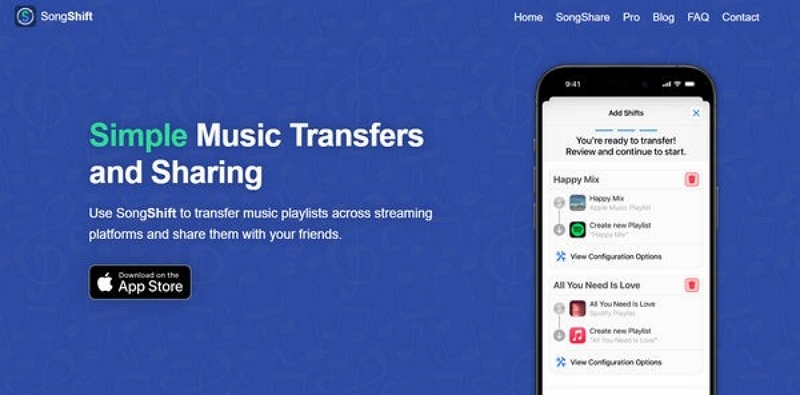
Step-by-Step Guide
Step 1: Open App Store, search for SongShift, and install the app.
Step 2: Tap Connections (or the + icon). Choose Amazon Music as your source platform. Sign in. Grant access to your playlists.
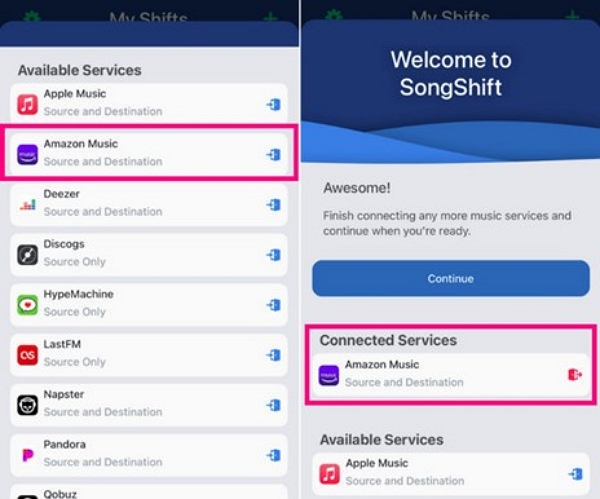
Step 3: Select Spotify as your destination in Connections. Log in and allow Spotify to create and modify playlists.
Step 4: Create a new Shift. Tap the “+” to start a shift. Set the source to Amazon Music. Select your playlist to transfer.
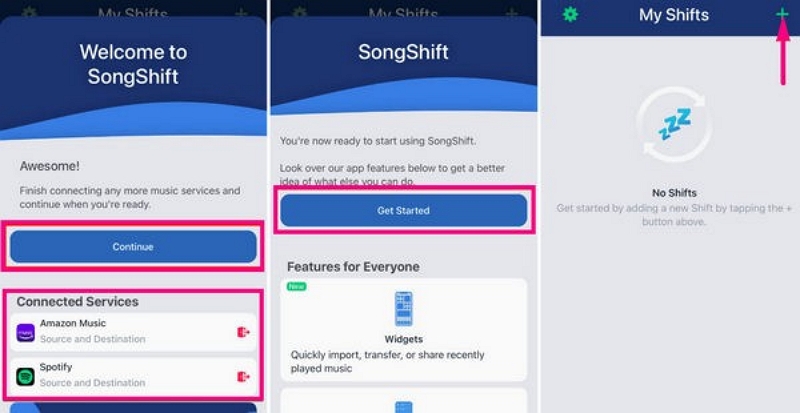
Step 5: Set Destination as Spotify. Select “New Playlist.” Or choose an existing one to merge.
Step 6: Rename the playlist, if required. Enable duplicate filtering. Keep track of the order.
Step 7: Start the transfer. Tap Start Shift. Keep the app open. SongShift will match tracks and begin the transfer.
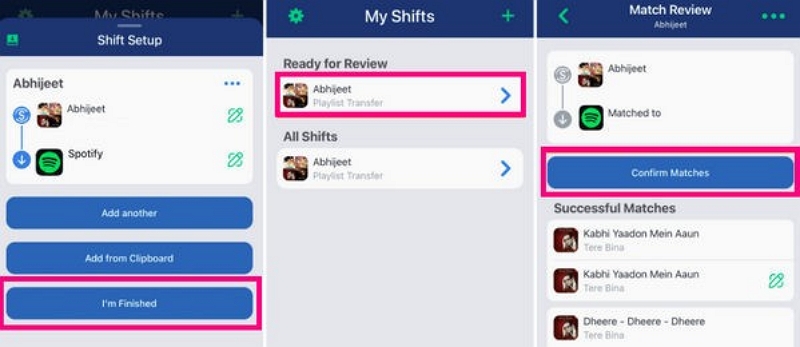
Step 8: Review any songs that didn’t match. Verify in Spotify. Open Spotify and play a few tracks.
Pros & Cons
Best For
- iPhone/iPad users
- Anyone migrating small playlists on mobile
Method 4. Transfer Amazon Music to Spotify on Android
Android users who want an app-based solution can rely on a streamlined mobile transfer tool.
Tool Used
FreeYourMusic
Step-by-Step Guide
Step 1: Install FreeYourMusic from Google Play.
Step 2: Open the app and choose Amazon Music as the source.Select Spotify as the destination.
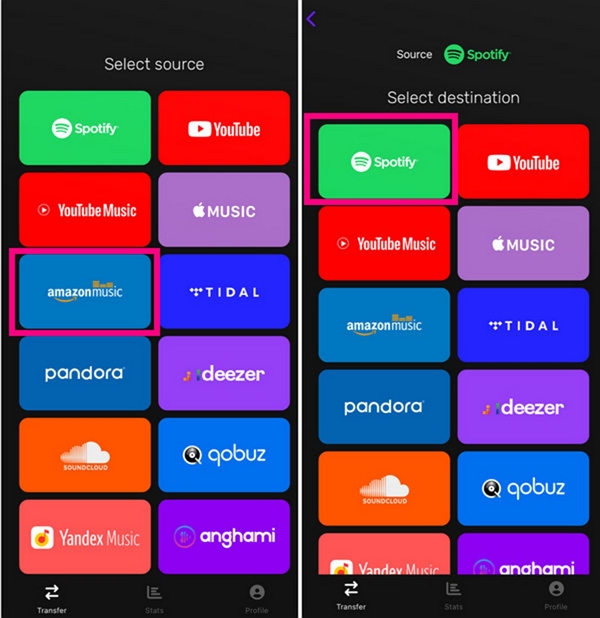
Step 3: Browse your Amazon Music library. Select your playlists to transfer. The free plan allows limited transfers. The premium plan allows unlimited transfers.
Step 4: Tap "Begin Transfer".
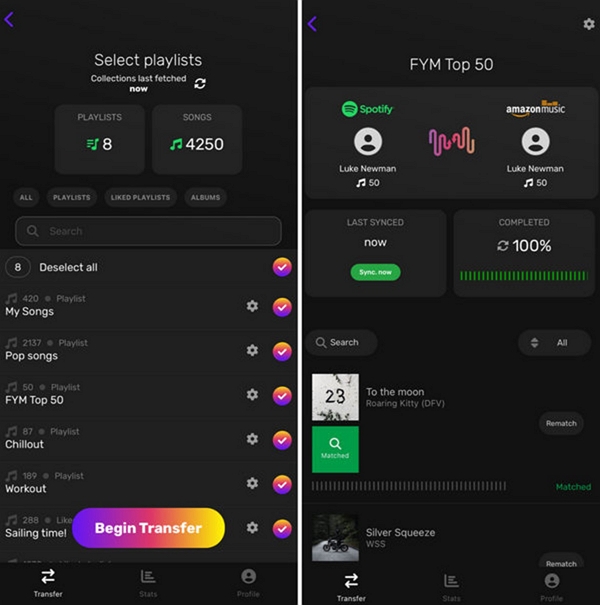
Step 5: Review the summary of matched and unmatched tracks.
Step 6: Verify in Spotify. Play a few tracks to confirm the order and accuracy.
Pros & Cons
Best For
- Android users
- People migrating playlists on mobile
- Users who want a simple, app-based transfer
Method 5. Manually Upload MP3 Files to Spotify (Local Files Method)
This method is useful if you already have MP3 versions of your Amazon Music songs (e.g., via Mediaio Audio Converter in Method 2). Spotify allows importing local audio files and adding them to playlists.
Requirements
- Spotify desktop app
- MP3 files downloaded beforehand
Step-by-Step Guide
Step 1: Open Spotify on your computer.
Step 2: Go to Settings > Edit > Preference > Local Files and enable “Show Local Files.”
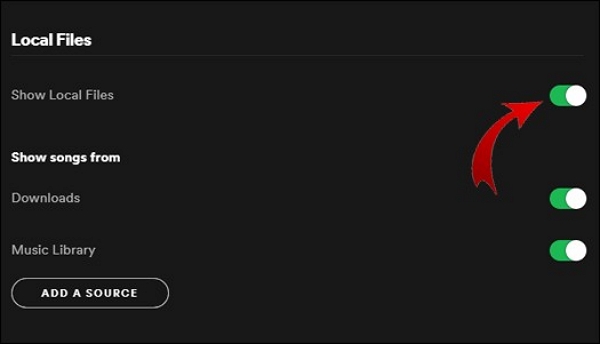
Step 3: Click "Add A source" button to add separate songs or ablum.
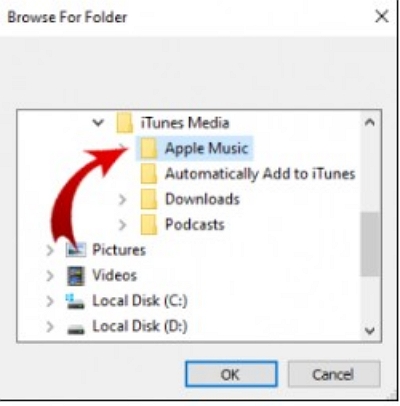
Step 4: All the local MP3 songs will be stored in the Local Files Songs Floder.

Step 5: To sync on mobile, connect your phone and computer to the same Wi-Fi network.
Pros & Cons
Best For:
- Collectors who have rare and personal recordings
- Independent artists who want to test their tracks in Spotify playlists
- Users with personal audio files
Part 3: Comparison Table: Which Method Should You Choose?
Part 4: What You Can and Can't Transfer
When transferring music from Amazon Music to Spotify, it’s important to understand the limitations. Not all content can be moved seamlessly due to DRM protection and regional availability restrictions.
Always review the “unmatched songs” summary in your transfer tool and search manually on Spotify for missing tracks.
Part 5: Tips for a Smooth Transfer
A successful transfer is not just about the tool—it also requires some preparation. Here are some tips:
1. Organize Your Playlists
- Clean up your Amazon Music playlists before transfer.
- Remove songs you no longer listen to, rename playlists clearly, and group similar playlists together.
2. Remove Duplicates
- Duplicate songs can confuse the transfer tool or clutter your Spotify library.
- Use built-in playlist management in Amazon Music or third-party apps to remove duplicates first.
Troubleshooting Transfer Issues
Here are a few common errors and solutions:
Extra Tips
- Keep the browser or app open until the transfer finishes.
- Use a stable internet connection for large playlists or full-library transfers.
- For DRM-protected Amazon Music tracks, convert them to MP3 first using a desktop converter.
- Consider enabling auto-sync (available in Premium plans) if you frequently update playlists.
Part 6: FAQs
Yes. Most 3rd-party tools, such as Soundiiz and TuneMyMusic. FreeYourMusic and SongShift offer a free plan. However, the free plan is limited to one playlist at a time or a small number of songs.
- Small playlists (under 100 songs) usually take a few minutes.
- Large playlists (500+ songs) take longer, depending on internet speed and the tool's performance.
Yes. Most tools preserve the original track order when transferring playlists. Always verify the playlist in Spotify after the transfer to confirm order and completeness.
Conclusion
Transferring playlists directly between Amazon Music and Spotify is not possible. Therefore, users who wish to transfer playlists from Amazon Music to Spotify must use third-party tools, such as Soundiiz, TuneMyMusic, FreeYourMusic, or SongShift. We have also discussed Mediaio, a unique converter tool that converts Amazon Music playlists to MP3 format, which can be later uploaded to Spotify manually. This method overcomes DRM regulations and regional availability issues. If you want to transfer DRM-protected content from Amazon to Spotify, use Mediaio.