

1. TL;DR
Amazon Music Playback Error usually occurs due to network issues, account authorization problems, DRM verification failures, or corrupted offline files.
Error 180/181 → often DRM or account verification.
Error 182/183 → offline cache or SD card issues.
Error 243 → usually Android / Android Auto network switching.
Quick fix: Try switching networks, syncing device time, signing out and back in, clearing the cache, or redownloading songs.
2. What Is Amazon Music Playback Error?
A Playback Error appears when Amazon Music cannot load or play a track.
It can occur in:
- Online playback
- Offline mode
- Android Auto
- Browser playback
- Switching WiFi/mobile data
- Playing from SD card
Numbered errors help Amazon identify whether the issue is related to network, DRM, or local files.
3. Common Causes of Amazon Music Playback Errors
Here are some common Amazon Music Playback errors and their causes.
3.1 Network or connectivity issues (connect to Wi-Fi)
If your connection is unstable, Amazon Music may fail to stream tracks. Connect to WiFi for a stable playback experience.
3.2 Incorrect device time (check date and time)
Amazon Music relies on device time for DRM validation. Check date and time on device to avoid errors.
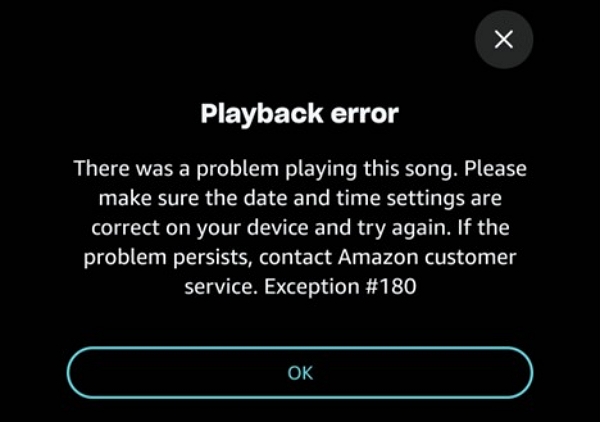
3.3 DRM authentication failure (Error 180/181)
DRM checks prevent unauthorized playback. Failures here trigger 180/181 errors.
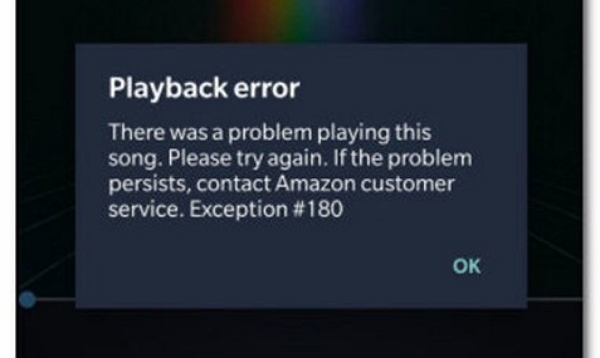
3.4 Account authorization conflicts (multiple devices)
Using multiple devices simultaneously can confuse account verification and cause errors.
3.5 Corrupted offline cache (182/183)
Corrupted or incomplete offline downloads cause errors 182 and 183. Cache corruption prevents the app from verifying the stored music files, resulting in playback failure.
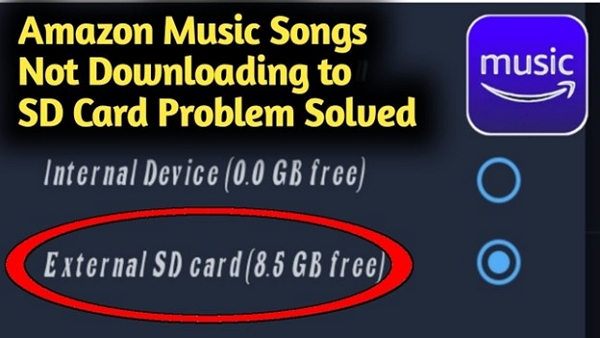
3.6 SD card read/write problems (can’t play from SD card)
If the SD card is improperly mounted, damaged, or lacks read/write permissions, Amazon Music may fail to access downloaded tracks, resulting in playback errors or missing files.
3.7 App bugs after the newest update
Compatibility or unpatched bugs after updates may disrupt playback, typically affecting certain devices or OS versions until follow-up patches resolve them.
3.8 Android Auto or browser playback issues
Playback via Android Auto or browser interfaces may fail due to unsupported codecs, session timeouts, or restricted background permissions. Platforms like Amazon often require additional configuration for smooth streaming.
4. Quick Fixes for Amazon Music Playback Error
Here are the quick fixes for Amazon Music Playback errors.
4.1 Switch network / turn off VPN
Solution: Connect to Wi-Fi
- Turn on Airplane mode for 10 seconds, then turn it off to refresh radios.
- Connect to a stable Wi-Fi network. Avoid public hotspots.
- Disable VPN in network settings and the VPN app.
- Forget the problematic Wi-Fi, then reconnect from Settings.
- If possible, restart your router, then restart your device.
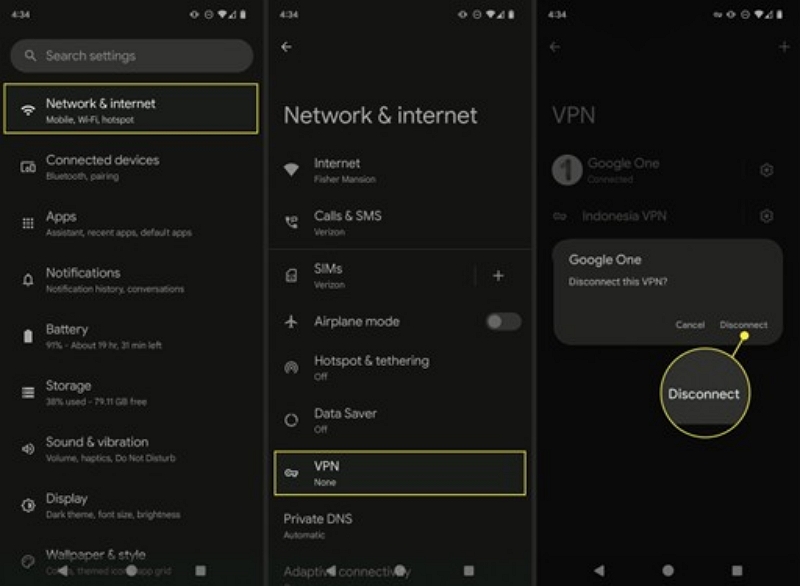
4.2 Sync device date & time
For Android Devices
Step 1. Open Settings.
Step 2. Scroll down and tap System → Date & time (or directly search “Date & time” in Settings).
Step 3. Turn on Use network-provided time (or Automatic date & time).
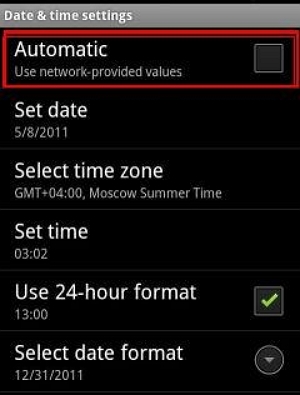
Step 4. Also enable Use network-provided time zone (or Automatic time zone).
If it’s already on, toggle it off and back on to refresh the sync.
Restart your Amazon Music app and try playing music again.
For iOS / iPhone / iPad
Step 1. Open Settings. Tap General → Date & Time.
Step 2. Turn on Set Automatically.
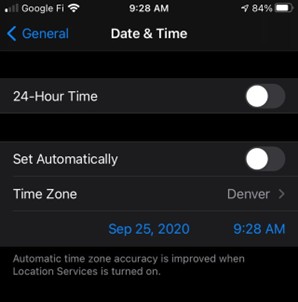
Step 3. Make sure your Time Zone is correct.
Step 4. Close and reopen Amazon Music.
For Windows PC
Step 1. System Settings in the taskbar → select Time & language.
Step 2. Turn on Set time automatically and Set time zone automatically.
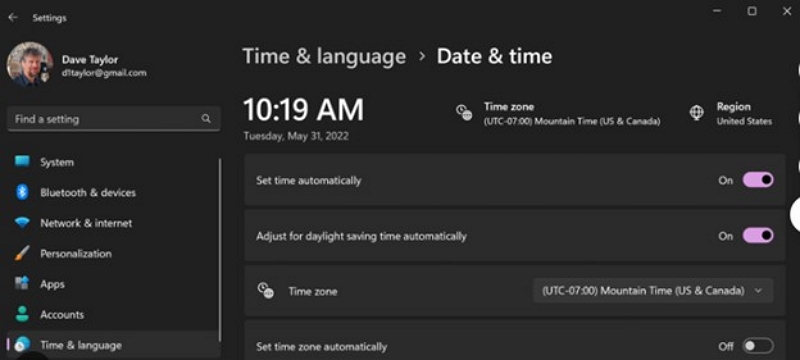
Step 3. Restart Amazon Music app (if using desktop app) or refresh browser.
For macOS
Step 1. Open System Settings → General → Date & Time.
Step 2. Check Set date and time automatically.
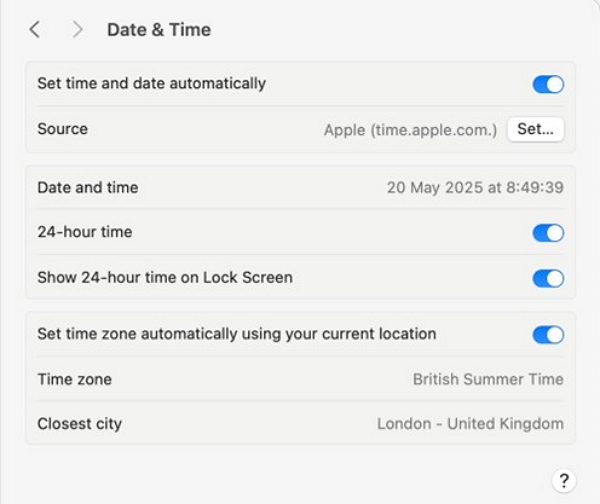
Step 3. Ensure the correct time server is selected.
Step 4. Restart Amazon Music app or refresh browser.
4.3 Sign out and sign back in
Signing out and back in Amazon Music fixes authorization errors, such as 180/181.
- Go to Settings > Tap Sign Out, confirm, and close the app.
- Reopen the app and sign in with your Amazon account.
- If you use multiple devices, stop playback on others and retry on the current device.
4.4 Clear Amazon Music cache (Android / Fire devices)
Clearing the cache resolves Amazon Music playback error Android.
Step 1: Go to Settings > Apps > Amazon Music.
Step 2: Tap Storage > Clear cache. Do not clear data now.
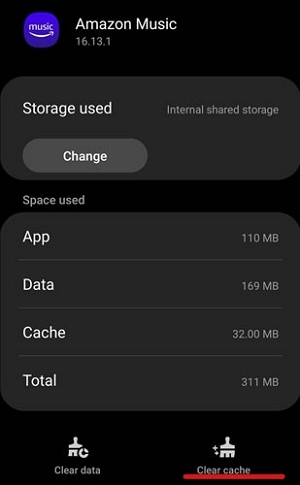
Step 3: Tap Force stop, then reopen Amazon Music and test playback.
Step 4: If issues persist, clear data and sign back in.
4.5 Delete & re-download offline songs
Deleting and redownloading offline songs fixes corrupted files (182/183).
Option A: Remove individual songs or albums
Step 1: Open Amazon Music > Library > Downloads.
Step 2: Long-press the song, album, or playlist.Tap Remove Download or Delete from device.
Option B: Remove all offline music (recommended if errors persist)
Step 1: Tap Settings (gear icon).
Step 2: Go to Storage → Clear Downloaded Music.
Step 3: Confirm deletion.
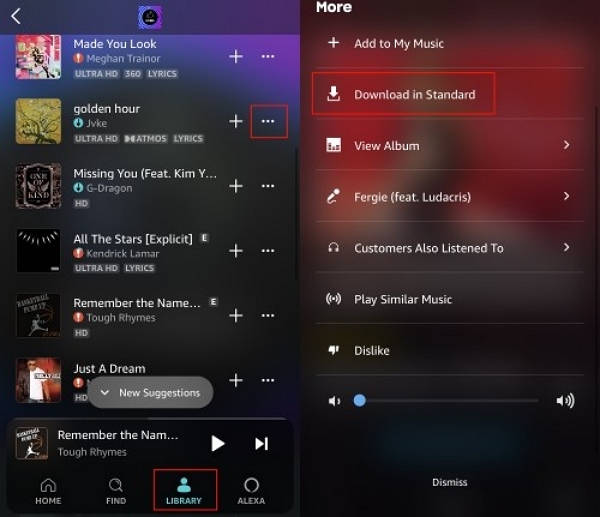
Step 4: Re-download Songs
- Return to the song/album/playlist.
- Tap the Download icon.
- Wait until the download completes fully.
4.6 Remove SD card or switch to internal storage
Removing the SD card or switching downloads to internal storage can resolve the “can’t play from SD card” error caused by read/write failures or corrupted storage.
- Open Amazon Music > Settings > Download location → select Internal Storage.
- If available, move existing downloads to internal storage. Otherwise, delete and re-download songs after switching the location.
- If the SD card is suspected, go to Settings > Storage > Unmount/Eject SD card, then physically remove it and test playback again.
- Insert the SD card into another device to run a disk check, or replace the card if errors persist.
4.7 Update or roll back Amazon Music app (newest update issues)
Updating or reinstalling the Amazon Music app can fix playback errors caused by bugs in the newest update, especially on Android Auto or during browser-based playback.
1. Open Google Play Store / Amazon Appstore > Amazon Music > Update.
2. If playback errors started after a recent update, uninstall the app, restart your device, then reinstall the latest stable version.
3. Leave beta programs (if enrolled) and ensure Android OS / Fire OS is up to date.
For Android Auto users:
Step 1. Update Android Auto and Google Play Services.
Step 2. Grant Amazon Music Media, Microphone, and Background playback permissions.
Step 3. Disable battery optimization for Amazon Music to prevent forced playback stops.
4.8 Browser fix: clear cookies or switch browsers
Clearing browser data or switching browsers can resolve “playback error browser” caused by corrupted cookies or blocked DRM sessions.
Step 1. Open your browser settings → Privacy & Security > Clear browsing data → remove cookies and cache.
Step 2. Use Incognito / Private Mode to bypass extensions and stored sessions.
Step 3. Switch to a supported browser (Chrome, Edge, Firefox) and update it to the latest version.
Step 4. Log out at music.amazon.com, log back in, and test playback again.
5. Last Resort: Back Up Your Amazon Music
If Amazon Music repeatedly shows playback errors, corrupted offline files, or DRM issues, saving Amazon Music as local FLAC / MP3 files ensures stable playback without relying on the Amazon app.
Mediaio Audio Converter removes DRM and lets you convert Amazon Music files to MP3s on your local device. Play the converted music files over any compatible media player without relying on the Amazon app.
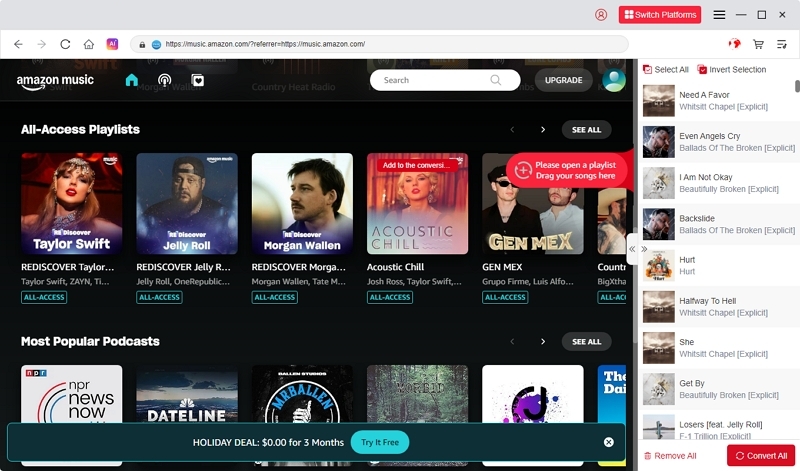
Select Amazon Music on the main interface and log in to your account.
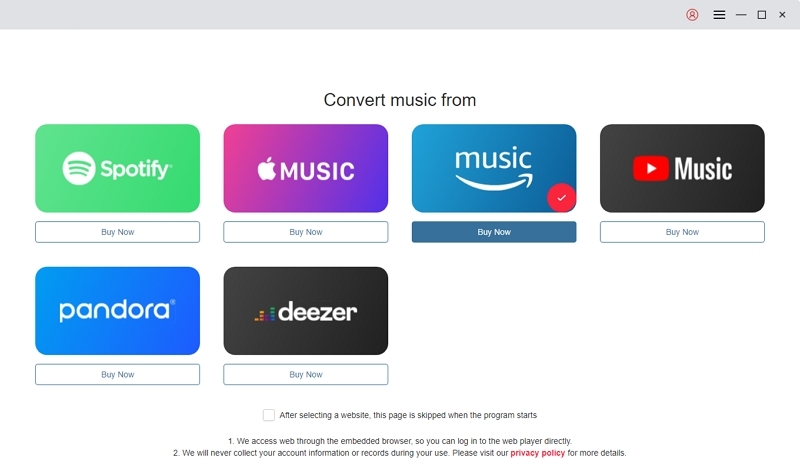
Browse Amazon Music. Select your favorite songs or albums and drag them into the “+” box.
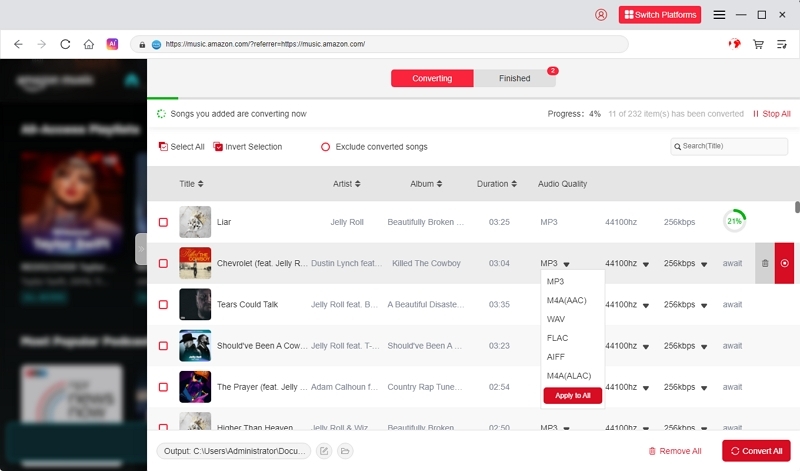
Choose your music output format. MP3 is ideal. Select 320 kbps for the best audio quality.
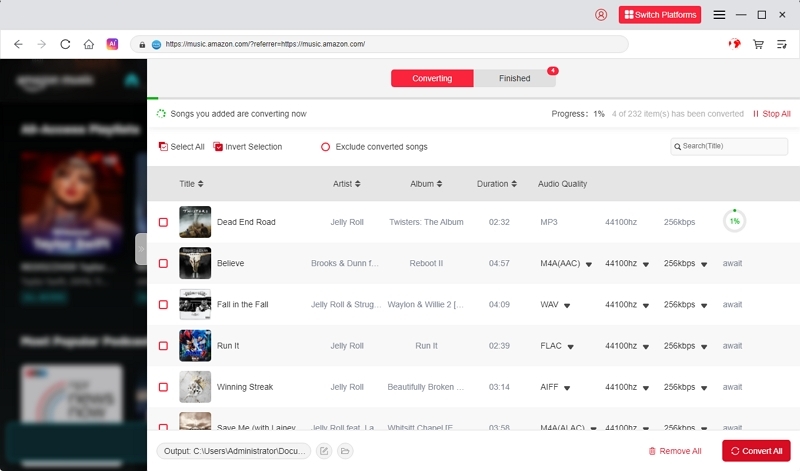
Click “Convert” to download Amazon Music tracks locally to your device.
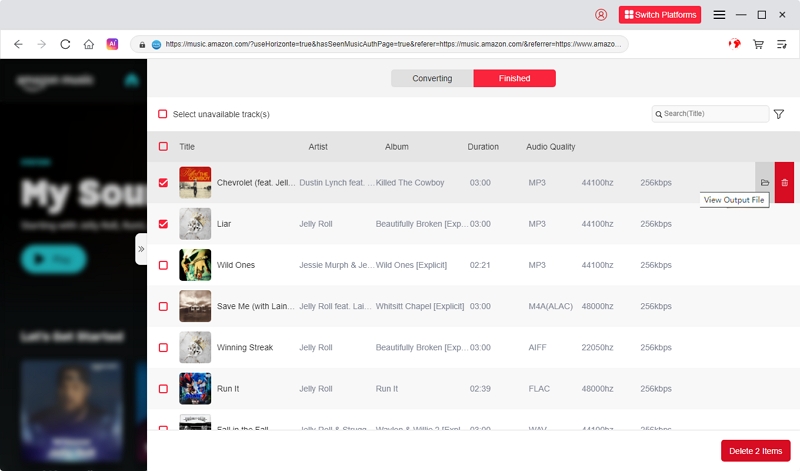
Play your downloaded songs on any compatible media player.
Pros and Cons
FAQS
Amazon Music offline playback does not work due to expired licenses/downloads, a corrupted cache, or app bugs/updates.
Error 180 is linked to network or firmware issues, whereas error 181 is more specific to authorization conflicts.
Amazon Music’s relationship with SD cards is fragile. SD card errors include permission and mounting issues. Some Amazon Music updates stop recognizing external storage, forcing users to switch to internal memory.
Playback errors are due to app compatibility issues, cache/update conflicts, and restricted functionality.
- On Android – Hidden directories under /Amazon/data/con.amazon.mp3/files. These are encrypted, DRM-protected files.
- On iOS – stored within the app’s sandbox, inaccessible to users.
- On desktop – cached in hidden folders tied to the Amazon Music client.
Conclusion
Amazon Music is a popular music streaming service. The app requires constant updates. Lack of updates or expired licenses can cause multiple errors that affect playback. Bugs and a corrupt cache are also the primary culprits. SD card errors also happen frequently. We have discussed all these errors, their causes, and fixes. If all fixes fail, users can use the Mediaio converter tool to convert Amazon Music files to MP3s and play them on any compatible media player.