

Downloading Amazon Music on a Mac can be confusing. Amazon offers multiple apps, subscription types, and strict download limitations — especially if you want offline listening or MP3 files. Many Mac users are unsure whether they can save Amazon Music locally, transfer downloads, or convert them into standard audio formats.
The good news is: there are several reliable ways to download Amazon Music on macOS — including official methods, direct MP3 purchases, and third-party converters for DRM-free files.
This upgraded guide covers 4 working methods, comparison tables, troubleshooting tips, and detailed step-by-step instructions.
Quick Answer: How to Download Amazon Music on Mac
- Amazon Music App (Offline Only):
Install Amazon Music > Log in > Add music to Library > Click Download under the three-dot menu.
Files are encrypted and playable only in the Amazon Music app.
- Purchased MP3 Downloads:
Go to Amazon.com > Your Orders > Music Library > Purchased > Download.
These are real MP3 files stored in your Music folder.
- Convert Amazon Music to MP3:
Use an Amazon Music converter > Log in > Add playlists/albums > Choose MP3 > Convert > Save permanently.
Part 1. 4 Methods Comparison Table
Part 2. Install the Amazon Music App on Mac (macOS 12+)
System Requirements
- macOS 12 or later
- Stable internet connection
- Enough free storage for offline songs
How to Download the Official Amazon Music App
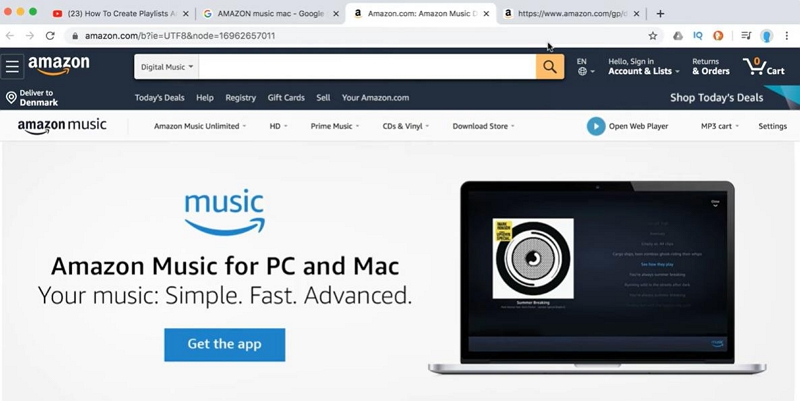
1. Visit Amazon’s official Amazon Music desktop page
2. Click Get the App
3. Avoid unofficial or third-party download sites
Installation Steps
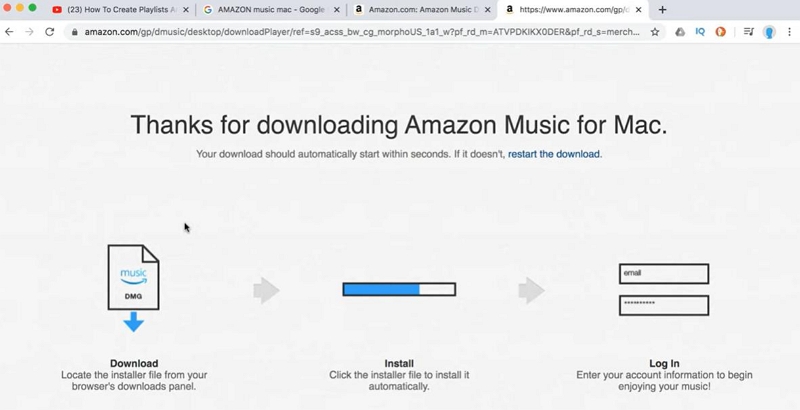
Step 1. Open your browser and go to the Amazon Music download page.
Step 2. Click Download to save the .dmg file.
Step 3. Open the downloaded .dmg.
Step 4. Drag the Amazon Music icon into the Applications folder.
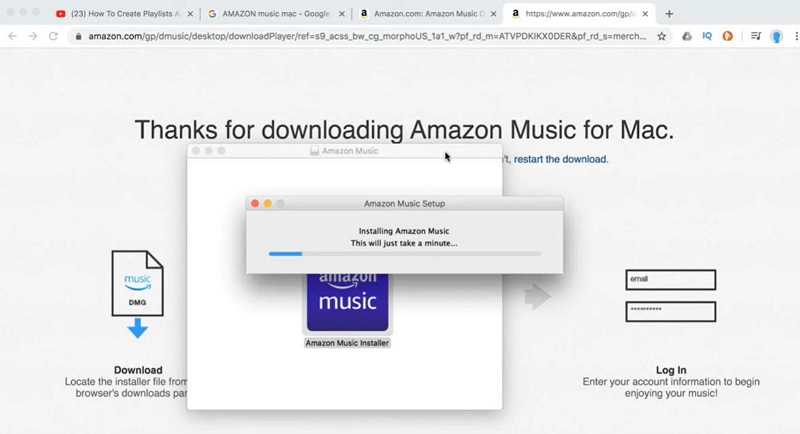
Step 5. Launch Amazon Music from Applications.
Step 6. Approve any macOS security prompts.
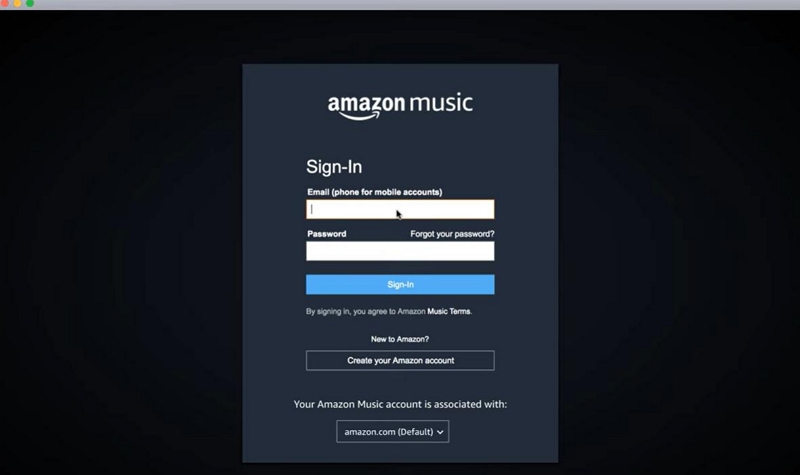
Step 7. Sign in with your Amazon account.
Part 3. How to Download Amazon Music to Mac in the App (Offline Only)
If you just want offline listening, follow the steps below.
Step 1: Install and open the Amazon Music app for macOS.
Step 2: Sign in with your Prime or Amazon Music Unlimited subscription.
Step 3: Search for music or open Library > Albums / Playlists / Songs.
Step 4: Click the three-dot menu > Download.
Step 5: For albums/playlists, click the Download button at the top.
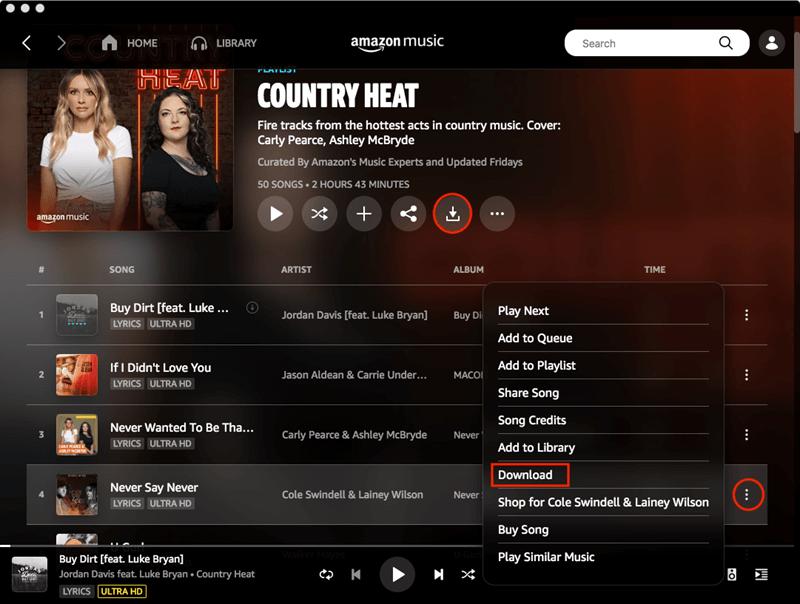
Step 6: Track progress from the download queue.
Step 7: Play offline from Library > Downloaded.
Step 8: To remove downloads, select Remove Download.
Limitations:
- Files are DRM-encrypted and cannot be used in Apple Music, VLC, or any other player.
- Prime users can only download All-Access Playlists, not all songs.
- Downloads cannot be transferred to USB, SD card, or hard drive.
- You lose access if your subscription expires.
Amazon stores offline songs in an encrypted cache using DRM. macOS cannot read the files, and Amazon prohibits exporting.
Part 4. Download Purchased Amazon MP3 Files on Mac (Real MP3 Files)
Purchased MP3s are the only official Amazon Music downloads that are true MP3 files.
A. Download Purchased MP3s via Amazon Music App
Step 1: Ensure that the Amazon Music app is installed on your Mac (update to the latest version if it is already installed).
Step 2: Launch the app and navigate to your Library > Songs, then select the Purchased tab.
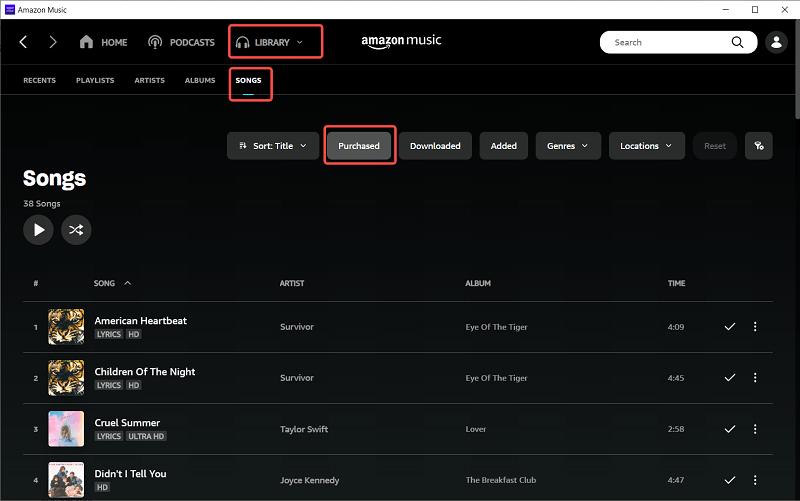
Step 3: To download any purchased song or album you desire, click the Download (↓) icon adjacent to it.
Step 4: The MP3 files will subsequently be stored locally on your Mac.
B. Download Purchased MP3s via Web Browser
Step 1: Visit Amazon Music Web Player → Sign in.
Step 2: Open Library → Purchased.
Step 3: Click Download. When asked to install the app, choose:“No thanks, just download music files directly.”
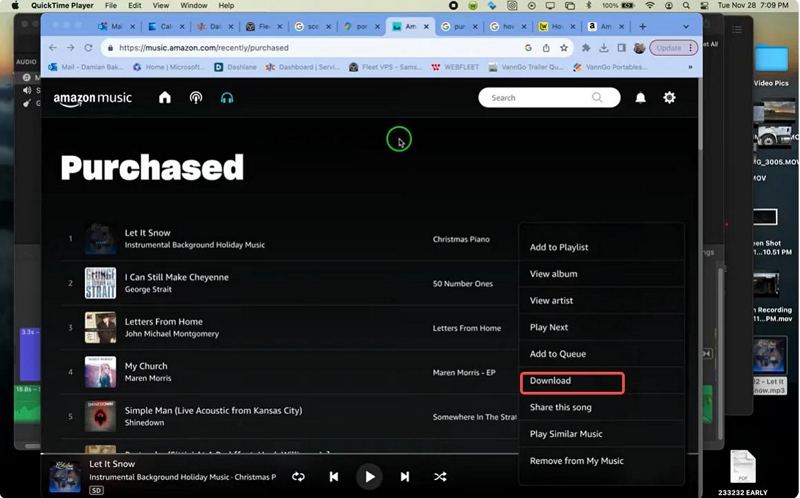
Step 4: Save the MP3/ZIP file.
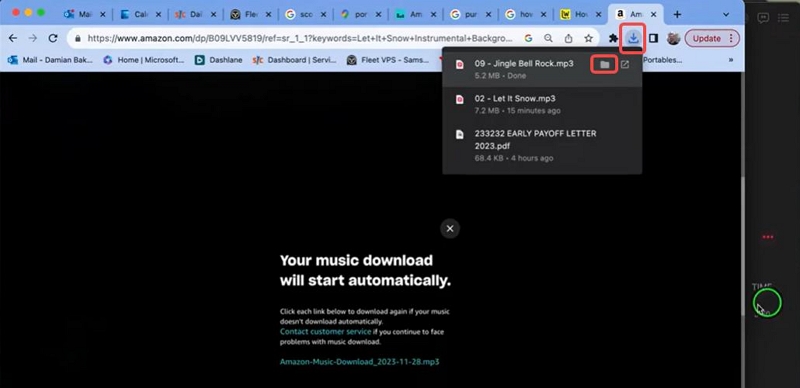
Step 5: If ZIP: double-click to extract MP3s.
Where Are MP3s Saved on Mac?
1. Purchased MP3s:
~/Music/Amazon Music
2. Subscription downloads (encrypted):
~/Library/Application Support/Amazon Music/Data
(Not usable outside the app)
How to Import MP3s into Apple Music
After transferring the MP3 files to your Mac, you can either play them or import them into different music players.
Step 1. Open Apple Music.
Step 2. Import your MP3 files using one of the following methods:
- Go to File > Import…, then select the MP3 files you want to add.
- Or, drag and drop the MP3 files directly into your Apple Music Library or any playlist.
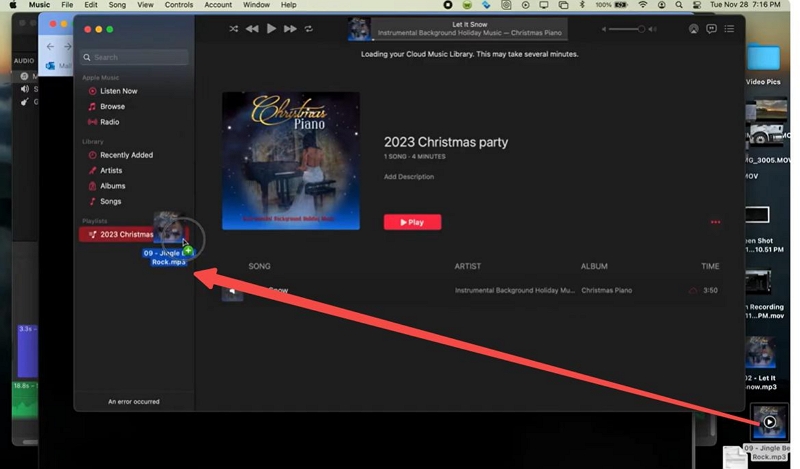
Step 3. Your imported songs will appear in your Music Library immediately and can be played just like any other track.
Part 5. Convert Amazon Music to MP3 on Mac (If You Need Local Files)
If you want real MP3 files from Amazon Music Unlimited or Prime Music playlists, you need a converter likes Mediaio for Audio, AudFree, NoteBurner.
Why a Converter Is Needed
Amazon encrypts all subscription music. A converter legally records or decrypts the audio and saves it in MP3/WAV/M4A/FLAC. Luckily, Mediaio Audio Converter supports Amazon Music, retains metadata, and converts playlists in bulk with high quality.
Part 6. Troubleshooting: Amazon Music Not Downloading on Mac
Issue 1: Download button missing
Fix:
- You may be using Amazon Music Free
- Prime allows downloads only from All-Access Playlists
- Sign out → Restart app → Sign in again
Issue 2: Amazon Music app not installing
Fix:
- Verify macOS is 12 or newer
- Allow installation in System Settings → Privacy & Security
Issue 3: Songs not downloading
Fix:
- Clear app cache
- Ensure sufficient disk space
- Disable VPN (Amazon blocks some regions)
Issue 4: Download incomplete or stuck
Fix:
- Quit and reopen the app
- Switch Wi-Fi network
- Try downloading fewer tracks at once
FAQs for Mac Users
~/Music/Amazon Music).
Subscription downloads from the Amazon Music app are encrypted and stored in a hidden application support folder, and cannot be moved or used in other media players.
Conclusion
Downloading Amazon Music on a Mac is straightforward once you understand the difference between encrypted subscription downloads and real MP3 files.
- Use the Amazon Music app for offline listening
- Download purchased MP3s directly
- Use Mediaio to save DRM-free MP3s permanently
If you want true local files that you can store, back up, and play anywhere, Mediaio Audio Converter is the most reliable solution.