

Switching from Spotify to Amazon Music isn’t just about preference—it can be about better pricing, higher audio quality, and deeper integration with Echo devices. Here’s a quick comparison to help you see the difference.

Part 1: Features & Pricing (2026)
Alexa & Smart Device Integration
- Amazon Music works seamlessly with Alexa, Echo, Fire TV, and other devices.
- Spotify supports Alexa, but Amazon Prime users get priority access and deeper integration.
Superior Audio Quality
- Amazon Music Unlimited includes HD, UHD, and spatial audio at no extra cost.
- Spotify plans a Hi-Fi tier, but Amazon currently provides richer sound on high-end equipment.
Exclusive Content & Catalog
- Amazon Music offers Prime-exclusive live recordings, radio, and early releases.
- Spotify excels with podcasts and curated playlists.
- Amazon appeals to music-focused users with a wide catalog and growing exclusives.
Part 2: Pre-transfer Checklist to Transfer Spotify Playlists to Amazon Music
Before you start transferring your Spotify playlists to Amazon Music, make sure you’ve checked the following items to ensure a smooth process:
1. Account Setup & Subscription Requirements
- Spotify Account: You need an active Spotify account (Free or Premium) with the playlists you want to transfer.
- Amazon Music Account: Sign up for Amazon Music Unlimited or Prime Music. A Prime membership may unlock discounted plans and exclusive content.
- Third-Party Playlist Converter: Some transfer tools may require you to create an account to authorize access to both Spotify and Amazon Music.
2.Playlist Visibility and Privacy Settings:
- Public vs Private Playlists: Most transfer tools can only access public playlists by default. If your playlist is private, you may need to temporarily make it public or generate a shareable link.
- Collaborative Playlists: Check if collaborative playlists are fully supported by the transfer tool you plan to use.
Supported Devices and OS Compatibility:
- Transfer is easy on desktops via web browsers. Spotify and Amazon Music must be accessible on the same device.
- Mobile transfers are available on iOS and Android, but functionality may be limited.
- Amazon Music integrates well with Alexa-enabled devices. Spotify playlists won’t auto-sync with Alexa once moved. You must re-link Amazon Music.
- Operating systems, such as macOS, iOS, Android, and Windows, are supported.
Pro Tip: Double-check that your playlists don’t exceed the maximum track limit supported by the converter tool. This ensures your transfer goes smoothly without missing tracks.
Part 3: Best Tools to Transfer Spotify Music to Amazon Music
Transferring your Spotify playlists to Amazon Music requires the right tool. Here’s a breakdown of the best options available in 2026.
3.1 Mediaio Audio Converter (Permanent MP3 Backup)
When to use:
- Ideal for users who want a permanent offline backup of their playlists in MP3 or other audio formats.
- Useful if you plan to keep playlists outside streaming platforms.
Who should use it - Users looking for offline storage or a long-term MP3 library.
3.2 TuneMyMusic (Best Web Converter)
A web-based playlist converter that supports Spotify to Amazon Music transfers.
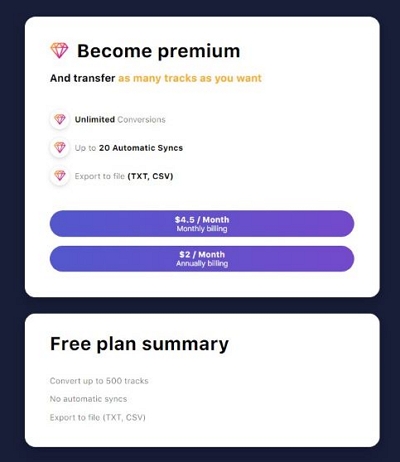
Free vs Premium limitations
- Free version: limited number of tracks per transfer.
- Premium version: unlimited playlist transfers, multiple accounts, and faster processing.
Who should use it –
- Casual users who want quick transfers without installing software.
- Users managing small to medium playlists.
3.3 Soundiiz (Best for Multi-Platform Users)
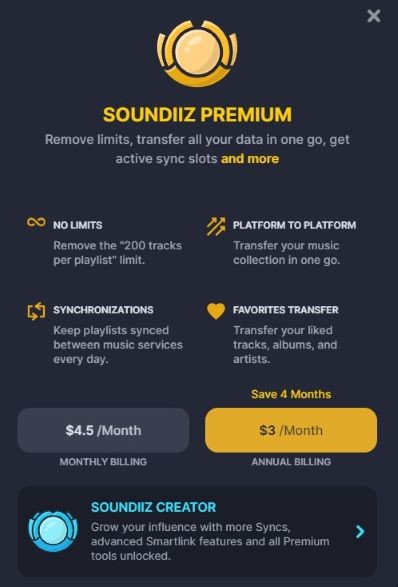
Web-based dashboard for powerful playlist syncing across multiple streaming platforms, including Spotify and Amazon Music.
Who should use it –
- Users with multiple streaming services.
- Those who want continuous playlist synchronization across platforms.
3.4 FreeYourMusic (Best Desktop/Mobile Solution)
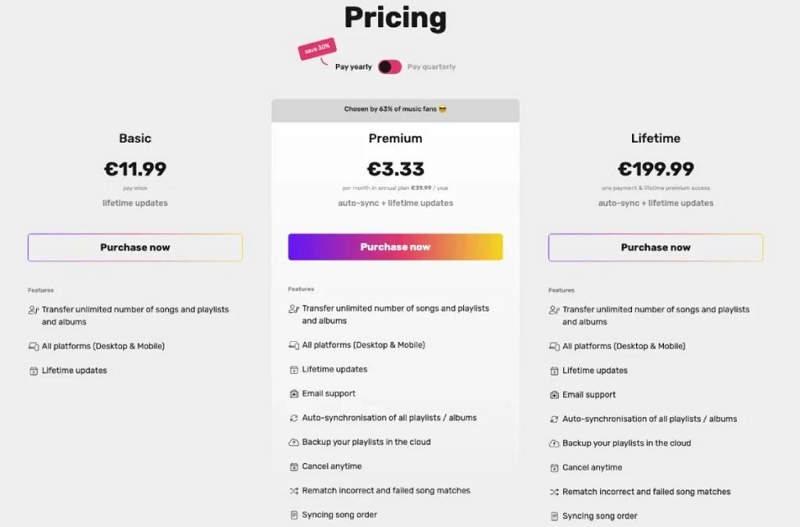
Works on Windows, macOS, iOS, and Android. Allows bulk playlist migration for large libraries (5k–20k tracks).
Who should use it –
- Users with large Spotify libraries.
- Those who want a cross-device transfer solution.
Part 4: How to Transfer Spotify Playlists to Amazon Music (Step-by-Step Methods)
Having reviewed the best tools, let’s now go through the specific steps to transfer your playlists from Spotify to Amazon Music.
Method 1: Transfer Using an Online Playlist Converter (TuneMyMusic / Soundiiz)
Step-by-Step
Step 1: Open Soundiiz and Log In
- Open your browser and go to Soundiiz.
- Click “Get Started Now” or “Log In” in the top-right corner.
- Register a new account or log in if you already have one.
Step 2: Connect Your Spotify and Amazon Music Accounts
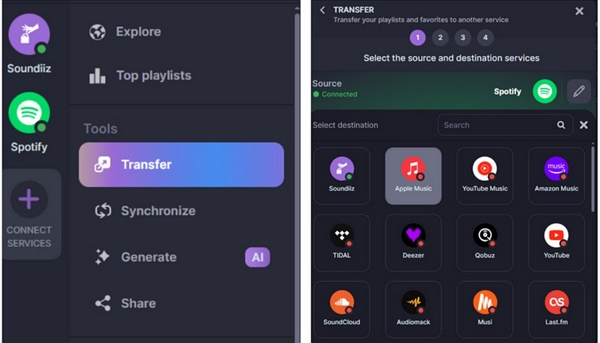
- After logging in, click “Transfer” from the left menu.
- Connect Spotify: Click the Spotify icon, then “Connect”, log in, and authorize Soundiiz to access your Spotify playlists.
- Connect Amazon Music: Click the Amazon Music icon, then “Connect”. If this is your first time, log in with your Amazon account and grant permission for Soundiiz to access your library.
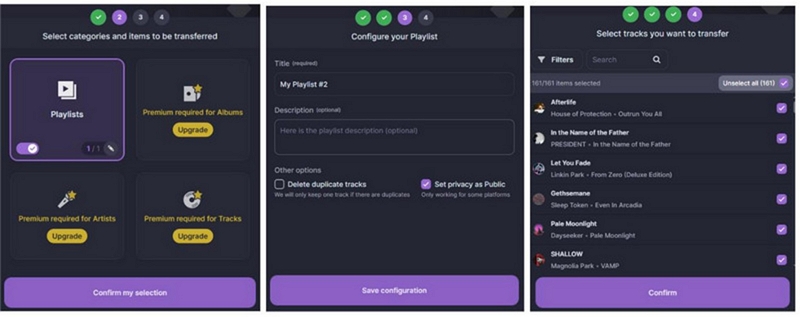
Step 3: Select Playlists to Transfer
- Soundiiz will load all your Spotify playlists.
- Select the playlists you want to transfer. (Note: The free version allows only one playlist at a time.)
- You can configure each playlist and choose the specific tracks to transfer.
Step 4: Begin the Transfer
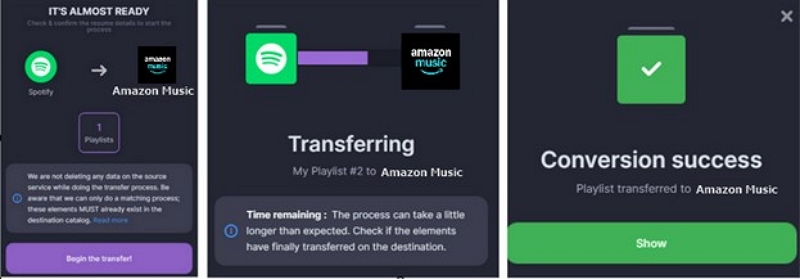
- Click “Begin the Transfer”.
- Wait for the process to complete.
- Once done, a “Success” notification will appear.
- Open Amazon Music to verify your imported playlists.
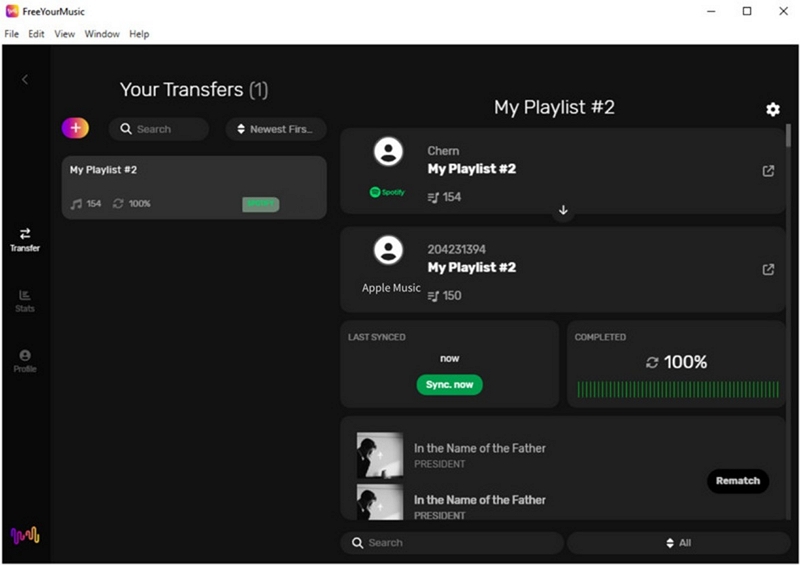
Method 2: Transfer Using the FreeYourMusic App
Step-by-Step
Step 1: Launch the FreeYourMusic app on your device (available for Windows, macOS, iOS, and Android).
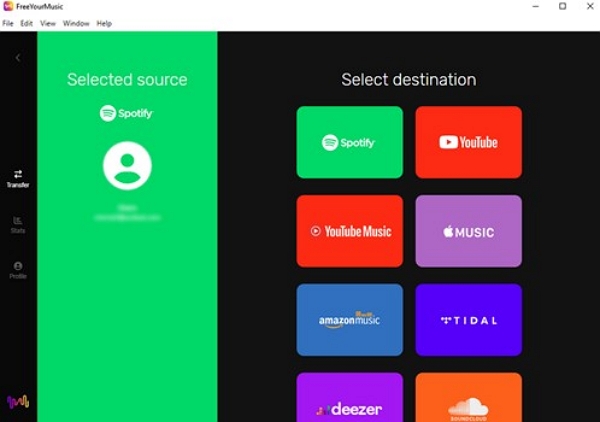
Step 2: On the “Select Source” screen, choose Spotify and log in to authorize access. On the “Select Destination” screen, choose Amazon Music and log in to grant access.
Step 3: Go to the Playlists page. Check the playlists you want to transfer.
The free version supports up to 1 playlist with a maximum of 600 songs.
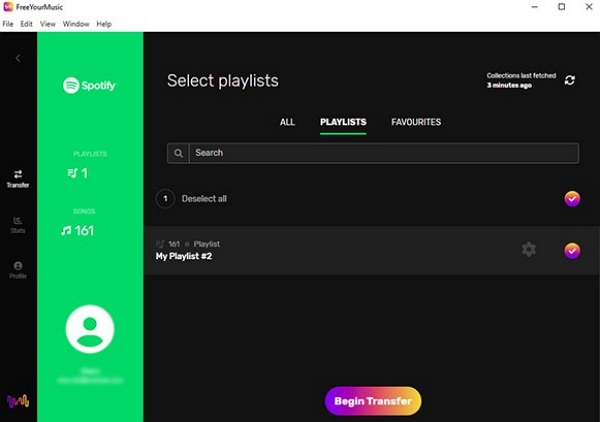
Step 4: Click “Begin Transfer”. Wait for the progress bar to reach 100%.
Step 5: Once completed, open Amazon Music to verify that your playlists have been successfully imported.
Method 3: Local File Method (Download Spotify Songs → Upload into Amazon Music)
Mediaio Audio Converter is the ideal solution for transferring large playlists (5000k+). Mediaio offers faster batch conversion and allows users to listen to their favorite songs offline. Music lovers with extensive collections or those who require multiple output formats prefer Mediaio.
Step by Step
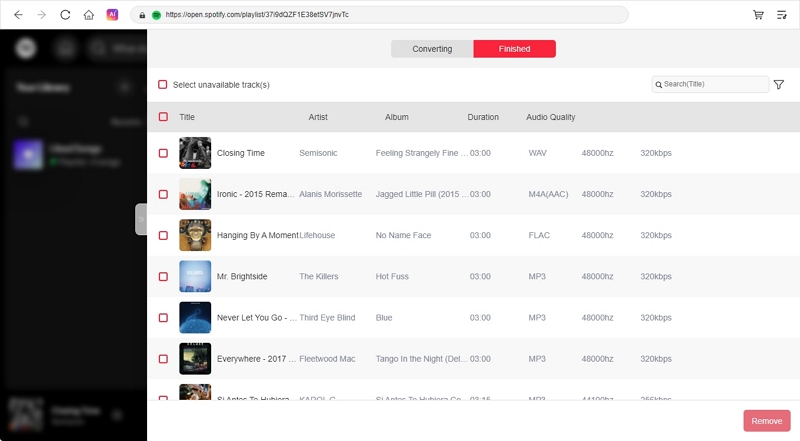
Select Spotify on the main user interface and log in to your account.

Browse Spotify to select the playlist you want to transfer, then drag it into the “+” area.

Choose MP3 as the output format and select 320 kbps for the best audio quality. Select your tracks and click “Convert All.”

Once the conversion is complete, check your downloaded songs in the “Finished” section.
How to Upload Local Music to Amazon Music
Even though Amazon Music offers over 100 million tracks, uploading your own music allows you to enjoy your full collection in one place. You can upload music from your local drive, iTunes, or Windows Media Player.
Step 1: Launch the Amazon Music desktop app. Click your profile icon, then select Settings.
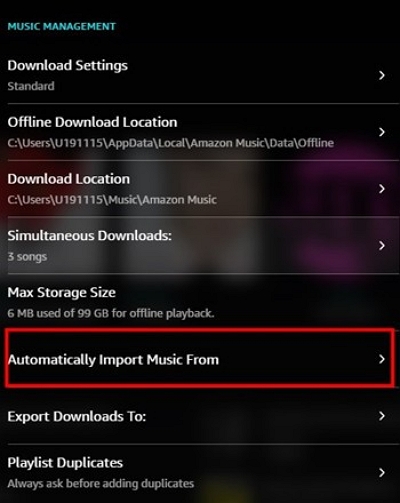
Step 2: Scroll down to “Automatically Import Music From”.
Step 3: Choose Your Music Source
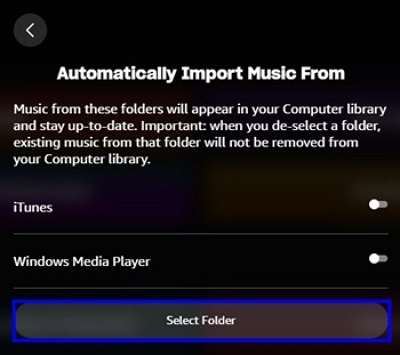
- From Local Drive: Click Select Folder and navigate to the folder containing your MP3, AAC, WAV, FLAC, AIFF, or ALAC files.
- From iTunes: Toggle on the iTunes option to sync your iTunes library with Amazon Music.
- From Windows Media Player: Toggle on the Windows Media Player option to add songs from WMP.
Tip: Ensure your music files are in an open-source format supported by Amazon Music.
Step 4: Access Your Uploaded Music
- Go to Library → Music.
- Use the Location filter to view offline tracks.
- Play the uploaded songs seamlessly within the Amazon Music app.
Part 5: Troubleshooting Common Issues
regional restrictions, or metadata mismatch Search manually
Check if song is region-locked
Update metadata before transfer
or import order Reorder tracks manually after transfer
Use premium transfer tools
Save playlists with clear numbering
Manually scan and delete repeated tracks
Clean up Spotify playlists before transfer
without permissions Change playlist visibility to public
After migration, reset visibility in Amazon to private
Ensure granting full account access
streaming catalogs and do not recognize local MP3s Upload MP3s directly into Amazon Music
Create new playlists in Amazon Music
Edit metadata tags
Part 6: Post Transfer Tips
These post-transfer tips enhance your listening experience.
1. Syncing with Alexa and Echo devices
- Set Amazon Music as the default music service in the Alexa app.
- Use natural phrases to access imported playlists.
- You can group Echo devices in the Alexa app to stream playlists across multiple rooms.
- If the playlists do not appear, refresh the app or unlink/relink the account in Alexa settings.
2. Organizing imported playlists
- Imported playlists carry generic names. Rename them for easy recognition.
- Create folders or themed playlists for better navigation.
- Scan for duplicates and remove them.
- Adjust song info to restore personalization lost during transfer.
3. Backing up your new Amazon Music Library
- Use the Amazon Music desktop app to download eligible tracks for offline storage.
- Third-party sync tools, such as Soundiiz, also work well.
- Save playlist data in CSV format.
- Keep a backup copy outside Amazon Music to safeguard against catalog changes or subscription issues.
Part 7: FAQs
Yes, you can. However, free tiers often limit the number of playlists or tracks you can transfer. A premium subscription is usually required to migrate your full music library.
Not always. Some tools preserve the original playlist order, while others may rearrange tracks, often alphabetically. Premium tools tend to be more reliable in keeping the original order.
Most transfers are completed within a few minutes. The exact time depends on your playlist size and internet speed. Larger libraries may take longer to process.
Yes. However, once transferred, collaborative playlists become static in Amazon Music. Ongoing collaboration features do not carry over.
In some cases, yes. If Amazon Music does not have the exact version of a track, it may substitute it with the closest available version.
Conclusion
Transferring Spotify playlists to Amazon Music is easier than you might think. Whether you use online converters, FreeYourMusic, or Mediaio with local files, you can preserve your favorite songs, playlists, and listening experience.
After transfer, don’t forget to organize your playlists, sync with Alexa devices, and back up your library. With the right tools and steps, your Spotify playlists can seamlessly continue on Amazon Music.