

Apple Watch offers a convenient way to enjoy music on the move. If you’re an Amazon Music user, you may wonder how to play your favorite songs, playlists, and albums directly from your wrist.
Unlike Apple Music or Spotify, using Amazon Music on Apple Watch requires a few extra setup steps. This guide shows you exactly how to install the app, sign in with the Amazon Music code on Apple Watch, stream or download music, and troubleshoot issues.
Part 1. Quick Answer: Can you use Amazon Music on an Apple Watch?
Yes — you can use Amazon Music on Apple Watch, including streaming and offline playlists.
Here’s the short process:
- Install Amazon Music on your iPhone.
- It automatically installs on your Apple Watch.
- Open Amazon Music on Apple Watch > a 6-digit code appears.
- Go to amazon.com/code on your phone > enter the code to sign in.
- Stream music directly or download playlists for offline listening (Unlimited required).
This works whether you search “Amazon Music Apple Watch” or “Apple Watch Amazon Music”—the process is the same.
Part 2: What You Can Do With Amazon Music on Apple Watch
1. Stream music directly from the watch
If your Apple Watch has Wi-Fi or Cellular, you can stream Amazon Music even without your iPhone nearby.
2. Download playlists for offline listening
Subscribers of Amazon Music Unlimited can download albums/playlists directly onto the watch—perfect for workouts without your phone.
3. Control Amazon Music playing on your iPhone
Your watch can act as a remote: play, pause, skip, change volume.
4. Pair Bluetooth headphones
Apple Watch does not play audio through its speaker. You must connect Bluetooth headphones or earbuds for playback.
5. Stream without iPhone (Cellular models)
If you own an Apple Watch Cellular model, you can stream Amazon Music anywhere without carrying your phone.
Part 3. Requirements for Using Amazon Music on Apple Watch
Part 4. How to Install & Set Up Amazon Music on Apple Watch
If you want to listen to Amazon Music directly from your Apple Watch—either online or offline—you need to install the official Amazon Music app for watchOS and activate it with your Amazon account. Follow the steps below to install, sign in, and start using Amazon Music on your Apple Watch.
Step 1. Install Amazon Music on Your iPhone
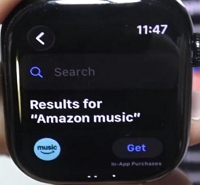
Open the App Store on your iPhone and search for “Amazon Music.”
Tap Get / Download, then open the app and sign in to your Amazon account.
Note: The Apple Watch app only appears after the iPhone version is installed.
Step 2. Install Amazon Music on Your Apple Watch
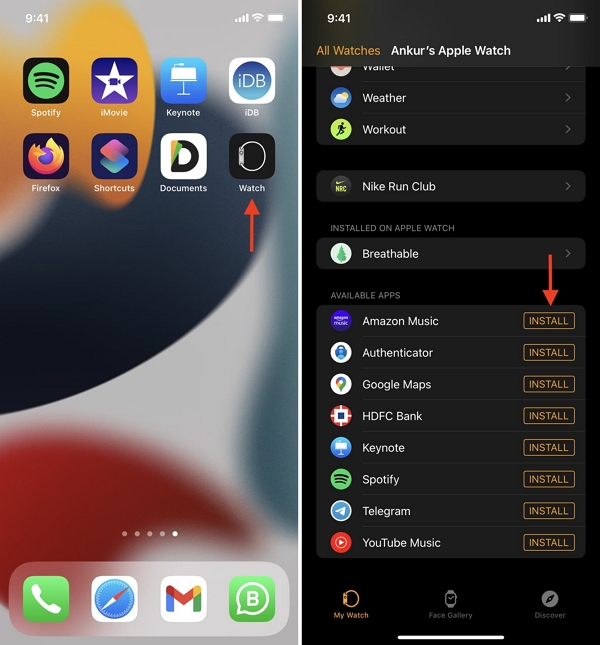
Once the iPhone app is installed, Amazon Music will usually install automatically on your Apple Watch.
If it doesn’t:
- Open the Watch app on your iPhone
- Go to My Watch
- Scroll down to Available Apps
- Find Amazon Music
- Tap Install
After installation, you will see the Amazon Music icon on your watch’s Home screen.
Step 3. Open Amazon Music on the Apple Watch
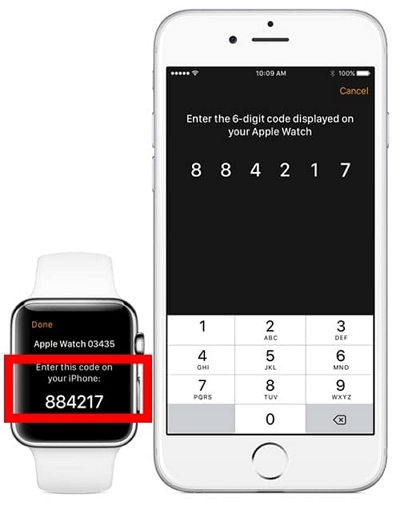
Open the Amazon Music app on your watch.
It will display a 6-digit activation code (e.g., A3B7QR).
Step 4. Go to amazon.com/code
On your iPhone or computer, open amazon.com/code and sign in with the same Amazon account you used on your iPhone.
Step 5. Enter the Activation Code
Enter the 6-digit code shown on your Apple Watch, then tap Continue / Confirm.
Your watch will refresh and log in automatically.
Bluetooth Headphones Required
The Apple Watch cannot play Amazon Music through the built-in speaker.
You must pair Bluetooth headphones such as: AirPods / Beats / Any Bluetooth earbuds
To pair: Go to Settings > Bluetooth, select your headphones, and tap Connect.
Part 5: How to Download Amazon Music for Offline Playback on Apple Watch
If you want to run without your iPhone, offline playlists are essential. Here’s how:
Step 1. Select a playlist/album
On Apple Watch → open Amazon Music → swipe right-to-left → tap Download.
Step 2. Keep the watch charging & on Wi-Fi
Offline downloads usually fail unless the watch is:
- charging
- connected to Wi-Fi
Step 3. Enable Offline Mode
On the watch Amazon Music app → Settings → turn on Offline Mode.
Step 4. Refresh DRM license (important)
Users report you must briefly stream each track while online to refresh licensing.
Step 5. Start listening offline
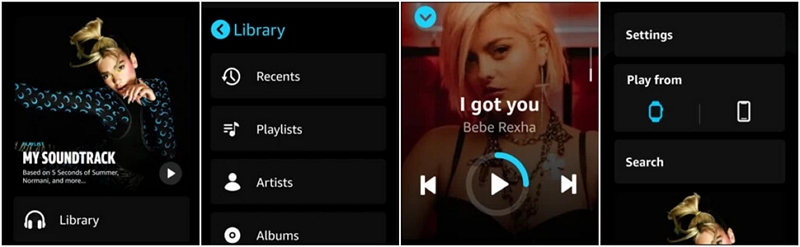
Open Library → Downloads → choose your playlist.
Part 6. How to Fix Amazon Music Not Working on Apple Watch
Here are solutions for common errors:
1. Amazon Music app not showing on Apple Watch
- Ensure Watch & iPhone are connected via Bluetooth/Wi-Fi
- Open Watch app → My Watch → confirm Amazon Music is installed
- Restart both devices
2. Amazon Music code not working
- Open Amazon Music on the watch → get the new code
- Visit amazon.com/code
- Enter the 6-digit code exactly
- If it fails, wait and generate a new code
3. Can’t download music to Apple Watch
- Watch must be charging + on Wi-Fi
- Ensure you have Amazon Music Unlimited (Prime cannot fully download)
- Check storage availability
- Restart iPhone & watch
4. Can’t stream without iPhone
- Requires Wi-Fi or Cellular on the watch
- Update Amazon Music on both Watch & iPhone
- If issues persist, convert Amazon Music to MP3 and sync through iTunes (see next part)
You may also want to know: How to Play Amazon Music on Apple CarPlay
Best Alternative: Download Amazon Music Offline Without Limits
If you want to save Amazon Music permanently as MP3/M4A and sync to your Apple Watch without DRM restrictions, a dedicated converter is the best option.
Mediaio Audio Converter can convert Amazon Music, playlists, albums, podcasts, and audiobooks into high-quality local files in MP3, FLAC, M4A, WAV, and more. It keeps full ID3 tags and offers fast batch conversion.
Transfer Converted Music to Apple Watch (via iTunes/Apple Music)
If you’ve converted your songs into MP3, AAC, or other DRM-free formats, you can manually transfer them to your Apple Watch for offline playback. The process is slightly different between Windows and macOS, but the overall steps are the same: add the music to your library, sync it to your iPhone, and then send it to your Apple Watch.
Step 1. Add Converted Music to iTunes / Apple Music Library
Before you can transfer music to your Apple Watch, the files must first be imported into your iPhone’s music library.
On Windows (iTunes):
1. Open iTunes. Click File > Add File to Library or Add Folder to Library
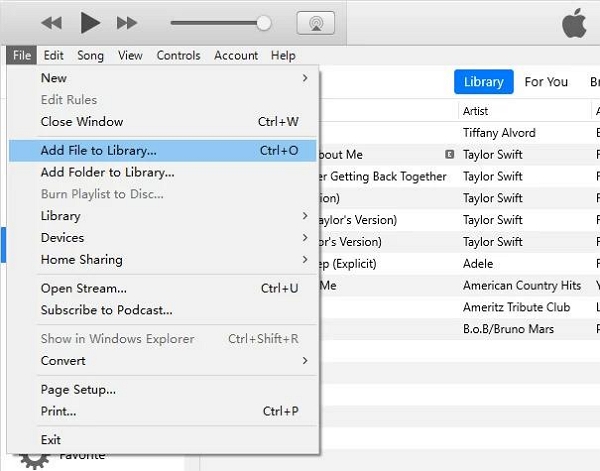
2. Select your converted MP3 / AAC files
3. The songs will appear in Library > Songs
On Mac (Apple Music app):
- Open Apple Music
- Click File > Import
- Select your converted files
- The songs will appear in your Music Library
Step 2. Create a Dedicated Playlist for Apple Watch Sync
Apple Watch only supports syncing playlists, so you must place your converted tracks into one playlist.
- In iTunes or the Music app, go to File > New > Playlist.
- Name the playlist (e.g., Watch Music).
- Drag and drop your converted songs into this playlist.
A dedicated playlist also speeds up syncing and makes your music easier to find on the watch.
Step 3. Sync the Playlist to Your iPhone
Your Apple Watch can only sync music that already exists on your iPhone.
Here’s how to transfer the playlist:
On Windows PC (iTunes)
1. Connect your iPhone to your PC. Click the iPhone icon in iTunes.
2. Choose Music from the sidebar. Check Sync Music.
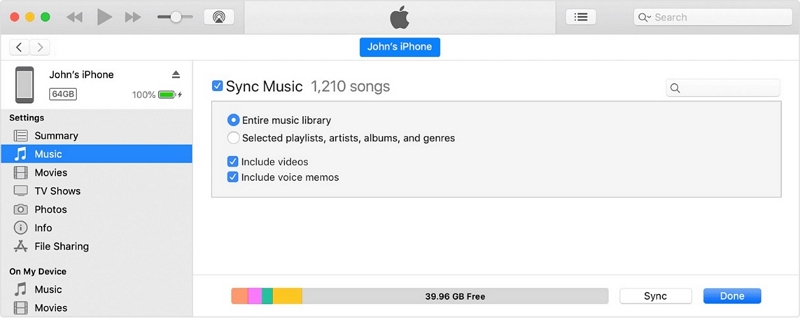
3. Select Selected playlists. Tick the playlist you created.
4. Click Apply > Sync.
On macOS (Finder or Apple Music Sync)
If you use iCloud Music Library, it may sync automatically.
If not:
1. Connect your iPhone to your Mac. Open Finder> iPhone > Music in the sidebar.
2. Enable Sync music onto this iPhone. Tick your playlist.
3. Click Apply. Your converted playlist will now appear in the iPhone’s Music app.
Step 4. Sync Music from iPhone to Apple Watch
1. Open the Watch app on your iPhone. Go to My Watch > Music.
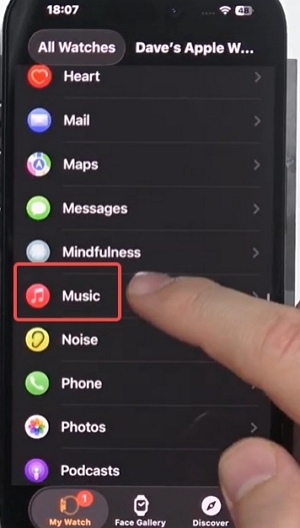
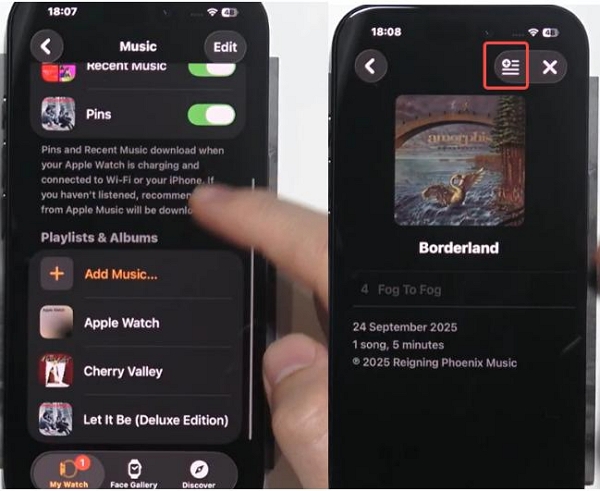
2. Tap Add Music. Select the playlist you created (e.g., Watch Music).
3. Tap the + icon to start syncing.
Important:
- Apple Watch will only sync music when:
- It is on the charger
- Connected to Wi-Fi or Cellular + Bluetooth
This is normal and not a bug.
Step 5. Check Sync Progress on Apple Watch
To see if your songs have finished transferring:
1. Open the Music app on your Apple Watch.
2. Go to Library → Playlists. Look for your “Watch Music” playlist.
3. If a sync icon appears, syncing is in progress.
4. When finished, the playlist will show as On My Apple Watch.
FAQs
Yes — the Amazon Music app is compatible with Apple Watch. You can stream from the watch (if it features Wi-Fi or cellular), manage playback from your wrist, and, for Amazon Music Unlimited subscribers, save playlists/albums to the watch for offline listening.
For complete access to Amazon Music on Apple Watch, particularly for offline downloads, you typically require Amazon Music Unlimited. With only Prime Music, there are additional restrictions.
Upon launching Amazon Music on the watch, a 6-character code should appear. Visit amazon.com/code on your phone or computer and input that code to connect your account. If it fails, try generating a new code because older ones may expire.
Yes — but with conditions. Music can only be downloaded to the watch if you subscribe to Amazon Music Unlimited. However, due to DRM licensing, many users report that you must occasionally play each song online briefly to “refresh” its license.
Conclusion
Using Amazon Music on Apple Watch is a convenient way to enjoy your favorite playlists during workouts or when you leave your iPhone behind. Whether you want to stream over Wi-Fi/Cellular or download playlists for offline listening, the setup is quick and simple.
For users who want unlimited offline playback without DRM restrictions, Mediaio Audio Converter offers the most flexible way to convert and transfer Amazon Music to your Apple Watch in high-quality formats.