

You’ve spent hours curating your perfect YouTube playlist—but now you want to enjoy it on Amazon Music. Or maybe you’ve built a huge collection on Amazon Music and wish to access it on YouTube. While these platforms don’t directly support cross-platform transfers, there are reliable methods to make it happen. This guide walks you through every step.
Part 1: Why Convert YouTube Playlists to Amazon Music
For many music lovers, the choice between YouTube and Amazon Music comes down to platform loyalty. YouTube is great for discovering videos and mixes, while Amazon Music offers higher-quality audio and a more polished streaming experience. Converting your playlists from YouTube to Amazon Music allows you to enjoy the best of both worlds—keeping your carefully curated tracks without being tied to a single platform.
Another major advantage is playlist portability and offline access. Amazon Music lets you download songs and playlists for offline listening across multiple devices, which YouTube often limits to its premium service. This makes it easier to enjoy your favorite music anywhere, whether on your phone, tablet, or smart speaker.
Additionally, Amazon Music integrates seamlessly with Alexa and other voice-controlled devices, letting you play, skip, or shuffle your playlists hands-free. For anyone who values convenience, this voice control feature adds a layer of flexibility that YouTube simply can’t match.
Part 2: Pre-Conversion Checklist
Before you start converting playlists between YouTube and Amazon Music, it’s important to prepare both accounts. Make sure you are signed in on each platform and that your subscriptions or access levels allow playlist creation and management. A proper account setup ensures a smoother transfer without unexpected restrictions.
Next, check your playlist visibility and privacy settings. Public playlists are easier to transfer, while private or unlisted playlists may require extra steps to access or share. Adjust these settings beforehand to avoid interruptions during the conversion process.
Finally, be aware of supported formats and platform limitations. YouTube primarily uses streaming video and audio, whereas Amazon Music focuses on high-quality audio files. Some songs or playlists may not be available on both platforms, so understanding these constraints will help you manage expectations and prevent missing tracks during the transfer.
FLAC: lossless (16-bit / 44.1 kHz) Purchased tracks are DRM-free; streaming tracks may have DRM. HD / FLAC quality requires specific subscription tiers
Part 3: How to Convert a YouTube Music Playlist to Amazon Music
One of the easiest ways to transfer playlists between platforms is by using Soundiiz, a popular playlist conversion service. Here’s a step-by-step guide:
1. Step-by-Step Using Soundiiz
Step 1: Go to Soundiiz and sign in. The free version allows transferring playlists between services, though some advanced features require a premium subscription.
Step 2: Once logged in, navigate to Platforms and select YouTube Music. Follow the prompts to authorize Soundiiz to access your playlists. Ensure that your YouTube Music playlists are visible and accessible (public or shared) to avoid missing tracks.
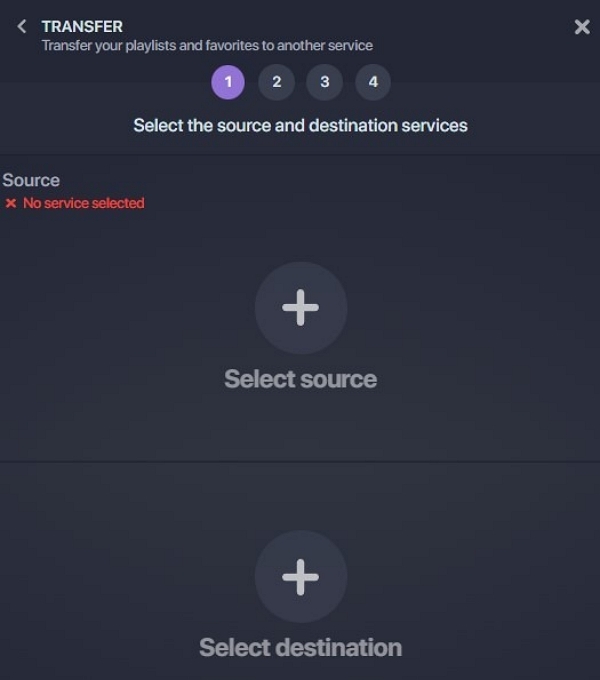
Step 3: In the same Platforms menu, select Amazon Music. Authorize Soundiiz to access your Amazon Music account. Make sure your subscription allows playlist management and that offline mode is not blocking new additions.
Step 4: Under your YouTube Music account in Soundiiz, find the playlist you want to convert. Click Convert or Transfer, and choose Amazon Music as the destination platform.
Step 5: Soundiiz will attempt to match each track based on title, artist, and album. Review any unmatched tracks manually. You can search for alternatives on Amazon Music to ensure your playlist stays complete.
2. Step-by-Step Using TuneMyMusic
Step 1: Visit TuneMyMusic.
Step 2: Select YouTube Music as the source. Log in with your credentials.
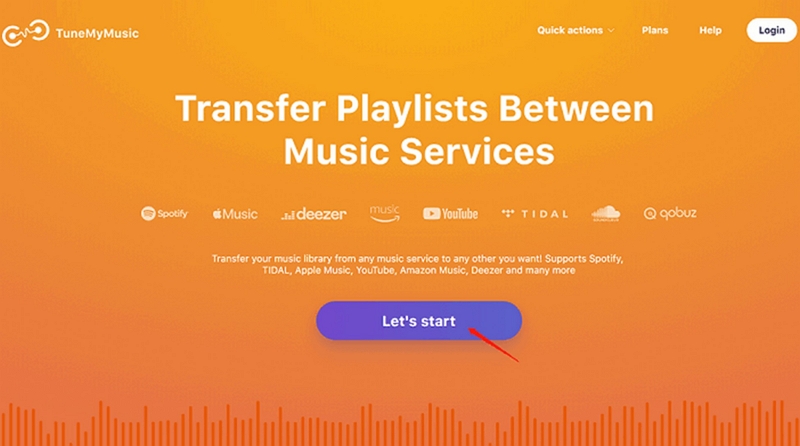
Step 3: Paste the playlist URL or select directly from your account.
Step 4: Choose Amazon Music as the destination. Connect your account.
Step 5: Start the transfer.
Step 6: Verify the playlist in Amazon Music and adjust any mismatches.
Part 4: How to Transfer Playlists from Amazon Music to YouTube Music
Here’s how you can move your Amazon Music playlists over to YouTube Music efficiently.
Steps (Soundiiz or TuneMyMusic)
- Connect to Amazon Music. Sign in to Soundiiz and authorise access to your Amazon Music account.
- Select playlist(s). Browse your Amazon playlists from the Soundiiz dashboard. Choose one or multiple playlists you want to transfer.
- Choose Transfer → YouTube Music. Select YouTube Music as the destination platform. Log in with your Google account to enable access.
- Review track matches. Check for missing tracks, duplicates, or alternate versions.
- Complete export. Confirm the transfer and wait for the process to be completed.
Part 5: Alternatives If Playlist Transfer Fails
Whether you transfer playlists from Amazon Music to YouTube Music or vice versa, you must play them within the app. Here is an alternative that lets you transfer playlists from YouTube to Amazon and vice versa, and save downloaded files as MP3s. MedVioo Audio Converter allows converting YouTube Music or Amazon Music playlists to MP3 format, which can then be uploaded to the respective app, if necessary. Otherwise, you can play these MP3 files on compatible media players.
Step by step: YouTube Music to Amazon Music
Select YouTube Music on the main interface and sign in to your YouTube account.

Browse and select the playlist you want to convert, then drag it into the “+” area.
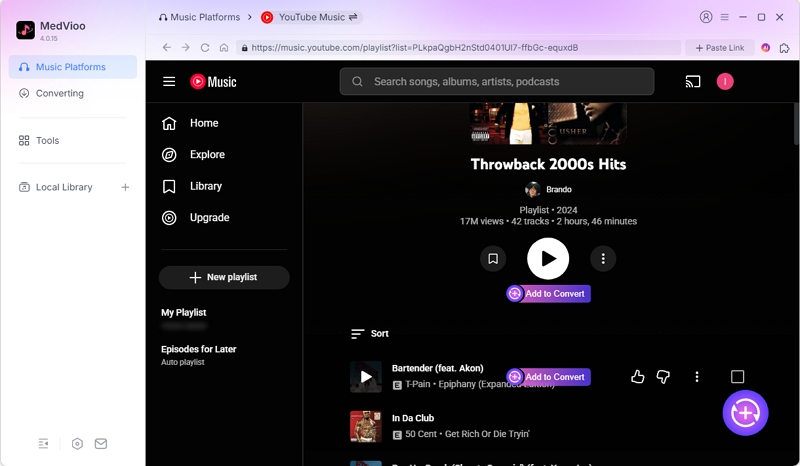
Choose MP3 as the output format and select 320 kbps to achieve the best audio quality.
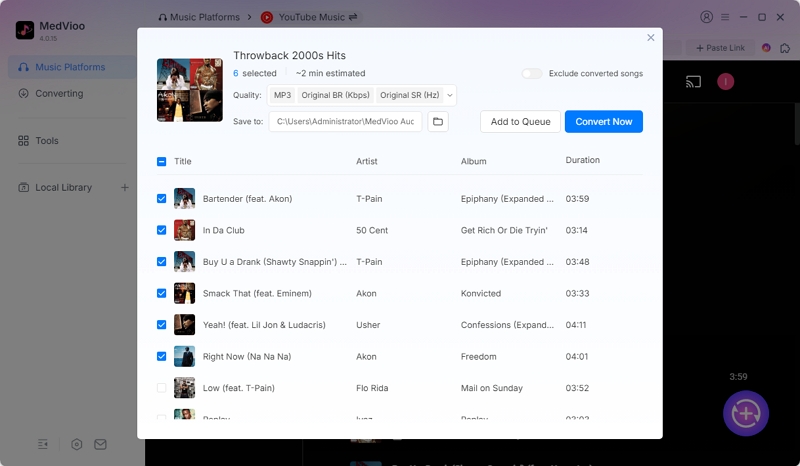
Select the tracks you want to convert and click “Convert” to start the process.
Step 5: Upload the local files to Amazon Music.
1. Open Amazon Music and go to Profile > Settings.
2. Scroll to Automatically Import Music From.
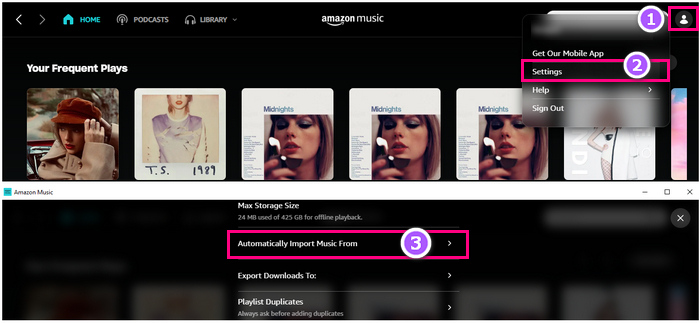
3. To import from Windows Media Player or iTunes, toggle the corresponding option.
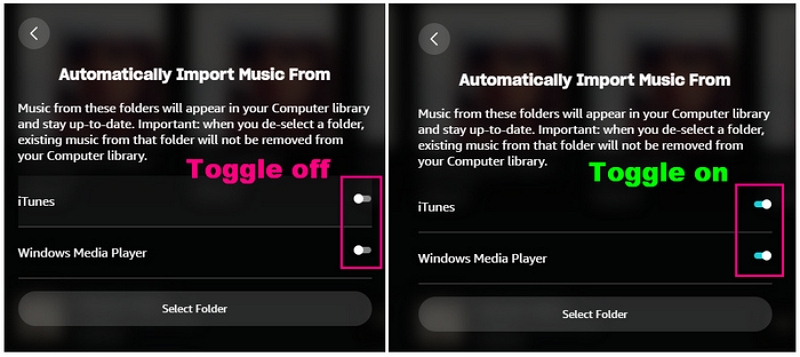
If iTunes doesn’t appear, open iTunes → Edit > Preferences > Advanced → enable Share iTunes Library XML with other applications.
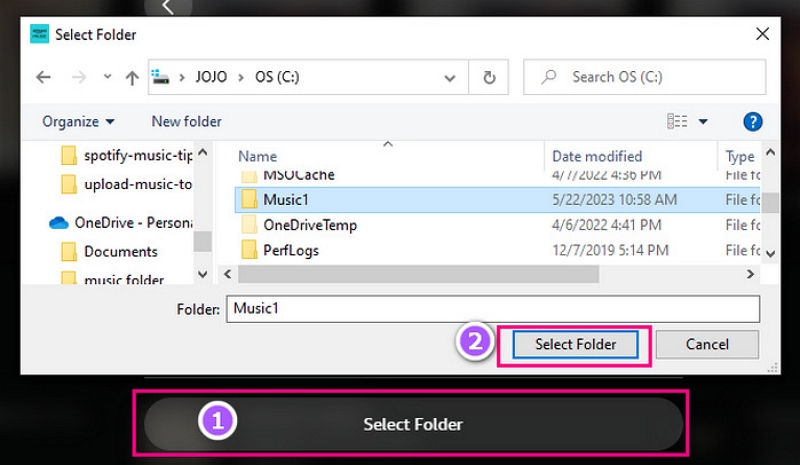
4. To upload from a folder, click Select Folder, choose your music folder, and confirm.
Bonus: How to Connect Amazon Alexa to YouTube Music
Alexa devices do not support YouTube Music. Therefore, you cannot set it as the native playback option. However, you can still enjoy YouTube Music on Echo speakers using reliable workarounds.
Method 1. Connect via Bluetooth (Works on all Echo devices)
Step-by-step
- Open the Alexa app.
- Go to Devices > Echo & Alexa > Your Echo Device > Bluetooth Devices.
- Activate Bluetooth on your phone.
- Select your phone from the pairing list to connect.
- Open the YouTube Music app and start playing your playlist.
How to control playback
- Use Alexa voice commands.
- Alexa acts as a speaker but cannot search YouTube Music directly.
Method 2. Use a Skill (If Available in Some Regions)
- Open the Alexa Skills Store.
- Search for a YouTube Music skill.
- Enable the skill and link your YouTube account.
- Ask Alexa to play music via the skill.
Limitations
- Skills may not be available in all regions.
- Limited functionality
- Playback quality may vary.
Method 3. Use Spotify or Amazon Music as a Bridge
- Use a transfer tool, such as Soundiiz or TuneMyMusic, to import your YouTube Playlist into Amazon Music.
- Set Amazon Music as your default Alexa music service in the app.
- Ask Alexa to play your playlist natively.
FAQs
No. You cannot directly import a YouTube playlist into Amazon Music. You’ll need to use third-party tools like Soundiiz or TuneMyMusic to transfer playlists between platforms.
YouTube Music does not support Alexa natively. However, you can play it using workarounds, such as Bluetooth pairing, using a third-party skill, or transferring playlists into Amazon Music for native Alexa playback.
Some songs may be missing after transfer due to licensing restrictions or regional availability differences.
Yes. Third-party tools like Soundiiz and TuneMyMusic provide limited free transfers.
No. Playlist transfers only move track information, not the audio files themselves. The sound quality depends entirely on the streaming service and your subscription tier.
Conclusion
Direct transfer between YouTube Music and Amazon Music is not allowed. However, third-party tools, such as Soundiiz and TuneMyMusic, simplify playlist transfers between these music streaming platforms. Alternatively, you can use MedVioo Audio Converter to convert playlists into local MP3 files, which can be uploaded to these platforms.