

There are thousands of audio converters out there — mobile apps, desktop software and online tools, making it harder to know which one actually works well. You test one and then another, but the final audio still doesn’t sound right. That chase ends here.
This guide brings you 15 best tools, free and paid, for converting your favorite songs from every major music service to local audio on any device you use, so you can simply pick what fits your needs. If you’re looking for regular audio-file converters to make your existing recordings compatible with a program or project, we’ve also listed five of the most reliable options across all platforms.
What Is Audio Converter?
An audio converter is basically a software tool that changes audio from one form to another. There are two main types here.
1. Streaming-to-File Converter
Streaming services wrap every track in DRM. So, even if you “download” them with a premium plan, you can’t copy them out, share them, or save them on another device.
These streaming-to-file converters “rip” music from streaming apps, such as Spotify, Apple Music, Amazon Music, YouTube Music and others and turn it into local formats like MP3 or WAV. So, they behave like normal audio files that can be opened in any player or moved to any folder.
2. Audio Format Converter
Audio format converters work differently. They change one audio format into another. For example, turn a WAV file into an AAC file or converting MP3 to AIFF.
These tools are useful only when the audio is already saved locally on your device, like a recording or voice clip. Sometimes, you fail to upload such files to another platform due to format incompatibility. In those cases, you can convert the codec, so it fits the requirement.
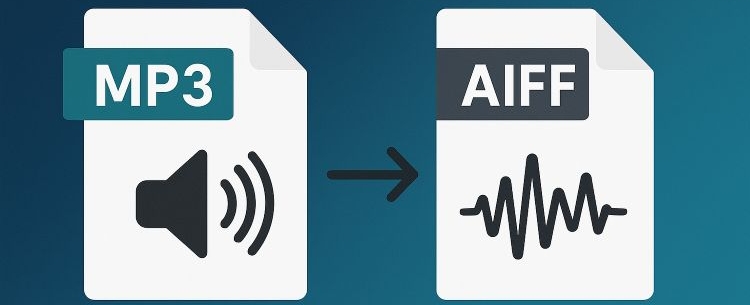
Which Audio Format Is Better?
No single format is perfect for everything. You simply have to choose based on what you want.
• You don’t use high-end headphones/speakers.
• You prefer small file sizes.
• You are using iPhone/iPad.
• You need clean files for presentations or mixing.
• You want smaller size than WAV.
• You want files ideal for editing or studio work.
Benefits of Converting Audio Offline
Saving your music as real files comes with more advantages than you expect. The biggest one is obvious — you finally have all your songs from every platform sitting in one place and ready to play without the internet. That’s only the start. Here are a few points worth calling out.
Save Music Downloads Permanently
Downloads inside streaming apps are tied to your subscription. For example, the moment your Spotify plan expires, the “offline downloads” become unavailable. To keep Spotify downloads after cancelling, you can simply save them as MP3 or FLAC. So, they stay on your device for as long as you keep them.
Listen to Music Smoothly
Enjoy music in regular audio files is stable. They don’t stop because of ads, weak signals, login issues, or app bugs. You don’t have to deal with problems like Pandora not working or Spotify Web Player not working when all you want is a simple music session.
Enjoy Songs on Any Media Player/Device Offline
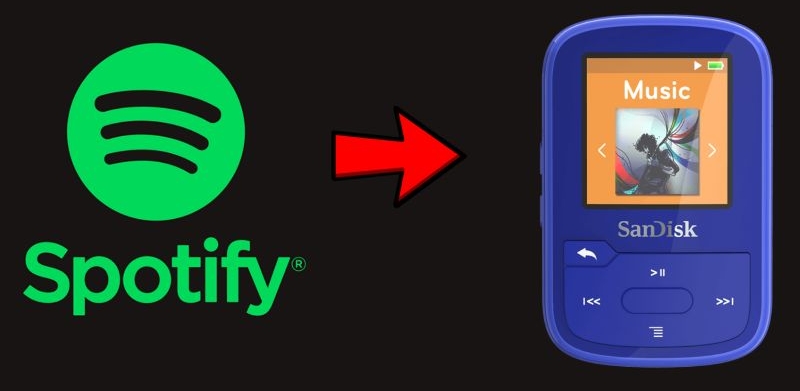
Once a song is in a common format like MP3, it works everywhere. You are not locked to one app or one device anymore. For example, you can listen to your Spotify music offline on old-school MP3 players, car stereos, smart TVs— anything that accepts a normal audio file.
Move Your Tracks Easily
Normal audio files are simple to shift between your own devices. You can mail them to yourself, move them to a USB drive, or keep them in your phone storage. Just avoid distributing them to other people and use the converted music for personal purposes.
5 Best Online Audio Converters [Online Music to Local Song]
Let’s start with the popular online audio converters for music conversion. They allows you to save your streaming music as MP3 files. We’ll introduce the 5 popular ones below, along with the basic know-how.
How Does Online Audio Converter Work?
Almost all online music converters follow the same logic. You paste a link from a music service and they return a downloadable MP3 or M4A file. However, you cannot paste links from every streaming platform. Most online converters are built for a single service. Spotify is the most common, while a few tools support Apple Music, and some even accept Amazon Music links. Regardless of the source, the working mechanism of these sites stays identical. The converter reads the song’s metadata, searches for a matching track on YouTube or other open libraries, and then pulls the audio from there.
Is Online Audio Converter Safe?
The simplicity of online converters comes with a hidden cost. All of them are filled with heavy ads and intrusive pop-ups. And the final “Download” button on the sites aggressively redirects you to shady links. Still, the MP3 files you receive are usually safe on some reliable sites.
A few simple rules help you stay safe:
- Use an HTTPS site, so your browsing stays encrypted.
- Never install an EXE or browser extension promoted by these pages to avoid your activity being tracked or prevent your sensitive information from being collected.
Pros and Cons
Here’s a short list of what works with online music converters and what you need to watch out for:
Pros
- Easy and fast, as you don’t need to install anything.
- A few clicks and you will get your MP3s on the computer.
- Work on any device via browsers — PC, Mac and even phone.
- The files behave like any offline file and play with most media players.
- You can even transfer them to your other device.
Cons
- Heavy pop-ups and even malware.
- Quality inconsistency. They claim 320kbps but usually deliver at 128kbps.
- Limited output formats, mostly MP3, sometimes MP4, nothing else.
- Most sites lack batch support. Even when they offer it, they send ZIPs and you must unzip and arrange everything manually.
- Many converted tracks carry the site’s watermark inside the title or tag fields, which looks unprofessional. The untidy ID3 tags prevent the music from being uploaded to Apple Music or other music apps.
- These sites fail often and you end up hunting for new mirror links every week.
- You may not get the song you want. There are times when the song they fetch, especially for rare tracks, will not be the exact original version you intended to download.
5 Popular Online Audio Converters
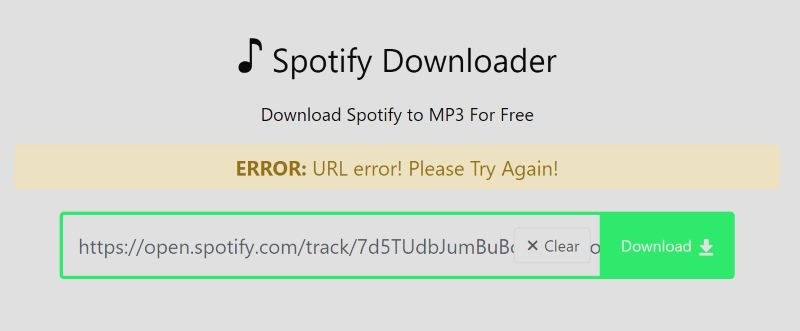
Online converters do not offer anything new. The only real differences appear in small areas like audio quality, whether they support ZIP playlists, and how many ads you have to deal with. So here’s a simple table of five working online converters — not the best, but the ones that still get the job done.
Tip: You will also find many Spotify Downloader Chrome extensions, which is another online way. They detect whatever track spins inside your Spotify window and then place a download button within reach. Yet these add-ons frequently trip security alarms for collecting sensitive data. Avoiding them is the wiser path.
How to Use Online Audio Converter
To show how to convert Spotify to MP3 online, here’s an example using Spotifymate.io:
Step 1. Copy Spotify Links:
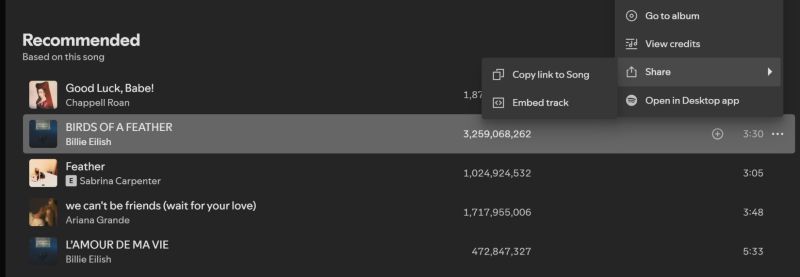
Open Spotify and pick any track. Tap the three-dot menu, slide down to Share and choose Copy link to Song button.
Step 2. Use an Online Converter:
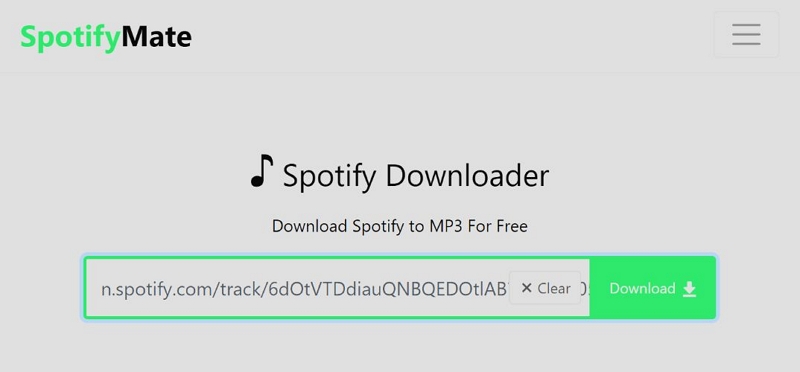
Go to spotifymate.io paste the link on the homepage and click Download.
Step 3. Process the Track:
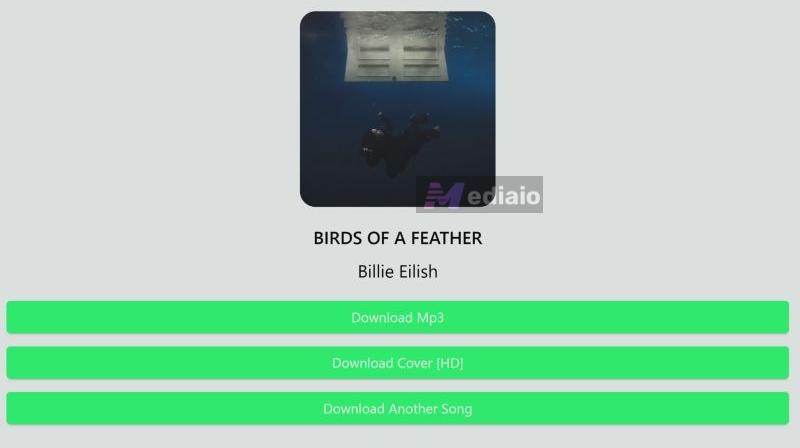
Hit the Download MP3 button. The site will fetch the song and prepare it for output.
Step 4. Save the MP3 File:
Click Download MP3. The file will be saved to your computer. You will notice that the track includes a small spotifymate.io watermark, which is the trade-off with most online converters.

5 Best Audio Converters for Windows/Mac [Music Conversion]
Desktop converters go far beyond what online tools can manage. They perform faster and handle batch conversions. Since there are many tools in this category, we picked the five most reliable options and reviewed them one by one.
1. MedVioo Audio Converter
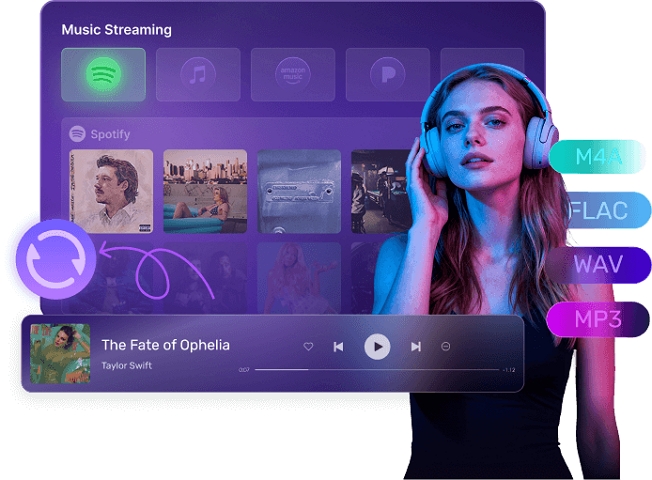
MedVioo Audio Converter is an all-in-one music conversion suite built for people who need results. It supports every major streaming platform: Spotify, Apple Music, Amazon Music, YouTube Music, Pandora, Deezer and several others. MedVioo captures audio straight from the source at up to 320kbps and convert it into local formats. You don’t even need a premium plan to save music for offline listening, except for Apple Music. The audio quality stays original or better-than-original quality, such as 320kbps for converted Pandora songs. All original ID3 tags also stay untouched, so the songs are automatically organized. Moreover, you can use MedVioo to batch convert multiple playlists and albums in one go or download individual songs, episodes, or audiobooks.
MedVioo Audio Converter — Details
local file conversion, grab lyrics, etc
Single music service — US$25.95/mo
All-in-one suite — US$55.95/mo
Editor’s Words
MedVioo is extremely fast yet powerful and handles multiple services better than any other converter on this list. If you want one tool that covers every major streaming service, this is the one to choose. The only limitation: it’s available for Windows and macOS, but not mobile.
2. NoteBurner Music One
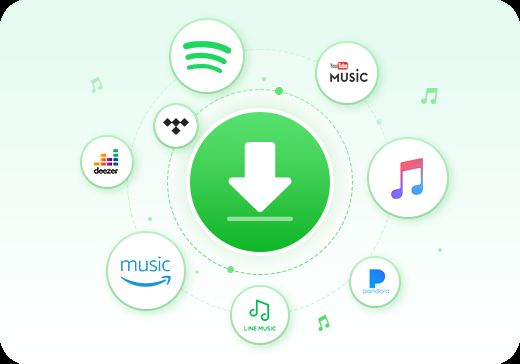
NoteBurner Music One is another multi-platform converter that covers the major services: Spotify, Amazon Music, SoundCloud, Audible, and a few others. The coverage is wide, but the download speed changes, depending on the platform, which is its biggest limitation. For example, Spotify and similar services usually reach around 10X speed, but platforms like YouTube Audio or SoundCloud often drop to 4X, which feels slow compared to other tools in the same category. Pricing is where it becomes hard to recommend. Buying a single NoteBurner tool costs less, but switching to all-services puts the price into excessive territory, given the low conversion speed.
NoteBurner Music One — Details
All-in-one:
US$29.95 per month
US$99.99 per year
US$259.90 one-time purchase
Editor’s Note
NoteBurner Music One is solid in this category, but its real attention has always leaned toward its video downloaders, but not its music tools. It gets the job done, yet the speed drops on certain platforms hold it back from feeling truly competitive. Other converters pull high-quality streams directly and finish the same task much faster.
For a more detailed breakdown of its strengths and limits, you can read our NoteBurner Music One Review.
3. TunePat Music One
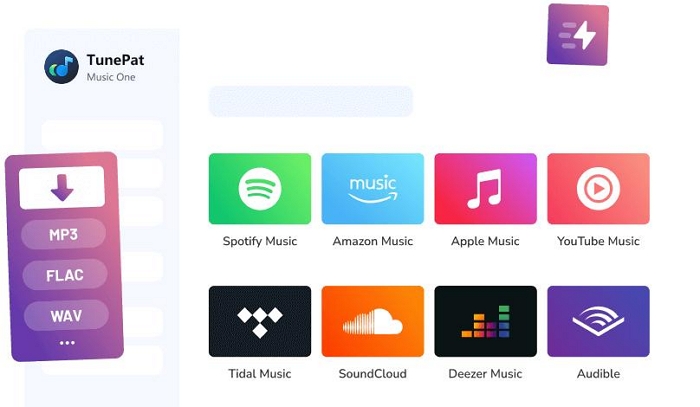
TunePat Music One shares many similarities with NoteBurner in terms of platform support, output quality, and the usual 10X conversion speed. The difference is its reach. It extends support to hundreds of additional sites like BBC, TED, PodBean, NPR, ESPN, Verge, and helps you pull podcasts from them. You can also grab recordings from well-known radio stations such as Radio Nova, CBC Radio, Times Radio, BBC Radio, along with your regular playlists and albums.
Another thing to note is the pricing. It does not offer a monthly individual plan. You must commit to a three-month plan right from the start if you want to try it.
TunePat Music One — Details
1-year plan: US$74.90
Lifetime: US$149.90
Editor’s Words
If you listen to radio shows or long podcasts often, TunePat becomes useful because it covers more platforms. The 10X speed still helps you save playlists in minutes, though not as fast as MedVioo. The drawback is its pricing, since you must commit to a three-month plan right away.
If you want a deeper look, you can read the full TunePat Music One Review for a complete breakdown.
4. Macsome Music One
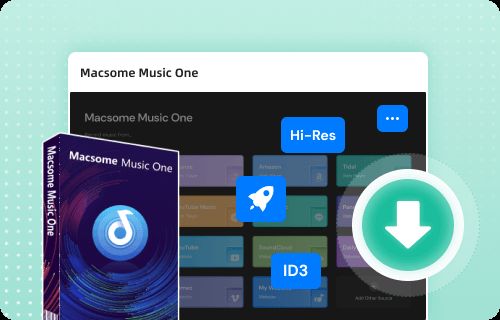
Macsome Music One is another Swiss-Army-knife converter, letting you pull songs from SoundCloud, Qobuz and a few other services. The built-in browsers handle everything smoothly and give you MP3, AAC, FLAC, WAV and other formats.
You also get a built-in recorder when you need short clips from sites that do not allow direct pulling. The workflow stays simple across the board.
Macsome Music One — Details
1-Year: US$79.90
Lifetime: US$259.90
Editor’s Words
Macsome stands out by bundling many small but useful utilities — AI audio splitter, podcast tools, a recorder, a CD burner and more. If you need a converter that doubles as an audio toolbox, this one fits the role well. Its limits are the 10X speed, which is slower than MedVioo. Its trial cap of one minute per track, which is shorter than MedVioo’s, but it’s still enough to check how it behaves on your system.
5. Kigo Music One
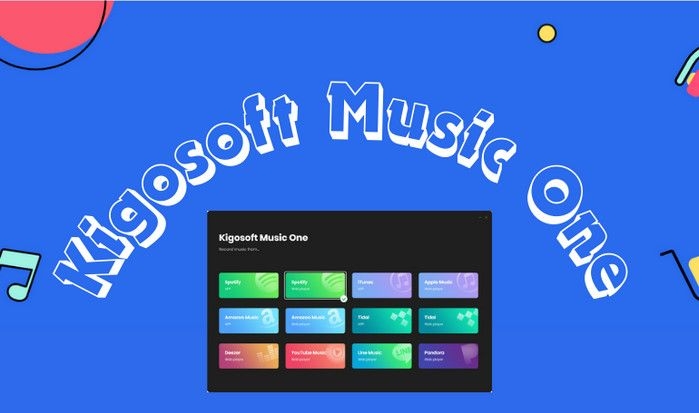
Kigo Music One is another feature-rich music converter with support for a long list of platforms. The interface is loaded with panels, small utilities and built-in browsers, so you can pick songs from Apple Music, YouTube Music, Spotify, Deezer, SoundCloud, and many podcast or radio sources.
It supports batch downloads and gives you two working modes — one for direct conversion from streaming apps and another for recording audio from the web when needed.
Kigo Music One — Details
1-Year: US$99.90
Lifetime: US$259.90
Editor’s Words
Kigo gives you a crowded interface filled with tools and enough platform support to handle almost anything. It works well for people who enjoy having many utilities in one place. Still, it remains a converter at its core. The speed sits at 10X, which is decent but not the fastest in this list.
How to Use Audio Desktop Converter
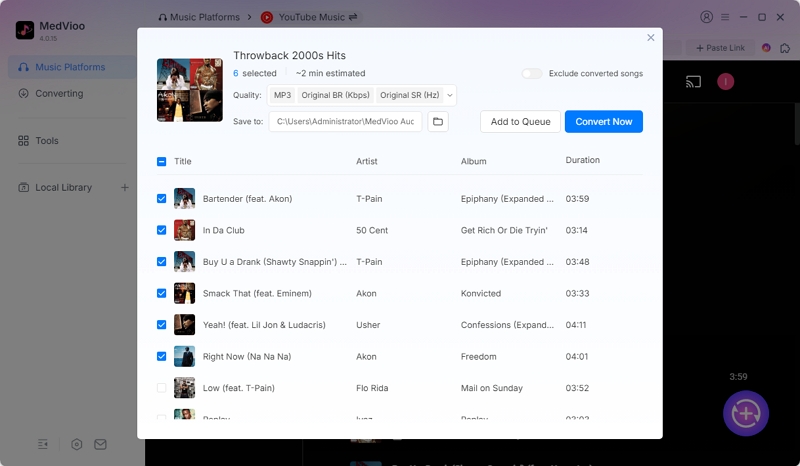
Of all the desktop converters, MedVioo stands out because of its speed, its wide platform support, and how simple everything feels the moment you open it. Here’s the workflow with an example on how to convert YouTube Music to MP3 using MedVioo:
Step 1. Launch MedVioo on your Mac or Windows computer.
Step 2. Pick the platform you want to work with — choose YouTube Music for this example.

Step 3. Sign in to your Google account. You don’t need a Premium account for this.
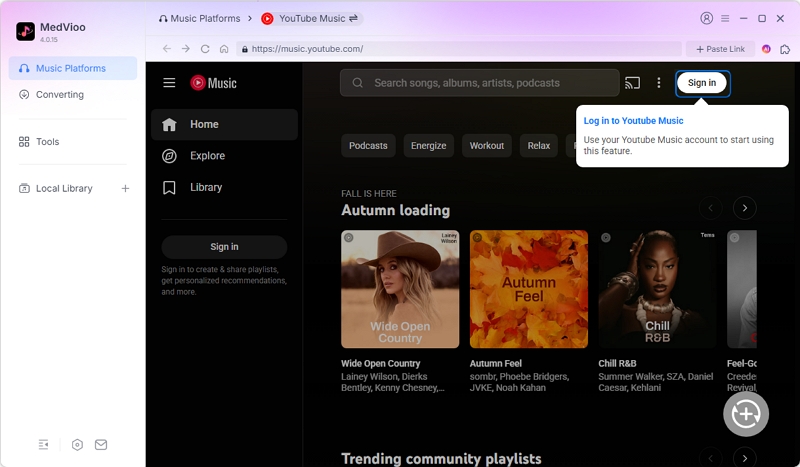
Step 4. Drag whatever (playlists, albums, or individual tracks) you want to download to the ➕ icon or click the Add to the conversion list button next to them. Both ways add your wanted music to the conversion list.
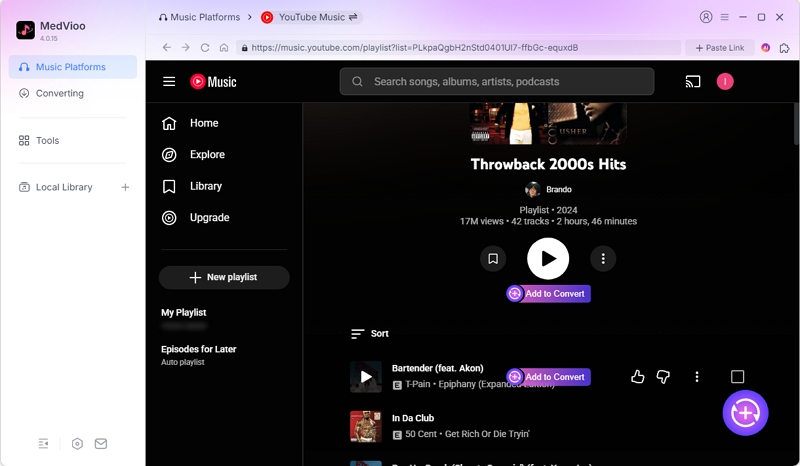
Step 5. Open the complete conversion window, adjust the format, audio quality and output folder if needed. Click Convert All and let MedVioo save the files to your computer.
Reviews Based on Real Testing
We tested the free versions of all five tools above on both Windows and Mac. All of them convert songs to MP3 and even lossless formats as promised. Still, here’s what hands-on testing reveals:
MedVioo Audio Converter:
MedVioo welcomed us with a modern and simple interface. We converted a 10-track playlist and the whole batch finished in a couple of minutes. The audio quality also stood out. It was not just labelled as 320kbps but actually sounded polished and clean to the ears. Its free version is very user-friendly, allowing you to download three songs on different platforms, which is enough to test all the software’s features.

NoteBurner Music One:
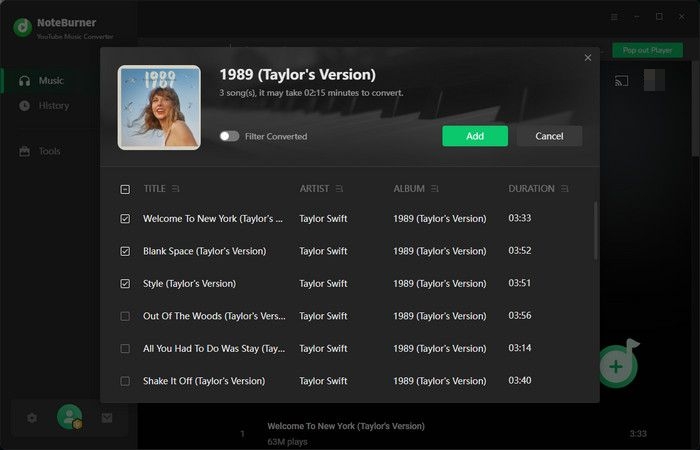
NoteBurner Music One worked smoothly. Playlists and albums loaded correctly, and the sound stayed clear even though the free trial only lets you grab one-minute segments. The speed was slower than MedVioo, but NoteBurner clearly mentions this on its site, so it was expected. Apart from that, we did not notice any major issues during testing.
TunePat Music One:
We tried converting FLAC files with TunePat Music One. The one-minute limit kicked in here as well. Still, whatever portion we tested kept full quality. The main drawback was the interface. It feels a bit cluttered, and if you only care about songs and not radio or podcasts, the layout leans too much toward those extra sources and makes basic music downloads feel heavier.
Macsome Music One:
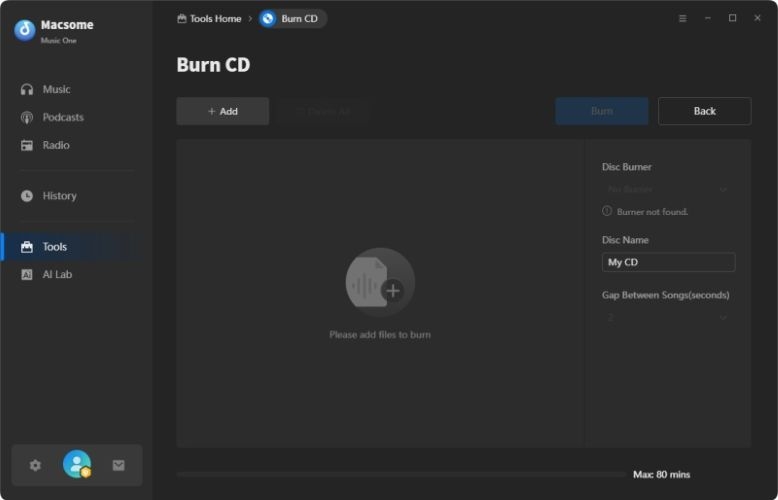
Macsome Music One stayed stable during testing and felt very feature-rich. Conversions were clean, and the built-in CD burner actually worked better than the default Windows and Apple Music options, which was a pleasant surprise. If you want extra audio tools for archiving or burning, Macsome is a solid pick.
Kigo Music One:
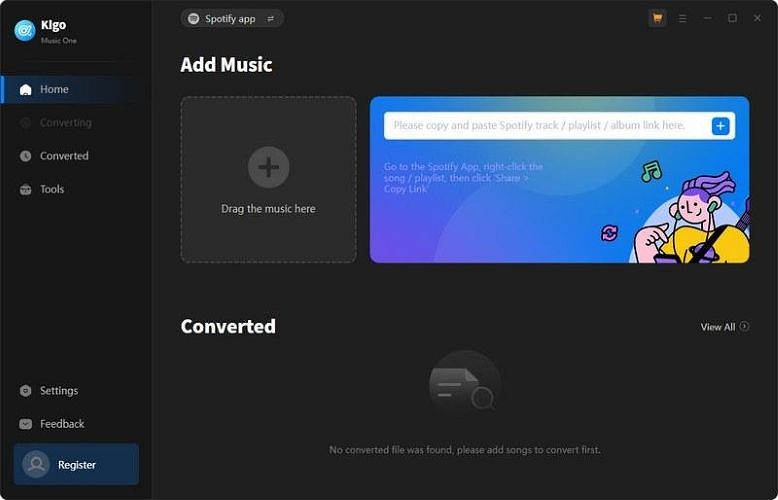
Kigo Music One improves a lot. Older versions had many complaints about low-quality output, but in our current test, Kigo delivered full 320kbps audio. The side-by-side comparison with the original tracks showed almost no difference, which shows how much it has improved from its earlier builds.
Verdict
All five desktop tools fulfil the core task — converting your Spotify/Apple Music/YouTube Music (and more) tracks into MP3 or FLAC (and other formats). Almost all of them also stretch into Audible, podcasts, and even radio shows, so the coverage is wide.
What really separates them is the speed and the pricing. If you are planning to save a large number of songs or full libraries, MedVioo clearly wins with its 30X performance. For a cheaper but still reliable option, TunePat’s three-month commitment at around US$149.95 (roughly US$15–16 per month) still feels okay given its extras.
In all, with top-tier speed, MedVioo still takes the prize overall.
4 Best Audio Converters for iPhone/iPad/Android [Music Download]
There are also many types of mobile converters you can use on Android and iOS to export Spotify songs as MP3 and even FLAC in some cases. These tools do not offer perfect conversions, yet they remain a fast way to save music directly on your mobile device, either through a small app or software you already use every day.
Top 4 Audio Converters for Mobile
So here’s a table with four such tools that users rely on the most on the mobile:
Tip:
The best on the mobile are clearly the Telegram Music Downloader bots. They work almost exactly like online converters. Some bots do support batch conversion but come with a small premium (around US$10). Even then you still have to save one track manually after conversion, because they deliver processed tracks one by one. Put simply, they’re time-consuming.
What We Like and What We Don't Like
All of these mobile tools work differently, so ideally, you would weigh the pros and cons of each one yourself. Still, here’s our two cents.
What We Like
- Telegram music bots work well when you want one or two tracks quickly — say you need a song for a presentation or a short clip.
- Shortcuts on iOS can do the job conveniently, especially when you already use them.
- SpotiFlyer and Fildo support more than one platform for music conversion.
What We Don’t Like
- None of them truly offers 320kbps audio, even when the interface claims so.
- Metadata is another problem. You rarely get full tags, and there is no clean way to edit or organize them afterward.
- Almost all of them avoid ads, except Fildo, but you do run into small charges like US$10 premium features.
- SpotiFlyer and Fildo only allows you to save one album or one playlist at a time.
- Need to copy and paste song links.
How to Use Audio Converter App on Mobile
All mobile converters work differently. Still, here’s an example using Telegram music-downloader bot.
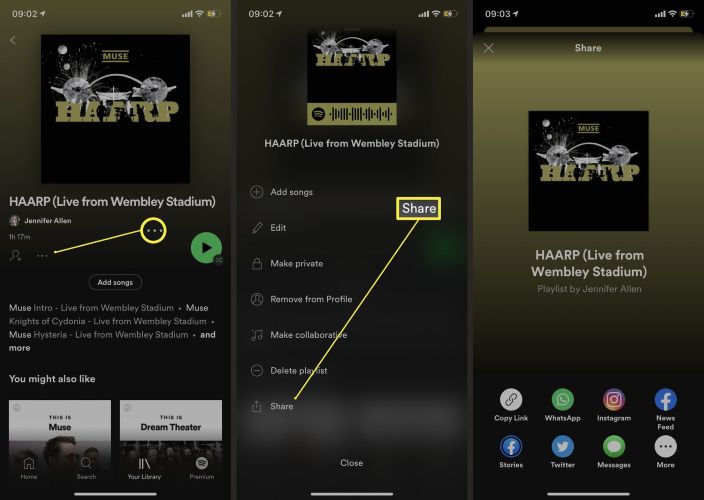
Step 1. Head to Spotify, grab the link from the track or playlist you want to convert, and it’s ready to go.
Step 2. Launch Telegram and search for @musicdownloaderbot. When it appears, step inside the chat and tap Start to unlock the session.
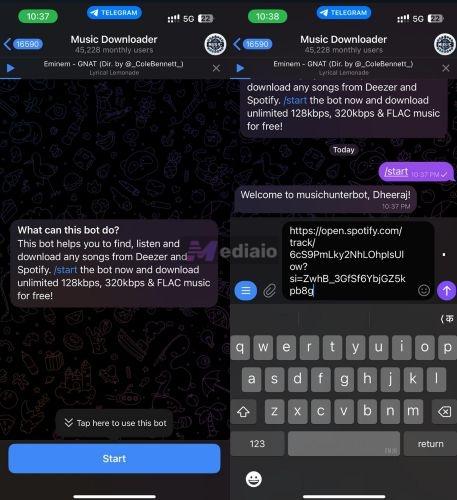
Step 3. Send the Spotify link into the conversation and give it a moment. The bot instantly recognizes it and begins preparing the audio behind the scenes.
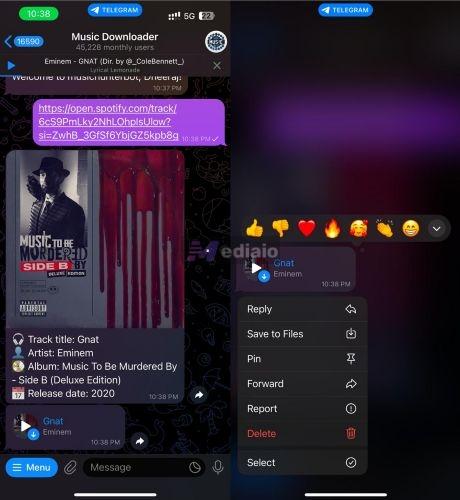
Step 4. The songs land in your chat one after another. Hold down on each file, choose Save to Files, and place them wherever you want them to live on your device.
5 Best Audio File Converters [Format Conversion]
Audio file converters let you change one audio format into another—FLAC to MP3, WAV to AAC, and so on. They become useful when certain platforms refuse the format you already have. Converting the format solves that problem quickly. They only work with files you already own, recordings you made, or songs you previously downloaded.
1. Fre:ac (Windows/Mac/Linux)
Fre:ac is a free, open-source converter and is one of the most trusted in this category. It supports almost every common format you may ever need, including: MP3, M4A/AAC, FLAC, WMA, Opus, OGG Vorbis, Monkey’s Audio (APE), WavPack, WAV, and several more.
Its interface is simple. Add a single file or an entire folder, choose the codec and bitrate you want, and start the conversion. It also includes extra touches like CD ripping with CDDB tag lookup. The program is multi-core optimized too, so conversions run fast on modern systems.
Steps to Use Fre:ac
Step 1. Install the latest Fre:ac build and launch it on your computer.
Step 2. Use the + button in the upper-left corner to bring in your audio. Select Add Folder if you’re importing an entire directory.
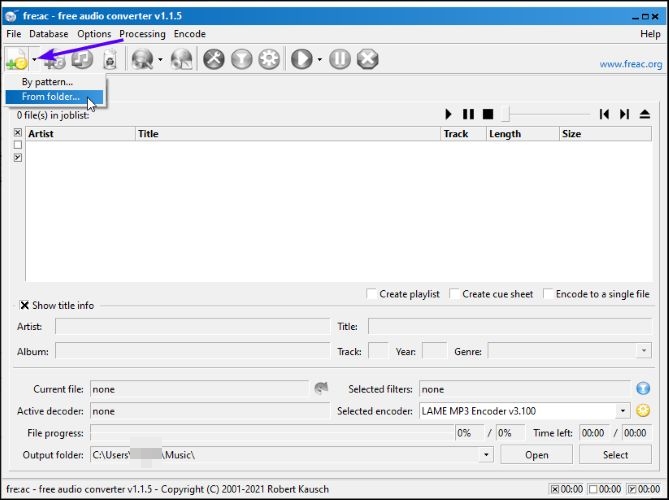
Step 3. When your tracks load into the list, open the Encoder menu and select the format you want, such as LAME MP3 Encoder.
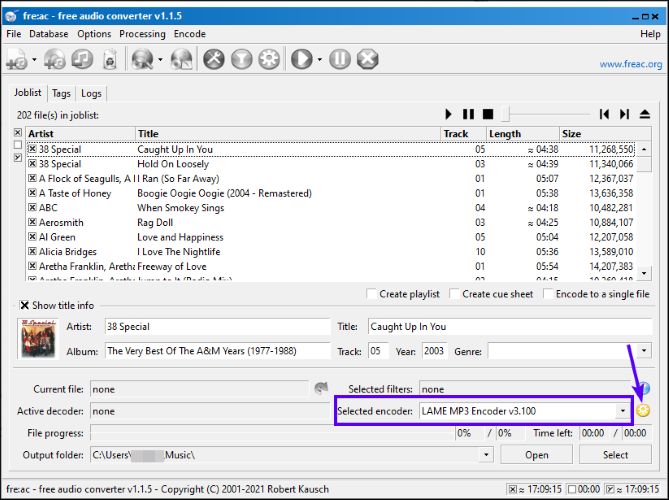
Step 4. Set your destination path using the Output folder at the bottom.
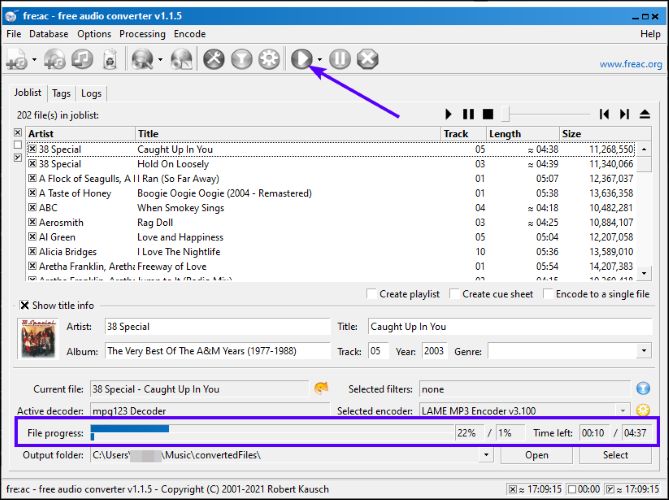
Step 5. Start the conversion with the Play/Convert button on the main toolbar. A progress bar tracks the job until it completes.
2. MediaHuman Audio Converter (Windows/Mac)

MediaHuman Audio Converter is another free tool. It stands out for its highly appreciated lossless to lossless conversion (FLAC to ALAC, for example).
The interface is easy to handle. As a bonus, it can pull in missing album art, which makes your library look organized after conversion.
Steps to Use MediaHuman Audio Converter
Step 1. Open MediaHuman on your computer and pull your audio files into the window. Simply drag them in directly or add them through the + icon.
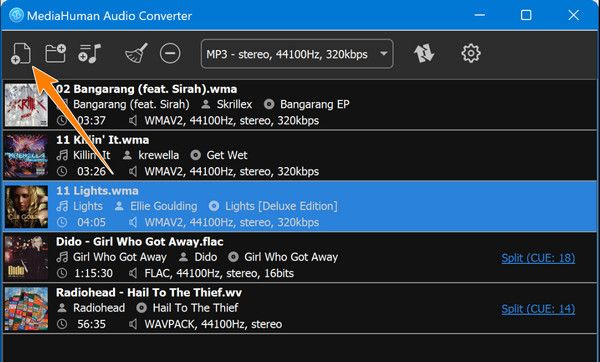
Step 2. Head to the Format panel and select the output you want. Adjust sample rate, bitrate, and other presets right from this screen.
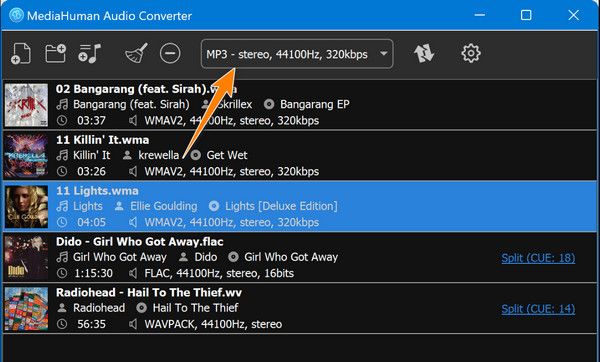
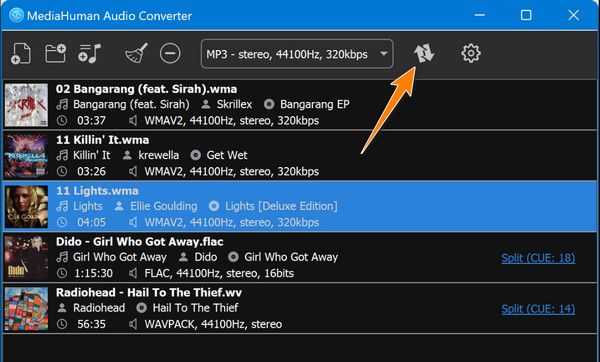
Step 3. Start the process with the Convert button on the top bar and let MediaHuman generate the new files.
3. FreeConvert [Online]
FreeConvert is a web-based converter that can handle audio, video, images, and a lot more.
For audio specifically, it supports MP3, WAV, FLAC, AAC, WMA, OGG, M4A, and several other formats. The layout is straightforward and everything is processed in the cloud. The only limitation is the 1 GB file size cap on the free tier.
Steps to Use FreeConvert
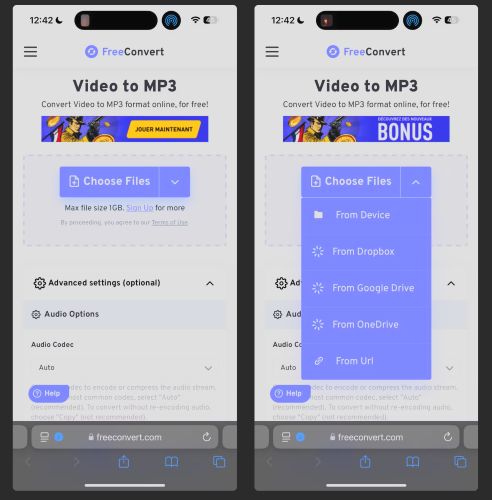
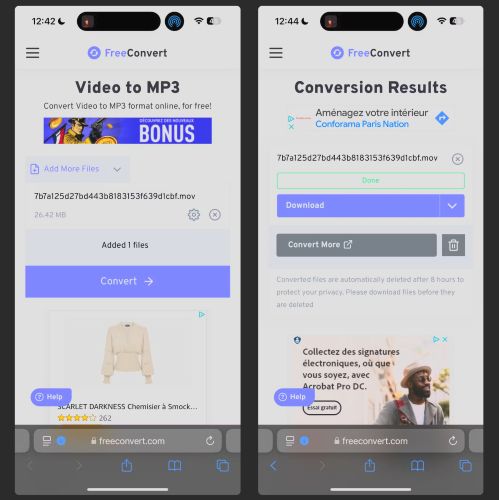
Step 1. Open FreeConvert in any browser on your computer or phone and tap Choose Files. Pick the source you want and upload your audio.
Step 2. Select your output format and hit Convert.
Step 3. Tap Download and save the converted audio to your device.
4. The Audio Converter [iOS]
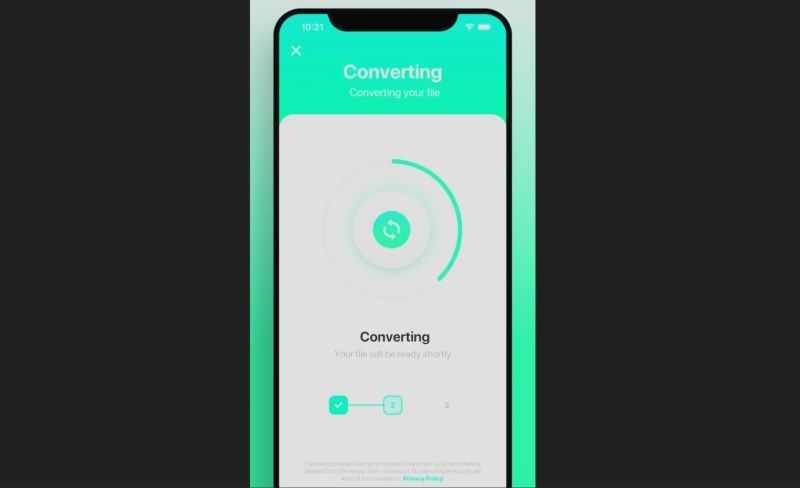
This one is handy when you just want to convert a couple of audio files directly on your phone. The app comes from Float Tech and it turns one format into another without much setup.
With the recent update, it also supports offline conversions for some formats.
Steps to Use Audio Converter on iOS:
Step 1. Install and launch the app and pick the audio.
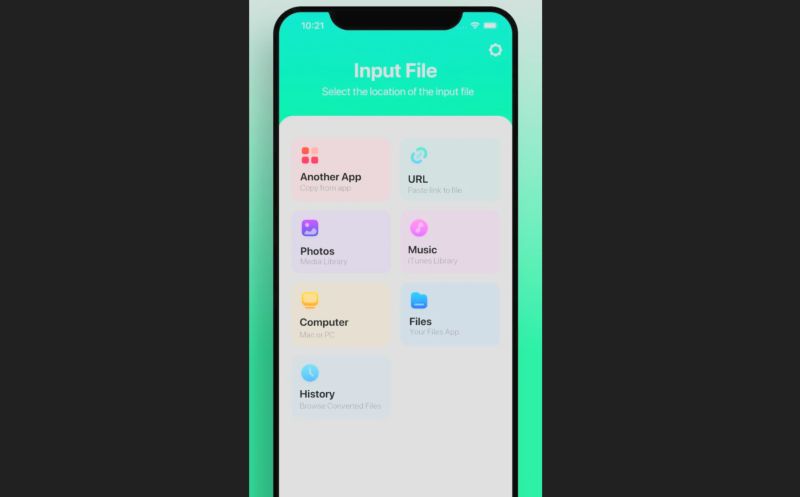
Step 2. Set the output format—MP3, WAV, M4A or more.
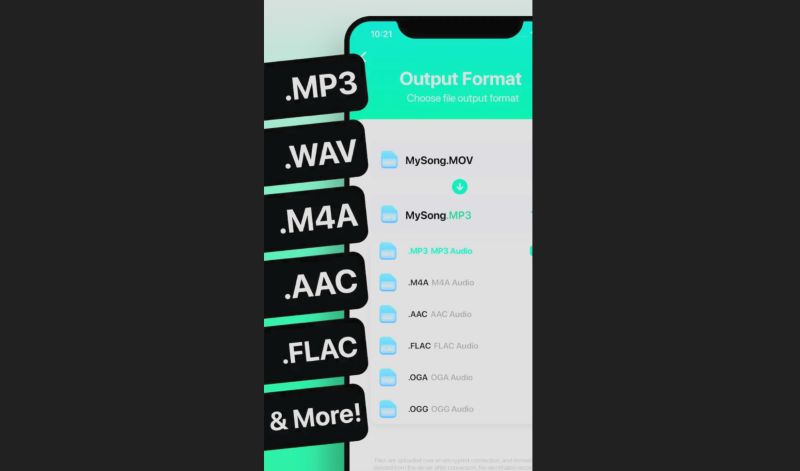
Step 3. Press Convert and let the app run the task.
5. Audio Converter by Bdroid Team [Android]
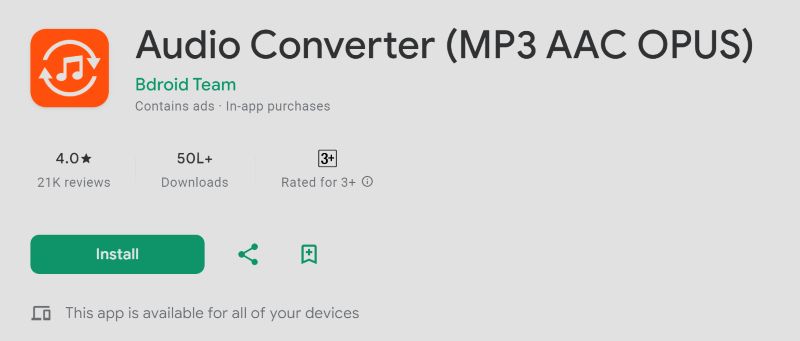
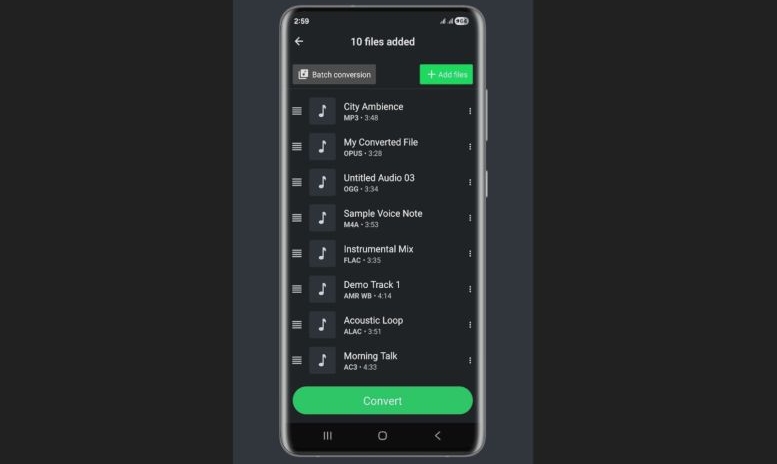
Similar to the Float Tech tool, this one is the Android counterpart. It supports a long list of formats. Along with converting, it includes a few small extras like trimming, changing the sample rate, and even editing ID3 tags.
Steps to Use Audio Converter on Android:
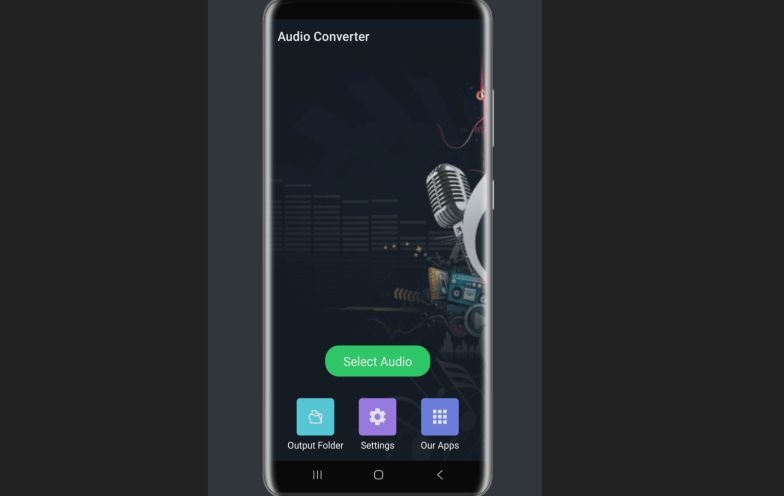
Step 1. Launch the app and hit Select Audio.
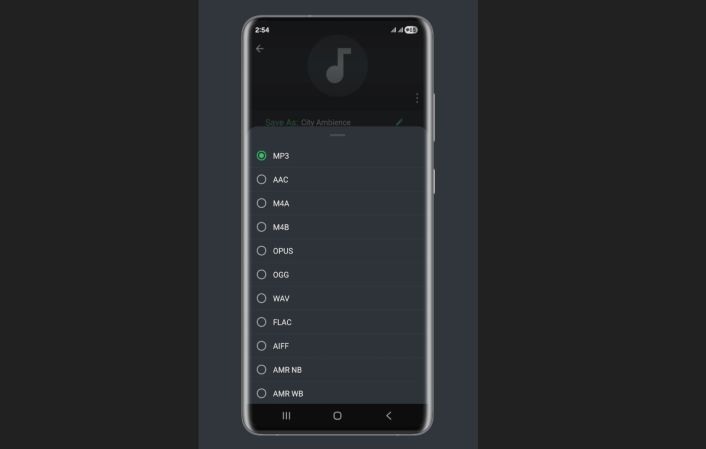
Step 2. Choose an output format from the list.
Step 3. Start the job with Convert and let it process.
Bonus: How to Use the Audio After Conversion
Once you have your music files (MP3, WAV, etc.), you can use them anywhere. Here are some handy tips to enjoy them.
Enjoy Converted Music on Any Device
Whether you use an online method or a proper desktop tool, you can carry these files across devices without any extra setup. Roku TVs, smart speakers, car systems, gaming consoles, as long as the device accepts regular audio files, you can drop them in and listen.
How to Play Songs on MP3 Player
- Connect the MP3 player to your Windows PC or Mac.
- Open the folder where your converted songs are stored.
- Drag them into the Music folder on the MP3 player.
- Safely eject the device and start listening.
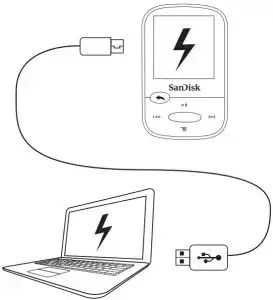
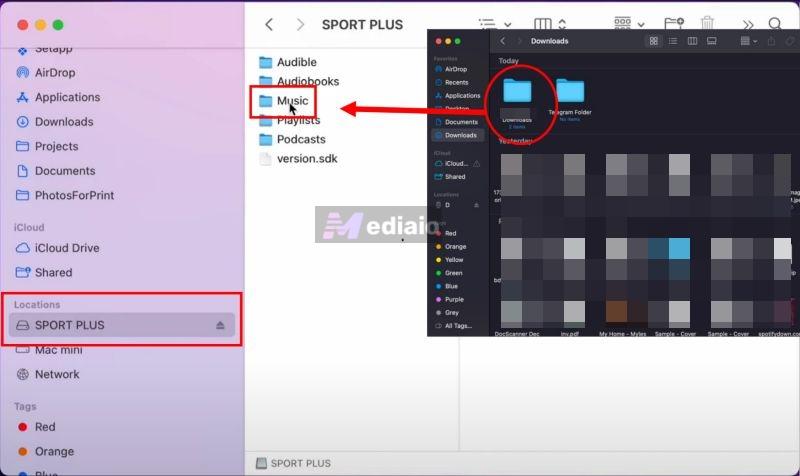
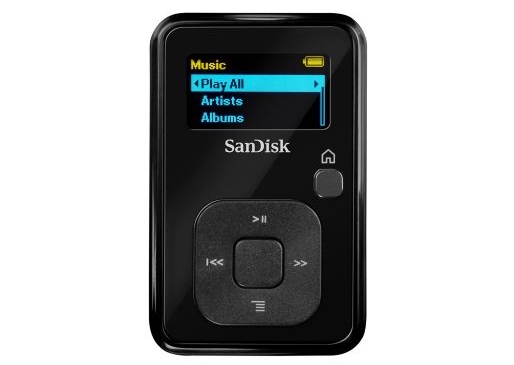
This is how you play Spotify on MP3 player once you’ve converted the songs. And that’s just one example. You can push your converted Spotify/Apple Music/Amazon Music tracks to almost any device.
Here are full guides you can explore, depending on what device you want to use:
You May Also Like
Transfer Converted Tracks to Another Device
The good part about converted songs is simple: they are not DRM-locked. They behave like regular audio files. You can move them anywhere you want: USB drives, SD cards, external hard disks, or even burn them onto a CD. They stay usable on any device.
How to Migrate Music From Computer to Phone
On Android, there’s nothing complicated. You connect the phone with a USB cable and drop the songs into the Music folder. They appear instantly.
iPhones give you more than one path:
Note: This method works only when the tracks keep their proper metadata, usually when you use a reliable converter like MedVioo, which preserves original tags. If the tags are broken (which happens with online converters and Telegram bots), Apple Music will not import them.
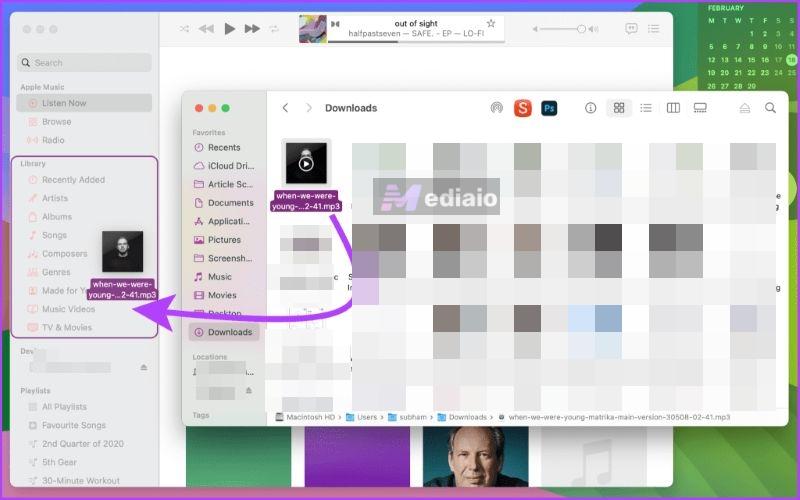
Step 1. Add the songs to the Apple Music app on your computer. Drag them into your Library or any playlist.
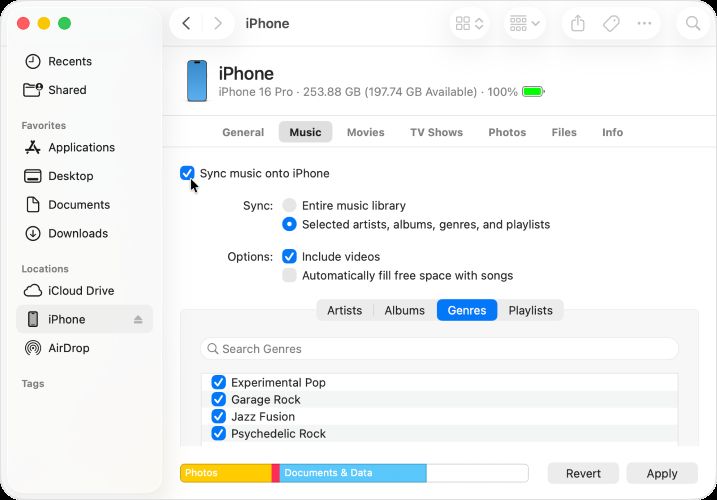
Step 2. Connect your iPhone.
- On macOS, it appears under Locations in Finder.
- On Windows, it shows up inside iTunes.
Step 3. Open the Music tab. Turn on Sync Music.
Step 4. Choose whether you want to sync the entire library or only selected playlists/folders.
Step 5. Click Apply. Everything from the computer will show up in the iPhone’s Apple Music app.
The phone is just an example. You can even move them to USB. Here is the detailed guide to help you achieve that: Download Spotify Songs to USB.
Use Converted Songs in Daily Life or at Work
Apple Music, Spotify, YouTube Music, or any other platform works well for streaming, but once the songs become MP3, AAC, or any other open format, you get far more flexibility than what the apps allow. You remove the internet dependency completely. The tracks sit outside the app, which are not app-locked anymore and can be played without ads or any kind of interruption.
Practical guides that fit right into everyday use:
You May Also Like
Add or Transfer to Other Music Platforms
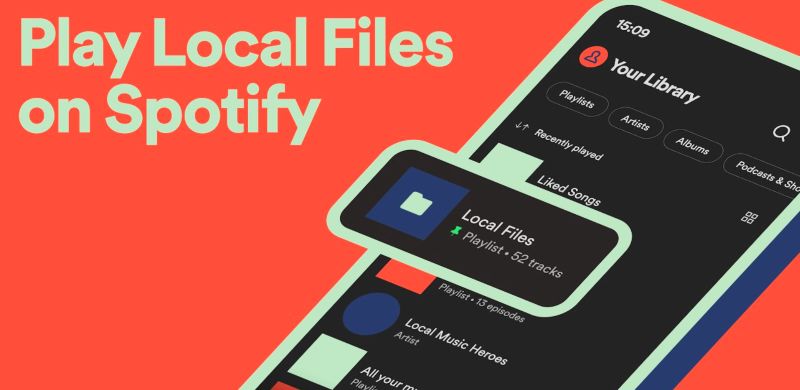
Even streaming apps like YouTube Music, Apple Music, Spotify allow you to add your own local files. This can be useful because you might have certain live versions or deep cuts on one platform and might be switching to another one. After downloading streaming music, you can upload it to the new platform. It allows you to enjoy new songs on the new service along with all your older favourite tracks in one place. Here are two guides that will walk you through it:
Final Words
This brings us to the end of this guide. You have seen both the music converters as well as the audio-file converters that work on any device.
Here’s how to pick an audio converter what you need:
- For one or two songs in decent quality, go with the online converters or the mobile methods. They get the job done fast when you’re in a hurry.
- To create an offline music library with possible audio quality, go with the desktop tools.
MedVioo Audio Converter is especially worth trying since its fastest conversion speed, so you can test everything properly.