

If there was one missing from the Waymo experience, it was the music. That’s fixed now. You can now play Spotify and listen to your favorite tracks while riding in a Waymo vehicle.
Yes, the connection can feel a bit difficult at first, but that is exactly what we are here to help you with. We will show you how to play Spotify on Waymo, from account connection to music playback. We have included multiple methods to make sure you can enjoy Spotify music on Waymo, no matter the city you use the service in or your Spotify subscription status. We will also explain you how to use cool settings like playing music automatically the next time you book a ride in the robotaxi.
Today’s Picks
How to Play Spotify on Waymo with Waymo App
Only Waymo’s latest app builds come with the Spotify integration option, so the first thing to do is update the Waymo app on your phone. Also note that this feature currently works only in San Francisco, Los Angeles, and Phoenix, meaning that it will only work when you book rides within those cities. The good thing is your Spotify plan does not matter. Whether you use a free or Premium account, you can link Spotify to Waymo without any restriction.
And the real advantage here is simple: once you link the accounts, Waymo will remember that link for every future ride. You can start playing Spotify as soon as you start your ride in the robotaxi.
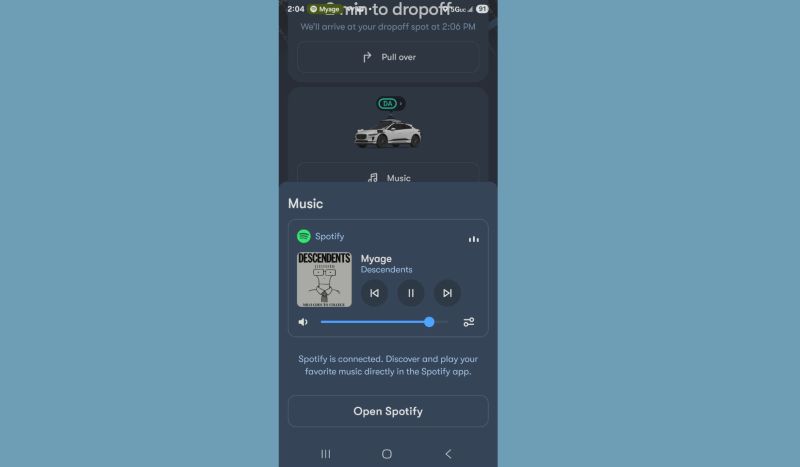
Connect Spotify to Waymo and Play Music
Make sure Spotify is installed and signed in on your phone. Then, follow the same steps on both Android and iPhone:
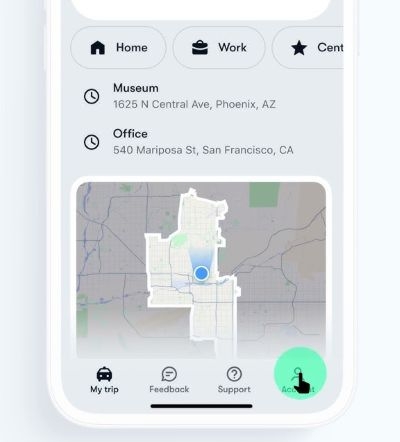
Step 1. Launch the Waymo app on your iPhone or Android and move into the Account area.
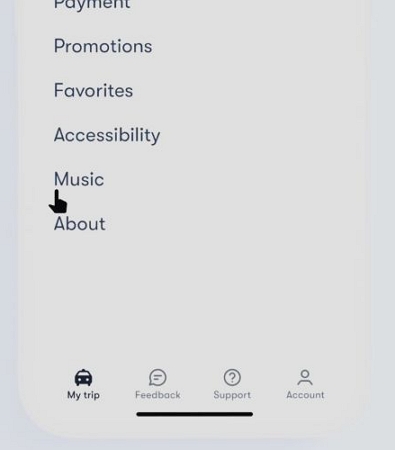
Step 2. Enter the Music section.
Step 3. Tap the Spotify tile.
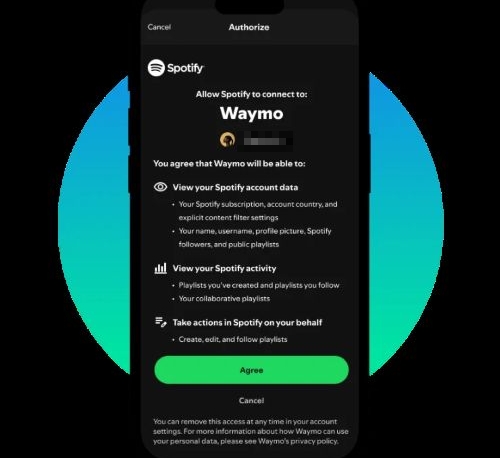
Step 4. Approve the link by choosing Agree at the bottom. You’re sent back to Waymo right away and Spotify shows up under Account > Music with a “Connected” tag.
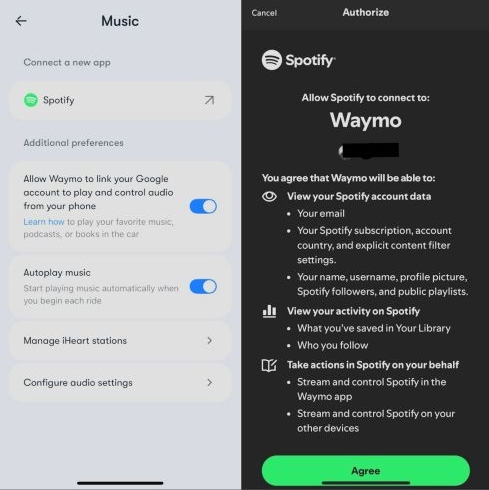
After that, you control Spotify playback in two simple ways:
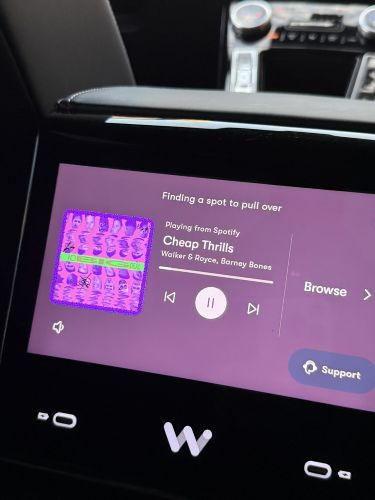
- Use the Spotify icon on the robotaxi’s cabin screen and pick something directly from there.
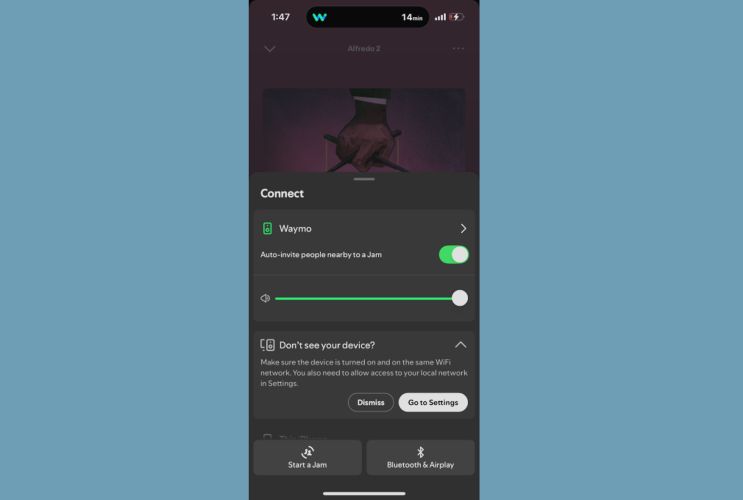
- Start a track inside your Spotify app and select Waymo from the Connect to a device panel.
The vehicle will pick the stream instantly once you choose it.
Disconnect Spotify from Waymo
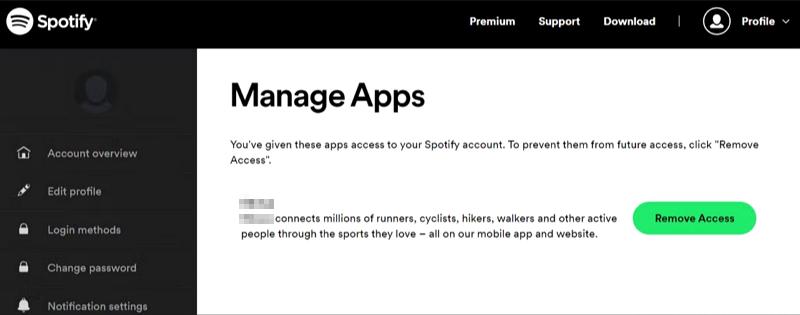
If you want to unlink your Spotify account, maybe to use a different profile with Waymo, do it from Spotify’s side:
- Sign in to Spotify through any browser.
- Move into your Account area and head to Settings.
- Go down toSecurity and Privacyand enter Manage Apps.
- Look for Waymo in the list of connected services.
- Remove its access and confirm the action.
The next time you open the Waymo app, Spotify will no longer show as connected.
How to Play Spotify on Waymo via In-Car Screen
You can also link Spotify directly from the touchscreen inside the Waymo and then start music playback. This gives you a quick way to connect without digging through the Waymo app menus. You’ll still need your phone to approve the link, but the end result is the same — your future rides will remember the connection.
Here’s What to Do:
Step 1. Move into the Music section in Waymo screen and pick Spotify. The app will bring up a QR code for linking.
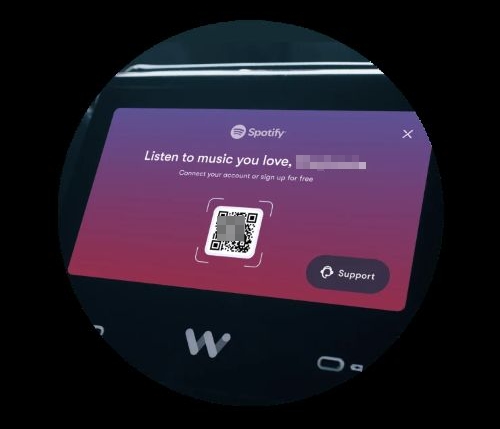
Step 2. Aim your phone’s camera at the code. Your device will recognise it and surface the Spotify link prompt.
Step 3. Approve the request on Spotify’s authorization screen. Once it confirms, Spotify attaches itself to your Waymo account immediately.
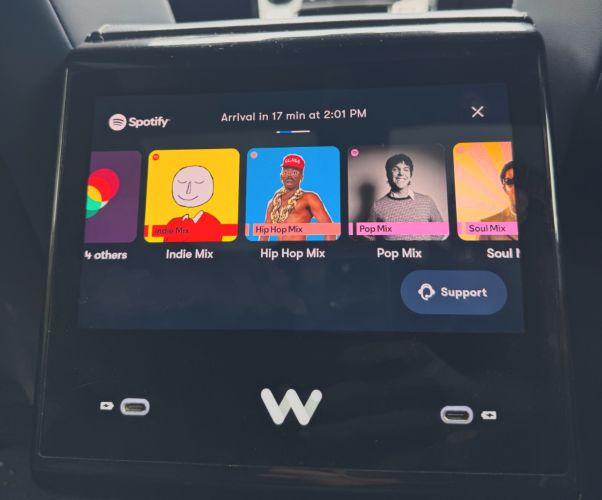
Step 4. Waymo will load a small set of featured Spotify playlists right away and you can start playback with a single press.
The only drawback when selecting the music from the car screen is that you don’t have direct access to your favorite playlists or recently listened music. It only highlights popular mixes like “Daylist” or “Today’s Mix.”
How to Play Spotify on Waymo Using Google Assistant
Google Assistant allowed you to play Spotify music long before it became a built-in option on Waymo. It still helps today, especially if you are in a city where Waymo hasn’t rolled out native Spotify support, or if you simply prefer to start your music with a voice command the moment you sit in the car.
To make this way work, here are 3 main steps.
Step 1: Link Spotify to Google Assistant
Here’s what to do:
On Android
Google Assistant already lives inside the Google app.
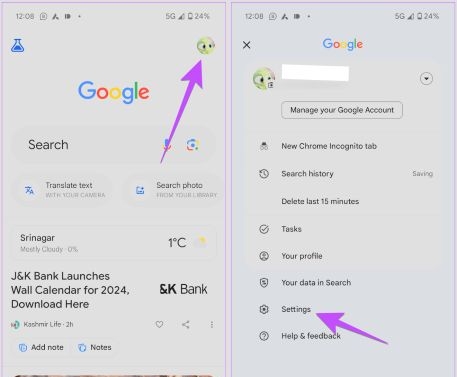
- Launch the Google app and move to your profile menu.
- Enter the Assistant settings panel.
- Head to the Music section.
- Pick Spotify from the list.
- Confirm the permission sheet when it appears.
That’s it. Android will handle the rest.
On iPhone
iPhone users need the standalone Google Assistant app.
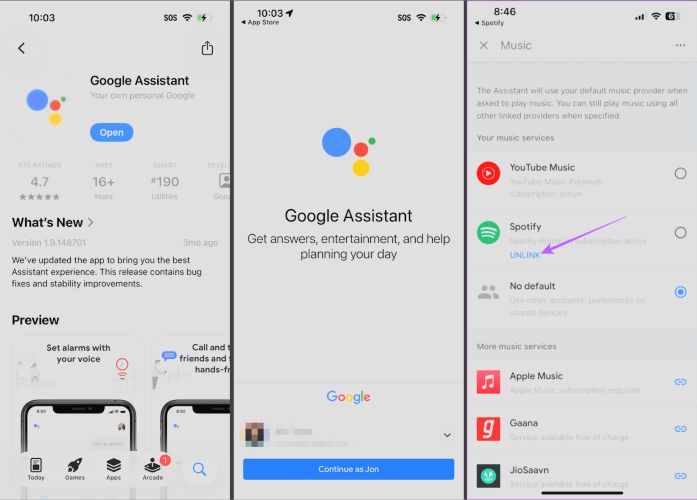
- Install Google Assistant from the App Store.
- Sign in using the same Google account you use with Waymo.
- Allow microphone permission when asked.
- Move to Settings and then into the Music section.
- Choose Spotify and approve the connection.
Once this is done, Assistant can control Spotify smoothly.
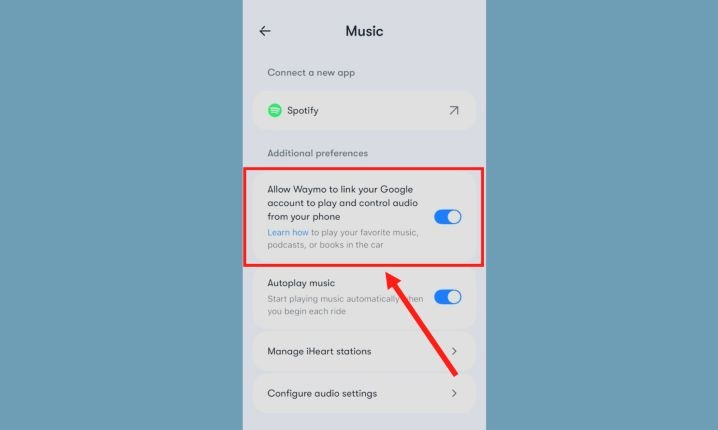
Step 2: Turn on the Required Waymo Permission
Inside the Waymo app, you must enable the toggle that says:
“Allow Waymo to link your Google account to play and control audio from your phone.”
Step 3: Play Spotify in Waymo Using Google Assistant
Playing Spotify on Waymo Android and iPhone follows the same flow. The only thing that shifts is how you call up Assistant on each device.
On Android
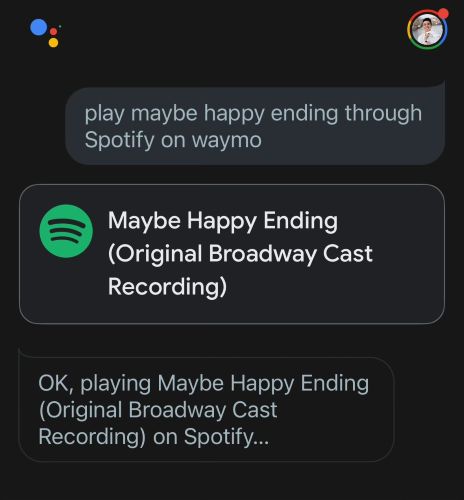
You can summon Google Assistant like you normally do — “Hey Google”, the power-button gesture, or the on-screen shortcut.
Then speak naturally:
- “Play Bob Dylan playlist on Waymo.”
- “Play my Discover Weekly on Waymo.”
- “Play my Spotify queue on Waymo.”
After the command is accepted, Waymo’s car speakers take over the audio automatically.
On iPhone
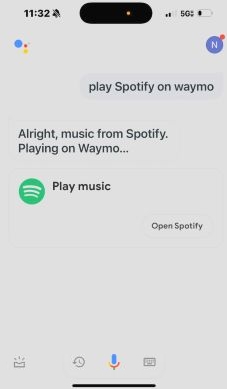
iPhone cannot invoke Google Assistant globally. So you simply have to open the Google Assistant app, and then give your command:
- “Play my songs on Waymo.”
- “Play my Discover Weekly on Waymo.”
- “Play this album on Waymo.”
Assistant detects the existing Spotify link and routes everything to the car. Once connected, the link stays active and you don’t need to redo it on every ride.
How to Play Spotify on Waymo Through VLC Cast
Waymo plays your Spotify music reliably most of the time, but not always. Some days, it works like magic. Other days, you sit in the backseat and hear nothing except the default iHeartRadio stations and repetitive radio mixes.
And if Spotify isn’t supported in your region yet, your options narrow even further.
To keep your Waymo rides predictable and filled with music, you can simply download your Spotify tracks in local MP3 form and cast the audio from your phone. Waymo supports audio casting from compatible apps, so this method gives you complete control regardless of your city, your network, or Spotify’s availability.
Here’s how to set it up.
Step 1: Download Spotify Music to Local MP3
Start by saving your Spotify music as real files. Mediaio Audio Converter makes this part stress-free, because it lets you easily convert Spotify songs locally. Mediaio includes its own embedded Spotify browser, which means you can sign in, browse your playlists, and pull any album or track directly into the converter for conversion. Every track arrives as a proper MP3 while keeping the original sound quality intact. You can then easily open them in any player like VLC and cast the audio to Waymo cabin.
And Mediaio Audio Converter isn’t limited to Spotify either. It also works with Pandora, Apple Music, Deezer, YouTube Music, and several others. So you’re not restricted to one service. You can pull songs from every platform you like and save them for future Waymo rides.
Steps to Use Mediaio
Open Mediaio Audio Converter on your Windows or Mac and choose the Spotify tile from the home screen to bring up the embedded browser.

Sign in with your ordinary Spotify account, the free tier works here without restrictions.
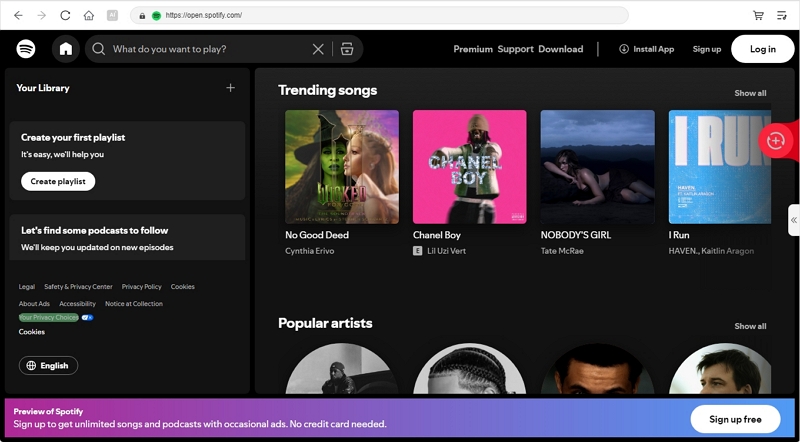
Gather what you want for your upcoming Waymo rides by moving your playlists, albums, or audiobooks toward the plus corner at the top right. Alternatively, you can add wanted tracks with Add to the conversion list button. Mediaio will stack them neatly in the converting area.

Set the output format as MP3 and adjust the audio quality if needed. Finish the job by hitting Convert All. The files save into your Downloads folder as regular audio, ready for transferring to your phone.

Step 2: Transfer Spotify Local MP3 to Phone VLC
You can move the MP3 files to any phone, whether it’s an iPhone or an Android device. The idea stays simple—get the Mediaio downloads onto your handset so VLC can read them during your Waymo ride.
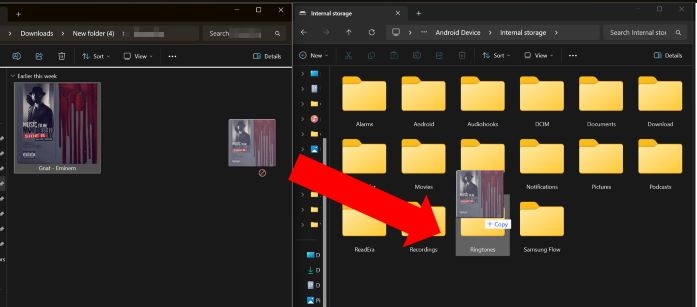
To Transfer from Windows to Android:
- Just connect your Android phone to the PC with a data-capable cable.
- Open its Internal Storage and step into the Music folder, or whichever folder you prefer using for your player apps.
- Keep another File Explorer window open beside it, showing the MP3s you created with Mediao.
- Move the tracks from Mediaio folder to Android storage and they will appear instantly in the VLC media player on your mobile.
To Move Songs from Mac to iPhone:
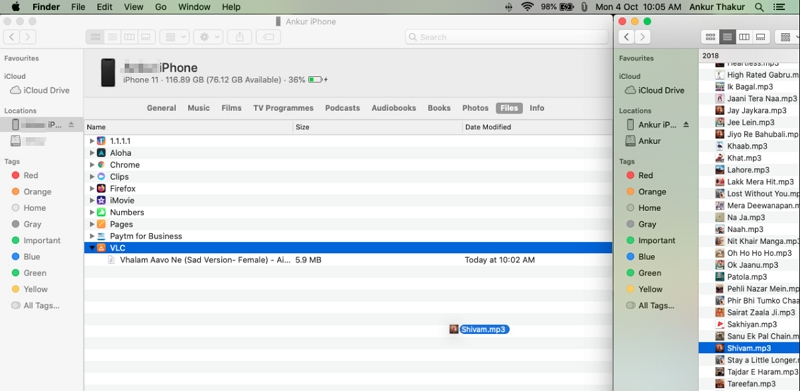
- Open the folder where Mediaio saved your MP3 files.
- After connecting your iPhone, select it from the Locations section in the second Finder window.
- Shift to the Files section and look for VLC in the app list.
- Drop your MP3s into the VLC panel. The songs appear inside VLC on your iPhone once the transfer completes.
Step 3. Cast Spotify Music to Waymo Through VLC
Waymo uses a simple guest-mode Cast system, which means you don’t need to fiddle with the Waymo app or join the car’s Wi-Fi network. In fact, the car does not expose any Wi-Fi at all. Your phone can stay on mobile data, and the cast signal still reaches the car without any extra setup.
When your ride begins:
- Tap Play Music on the Waymo display. The screen will guide you to open any music or audio app on your phone.
- Open VLC on your phone. Start playing the song you transferred earlier. On the Now-Playing screen, tap the Cast icon at the top.
- A small device sheet will open, and you’ll see Waymo listed there. Select it.
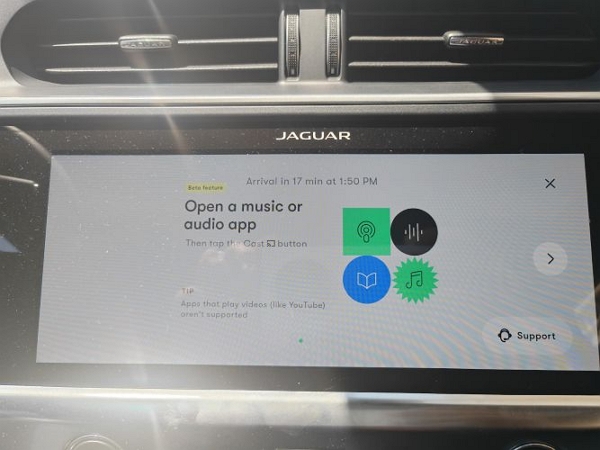
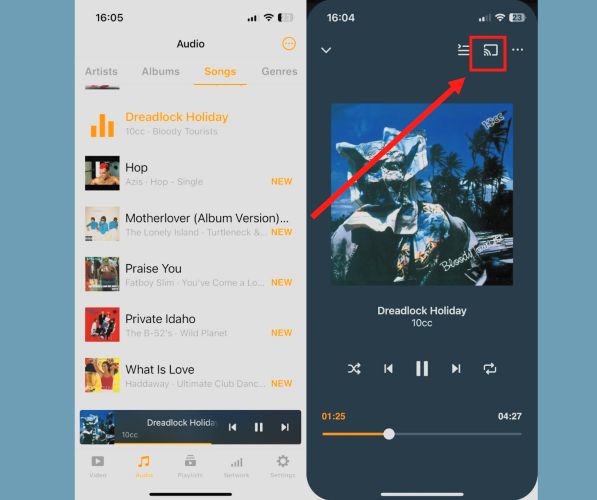

Your phone hands off the audio instantly. The car accepts the stream and starts playing your MP3s through the cabin speakers. The music will play seamlessly throughout the ride. You can control everything from your phone, like pause, skip and repeat, while Waymo handles the sound.
How to Adjust Spotify Playback on Waymo
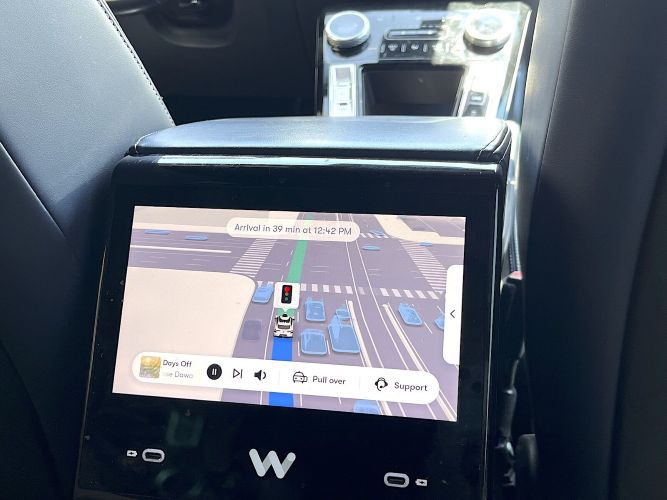
Waymo’s UI already gives you the basics — play, pause, skip and volume but the deeper sound tweaks and automatic-play rules sit in different menus. Here’s how to manage everything without fumbling around during the ride.
Tune Spotify Sound
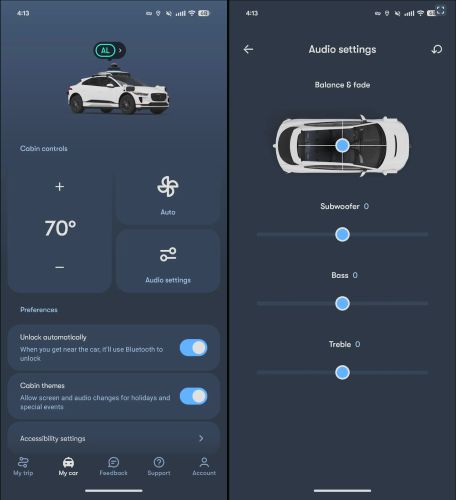
Waymo lets you change how the music feels in the cabin, and all of these options live inside the My car panel of the Waymo app.
- Open the Waymo app.
- Switch to My car.
- Tap Audio settings.
You’ll see sliders for Subwoofer, Bass, and Treble. You can use the balance-and-fade map to shift the sound toward the front, back, left, or right. These sliders respond instantly, so you can adjust things while the music is playing.
For volume, you have three paths:
- Use the volume bar on the Waymo cabin touchscreen.
- Adjust it directly inside Spotify’s device view (the same screen where Waymo appears as a connected device).
- Control it from your phone’s physical volume buttons once the stream is active.
All three methods work smoothly and Waymo reacts in real time.
Enable/Disable Autoplay
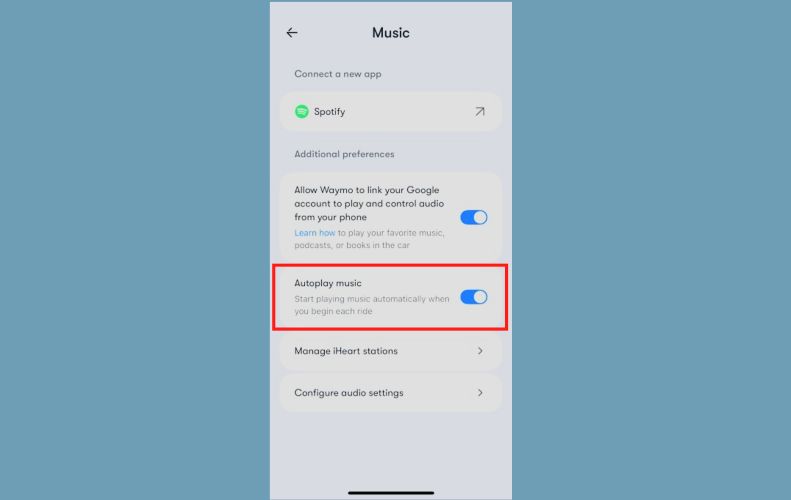
Autoplay controls whether Spotify begins the moment your ride starts or stays paused until you choose the first song. To find the toggle:
Step 1: Open the Waymo app.
Step 2: Switch to Account and tap Music. Inside, you’ll see the Autoplay setting.
- Turning it on is helpful if you ride alone often and want your playlist to start without touching anything.
- Turning it off keeps the cabin quiet until you choose a track from the screen or your phone.
It blends well with the Spotify integration, so once you set it, Waymo sticks to that preference for every future ride.
Choose Songs
There are several ways to change what’s playing. You can use whichever feels natural in the moment.
- Waymo’s main cabin display lets you skip forward, jump back, or browse through playlists and albums on Spotify.
- You can also choose songs via the Spotify app.
- If you’ve connected Google Assistant, you can say things like “Play my Discover Weekly on Waymo” or “Skip this song” and the robotaxi will pick up your request.
- If you’re using the VLC-cast method, you control playback inside VLC itself. The cast stream updates in real time.
Note: Spotify Jam also works if you’re sharing your ride with someone who also has Premium. Everyone can add tracks and the queue updates inside Waymo automatically.
Can't Play Spotify on Waymo[Fixed]
Spotify and Waymo refuse to cooperate far more often. And this problem can show up in many ways:
- The Spotify title doesn’t appear inside the Waymo app or car’s screen.
- You tap the Spotify icon on the Waymo touchscreen and nothing plays, even though the previous ride worked perfectly.
So if Spotify feels unpredictable, here are the actual causes and the fixes that work.
Reason 1: You Are Outside Waymo’s Spotify-Supported Cities
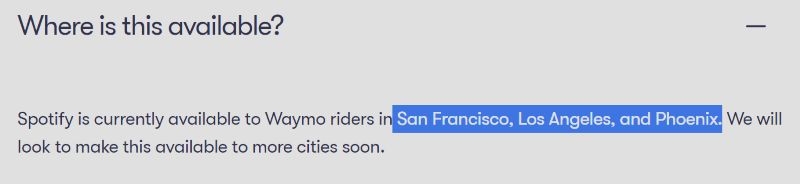
Spotify only works inside Los Angeles, San Francisco, and Phoenix right now.
Fix:
Use the Google Assistant method or the VLC cast method instead of forcing the native Spotify tile. Both work anywhere Waymo operates.
Reason 2: Your Waymo App Is Too Old or the Music Tab Is Missing
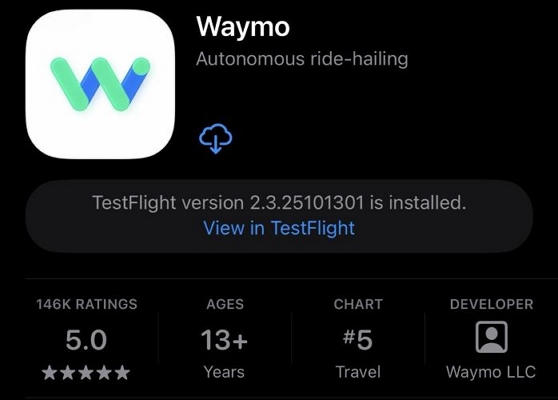
Waymo’s own support pages keep warning that older versions of the app do not include the Music tab at all.
Fix:
- Update the Waymo app from the App Store or Google Play Store.
- Restart it once, and check the Account > Music section again.
The Spotify option in the Music tab will show up.
Reason 3: Spotify Isn’t Properly Linked to Waymo
The Spotify–Waymo link can break when you switch Spotify accounts, update your login, change your email, or simply haven’t used the integration for a while.
Fix:
- Check if Spotify still shows as linked inside the Waymo app.
- If it does, disconnect it through Spotify’s own settings page (we already covered the steps earlier) and then link it again inside Waymo.
A fresh authorization fixes the majority of “tile visible but not playing” errors.
Final Attempt: Ask Waymo Support During the Ride
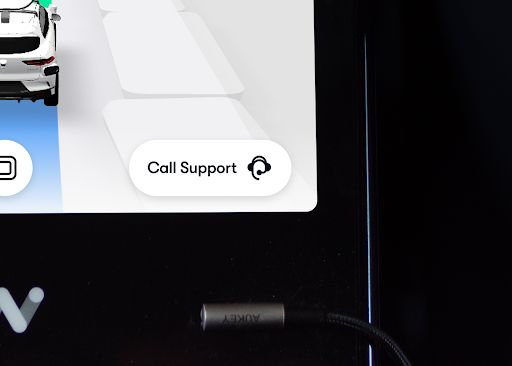
If nothing works, tap the Support button on the cabin screen. There could be an issue with that specific car. This at least ensures the next rider isn’t greeted by silence.
Conclusion
That’s everything on how to play Spotify on Waymo during your rides. Whether you use the service in a supported city or far outside it, the methods we covered will still let you enjoy your music on every Waymo ride.
Mediaio Audio Converter stands out because it lets you load your own music into Waymo and skip the annoying playback issues that often ruin half the ride. With Waymo, you can gather songs not only from Spotify but also from Deezer, Pandora, Apple Music, and other platforms, save as MP3 files, and enjoy them on all your future Waymo rides.