

The SanDisk MP3 Player is a traditional device that doesn’t support Spotify installation. So, how can you get and enjoy Spotify music on it? One option is to purchase the same songs from the Amazon Store and transfer them to your player. While this works, it’s not very cost-effective. Don’t worry, we’ll share a more efficient and convenient way to play Spotify on your SanDisk MP3 Player.
Overview of Spotify Playback on SanDisk Clip MP3 Player
Before transferring and playing Spotify music on your SanDisk MP3 Player, get prepared and learn how the process works.
What You Need
- A Windows PC or Mac with an internet connection.
- Mediaio Audio Converter for converting Spotify songs.
- A SanDisk MP3 Player, such as the classic Sansa, Clip Jam or Clip Sport Go.
- A USB cable to connect your MP3 device.
What to Do
To get Spotify on your SanDisk MP3 Player for music playback, here are the entire process:
Convert and save Spotify music as local MP3 on computer > transfer local Spotify songs to SanDisk MP3 Player > enjoy Spotify offline on MP3 device.
Download Spotify Songs to MP3 [Step 1]
Spotify’s built-in downloads aren’t regular audio files you can move freely. Instead, they’re encrypted and tied to the app. To play Spotify music on SanDisk MP3 Player, you first need to convert them into supported formats like MP3. Mediaio Audio Converter is a recommended tool for this.
Mediaio not only converts Spotify music to MP3, M4A, and other formats, but also ensures high output quality (up to 320kbps). Additionally, it preserves all metadata for each track, including song title, artist name, cover art, and more, making it easy to identify your Spotify songs on your MP3 player or other devices like Apple Watch and iPhone.
Steps to Download Spotify Music to MP3 with Mediaio
Download Mediaio Audio Converter on your Mac or Windows computer. Follow the simple installation process.
Open the Mediaio tool. The main interface will list all the supported platform. Click Spotify to continue.

Enter your Spotify credentials when prompted to login the inbuilt Spotify web player. Free and premium accounts are both supported, so use either without worry about quality differences.
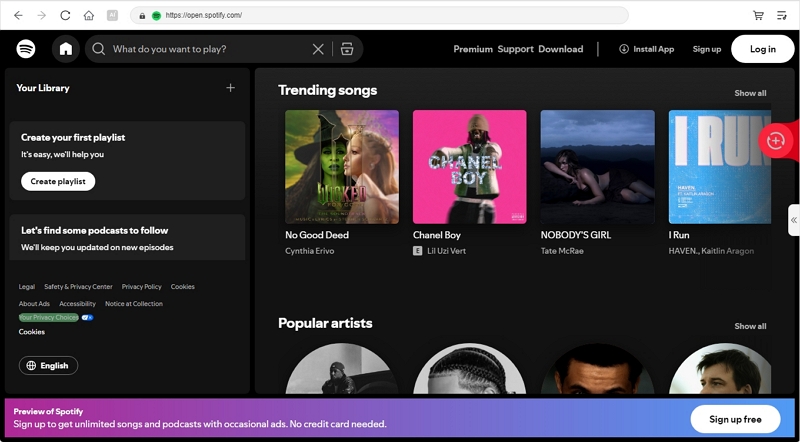
Drag and drop the Spotify tracks, playlists, or albums you want into the red plus banner towards the right. You can also directly click Add to the conversion list to add the desired songs.

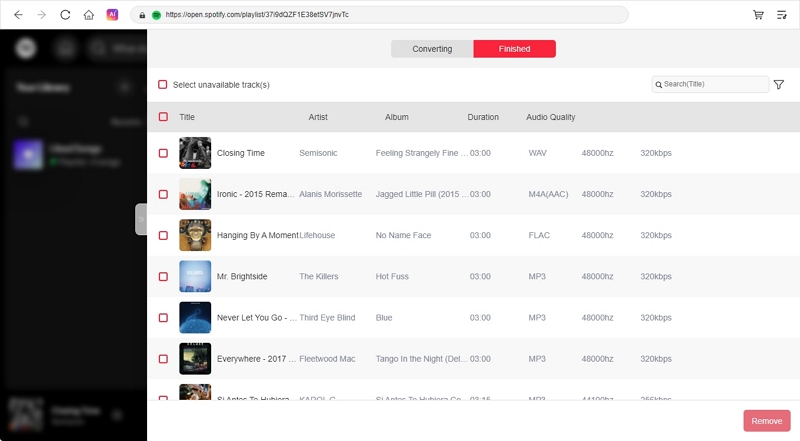
In the conversion window, set the output format as MP3 and audio quality to 320kbps. Finally, click Convert All to begin downloading your music.

Now, switch to the Finished tab and click View Output File to locate your offline songs.
Comparison: Convert Tracks vs. Buy Songs
Purchasing songs also allows you to get Spotify music onto your SanDisk MP3 Player. However, when should you buy songs from the Amazon Store, and when should you convert tracks using Mediaio? You can find the answer in the table below.
On iTunes, you’ll get AAC format at 256 kbps.
Put Spotify Music on SanDisk Clip MP3 Player from Mac/Windows [Step 2]
After downloading Spotify music as MP3 files, it’s time to transfer them from your computer to your SanDisk MP3 Player. The steps are simple and easy to follow.
Except for MP3 player, you can also copy Spotify MP3s to other devices like a USB drive that allows you to enjoy Spotify on VIZIO TV or car without network connection.
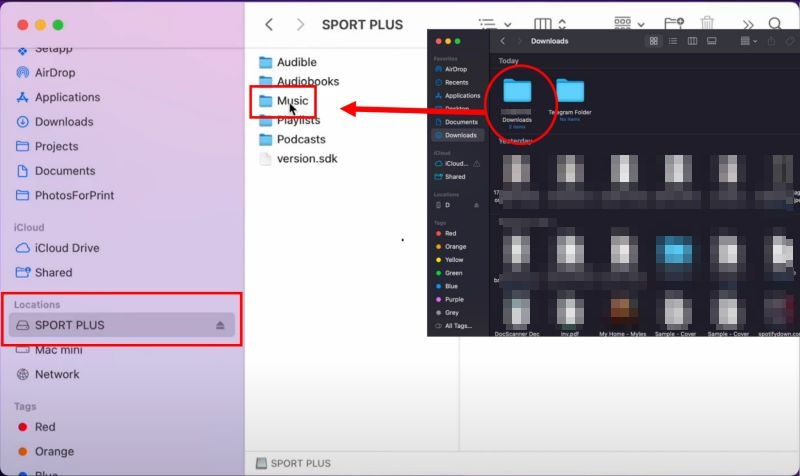
Add Spotify Music to Sandisk Clip Sport Plus on Mac:
- Plug in your SanDisk MP3 player to your Mac.
- It will appear under Locations in Finder with your device name. Click on your MP3 player’s name to access its default folders.
- Open a new Finder window and navigate to the folder where Mediaio saves your downloaded files.
- Select the songs or the entire Mediaio folder and drag them into the Music folder.
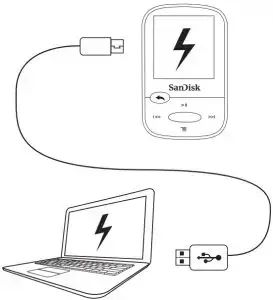
Transfer Spotify Music to Sandisk Clip MP3 Player on Windows:
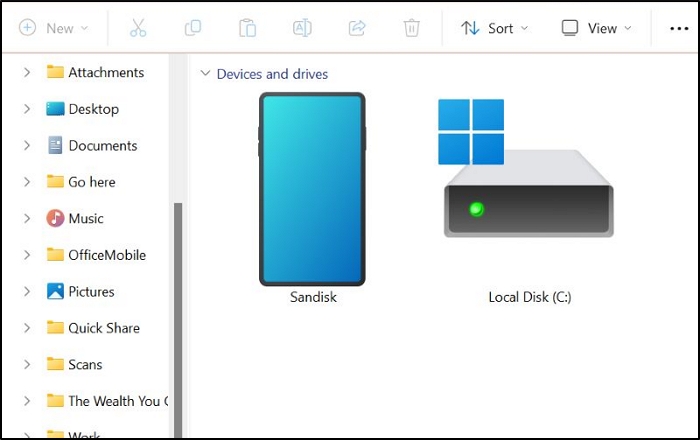
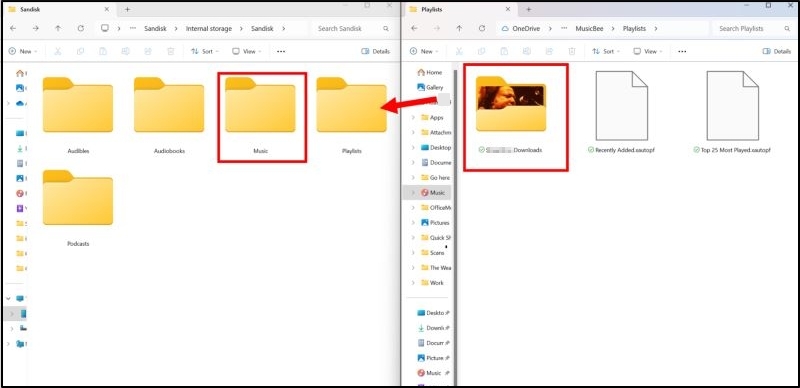
- Use the SanDisk’s provided cable to connect your MP3 player to your computer. It will appear under This PC or My Computer in the file tree on the left pane. Click on your MP3 player to view its contents.
- Open another File Explorer window and navigate to the Mediaio output folder.
- Select the entire Mediaio folder or specific songs and drag them into the Music folder (or a folder of your choice) on your SanDisk MP3 player.
Play Spotify on SanDisk Clip MP3 Player Offline [Step 3]
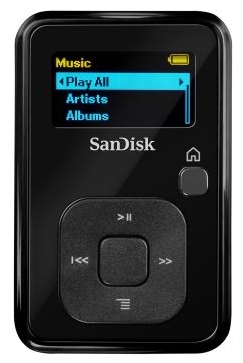
Once you eject the SanDisk MP3 player safely from your computer after transferring your Spotify music files. On the MP3 device, simply navigate directly to the Music folder where the songs have been saved. Use the navigation buttons to scroll through your library, select a track, and start listening.
Conclusion
The table above speaks for itself. With Mediaio Audio Converter, you can download original 320 kbps tracks directly from Spotify to SanDisk MP3 Player for free within 14 days. You also don't need Spotify Premium to complete the download and transfer.