

There are many benefits to downloading music from Spotify to a USB drive. For example, you can listen to Spotify offline in your car or back up your favorite songs. So, is it possible to export Spotify music to a USB drive? Can Spotify Premium let you download music directly to USB? Find the answers in this post.
Can You Download Songs from Spotify onto a USB?
Yes, but this cannot be done using the Spotify app alone. You need a professional Spotify music converter, such as MedVioo Audio Converter. Spotify Premium only allows offline downloads in an encrypted cache format, playable only within the app. In contrast, music converters can export Spotify songs as local files, which can then be transferred to a USB drive.
Tip: Change the Storage Location of Spotify Downloads
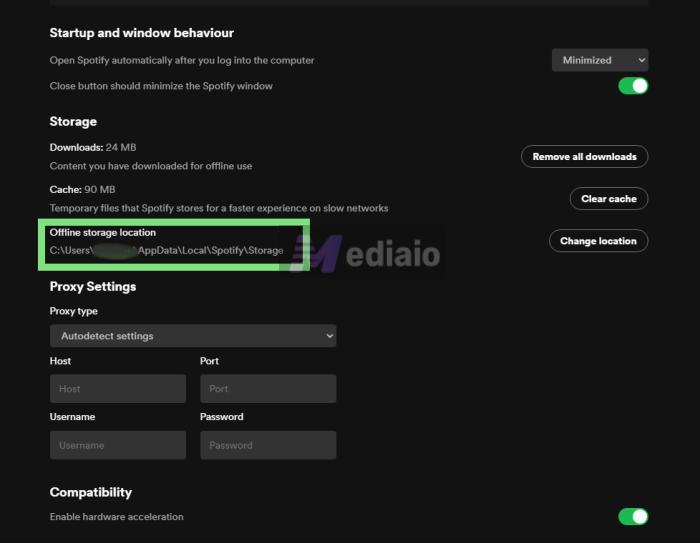
If you want to change where the Spotify app saves its downloads to a USB drive, here are the steps for Spotify desktop.
1. Insert the USB drive into your computer.
2. Run Spotify and click your avatar. Choose Settings from the drop-down menu.
3. Locate Offline storage location under Storage. Then, click Change location and select the USB drive as the storage destination.
How to Download Music from Spotify to USB for Free on Windows/Mac
A USB drive. If it’s a new one, format it to FAT32 for the widest compatibility across devices.
A Spotify music converter - MedVioo Audio Converter.
To export Spotify music to a USB drive, you need to save the Spotify songs as local files in an universal format like MP3 and MedVioo Audio Converter, helps with that.
MedVioo Audio Converter is a smart music converter that enables you to convert Spotify songs as MP3 files and save them directly to your USB drive. The whole Spotify to USB conversion process can be completed with the MedVioo interface. This is because MedVioo not only integrates the Spotify web player into its UI but also allows you to change the music output destination. Apart from easy-to-use features, MedVioo also ensures the high quality for converted music, achieving 320kbps high quality. Also, all metadata of song downloads will be retained. It provides a 14-day trial lets you download three minutes of any song, unlimited times.

How to Download Music from Spotify to USB for Free on Android/iPhone
A USB drive formatted to FAT32 or exFAT (recommended), which works well with iPhone and Android.
A USB adapter if your USB drive’s connector isn’t compatible with your phone.
Online Spotify converters or Spotify downloader apps.
To get Spotify music onto a USB drive with your phone, you need to save Spotify music as MP3 first and then copy them to USB.
Step 1: Download Spotify Music to MP3
You can complete the Spotify to MP3 conversion with the 2 ways below.
Way 1. Use Online Converter
There are many music converters online for your choice, which can download Spotify music as MP3 files. They are easy to access and free to use, but also come with unavoidable disadvantages.
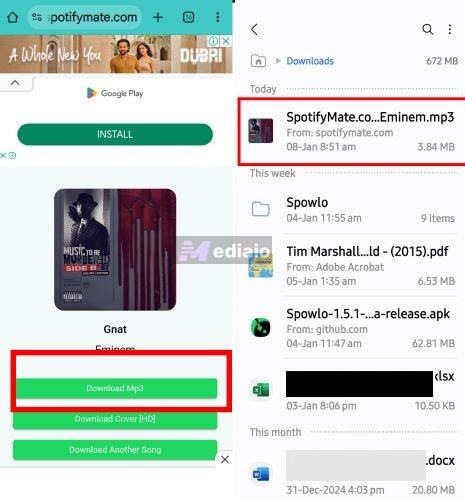
To download Spotify Music to MP3 online with SpotifyMate:
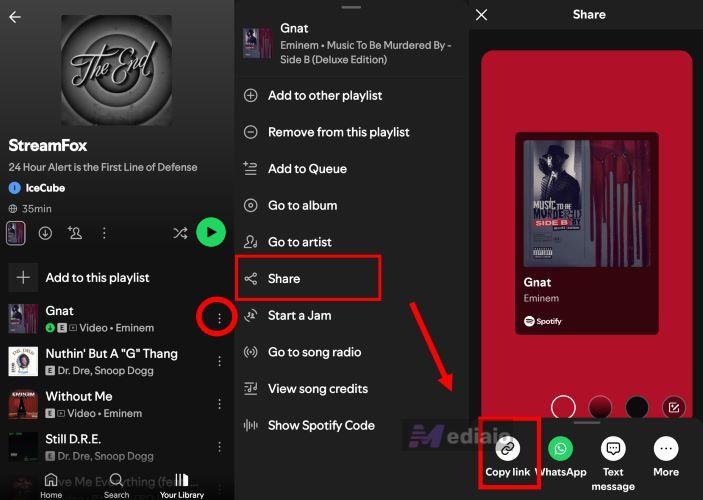
Step 1: Open Spotify on your phone and copy the link to a song or playlist.
Step 2: Go to spotifymate.io and paste the copied link. Next, press the Download icon.
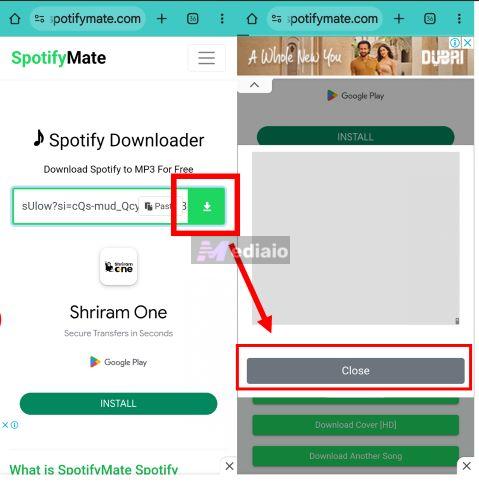
Step 3: Tap Download MP3 and the song will be exported to the Files app(iPhone) or File Manager(Android).
Way 2. Use Telegram Spotify Music Downloader Bot
Telegram, the messaging app hosts bots that can download Spotify playlists to MP3 files. These bots don’t pull music directly from Spotify. Instead, they rely on external sources like YouTube, to bypass Spotify’s DRM encryption.
But there’s a trade-off. Telegram bots don’t support downloading large playlists in batch. You’ll need to handle the downloads of smaller playlists, one step at a time. It’s not perfect, but it works for mobile users.
To convert Spotify songs to MP3 with Telegram App
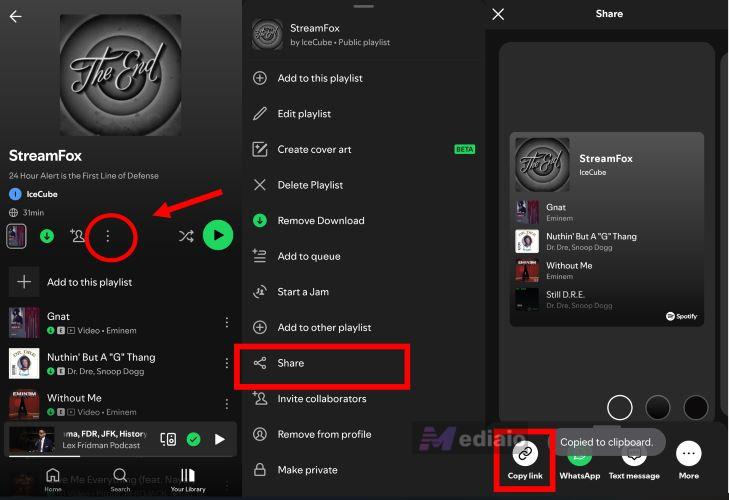
Step 1. Open Spotify. Choose a playlist you want to download, tap the three dots, select Share, and copy the link. Remember, DeezLoad2Bot supports up to 40 tracks per batch.
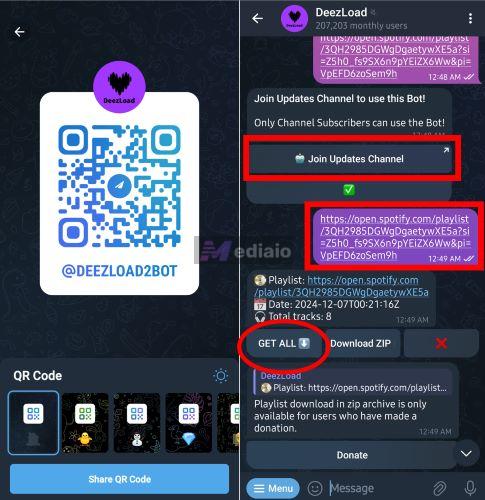
Step 2. Search for DeezLoad2Bot in Telegram or use the provided QR code to access it. Paste the playlist link into the chat and send it. The bot will ask you to join its updates channel, just do this.
Step 3. Then, return to the bot and resent the link. You’ll see two options: Get All, which is free but downloads individual tracks, or Download ZIP, available if you donate. Choose the preferred one.
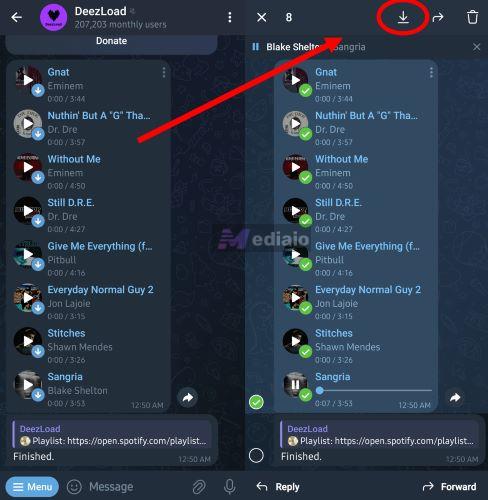
Step 4. Download each song first and then save each song download to your local storage. On Android, long-press and select the down arrow at the top to save all downloaded songs to your Music folder. On iPhone, tap the menu icon and choose Save to Files.
⁉Issues You May Encounter:
- Get the wrong version of the desired songs.
- Some songs in a playlist aren’t downloaded.
- The same bot suddenly stopped working, so you need to look for a new one.
Step 2: Move Spotify MP3 to USB
Once you have the files, moving them to a USB is easy. Connect the USB drive to your phone, open your file manager, select the MP3s and transfer them to the USB folder. That’s it.
Steps to Transfer Spotify Songs to USB on Android
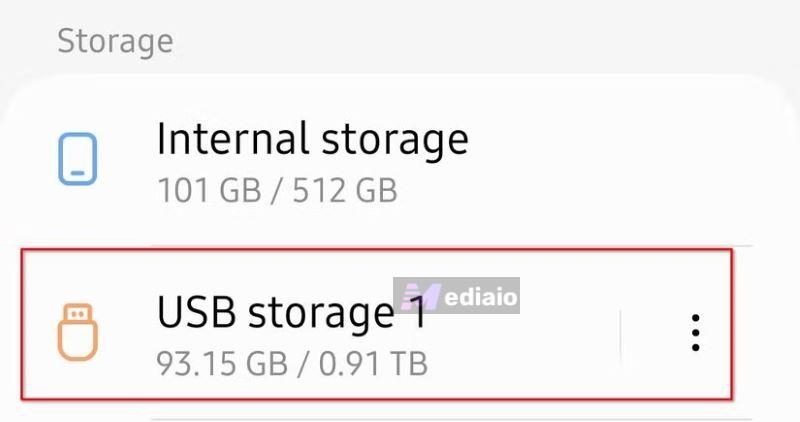
Step 1. Open your File Manager app and you’ll find the inserted USB drive under Storage.
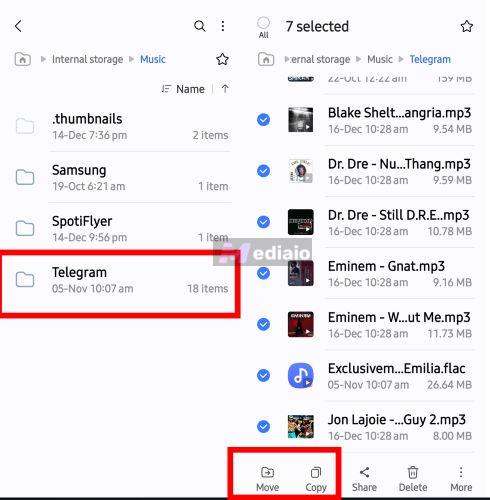
Step 2. Locate the folder where your music files are stored, commonly the downloads folder. Highlight the desired tracks by long-pressing one file and then selecting others to include in the transfer. Finally, tap Move or Copy from at the bottom menu.
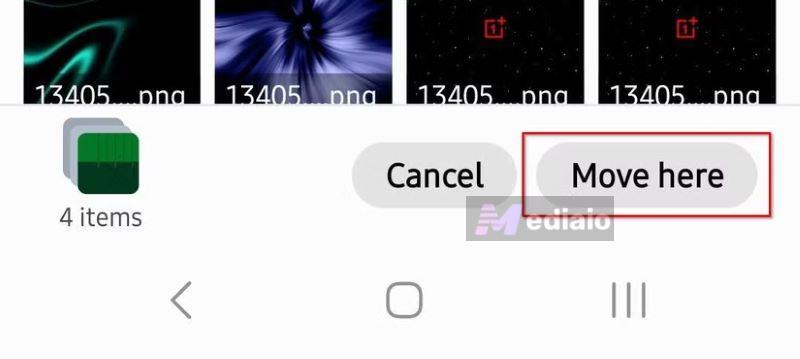
Step 3. Navigate to the USB drive storage folder or the root of the drive and tap Move Here or Paste to transfer the songs.
Steps to Transfer Spotify Tracks to USB on iPhone
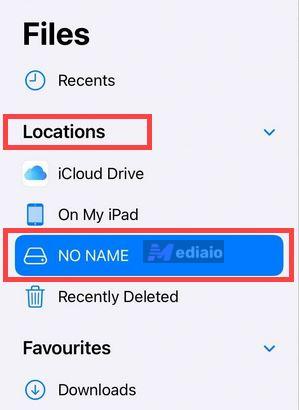
Step 1. Open the Files app. Under Locations, you’ll see the USB drive's name, meaning that the USB drive is ready to use.
Step 2. Go to the folder where your downloaded music files are stored. Select the desired music files you want to move.
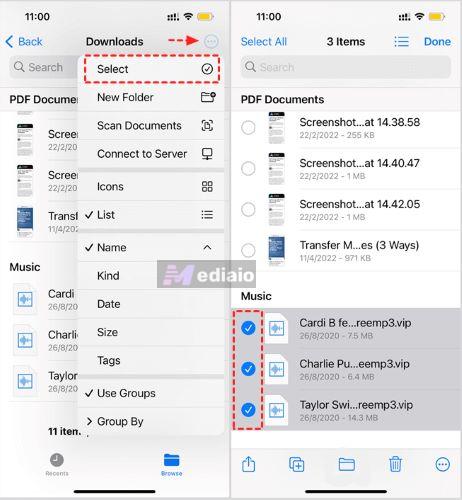
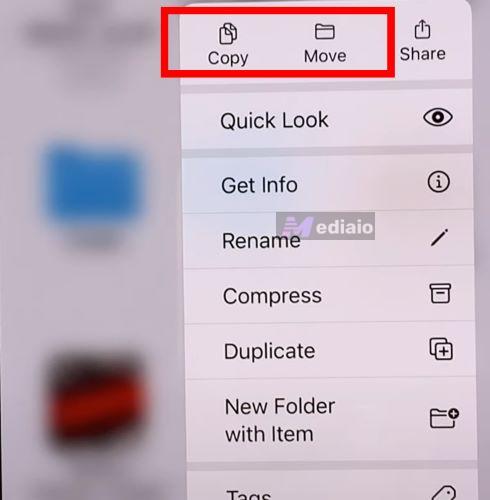
Step 3. Tap the three dots options after selecting the music files to bring up the actions menu. Choose Move if you want to transfer the files entirely to the USB, or Copy if you prefer to keep them on your iPhone as well.
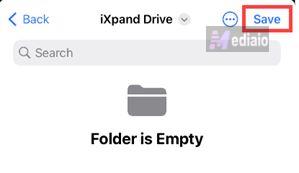
Step 4. Go to your USB drive under Locations. Choose the root of the drive or a desired folder. Then, tap Save or Paste.
How to Listen to Spotify Music in USB in Your Car
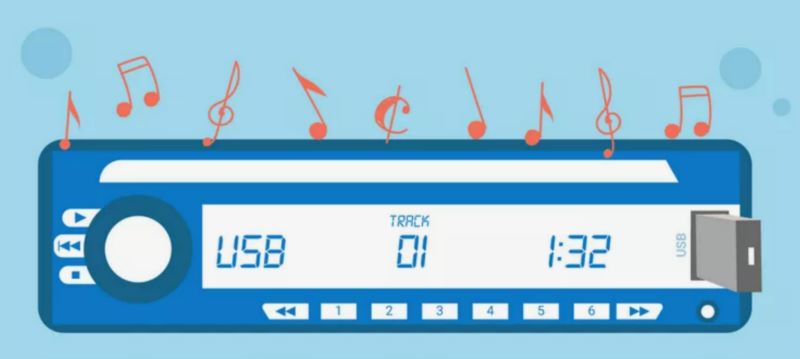
Playing music from a USB drive in your car is simple. Start by inserting the USB thumb stick into the car’s USB port. If there’s no port, you can use an auxiliary cable with a USB adapter.
Most car stereos will recognize the USB automatically. The songs should play without extra effort. But there’s one catch: most of the time your music must be in the root directory of the USB drive. Files hidden in folders sometimes may not be detected. So, move them to the root directory if needed.
Conclusion
That’s it. All steps to download Spotify music to a USB drive are introduced. You can do it on your computer or your phone. To save Spotify to USB easily, it’s suggested to use MedVioo Audio Converter on computer. MedVioo can download Spotify songs to USB in high efficiency and high quality.