

New to Pandora and not sure how to remove stations you accidentally added? Here, you can learn how to delete stations on Pandora, whether you’re using the Pandora app on your phone or TV, or the Pandora web player on your computer. You’ll also find out what to do if you can’t delete Pandora stations. Without further ado, let’s get started.

Here, you can dive deep into Pandora Mod APK and download the latest version for free music downloads.
More DetailsHow Many Pandora Stations Can You Create?
Sometimes, you need to remove Pandora stations because you have reached the maximum limit and can’t add new stations unless you reduce the number of existing ones. So, what is the maximum number of stations you can add on Pandora?
Pandora only allows up to 250 custom stations on mobile or computer. On TVs (Roku, Fire TV, etc.), it’s usually capped at 100, sometimes even fewer, if you’re on older models.

How to Delete Stations on Pandora on Computer
To delete a station on Pandora, you need to log in to the web version of Pandora first and then follow the steps below.
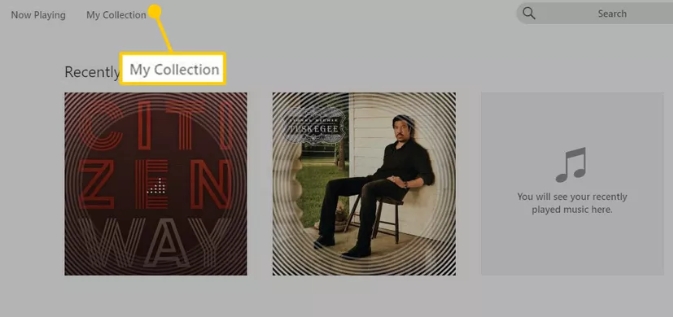
Step 1. Click on the My Collection tab at the top of the screen. This displays all your saved stations, podcasts, and playlists.
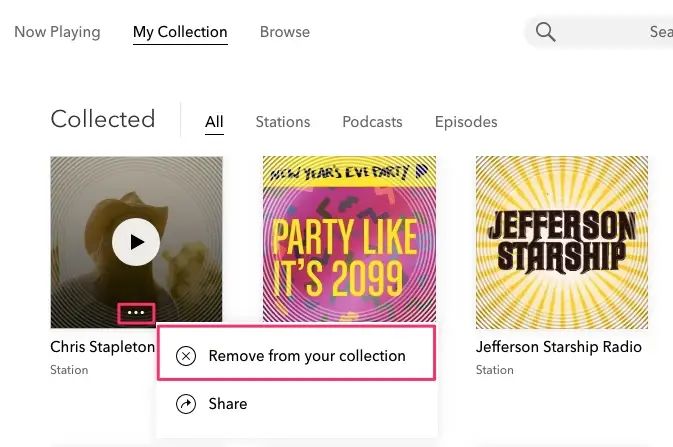
Step 2. In the Stations section, move your mouse over the station you want to delete. A small three-dot icon will appear near the middle bottom of the station card. Click on it.
Step 3. From the drop-down menu, choose Remove from your collection. The station will disappear instantly from your library across all devices connected to your Pandora account.
Can You Delete Multiple Stations on Pandora?
No, unfortunately, Pandora doesn’t support deleting multiple stations at once, whether on mobile or desktop. Instead, you need to repeat the steps above to remove each unwanted station one by one.
How to Remove Stations from Pandora iPhone/iPad/Android
There are multiple ways to delete or remove a station on Pandora, whether you’re using an iOS or Android device. The interface across both apps is quite similar, so the following steps will work smoothly, no matter which platform you’re on.
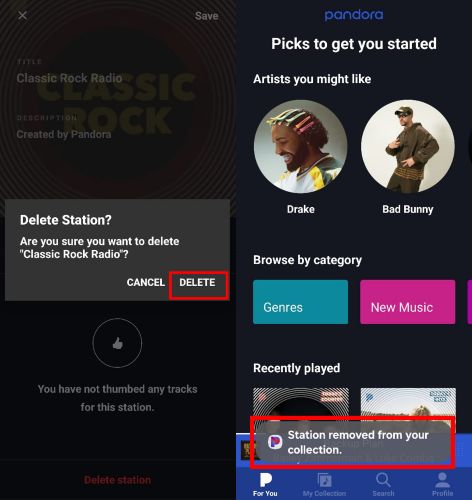
Way 1. Via the Station Page
Step 1. Launch the Pandora app. At the bottom of the screen, tap My Collection to see your saved stations. Scroll through the list and locate the station you want to delete.
Step 2. Once opened, you’ll see the station artwork and playback options. Tap the Edit icon (a small pencil or i icon if you’re on iOS) located just beneath the station image.
Step 3. Choose the Delete Station option that appears in red.
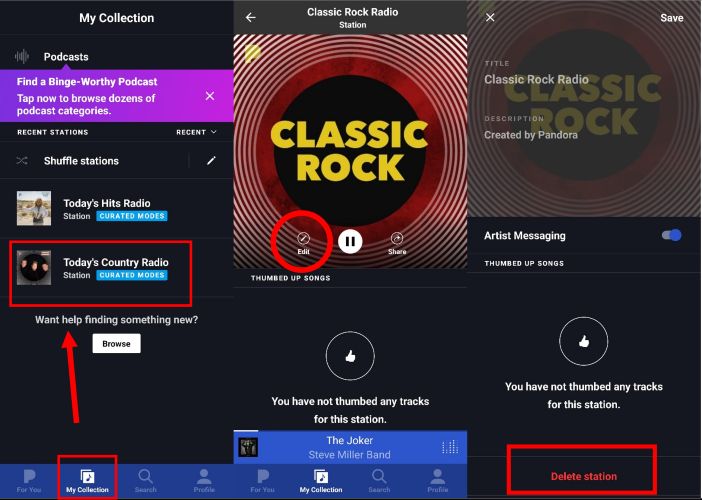
Step 4. When the confirmation message pops up, tap Delete again to confirm.
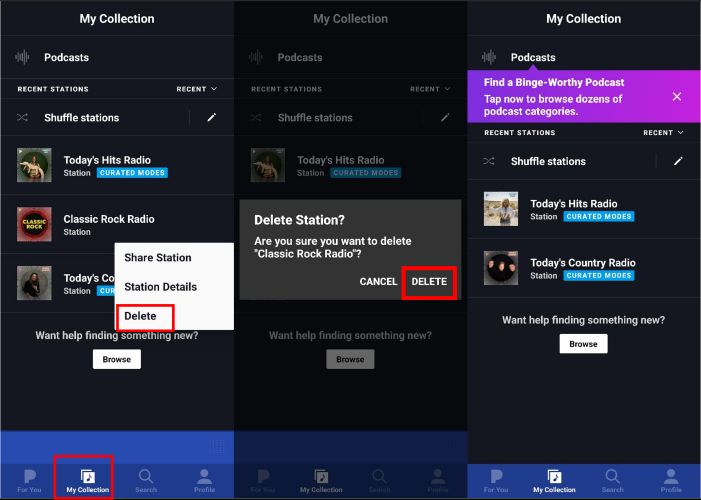
Way 2. Via My Collection Screen
You can also remove a station without opening it.
Step 1. While still on the My Collection page, just long-press the station if you're using Android. If you're on iOS, swipe the station to the left.
Step 2. You’ll see the Delete option right there. Tap it, confirm, and the station will be gone.
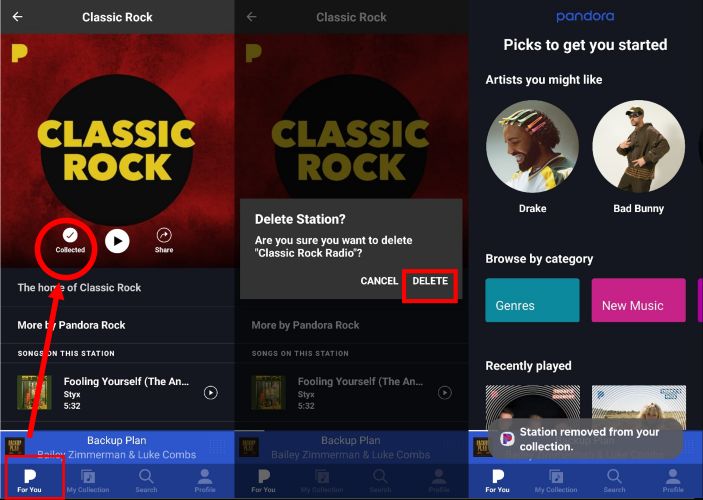
Way 3. Via For You Section
Another method shows up while browsing the For You section.
Step 1. If a station you've already added appears under For You, tap to open it.
Step 2. Right under the station name, you’ll notice a button marked Collected. Tap it once and it’ll ask if you’d like to remove the station from your collection. Once confirmed, you’ll get a notification saying Station removed from your collection.
How to Delete Stations on Pandora on TV
Below are the methods for Roku and Fire TV, which also apply to Android and Samsung smart TVs.
On Roku
On newer Roku models, you can remove Pandora stations directly from the TV app. However, some older Roku versions won’t show the delete option within the Pandora interface. In such cases, you’ll need to remove the station using the web or mobile app and the changes will sync to your Roku device.
So, if you're using a supported model, follow these steps:
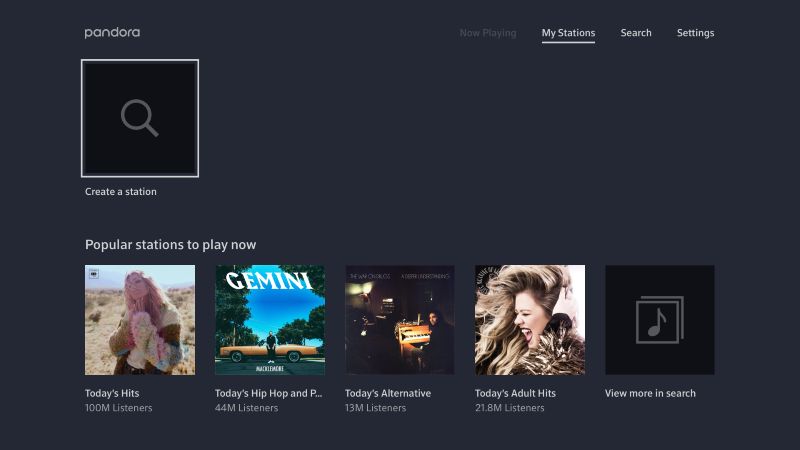
Step 1. Open the Pandora channel on your Roku TV. Once it loads, use the remote to navigate to the My Stations or Search > Stations section, whichever you prefer.
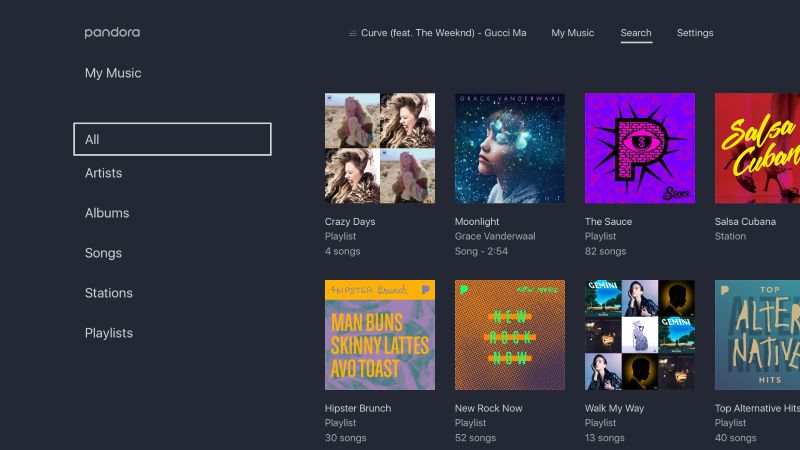
Step 2. Use the arrow keys to highlight the station you want to remove. You’ll see it get selected on the screen.
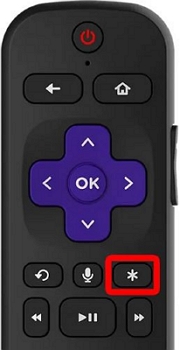
Step 3. Now press the star (*) button on your Roku remote. This opens the options menu for that station.
Step 4. From the menu that appears, select Remove station or Delete depending on the Roku model/version. Confirm your choice.
That’s it. The station will disappear from your Roku and since Pandora syncs across devices, the deletion will reflect on your mobile and web versions too.
On Firestick
On Fire TV and most Android TV devices, the Pandora app interface allows you to delete a station directly while it’s playing. You don’t need to leave the playback screen or navigate elsewhere.
Once you've launched the app, select and start playing the station you want to remove. Here are the steps:
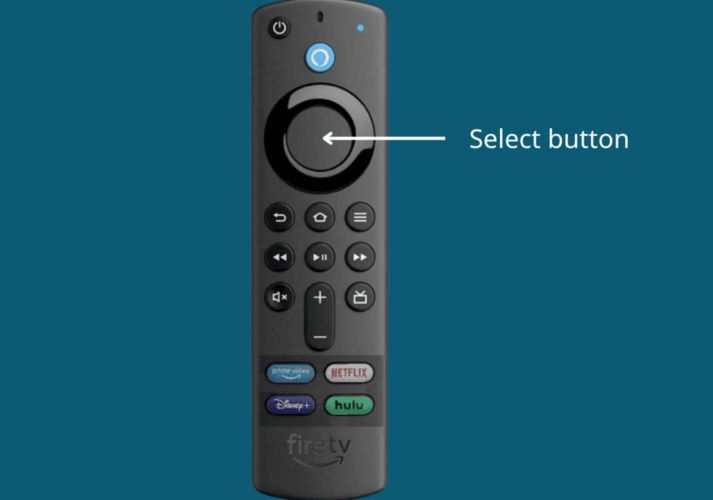
Step 1. Use the directional pad on your remote to highlight the album artwork of the currently-playing track.

Step 2. Press the Select button (center button on Fire TV remotes) to bring up more options. This will display a menu on the screen with actions related to the station.
Step 3. From that list, choose Delete Station or Remove from My Music depending on what appears on your version of the app. Confirm the prompt and the station will be removed.
This method only applies to Pandora Radio stations—playlists will show the same option here.
Why Can't I Delete Stations on Pandora? [Fixed]
Can't delete Pandora stations? Don’t worry, as the issue can usually be fixed easily. Here are three common solutions you can try.
You May Also Need
Fix 1. Check Now Playing
Ensure the station you can’t delete isn’t the one currently playing, because Pandora doesn’t allow you to remove a station while it’s playing.
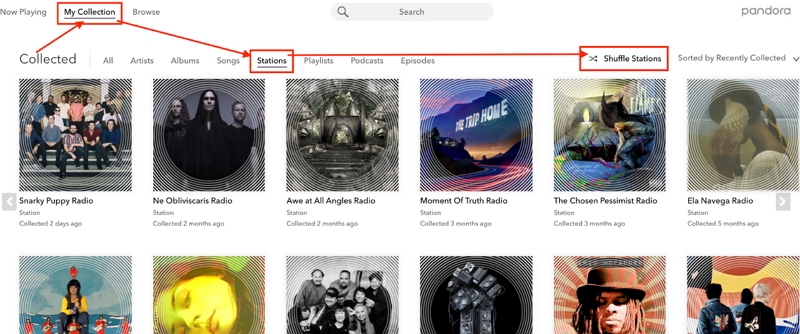
Fix 2. Turn off Shuffle
If you have enabled Shuffle on the station you want to delete, you won’t be able to remove it. Therefore, disable the Shuffle feature and check whether you can delete the station normally.
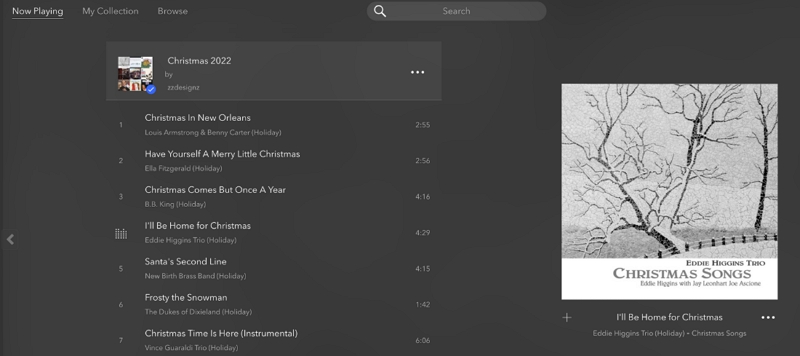
Step 1: Open Pandora web player and switch to My Collection.
Step 2: Choose Stations and click Shuffle Stations to disable it.
Fix 3. Clear Pandora Bookmark
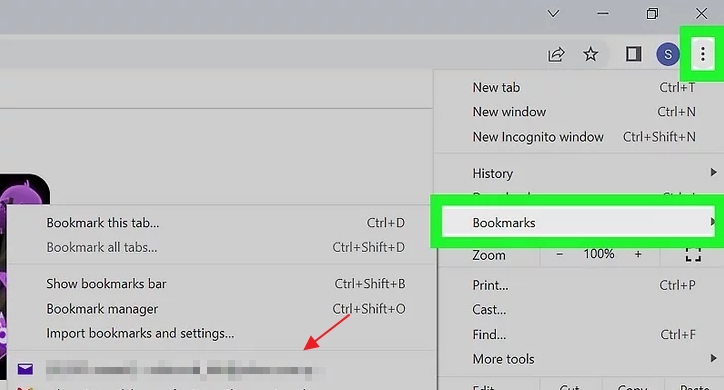
If you have removed a station on the Pandora web player but it keeps reappearing, the current playlist might be saved as a browser bookmark. Simply check your browser bookmarks and make sure to keep only https://www.pandora.com.
Step 1: On your browser, such as Chrome, click the menu icon at the top-right corner of the page.
Step 2: Select Bookmarks and you will see all the sites saved in your browser.
Step 3: Check if there is a bookmark for the Pandora station you deleted. If there is, remove the bookmark.
How to Back up Pandora Stations Before Deletion
Once you delete a Pandora station, it’s gone for good. So, before clearing older stations, it’s a good idea to back them up. Backing up stations is also useful if you unsubscribe from Pandora Premium but don’t want to lose your downloads. Mediaio Audio Converter provides an easy way to back up your music by exporting songs locally.
Mediaio allows you to download as many Pandora stations as you want in MP3, AAC, FLAC, or even ALAC format. You can batch-download entire stations in one go and the integrated Pandora player makes this process effortless—just select, download, and save on your computer. Once downloaded, your Pandora stations are neatly saved on your computer. Song titles, artist names, album covers, and even the original track order remain intact, exactly as you had them on Pandora.
Steps to Back up Pandora Stations Using Mediaio
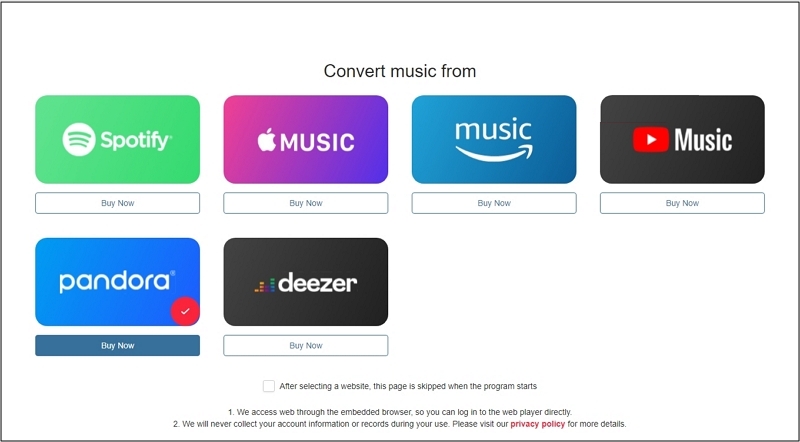
Launch Mediaio Audio Converter on your Windows or Mac system. On the home screen, choose Pandora as your music source to begin.
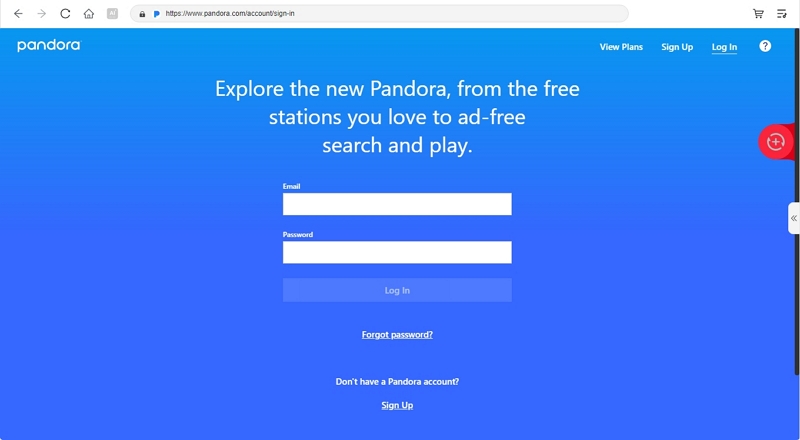
Inside the integrated Pandora browser, log in securely using your existing Pandora credentials. You’ll now see your personalized stations and music recommendations just like in the official app.
Browse through your stations and pick the one you'd like to save. Then, click the red plus icon in the right side to add the full station to your download list. You can repeat this for multiple stations.
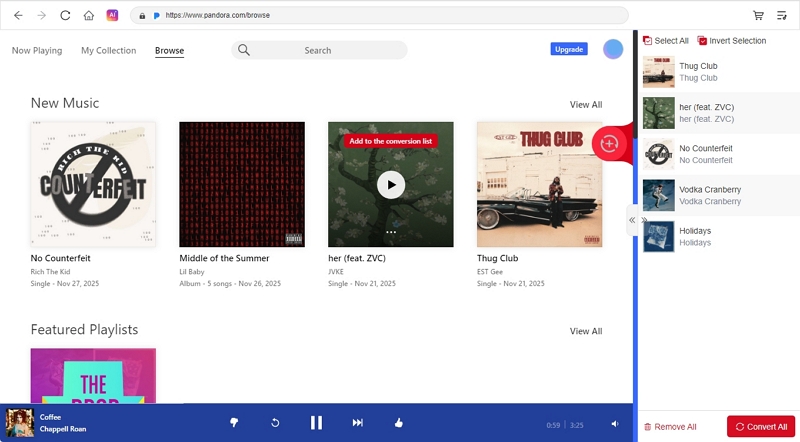
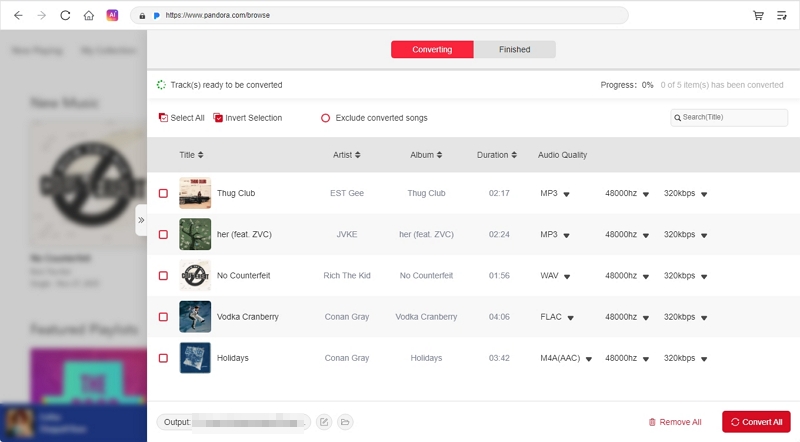
Once your queue is ready, access the conversion window. Go to the format panel. Choose how you'd like the files saved, in MP3, M4A, FLAC, WAV, or ALAC and select the audio quality (128kbps, 256kbps, or 320kbps). When satisfied, click Convert All to start the download.
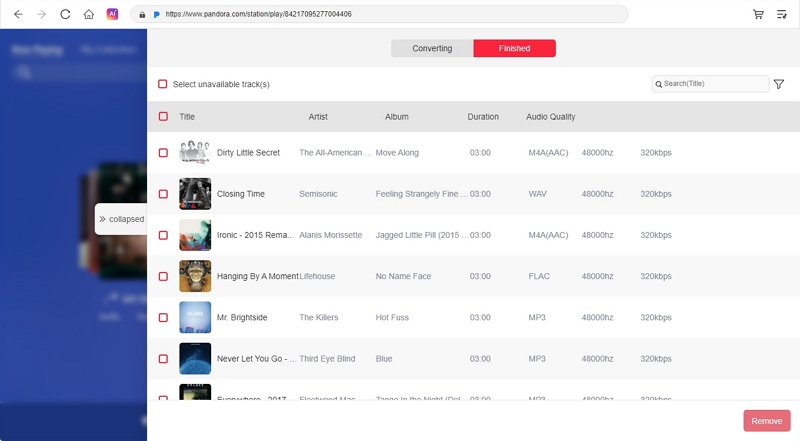
After conversion, your entire Pandora station will be stored in a neatly arranged folder. Each song retains its original track title, artist name, album metadata, and even the original order in the collection, allowing you to listen to them as if they were on Pandora.
If you use Mediaio to download Pandora music without premium, please only use the downloaded songs for personal purposes.
FAQs
Once you delete a Pandora station, it will be gone for good and Pandora doesn’t offer any way to restore deleted stations. However, one Redditor suggested a helpful workaround: if you accidentally remove a station, head to your Profile, open the Activity tab, and look for the last time you listened to that station. From there, you might be able to re-add it to your collection.
Also, you can try recreating the deleted station again using the same song or artist. However, the new station won’t be exactly the same as the deleted one but only its thumb ratings will be preserved.
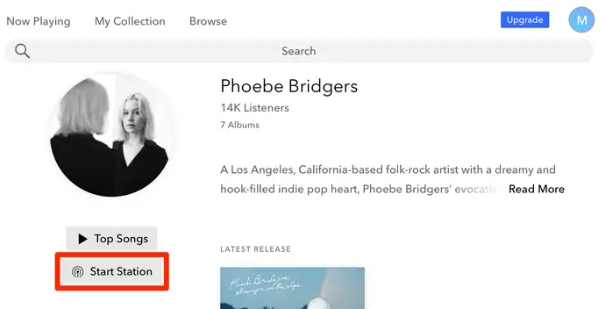
1. Go to Pandora web player on your desktop.
2. Search and access the desired station.
3. Click Start Station and it will be added to your collection.
Wrap Up
Knowing how to delete a station on Pandora isn’t a choice for enthusiasts’ listeners. It becomes necessary once you reach the station limit or want to clear out older, unwanted streams. However, if you value your past listening sessions, backing them up is the smarter way to go.
Mediaio Audio Converter allows you to download any number of stations, even without Pandora Premium, in your preferred format like MP3, AAC, or FLAC. The original track order stays intact and the audio quality remains top-tier, giving you a permanent version of your Pandora favorites on your computer.