

Need to convert AAC to MP3 for playback on an old MP3 player or car stereo? This guide will show you how to do it. You’ll find the best offline converters on desktop or mobile and even quick online tools, so you can choose the method that works best for your needs. Alongside that, we’ll show you how to convert AAC files from Apple Music to MP3 and save them on your computer for personal use.
AAC vs MP3: What's the Difference
AAC and MP3 are both lossy audio formats built for the same job: compressing audio to save space and make music easy to distribute.
- MP3 arrived first, back in the early '90s, and became the default for digital music.
- AAC (often referred to as M4A - the file extension most people see) came a few years later and actually has a more efficient compression algorithm.
So yes, AAC squeezes out better sound quality at the same bitrate than MP3, but MP3 was preferred because of its near compatibility. That gap has been closed now, as nearly every device that has come to market in the last 15 years supports AAC natively. Still, MP3 has the compatibility edge when it comes to support on older devices, legacy software, and other use cases.
So, the real question isn't which format is better, but which one suits your use case. We've covered the differences in detail in our MP3 vs M4A guide and also summarized the information in a quick comparison table below.
Holds onto high frequencies better.
A 256 kbps AAC file often matches or beats a 320 kbps MP3. Older codec — it feels muddy and shows artifacts below 320 kbps.
Note:Converting AAC to MP3 won't improve the quality of the original AAC file. Simply put, when you choose to convert a 64 kbps AAC to a 320 kbps MP3, it will only sound as good as the 64 kbps AAC.
The difference sounds smaller, but that’s 190 MB more across a 100-song library.
Native to the Apple ecosystem.
The default for YouTube, Apple Music and most streaming platforms and radio stations. Still the most universally compatible format that can be played on almost all devices, from decade-old CD/MP3 players to brand-new laptops.
The safest fallback when compatibility matters more than efficiency.
How to Convert AAC to MP3 with Offline App
Whether you want to convert one or a few hundred AAC files, using offline converters is usually the better choice. For one, they're faster since there's no uploading or downloading involved. Also, you don't have to upload your AAC files to a third-party server, which protects your privacy effectively if you are converting sensitive audio.
Now, let’s start with the best options for both computers (Windows or Mac) and mobile devices (iPhone or Android).
Convert AAC to MP3 on Mac/Windows
On desktop, we have included four methods. Which one fits you comes down to a few questions — whether you’re using Windows or Mac, whether you’re looking to convert one song or your whole library, and whether you want it done in seconds or need finer control while converting.
Here's how the four stack up before we get into the details of each. So you can pick the tool that best fits your needs.
 Add AAC files, pick a preset and get MP3 file with no learning curve.
Custom encoder, bitrate, sample rate, and channel controls.
GPU-accelerated without a quality trade-off.
Hundreds of files at once, folder structure and tags stay intact.
Fastest of the four with GPU-accelerated (Nvidia, AMD, Intel or Apple).
Add AAC files, pick a preset and get MP3 file with no learning curve.
Custom encoder, bitrate, sample rate, and channel controls.
GPU-accelerated without a quality trade-off.
Hundreds of files at once, folder structure and tags stay intact.
Fastest of the four with GPU-accelerated (Nvidia, AMD, Intel or Apple).
 Conversion sits inside the media menu.
Less intuitive than a dedicated app like Eassiy.
Adjustable bitrate and sample rate with a few basic audio filters.
ID3 tags get wiped during conversion.
Break down past 10–15 files, often producing empty 0 KB outputs.
Quick for a handful of tracks, unreliable once you scale up.
Conversion sits inside the media menu.
Less intuitive than a dedicated app like Eassiy.
Adjustable bitrate and sample rate with a few basic audio filters.
ID3 tags get wiped during conversion.
Break down past 10–15 files, often producing empty 0 KB outputs.
Quick for a handful of tracks, unreliable once you scale up.
 Built for editing first.
There's more to learn than a straight converter.
Full manual control over bitrate mode, sample rate, and channels.
Support editing like noise removal, EQ, tempo before export.
Only through Macros, which will take at least a one-time setup. After that, it can run unattended.
Slower for hands-on editing.
Batch runs are steady but not accelerated.
Built for editing first.
There's more to learn than a straight converter.
Full manual control over bitrate mode, sample rate, and channels.
Support editing like noise removal, EQ, tempo before export.
Only through Macros, which will take at least a one-time setup. After that, it can run unattended.
Slower for hands-on editing.
Batch runs are steady but not accelerated.
 Effortless for songs already sitting in your library.
Bitrate presets up to 320 kbps, no encoder or effects options.
Multiple songs or a whole folder, but support DRM-free AAC only.
Moderate with no acceleration and tied to Apple's own library workflow.
Effortless for songs already sitting in your library.
Bitrate presets up to 320 kbps, no encoder or effects options.
Multiple songs or a whole folder, but support DRM-free AAC only.
Moderate with no acceleration and tied to Apple's own library workflow.
Option 1. Use Eassiy Video Converter Ultimate
Eassiy Video Converter Ultimate provides the fastest audio converter tool on the market, not only in this list. In fact, it is rated as the best tool for high-quality audio conversion, as its dedicated audio conversion feature supports conversion 60x faster than any other tool. Whether you’re converting a single AAC file or a few hundred to MP3, the conversion will be done at the same high speed.
Eassiy also keeps your ID3 tags intact in the final MP3 file, meaning that the original title, artist, album and artwork are preserved. This way, you're not stuck re-tagging every song after AAC to MP3 conversion. Moreover, Eassiy keeps your folder structure and names as they were, so an organized library stays organized.
Steps to Convert AAC to MP3 with Eassiy
Step 1. Download and install Eassiy Video Converter Ultimate on Windows or Mac.
Step 2. Open the app and click Add Files to import your AAC files — one song or your whole music folder at once.
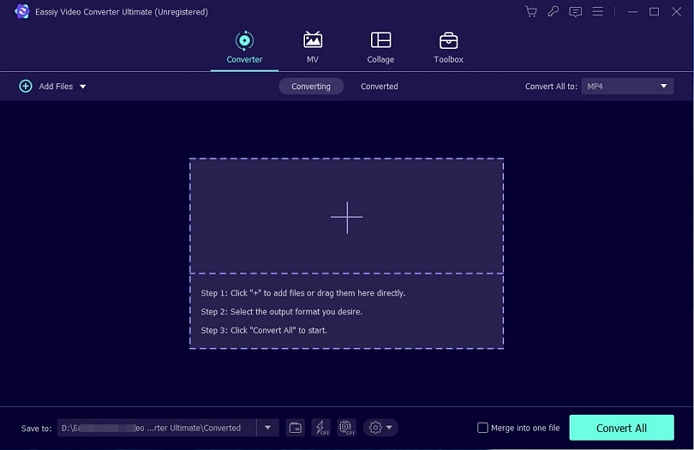
Step 3. In the Converter tab, select the Output Format option at the bottom-left. Then, switch to the Audio tab and pick MP3.
Step 4(Optional). You can choose from a quality preset — Same as Source, High Quality (320 kbps), Medium Quality or Low Quality.
Tip: High-quality (320 kbps) is recommended when converting 256 kbps AAC to MP3.
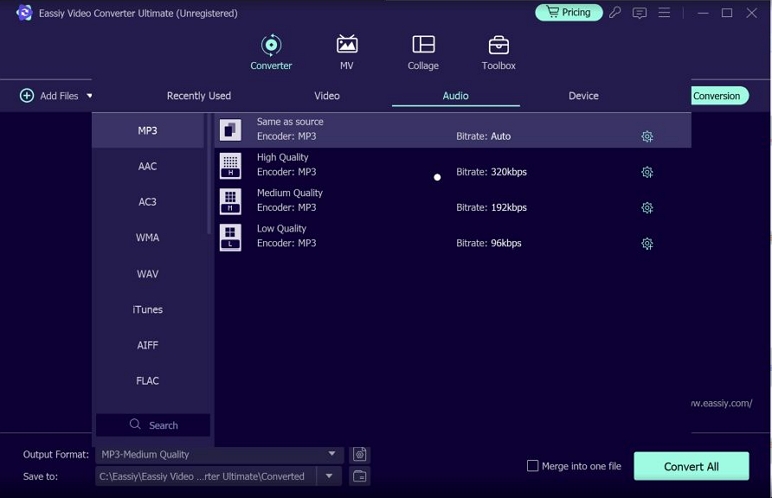
Besides, you can click the gear icon to open Edit Profile and set your own advanced rules: Encoder, Sample Rate, Channel, and Bitrate (say, 320 kbps). You can save this profile for later use.
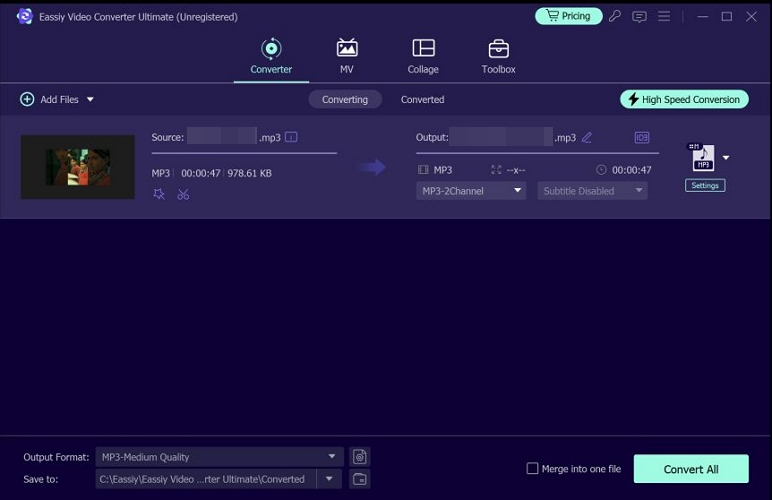
Step 5. Set where the files should go using Save to at the bottom left.
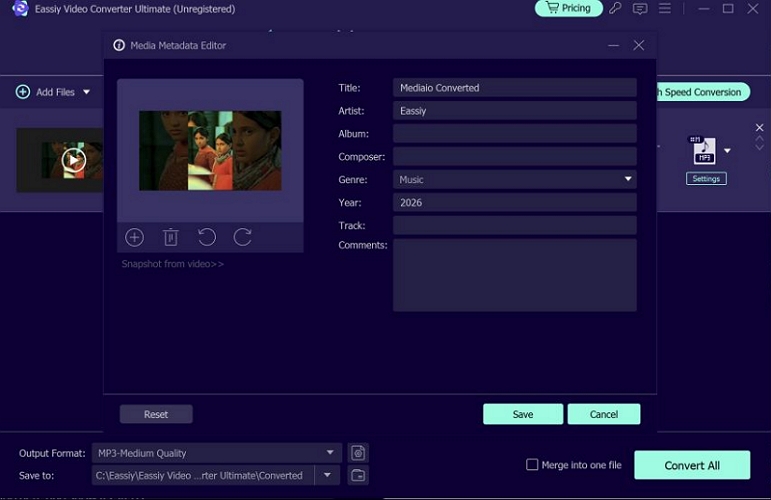
If needed, click the metadata icon on a file. This will open the Media Metadata Editor. Here, you can edit any ID3 field if needed. So you can swap Title, Artist, Album, and even cover art while converting. This is extremely handy if you're converting audiobook chapters or files with missing tags.
Step 6. Click Convert All. Every file in the batch will convert at high speed and will land in your output folder in MP3 format with proper organization.
Option 2. Use VLC
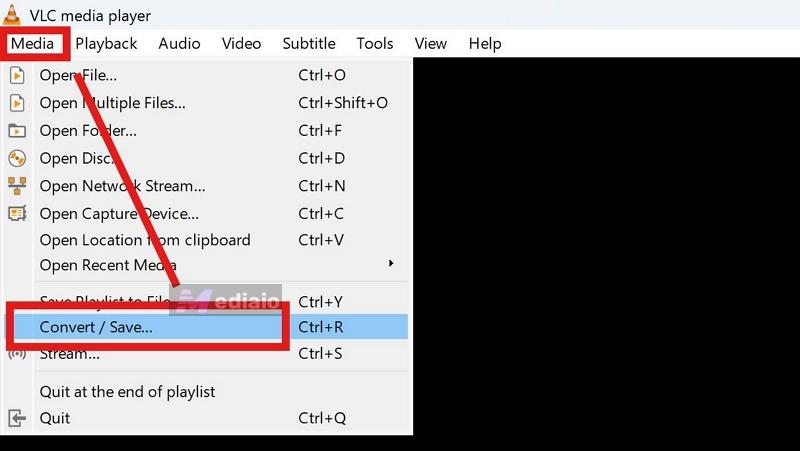
VLC, aside from being an impressive media player, doubles as a capable audio converter. It can handle AAC to MP3 directly from its Convert/Save menu with no extra codec packs needed. You can get real control over the output too, such as adjustable bitrate, sample rate, and channels and a few built-in audio filters like volume normalization.
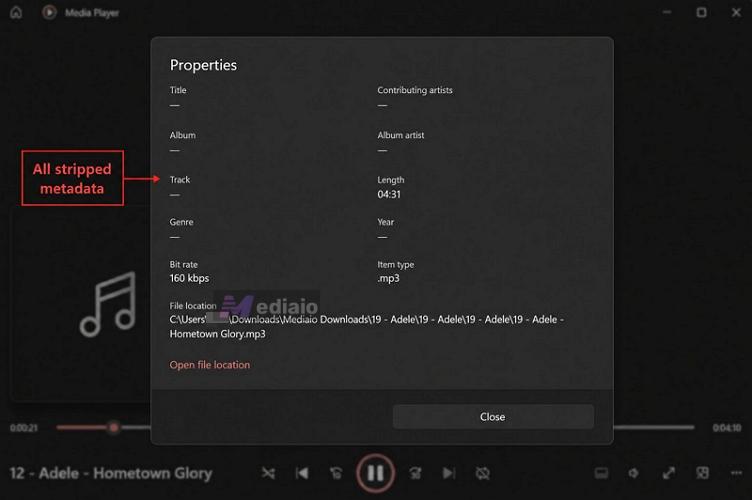
However, the catch is metadata. VLC will strip out all ID3 tags during conversion, so titles, artist names, and cover art won’t carry over — only the song title as a filename will survive.
Another downside is that VLC’s conversion feature is not built for scale: batch conversion technically works, but VLC starts choking and spitting out broken 0 KB files once you load more than 10–15 tracks at a time.
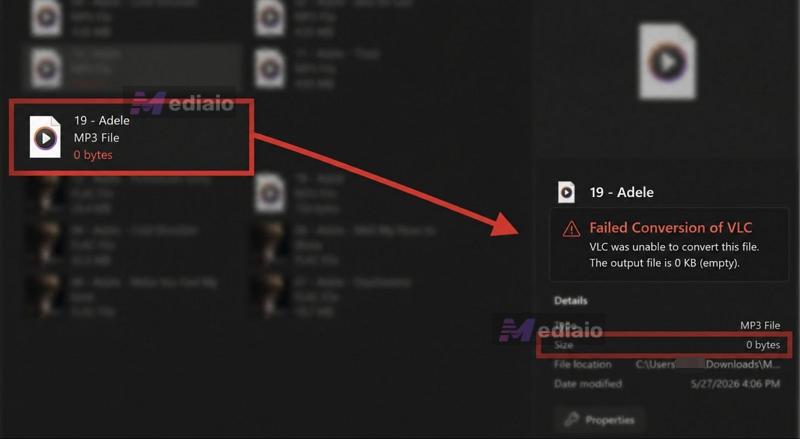
So it’s a fine pick for converting a handful of songs quickly when tags don’t matter, but not something to lean on for a real library. For the full walkthrough with menus and screenshots, check out our detailed VLC to MP3 guide.
Option 3. Use Audacity
Audacity is an audio editor first and a converter second and that distinction matters. If you just need to batch convert AAC to MP3 with zero changes, Eassiy will get you there faster.
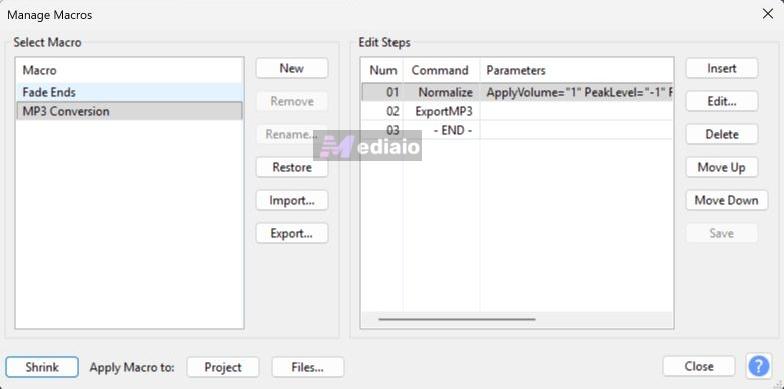
However, if you want to edit the audio before it becomes an MP3, such as trimming it down, stripping out background noise, adjusting the tempo, layering in an effect, Audacity is built exactly for that. Better still, when converting a large number of files, Audacity's built-in Macros feature will let you export hundreds of AAC files to MP3 in one go, though you need to make some settings before the export.
Overall, Audacity is suitable when you need real editing power alongside conversion(trim, noise removal, effects, tempo changes).
Steps to Convert Single AAC to MP3 in Audacity:
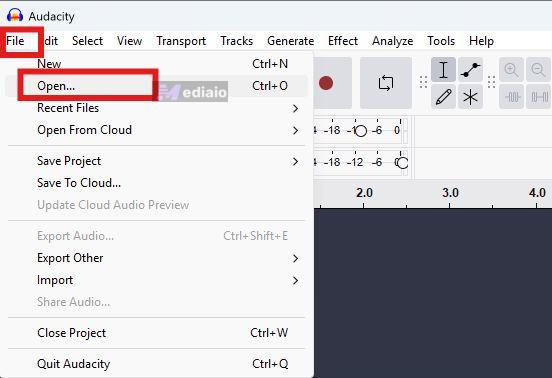
Step 1. Open Audacity. Click File > Open (Ctrl+O on Windows/Cmd+O on Mac) and select your AAC file.
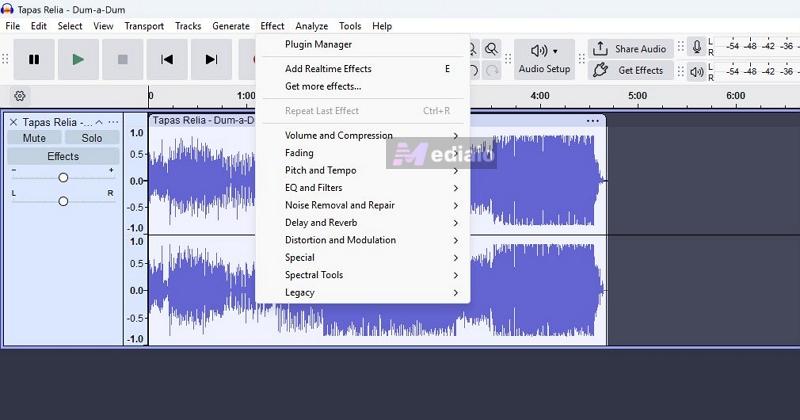
Apply any edits before converting. Open the Effect menu and pick whatever the track needs — Noise Removal, Volume and Compression, Pitch and Tempo, and so on.
Step 2. Once you’re happy with it, click File > Export Audio.
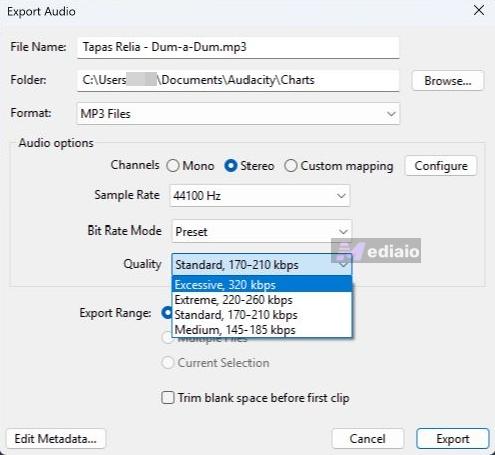
Step 3. In the Export Audio window, confirm the File Name and Folder, then set Format as MP3 Files.
Step 4. Under Audio options, you can set Channels (Stereo or Mono), Sample Rate, Bit Rate Mode, etc.
Step 6. Use the Edit Metadata option to fill in Title, Artist, Album, and other tags by hand.
Step 7. Click Export. Audacity will process the file and save it as an MP3 in your chosen folder.
Convert AAC to MP3 in Batch with Audacity:
- Open Tools > Macros.
- Choose to create a macro with an Export as MP3 command.
- Then go to Tools > Apply Macro > Palette.
- Select your macro, click Files, and select every AAC file you want converted.
- Audacity will open, convert, and export each one automatically. It will also preserve each file’s original tags on its own.
Option 4. Use iTunes/Apple Music
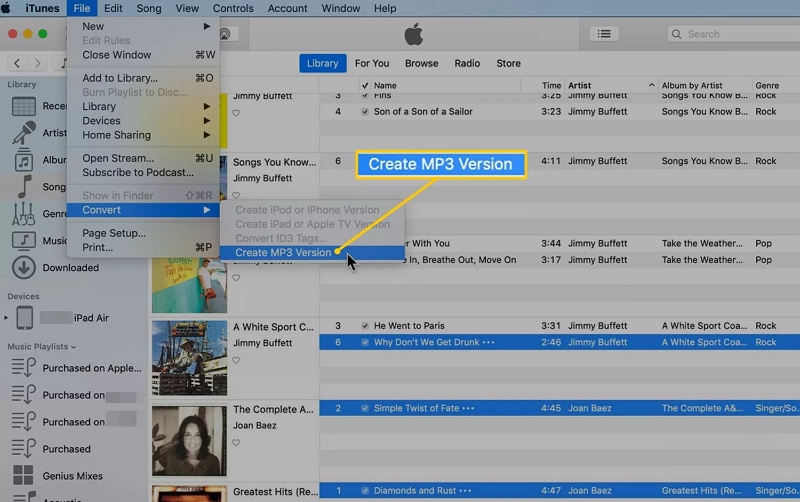
If your endpoint is really just getting MP3 copies into your Apple Music or iTunes library — for GarageBand or syncing to your older iPod, you don’t need a separate converter at all. This is because both iTunes and Apple Music have a built-in Create MP3 Version feature, allowing you to convert your own AAC tracks into MP3 format while keeping the original AAC files intact.
One limitation upfront: This only works on DRM-free AAC files, like your own purchases or ripped files. It will not allow you to convert Apple Music streaming music or even older protected AAC purchases (pre-2009 iTunes Store).
Steps to Turn AAC into MP3 with iTunes/Apple Music:
The steps are nearly identical whether you’re on iTunes for Windows or the Apple Music app on Mac.
Step 1. Open your import settings.
- On Mac: Open the Apple Music app, go to Music > Settings (older macOS versions label this Preferences). Then click the Files tab.
- On Windows: Open iTunes, go to Edit > Preferences. Click the General tab.
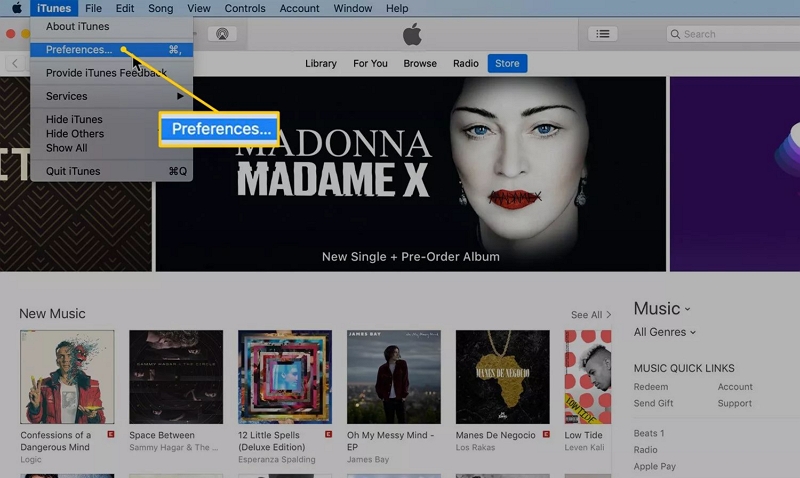
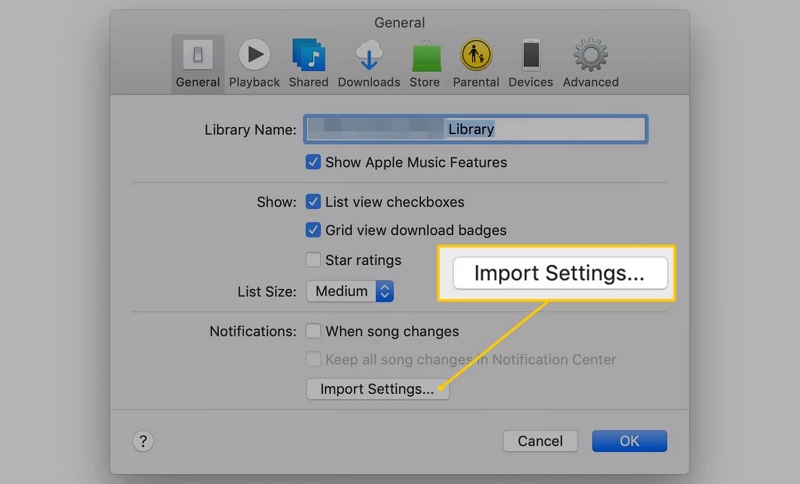
Step 2. Click Import Settings.
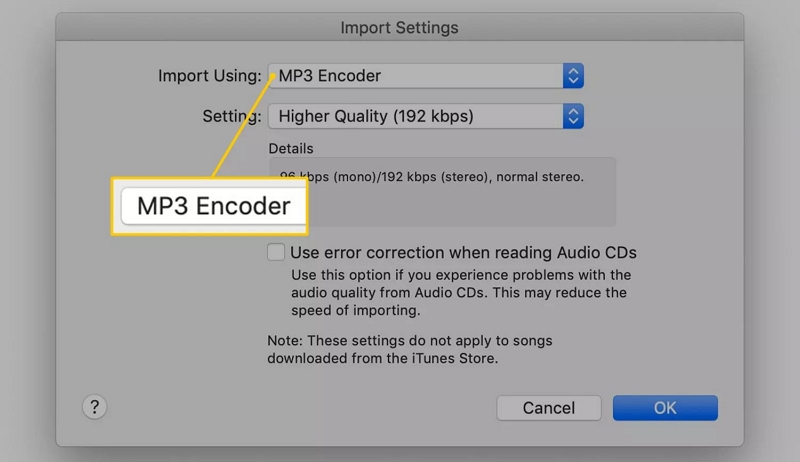
Step 3. Click the drop-down next to Import Using and select MP3 Encoder.
Step 4. Set your quality. Choose Higher Quality or select Custom to lock in a specific bitrate like 256 or 320 kbps.
Step 5. Click OK to save the export settings.
Step 6. Go back to your library, select the AAC song you want to convert. You can select multiple at once.
Step 7. Go to File > Convert > Create MP3 Version.
The MP3 copy will appear next to the original AAC file in the same folder. You can delete the AAC copy afterward.
Convert AAC to MP3 on Android/iPhone
Mobile apps get the job done, but you should set expectations low before you install one. This is because they don’t give studio-grade granular controls or support true batch conversion. To sum up, they are only suitable for a quick, one-off conversion. Let’s look at a tool on both Android and iOS.
On Android
Video to Audio Converter, Trim by Designshark is a free, ad-supported converter on Google Play. It can convert between many audio formats and supports AAC-to-MP3 conversion. It comes with a built-in trimmer/cutter and lets you control bitrate, sample rate, and channels, etc.
AAC to MP3 Conversion on Android:
Step 1. Install Video to Audio Converter, Trim from the Play Store.
Step 2. Open the app and tap the + icon to add the AAC song.
Step 3. Choose MP3 as the output format.
Optional: Trim the clip or adjust bitrate/fade effects before converting.
Step 4. Tap Convert. Then save the output to your chosen folder.
On iPhone
MP3 Converter -Audio Extractor by HappyTimes Tech Co., Ltd. is the more established option for iPhone users. Much like the Android pick above, it's best treated as a fast, single-file tool rather than a batch workhorse.
The free version (runs with ads) covers basic conversions fine, but richer import/export options and unlimited use are included with the MP3 Converter Pro Unlimited subscription (US$6.49/year).
AAC to MP3 Conversion on iPhone:
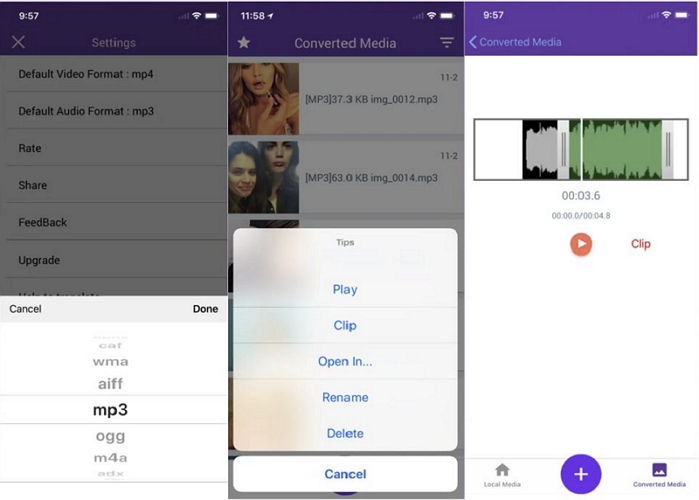
Step 1. Download MP3 Converter -Audio Extractor from the App Store.
Step 2. Open the app and tap the + icon at the bottom.
Step 3. Choose where to pull the file from — Files or iCloud and select your AAC file.
Step 4. Once it's imported, tap the file, scroll to Output Format and select MP3.
Step 5. Tap Convert.
Step 6. Tap Export, scroll down to Save to Files and choose where to save it.
That’s it. You can long-press the new file and tap Get Info. It'll now show as MP3 instead of AAC.
How to Convert AAC to MP3 with Online Converter
If you'd rather skip installing anything, consider using an online converter that gets the job done straight from your browser on desktop or mobile. It's especially handy when your file is already in Google Drive or Dropbox, since several of these online converter tools can pull directly from the cloud storage.
There are trade-offs worth knowing before you pick the converter. For instance, online tools require your AAC file to be uploaded to a third-party server. So if you are converting anything sensitive, it is better to handle it offline using desktop tools. Plus, these tools take longer than a desktop tool, because they first require you to upload the AAC file and wait for online processing before downloading the MP3 version.
With that said, we have included five popular online options for AAC to MP3 conversions. You can pick the one best suited for your needs.
Top 5 AAC to MP3 Online Converters
Here’s how the five picks compare.
 Standard — general file converter, not audio-focused
Barely usable; free (2 files/day cap); up to 25 concurrent on paid plans
Standard, priority scales with plan
Bitrate presets, sample rate, mono/stereo, volume (0.5x–2x), fade in/out
50 MB per file, 2 conversions per 24 hours
Standard — general file converter, not audio-focused
Barely usable; free (2 files/day cap); up to 25 concurrent on paid plans
Standard, priority scales with plan
Bitrate presets, sample rate, mono/stereo, volume (0.5x–2x), fade in/out
50 MB per file, 2 conversions per 24 hours
 High — built on professional-grade codecs
Yes, multiple files even on the free tier
Fast, minimal queue
Deepest of the five: codec choice, VBR/CBR bitrate, channels, volume (up to 640%), sample rate, trim
10 conversions per day
High — built on professional-grade codecs
Yes, multiple files even on the free tier
Fast, minimal queue
Deepest of the five: codec choice, VBR/CBR bitrate, channels, volume (up to 640%), sample rate, trim
10 conversions per day
 Good, standard codec
Yes, up to 5 files at once
Moderate — capped at 5 minutes of processing per free conversion
Codec, volume, fade in/out, reverse audio, trim
1 GB per file, ~10 conversions per day
Good, standard codec
Yes, up to 5 files at once
Moderate — capped at 5 minutes of processing per free conversion
Codec, volume, fade in/out, reverse audio, trim
1 GB per file, ~10 conversions per day
 Good, no quality controls to tweak
One file at a time
Fast regardless of file size
None — upload, convert, download
2 GB per file, unlimited conversions, no ads, no account needed
Good, no quality controls to tweak
One file at a time
Fast regardless of file size
None — upload, convert, download
2 GB per file, unlimited conversions, no ads, no account needed
 Standard — general converter, not audio-specialized
Not built for it, one file per session
Standard
Minimal, mainly just format selection
500 MB per file
Standard — general converter, not audio-specialized
Not built for it, one file per session
Standard
Minimal, mainly just format selection
500 MB per file
How to Convert AAC to MP3 Online
Almost all of these tools follow the same basic flow. You upload the AAC file, pick the output MP3 format, convert, and download, with their own settings layered on top. Here's how it works using Zamzar as an example.
Step 1. Go to Zamzar's AAC to MP3 converter page.
Step 2. Click Choose Files and select your AAC file. Or drag and drop it onto the page.
Step 3. Confirm MP3 is selected in the Convert To drop-down. It's the default on this page.
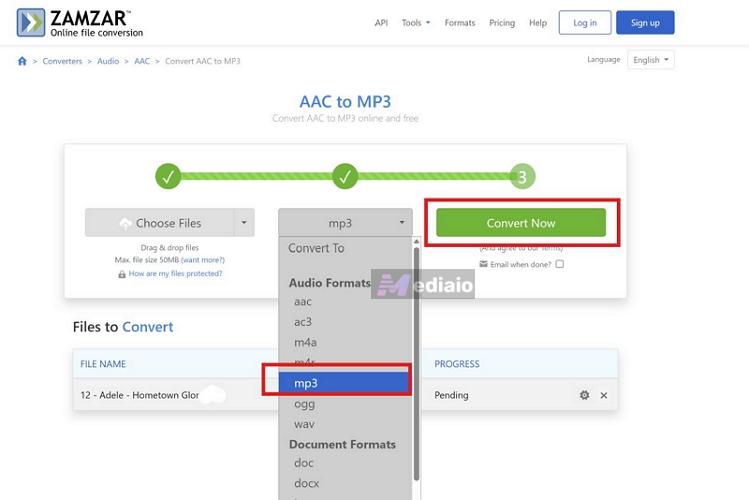
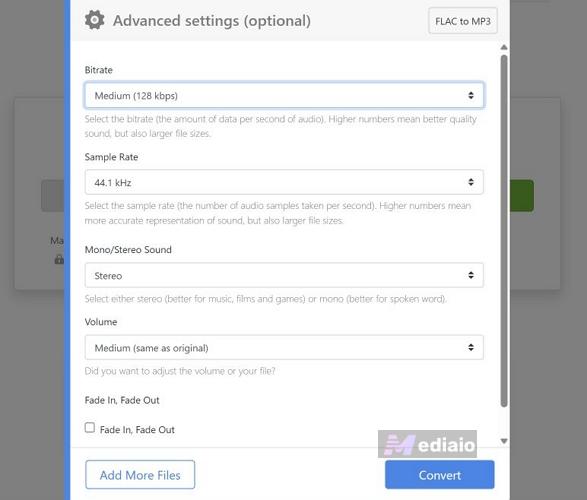
You can click the gear icon next to your file to open and access Advanced Settings. Then, click Convert to lock in these settings.
Step 4. Click Convert Now.
Step 5. Once the status changes from Pending to Done, click Download to save your MP3.
How to Convert Apple Music AAC/ALAC to MP3
Everything covered above requires that you already have an AAC file sitting on your device. But what if the AAC audio you want is streaming online (like the songs you play on Apple Music)? How can you convert them to MP3? Mediaio Audio Converter can help.

Mediaio is a dedicated converter made exactly to convert streaming music to MP3. It’s also easy to use. Mediaio comes with a built-in Apple Music web player, so you can log in to your Apple Music account right inside the tool, drag and drop any song, album, or playlist you want and save it to MP3. And there is no limit on how many songs you can convert for personal use.

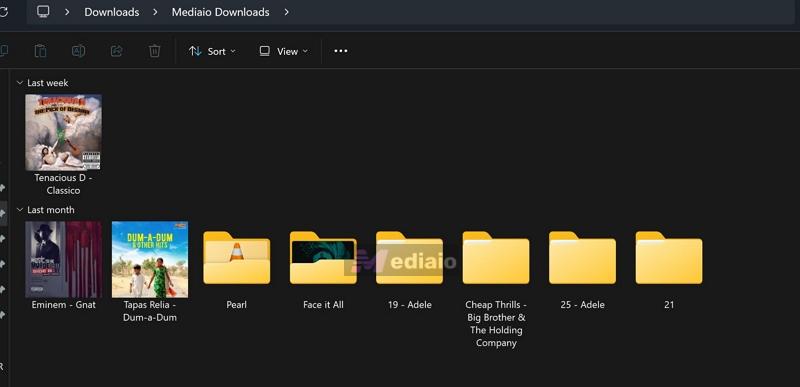
The converted songs like playlists and albums will be saved to their own folders, so your library will stay exactly as tidy as it was in Apple Music, without needing any manual sorting. Every track will also keep its original metadata intact — title, artist name, and original cover art, so nothing needs re-tagging.
Conclusion
No matter where your AAC files live — your computer, your phone, or Google Drive and whether it’s one song or your entire library, this guide has covered every practical way to convert AAC to MP3. And for most of you, Eassiy Video Converter Ultimate will be the fastest and most efficient route.
But if what you actually want is your Apple Music streaming library turned into MP3s you own and can play on your devices, Mediaio Audio Converter takes care of that part just as easily.