

MP3 and M4A are two of the most widely used audio formats, but they're designed with different priorities in mind. One is known for its broad compatibility across devices and platforms, while the other offers better compression efficiency and can deliver higher audio quality at a similar file size. Choosing the right format can make a noticeable difference depending on how and where you listen to your music. If you're unsure which format is better for your music library, you're in the right place. This guide breaks down the key differences between MP3 and M4A, including audio quality, file size, compatibility, and common use cases, so you can confidently decide which format best suits your needs. If you want to convert local M4A files to MP3 or change MP3 files to M4A, you'll also find the right methods in this guide. In addition, we'll show you how to save music directly in either MP3 or M4A.
What Is MP3
MP3 changed how music was stored and shared, making it the industry standard. However, it wasn’t magic, as it simply became popular due to its smaller file size. To make it clear, let’s break it down:
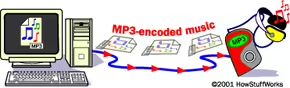
MP3 stands for MPEG Audio Layer-3 or as you might recognize it—.mp3 files. It uses compression technology to shrink audio file sizes by removing unnecessary sound data. Originally developed by a team of MPEG scientists, MP3 was designed to make music distribution easier. Their goal was to reduce audio files to 1/10th of CD-quality, but they surpassed expectations by compressing them to nearly one-twelfth. This happened just as the internet was rising. People were beginning to share music online and MP3 became the standard due to its ability to retain still superb audio quality even at such a small file size. So, every device manufacturer had to support the codec, which is the reason for its universal adoption today.
How Does MP3 Work?
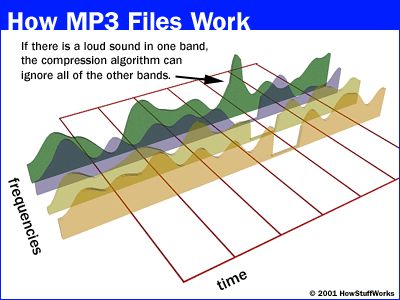
History explains this as well. The MPEG audio experts developing MP3 studied how humans hear sound. To do this, they applied psychoacoustic principles, which allowed them to identify details the human ear rarely picks up. They then designed algorithms to remove these imperceptible elements from songs, like overlapping effects or inaudible frequencies. This kept file sizes smaller while preserving most of the audio detail.
So, when you play a .mp3 file on any media player, you’re not hearing the original song recording. Instead, you’re listening to a compressed version, but because of MP3’s smart technology, the difference is unnoticeable.
Pros and Cons of MP3
What Is M4A
M4A is simply the successor of MP3. Interestingly, M4A encoded in AAC wasn’t developed by outsiders, which came from the same MPEG engineers who originally designed MP3. Here’s an overview.
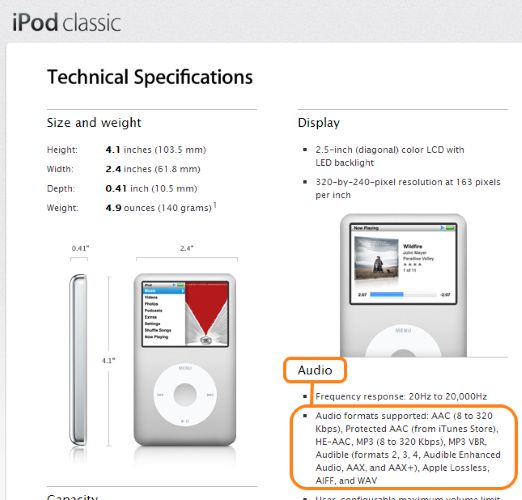
M4A (encoded in AAC) stands for MPEG-4 Audio and uses the .m4a extension. It improved both audio quality and compression efficiency. That is to say, you can get a better sound perception even at a lower size. The M4A (AAC) only became widely used after Apple adopted it for iTunes and iPod. The reason? At the time, it was a cutting-edge format. And Apple wanted to deliver superior audio quality to its users on iPod, all while keeping file sizes even smaller than MP3.
How Does M4A Work?
M4A works mainly with two different encoding methods.
- The first is AAC (Advanced Audio Coding). It is often compared to MP3 because they share a similar purpose, reducing file size while maintaining audio quality. And AAC does the job better than MP3.
- Then, there’s M4A’s ALAC (Apple Lossless Audio Codec), which Apple developed after iTunes and iPod users demanded lossless audio formats. Thanks to M4A’s flexible container, ALAC could also be used within it.
That’s why you’ll often see M4A (AAC) or M4A (ALAC), both share the same extension but serve different purposes.
Note: Keep in mind that M4A (ALAC) and MP3 don't have any active comparison in general. MP3 is lossy and ALAC utilizes a lossless compression technology, so there's hardly any confusion between these two. So, we will not focus on this comparison.
What Are the Disadvantages and Advantages of M4A?
Pros:
- Better Audio Quality: AAC gives noticeably clearer audio than MP3 at equal bitrates.
- Device Compatibility: Even today, not all basic MP3 players or older audio devices play M4A files. Newer brands generally do, but it's not as universal as MP3 yet.
- Flexible Format: M4A files can hold either AAC (lossy) or ALAC (lossless), depending on your needs, with capacity to retain metadata (cover art, lyrics, etc.)
- Past DRM Limitations: Apple used DRM locks on iTunes-purchased songs, so they have a reputation for not working everywhere. That’s not the case with unlocked M4A (AAC) files though.
Cons:
- Support Multi-Channel Audio: Going beyond MP3s—Stereo and Mono. Great for using 5.1 or 7.1 setups like surround sound.
- Storage Concerns: Encoded in ALAC, M4A can occupy large space on your hard drive.
M4A vs MP3: Side by Side Comparison
You've already learned what MP3 and M4A individually offer. However, how do they compare head-to-head? Let’s look at four crucial factors.
File Size
File size depends primarily on two things: bitrate (measured in kbps—kilobits per second) and song length. Most of you have asked us this question:
320kbps M4A vs 320kbps MP3: Which One Is Smaller?
Here’s a practical example of say a 5-minute (300 seconds) audio track at 320kbps:
(320kbps × 300 seconds) ÷ (8 × 1024) ≈ 11.72 MB
Yes, both of them are of the same file size at the same bitrate and duration. The real difference isn't size but is in audio quality. It is just that AAC at 320kbps offers exceptional sound quality compared to MP3 at 320kbps, despite occupying an identical space in your storage.
Sound Quality
Sound quality isn't something you can calculate with a simple formula, which must be experienced or perceived directly. One popular comparison often asked:
128kbps M4A vs 320kbps MP3, Which One is Better?
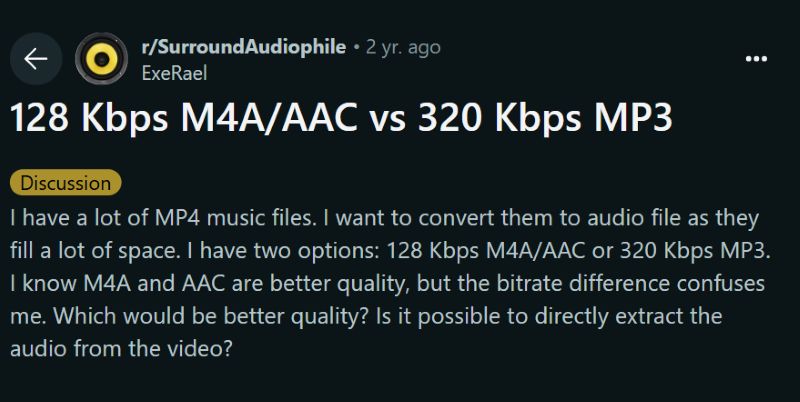
The short answer or the winner is 320kbps MP3. Yes, M4A coded with AAC is newer, smarter, and has more efficient audio compression algorithms than MP3. However, comparing 128kbps AAC with 320kbps MP3 is unfair, as 128kbps AAC clearly won't match a 320kbps MP3 in audio fidelity. For example, let's quickly calculate file size at 128kbps for 5 minutes:
(128kbps × 300 seconds) ÷ (8 × 1024) ≈ 4.69 MB
At this bitrate, you'll indeed save storage space. However, sound quality noticeably suffers compared to a 320kbps MP3 (11.72 MB).
In reality, experts commonly state:
- 192kbps AAC generally matches a 320kbps MP3 in sound quality.
This doubt of 128kbps AAC and 320kbps MP3 arises because most people don’t perceive the difference in sound quality, similar to how most people in the 1990s didn't easily hear differences between MP3 (5 MB) and CD-quality (50 MB).
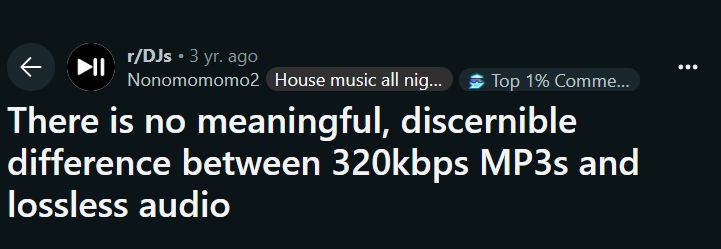
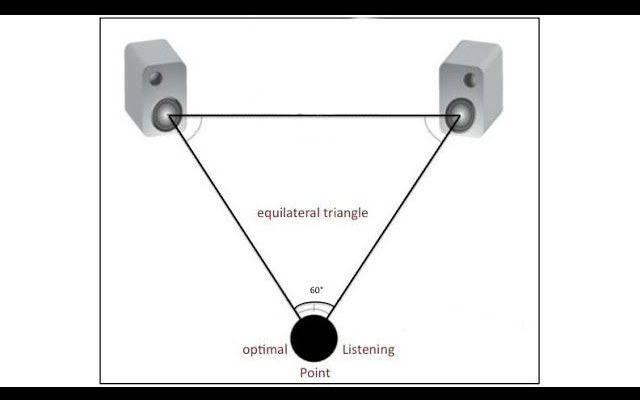
However, it is important to understand: you will have to decide on the file format and bitrate depending on your listening setup. Understand that AAC (M4A) supports multi-channel audio setups (like 5.1 or 7.1 surround sound system). So, it is good when you want more immersive audio for personal use. Plus, there are a lot of other factors to use AAC format: higher sampling rate, up to 512kbps average bitrate.
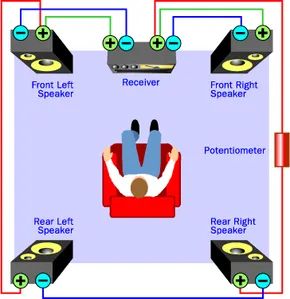
MP3, however, only supports stereo or mono. At higher bitrates, it delivers crisp yet clear sound.
Device Compatibility
When it comes to compatibility, MP3 is clearly the winner.
Yes, both MP3 and M4A (AAC) are widely supported today. Practically every modern device, like Android smartphones, iPhone, Mac and PC handles AAC and MP3 without trouble.
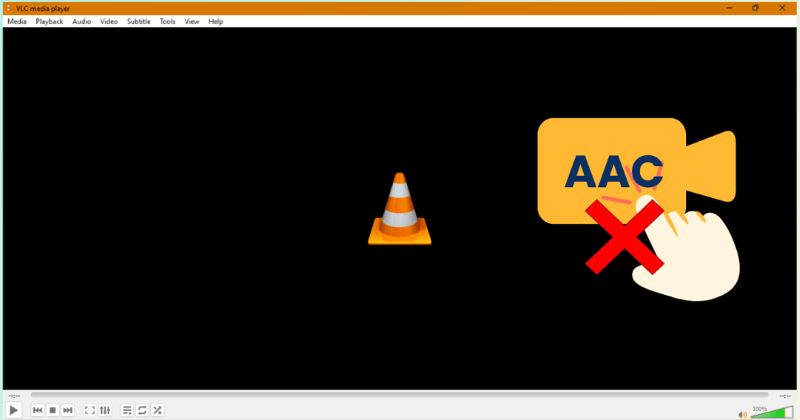
Still, if you have some older gear (cheap MP3 player, older car stereo), you can face compatibility issues with M4A (AAC) audio. Plus, you will have to often have to use additional codecs to play AAC files even on some modern computers that is outside of the Apple environment.
Platform Availability
Streaming platforms (Spotify, Apple Music) typically support both MP3 and M4A files for local upload. Or, when uploading audio podcasts to hosting platforms: M4A (AAC) and MP3 are equally supported.
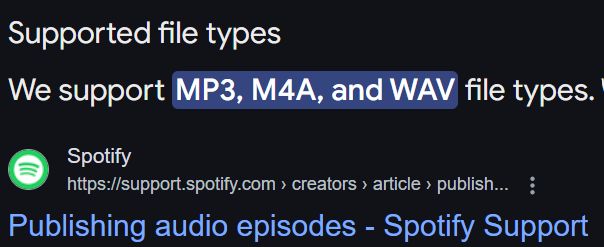
Still, they can have restrictions with AAC in general. For instance, Spotify can have restrictions on certain .m4a (AAC encodings) with DRM encryption. With MP3 uploads, there are no worries at all.
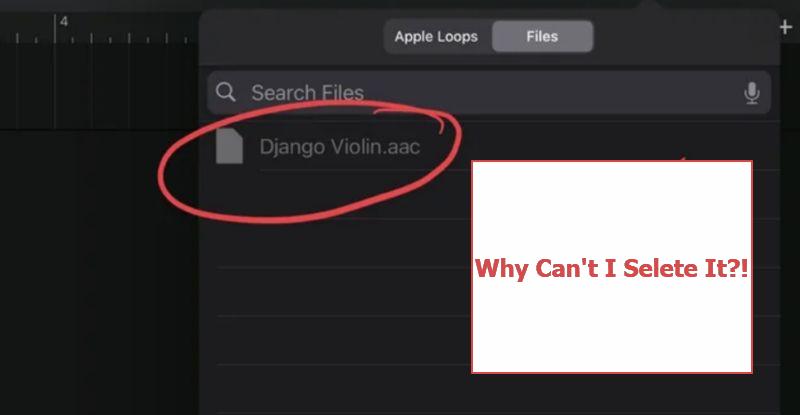
In general use, like Microsoft Presentation on computers support both MP3 and M4A (AAC). However, when working via other devices like Android tablets, they will only allow MP3 formats.
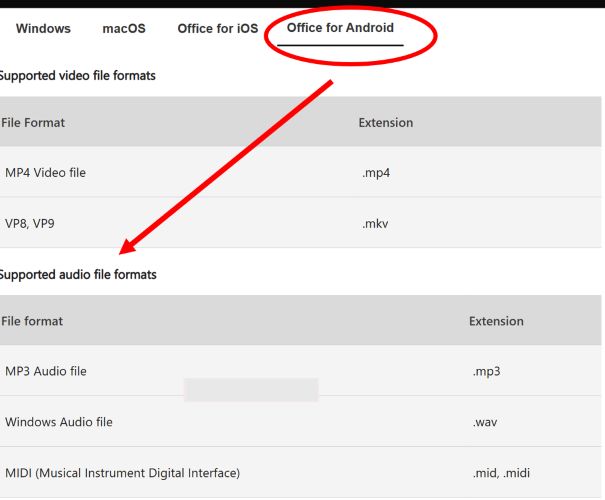
So, if absolute compatibility, like across devices, social media and online platforms is your highest priority, MP3 clearly wins, without any shred of doubt. Plus, when you are sharing the audio file, doing so in MP3 will ensure that the receiver will not have problems playing it on their device.
How to Save Online Music as MP3 or M4A
If you want to save your Spotify music as M4A or MP3 to listen offline on an iPod or old-school MP3 player, MedVioo Audio Converter can help you get it done. MedVioo supports local downloads from 9 online music platforms, including Spotify, Apple Music, and Amazon Music. The downloaded music is intended for personal use only, especially useful for devices that do not support app installation. With MedVioo, you can convert online music into local MP3, M4A, or FLAC files, with audio quality of up to high-definition. Song metadata such as track name, artist, and album are also fully preserved.
How to Save Online Music as MP3/M4A
Step 1. Download and install MedVioo Audio Converter on your Windows PC or Mac. Open it and select the desired music platform.

Step 2. Sign in using the built-in browser.
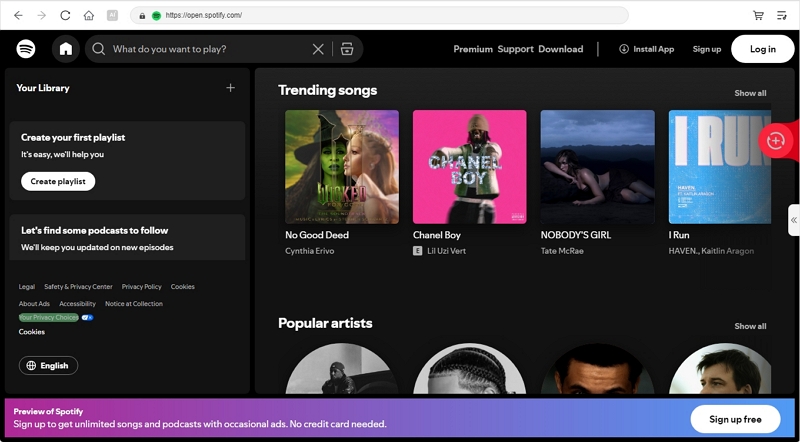
Step 3. Find the songs, albums, or playlists you want. Drag them directly to the + button at the top right.

When all your selection is queued up at the right conversion pane, expand the pane and choose the output format and quality. Finally, hit Convert All.

Once the process is done, your songs will be saved as MP3 or M4A on your computer’s Downloads directory.
How to Convert Local M4A to MP3 or Vice Versa
When dealing with one or two tracks and you don’t mind losing a bit more quality, there’s always the quick and easy route: File Format Converter. Eassiy Video Converter Ultimate provides a powerful format conversion tool. It also supports batch audio conversion and converting video files into audio formats either.
Step 1. Download, install, and open Eassiy Video Converter Ultimate on your desktop or laptop running Windows OS or macOS.
Step 2. Import your WAV or MP3 file by clicking "+" or dragging and dropping it in.
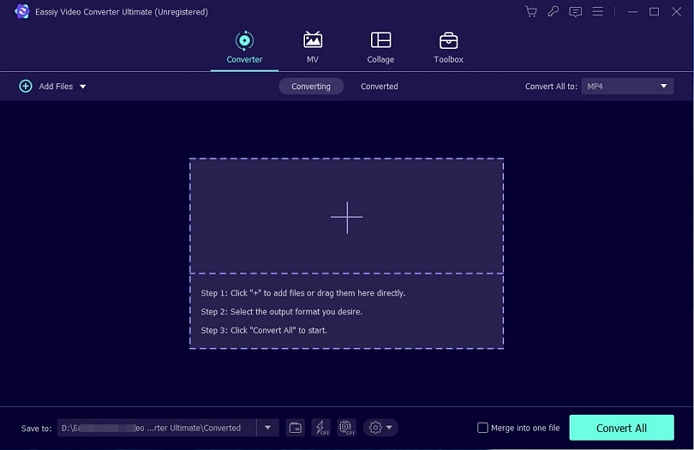
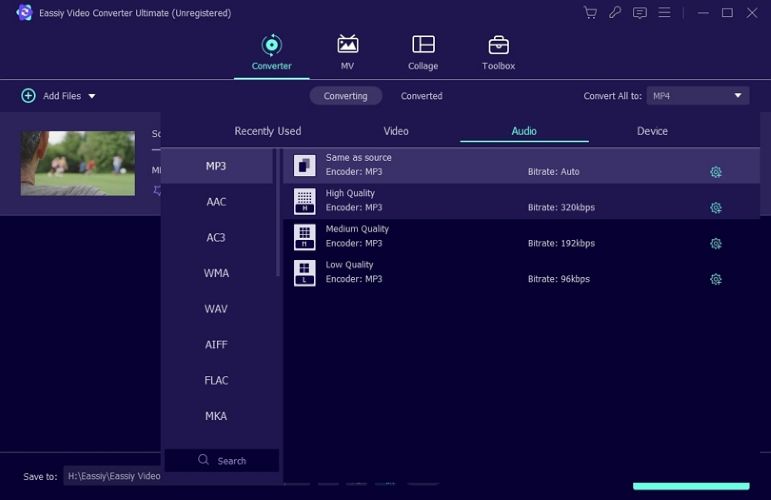
Step 3. Then click Convert All To and select MP3 or M4A under Audio or click the format icon next to individual files to choose the format.
Step 4. Click Convert All to start the conversion and wait a few moments for the process to complete.
Wrap Up
Instead of seeing it as a clash of M4A vs MP3, the answer becomes clear when you think about these formats in terms of what they do best. M4A (AAC) is perfect when you want clearer audio on modern devices or have limited storage. MP3 still holds its ground when compatibility matters most, like your 2005 car’s stereo system.
The good news? You don't really need to worry about any of this. With MedVioo Audio Converter, you easily download your favorite songs as fresh MP3 for your older car, or M4A for your smartphone.