

It can be distracting when Spotify pauses during a Discord voice chat. This happens when you have just started gaming or chatting with your friends but after 30 seconds, your track goes silent. An error bar pops up indicating “Your mic has been transmitting for 30 seconds. Spotify playback paused”. Sometimes, Discord may interrupt your music even when you are not speaking.
Discord runs this feature to prevent echoing background noise in the voice chat. This usually occurs after changing audio permissions or switching between mobile data and WiFi. Mobile operating systems run audio differently from desktops. Hence, specific settings can pause background playback. No worries, there are several workarounds to prevent this from happening on your mobile devices. This guide will take you through some proven steps to help you listen to Spotify music on your mobile device while gaming or chatting on Discord.
Stop Discord from Pausing on Mobile: Overview of Ways
Resolving this issue depends on how you intend to use both Spotify and Discord at the same time. Different options are available, and it is important to understand which solution works best for your situation. This table outlines the recommended solutions depending on your usage preferences:
How to Stop Discord from Pausing Spotify on iPhone/Android
Discord mobile strictly regulate background audio sharing. These step-by-step methods guarantee an uninterrupted background music. They apply to iPhone and Android devices unless specified otherwise.
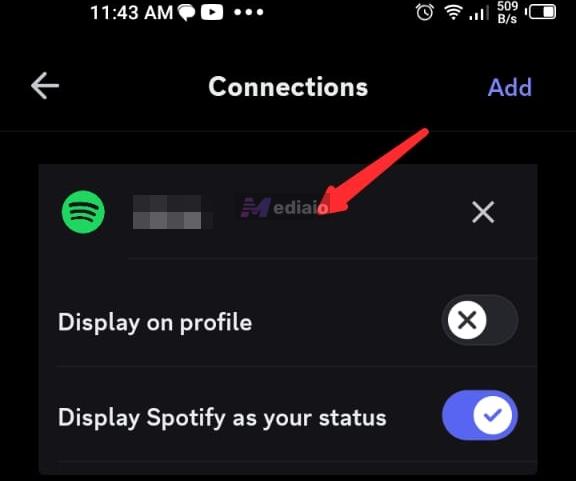
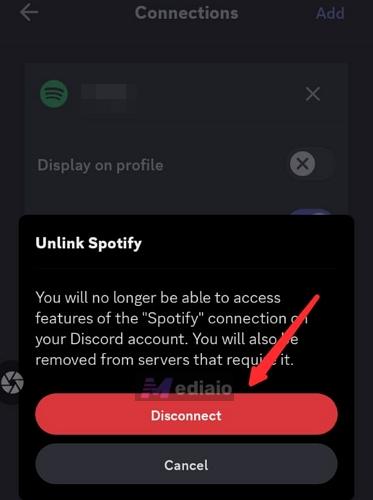
Way 1. Disconnect Spotify from Discord
This is the go-to first recommendation for anyone facing this problem. Unlinking the accounts feels drastic, but honestly, the Discord–Spotify integration is more of a "show off what you're listening to" social feature than a functional one. If uninterrupted music matters more to you than social listening, just disconnect. It solves the problem instantly and permanently without tweaking any settings.
Steps to Unlink Spotify from Discord
- Open Discord on your iPhone /Android device.
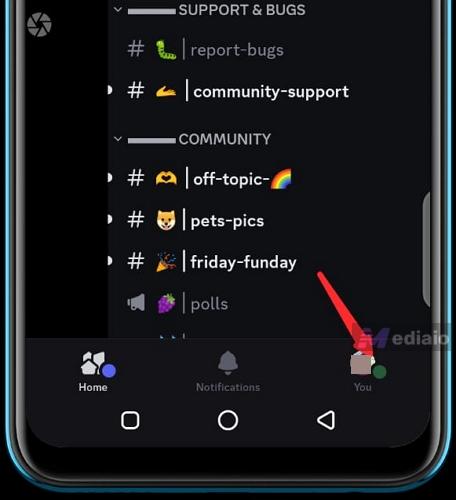
- Tap on your Profile in the bottom-right corner.
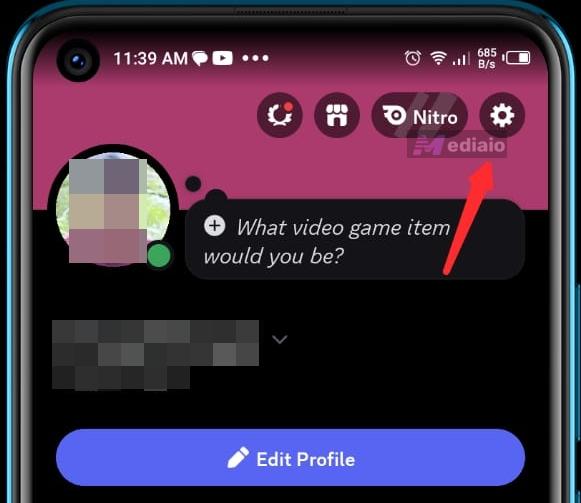
- Tap on Settings.
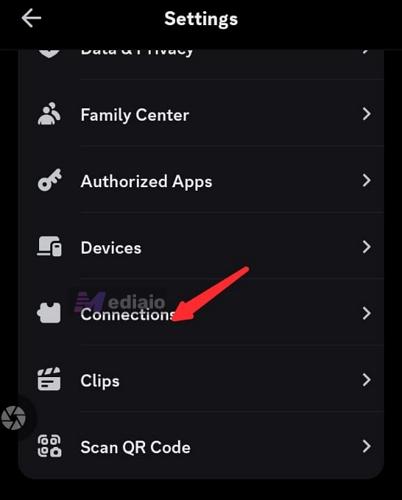
- Scroll down to Connections.
- Locate Spotify from the linked account list.
- Select the X icon and tap Disconnect.
Way 2. Turn on Input Sensitivity
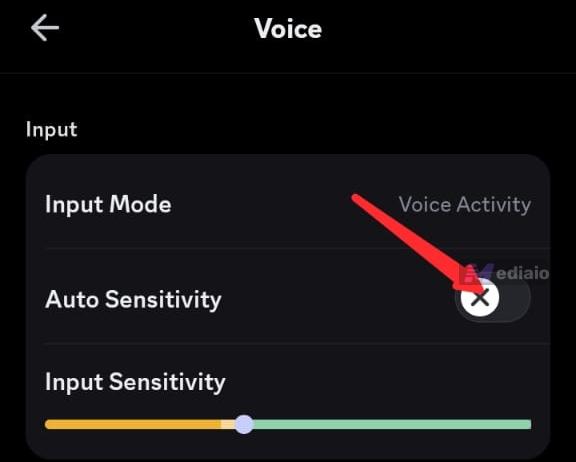
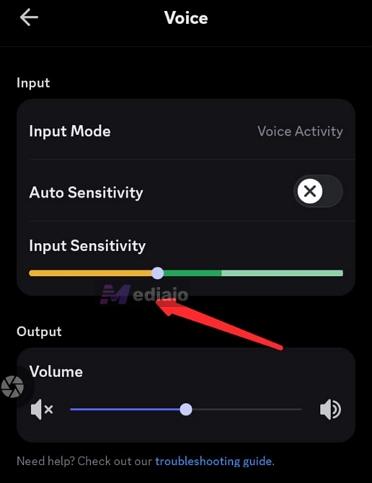
The real culprit here is usually Discord's "Auto Sensitivity" algorithm. It thinks your background music is you talking, triggers the mic for more than 30 seconds, and boom, Spotify pauses. Adjusting Input Sensitivity will configure your microphone manually. Turning it up makes Discord less sensitive to background noise and only treat sounds that reach a certain volume and clarity as your voice input. After the adjustments, simply adjust your Spotify volume to a level where it does not reach the detection threshold.
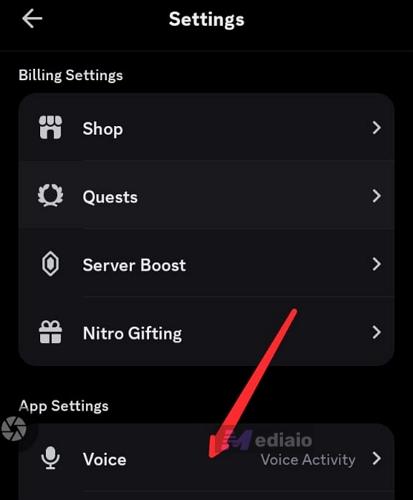
Steps to Unlink Input Sensitivity
- Launch Discord and select your Profile.
- Tap on Settings.
- Scroll down and tap Voice.
- Toggle off Auto Sensitivity.
- Adjust the Sensitivity slider. Ensure the meter only senses your speaking voice rather than music playing from your devices’ speakers or your earbuds. Around 60%–80% is recommended.
Way 3. Turn on Noise Cancellation
The background noise makes your microphone to continuously remain active. This will make Discord pause your music. The Noise Cancellation feature separates your voice from the background audio, preventing audio conflict triggers from Spotify playback during calls.
Steps to Turn on Noise Cancellation
Option 1: From your Profile Settings
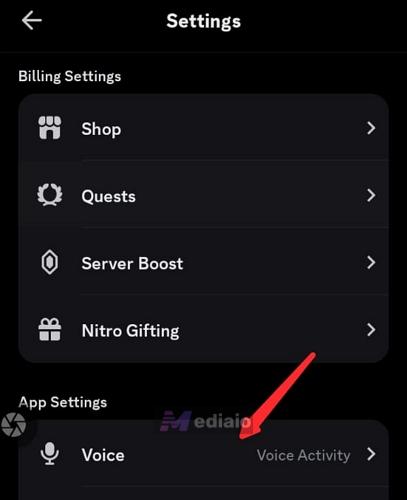
- Open Discord and tap on your Profile.
- Select Settings.
- Scroll down and tap on Voice.
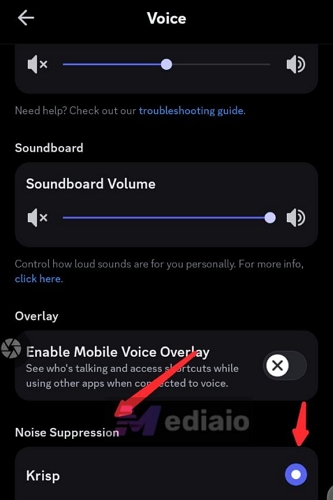
- Find Noise Suppression and enable Krisp.
Option 2: Directly in a Voice Channel
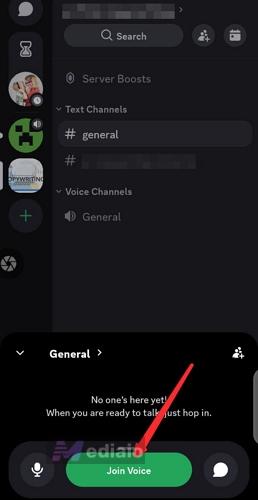
- Join your voice channel.
- Select the channel name in the top-left corner.
- Tap on Voice Settings.
- Scroll down to Noise Suppression and tap on the checkmark next to Kirsp.
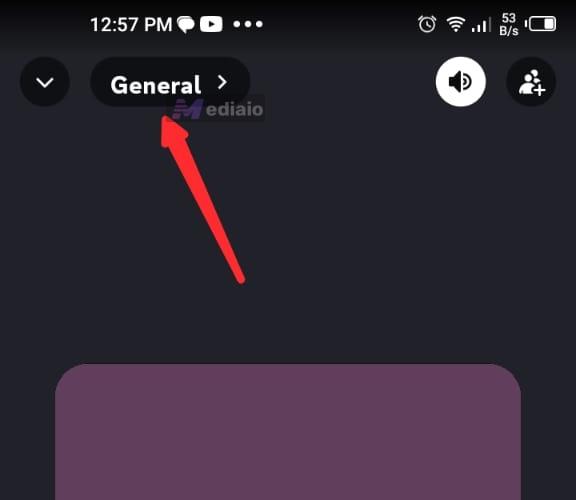
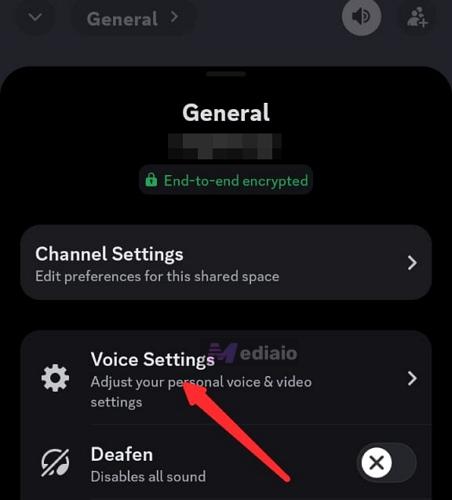
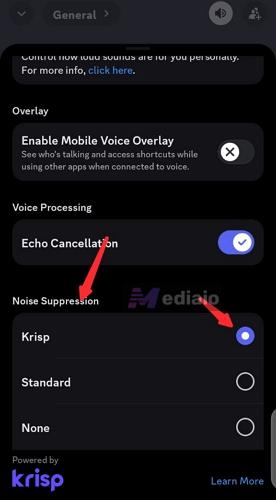
Krisp uses AI to isolate your voice in real time, and it does a good job in noisy environments. Beyond just fixing the Spotify pausing issue, enabling it will improve your call quality for everyone in the channel. It's recommend to leave it on all the time, not just as a workaround for this issue.
Way 4. Enable Push to Talk
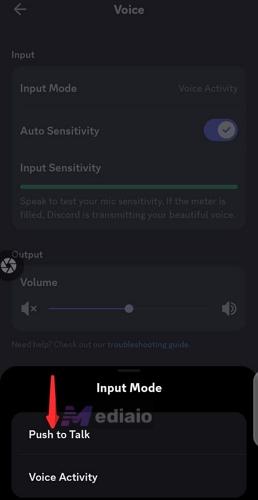
Another option is switching your voice input mode from Voice Activity to Push-to-Talk. This way, your microphone only transmits audio when you manually press a button.Push-to-Talk works brilliantly in situations where you're mostly listening to a conversation and only chime in occasionally, but it can feel clunky during fast-paced, back-and-forth conversations. On mobile especially, holding a button while talking takes time to get used to. You can try it for a day or two. Many people end up preferring it long-term because it also eliminates accidental mic-open moments entirely.
If you only say a few words but your music is still getting paused, this way also works.
Steps to Enable Push to Talk
Android Device
- Launch Discord and tap on your Avatar.
- Tap on the Cogwheel icon in the top-right corner.
- Scroll down to Voice and tap it.
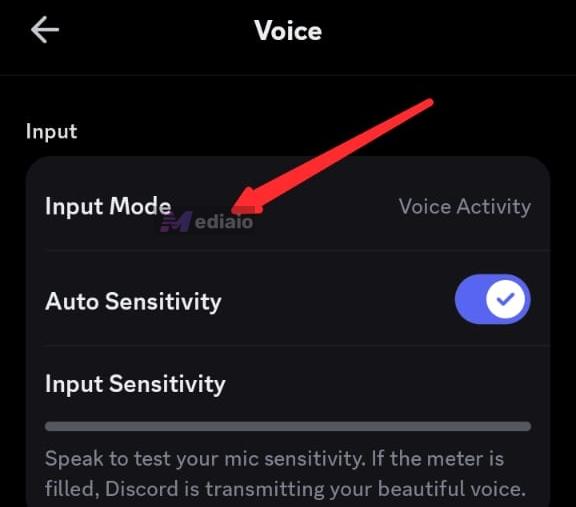
- Select Input Mode.
- Select Push-to-Talk.
Way 5. Listen to Spotify in Private session
The Spotify Private Session can help in minimising the syncing activity with Discord. It stops background data from reaching Discord’s detection system. It also comes in handy if you don’t want your friends to see your listening status in certain situations.
Steps to Listen to Spotify in Private Session
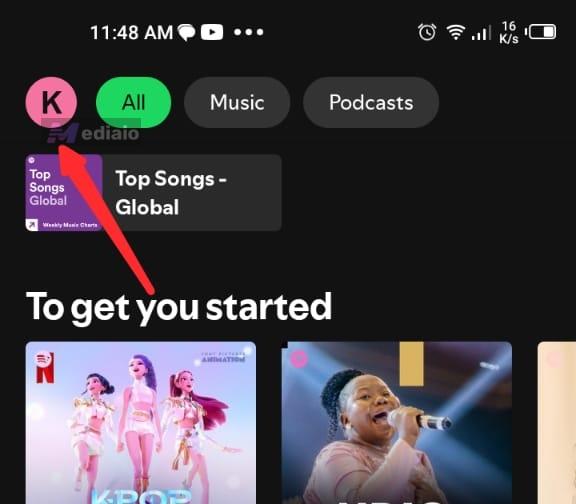
- Fire up the Spotify app on your device.
- Tap your profile picture on the top-right.
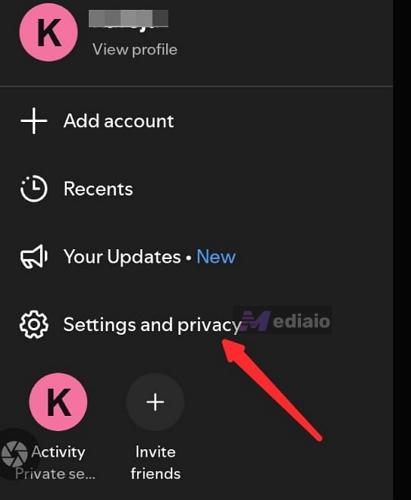
- Open Settings and Privacy.
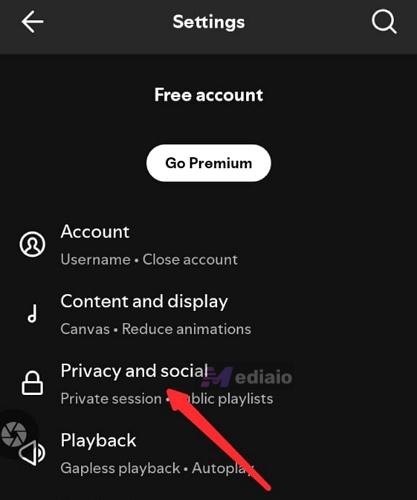
- Tap on Privacy and Social.
- Toggle on the Private Session switch.
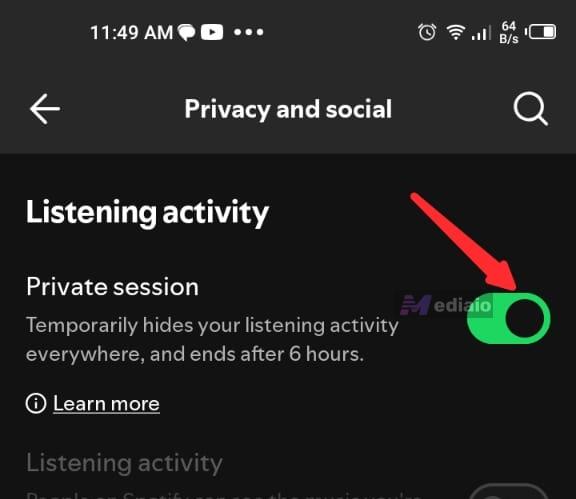
Now you can safely listen to music while using Discord voice chat.
Way 6. Share Entire Screen on Discord
If you are in a voice channel and need to directly share your audio, you can share the entire screen instead. In Discord voice calls, if you choose to share your entire screen, the system often switches to a more complete audio capture mode. In this case, music playing on your computer, such as Spotify, is usually not separately identified or muted, but instead transmitted as part of the overall system audio.
Steps to Share Entire Screen on Discord
- Open Discord and join your voice channel.
- On your mobile device, swipe up from the bottom of the screen to access the In-call menu. Select Share Your Screen.
- Exit Discord and open the Spotify App. Music will play in the background as Discord shares your screen.
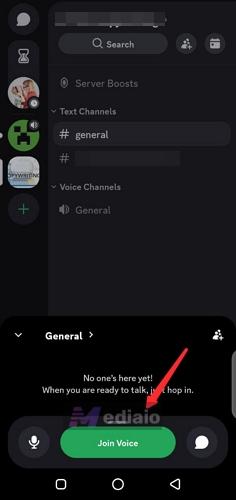
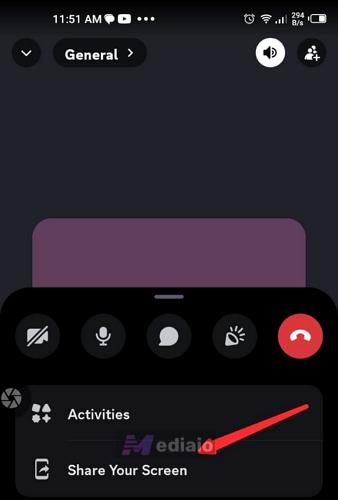
Note: While it bypasses the audio restrictions beautifully on mobile, sharing your entire screen means your friends will see every text notification or pop-up that appears on your phone. If you mind that and want to protect your privacy, you can turn on "Do Not Disturb" first!
Way 7. Play Spotify Tracks on Local Music Player
This is the ultimate workaround if you are completely fed up with streaming app limitations. Because the music plays completely offline via a local player, Discord has zero authority or technical ability to pause it. This method achieves the same result as unlinking Discord and Spotify — instead of listening through the Spotify app, you can play Spotify music using a local media player. To do this, you will first need to save your Spotify music in a local format, and Mediaio Audio Converter can help you do exactly that.
Mediaio allows you to save Spotify songs, playlists, and albums in common formats such as MP3, M4A, and FLAC, so you can play them directly with your phone's built-in media player. The saved songs retain full track metadata and support audio quality of up to 320kbps. It is also worth mentioning that you only need a free Spotify account to download music — you can even download without logging in at all. All conversion operations are completed within the Mediaio interface, making the process simple and straightforward.
Step 1: Download Spotify Songs from Computer to Phone
- Install and launch Mediaio Audio Converter on your desktop. Choose Spotify from the supported services.
- Select your music and add it to the conversion list. You can add the desired songs by dragging and dropping them to the add icon or simply locate them and click Add to the conversion list.
- Click on Convert All to convert the files to MP3 by default. If you want to customize the output settings, you can click the left arrow to expand the conversion window. Then, set the output format and adjust the output quality. Then, click Convert to start the process.

- Connect your mobile device to your computer via a USB cable. Transfer the MP3 audio files to your phone’s internal storage.


Step 2: Listen to Spotify While Talking on Discord
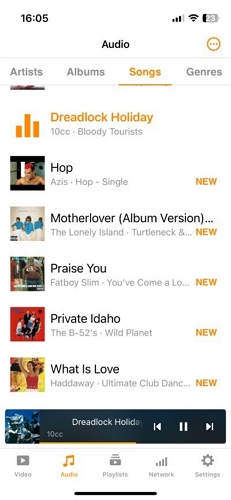
- Install a mobile music player app like VLC.
- Open the transferred MP3 files in the music player.
- Connect your headphones or earbuds. This prevents your microphone from detecting external speaker sounds.
- Join your Discord voice chat.
- Play the local music files as you talk without interruptions from Spotify.
Final Words
Using Spotify and Discord enhances the gaming experience and listening to music with friends. However, this experience can be interrupted by Discord pausing Spotify, which can be frustrating. This article has covered some ways you can use to solve this problem. Simple tweaks like changing your Discord input settings or disconnecting account integrations can quickly solve the issue.
If the problem persists, desktop conversion tool combinations like Mediaio Audio Converter can offer a permanent solution for uninterrupted listening on your mobile device. Choose the best strategy that resembles your setup workflow for uninterrupted background soundtracks now.