

Having Spotify open automatically when you start your device can be frustrating. It may slow down startup, clutter your screen with an app you don’t need right away, or interrupt what you’re doing with unwanted music controls. While some users appreciate the convenience, others would rather open Spotify only when they need it. Fortunately, you can change this behavior with a few simple adjustments. In this guide, we’ll show you how to stop Spotify from opening on startup on Windows, Mac, iPhone, and Android. We’ll also cover how to prevent Spotify from automatically launching or playing when connected to your car.

How to Stop Spotify from Opening on Startup on Windows 11/10
On Windows, both Spotify and the system itself offer multiple ways to control how apps behave at startup. So here’s how to go through each one and make sure Spotify stays off until you want it on.
Way 1. Turn Off Save My Restartable App Option
Spotify is one of those “restartable” apps, meaning that Windows remembers it was open when you last shut down and tries to bring it back automatically. Thankfully, both Windows 10 and 11 give you a way to stop this behavior.
Here’s how to take care of this setting first:
Step 1. Open the Settings app and head to Accounts. You’ll see a section labeled Sign-in options. Click it.

Step 2. Scroll to Additional settings on that page. Look for the option that reads:“Automatically save my restartable apps and restart them when I sign back in”and toggle it off.
Once disabled, Windows won’t reopen Spotify or any other apps if they were running before shutdown.

Note for Windows 10:
This specific setting is bundled under the broader “Use my sign-in info to automatically finish setting up after an update or restart” option. Turning that off achieves the same result.

Way 2. Set Startup and Windows Behaviour as No
Spotify desktop app includes a startup setting that quietly launches the app on boot—something most users don’t even notice. The good news? You can turn it off right from the app itself.
Here’s how it goes:
Step 1. Tap the profile icon at the top-right of the screen and then select Settings from the list that appears.
Step 2. Keep moving down the menu until you find Startup and Window Behaviour. Right next to Open Spotify automatically after you log into the computer option, change the setting to No. That’s the one controlling auto-launch every time you power on your PC.

Way 3. Disable Spotify in Task Manager
Sometimes, even after tweaking app settings, Spotify can still sneak its way into your startup sequence. So, this quick check inside the Task Manager gives you both confirmation as well as disable it if needed.
Follow these steps:
Step 1. Open Task Manager using Ctrl + Shift + Esc or simply search for it in the Start menu.
Step 2. Head to the Startup apps tab on the sidebar.
Step 3. Scroll down the list until you find Spotify. If its status is marked Enabled, right-click it and select Disable.

Way 4. Toggle off Spotify in Windows Settings
There’s one more place inside the Windows Settings menu, which offers a quick way to toggle off Spotify auto-launch without affecting any other utility.
Follow these steps:
Step 1. Hit Windows + I to bring up the main Settings panel. From the sidebar, select Apps and click Startup on the right side.

Step 2. Scroll through the list until you find Spotify. If it’s toggled on, just flip it off.

How to Stop Spotify from Opening on Startup on Mac
Spotify auto-launches during startup on macOS due to a combination of its own settings and how your system preferences are configured. You’ll need to check both. Let’s begin with what’s built into the app itself.
Way 1. Via Spotify Settings
Spotify includes a built-in setting that controls whether it launches when your Mac starts. Here’s how to make sure it stays off.
Step 1. While Spotify is open on your Mac, click the Spotify menu at the top-left corner of your screen and select Settings.

Step 2. In the Settings window, scroll down to find the section labeled Startup and Window Behaviour.
Step 3. Click the drop-down next to Open Spotify automatically after you log into the computer and change it to No.

Way 2. Through System Settings
Even after you’ve disabled Spotify from within the app, macOS can keep launching it anyway. To fully prevent that behavior, you’ll need to remove Spotify from your Login Items too. Follow these steps on Ventura or later:
Step 1. From the Apple menu at the top-left corner, select System Settings.

Step 2. Inside the Settings panel, just type “Login Items” into the search bar and click the matching option.
Step 3. Under the Open at Login section, highlight Spotify in the list and click the minus (-) icon beneath to revoke its launch permission.

How to Stop Spotify from Opening on Startup on Android
Most Android phones don’t include built-in tools for app auto-start after a reboot. However, devices from Xiaomi, POCO, and Redmi are built on custom Android skins like MIUI. So, you will find added controls like Auto Start and Auto Launch.
These settings grant Spotify permission to reopen at boot or continue running in the background even if you have closed it or didn’t use it prior to phone shutting down. Here’s how to put an end to that behavior on MIUI 12, 13, or 14 and phones with similar system layers.
Way 1. Turn off Auto-Start
To cut Spotify’s auto-resume behavior at the root on MIUI-based devices, follow these steps (as seen on Redmi Note 10):
Step 1. Open Settings and go to Apps. You can also search for Manage apps from the top bar.
Step 2. Find Spotify in the list and tap to open its info screen.
Step 3. Look for the Autostart toggle and turn it off.

Way 2. Turn off Auto-launch
Certain Android models like the POCO X3 Pro on MIUI 13 (based on Android 12) use a different label for the same functionality—Auto Launch instead of Auto Start. Here’s how to turn it off:
Step 1. Go to Settings, then navigate to Apps > Special App Access.
Step 2. Tap Auto Launch from the available options.
Step 3. Locate Spotify in the list and disable its toggle.

Stop Spotify from Starting Automatically on Android When Connecting to Bluetooth
If Spotify starts automatically after your Android phone connects to a Bluetooth speaker or smart device, disconnecting and reconnecting the device may reset the connection and stop the unwanted playback.
- Open Settings on your Android phone.
- Tap Connected devices.
- Select the connected Bluetooth device, tap the Settings icon next to it and tap Forget.
- Turn Bluetooth off, then turn it back on.
- Select the device and pair it with your Android again.


How to Stop Spotify from Opening on Startup on iPhone
On iPhone, the Background App Refresh feature doesn’t technically launch the app from scratch, but if Spotify was already active before your phone powered down or its battery ran out, this setting allows it to stay semi-active and resume playback in the background.
Follow these steps to stop Spotify from behaving oddly after powering your iPhone back on or when it quietly resumes playback in background without any interaction:
Step 1. Launch the Settings app on your iPhone. Tap General and go to Background App Refresh.
Step 2. Scroll through the list, find Spotify, and turn its toggle off.
That’s all it takes to cut its ability to quietly reactivate in the background.

Stop Spotify from Starting Automatically When Connecting to Bluetooth on iPhone
When you connect your AirPods to your iPhone, Spotify may start playing automatically as soon as the earbuds are detected. This usually happens because AirPods can automatically detect when they are connected or placed in your ears and resume audio playback. If you want to prevent Spotify from starting automatically, turning off the Automatic Ear Detection feature on your AirPods may help. Follow the steps below to adjust this setting on your iPhone.
- Open Settings and choose Bluetooth.
- Tap the i icon next to your AirPods.
- Turn off Automatic Ear Detection.

Can't Stop Spotify from Opening on Startup | How to Fix
When you want Spotify to launch on your terms and the above methods aren’t working, you’ve got two clear paths going forward. One is to fix the app itself, reset its behavior, and keep enjoying Spotify normally. The other? Take your music elsewhere and play it using a different music player that respects your control. Let’s explore both.
Way 1. Reinstall Spotify
A clean reinstall can eliminate minor bugs, corrupted settings, or memory issues that cause Spotify to ignore your preferences and reopen itself. If you want Spotify to stay installed but only run when you choose, here’s how to reset it:
Step 1. Uninstall Spotify
On Mac: go to the Applications folder, right-click and choose Move to Trash.

On Windows: open Settings > Apps > Apps & features, find Spotify in the list, expand its option, and click Uninstall. Confirm when prompted.

On iPhone: long-press the Spotify icon from your Home Screen, tap Remove App, and choose Delete App.

On Android: long-press the Spotify icon and select Uninstall.

Step 2. Download and Install Spotify
After removing the app, reinstall it fresh from the Spotify website (for Windows or Mac) or by visiting the Play Store or App Store on mobile.
Just remember: you’ll need to revisit the earlier steps to disable Spotify’s startup behavior again.

Way 2. Listen to Spotify Songs with Another Media Player
With MedVioo Audio Converter, you can convert any Spotify track into open formats like MP3, FLAC, AAC, M4A, or WAV. So, you can play the songs seamlessly with third-party players like VLC Media Player which don’t suffer from auto-start glitches or background interruptions. Moreover, you can enjoy your music ad-free, offline, and in the original quality you expect (lossless audio/320 kbps/256 kbps/128 kbps) and keep them forever. Once the music is exported, you're free to copy it into a USB stick or phone, move it to your car's infotainment system, or load it into any music player of your choice.
How to Convert Spotify Songs as MP3 Using MedVioo
Step 1. Download and install MedVioo Audio Converter on your computer(Windows or Mac) and select Spotify from the main interface.

Step 2. Inside the built-in browser, sign in to your Spotify account, free or premium. This gives MedVioo secure access to your playlists, albums, and liked tracks.
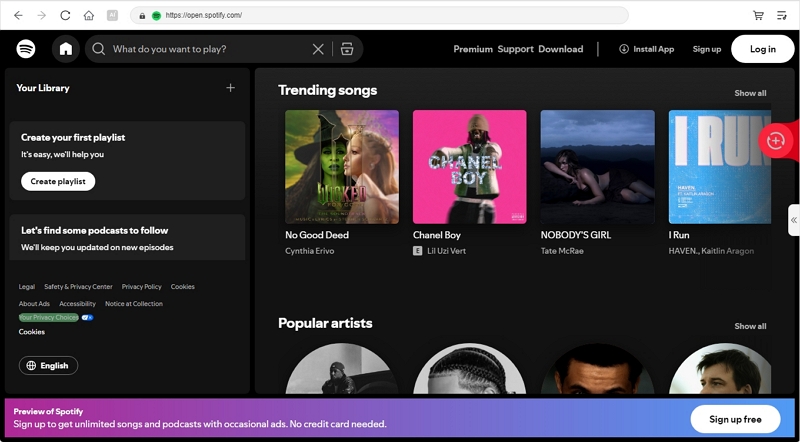
Step 3. Drag and drop your selected tracks directly into the red Conversion (+) area. You can drop the entire playlist or a handful of favorites as MedVioo supports batch downloads.

Step 4. Expand the conversion pane. Pick your format like MP3, FLAC, AAC, M4A, and WAV from the Convert All To drop-down. Once selected, tap Convert All to begin saving them offline.

Step 5. When the conversion finishes, head to the Finished tab and hit View Output File. Your music is now stored locally and you can play it from any player that doesn’t come with stubborn auto-startup features.
How to Stop Spotify from Opening on Startup in Car
If your car’s system automatically playing music from Spotify the moment your phone connects, it’s because of the intrusive nature of both your car’s infotainment settings and Spotify itself. Thankfully, there are smart ways to stop it. Let’s explore the most effective fixes.

Fix 1. Turn Off Nearby Devices Permission (Android)
Some Android systems, especially newer ones, grant Spotify permission to interact with nearby devices like your car’s head unit. That’s what enables seamless handoff or auto-resume. Here’s how you can cut this permission off:
Step 1. Long-press the Spotify app icon and tap App info (or the small "i" icon).
Step 2. Tap Permissions and select Nearby devices.
Step 3. Choose Don’t allow.

Fix 2. Disable Bluetooth Sharing for Spotify
When your phone connects to your car’s Bluetooth, Spotify can auto-resume the playback because of your device settings. Here’s how to turn it off:
On iPhone:
Step 1. Open Settings, scroll down, and tap on Spotify.
Step 2. Under "ALLOW SPOTIFY TO ACCESS", turn off the toggle for Bluetooth Sharing.

On Android:
Step 1. Long-press Spotify, tap App info, and then go to Permissions.
Step 2. If Bluetooth is listed, disable it or set it to Don’t allow.

If you prefer, you can also turn off Bluetooth entirely and use a USB cable for manual playback instead.

Fix 3. Tweak Android Auto or CarPlay Settings
Your car’s infotainment system could also be the one starting Spotify, especially if you use Android Auto or CarPlay. Here’s how to stop Spotify’s auto-resume.
On Android Auto:
Open the Android Auto app and disable Start music automatically under settings. If the toggle fails to work, go to App info for Android Auto and hit Disable to turn it off completely.

On CarPlay (iPhone):
Navigate to Settings > General > CarPlay, tap your car’s name, and choose Forget This Car.

And to enjoy your music completely on your terms, MedVioo Audio Converter can be helpful. With MedVioo, you can convert the songs from Spotify onto a USB drive and switch to manual playback in car. That way, your car won’t interfere with what plays and when.

Conclusion
That’s how to stop Spotify from launching at startup, whether you’re on a computer, a phone, or behind the wheel. And if none of these fixes truly put you back in control, there’s always the smarter move: convert your playlists with MedVioo Audio Converter. MedVioo lets you turn Spotify tracks into open formats like MP3 or FLAC, so you can use your favorite music player to enjoy your songs entirely on your terms.