

Spotify might not always lag, but when it does, it’s not funny. The app stutters, your playlists take forever to load, and pretty much everything about Spotify just feels sluggish compared to what you are used to. But don’t delete the app out of frustration. Instead, identify the problem and apply a fix. So, if you’re asking yourself, “Why is Spotify so slow?” and what you can do about it, the answers below will more than suffice. Plus, each fix you'll get is pretty simple!
Why Is Spotify So Slow
There are a number of reasons your Spotify is slow, but understand that sometimes it’s on Spotify’s end, and other times it’s on yours.
Spotify Is Down – Just like any other online service, Spotify’s servers occasionally experience outages for short or extended periods, which affects loading speed.
Insufficient Storage - Spotify will struggle to cache data (temporarily store files for faster access) properly when your device is low on storage, which might be why Spotify is so slow.
Weak Network Connection – As Spotify streams audio in real-time, if you’re managing a slow or unstable internet connection, chances are that low speed will affect how well the app performs.
Spotify Glitches – Funny enough, it’s actually not that uncommon for both outdated and newly updated versions of Spotify to contain bugs that hinder performance and ruin the user experience.
Too Much Cache - Spotify keeps temporary data that helps it load faster, and this cache can grow very large and get corrupted, which in turn slows down the app.
Large Spotify Playlists - If you have a playlist loaded with hundreds or even thousands of tracks, it’ll take Spotify longer to load them. Remember that more songs in a playlist mean Spotify has more data to process, which puts a heavier load on it.
SD Card Error - Android users can set Spotify to store data on their SD card, and if the SD card is slow or faulty, the whole app can lag.
SIM Storage Conflict - While this isn’t very common, some Reddit users have lamented that a conflict between local storage and SIM card storage can slow Spotify down.
Quick Checks Before Fixing Slow Spotify
Before you get into the full fixes, try these quick fixes first. They take less than a minute and might solve your issue, saving you a lot of troubleshooting time.
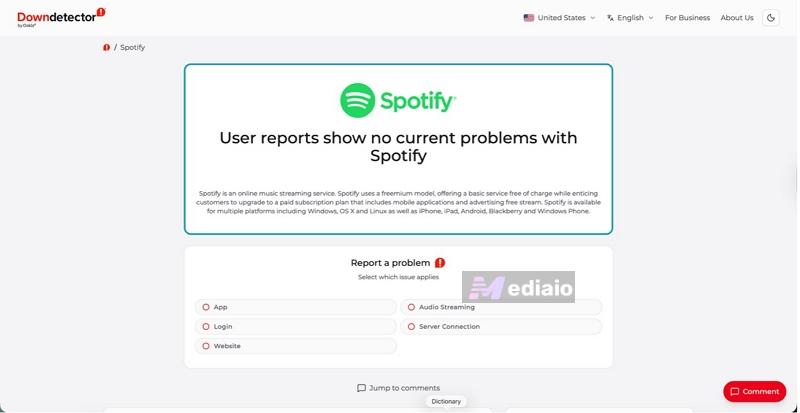
Check If Spotify Is Down Currently
Go to Downdetector or check the official @SpotifyStatus account on X. If you see a significant rise in reports, the problem is on Spotify's end, and you'll probably have to wait it out.
Check If Your Device Is Full
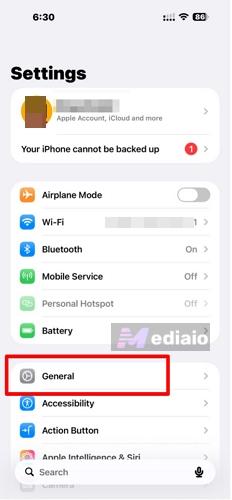
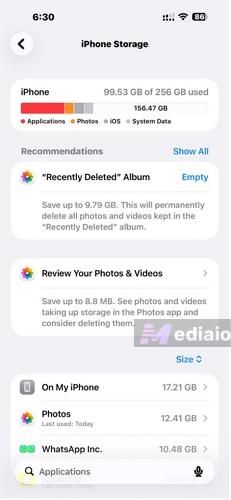
On iPhone:
- Go to Settings, then tap General.
- Next, tap iPhone Storage and see how much space you have left on your iPhone.
On Android:
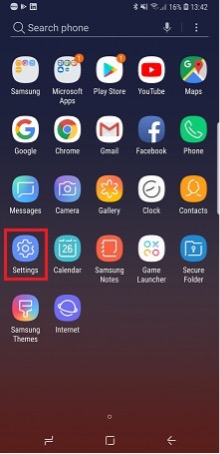
- Tap the Settings app on your phone.
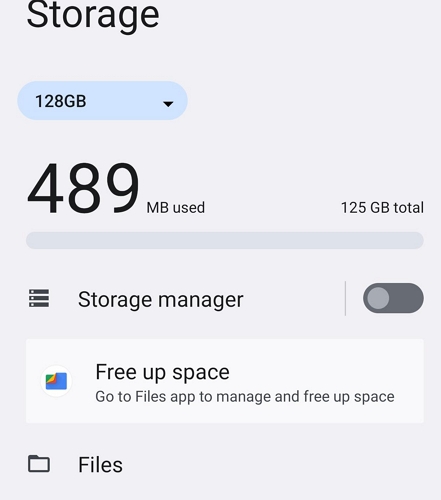
- Then scroll down and tap Storage. You’ll see how many gigabytes are left.
On Mac:
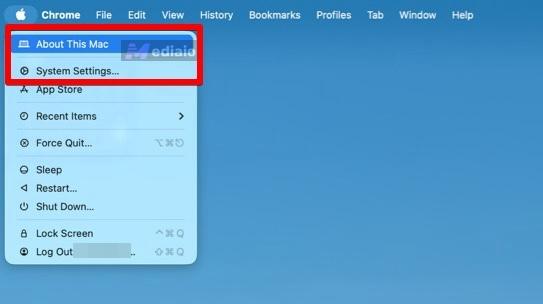
- Click the Apple menu > About This Mac.
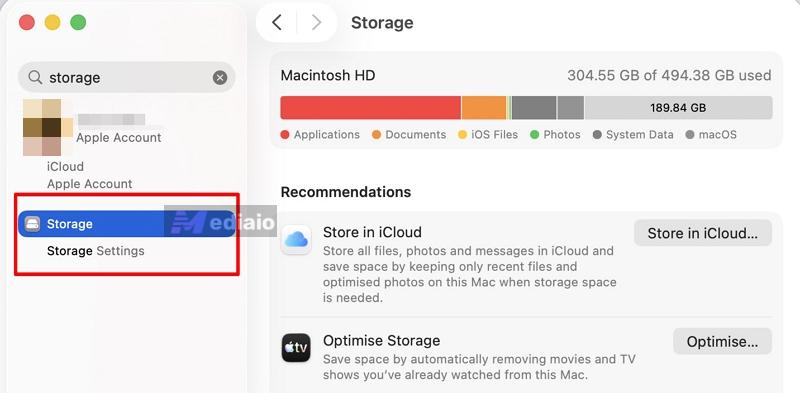
- Click More Info, then scroll down and type Storage in the search bar. Click it when it appears to see your storage status.
On Windows:
- Open File Explorer and check your C: drive. You’ll see the available storage under the drive.
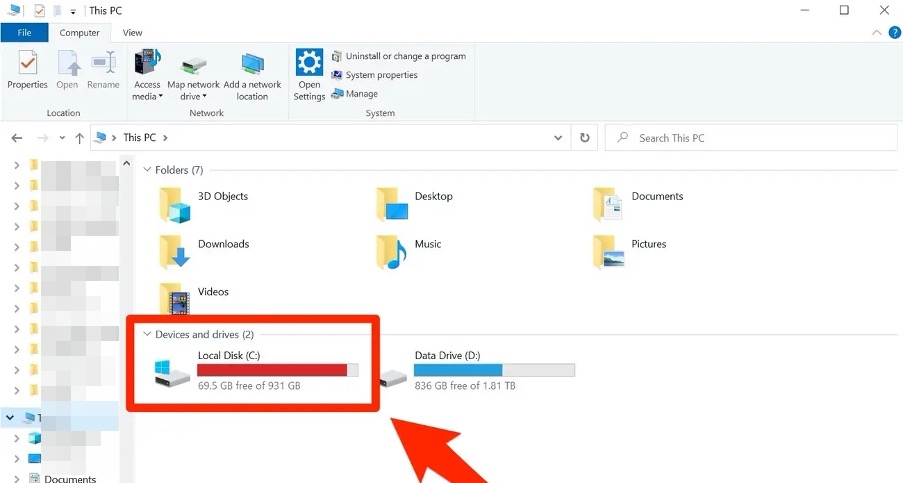
Regardless of the device, if you notice your storage is full, free up some space before you try any other fix.
Check If Your Network Connection Is Stable and Fast
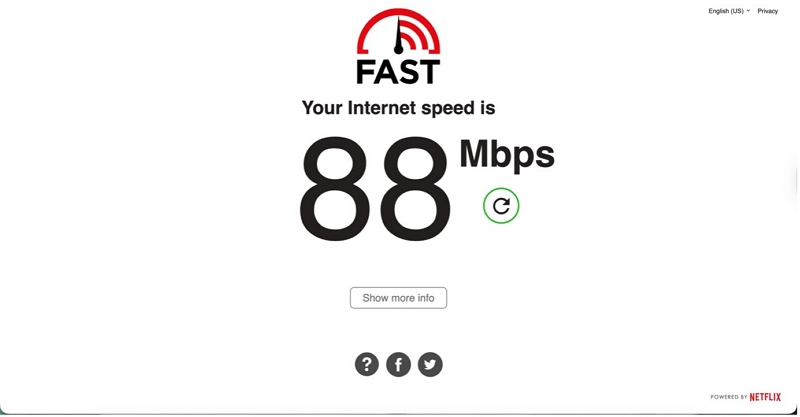
Go to Fast.com and run a quick speed test. Spotify recommends at least 1 Mbps for normal quality while higher quality streaming requires at least 3 Mbps. If your internet speed is slow, you need to switch to another network, for example, from mobile data to Wi-Fi.
How to Fix Lagging Spotify on Phone or Computer
Every fix below is matched to a cause above. So start from the top and work your way down. Most people even find a solution within the first three steps.
Fix 1. Update Spotify
If you run an outdated version of Spotify, the app is likely to become sluggish and encounter bugs. At the same time, if you notice that Spotify has started slowing down since the most recent update, updating the app is also worth a try. Here is how you update it on your mobile or desktop.
On iPhone
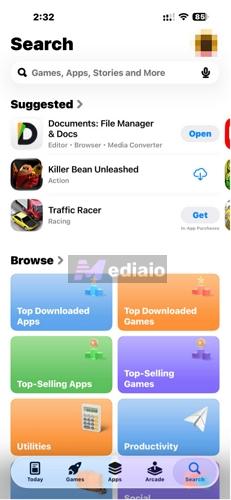
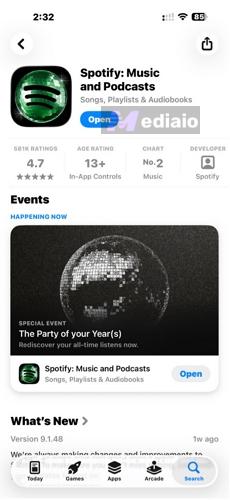
- Open the App Store.
- Search for Spotify and tap Update if available.
On Android
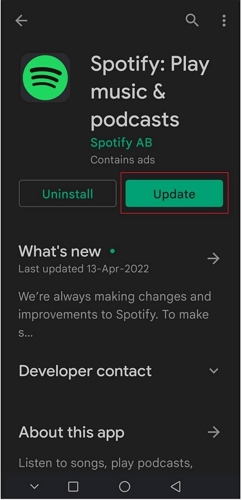
- Launch the Google Play Store and search for Spotify. Tap Update to get the latest version.
On Mac
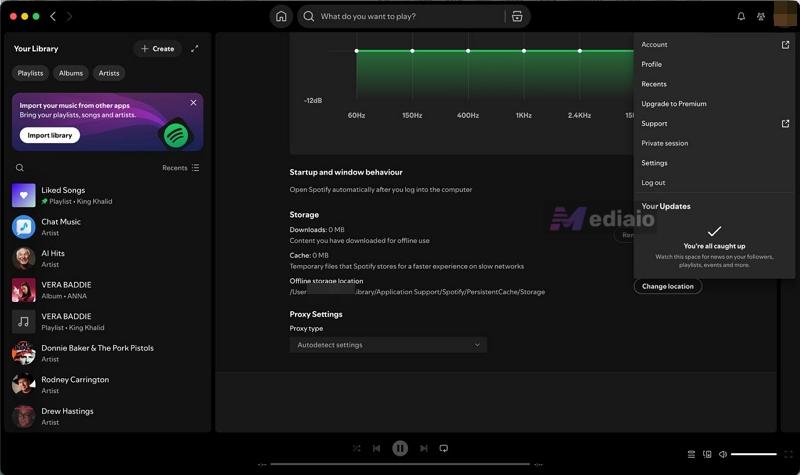
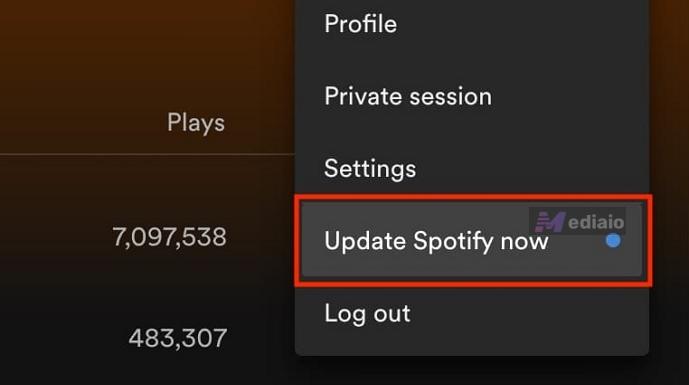
- Open Spotify and click your profile picture. Look for a blue dot. If you see one, a drop-down option labeled “Update Spotify now” will appear. Click it.
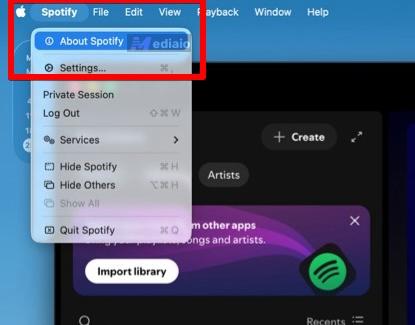
- If you don’t see the dot, click Spotify in the top menu bar, then About Spotify to check for updates manually.
On Windows
- Launch Spotify on your PC and click your avatar. Then click the “Update Spotify now” button (the one with a blue dot beside it).
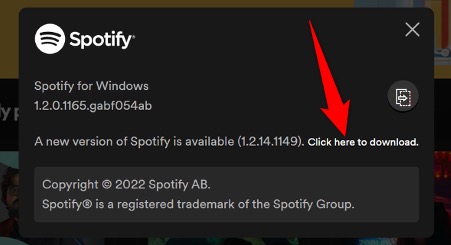
- But if you don’t see this dot, click Help, then About Spotify. You’ll see a prompt asking you to download an update if available. Go ahead and click it.
Fix 2. Clear Spotify App Cache
Why is clearing the cache one of the most effective fixes for a slow Spotify? This is because it removes temporary data that has piled up over time or has even become corrupted. However, it does not delete your downloads, playlists, or account info.
On iPhone
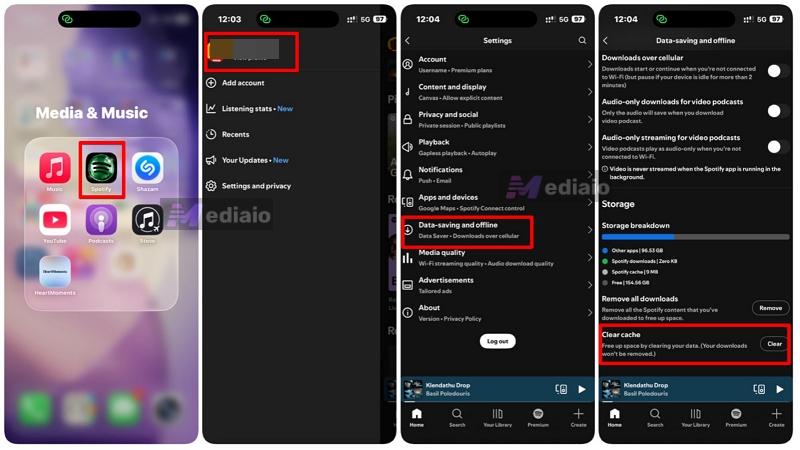
- Locate Spotify icon on your iPhone screen. Tap it.
- Then tap your profile picture, choose Data-saving and offline and tap Clear cache.
On Android
- Go to Settings > Apps.
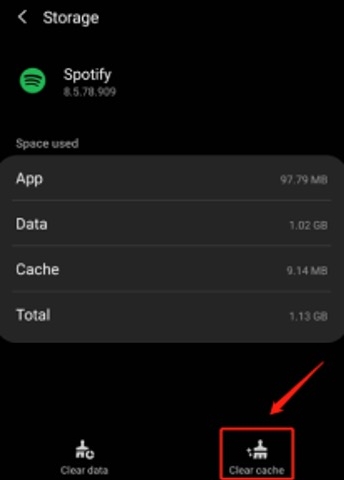
- Look for Spotify and tap it. Choose Storage and then Clear Cache.
On Mac
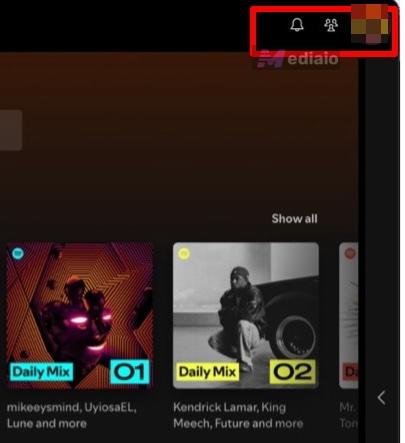
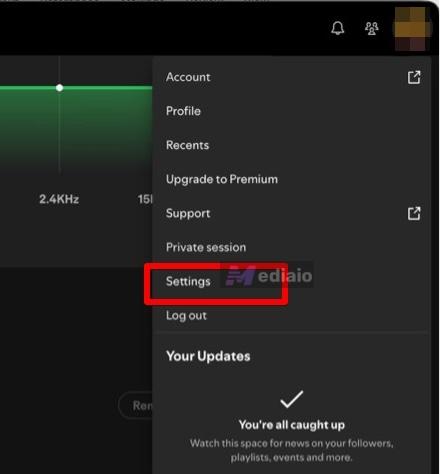
- Open Spotify and click on your profile on the top right.
- A drop-down menu will appear. Click Settings.
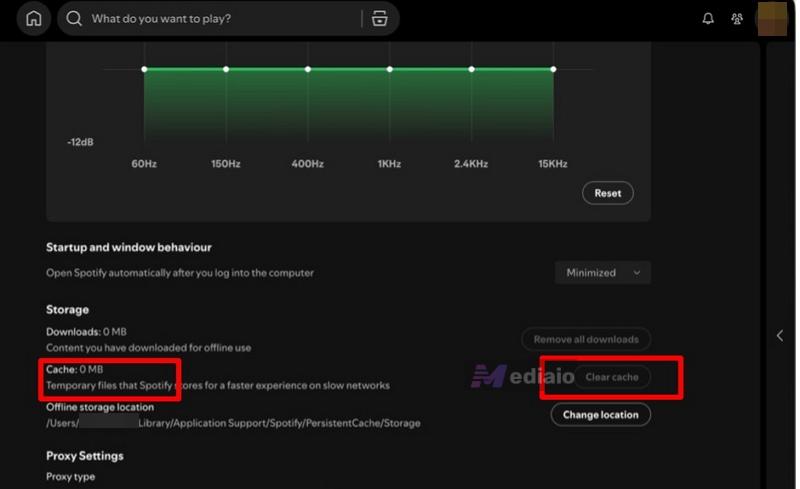
- Scroll down to Cache, then click Clear cache. After clearing, restart Spotify and see if it feels snappier.
On Windows
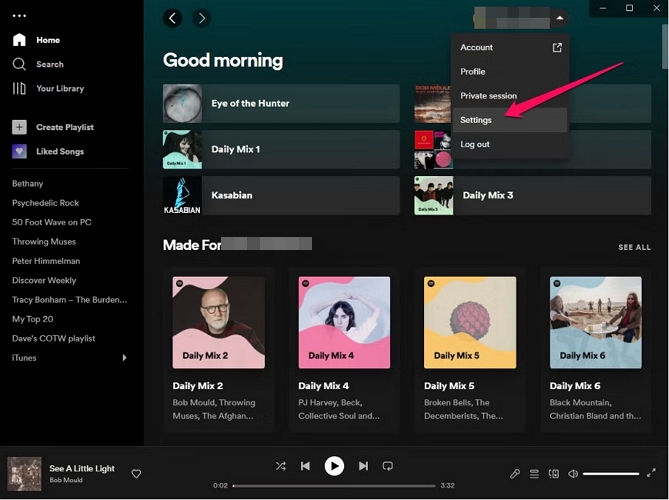
- Launch Spotify, click your avatar and then click Settings in the drop-down menu you see.
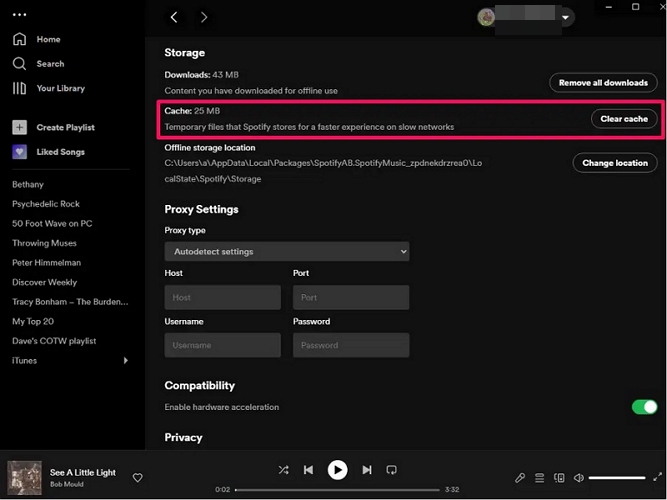
- Scroll down until you see Storage. Then click the Clear Cache button to the right.
Fix 3. Split Large Spotify Playlists
Even though a Spotify playlist can take up to 10,000 songs, you’ll notice that once you start approaching the 500-song mark, it might take a long time to load such playlists every time you open the app.
The fix is simple: just break the playlists into smaller playlists by genre, mood, or era. Smaller playlists load faster and are honestly easier to use anyway.
Fix 4. Reinstall Spotify
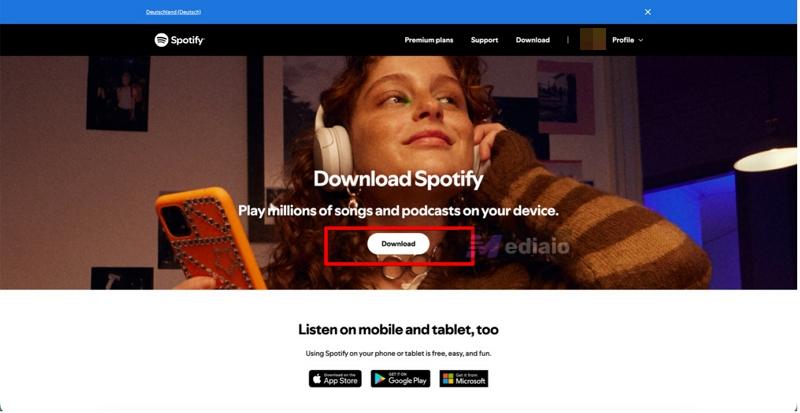
If cache clearing or app update didn't help, then try a fresh reinstall of Spotify. Uninstall Spotify from your device, restart your device, then reinstall the app from App Store, Google Play, or spotify.com, if you’re using a computer. This wipes any files that may be corrupted and clear your music downloads.
On Mac
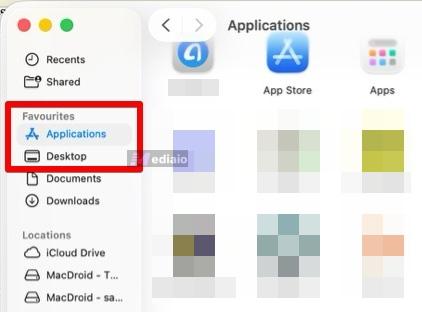
- First, open a Finder window on your Mac and click Applications on the left sidebar.
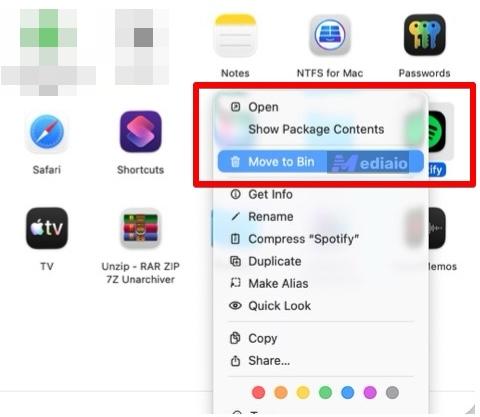
- Find the Spotify app, right-click it and select Move to Bin to uninstall it from your system.
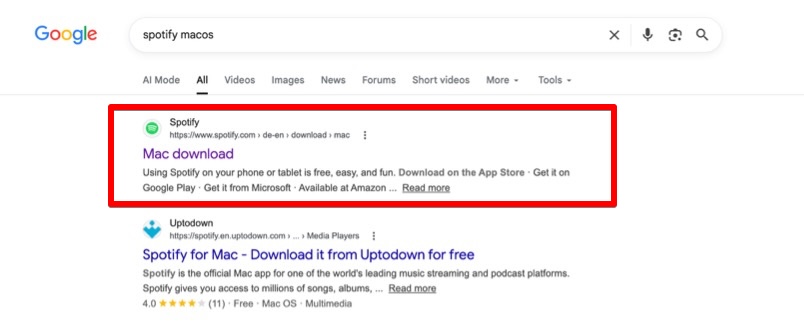
- You won’t find Spotify for macOS on the App Store anymore, so you need to download it via the official Spotify website. Open any web browser and type “Spotify macOS”.
- Click the first search result to go directly to the download page of Spotify for macOS (this route is the fastest because you don’t have to waste time going through the Spotify website to find the app download page).
- Once you’re on the Spotify site, click the Download button and the Spotify dmg file will start downloading. Install it and open Spotify.
On iPhone
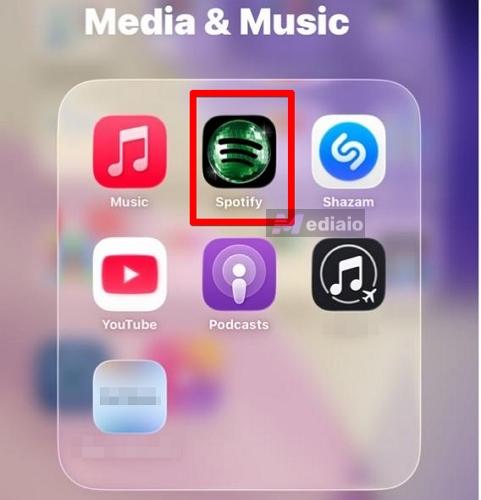
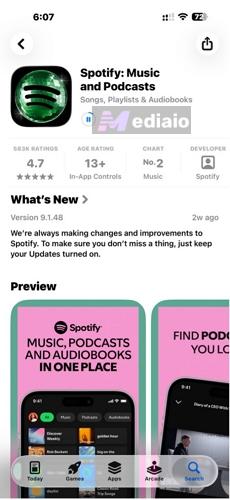
- Open your app library and look for Spotify.
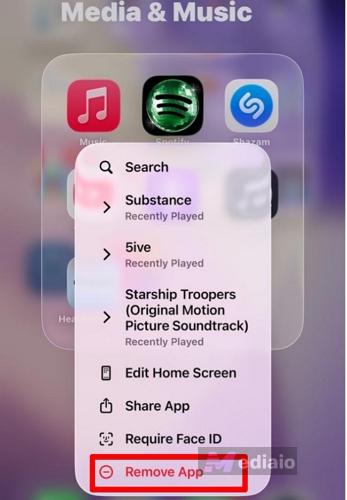
- Tap and hold it to open the drop-down menu. Tap Remove app and confirm.
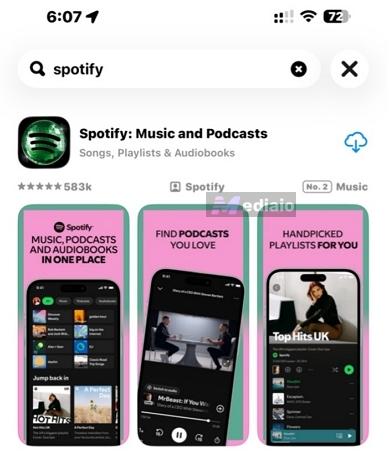
- Next, open your App Store and search for Spotify.
- Once you find Spotify, tap the Download button to the right of the app to install it.
On Windows
There are several ways to delete Spotify from Windows, such as using the Control Panel, but the fastest way is to use the Start menu.
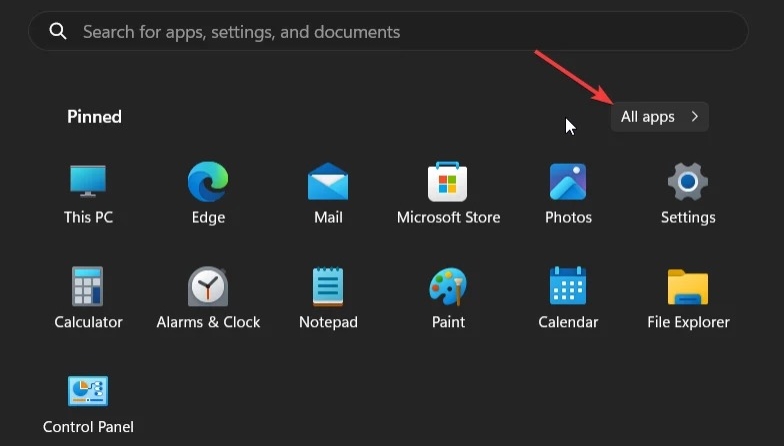
- Open the Start menu by pressing the Windows key. Next, click All apps (you can also type Spotify in the search bar to find it).
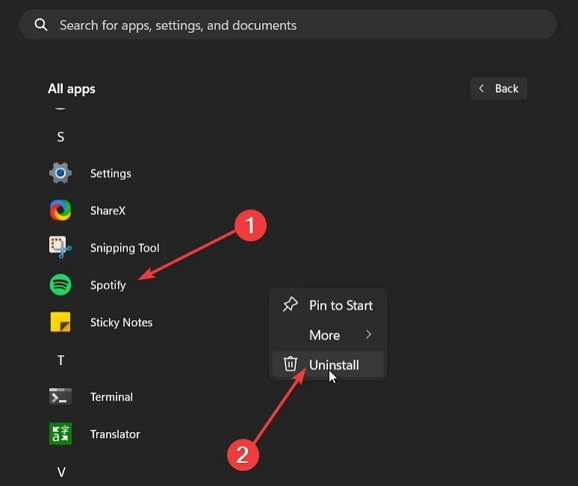
- Once you see Spotify, right-click on it and choose Uninstall.
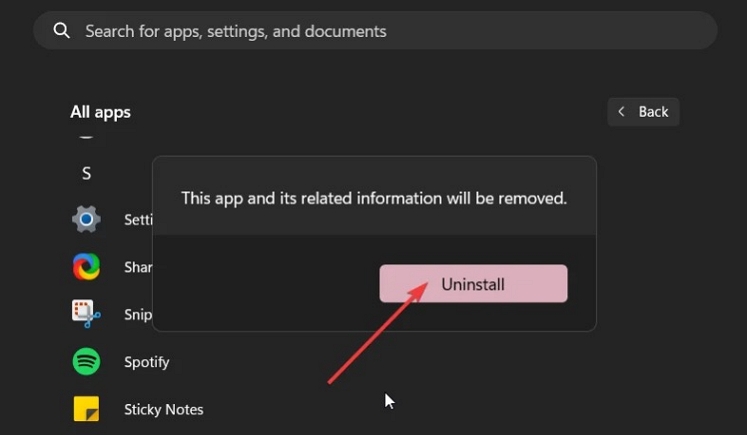
- Confirm the selection one more time by clicking Uninstall again.
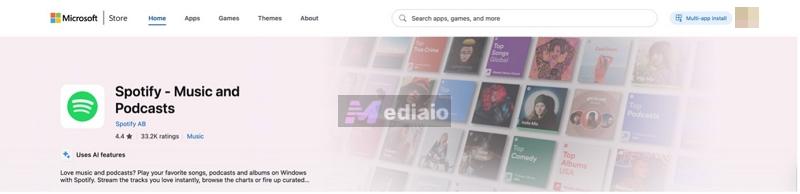
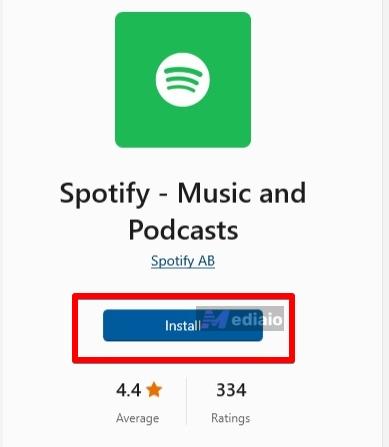
- Although you can get the Windows Spotify installer from the official Spotify website, a faster way is to just go to your Microsoft Store and search for Spotify.
- Click Install and you’ll be taken to the Windows Store where the app will begin downloading. Once it’s done, go to your app library and you’ll see Spotify there, waiting to be launched.
On Android
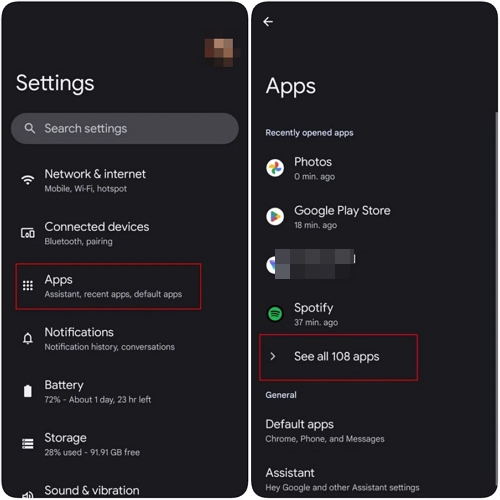
- Access Settings on your Android phone and tap Apps. Then hit See all apps.
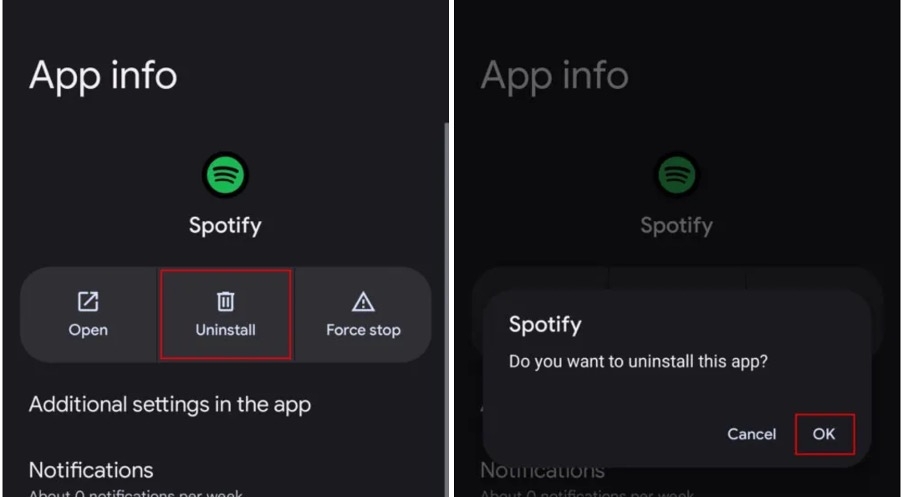
- You’ll find Spotify in the list. Tap it, hit Uninstall and confirm by tapping OK.
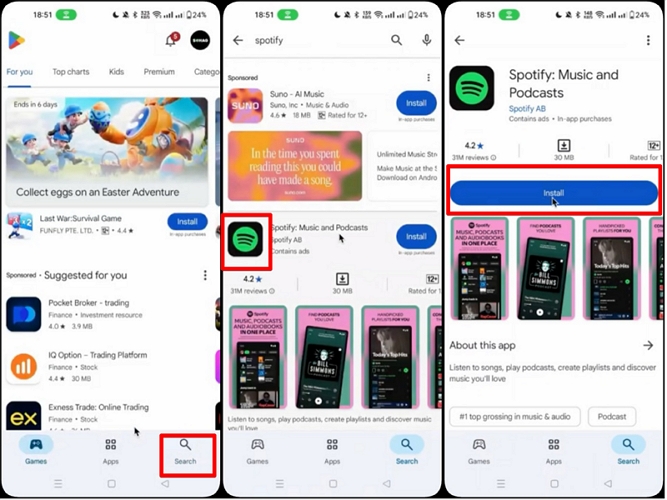
- Now open your Google Play Store and search for Spotify. Once you see it, tap Install. Finally, launch the app when it’s done.
Fix 5. Reinstall SD Card
This fix is for Android only.
If Spotify stores data on your SD card and the card is particularly slow or faulty, the app will drag. So, when you re-install the SD card, the phone is forced to re-mount the card and thus, clear up any file path errors causing Spotify to hang. Here are the steps to do this:
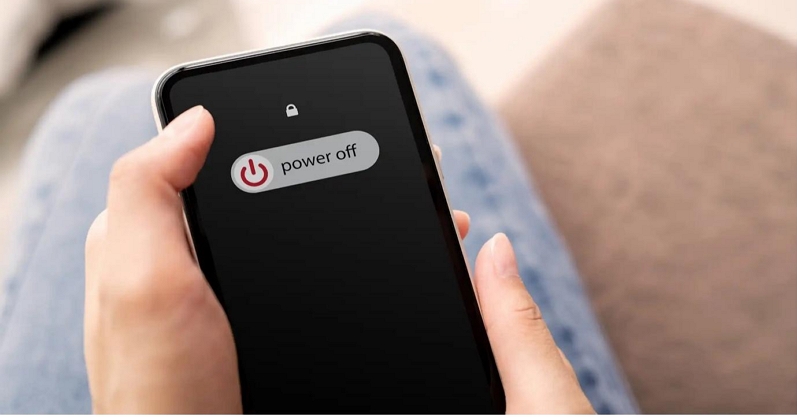
- Power off your Android phone.
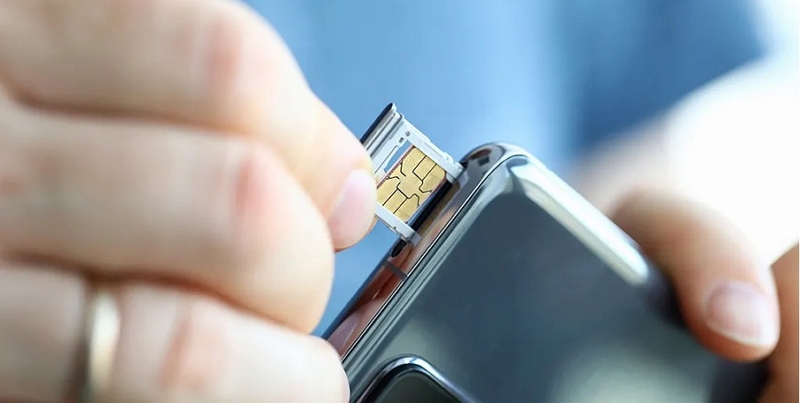
- Then remove the SD card.
- Use a dry cloth or a cotton swab to clean the contacts gently. Then reinsert the SD card and power the phone back on.
- Open Spotify and check the speed. Is it still slow? If yes, try moving Spotify's storage to local storage instead.

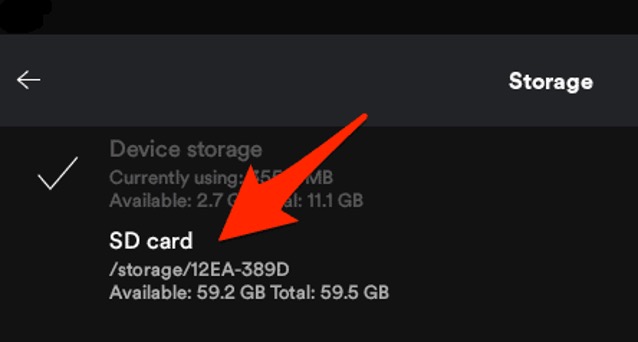
Fix 6. Change Spotify Storage from SD Card to Local
If Fix 5 above doesn’t work for you, simply try this fix. It’s possible there might be a storage conflict between the SD card and local storage where the app gets confused trying to read from two locations at once. So, when you move all the songs to internal storage, it forces Spotify to use faster, local memory. Do this to apply this fix:
- Open Spotify on your Android device and go to Settings.
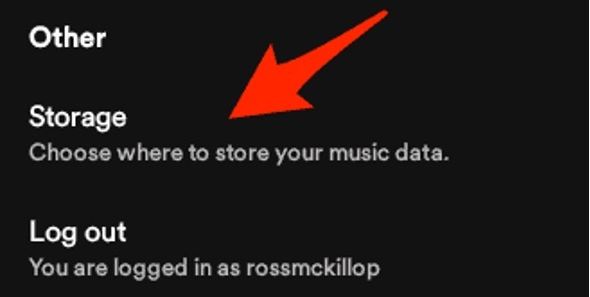
- Next, tap Storage.
- Change the storage location from SD card to internal/local storage.
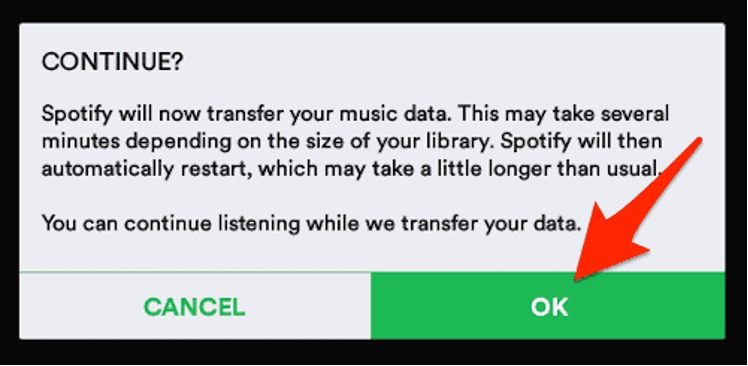
- Click OK to confirm. Once your music has been transferred, restart Spotify.

Fix 7. Listen to Spotify with Local Player
If Spotify continues to run slowly no matter what you do, there is one more thing you can try: download your Spotify music as MP3 files with MedVioo Audio Converter and play them with a third-party media player like WMP or VLC.
MedVioo Audio Converter solves Spotify's biggest weakness: streaming dependency. With this converter, you skip the streaming entirely, so there's no buffering, no cache issues, no server dependency. Think of it as an all-in-one package.
MedVioo Audio Converter lets you save music from Spotify directly to your device in formats like MP3, FLAC, WAV, and more. And because of this, you won’t be limited in the kind of devices you play them on. There’s a format for every kind of device. So you’re free to play music through your car audio system, laptop, or phone.
Steps to Download Spotify as MP3 with MedVioo
Step 1. Download MedVioo Audio Converter for Windows or macOS. Then open the Spotify web player in it.

Step 2. Log in with your Spotify account. You can still log in even if you’re using a free Spotify account.
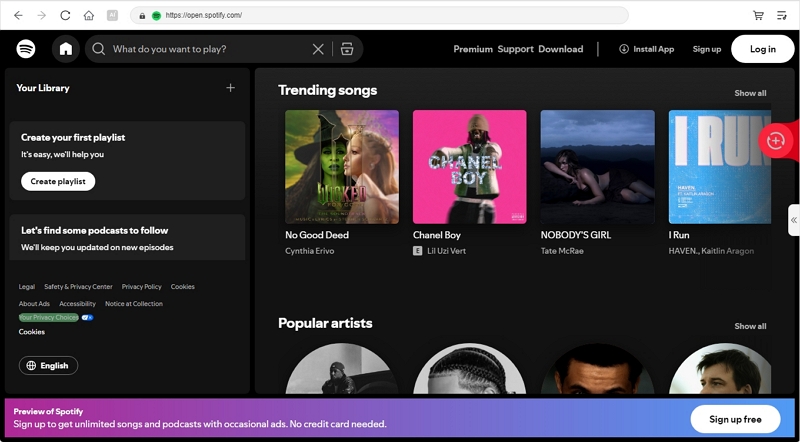
Step 3. Go through your library and find the track, album, or playlist you want to convert, or just search for it in the search bar. Drag the audio file to the red + button on the tool’s right panel. Another option is to click the red Add to the conversion list button.

Step 4. Expand the conversion window. Set the songs to convert to MP3 or any format you want and adjust the sample rate and bitrate. Finally, click Convert All to initiate the conversion process.

Step 5. Once all the files have been converted, simply play them with any media player you want, such as VLC, Windows Media Player and Music app on iPhone or Mac. Now, your music plays instantly every time, with no lag at all!
Conclusion
Spotify being slow is frustrating but it's almost always fixable. Start by finding out if it’s a server outage or a weak connection, then try the fixes above. You might be lucky and solve the issue by simply clearing the cache and updating the app. For Android users, the SD card and storage settings fixes are often the hidden culprits.
That said, if streaming your music continues to give you trouble, just use MedVioo Audio Converter to download your music. It's the best offline alternative. No lag, no buffering, no frustration. Just a quick, clean, and pleasant way to keep your music running when Spotify won't.