

Remember when you used to play songs on Spotify and read the lyrics separately on Chrome just to sing along properly? Spotify’s built-in lyrics feature was supposed to end that problem. But even now, many users still end up doing the same thing because Spotify lyrics not showing has become a pretty common issue lately. Sometimes the lyrics card does not appear at all. Other times, the lines don’t sync properly.
In this guide, we will break down why Spotify lyrics are not showing and how you can fix it, whether the issue shows up while you’re using Spotify on your phone, computer, or TV.
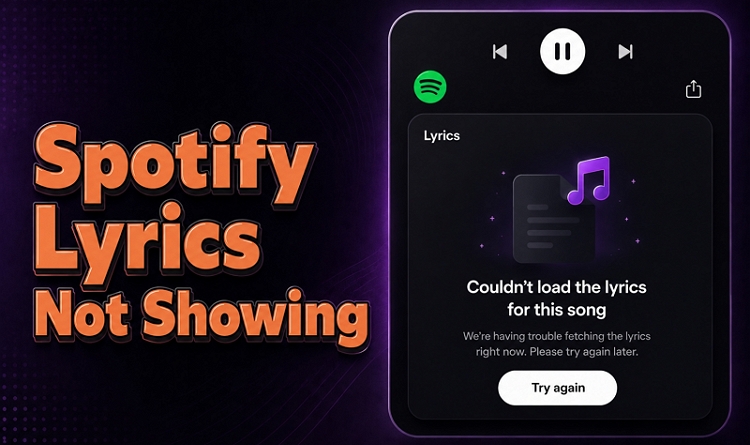
Reason 1: Spotify Lyrics Not Showing Due to Copyright or Sync Delay (How to Fix)
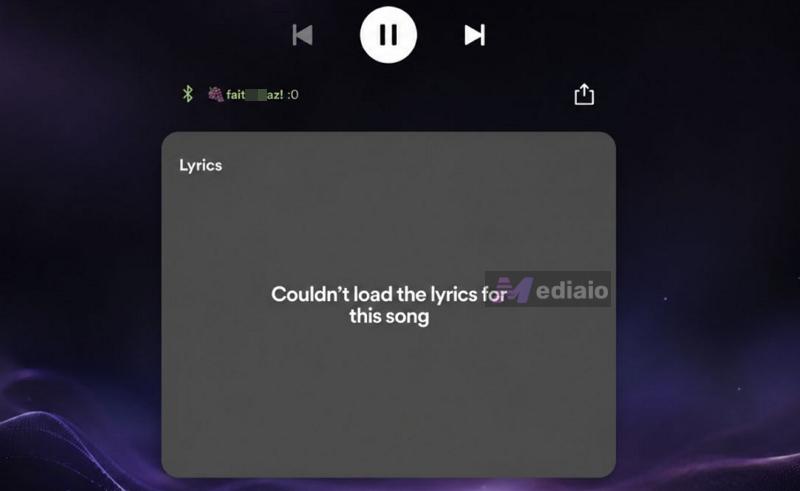
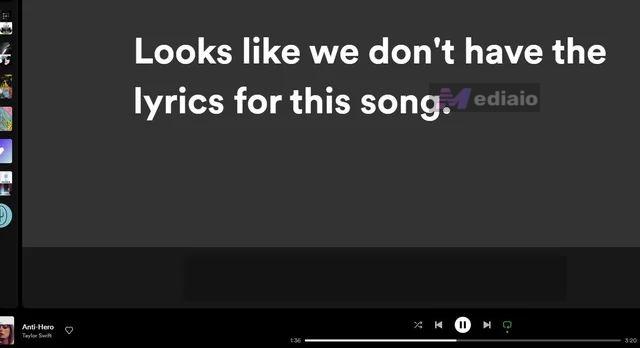
You can usually tell when it’s a licensing issue. In such cases, you’ll see messages like “Lyrics couldn’t load for this song” or “Looks like we don’t have the lyrics for this song” on the lyric card.
To understand why lyrics don’t show or sometimes don’t sync, you first need to understand where Spotify gets its lyrics from and how those lyrics are synced in the first place. So let’s start there.
How Does Spotify Lyrics Work?
Spotify does not have a dedicated in-house lyrics editorial team like Apple Music’s.
Spotify mainly depends on Musixmatch for lyrics. Musixmatch is a different service altogether. And along with Musixmatch’s own crowdsourced system, lyrics can also come from labels, publishers, distributors, and artists themselves during song delivery.
And sometimes labels or Musixmatch remap versions of songs in Spotify’s catalog. That is why lyrics can appear one day and disappear later.
So, whether it is missing or unsynced lyrics, the problem comes from Spotify’s reliance on Musixmatch and distributors.
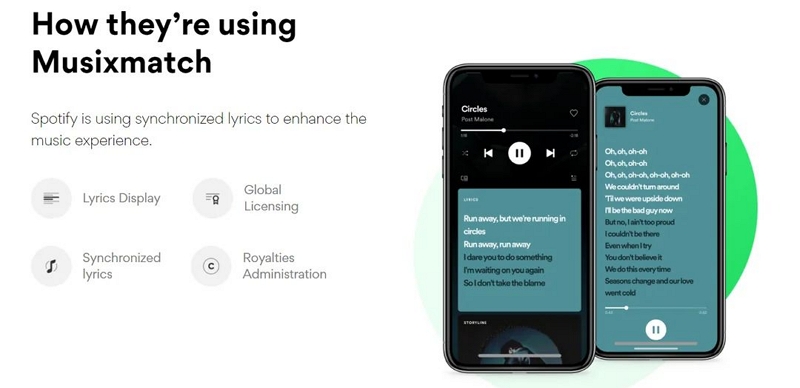
That said, here are the available options to deal with such issues for now.
Fix 1. Wait for Lyrics Updates
The hard truth is that you cannot fix some Spotify lyrics problems simply because they cannot be fixed manually.
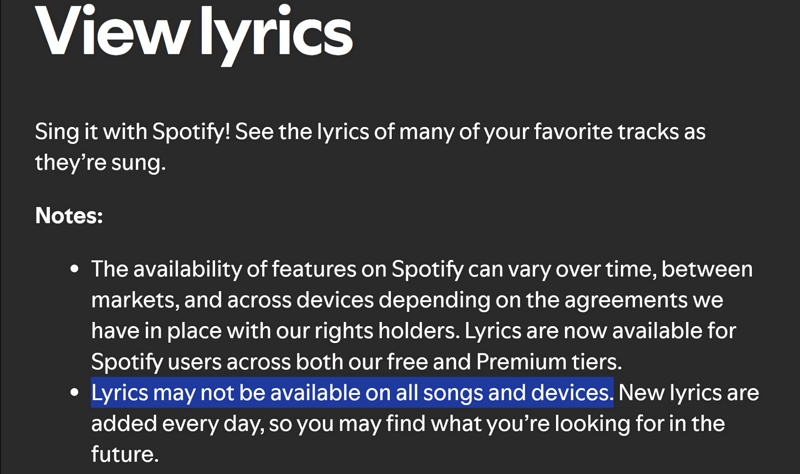
Musixmatch features lyrics for roughly 12 million songs. And Spotify’s catalog exceeds 100 million tracks. So you will also encounter issues like :
- Lyrics appear one day and disappear later.
- “We don’t have lyrics” message.
- Incomplete lyric cards.
- Lyrics are not syncing line by line properly.
- Or songs showing lyrics on one device but not another, yet.
The good thing is that popular songs, especially mainstream English tracks, are being updated every day. So in many cases, you have to wait for the lyrics database to refresh.
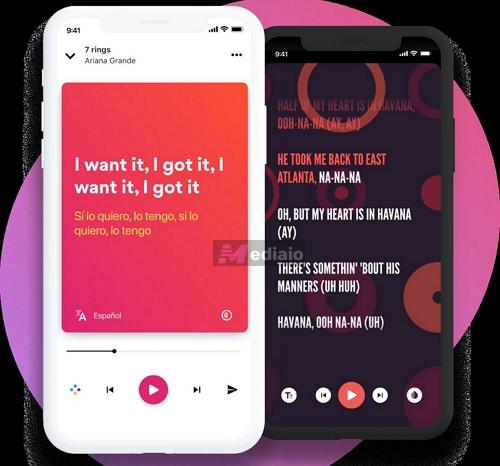
Fix 2. Use a Lyrics App
Spotify is powered by third-party apps. So it makes more sense to use a dedicated lyrics app directly on your phone. This comes with several advantages.
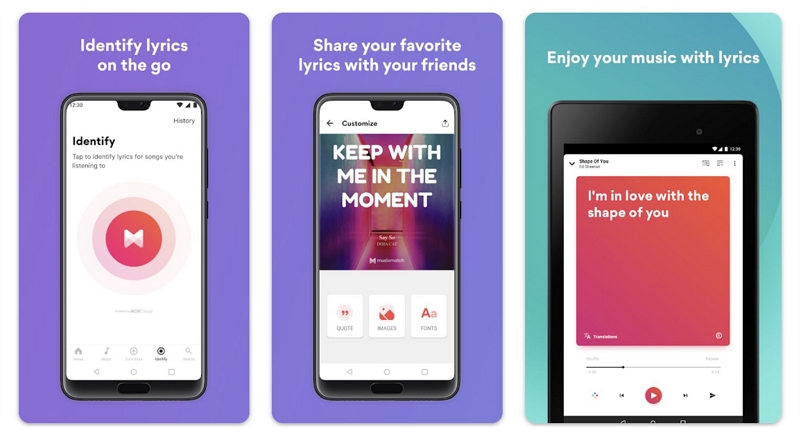
For instance, using Musixmatch directly lets you enjoy lyrics before they're updated on Spotify. It also comes with a floating overlay. Plus, you can enjoy synced lines. And in some cases, region-restricted lyrics can appear inside Musixmatch even if Spotify can’t show them.
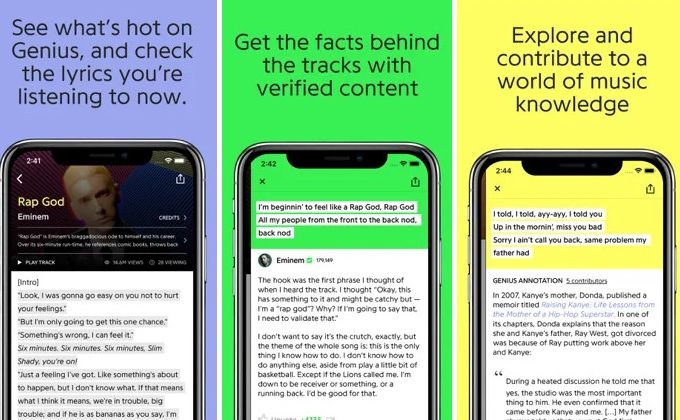
At the same time, you can also explore alternatives to Musixmatch. Apps like Genius follow a very different catalog style. And it is especially strong for English songs, rap tracks, and deep cuts. Unlike Spotify’s plain lyrics card, Genius focuses heavily on annotations and lyric explanations. So instead of simply showing the lines, you can also follow references, hidden meanings, bars, and background context behind the song.
Here’s how to use these apps:
Step 1. Install Musixmatch or Genius from the App Store or Play Store. Even the free version is enough to give you everything Spotify’s built-in lyrics card offers and sometimes even more.
Step 2. Open the app once and allow the floating window or overlay permissions if prompted. This lets the lyrics stay visible while music continues playing in the background.
Step 3. Play any song normally from Spotify or any other music app. The lyrics app will usually detect the track automatically.
Step 4. Once the floating lyrics icon appears on the screen, tap it. The synced lyrics will begin floating live over your playback while you continue using other apps normally.
Step 5. If your phone does not support floating lyric overlays, simply open the song song in Musixmatch or in Genius itself. The app will still show synced or annotated lyrics directly within its own interface. You can even edit lyrics and submit them to the platform.
Reason 2: Spotify Lyrics Not Showing Due to App Bugs (How to Fix)
Lyrics issues do not always come from copyright or sync problems. Sometimes the problem is completely technical. And it is the Spotify app itself that breaks the lyrics feature.
When app glitches are the reason, you will see certain behaviors. For instance:
- The lyrics card may keep spinning endlessly without loading any text.
- Tapping the Lyrics button can freeze the app or crash Spotify completely.
- In other cases, the lyrics feature itself disappear from your account. But it will start working when you log in with a different account on the same phone.
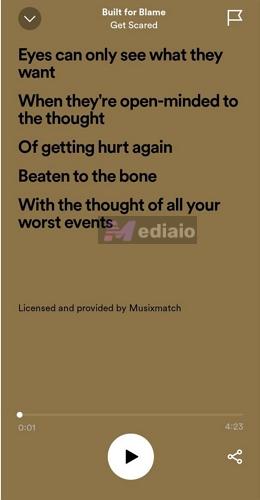
Here’s how to fix these technical glitches and get the lyrics feature working perfectly.
Fix 1. Clear Spotify Cache
Spotify stores a huge amount of temporary cache on your phone. This helps the app load content quickly. But sometimes these files connected to the lyrics module become corrupted. When that happens, the lyrics card will not behave properly. You’ll encounter endless loading spinners, partial lyrics lines, or a frozen card that doesn’t respond when swiped up. At that time, clearing the cache will restore the lyrics feature immediately. Here’s how to do that on Android or iPhone:
Step 1. Head into Spotify. Tap your profile picture in the top corner of the Home tab.
Step 2. Tap Settings and privacy (the gear icon).
Step 3. Scroll down the menu until you find the Storage section(on iPhone). On Android, the option is listed as Data saver and offline.
Step 4. Tap the Clear cache button. Then, confirm the prompt when it appears.
Don’t worry, this will only delete temporary files. It will not erase your downloaded files.
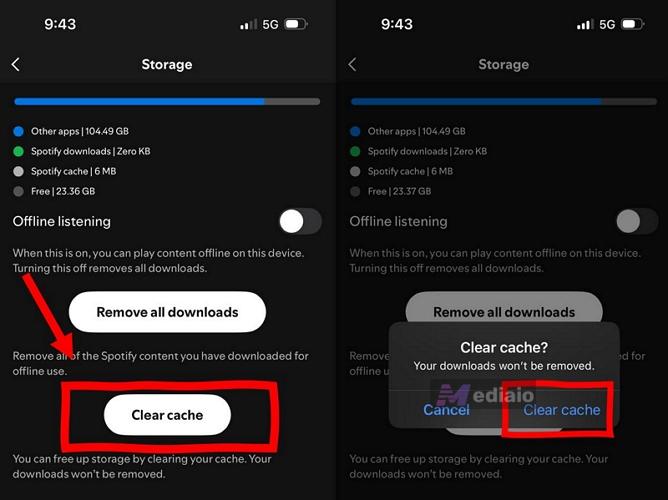
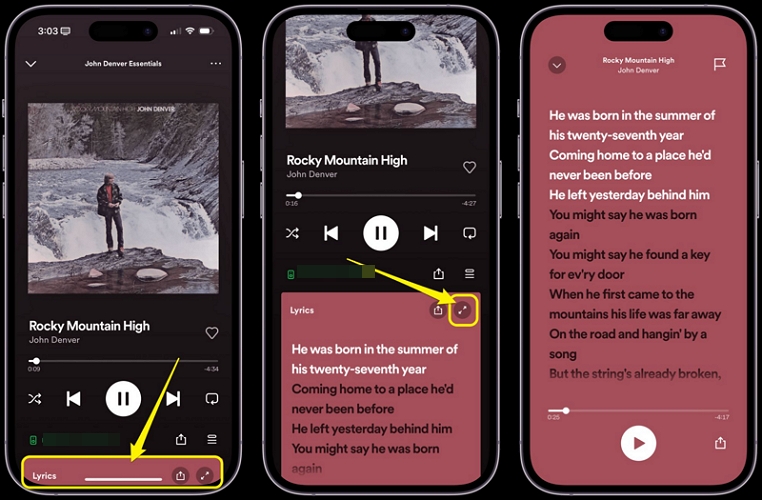
Step 5. Force-close Spotify. Launch it again. Play any popular song and tap the mini-player at the bottom to expand the full Now Playing view. Swipe up and the lyrics card should be restored. It will even respond and scroll seamlessly to the beat.
Fix 2. Relogin Spotify
Spotify rolls out many features through server-side account flags. So if the lyrics feature is still missing for you, it could simply mean Spotify hasn't properly refreshed it for your account in the background. Relogin is also recommended when the “lyrics not working” issues show after a password change or switching to a new device.
In that situation, forcing a fresh account handshake usually fixes the lyrics section immediately. Here’s what to do:
Step 1. Open Spotify and move into the Settings menu.
Step 2. Scroll all the way to the bottom of the page.
Step 3. Tap Log Out and confirm it.
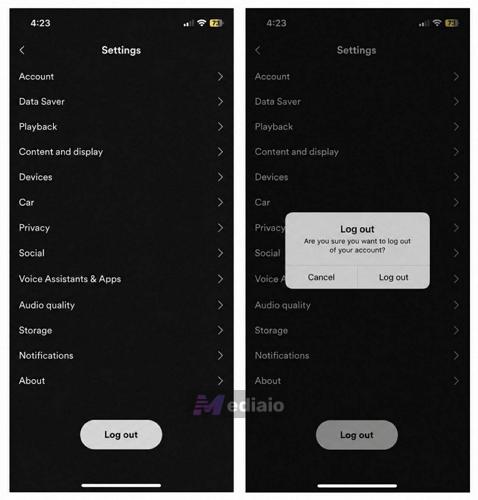
Step 4. Now swipe Spotify away from your recent apps completely so the app fully closes in the background.
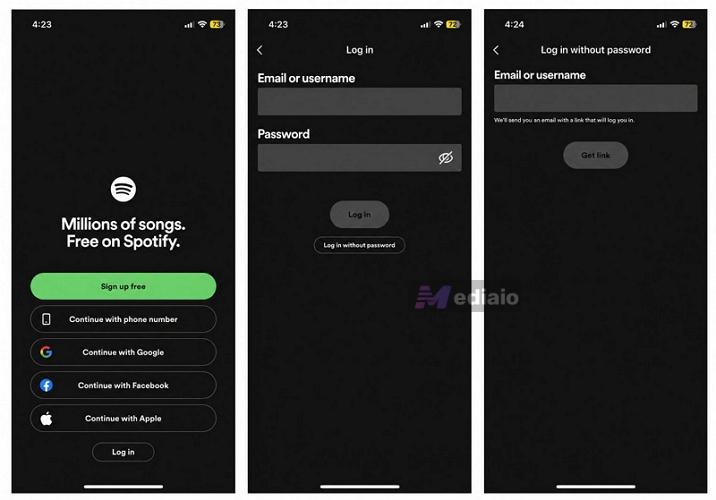
Step 5. Launch Spotify again and sign back in using your original login method.
Step 6. Play a popular song afterward and expand the Now Playing screen. In many cases, the lyrics card will start appearing normally again.
Fix 3. Reinstall Spotify
If opening the lyrics card freezes Spotify or the card itself refuses to load, Spotify’s core installation files could be corrupted. This is especially true if such issues are not fixed even after clearing the cache. And simply updating the Spotify app will not fix that either.
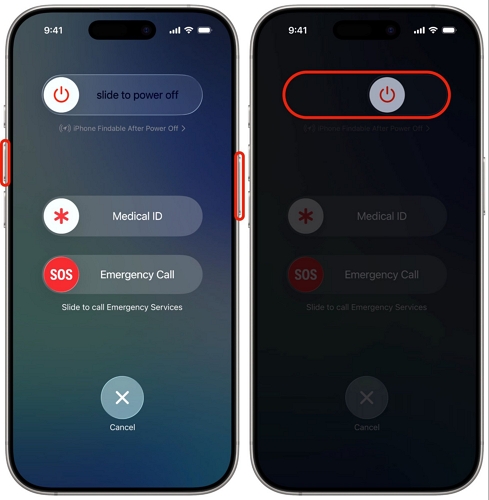
You have to completely wipe the damaged data by uninstalling the app. Then, install a fresh copy. Here’s how to do that properly on Android or iPhone.
Step 1. Remove Spotify completely from your device.
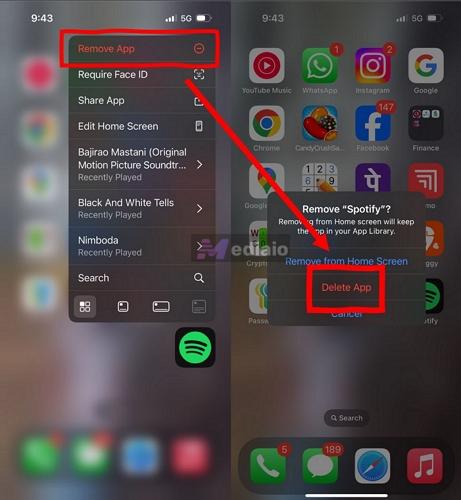
On iPhone:
- Long-press the Spotify icon from the Home Screen.
- Choose Remove App from the quick menu.
- Then tap Delete App to completely wipe Spotify and its stored data.
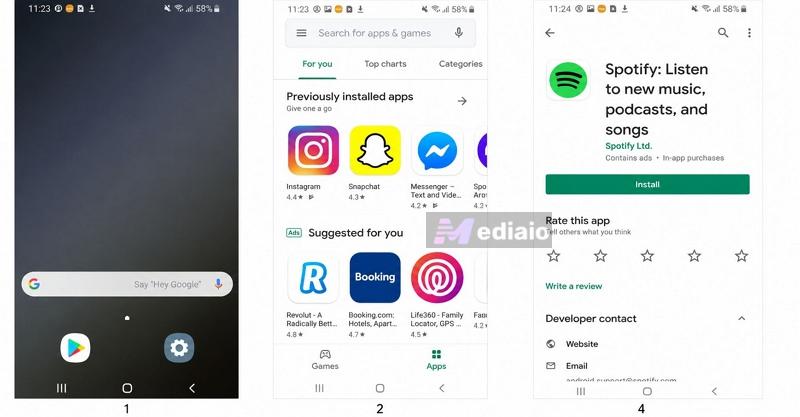
On Android:
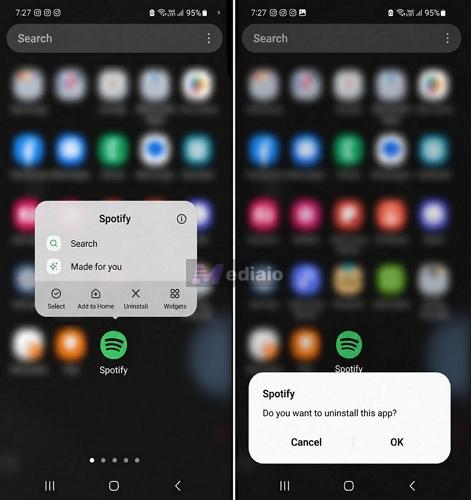
- Long-press the Spotify icon inside the app drawer.
- Tap the small App Info (i) icon.
- Then hit Uninstall from the system menu.
Step 2. Restart your phone once afterward. This clears leftover Spotify background files and old cached services still hanging in memory.
Step 3. Open the App Store or Google Play Store and reinstall Spotify.
Step 4. Sign back into your account. Then play a popular song with known lyrics. The lyrics card should now load and perform normally again.
Reason 3: Spotify Lyrics Not Showing Due to Update (How to Fix)
Yesterday, the lyrics card was working perfectly fine. Today, it is suddenly gone or not working properly. The culprit here is a silent background update.
Spotify is notorious for pushing buggy UI updates. And sometimes the backend experiments temporarily break features like the lyric card. For instance, certain updates affect full-screen lyrics mode. Some users even report that Spotify completely removed the lyrics card after an update.
Here are the fixes you can try for situations like these.
Fix 1. Install an Older Version of Spotify
One workaround is to roll back to an older Spotify APK version where lyrics were still working properly on your device and account. But before doing that, you need to understand the catches too.
- This is realistically possible only on Android. iPhone usually requires jailbreaking or unofficial app stores for downgrading Spotify, which becomes unnecessarily complicated.
- You will no longer be using the official latest Spotify app from the Play Store.
- Older Spotify versions miss newer playback features, bug fixes, or account-side improvements.
Note: Be careful about how far you downgrade. Older Spotify builds will still carry the old free-user lyrics restrictions. Remember, back then, free users could only see 3 lyrics/mo. But later versions made it available for both Free and Premium users. So stick to that APK version.
Here’s how to safely roll back Spotify on Android
Step 1. Remove the current Spotify app from your phone completely.
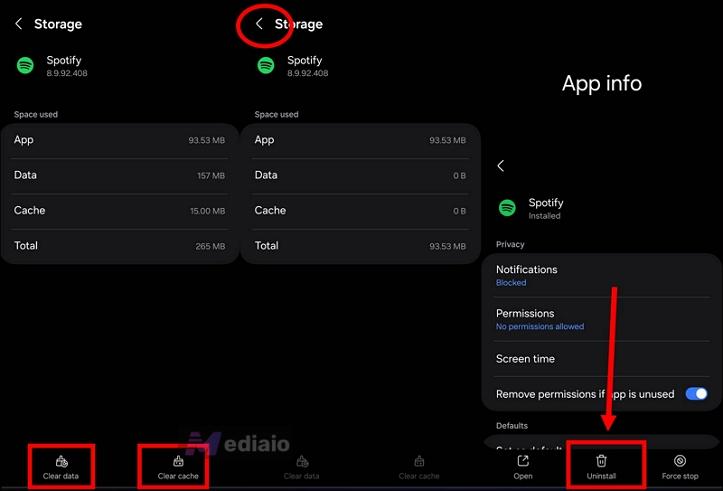
Step 2. Open Chrome or another browser. Then visit a trusted APK archive such as APKMirror or Uptodown.
Step 3. Search for Spotify. You will see older stable versions listed there. Usually, the newest builds stay at the top. So you only need to go slightly backward to find a version where the lyrics worked properly. And avoid anything marked as Beta.
Step 4. Download the .APK file. Android will warn you about installing apps from unknown sources.
Step 5. Tap Settings on the warning screen. Then, enable the Allow from this source toggle.
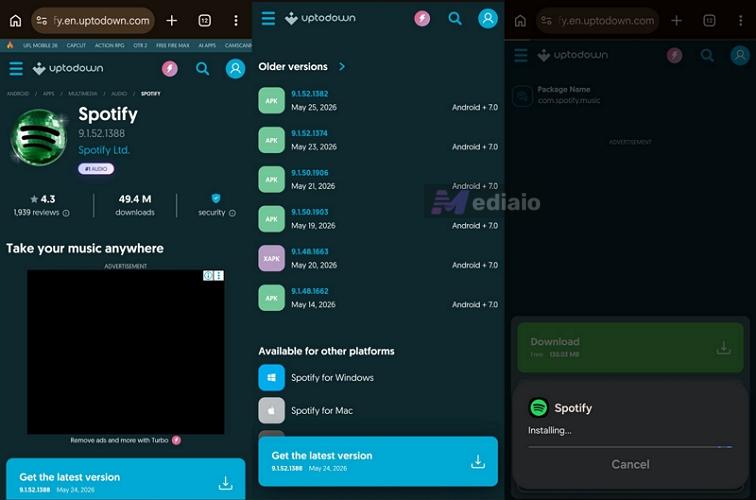
Step 6. Install the Spotify APK. Sign back into your account.
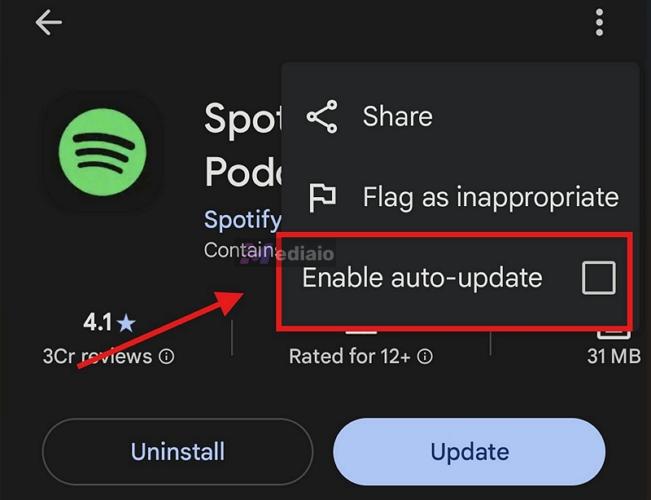
Pro Tip: But before opening Spotify fully, go to the Play Store first. There:
- Open Spotify’s Play Store page.
- Tap the three-dot menu in the top-right corner.
- Disable Enable auto-update.
Otherwise, Android will quietly reinstall the latest broken version of Spotify overnight, undoing the entire fix again.
Fix 2. Switch to Other Services
Spotify constantly changes and experiments with its lyrics UI. And honestly, it has become somewhat unpredictable at this point. Features disappear randomly, syncing breaks after updates, and there is always the fear that Spotify could again partially paywall lyrics, as it briefly tested earlier.
So if lyrics matter heavily to you, Spotify is honestly not the industry standard for this experience. Instead, you can use other apps.
Apple Music
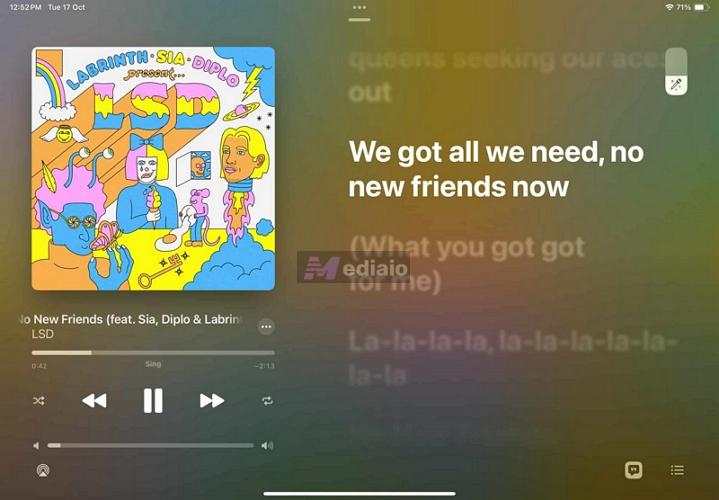
Apple Music, no doubt, is the strongest platform for synced lyrics today. Unlike Spotify, Apple does not rely heavily on crowdsourcing for its main lyrics experience. Apple maintains a massive in-house editorial workflow to verify and timestamp lyrics properly.
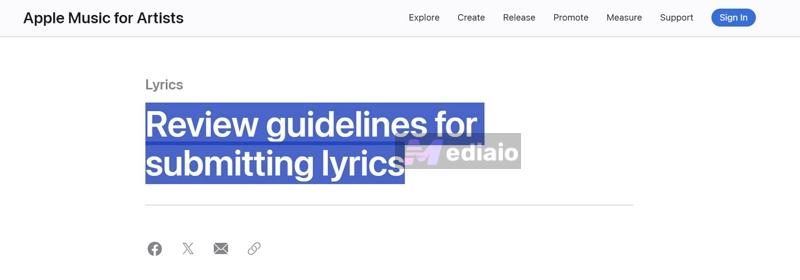
The difference becomes obvious immediately when you open the lyrics card. The UI will feel polished. Real-time karaoke-style syncing is extremely smooth. Word-by-word progression is more natural. And the app update rarely breaks the entire lyrics system the way Spotify sometimes does.
Yes, lyrics are still not available for every single song. But whenever Apple Music features lyrics for a track, the experience is far more stable and visually refined.
YouTube Music
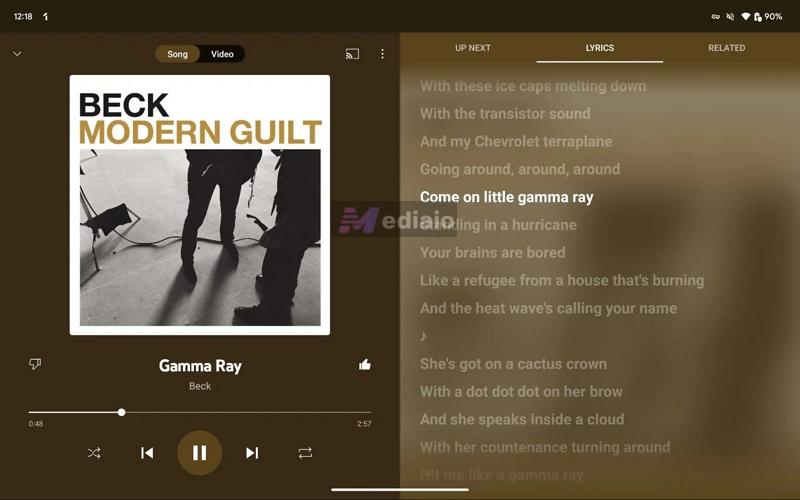
Google still uses providers like Musixmatch and LyricFind behind the scenes. So on paper, it can sound similar to Spotify’s setup. But Google layers additional machine-learning systems and translation features on top of that infrastructure.
Because of this, YouTube Music often feels much more feature-rich for lyrics discovery. You get live lyric translations for many songs. Regional tracks are handled better. And since YouTube Music is connected to YouTube itself, Google has access to enormous amounts of music and subtitle data, which helps support lyrics and syncing features.
How to Save Spotify Music as MP3 and View Lyrics
If you want the most flexible lyrics experience possible, then local music players are much better than Spotify. Apps like Poweramp, Strawberry Music Player, and MusicBee pull lyrics from multiple databases at once. So even when Spotify or Musixmatch fails to display lyrics, there is still a good chance these apps will find them through sources like LRCLib and other synced lyric databases.
But for this setup, you will first need the Spotify songs as local MP3 files. That is where Mediaio Audio Converter comes in.
Mediaio lets you export Spotify songs locally as MP3, M4A, FLAC, WAV, and other formats. So you can then open those files inside apps like Poweramp or Strawberry Music Player and use their advanced lyrics systems.
Another good thing is that Mediaio does not just preserve the audio quality. It also retains the original metadata properly, including song title, artist information, album name, and cover art. That matters because offline players use this metadata to identify the exact version of the song from open lyrics databases and fetch correctly matched synced lyrics.
This way, you can build a permanent local music library that works with multiple lyric engines. It also improves lyric support for niche songs. So you can sync lyrics to all your favorite songs and host karaoke nights with family, even without internet access. Because once the lyrics are fetched properly, many players save them locally. As an added benefit, offline players also offer more control and ad-free playback.
Steps to Save Spotify Songs as MP3 Using Mediaio
Step 1. Get Mediaio on your Windows PC or Mac. From the home screen, pick Spotify.

Step 2. Sign in through the built-in browser using your own Spotify account. Both free and Premium accounts work here.
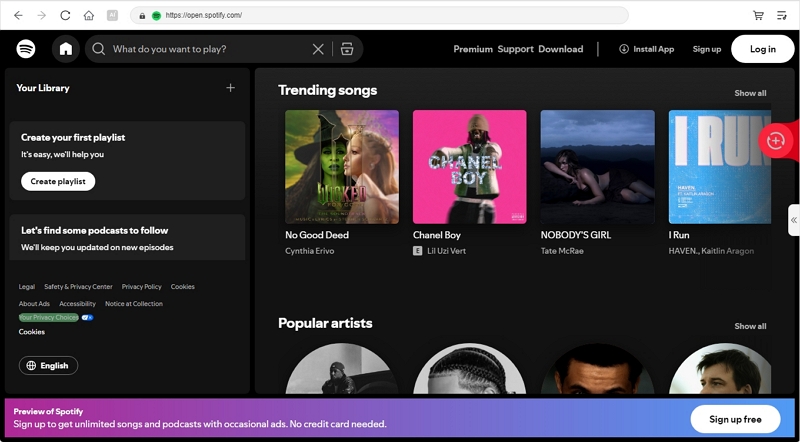
Step 3. Move through the Spotify library and choose songs you want to keep offline. Drag them into the conversion queue (the + button).

Expand the conversion window and pick the output format as MP3.

Step 4. Press Convert All. Mediaio will save the songs to your downloads folder. After that, you can open them with offline music players like Strawberry, MusicBee, or Foobar2000 on your computer. These players can automatically fetch synced lyrics even for many obscure tracks.
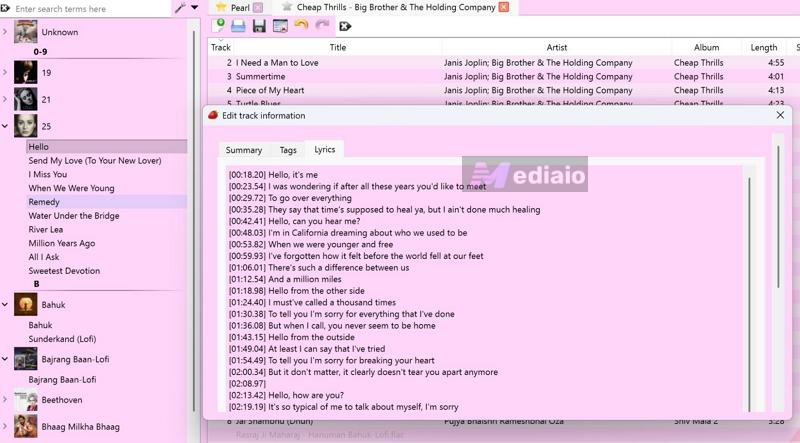
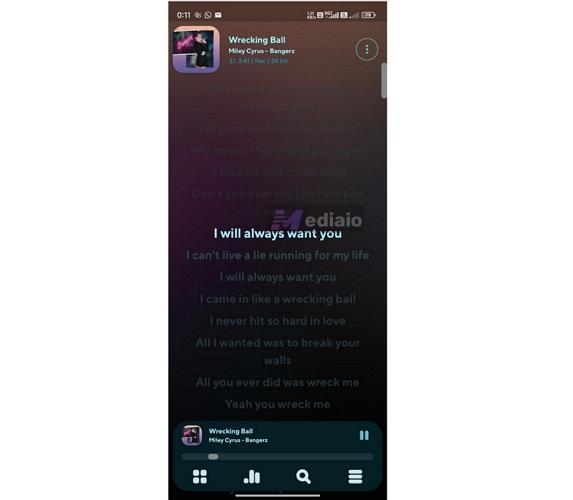
You can also transfer the exported songs to your iPhone or Android afterward and use offline players like Poweramp or Evermusic to enjoy synced lyrics locally without depending on Spotify anymore.
Conclusion
Whether the Spotify lyrics not showing issues come from sync delays or buggy app updates, the fixes above will help in almost all cases.
Another more reliable way to view lyrics is to use powerful offline players.
Mediaio Audio Converter can help you with that by handling the hardest part — exporting Spotify songs in high-quality MP3, FLAC, WAV etc. After that, you can open the songs in offline players like Poweramp, Strawberry Music Player, or MusicBee and enjoy much better lyric support.