

It’s easy to find a Spotify converter, but most only let you convert one song at a time. It’s much harder to find one that can handle an entire playlist and give you a single ZIP file. But don’t worry. This guide will show you the best way to download a Spotify playlist into a ZIP, whether you use a computer, phone or tablet.
Spotify Playlist into ZIP: Way Overview
We’ve chosen four tools for this guide. One is for Windows or Mac, another is for phones, and separate tools are available for Chromebook and Linux users. Each tool works a bit differently, so here’s a quick overview. If you use more than one device, this will help you choose the best option.
• MP3 up to 320 kbps, or lossless FLAC, WAV, M4A and AIFF
• Original order, full metadata, and cover art Computer users who want whole playlists in Spotify’s own quality
• Song name, artist, and cover art usually come through Phone users with playlists of up to 40 songs
• MP3s matched from YouTube, with a “(SPOTISAVER)” tag on each file name Chromebook users with up to 100 songs and some patience
• 128 kbps MP3 by default, other formats on request
• Spotify’s song details and cover art Linux users at home in the terminal
How to Download a Spotify Playlist into ZIP on Windows/Mac
If you use Windows or Mac, you can try a professional Spotify converter like MedVioo Audio Converter. It converts any Spotify playlist quickly, up to 30x faster speed. In its own Spotify web player, you can directly log in and convert your playlist to MP3 in original quality.
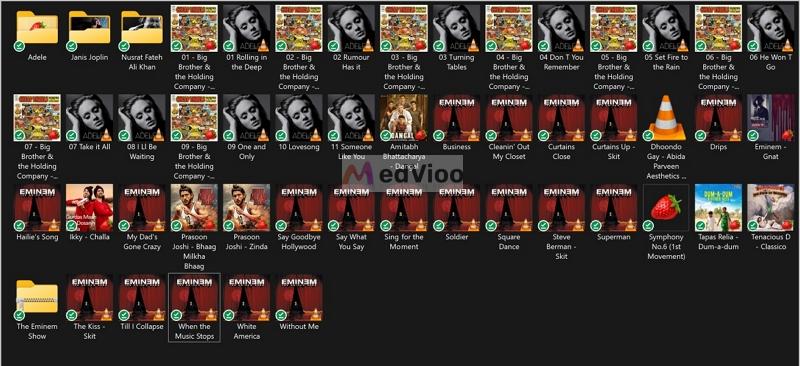
What makes MedVioo stand out is how it organizes your files neatly. Each playlist and album gets its own folder, with songs in the right order. Every song keeps its full details, including title, artist, album, and high-resolution cover art.
Steps to Download a Spotify Playlist into a ZIP on Windows/Mac
Step 1. Install MedVioo Audio Converter on your Windows PC or Mac. Launch it and choose the Spotify tile on the start screen.
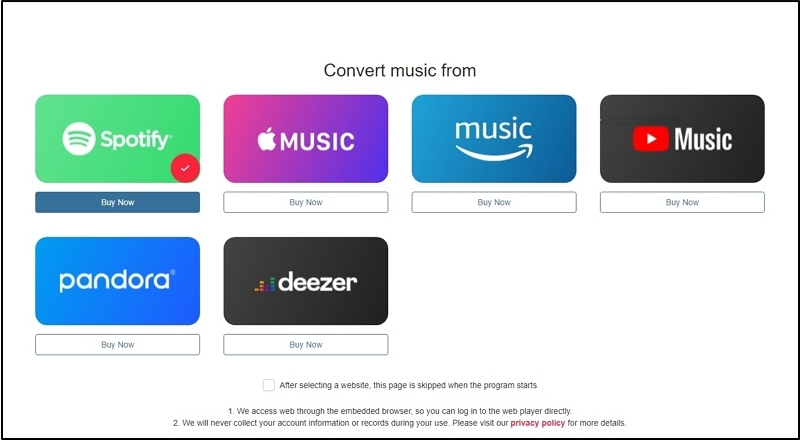
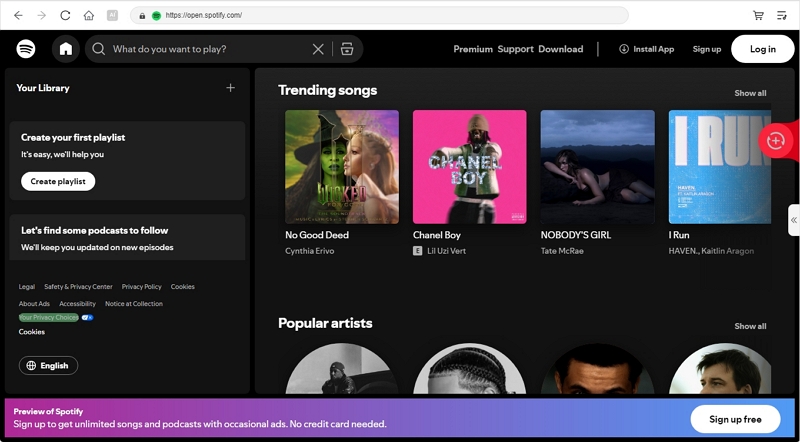
Step 2. Click Log in on the Spotify page inside the app and sign in with your Spotify account.
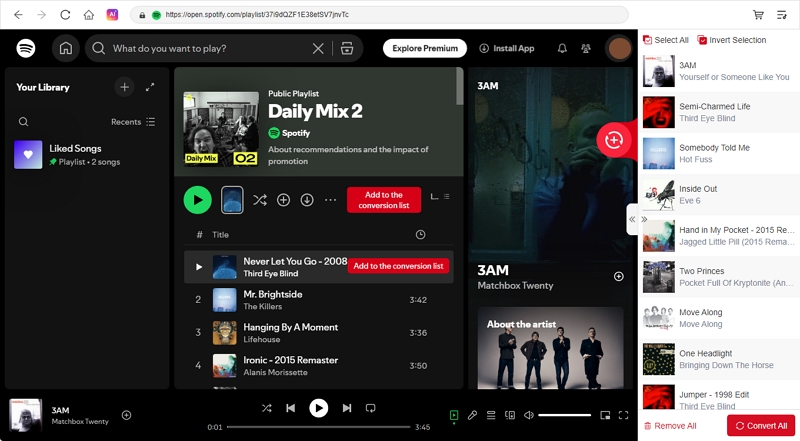
Step 3. Head to the playlist you want and hit the red Add to Convert button.
Step 4. In the conversion window, pick the format and the bitrate. Then click Apply to All so every song gets the same setting.
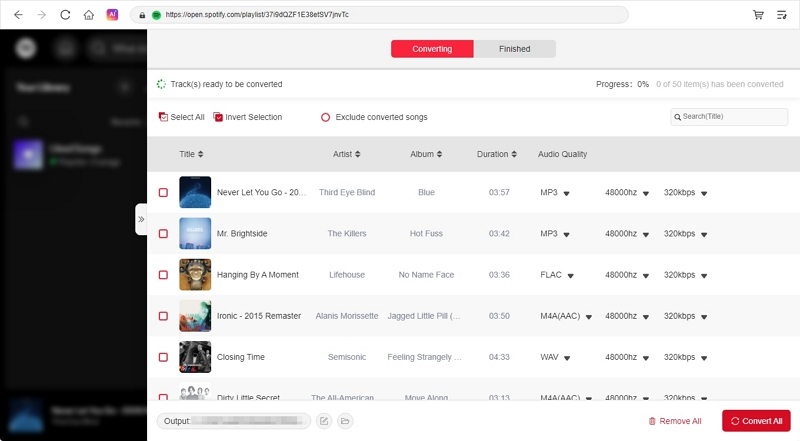
Step 5. Hit Convert Now. Once it's done, you’ll find the songs in the output folder you picked, with each playlist in its own folder.
Step 6. Right-click the playlist folder. Choose Compress on Mac and select Compress to > ZIP File on Windows.
How to Download Spotify Playlist into ZIP on iPhone/Android/iPad
There aren’t any working Spotify playlist converter apps in the App Store or Play Store. While Android lets you install some APK files, most are just online converters in app form and often stop working. That’s why Telegram bots are the easiest option on a phone. These bots run inside the Telegram app, so you can use them on Android, iPhone, iPad, or even your computer.
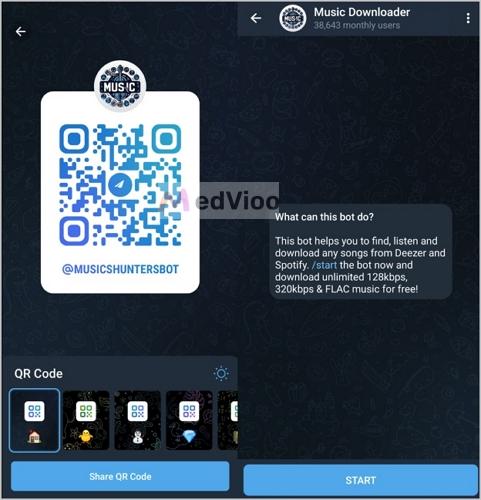
Still, out of all the bots we tried, @MusicsHuntersBot kept working for us. It’s one of the few Spotify converter bots that can handle whole playlists, though the free plan only works with playlists of up to 40 songs.
It sends the playlist’s songs in batch as separate files. Besides, as it finds songs on Deezer, some tracks from your playlist might be missing. The files are numbered by album order, not your playlist order, so the sequence can get mixed up.
How to Use Spotify Playlist Downloader ZIP Telegram Bot
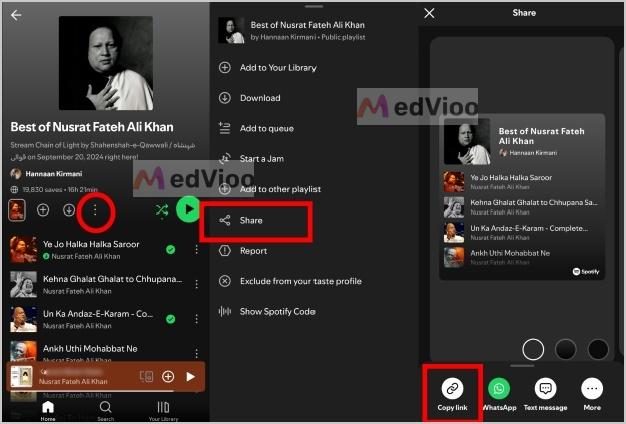
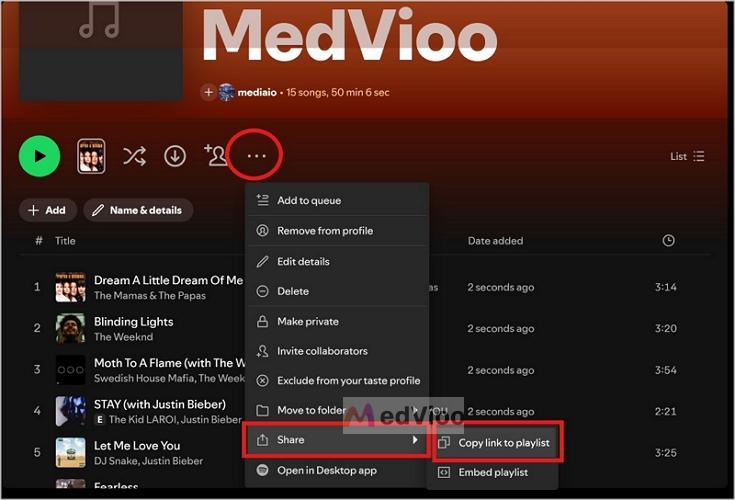
Step 1. In the Spotify app, open the playlist. Tap the three dots under the playlist name, then Share > Copy link.
Step 2. Over in Telegram, search for @MusicsHuntersBot, or scan the QR code below. Tap Start to activate the bot.
Step 3. Paste the playlist link into the message box and send it like a normal message.
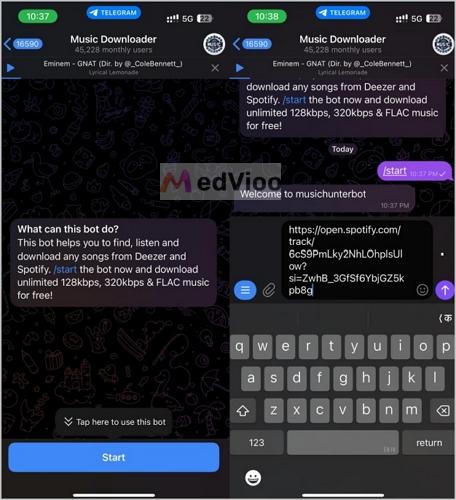
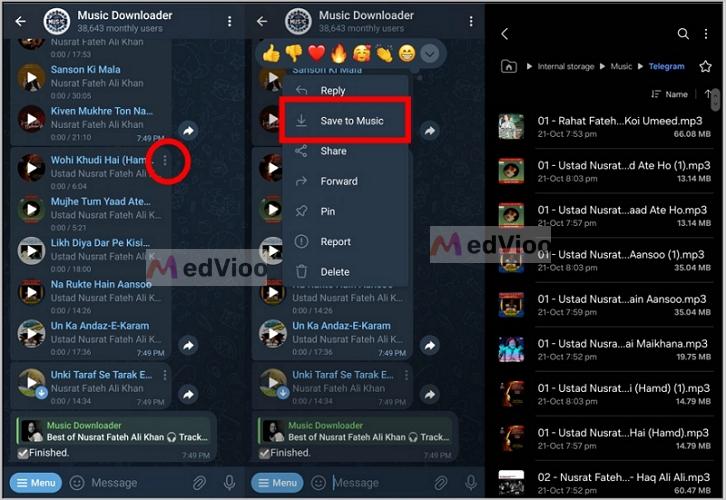
Step 4. The bot will start sending the songs in batches, and a “Finished.” message will appear after the last one. Here’s how to save them:
On Android: Tap the three dots next to a song and choose Save to Music. The songs land in Music > Telegram in your file manager.
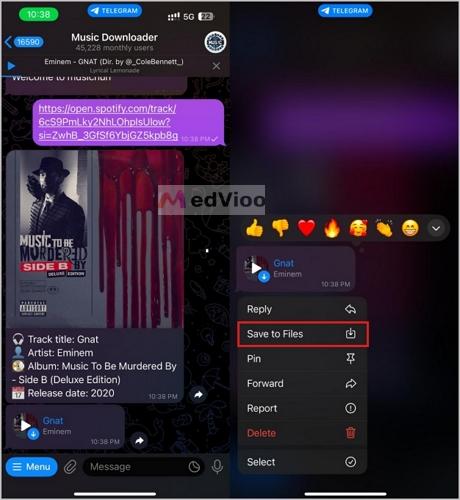
On iPhone or iPad: Press and hold a song, tap Save to Files, and pick a folder like Downloads.
Step 5. With all the songs saved, zip them.
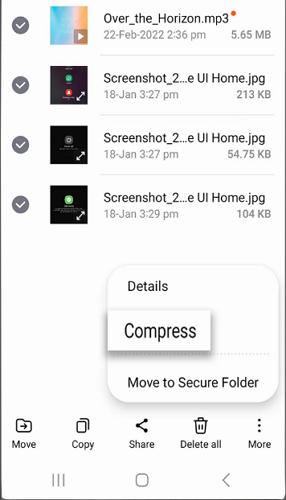
On iPhone or iPad: In the Files app, tap the three dots at the top right and choose Select. Select the songs, tap the three dots in the bottom-right corner, and choose Compress.
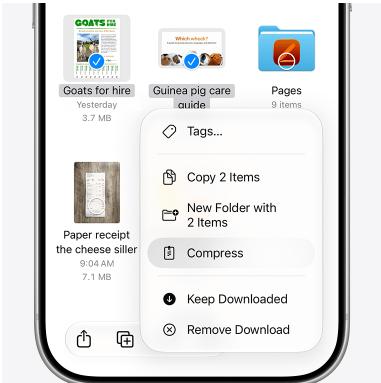
On Android: Select the songs in your file manager (e.g., Samsung’s My Files), then tap Compress.
How to Download Spotify Playlist into ZIP on Chromebook
While there are many ways to download Spotify songs on a Chromebook, the best way to download a whole playlist is to use a working online batch converter, such as Spotisaver. Its free plan converts playlists of up to 100 songs and packs them into one ZIP.
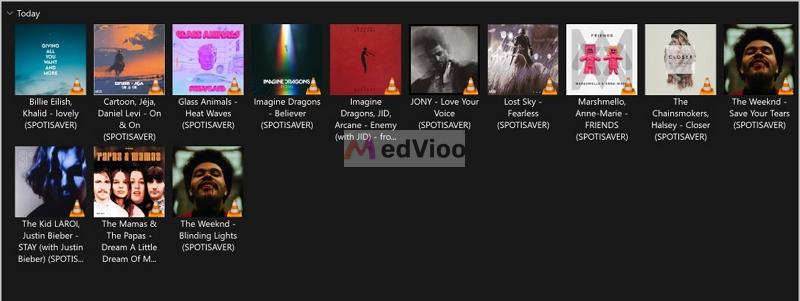
Spotisaver matches songs from YouTube, so the sound quality depends on the YouTube upload, not Spotify. Speed is another downside. For example, it took us about 15 minutes to convert a 15-song playlist, even with a fast 5G connection. You also need to keep the browser tab open during the conversion.
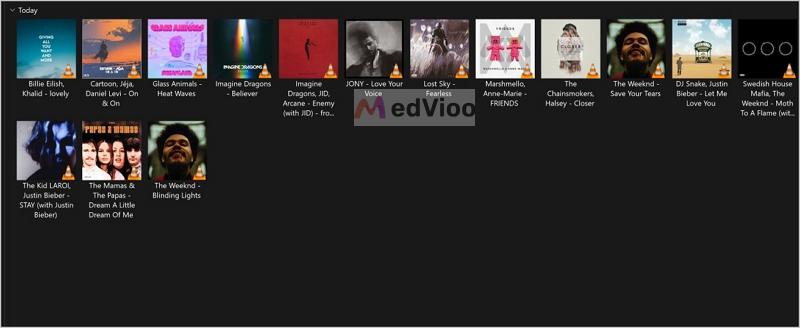
The premium plan lets you convert playlists of up to 1,000 songs, works faster, and emails you the ZIP file. Each song keeps its cover art, but Spotisaver adds a “(SPOTISAVER)” tag at the end of every file name.
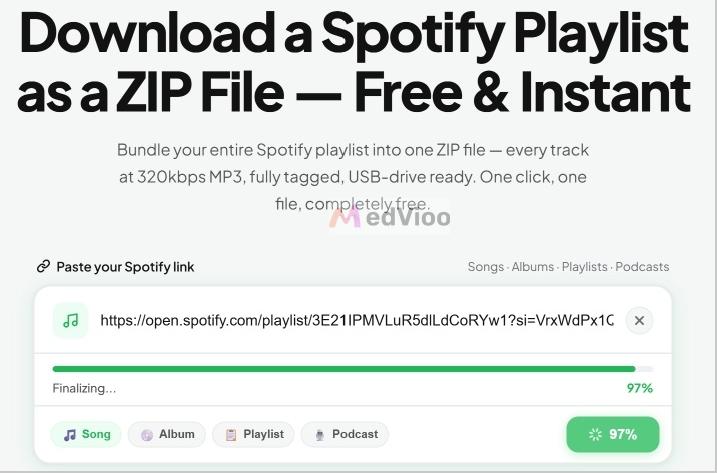
Note: Be cautious with other online converters. Most of the ones we tested just showed errors and wasted our time. For example, one site said it was processing the playlist, then stopped at 97% on “Finalizing…” and never finished.
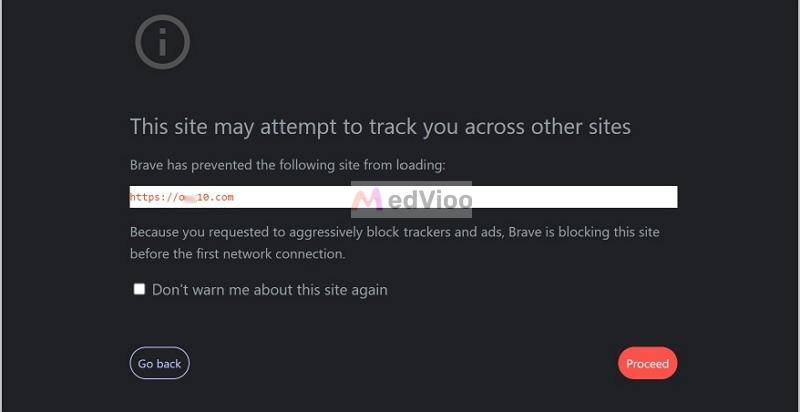
Even worse, one site redirected us to a tracking domain like oxx10 (dot) com.
How to Download Spotify Playlist into ZIP for Free
Step 1. In Chrome, open the Spotify web player at open.spotify.com and go to your playlist. Click the three dots under the playlist name, then Share > Copy link to playlist.
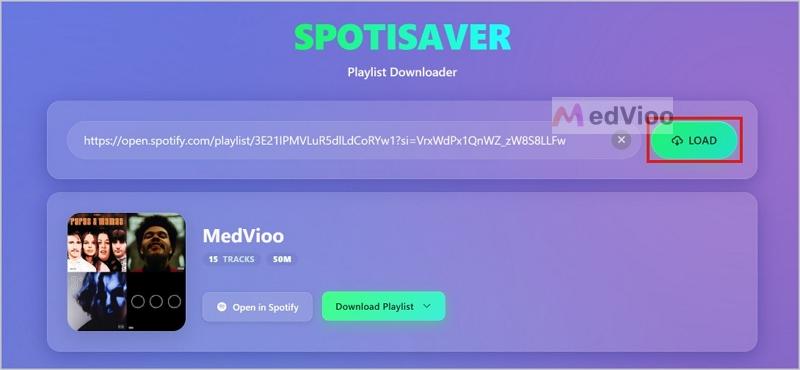
Step 2. Go to Spotisaver and paste the link into the box at the top. Click LOAD, and the playlist will appear with its cover and track count.
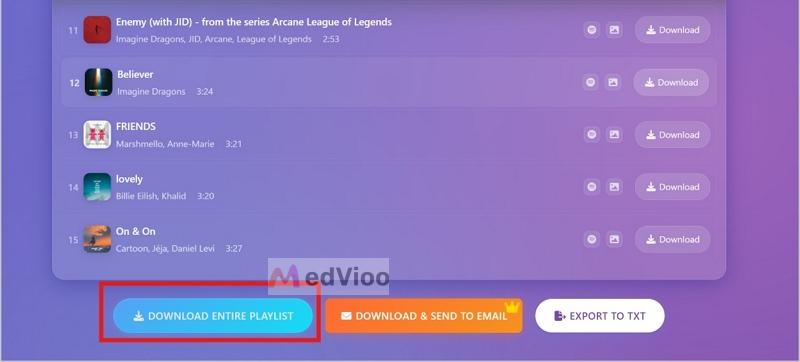
Step 3. Scroll all the way down, past the song list, and click DOWNLOAD ENTIRE PLAYLIST.
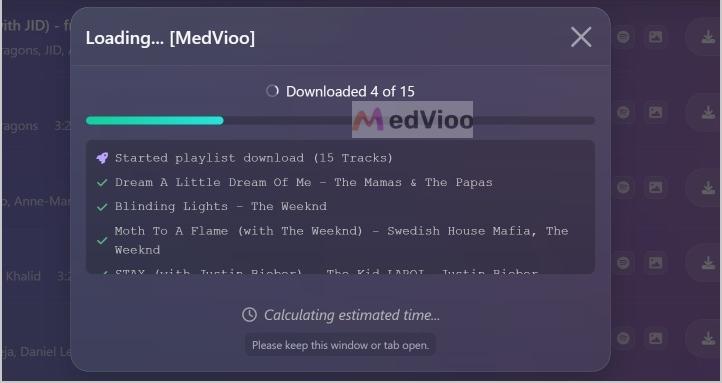
Step 4. A window will now count the songs as they finish. Keep this tab open until it’s done.
Step 5. Once every song is done, the window shows Archive ready. Click Download ZIP.
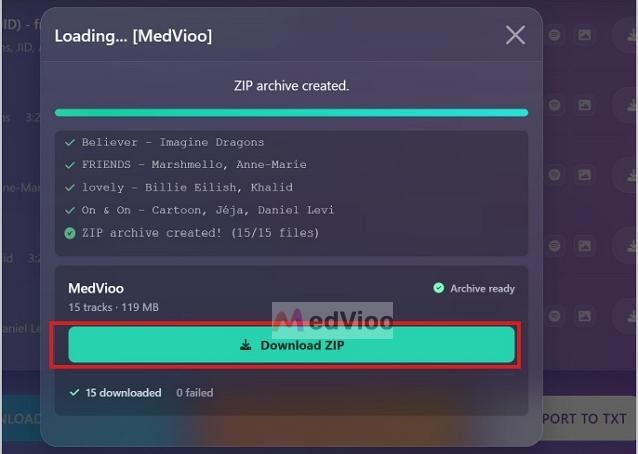
Note: The ZIP download itself takes a few more minutes, depending on your connection.
Step 6. The ZIP will land in your Downloads folder. On a Chromebook, the Files app opens a ZIP like a folder, so you can play the songs without extracting them.
How to Download Spotify Playlist into ZIP on Linux
On Linux, you can turn to the evergreen spotDL. As a link-based tool, it reads your playlist from Spotify, finds each song on YouTube Music, downloads it, and adds Spotify’s song details and cover art. Since the audio comes from YouTube, sound quality is a trade-off. spotDL usually tops out at 128 kbps, or 256 kbps if you have YouTube Music Premium.
Like any matching tools, spotDL can sometimes fetch the wrong version of a song, such as a live recording instead of the studio version, or a radio edit instead of the album version.
Furthermore, spotDL can stop working if Spotify changes its rules. When Spotify tightened its developer rules in February, many spotDL users hit rate limits and were locked out for 24 hours. Since then, spotDL switched to a method that doesn’t need developer keys, so playlists convert smoothly again—for now.
How to Save Spotify Playlist as ZIP with spotDL
Step 1. Install pipx, FFmpeg and zip from your distro’s package manager. On Ubuntu, Debian or Mint, run:
sudo apt install pipx ffmpeg zip
pipx ensurepath
Then close the terminal and open it again.
Note: Newer Ubuntu and Debian releases refuse a plain pip install outside a virtual environment, and pipx handles that for you.
Step 2. Next, install spotDL along with Deno, which spotDL recommends so YouTube downloads don’t fail:
pipx install spotdl
spotdl --download-deno
Step 3. Create a folder named after your playlist and move into it, with your playlist’s name in place of “My Playlist”: mkdir -p ~/Music/"My Playlist" && cd ~/Music/"My Playlist"
Step 4. Copy your playlist link from Spotify. Then run this command, with your own link in place of the sample one: spotdl download "https://open.spotify.com/playlist/..."
You’ll see each song listed as spotDL finds and downloads it. When it’s done, the songs will be in your folder, named by artist and title.
Note: Add --m3u to the end of the command to also get a playlist file that keeps Spotify’s song order.
Step 5. Zip the folder: cd .. && zip -r "My Playlist.zip" "My Playlist"
The ZIP file will show up in your Music folder. You can also right-click the folder in your file manager and choose Compress.
Final Words
These are the best methods we found, and they work reliably for turning a Spotify playlist into a ZIP file, whether you’re on a computer or phone.
The easiest option here is MedVioo Audio Converter. It turns whole playlists into local files with almost no effort. The songs keep their high quality and are sorted into folders, ready to play offline and to be compressed.