

You copy a Spotify link, paste it into a converter, and get an MP3 file. The file even has the same song name as on Spotify, so it seems like it came directly from there. Actually, a Spotify link is only a web address, which tells Spotify which song to play and does not contain any audio file.
So where does that MP3 really come from? More importantly, which Spotify link-to-MP3 tools actually work and are trustworthy? We’ll answer these questions here. You’ll learn how these tools work, see the five best online converters and three GitHub utilities, and discover two ways to save Spotify songs as MP3 without using any link.
Spotify Link to MP3: How It Works
Most Spotify link-to-MP3 tools, whether online or on GitHub, work the same way. They read the song details from your Spotify link, like the title, artist, album, and cover. Then, the tool searches for that song on open platforms, such as YouTube, JioSaavn, or Gaana. Once a match is found, the Spotify-to-Link MP3 tool will download the song from one of those sites and convert it to MP3. Before giving you the file, the tool will add the Spotify details back in, so it looks like it came from Spotify.
This is why two different tools might give you two different files from the same Spotify link. Even the audio quality of your MP3's audio quality will depend on the version the tool finds. Only the song details actually come from Spotify.
5 Spotify Link to MP3 Converters Online (No or Fewer Ads)
Online converters make it quick and easy to turn a Spotify song link into an MP3 file. You just have to copy the song URL from Spotify, or sometimes even a playlist link, and paste it into one of these sites. Most of the time, you’ll get an MP3 file or a ZIP file with all the songs.
Common Features of Spotify Link to MP3 Converters Online
Most of these online Spotify-to-MP3 converters share the same basic features and you will find these across every site:
- These converter sites usually rely on ads. You can use these converters from any browser.
- MP3 is the only format available and most sites don’t let you choose the bitrate.
- Since they match songs from YouTube, so don’t expect true 320kbps MP3 files.
- Sometimes, the site might grab the wrong song because it matches by metadata.
- Some Spotify converters add their website name to the songs.
- They’re best for single song conversions.
- These sites also often stop working, so you’ll need to find another option from time to time.

1. Spowload
Link: https://spowload.cc/en3
Quick Overview: Up to 256kbps / MP3 / Batch Download (Premium) / No Ads
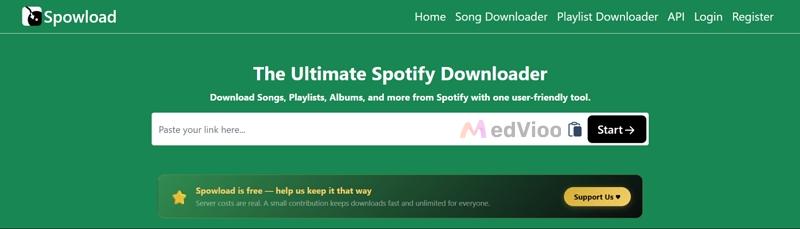
Spowload tops this list because it works reliably. Whenever you paste a Spotify link, you will get the song back. This is because Spowload pulls songs from open libraries like YouTube, JioSaavn, and Gaana, so it almost always delivers.
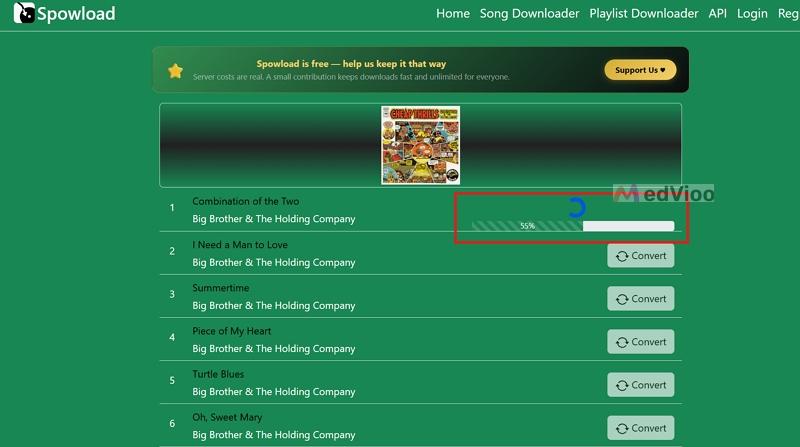
It also works with album and playlist links. On the free version, you need to click Convert next to each song and it only does one song at a time. This means you have to wait for each song to finish before starting the next. The premium version removes this wait by converting the whole playlist at once, giving you a ZIP file and faster speeds.
2. Spotisaver
Link: https://spotisaver.net/en/playlist-downloader
Quick Overview: Up to 320kbps / MP3 / Batch Download / No Ads
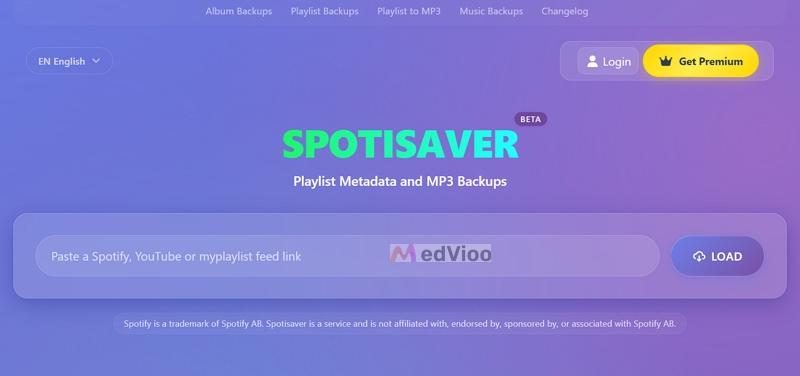
Spotisaver is built for playlists. It is also one of the cleanest converters you'll find. It doesn't rely on ads at all. Instead, the site supports itself with its premium offering.
Still, the free plan offers most of the features. You can convert playlists with up to 100 songs and get them in one ZIP file. The output quality matches what you’ll get as a premium member, up to 320 kbps. The only mark the free version leaves is a “SPOTISAVER” tag on each song name.
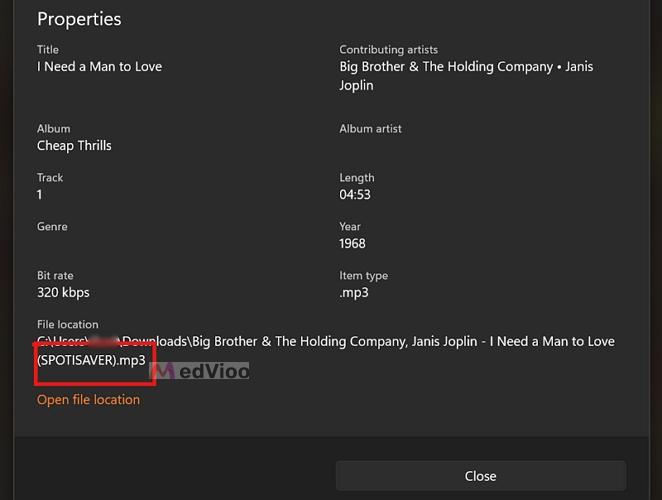
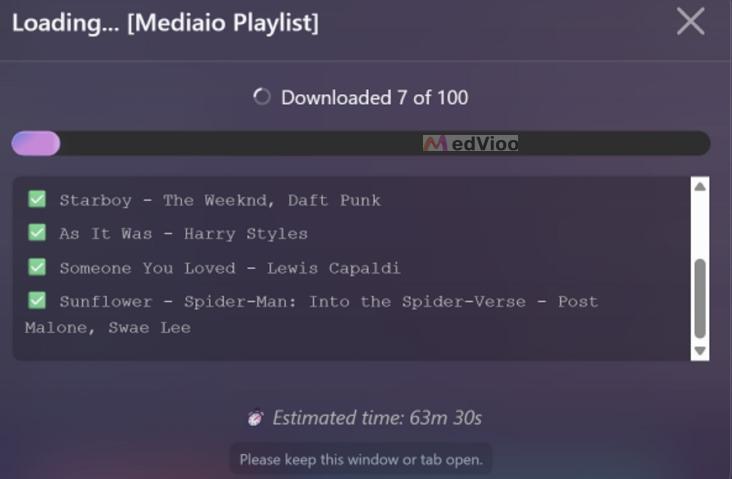
The main downside is speed. Spotisaver processes the link and shows the song details, then converts each song step by step. Even one song can take 3 to 4 minutes, and internet speed does not affect this. Large playlists take much longer. In our test, a 100-song playlist took about 163 minutes, and we had to keep the tab open the whole time. The ZIP file only had 93 songs. Missing songs in the final ZIP are common when using SpotiSaver, so you'll need to convert them again.
3. SpotiDown
Link: https://spotidown.net/
Quick Overview: 122–133kbps / MP3 / No Batch Download / Few Ads
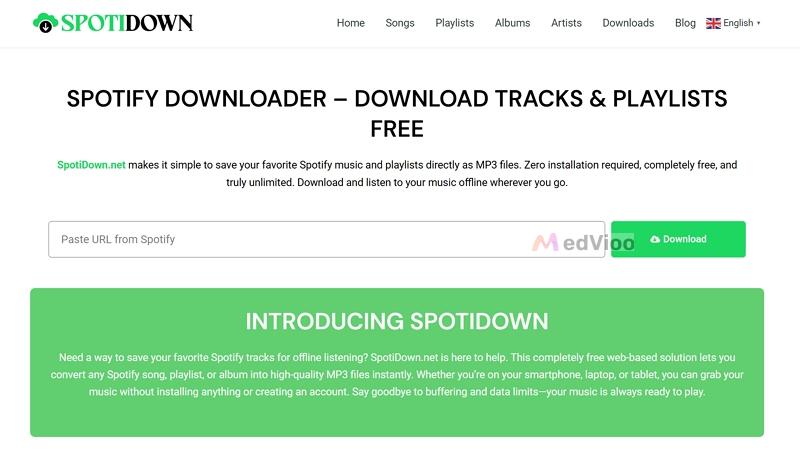
You’ll find several SpotiDown sites on Google, each with a different address like .net, .cc, .com, or .app. They all work, but we picked SpotiDown.net because it has very few ads and reliably converts single songs.
Keep in mind that SpotiDown also promises to convert albums and playlists, but it won’t. And when you paste one of those links, you will only get a “Spotify 500” error.
As for the output, most of the songs we converted landed between 122 and 137 kbps. Still, every MP3 includes the song name, artist name, album details, and even the cover art.
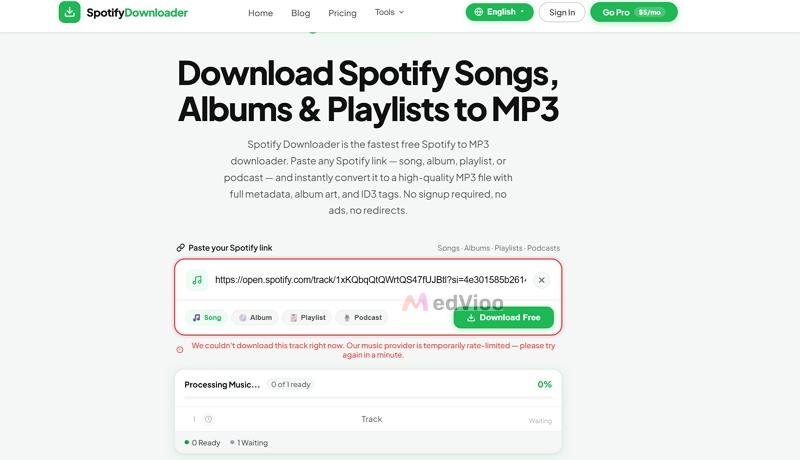
4. Spotify Downloader
Link: https://www.spotify-downloads.com/
Quick Overview: 128kbps / MP3 / Batch Download / Ads
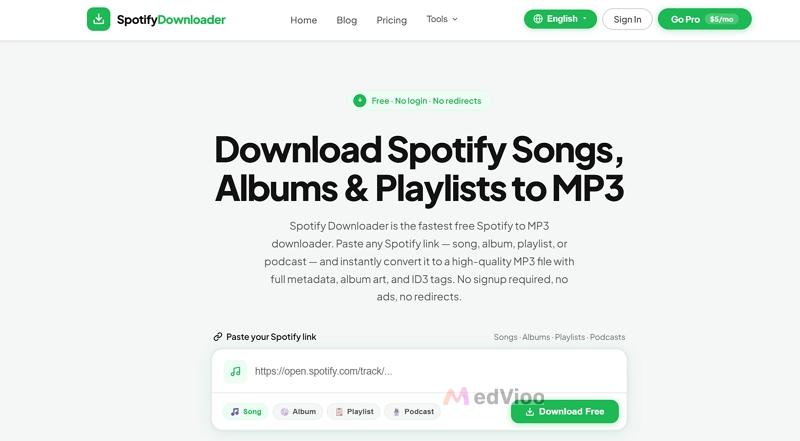
Spotify Downloader stands out as one of the fastest converters here. It’s also the only one with a daily limit: you can convert up to 20 songs a day for free (the site tracks this through your IP address). The good thing is that the site never redirects you anywhere. Ads stay minimal too. You will only see a banner ad at the bottom of the page, and it won’t interfere with your downloads.
You can use links for songs, albums, playlists, and even Spotify podcasts. However, the site isn’t always reliable. The progress bar often gets stuck at 90% or 97%, and sometimes even a single song conversion fails with an error. So, you will have to try several times before it works. Podcasts only work sometimes. Some converted without issues for us, but Spotify-exclusive podcasts always gave an error because the site can’t find them anywhere else.
5. SpotiDown.co
Link: https://spotidown.co/en16
Quick Overview: 115kbps / MP3 / No Batch Download / No Ads
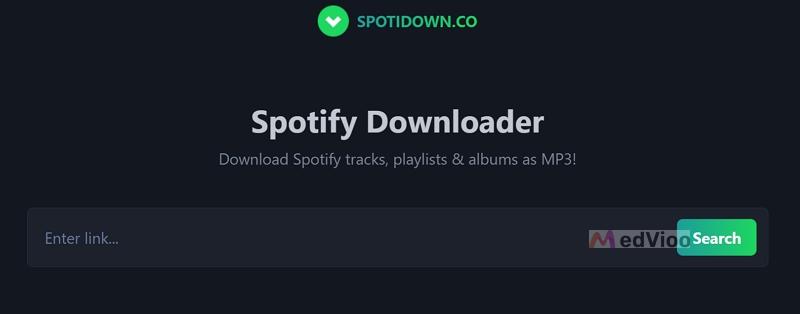
SpotiDown.co shares the same name as SpotiDown.net. However, this version is also worth mention. Firstly, it is very simple. Second, there are no ads or pop-ups, just a box where you paste your Spotify link.
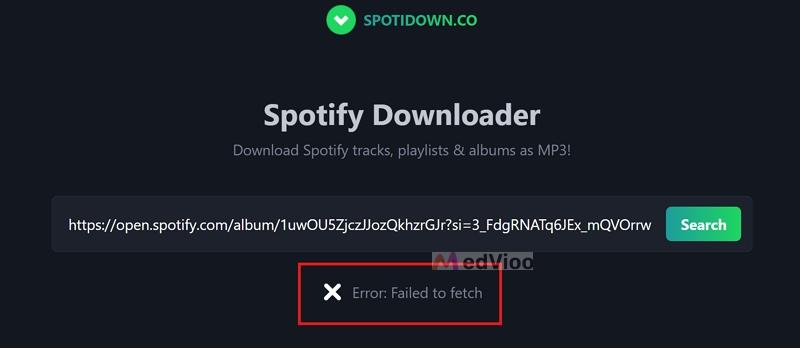
The site says it supports playlist and album downloads, but those links only show a “Failed to fetch” error. It does work with single songs and those download reliably. Also, the download process is lengthy: you’ll have to click a bunch of buttons to actually get the MP3 on your computer.
How to Convert Spotify Link to MP3 with Online Converter
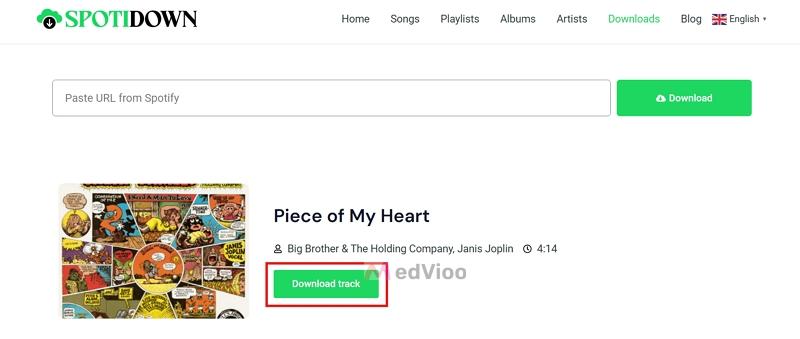
Now that you have seen all five sites, here is how SpotiDown, the third on our list, works in practice. The others follow almost the same steps.
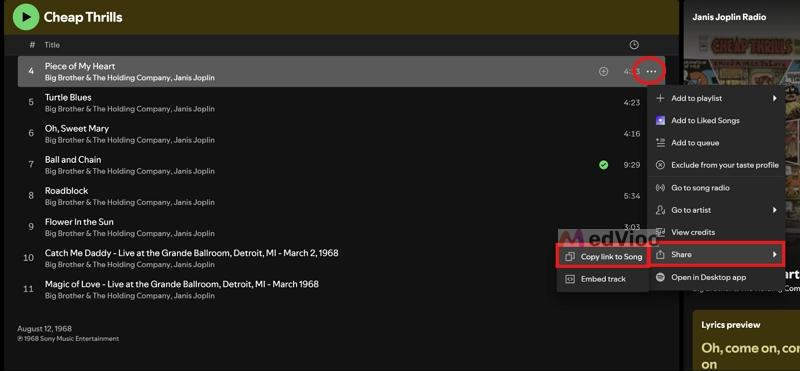
Step 1. In Spotify, find the song and click the three dots next to it. Go to Share and choose Copy Link to Song.
Step 2. Head over to spotidown.net. Paste the link into the box and hit Download.
Step 3. SpotiDown will load the song with its cover and artist name. Click Download track and the MP3 will save to your browser’s download folder.
3 Spotify Link to MP3 Converters on GitHub
GitHub tools work differently from online converters. They require more effort and are designed for people comfortable with technology.
But there is a good reason to use these tools. They run directly on your computer instead of a remote server. This means long playlists will not stop partway through and you can save as many songs as you want.
Common Features of Spotify Link to MP3 Converters GitHub
No matter which of these three you choose, they all share the following features:
- Setting up takes the most time. You usually need to install Python and FFmpeg on your computer and keep them.
- Most of these tools do not have a regular interface. You will need to type commands manually in Command Prompt, PowerShell, or Terminal.
- You can save songs as MP3, M4A, FLAC, and other formats, with more settings than most online sites offer.
- Nearly all of these tools are free to use and do not have ads.
- These tools can stop working when YouTube or Spotify updates their systems.
Many Spotify tools are on GitHub, but a lot of them are outdated or no longer work. The three listed here are still working.
1. spotDL
Link: https://github.com/spotDL/spotify-downloader
Quick Overview: Windows• Mac• Linux / Up to 320kbps / MP3, M4A, FLAC and More / Batch Download / Active
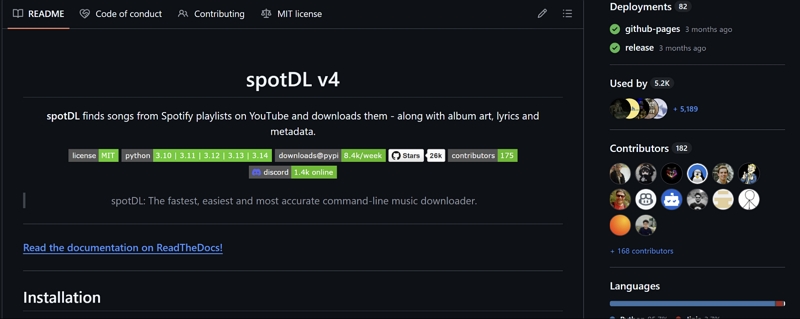
spotDL is the most well-known Spotify converter on GitHub. It is free, open source, and still actively developed. For example, the latest release, v4.5.2, was released on July 20, 2026. This update also added support for Deno, a small tool that helps keep YouTube downloads working.
One advantage is its flexibility. You can paste a single song, an album, a playlist, or even an artist’s page, and it usually processes everything without errors. The main downside is that you will use typed commands to run everything, so it will take some time to learn.
2. spotify_downloader (ControlDev)
Link: https://github.com/C0ntrolDev/spotify_downloader
Quick Overview: Android • iPhone / Adjustable Bitrate / MP3 / Batch Download / Archived
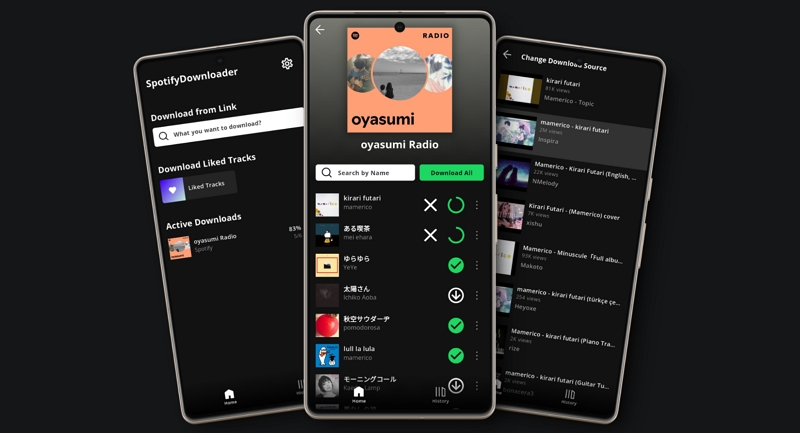
spotify_downloader is the only app here made for phones. It works on Android if you install it as an APK file. It can also run on iPhone using an IPA file, but only if you already have a sideloading setup.
The main issue is that it is outdated. The last release, version 1.1.3, was on November 25, 2024, and the developer has archived the project. This means it will not get any updates or fixes. It still works on Android for now, but it is not reliable. If you still want a phone app, this is the one to try.
3. Spotify-Playlist-Downloader (makuguren)
Link: https://github.com/makuguren/Spotify-Playlist-Downloader
Quick Overview: Browser / Up to 320kbps / MP3 / Batch Download / Working
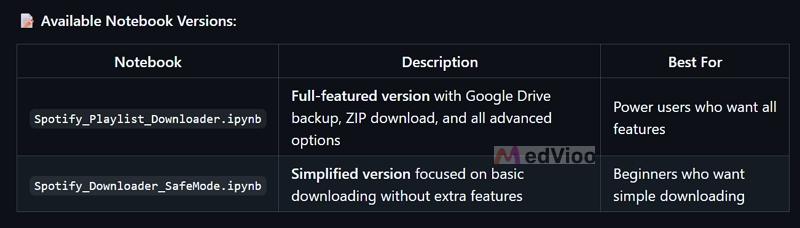
This tool is not an app or a terminal program. Instead, it is a notebook—a page of code divided into small sections that you run one at a time to see the results. You need to open it in Google Colab. The advantage is that you do not have to install Python on your computer. You just have to upload the notebook file to Colab, run each section in order, and paste your playlist link when prompted. The songs will appear in Colab’s file browser on the left, where you can download them or save them to Google Drive.
There are two versions of the notebook. The full version lets you back up to Google Drive and download ZIP files, while the SafeMode version only does basic downloading.
How to Use Spotify Link to MP3 GitHub Converter
Here, we will use spotDL as an example. The setup is long, like any other GitHub utility. But once done, each download just needs a single command.
Step 1. Install Python (version 3.10 to 3.13) and FFmpeg on your computer. While installing Python on Windows, tick Add Python to PATH. FFmpeg needs to be on your PATH too, so your terminal can find both from any folder.
Step 2. On Windows, search for Command Prompt or PowerShell in the Start menu and open it. On a Mac, head to Applications > Utilities > Terminal.
Step 3. Type this command and press Enter: pip install spotdl
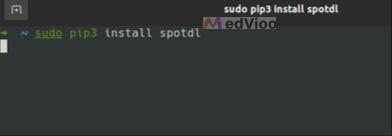
Python will download spotDL and all its requirements. If you are on a Mac and pip is not found, use pip3 instead.
Step 4. Next, run this command: spotdl --download-deno
This command adds Deno, a small tool that spotDL recommends to help prevent YouTube downloads from failing.
Step 5. Copy the Spotify link of your song, album or playlist, the same way as in the online steps above.
Step 6. Type spotdl, add a space, paste your link, and press Enter. It will look like this: spotdl https://open.spotify.com/playlist/...
If that does not work, use python -m spotdl instead of spotdl.
Step 7. Your songs will be saved in the folder where your terminal is open. On Windows, this is usually your user folder. On Mac, it is your home folder.
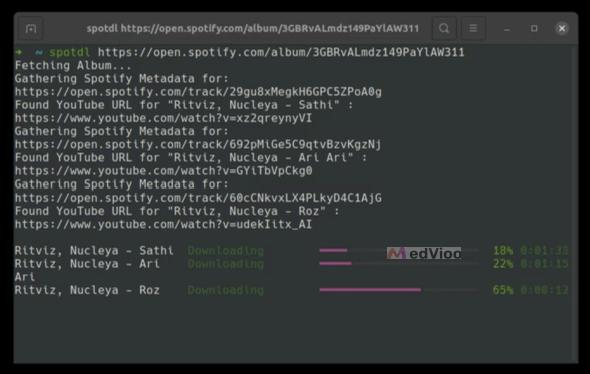
How to Convert Spotify to MP3 Without Links
Link-based tools are fine for a few songs, but they get slow if you want more. Downloading 100 songs as MP3s means copying and pasting 100 links. Plus, these tools match songs from YouTube, so you will get YouTube sound quality.
The two ways below skip links altogether. Plus, they let you get original-quality songs from Spotify itself.
Way 1. Use Professional Spotify MP3 Converter
Desktop Spotify converters - MedVioo Audio Converter is more stable, which is regularly updated and offers customer support. MedVioo is also easy to use. Its built-in Spotify web player enables you to complete music downloads within a few clicks. Simply choose songs and then start the conversion. The audio quality is real 320 kbps MP3s, as MedVioo uses Spotify’s own stream instead of matching from YouTube. The metadata also stays accurate, whether you download ten songs or a hundred.
How to Convert Spotify to 320kbps MP3
Step 1. Install MedVioo Audio Converter on your Windows PC or Mac and launch it. Choose Spotify from the main screen.

Step 2. Click Log in and enter your Spotify details. A free account also works here.
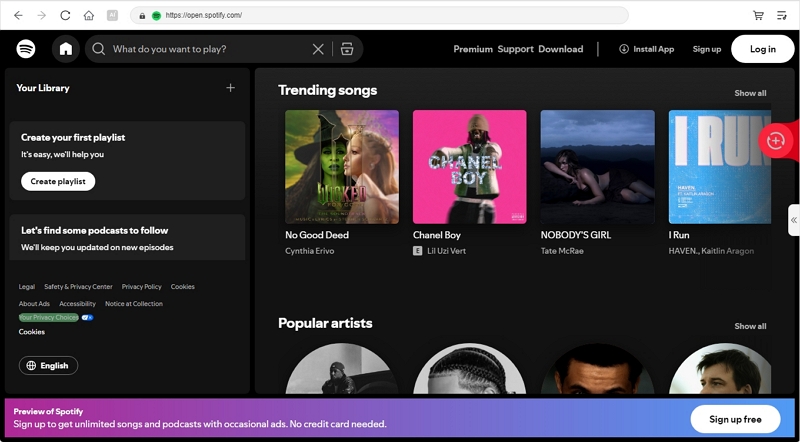
Step 3. Browse your library and drag the songs, albums, or playlists you want onto the + button on the right.

Step 4. Pick MP3 as the output format and set the bitrate to 320kbps. Then hit Convert All.

Step 5. Once the conversion ends, switch to the Finished tab and click View Output File. Your MP3s will be there, sorted into their own folders.
Way 2. Record Spotify Music
If you only need one or two songs in Spotify's original quality, a recorder like Eassiy Screen Recorder Ultimate is a better choice.
Eassiy’s Audio Recorder lets you capture audio from specific apps. So when you play a song on Spotify, you can use Eassiy to record it in real time. Keep in mind that the output quality will depend on your streaming quality setting. That is, if you stream in lossless on Spotify, Eassiy will record it that way. The downside is that the recorded song won’t have any song details, so you’ll need to enter the name and artist yourself. The good news is Eassiy has a built-in metadata editor to help with that.
Eassiy is also a full-fledged screen recorder with over 20 tools. So you can record Spotify Canvas videos, Netflix shows, or games with your webcam on.
How to Record a Spotify Song as MP3
Step 1. Launch Eassiy Screen Recorder Ultimate. Open the drop-down at the top left and pick Audio Recorder.

Step 2. Keep System Sound on and switch Microphone off, so no room noise slips into the song.
Step 3. Click the arrow next to System Sound and choose Volume Mixer. Push Spotify's slider all the way up. You can also lower other apps here, so their alerts stay out of the recording.
Step 4. Hit REC, then play your song in Spotify from the start. A small control bar will appear while Eassiy records.

Step 5. When the song ends, click the red stop button on that bar.
Step 6. Your recording will open as an MP3. Right-click it and pick Media Metadata Editor to add the song name, artist, and cover.

Conclusion
So there you go. A Spotify link to MP3 tool never gets your songs from Spotify. Instead, it usually finds a copy in open libraries like YouTube and hands you the file as an MP3. Still, for one or two songs, platforms like Spowload are the quickest.
If you want your songs directly from Spotify, without any matching, MedVioo Audio Converter is your best choice. If you want to save a few songs exactly as you hear them, Eassiy Screen Recorder Ultimate can record them as they play.