

You have a playlist saved as an M3U file, maybe from VLC, Strawberry, or an old music folder on your computer. Or maybe a friend sent you an M3U file of their favorite playlist. Now you want that playlist on Spotify. But Spotify doesn’t open M3U files. It doesn’t give you any import button to upload them either.
So how do you do it? That’s what you’ll find out in this guide. We’ll show you how to import an M3U file as a Spotify playlist on a computer or even on a phone. We tested many methods with the same 137-song playlist, and we’ve included only the ones that were easy to use and delivered accurate results.
What Is an M3U File
An M3U file is simply a plain text file. It’s used by offline music players like VLC, Strawberry, or MP3 players such as the iPod to play songs in order, just like a playlist on Spotify. As it’s just text, you can open it in a text editor like Notepad or TextEdit, create a playlist, and import it into any player to play your songs in a list.
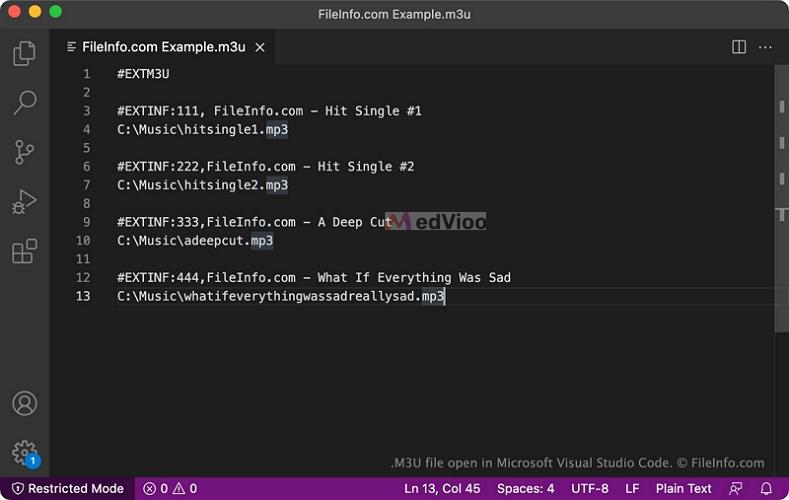
You’ll usually see two lines for each song in the M3U file. The first one starts with #EXTINF. It simply shows the song’s length in seconds, the artist, and the title. The line below it tells you where the song sits on your computer.
Spotify, on the other hand, can’t access songs stored on your computer. For Spotify to play a song, it must be on Spotify’s servers. So you need a tool that reads your M3U file, searches Spotify for each song, and creates a playlist from the matches it finds.
How to Import M3U File as Spotify Playlist for Free (GitHub)
The best free tools for this are scripts you can find on GitHub. You’ll need to set them up on your computer, which can take some time. For example, you have to create your own app on the Spotify for Developers dashboard. The problem is that since February 2026, Spotify only allows this if you have a Spotify Premium account. Still, if you meet that one requirement, these scripts are worth using.
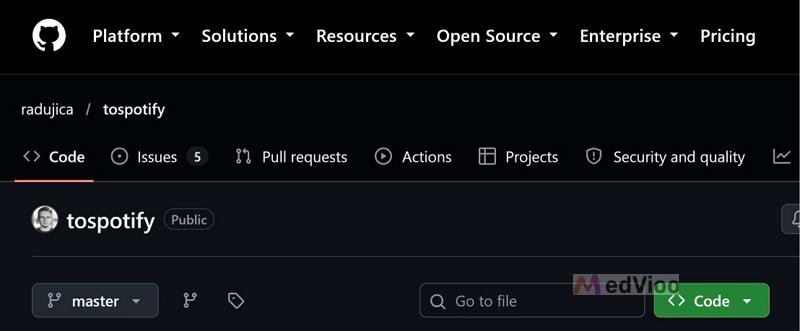
We chose tospotify for this guide. It’s designed specifically to turn an M3U file into a Spotify playlist. You can install it easily from PyPI with one command, but it does require more setup than the other methods here.
• Mac
• Linux
• A Spotify Premium account
• Your own app on the Spotify for Developers dashboard
However, it fails to match if a song has a dash in the name, like “AC-DC”.
Our 137-song list took 4 minutes, which is slower than online tools. But keep in mind that these are built to create long playlists.
How to Import M3U File to Spotify on Windows/Mac
Step 1. Install Python from python.org. If you’re on Windows, check Add python.exe to PATH during setup. You’ll need this later.
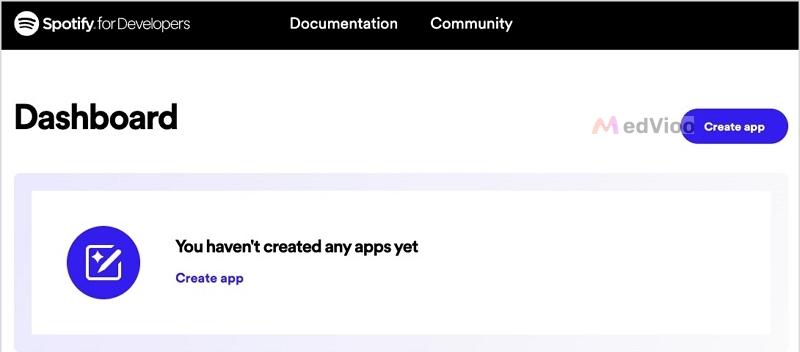
Step 2. Go to developer.spotify.com/dashboard and sign in with your Premium account. Click Create app and tick Web API. In Redirect URI, add http://127.0.0.1:8888. Then copy the Client ID and the Client Secret. You’ll paste them in Step 4.
Note: Spotify no longer accepts “localhost” in a redirect URI. So use 127.0.0.1, even though the tospotify page still shows localhost.
Step 3. Open Command Prompt on Windows or the Terminal app on Mac. Install the tool with this command: pip install tospotify
Step 4. Now give the tool your app details. On Windows, type these three lines one by one, with your own values in place of the sample ones:
set SPOTIPY_CLIENT_ID=your-client-id
set SPOTIPY_CLIENT_SECRET=your-client-secret
set SPOTIPY_REDIRECT_URI=http://127.0.0.1:8888
If you’re on a Mac, use export instead of set.
Step 5. You can now run the tool. Add your Spotify username and the path to your M3U file, like this: python -m tospotify "your-username" "C:\Music\playlist.m3u"
Step 6. A browser window will open and ask for access. Simply click Agree. The new playlist will appear in your Spotify library as a private playlist.
How to Import M3U File as Spotify Playlist for Free (Online)
Online tools are the easiest way to do this. Some of the best ones even let you import M3U files on their free plan. You usually just have to sign in, upload your M3U file, and connect Spotify. The tool can then find each song and build the playlist in your account. You’ll only need to pay if your playlist is really long.
So if your M3U file contains a short list, that’s all you need. However, these tools don’t always pick the right version of a song, as our test below shows.
We tried several tools, and TuneMyMusic and Soundiiz are options that let us import an M3U file for free. We gave both of them the same M3U file of our MedVioo Audio Converter playlist, with 137 songs. Then we checked every song in the new playlists against the original to see how accurately they matched.
Note: We made our M3U file from a Spotify playlist, so every song in it already exists on Spotify. That way, we could see whether each tool matched the exact same song or picked another version.
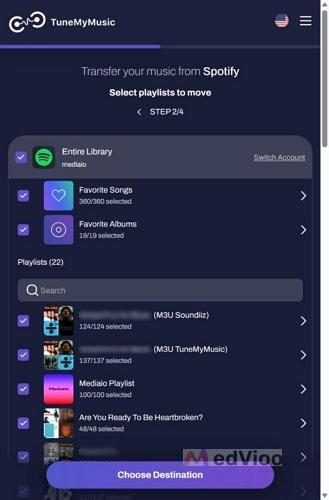
A few remixes came in as the original song. 118 of 124.
It also missed songs with a second dash in the name, like “Sick of You - 2020 Remaster”.
It creates a Public playlist. Named after your file.
It creates a Private playlist.
TuneMyMusic performed better in our test. It’s faster and can read song names with extra dashes correctly. Soundiiz is still useful if you want to remove duplicates while creating the playlist or if you want the new playlist to be private.
The good thing is that both tools kept the song order. Keep in mind that our results are for songs that are already on Spotify. Neither tool can add songs Spotify doesn’t have, like your own recordings or rare local files. Those will go missing for sure.
How to Import M3U File as Spotify Playlist on iPhone/Android
The steps are the same whether you use a computer or phone browser. If you’re using a phone, save the M3U file to your device first. On iPhone, keep it in the Files app. On Android, use the Downloads folder.
Here are the steps:
Step 1. Go totunemymusic.com and tap Let’s Start.
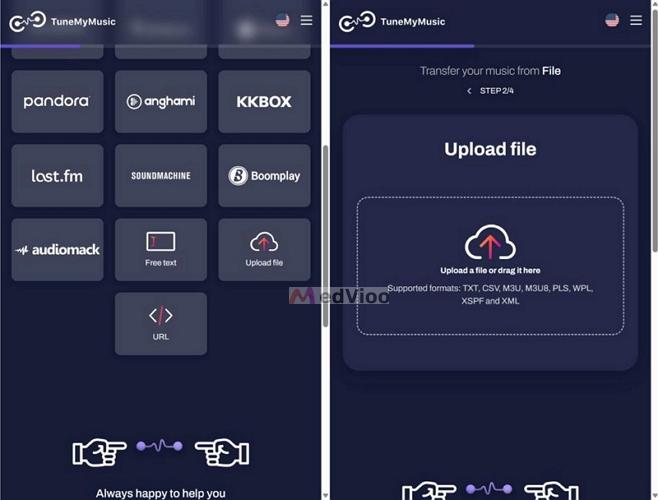
Step 2. Scroll down and tap Upload file. Then tap Upload a file or drag it here and pick your M3U file.
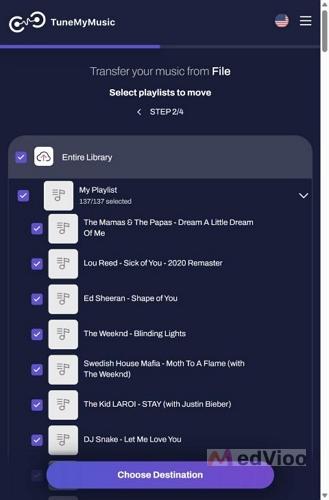
Step 3. TuneMyMusic will list every song it reads from the file, all ticked. Untick any songs you don’t want. Then tap Choose Destination.
Step 4. Pick Spotify and log in to your Spotify account when asked.
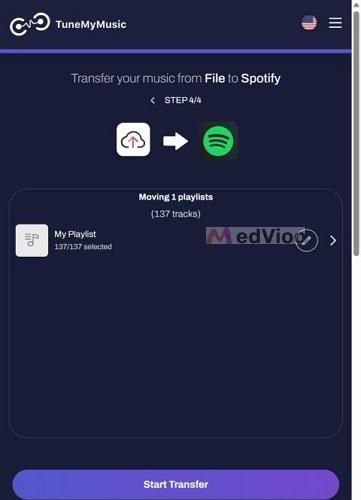
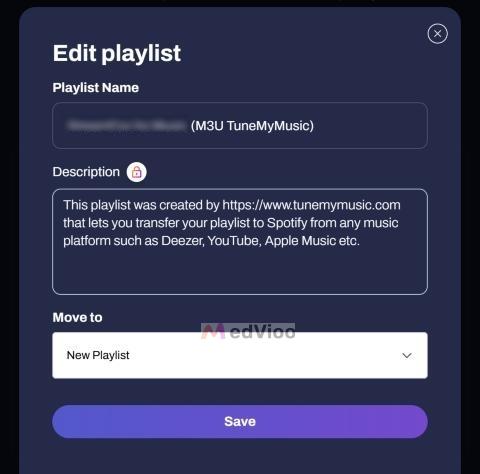
Step 5. On the last screen, tap the pencil icon next to My Playlist. Type a new name under Playlist Name and tap Save. Under Move to, you can also add the songs to a playlist you already have.
Step 6. Tap Start Transfer. When you see Transfer Complete!, tap the playlist to check each song. A Moved label means the song was added. You’ll find the new playlist in Your Library on Spotify.
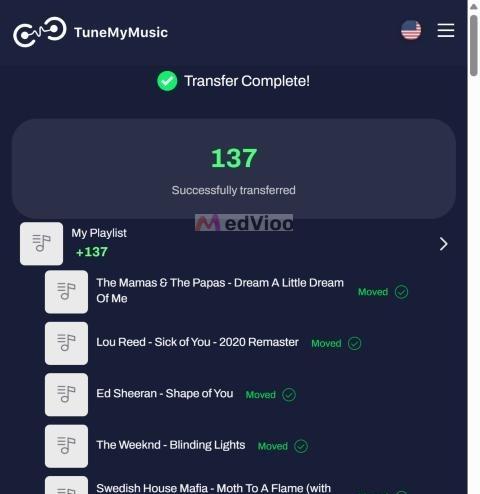
Note: “Moved” means TuneMyMusic found a song with the same name. Remixes and extended mixes can come in as the original song, so play those once after the transfer.
How to Export Spotify Playlist to MP3/M3U
If you want to play your Spotify playlists in a local media player, MP3 files are a more practical choice than an M3U playlist. You can convert and save the songs from your Spotify playlists to an MP3 folder, then import the files into your local media player and play them in any order you like.
MedVioo Audio Converter lets you save Spotify playlists as MP3 files in one go, up to 30x speed. It not only works for public or your own private playlists but also supports single songs, entire albums, podcasts and audiobooks.
MedVioo organizes all saved songs from a playlist into their own folder, sorted automatically. It even keeps the original track order intact. So you don’t even need to create an M3U list. You can just open the folder in Strawberry, foobar2000, or VLC. The songs will play like your Spotify playlists, but offline and without ads.
Steps to Save a Spotify Playlist as MP3 with MedVioo
Step 1. Install MedVioo Audio Converter on your Windows or Mac computer. On the start screen, click the Spotify tile.

Step 2. Spotify opens inside the app. Click Log in and sign in with your Spotify account. A free account works too.
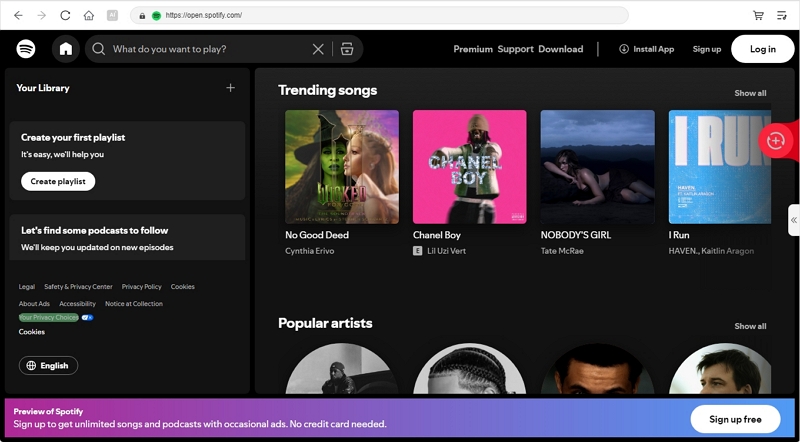
Step 3. Open your playlist. Click the Add to Convert button next to the play button.

Step 4. In the list, choose MP3 as the format and 320kbps as the bitrate. Click Apply to Setting, so every song gets the same settings.

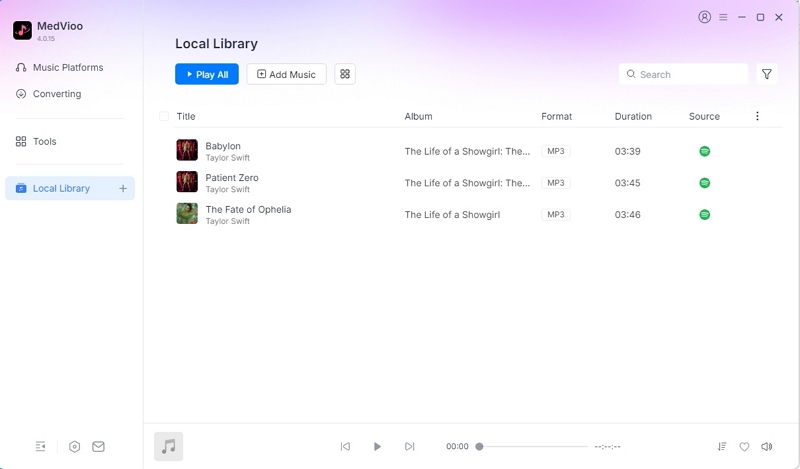
Step 5. Click Convert Now. Once the songs move to the Local Library tab, click the folder icon next to one of the converted songs. The playlist folder with your MP3 files will open.
Steps to Save a Spotify Playlist as M3U
There are third-party tools that read your playlist and creates the list for you. Most of them use Spotify’s API. However, as we mentioned earlier, Spotify tightened those rules in 2026. When we pasted our playlist link into Tools 4 Music, one of the popular free tools, it returned “Spotify API error: 403”.
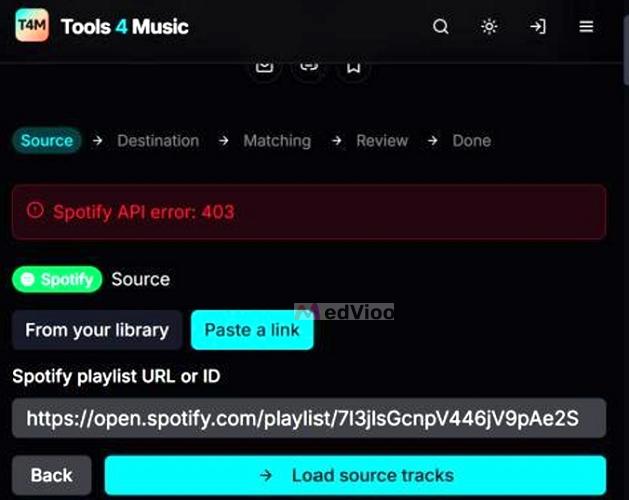
There’s a workaround for that. You can save the Spotify playlist as a folder with tools like MedVioo first and then convert it to an M3U file in Strawberry Music Player, a free player for Windows, Mac, and Linux:
Step 1. Open Strawberry and drag the playlist folder into the playlist on the right.
Step 2. Click the Save playlist icon (the floppy disk) in the toolbar above the playlist.
Step 3. Open the Save as type list and choose M3U playlists (*.m3u *.m3u8).
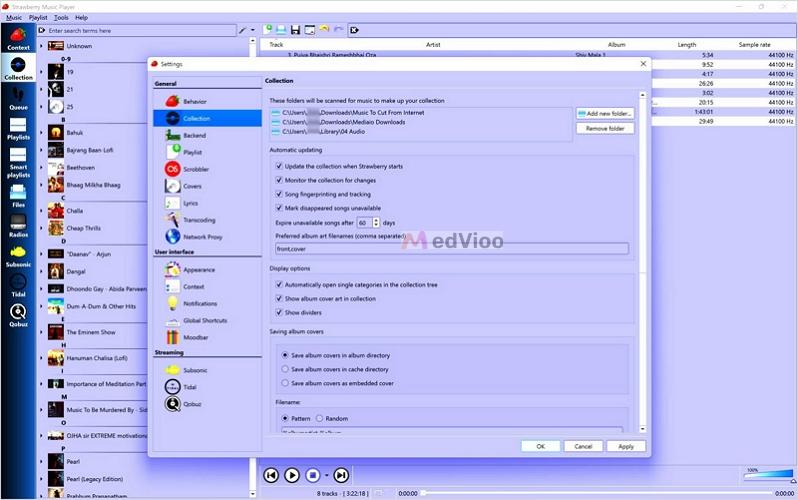
Step 4. Name the file and click Save. Your M3U file will be saved in the folder you chose.
The next time you open this M3U file in Strawberry or VLC, it will play your MP3 files in the same order. Now your Spotify playlist is on your computer as a real playlist. You can also copy the folder and the M3U file to a music player that supports playlists, like the Shanling M0 Pro.
Final Words
That’s how you can import an M3U file as a Spotify playlist. If your playlist has fewer than 500 songs, TuneMyMusic can do it in a few seconds for free, on your phone or computer.
And if you want your Spotify playlist as real files instead of just a list of names, MedVioo Audio Converter lets you save it as MP3 files in its own folder. You can play it in any offline player just like a playlist on Spotify.