

The right music can turn a simple iMovie edit into something cinematic. But adding your favourite songs to iMovie is not always easy. This guide is here to help. You will first learn where to get songs and sound effects for your projects. Then, we will show you how to add music to iMovie, whether you’re making the movie on your Mac, iPhone or iPad. Besides, we will cover which types of music are safe to use before uploading videos made with iMovie to YouTube.
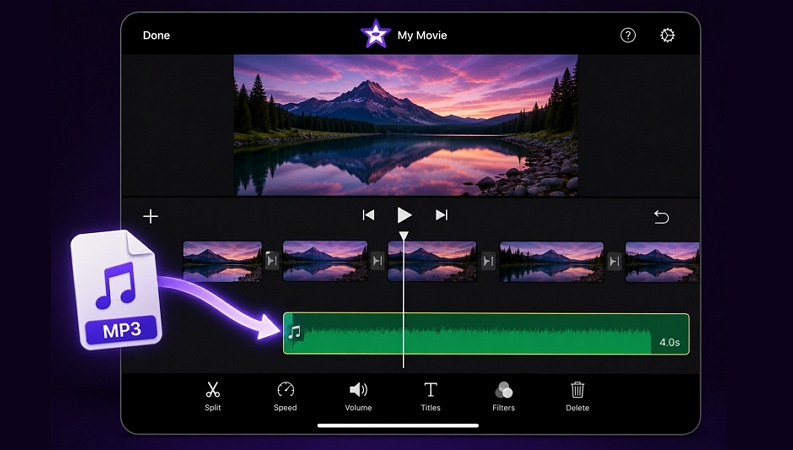
Get Your Music Ready for Use in iMovie
iMovie is not very restrictive when it comes to audio formats. You will just need DRM-free audio files. In simple terms, these are files that you can play through apps like VLC Media Player. So you can drag almost anything onto timeline — MP3, M4A, WAV, AIFF, AAC and iMovie will accept them.
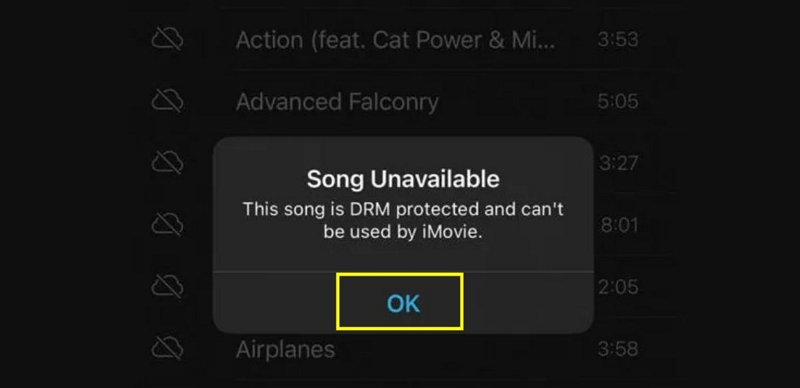
Now, there are many places where you can get the songs and audio effects in these supported formats. But not every platform is suitable for the same thing.
At the same time, where you get that music from also changes how you are allowed to use it. For example, using a La La Land theme song (a copyrighted song) in a personal memory is usually fine, as long as it is meant for private viewing. But the moment you upload that same iMovie project publicly on YouTube, copyright systems will flag or even strike the video.
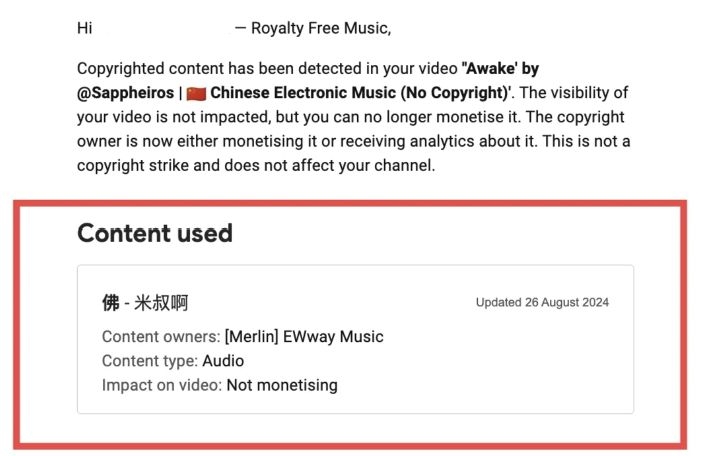
And this does not only apply to songs downloaded from outside sources. Even most of the jingles, ambience tracks, or soundtrack libraries in iMovie’s built-in sound library are restricted for commercial usage.
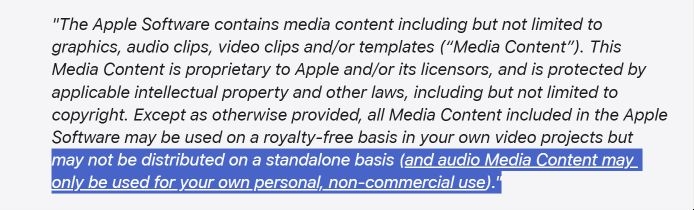
That said, some platforms do provide royalty-free audio that can be used in your commercial projects.
We have outlined all the best ways to get audio for your iMovie projects. You can choose and get the music depending on the type of music, quality, and usage rights you actually need.
Existing/own songs
If you already have songs in supported formats sitting on your device, you can directly use them in iMovie. These could be your old MP3 collections. Even if you have old CDs, you can rip music from them and use it inside iMovie. Just keep one thing in mind — commercial albums are still copyrighted.
Or you can create your own music using software like GarageBand.
Purchase songs from the iTunes Store or Amazon
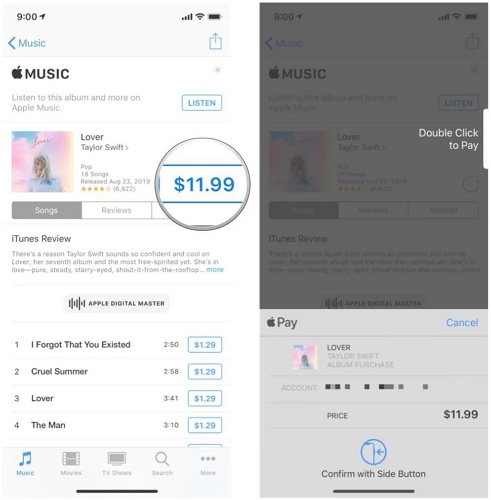
iTunes Store, which again natively integrates with iMovie, is another good source for getting music. Plus, these are songs that you will permanently own once purchased. Yes, you heard that right, you will have to buy each song (usually between US$0.69 and US$1.29) before you can add them to iMovie’s timeline. Later on, you can even download them on your computer in 256kbps M4A/AAC. However, note that purchasing an song doesn’t mean you have its copyright.
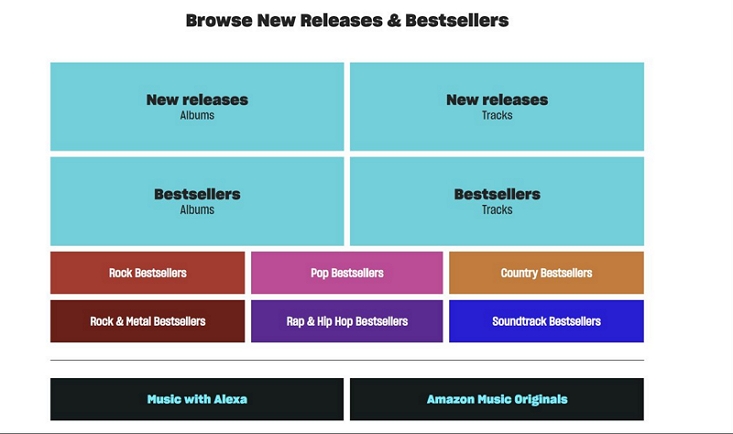
Amazon works similarly, but mainly delivers tracks in MP3 format. The pricing is almost identical. And you will also find some royalty-free tracks there.
Now, if you want higher-quality formats like WAV or FLAC for cleaner editing, then platforms like Bandcamp or Qobuz are much better choices, though the pricing is slightly higher.
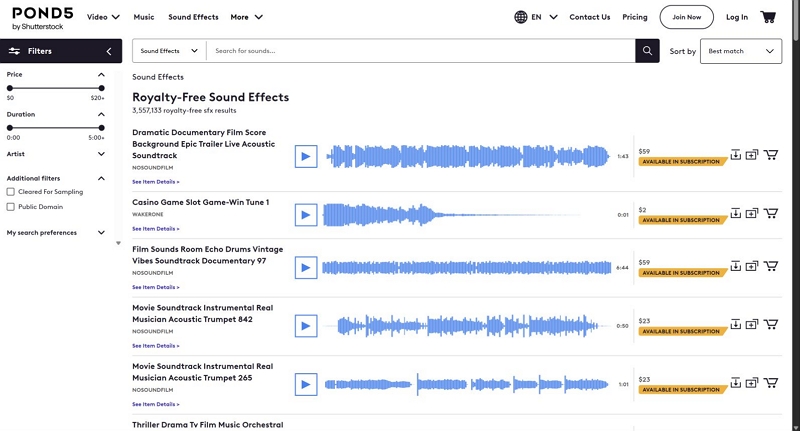
And if your focus is cinematic sound effects, like transition sounds, ambience, explosions, clicks, or trailer-style effects, then libraries like Pond5 make much more sense. You can also subscribe to Epidemic Sound or Artlist if you regularly need music and audio effects.
Save Spotify/Apple Music/YouTube Music Locally
Spotify, Apple Music, and YouTube Music keep their songs locked inside their own apps. So you cannot directly import them into iMovie. To use them inside iMovie, you will first have to convert those tracks into local files, like MP3, WAV or M4A. That’s where Mediaio Audio Converter comes in.
Mediaio comes with built-in support for major streaming platforms. You can log in to your own account of the desired music service. This will instantly pull up your playlists and liked songs, so you can export them directly into iMovie-supported formats.
Mediaio doesn’t require you per track. You can export as many songs as you want with a single subscription. It also allows a few free exports from each platform, so you can test how it works first.
Here’s how to export songs from Spotify/Apple Music/YouTube Music for iMovie projects.
Step 1. Launch Mediaio Audio Converter on your Windows or Mac device. Choose the platform you want to access music from.

Step 2. Enter your account details. So Mediaio can load your playlists, albums and saved songs.
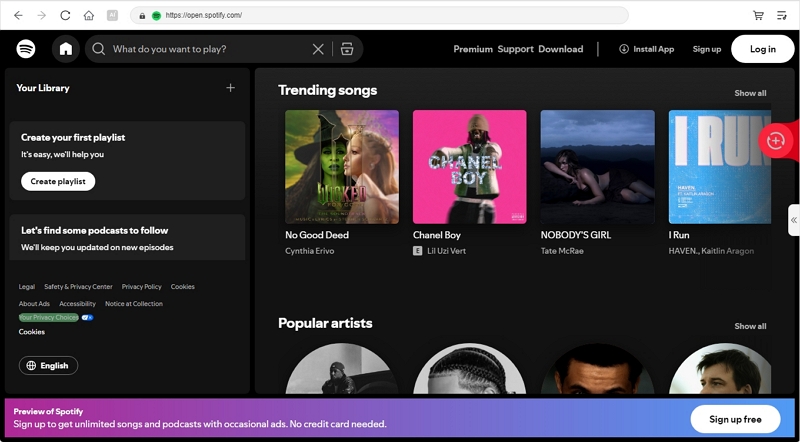
Step 3. Choose any playlist, album, or song you want. Then click the + button to move the selection into the conversion queue.

Step 4. Hit Convert All. The songs will be exported to your computer in local formats that you can directly import into iMovie.
Record music
You can also use the native recording tools on your phone or computer to quickly capture audio playing through YouTube Music or any other source.
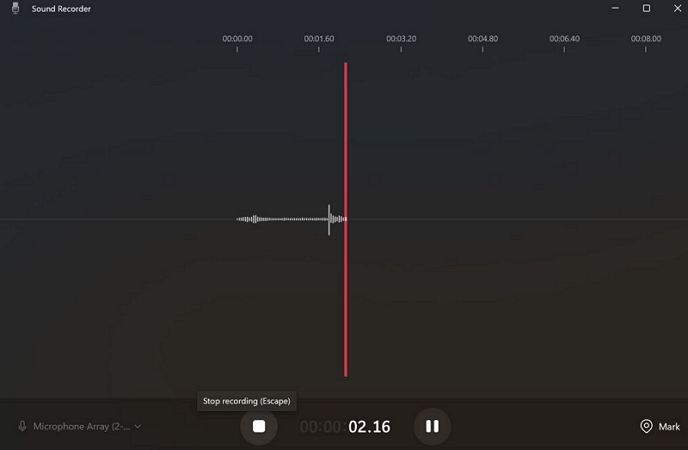
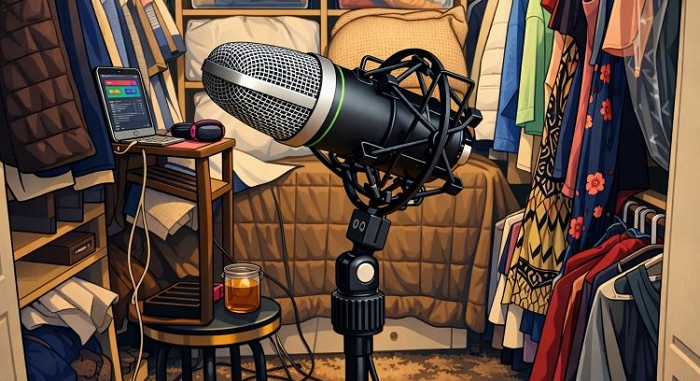
Of course, this comes with its own problems. The audio will not be clean. It will also include distortions or room echoes, depending on how you record it. Still, for quick personal projects, it works surprisingly well. There are even old studio tricks people still use, like recording inside a closed closet.
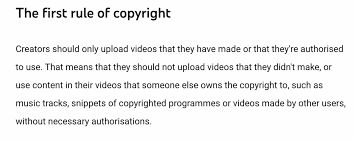
Just keep one thing in mind: even recording a copyrighted song does not mean you have permission to use it anywhere — it is still someone else's intellectual property.
Download royalty-free music online
If your iMovie project is meant for something public, like a YouTube upload or social media content, royalty-free music libraries make much more sense. So you can avoid copyright claims.
And finding large collections is also simple. Whether you need royalty-free classical music, jazz tracks to use in a video background, or cinematic sound effects, a simple Google search is enough to uncover huge libraries built around those styles.
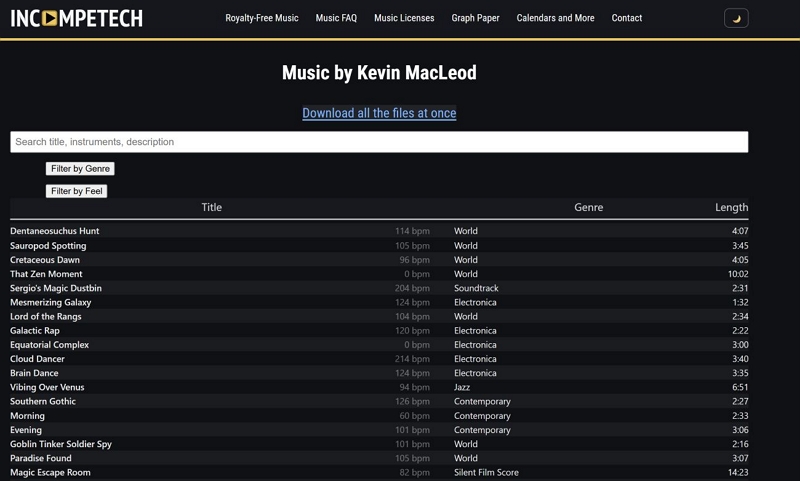
Large libraries like Pixabay and Incompetech host huge collections of such music. In fact, Kevin MacLeod’s Incompetech is still one of the most widely used places for free background music. Most of these platforms deliver in MP3 format, so you can import them into your iMovie projects without any extra conversion.
Use soundtracks
iMovie already comes with its own built-in audio library, and for many casual editors, it is honestly more useful than expected. Inside it, you will find sound effects and Soundtracks.
Sound Effects are the smaller audio details. You can use them when you want a scene to feel more alive. For instance, you will usually find soundscapes and effects like rain ambience, city noise, door slams, transition swooshes, coin drops, clicks, and similar effects.
The real highlight for most beginners, though, is theSoundtracks section. These are ready-made music scores created specifically for video editing. And you will find any soundtracks for any style that fit naturally under montages, reels, intros, or travel videos.
Here is how to access them.
On iPhone/iPad:
Step 1. Tap the + button inside iMovie.
Step 2. Tap Audio.
Step 3. You will now see three sections — Soundtracks, My Music, and Sound Effects.
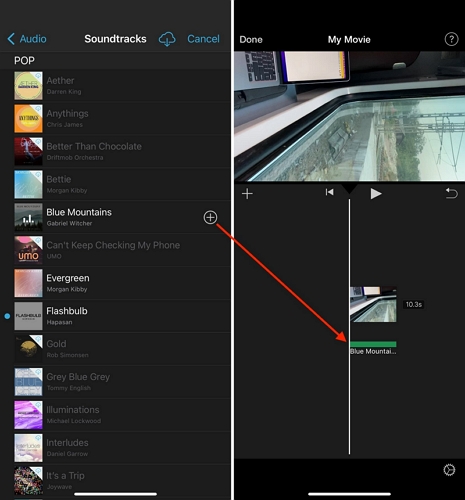
Step 4. Open Soundtracks or Sound Effects.
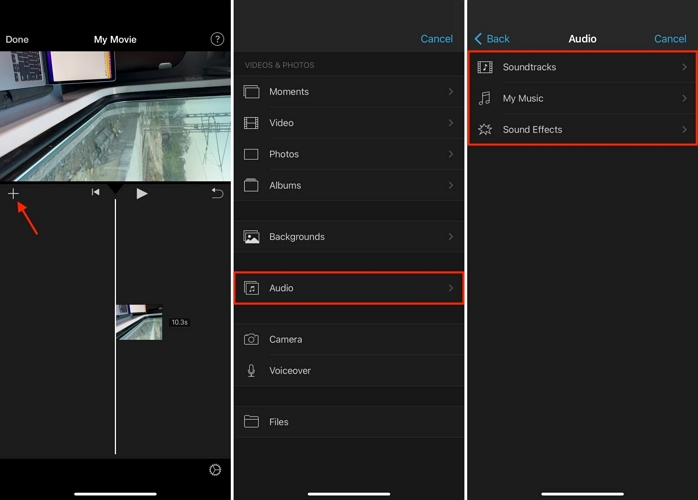
Then, preview and pick the one you like.
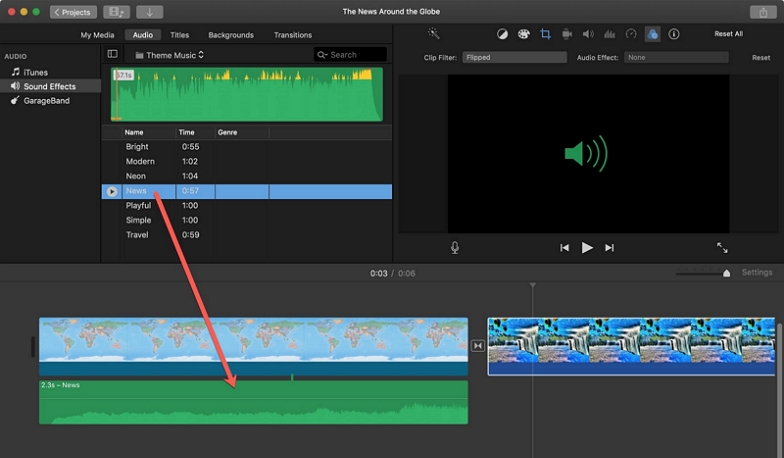
On Mac:
Step 1. Open the Audio tab from the main media browser.
Step 2. From the left sidebar, choose Soundtracks or Sound Effects.
Step 3. Browse the library and drag anything you like directly onto the timeline.
How to Add Music to iMovie on Mac
It is better to first organise the songs properly on your Mac before bringing them into iMovie. And the exact workflow for proper organisation also depends on how you got those audio files in the first place.
For instance:
- If you exported songs using Mediaio Audio Converter, first add those downloaded tracks to the Library section inside the Music app. This makes them much easier to access through iMovie’s tabs.
- iMovie can access GarageBand projects directly without extra setup.
- Meanwhile, if you downloaded lots of sound effects or random audio clips, the Music app will not accept them (because of improper metadata). So it is better to leave them inside a dedicated Finder folder.
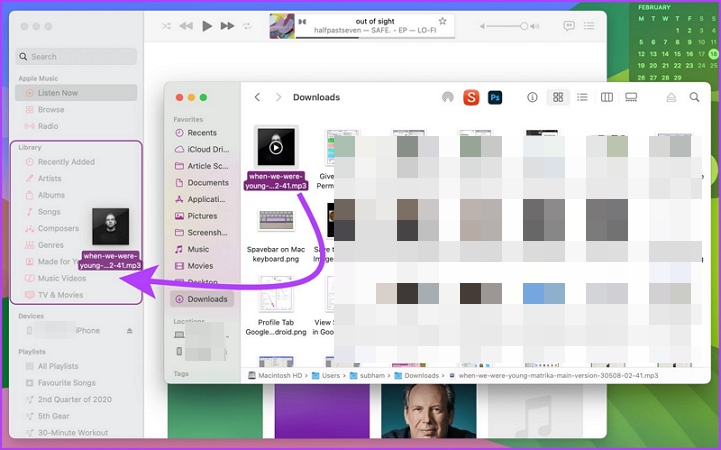
Depending on where you have stored these files, the exact way you bring them into iMovie will change, but we have covered every method below.
Steps to Insert Music in iMovie on Mac
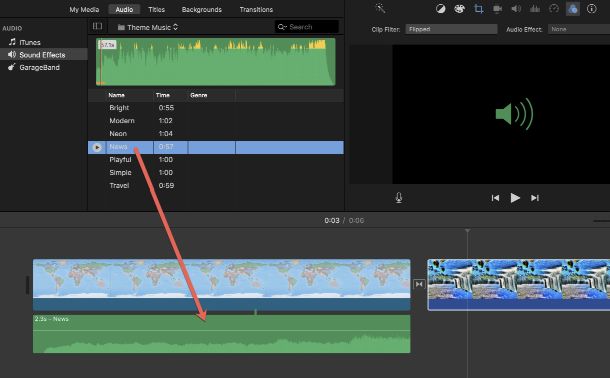
The fastest way to bring your MP3s is to drag and drop them onto the iMovie timeline. Here’s how it works.
Step 1. Bring up a Finder window over your active iMovie project. Locate the exact audio file you sourced using Mediaio.
Step 2. Simply select and drag the song directly onto the iMovie timeline.
Quick tip:
- If you drop the song directly below a video clip, a green connecting line will appear. This means the audio is permanently pinned to that clip.
- If you drag the audio onto its own separate lane, it will become a background track. And it will play independently across the timeline.
- Always drop the audio exactly where you want the sound to begin. This will make it much easier to control timing and transitions between clips.
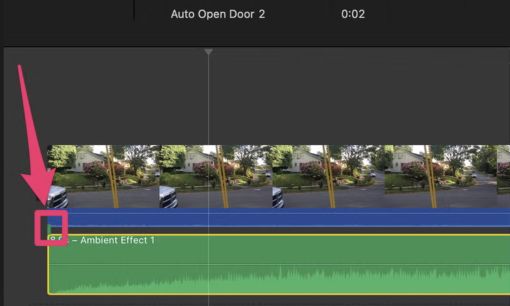
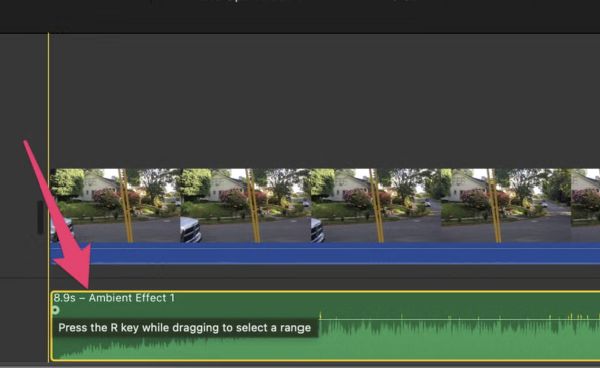
Step 3. Hit the Spacebar to preview how the video and audio work together.
Alternative Way to Add Music in iMovie
Step 1. Head to the Audio section from the top toolbar.
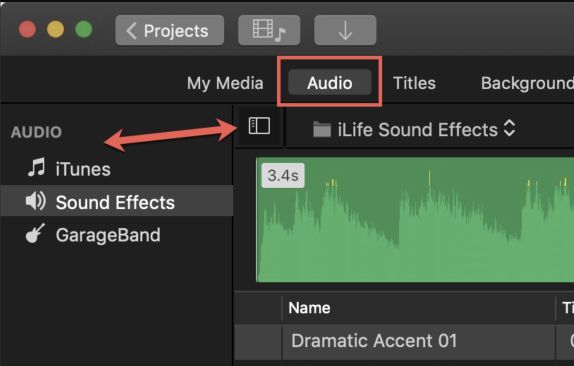
Step 2. You will now find multiple audio sources available inside iMovie:
- Music: it includes songs from the Music app, iTunes library, and your purchased tracks.
- GarageBand: it gives access to tracks you created yourself.
- Sound Effects: gives you access to iMovie’s built-in stock sounds and soundtrack collection.
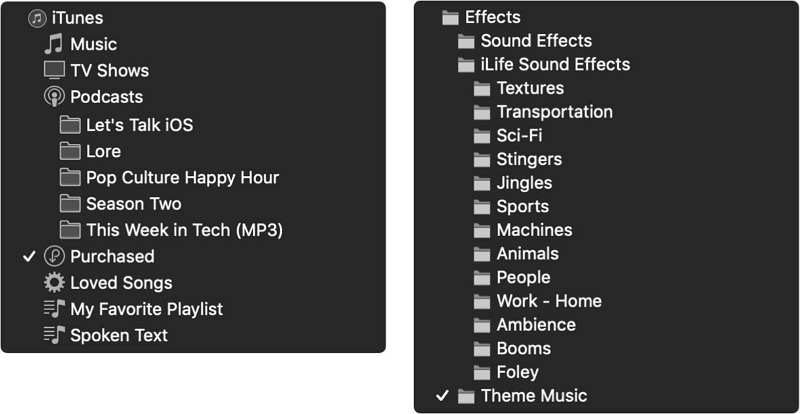
Step 3. Use the play icon beside any track if you want to hear a preview first.
Step 4. Place the file onto the timeline as discussed earlier.
Steps to Edit Inserted Music on iMovie Mac
Unlike iMovie’s built-in Soundtracks, manually added songs don’t loop or align automatically with the video length. You have to fine-tune each aspect manually, so it matches the pacing and transitions of your movie. Thankfully, iMovie gives you enough controls to handle all of that fairly easily.
Here are the most useful settings you should pay attention to while editing.
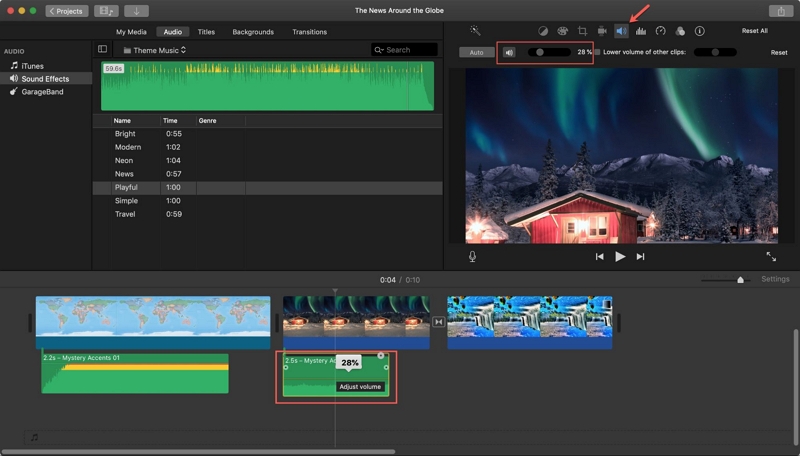
Adjust the Volume
The added background music shouldn’t overpower dialogues or voices. So always make sure to adjust its volume. Here’s how:
- Choose the audio clip from the timeline first.
- Use the Volume control above the viewer to increase or reduce the sound level.
To silence the audio completely, press the Mute button or press Cmd+Shift+M.
Quick tip:
Pay attention to the waveform colours while adjusting the volume. Green is usually safe. Yellow or red usually means the exported audio will sound distorted.
Change the Playback Speed
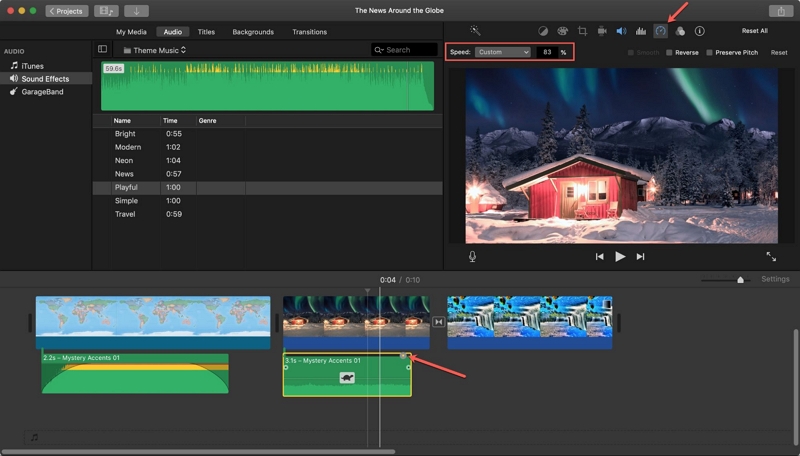
To match the beat perfectly:
- Highlight the audio clip from the timeline.
- Open the Speed menu above the viewer.
- Switch the drop-down to Custom, then enter the speed percentage you want.
Lower percentages will slow the audio down. And higher percentages mean the audio will play faster.
Lengthen or Shorten the Audio
To align the added audio with the video transitions and dialogue timing, follow these steps:
- Hover your cursor toward either edge of the audio waveform.
- You will see the resize pointer. Pull the edge inward to shorten the clip. Or stretch it outward to extend the duration.
Create Fade In and Fade Out Effects
To smooth the flow of the added audio clip:
- Highlight the added clip in the Timeline.
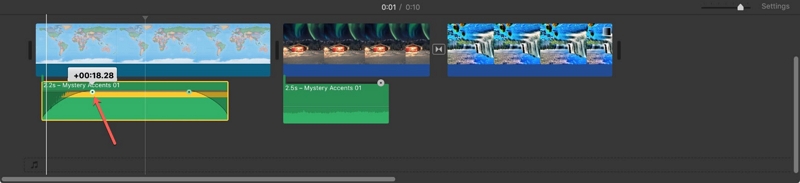
- Drag the fade handle (small dot circle) at the beginning to create a fade-in effect. The same thing will work at the end of the clip.
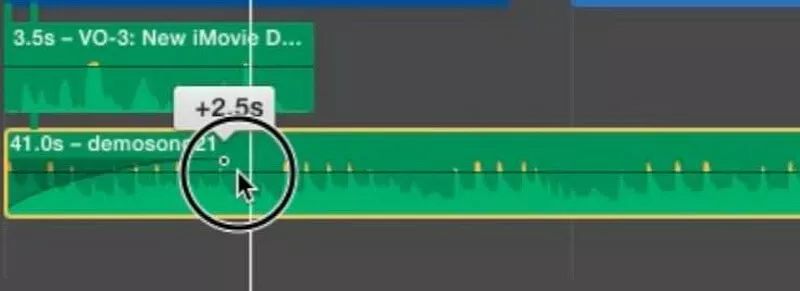
The farther you stretch the fade arch, the smoother the transition will become.
How to Add Music to iMovie on iPhone/iPad
Editing on iPhone or iPad will require a slightly different preparation process compared to the Mac version. For iMovie to actually detect your custom MP3, the file must already exist offline on your iPhone or iPad.
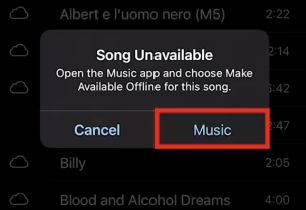
So before importing anything, make sure of the following:
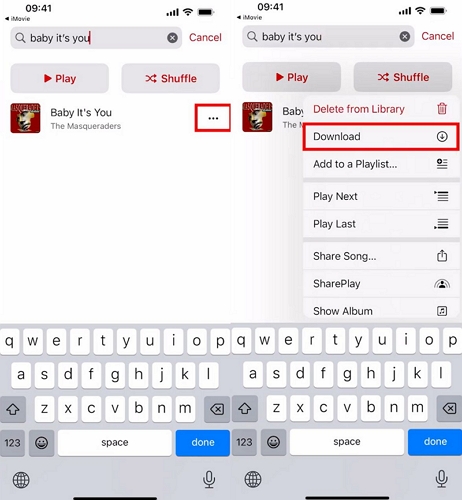
- If the songs were synced through the Music app using iCloud Music Library, first download them offline onto the device. You can also avoid this completely by using USB sync, so the files are already stored locally.
- If you want to avoid the Music app route, then save it inside the Files app. You can use AirDrop or WhatsApp to first transfer the audio file from your computer.
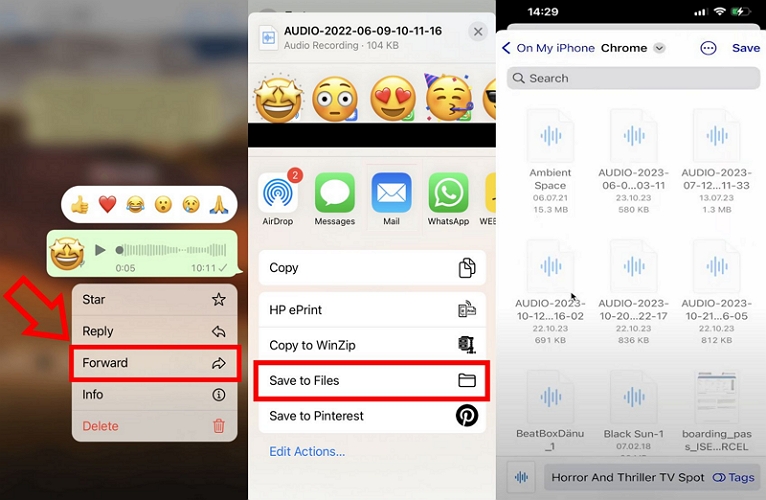
The transfer method itself does not matter much. The important thing is that the audio file must exist locally. Once that is ready, follow the steps below.
Steps to Import Music into iMovie iPhone/iPad
The touchscreen workflow on iPhone and iPad is quite different from the Mac version. For instance, adding a synced Apple Music track works differently compared to importing an MP3 sitting inside the Files app. So here is how both methods work.
Add Synced Songs From Apple Music, iTunes Purchases, or Music Library
If the song is already synced with your Music app, whether through Apple Music, iTunes purchases, iCloud library, or even manual USB syncing, the process is very simple. Here’s how:
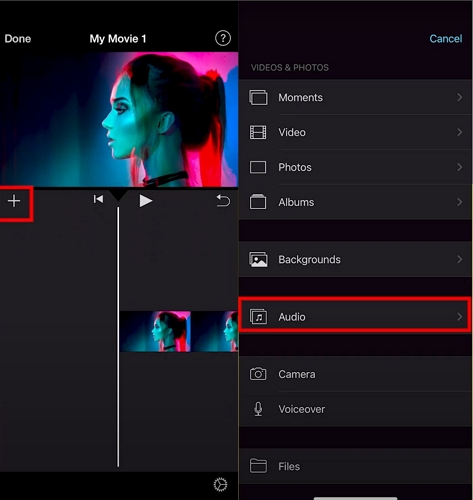
- Tap the + icon from the main editing screen.
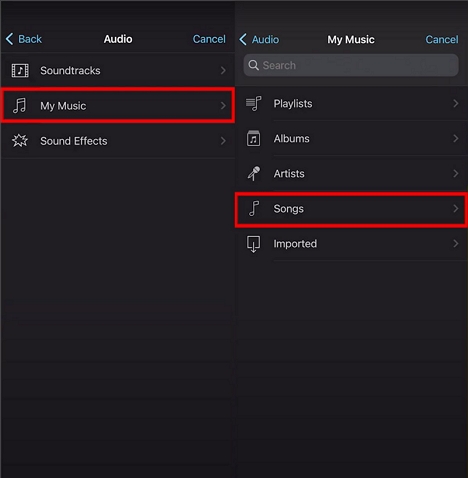
- Move into Audio, then choose My Music.
- iMovie will now pull everything available offline from your Music app. And the tracks will stay organised like in the Music app itself — Playlists, Albums, Artists, and Songs.
- You can open any section to browse the titles.
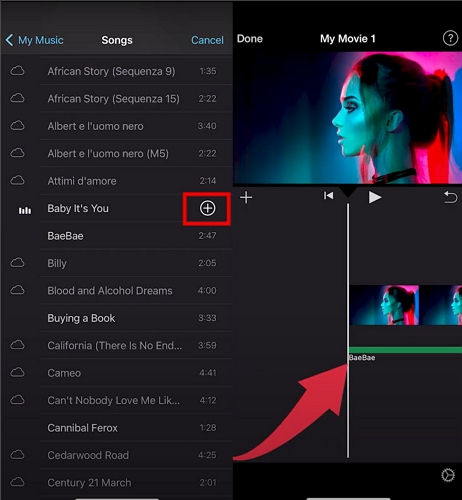
- Tap a track to preview it instantly.
- Once you find the song you want, hit the small + button beside it. iMovie will immediately place it onto the active timeline as a green audio clip.
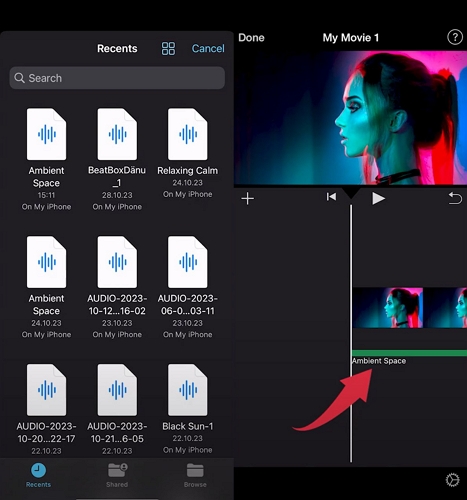
Add MP3 Files From the Files App
If you’ve transferred the audio through AirDrop or it is saved inside the Files app, then use this method.
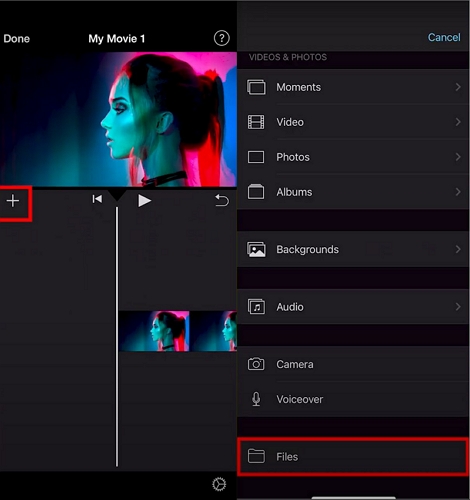
- Tap the + icon on the editing screen.
- Choose Files instead of Audio.
- Navigate to the folder where the audio file is stored.
- Tap on the desired audio file.
That’s it! iMovie will immediately import it and pin it onto the current timeline position.
Steps to Edit Imported Music on iMovie iPhone/iPad
Every audio control available on the iOS app is accessible from the bottom toolbar. And these controls will only be accessible when the audio file is highlighted on the timeline.
So before doing anything, tap the added audio clip once. Then, the editing controls will immediately appear below the screen. Here are the most useful things you can do.
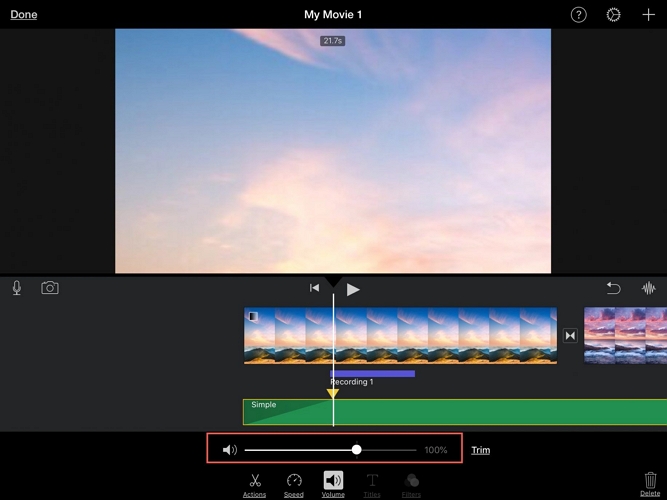
Adjust the Volume
- Highlight the audio clip on the timeline.
- Open the Volume control.
- Move the slider toward the left or right to adjust the volume. You can leave it at a percentage where it blends naturally with your movie dialogues or voices.
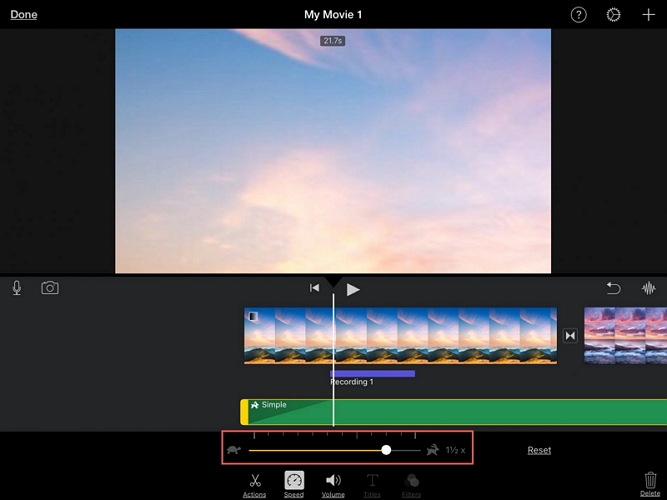
Change the Playback Speed
- Pick the added audio clip from the timeline.
- Use the Speed button from the bottom toolbar.
- Moving the slider toward the tortoise icon slows the audio down.
- Sliding it toward the hare icon to speed the clip up.
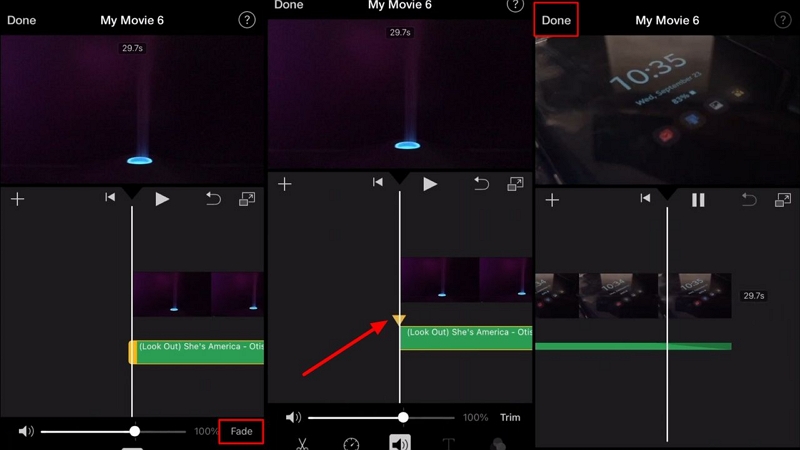
Create Fade In and Fade Out Effects
- Bring up the audio clip controls and open Volume.
- Press Fade.
- You will now notice a yellow fade handle (triangle-shaped) appear on the audio clip itself.
- Dragging the front handle will create a smooth fade-in effect.
- Pulling the rear triangle inward will create a gradual fade-out.
To Sum Up
So that is how you can add music to iMovie on Mac, iPhone, and iPad. Remember the golden rule:
- You can use almost any song for private projects, like a travel montage.
- For commercial purposes, it is safer to stick with royalty-free music.
And if you regularly create personal iMovie projects, then the best source to get the music is Mediaio Audio Converter. It connects directly to popular services and lets you bulk-export your favourite tracks, so you can keep a ready-made offline collection and avoid hunting for songs every time you make a movie.