

When you search for how to add a Spotify embed link to a Tumblr post, most guides online can be confusing. The main reason is that Tumblr lets you add Spotify cards in two different spaces. One is your post — what your followers see in their daily feed. The other is your blog page — where you can place something permanently as part of your layout.
In this guide, we are covering both. You’ll see how to add Spotify to a post and how to place it on your blog page properly. And we’ll also show how to get around the usual 30-second preview limit if you need more control.
Tumblr Post vs. Blog Theme Embed: Where Should You Add Spotify?
On Tumblr, there are two completely different spaces where your Spotify player can appear:
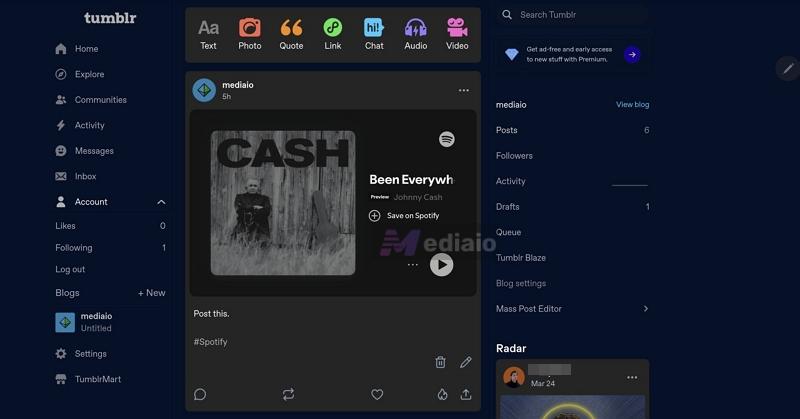
Tumblr Post (Feed):
A Tumblr post (feed) is what you create when you tap the Create / + button. This is the content that gets pushed to your followers’ dashboard. Here, adding Spotify is simple:
- you can search a track
- or paste a link
- no embed code needed
But it’s a one-time post. Over time, it will get buried under newer content.
Tumblr Blog Page (Theme/Your Site):
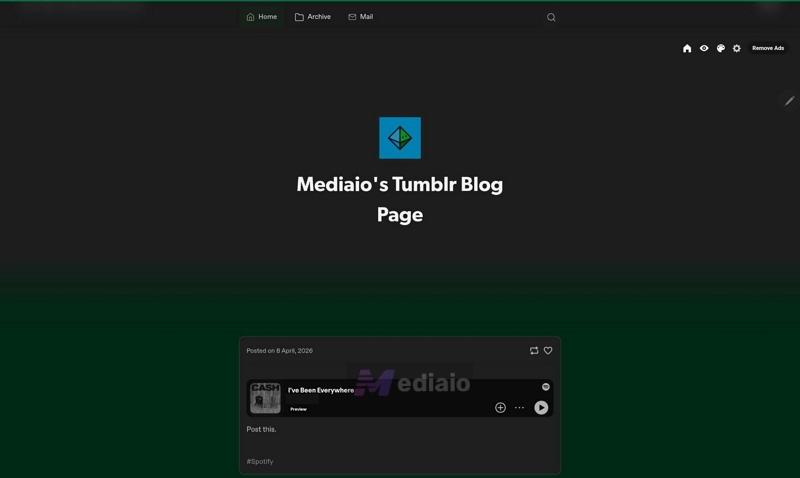
This is your actual Tumblr site — the page where people visit your blog. For example: user123.tumblr.com
This space is not about positing but it’s about how your blog looks and feels. Embedding a Spotify player here works differently too. You will actually have to use the Spotify embed (iframe) code. It even takes a few extra steps, but in return, you will get full control. You can decide where it appears — in the sidebar or somewhere specific in your layout. And it will even stay there until you choose to remove it manually.
To make this easier to see at a glance, here’s how a Tumblr post and a blog theme embed actually differ:
No matter what your goal is, we’ll cover both.
We’ll start with adding Spotify to your Tumblr blog page/theme (desktop only). Then move to adding Spotify inside Tumblr posts (mobile + desktop).
How to Add Spotify Embed Link to Tumblr Blog Page (Theme)
This is for your Tumblr blog page — the one visitors see when they open.
In other words, you are editing your site layout itself. A little familiarity with basic HTML structures helps here (like identifying sidebar, footer, sections). You don’t need to be a developer, though. If you’re unsure, don’t worry, you ask GPT to identify sections or simply experiment and learn.
Let’s see actual steps to embed Spotify embed code and then paste it into your Tumblr theme.
Step 1. Copy the Spotify Embed Code
Getting the embed code is simple, which is very similar to copying a Spotify link.
- Open Spotify and go to a song, a playlist or an album.
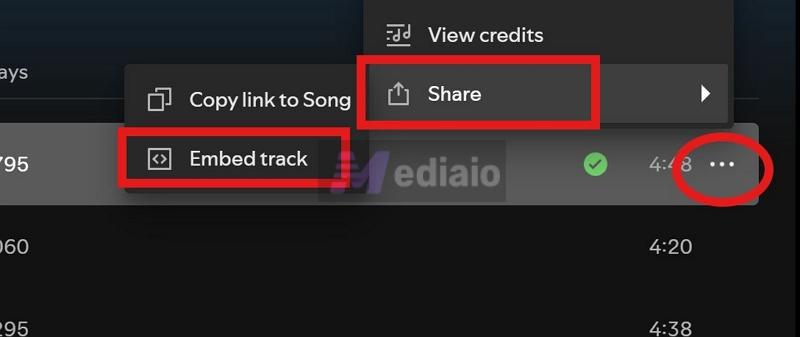
- Click the three-dot menu (···) next to it.
- From there, go to Share and choose Embed track/Embed album/Embed playlist.
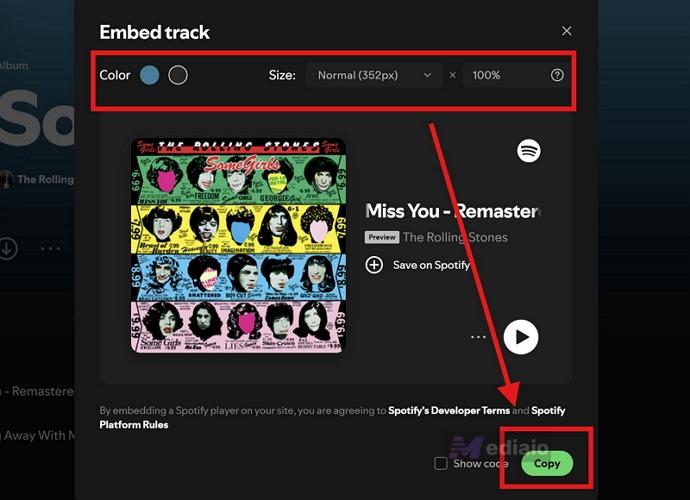
A preview pop-up will appear. Before copying, Spotify lets you adjust a few things:
1. Size (Compact or Normal)
2. Width (%)
You can leave it at 100% so it fits your layout or reduce it (like 50%) if you want tighter placement.
3. Theme (Light/Dark)
Match it with your Tumblr blog design.
Once that’s done, simply click on the Copy button. Now the embed (iframe code) is copied.
Step 2. Open Your Tumblr Theme Editor
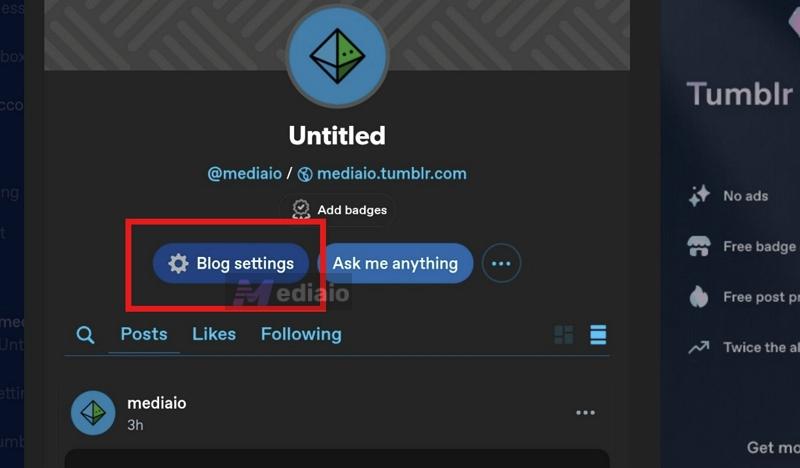
Now switch to Tumblr (desktop). Go to your blog:
- Click your profile icon / username to access your blog quickly.
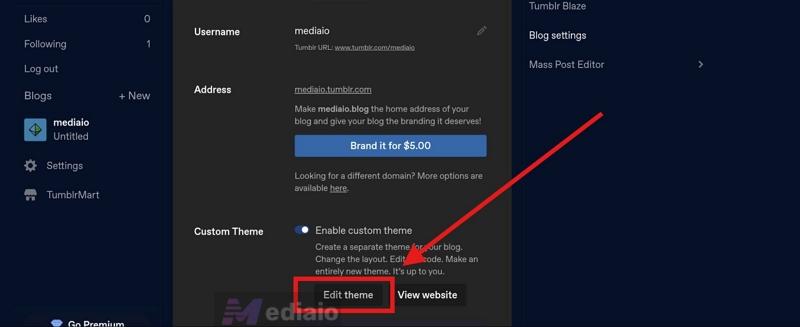
- Then access Blog settings.
- Click Edit theme.
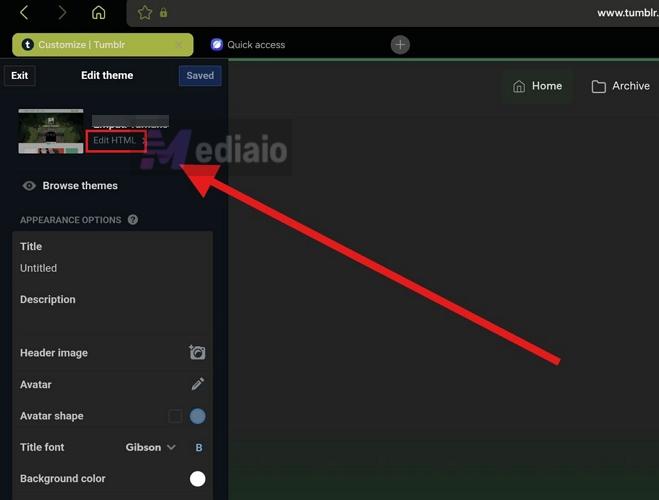
- A preview of your site will open with the theme controls on the left.
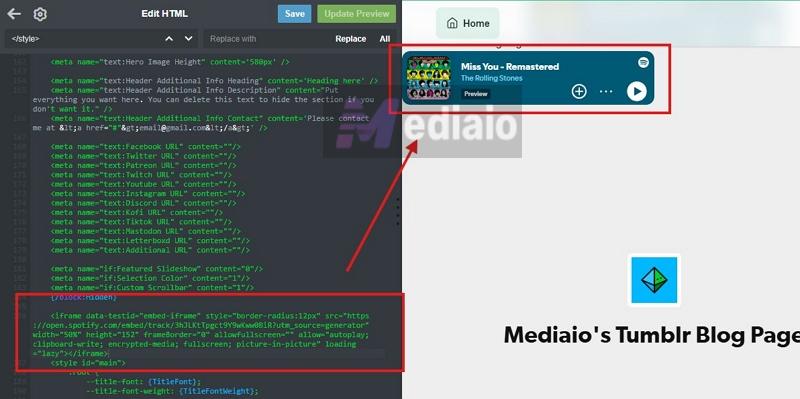
- Click the Edit HTML button at the top-left.
Choose where the embed will appear. Simply press Ctrl + F and search for a specific location: sidebar, footer or description. You will be taken directly to that section of the code.
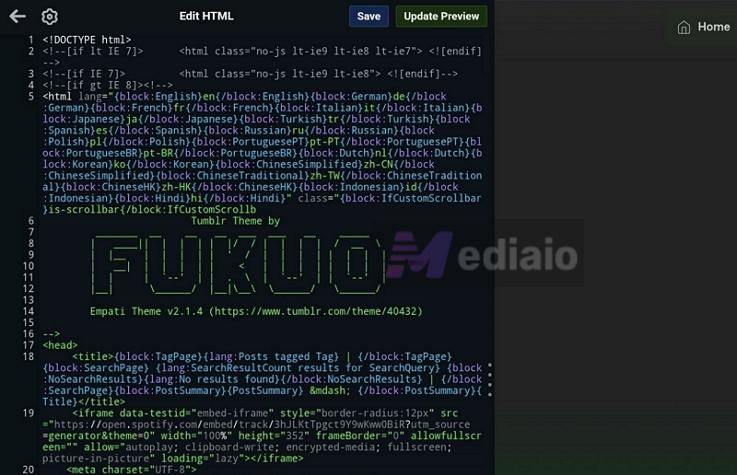
From there, you can embed the Spotify player in two ways: as a large player or a mini player. Let’s see how to choose the option that works best for your blog.
Embed Spotify as a Large Player
This is the default method. Here, you just have to paste the code with no need for extra styling. And it work well with most Tumblr themes, especially the standard ones.
So, follow these steps after you’ve found the right spot:
- Paste the embed code directly into the HTML.
- After pasting, click Update Preview to check how it looks. Once satisfied, click Save.
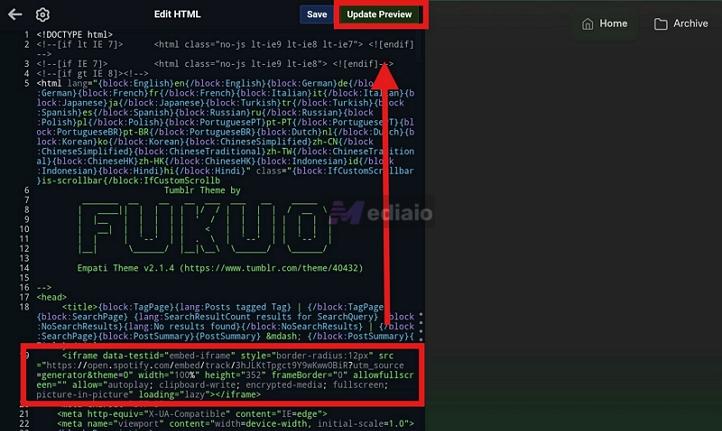
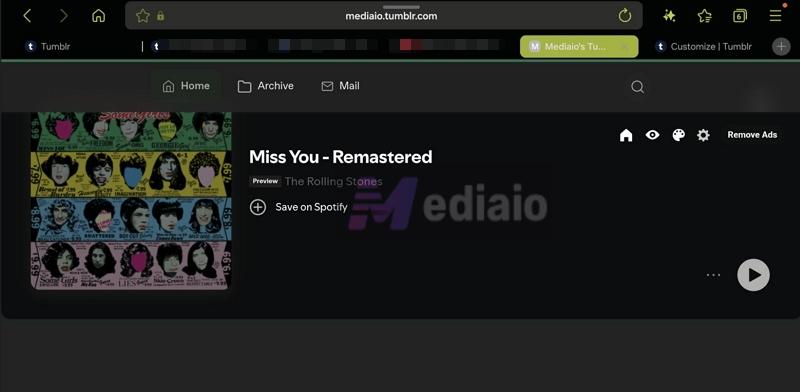
That’s it. You can open your blog and your Spotify player will appear in the position you chose.
Embed Spotify as a Mini Player
The default Spotify embed works as a large player and in most themes, that’s fine. But some Tumblr themes override iframe rules, especially height. So you can force a compact player using CSS. This approach comes from Tumblr users who faced the same issue.
1. First, open your Edit HTML section again. Now, locate the <style> section in your theme (press Ctrl+F and search for it). It sits at the top.
2. Paste this CSS just before </style> tag:
iframe[src*='open.spotify.com'][src*='track'],
figure[data-npf*='open.spotify.com'][data-npf*='track'] {
height: 80px !important;
}
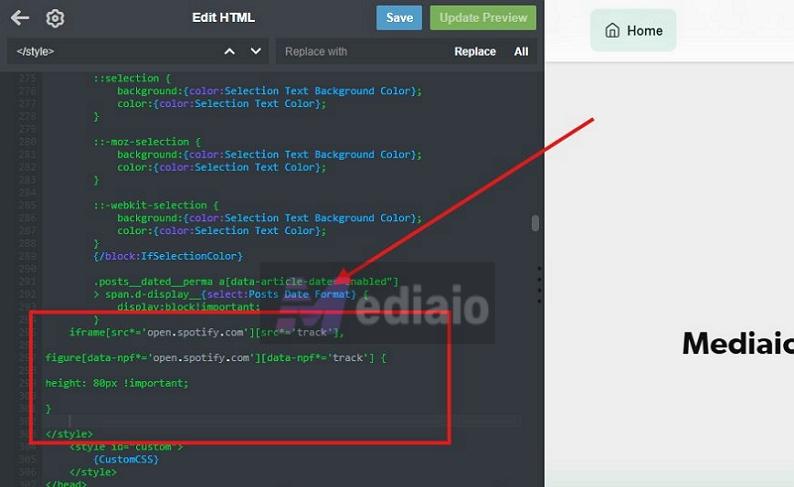
This will force Spotify embeds to appear as a compact, mini-player style, no matter the theme you’re using.
- Now paste your Spotify embed code:
- Go back to where you were placing your embed: section, sidebar, etc.
- Paste the same Spotify embed code — no changes needed.
- You will see the Spotify player to look clean and compact in the Preview.
- Hit Save.
How to Add Spotify Music to a Tumblr Post (Desktop & Mobile)
Now let’s move to adding Spotify preview to Tumblr posts. We’ll start with how it works on the desktop, and then look at the options available on mobile.
Desktop Option 1: Use Tumblr’s Built-in Search (Fastest Way)
Tumblr comes with a built-in search feature to embed Spotify songs without leaving your dashboard. You can simply type in the song name and insert its Spotify Preview block within seconds. Of course, this is designed for speed, like situations where you are live-blogging or just want to add a song to your post without hunting down its URL.
The drawback here is clarity. You’ll see multiple tracks with the same name, sometimes across different artists or versions, so you have to manually scan through a long list and select the exact one. Plus, this search is limited to looking for individual tracks only. You cannot search for Spotify playlists, albums, or richer embeds.
How to pull a Spotify song without leaving Tumblr dashboard:
Step 1. Click the Create button at the bottom-left of the dashboard.
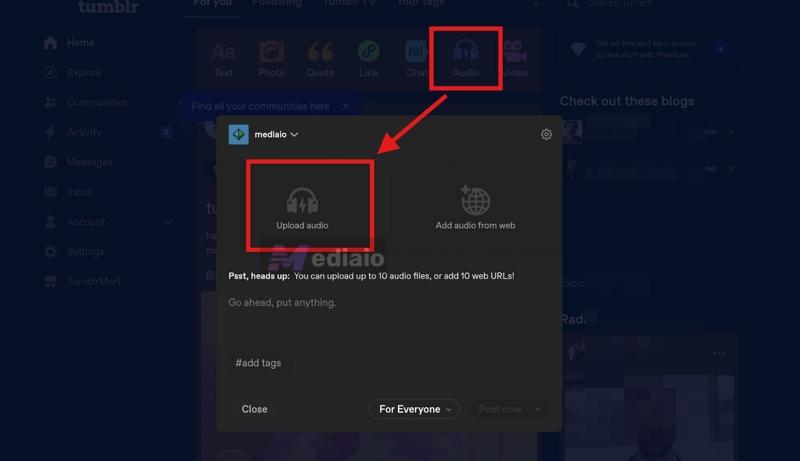
Step 2. A row of post types will appear. Select Audio if you want the Spotify card to appear at the top of your post.
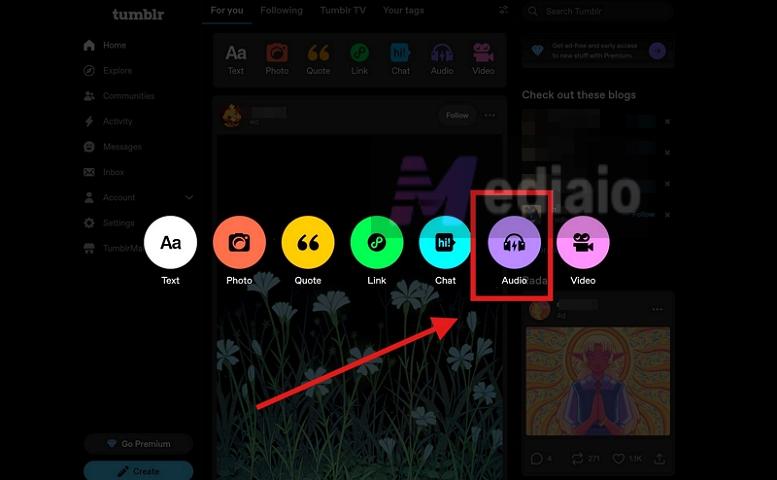
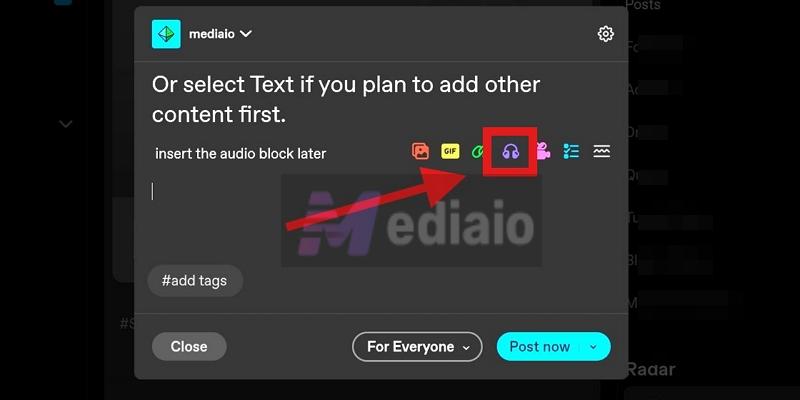
Or select Text if you plan to add other content first. Then insert the audio block later by clicking the Audio (headphone) icon or type / (or press space) to open the block menu and choose Audio.
Step 3. You’ll now see two clear options: Upload audio and Add audio from web. Choose Add audio from web.
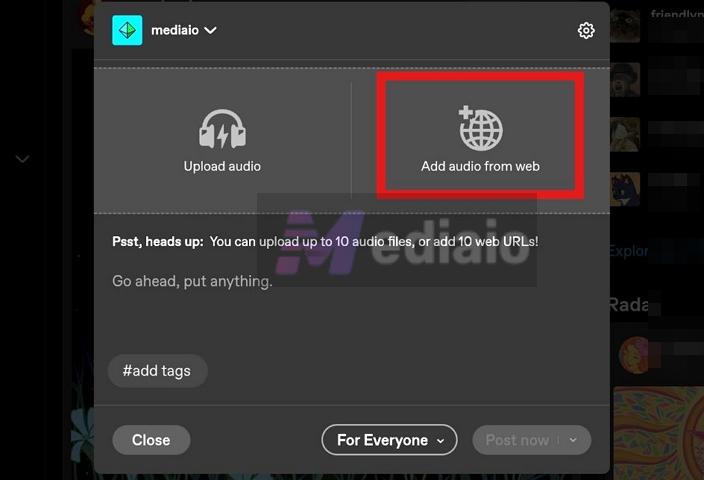
Step 4. A search field will appear inside the same panel. Type the song name naturally. Results will show up instantly from both Spotify and SoundCloud.
Step 5. Spotify tracks will carry the Spotify icon. Click on the version you want to add.
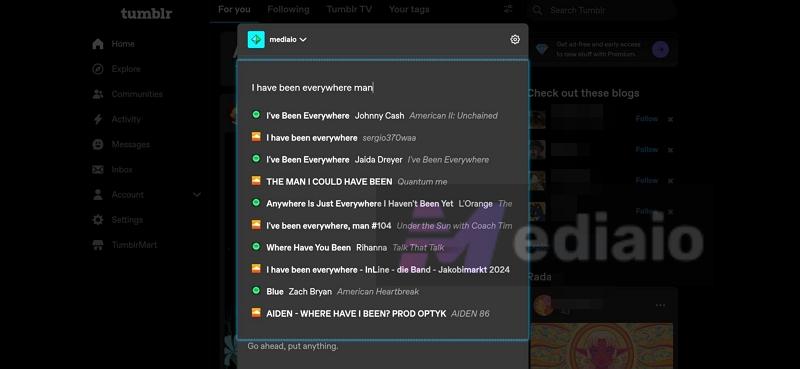
And Tumblr will immediately insert the Spotify player card into your post. You can continue building your post— add text, stack images, or insert more audio blocks. The block editor will let you layer everything freely. Then, click Post now at the bottom-right of the panel.
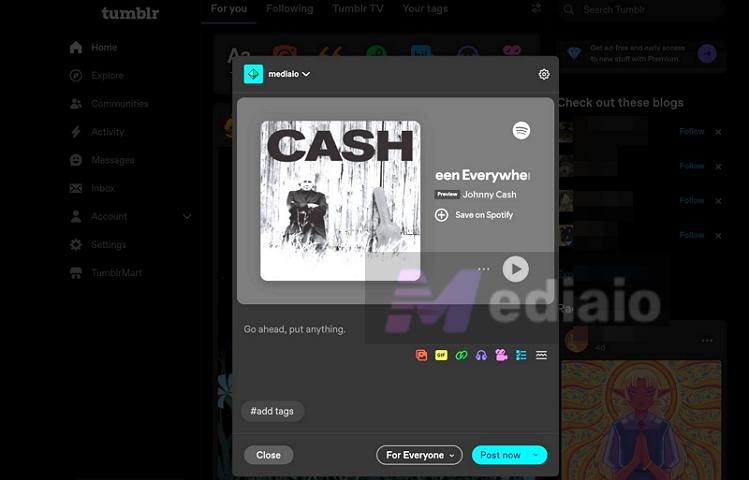
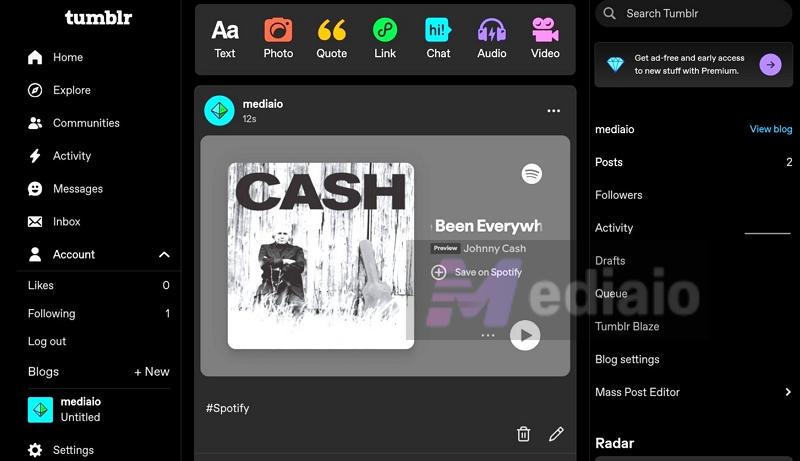
The embedded Spotify card will be fully interactive. Anyone scrolling can play a 30-sec preview while reading your post.
Clicking on the card will allow them to jump straight to Spotify's web player or the app where they can listen to the full song. It even includes a + Save button so they can instantly add the song to their Liked Songs collection.
Desktop Option 2: Paste the Spotify Link
Tumblr also lets you turn a Spotify song URL into a playable card inside your post, so you get the exact version without any guesswork. And it doesn’t stop at song — you can also choose to add a Spotify playlist or album URL.
There’s one important thing to understand here. If you try pasting a Spotify link inside Add audio from web, it doesn’t behave properly. It often fails and only pulls SoundCloud results. So the right way is to use Tumblr’s Link block, not the audio search.
To embed Spotify card correctly to Tumblr post using the link:
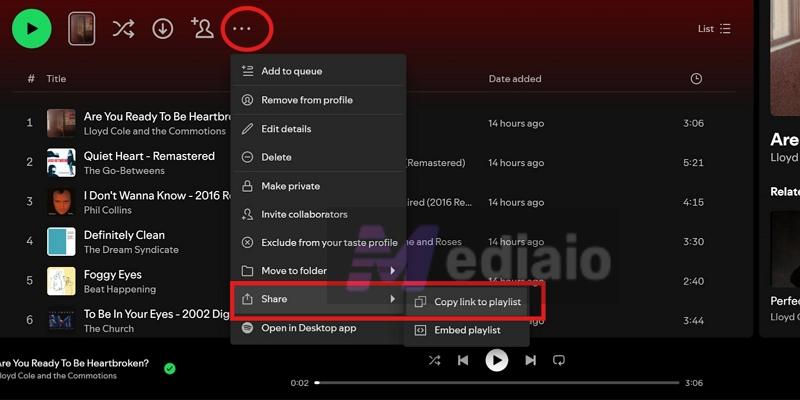
Step 1. Open the Spotify page. Go to the playlist page. From the playlist controls, click the three-dot menu (···), move to Share and then choose Copy link to playlist (or song/album link).
Step 2. Come back to your Tumblr editor. Instead of touching the audio option this time, focus on the top row.
Step 3. From the row, pick Link. This is the key step most people miss.
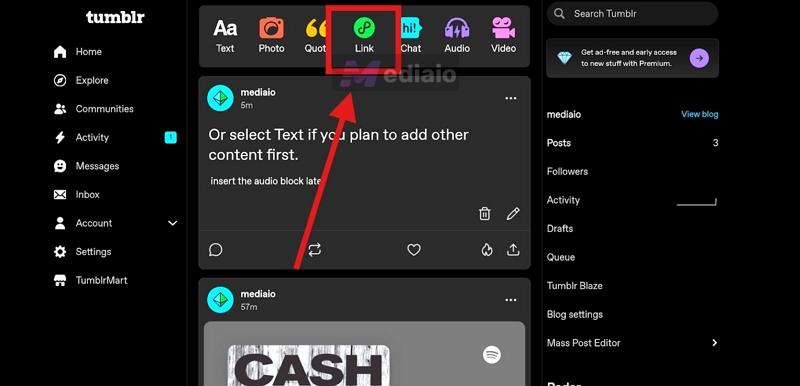
Step 4. A small input panel appears asking for a URL. Drop your Spotify link there and hit Insert.
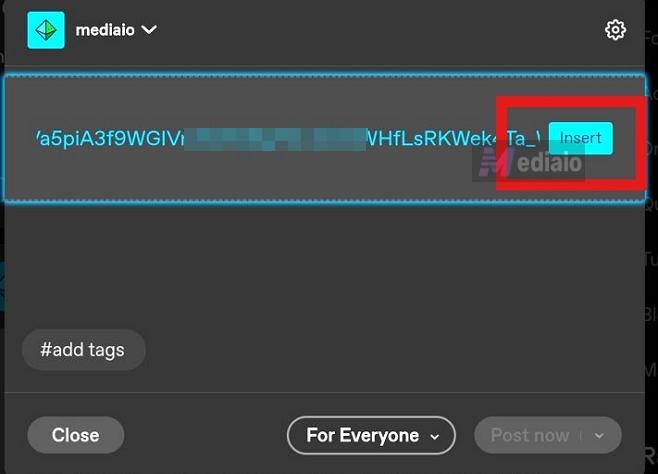
Step 5. The moment you insert it, Tumblr will convert it into a proper Spotify card inside your post. You can now continue building your post and click Post now to publish it.
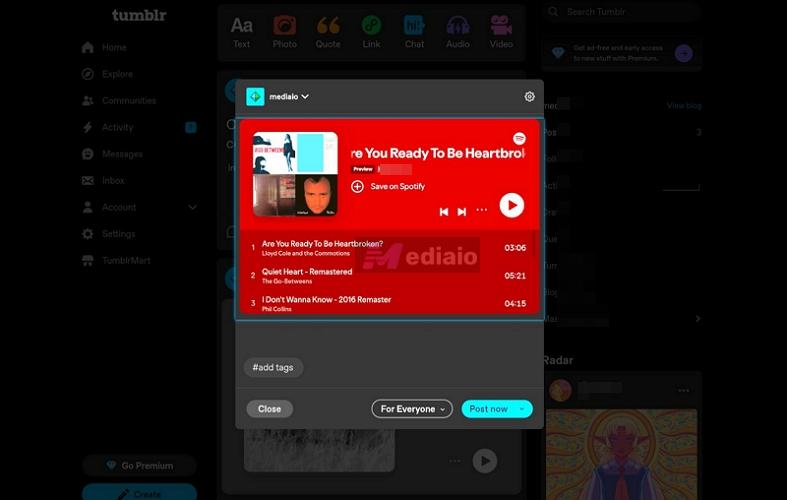
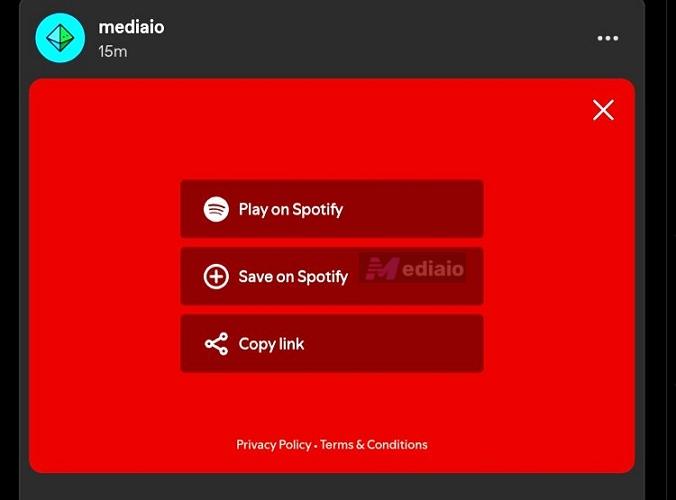
The usual limitation will still apply — viewers can only listen to 30-second snippets. However, clicking the three dot menu on the Spotify card will give them options to play the full tracklist on Spotify or save it to their library directly.
Desktop Option 3: Upload Audio Directly
The problem with using Spotify cards in your post is they are meant only for preview (30-second snippet). On top of that, Spotify preview cards are not always reliable. Viewers often see 404 errors and certain playlists will simply not be visible in all region.
So you can go with the third-option available on Tumblr. That is, you can upload the Spotify track as a MP3 file. However, this comes with strict conditions:
- You can only upload your own original music.
- or tracks you have explicit permission to share.
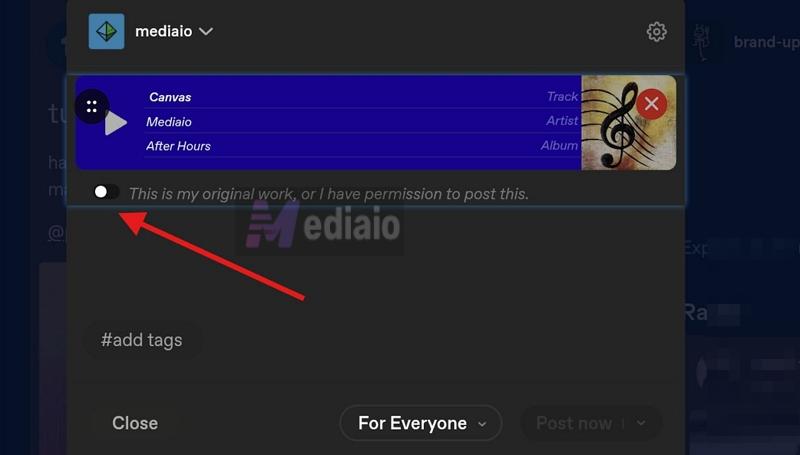
There’s also a required confirmation step. You’ll need to enable the toggle “This is my original work/I have permission to post this.” Only after checking this, the Post now button become active, allowing you to continue.
So if you have your own uploads on Spotify or working with audio that’s fully available in the public domain, this method fits well. Here’s how it works.
Step 1. Use Mediaio to Get the Spotify Track as an MP3
Spotify doesn’t allow you to export songs as MP3, even if it’s your own upload or public domain content. So you’ll need Mediaio Audio Converter for that.
Mediaio lets you save Spotify tracks or playlists into MP3 easily. The download process is simple too. You can access your Spotify library inside Mediaio and save the song as MP3 with a single click. Mediaio also gives you control over file size. You can adjust the bitrate—128kbps, 256kbps, or 320kbps, to keep the final MP3 under Tumblr’s 10 MB limit.
And there’s no cap on how many tracks you convert. So you can convert all your uploads or any permitted public domain audio in one go, ready to use in your Tumblr post.
Step 2. Upload the Spotify File to Tumblr and Enter Metadata
- Go to Tumblr. Click on the Audio (headphones) icon. This time, go with Upload audio.
- Use the file picker to choose the MP3 you exported earlier (for example, from Mediaio), and let it upload.
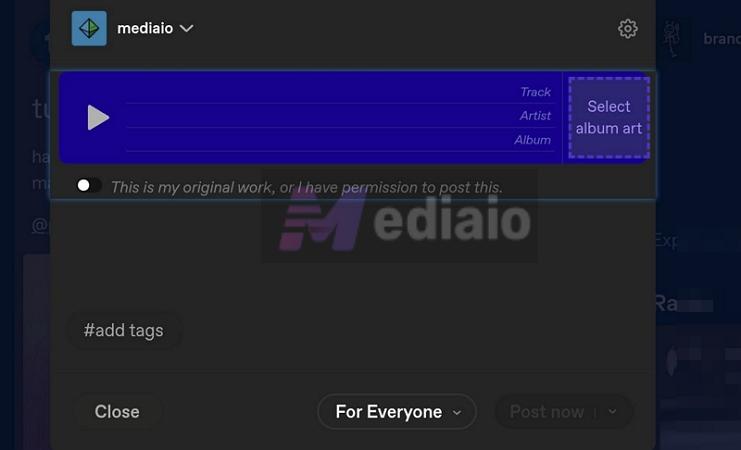
- Once uploaded, Tumblr won’t auto-fill details. You’ll need to enter them manually:
- Track name
- Artist name
- Album name
Cover art is optional, but it’s worth adding. This is where having proper metadata from Mediaio helps — you can just copy the exact details instead of guessing.
Step 3. Post the File to Tumblr
- Turn on the required toggle: “This is my original work, or I have permission to post this.”
- After enabling the toggle, the Post now button becomes clickable. Hit it and your audio post goes live.
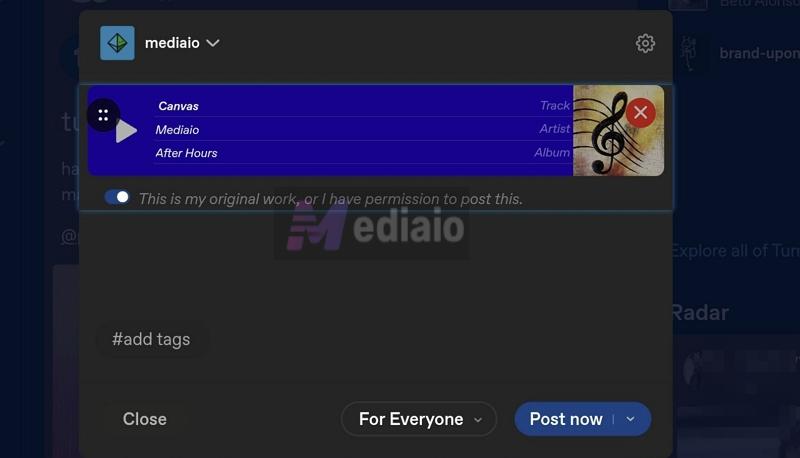
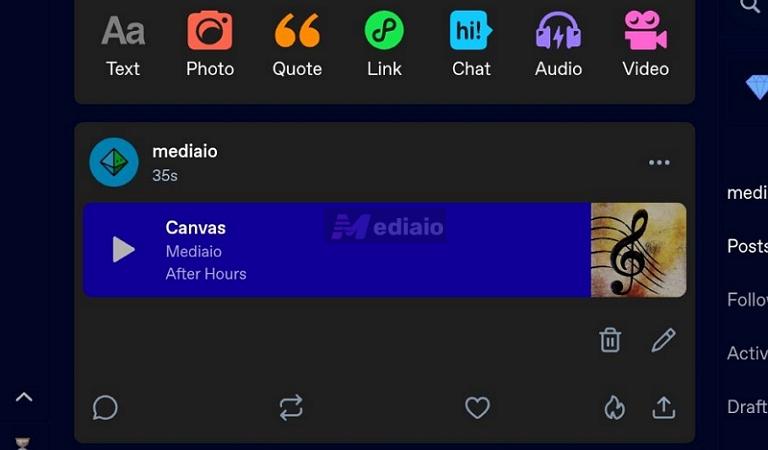
Your track will now appear as a clean audio card in your Tumblr post.
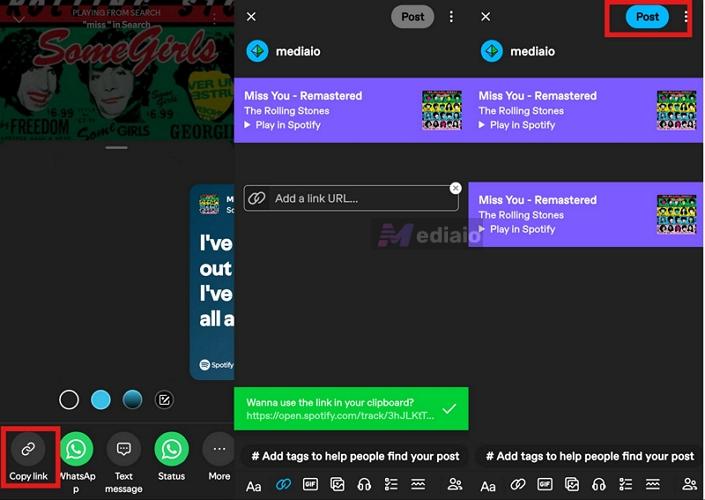
Add by Searching or Link on Mobile
On mobile, Tumblr gives you two easy ways to add Spotify. You can either search for a track directly or just paste a Spotify link. Here’s how they work:
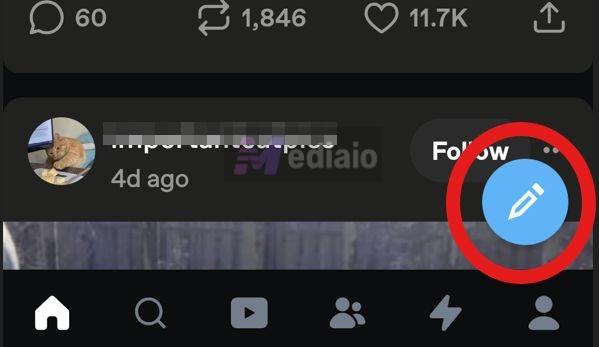
Step 1. Tap the pencil icon at the bottom-right and begin a new post.
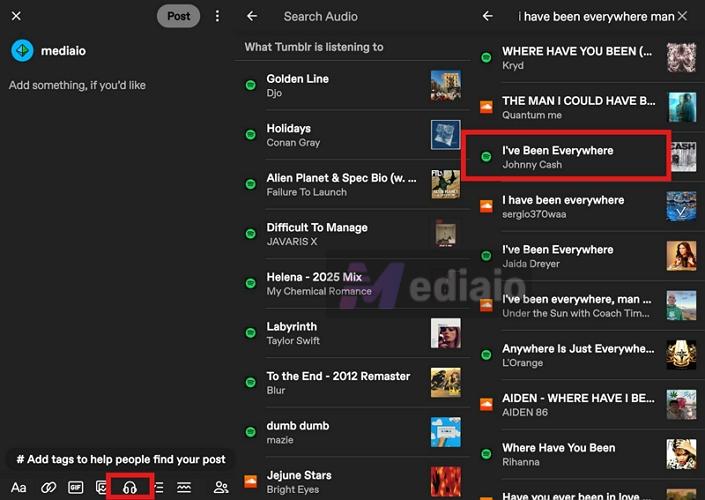
Step 2. From there, choose Audio from the bottom row.
Step 3. Type the song name you want in the post. Tumblr will pull results directly from Spotify and SoundCloud. Just pick the correct track and it will drop straight into your post as a playable card.
Step 4. Finish writing whatever you want around it, then hit Post at the top-right and it’s live.
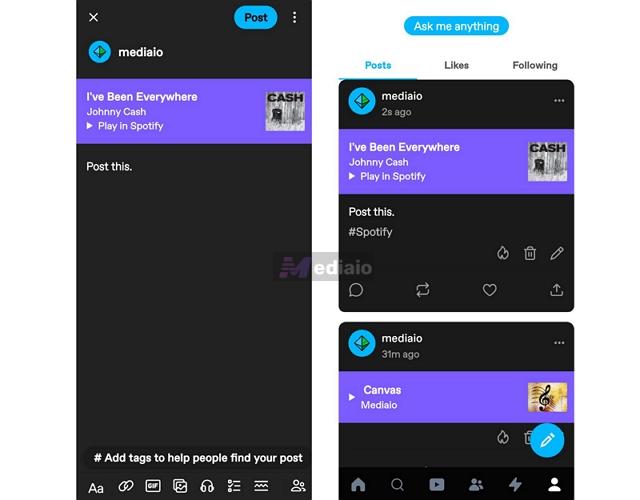
Now, if you already have a Spotify link copied, you don’t need to go through search at all. While staying in the same post screen, switch to the Link option, paste the URL, confirm it and it gets embedded automatically.
That’s the whole flow on mobile.
Fixed: Spotify Embed Not Working on Tumblr (Blog or Post)
Whether the Spotify embed is not showing up in your post or not loading properly in your theme, here are a few fixes that usually get it working.
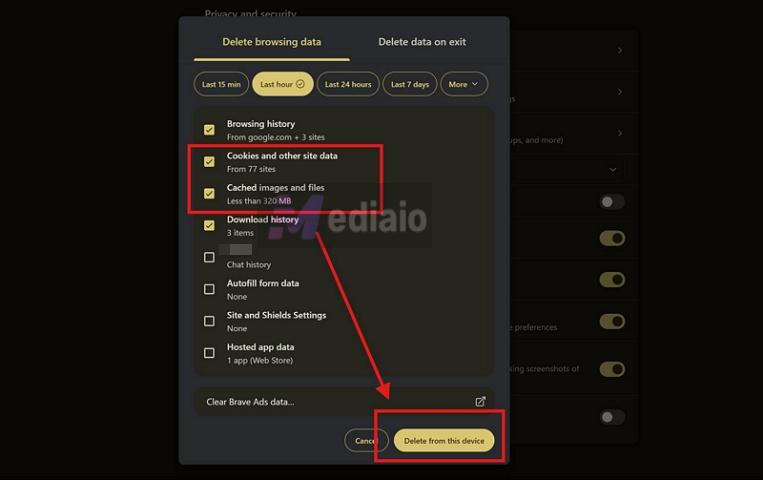
Fix 1. Clear Browser Cache and Cookies
Cached files can prevent the Spotify iframe from refreshing properly.
So go to your browser settings and clear:
- Cookies
- Cached images and files
Once done, reload Tumblr and insert the embed again. In most cases, it will start working immediately after this.
Fix 2. Switch to Another Browser
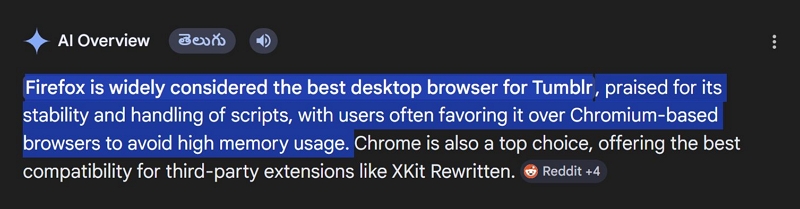
If clearing cache doesn’t help, try using a different browser. Because sometimes you could be using ad blockers. Plus, some browsers have built-in privacy filters and script blocker. So it can prevent Spotify iframes from loading, especially inside the Tumblr editor (post panel).
That said, if you’re on Chrome, switch to Firefox, log into Tumblr and try embedding again. It will usually work without issues there.
Fix 3. Fix Tumblr Theme Conflicts (Blog Page/Theme Only)
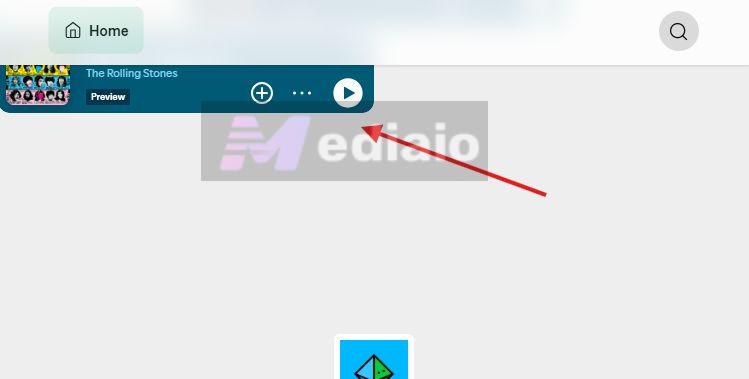
This applies if the embeds are not working properly inside Tumblr blog page (theme). Tumblr themes use custom HTML and CSS, and sometimes they override how iframes behave. This can affect height, spacing, or visibility (as discussed earlier).
So you will notice:
- The Spotify preview player looks cut off
- Only a small strip is visible
In this case, the embed is fine but your theme is restricting it.
You can:
- Use the compact player CSS fix shown earlier.
- Try adjusting default styling or placement.
- Or contact the theme developer if the issue persists.
Fix 4. Region or Spotify Content Limitations
If you see errors like “Track unavailable” or a 404 on the Spotify card, the issue is not always Tumblr.
In many cases, it comes from Spotify’s licensing restrictions. Some tracks are region-locked, so while it works for you, users in other locations will see a broken player.
If other users are reporting that the embed isn’t playing on their side, the fix here is to avoid relying on Spotify embeds for the track. Instead, use Tumblr’s native “Upload audio” method we discussed earlier.
Final Words
So that’s how you embed Spotify on Tumblr.
- Adding Spotify preview player to a post is straightforward on both mobile and desktop, as Tumblr gives you a built-in option for that.
- Embedding the iframe code on your blog page does take a bit more effort. But with the above steps, you can place it exactly where you want.
The only catch is that Spotify embeds are limited to a 30-second preview. So you can use Mediaio Audio Converter. It lets you save the track as an MP3 and upload it directly to Tumblr, as long as it’s something you’re allowed to share.