

Notion is the ultimate digital workspace. You can build habit trackers, manage complex project boards, or even organize your entire life inside a single dashboard. But not every workspace needs to stay completely silent. Adding your favorite music can change the entire vibe of a Notion setup. And this is where Spotify naturally comes in.
That is exactly what this guide explains. We will show you how to embed Spotify in Notion. We will cover two ways: one is the native way to embed Spotify, but the problem with this one is that the song stops after the 30-second mark. That’s why we will show you another method: use Mediaio Audio Converter, which bypasses the 30-second preview limitation.
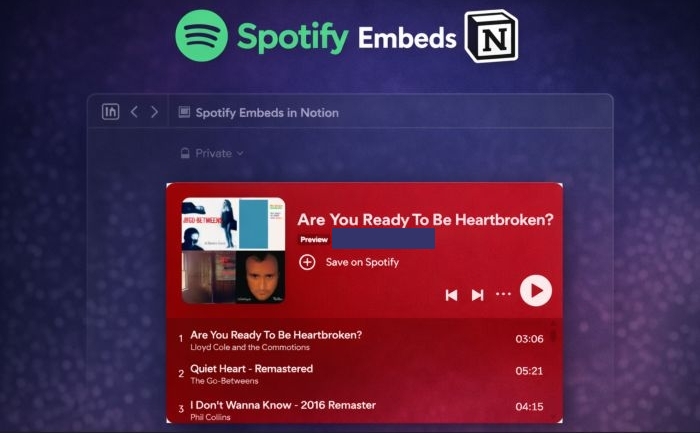
How to Embed Spotify in Notion with Preview
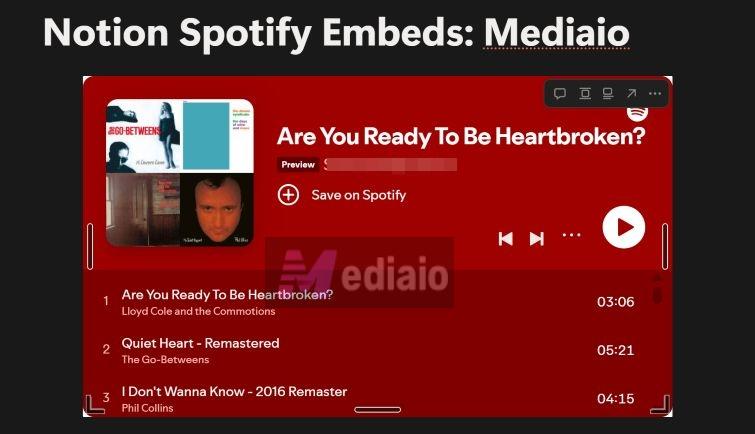
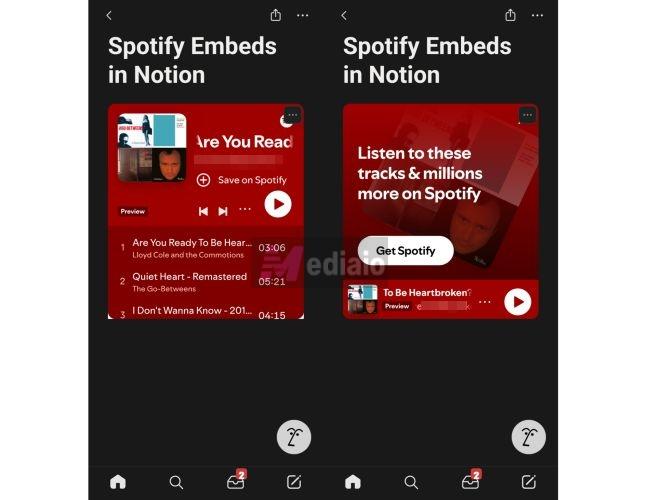
Let’s get the bad news out of the way first: the native Spotify embeds in Notion appear only as a preview. In fact, if you look near the playlist title, you will notice a small badge labeled “Preview.” This label means you can only stream a 30-second preview of each song. Then, it will display the “Listen on Spotify” message.
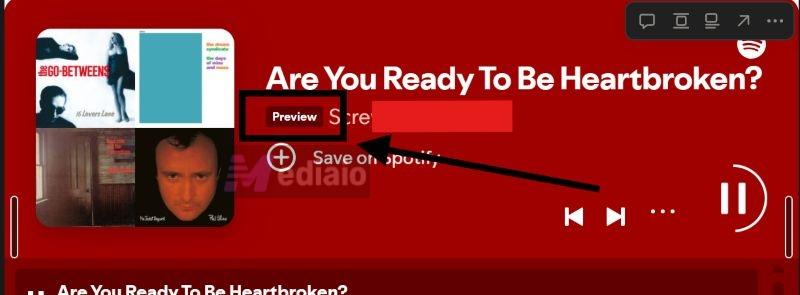
Even when you embed a long playlist, Notion will play 30 seconds of the first track, then move to 30 seconds of the next track, and continue like that.
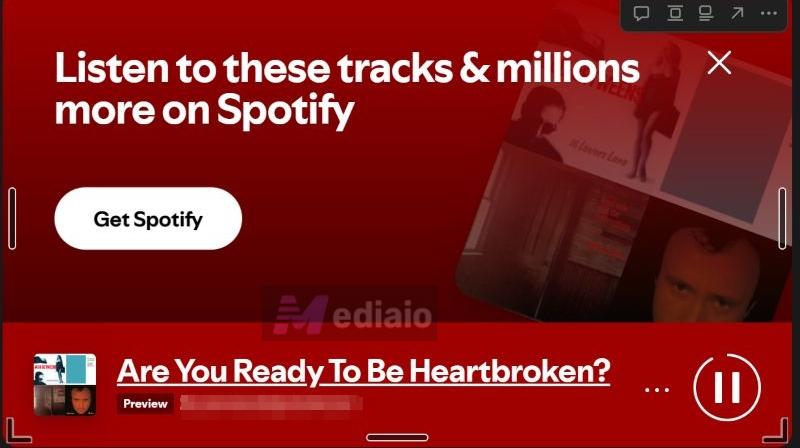
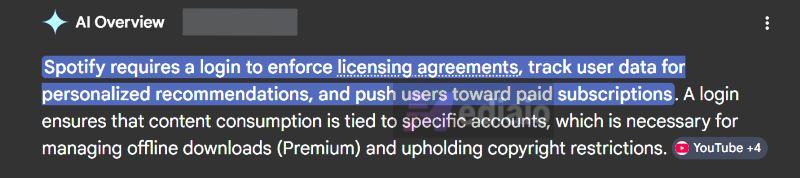
So in practice, you can never hear the full song inside Notion. Why does this happen? It mainly comes down to authentication rules. Spotify does not allow full playback on third-party platforms without a proper login. It is not like YouTube, where videos can often play freely inside embeds. And even Notion does not have a deeper integration for Spotify to authenticate the login handshake. So, Spotify will only allow the 30-second previews.
You may wonder why do people embed Spotify in Notion? Well, it is mostly for aesthetics. As mentioned, Spotify embeds look good inside a Notion dashboard. It is not for continuous listening.
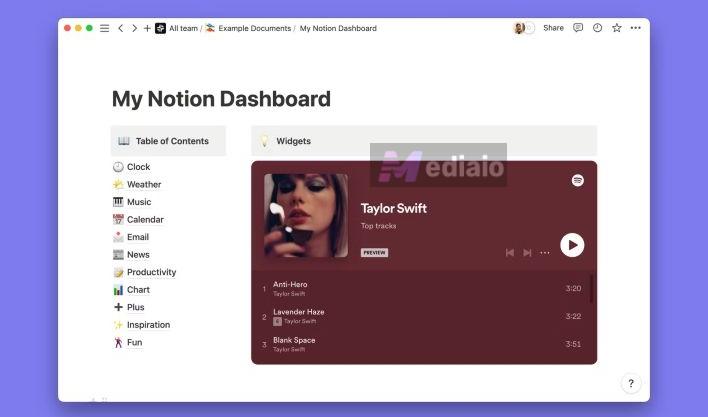
With that in mind, let’s see how to set it up.
Steps to Embed Spotify in Notion on Desktop
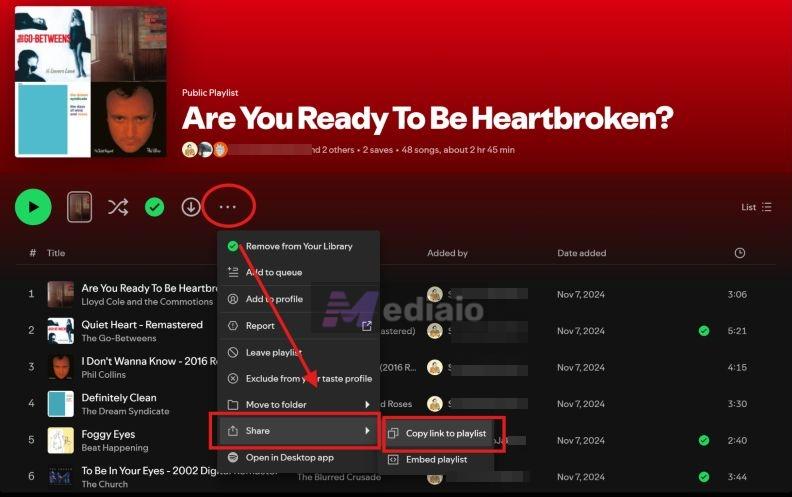
Step 1. In Spotify, select the three-dot menu next to the playlist or track and choose Share. Then, click the Copy link to playlist or Copy song link.
Step 2. Now switch to Notion.
Step 3. Click on an empty block where the Spotify widget should live.
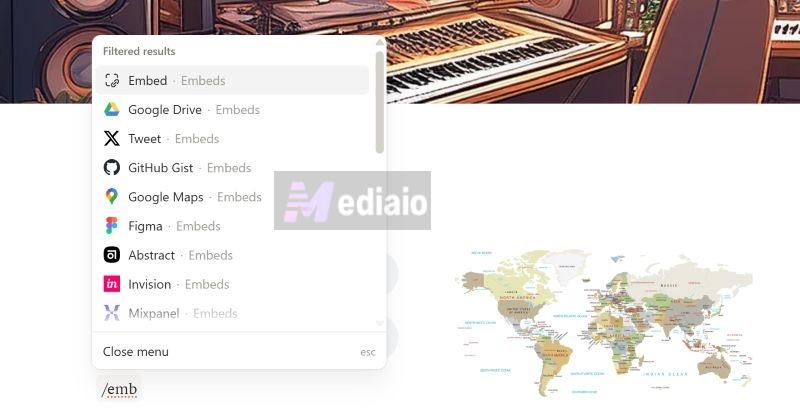
Step 4. Type /embed to open the command menu. You can also select Audio if you prefer.
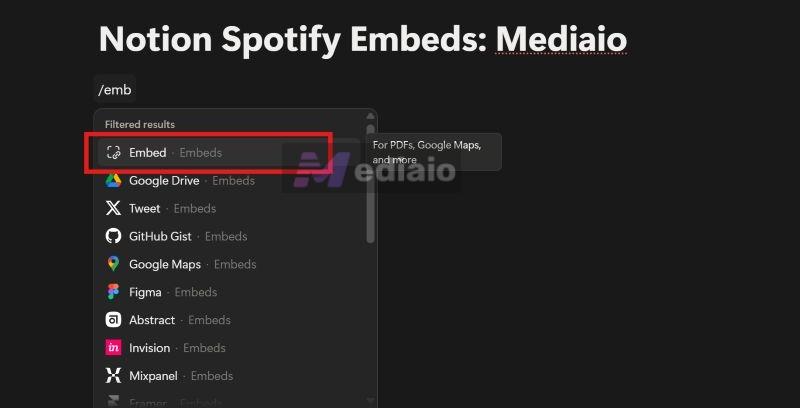
Step 5. A small box will appear with options such as Link or Upload. Paste the link.
Step 6. Hit Embed link.
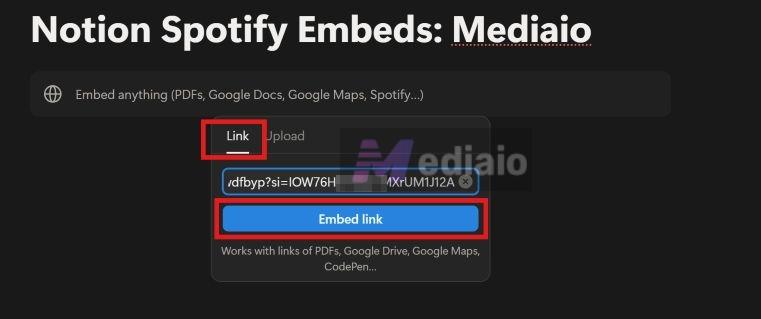
That’s it! Notion will transform that plain URL into an interactive Spotify player. You can resize the block and move it anywhere, just like any other Notion element.
If you are thinking of playing Spotify playlists for focus sessions, skip to the next section, where we discuss how you can actually do that.
Fixed: This Embed Couldn't be Loaded Notion
Sometimes users try to embed a Spotify playlist and see this message: “This embed couldn’t be loaded.”
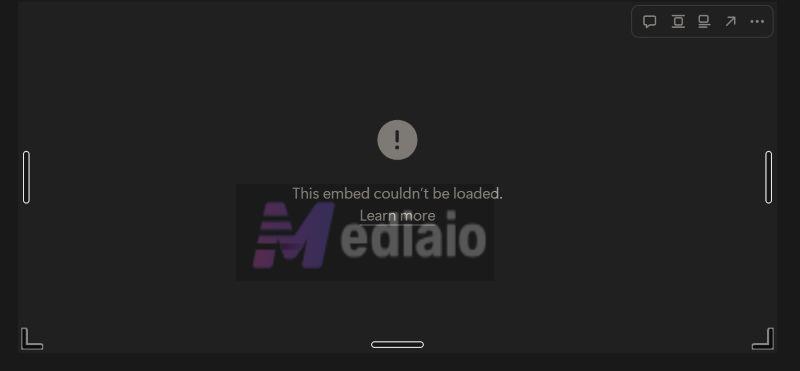
The reason is usually simple. Many people copy the Embed code from Spotify instead of copying the playlist link.
Notion works differently from most websites that rely on embed codes. It uses its own internal widget system to render embeds. So when you paste a large block of HTML iframe code into a normal /embed block, Notion cannot process it correctly.
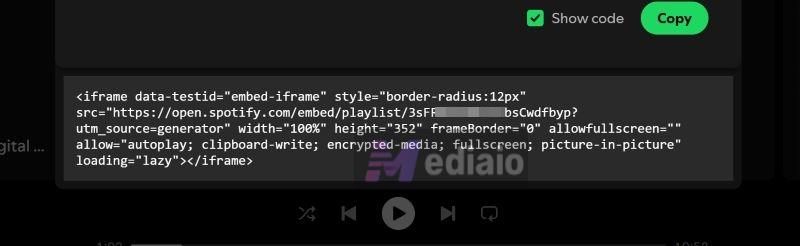
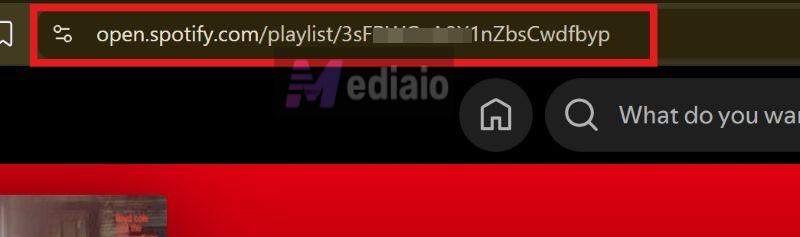
That is why the embed fails. And the correct method is to copy the playlist link or song link directly. It will look like a normal URL that begins with: https://open.spotify.com/...
Steps to Insert Spotify into Notionon Mobile
If you are building your workspace from your phone, the overall idea is still the same as on the desktop. You just have to use the mobile interface instead of the slash commands.
Step 1. Start inside Spotify on your phone. Find the song or playlist you want to embed. Tap the three-dot menu next to it, choose Share and tap Copy link.
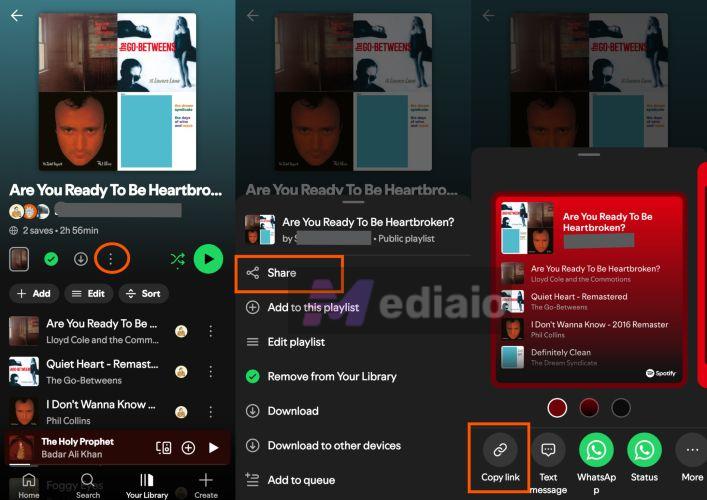
Step 2. Now move to Notion. Open the page where the Spotify player should appear.
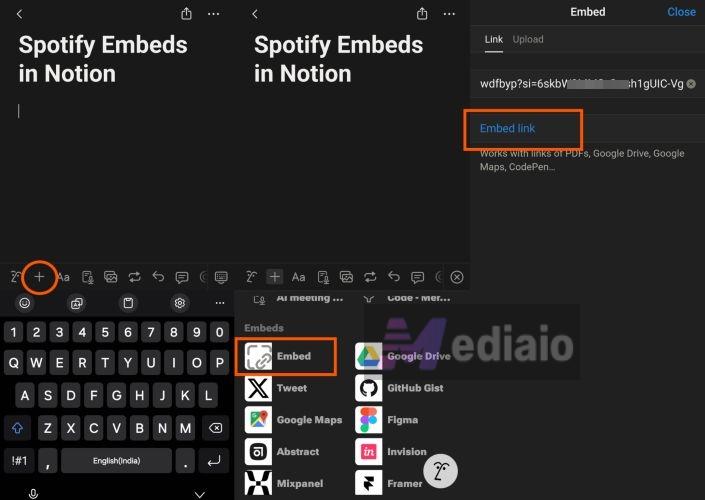
Step 3. Tap the spot where you want the player to sit. Instead of typing a slash command, press the “+” button to add a block.
Step 4. A list of blocks will open. Scroll through the options and choose Embed.
Step 5. The embed field will appear on the screen. Now, paste the Spotify link you copied earlier.
Step 6. Tap Embed link.
Within a moment, the Spotify player will appear on the page.
Pros and Cons
Of course, the biggest limitation here is the 30-second preview rule. However, the native embed player also comes with a few advantages and trade-offs. Here is a simple overview:
No APIs, tools, or coding needed to use the embeds.
Helps you set the mood of a shared workspace.
Teams can change the playlist to match the project mood or daily focus. The 30-second playback limit makes it useless for deep work sessions.
You eventually have to open the actual Spotify app to hear the rest of the track.
Loading multiple widgets can slow down your Notion page performance.
How to Embed Spotify in Notion Without Preview
If you want to break the 30-second preview limit, you need to use another method to embed Spotify inside Notion. That is, you can convert your favorite Spotify tracks into Notion-compatible audio formats like MP3, WAV, AAC, M4A, or FLAC. After conversion, you can then upload them to any Notion page (either as a free user or as a Notion Pro user) and play them in full without the 30-second preview limit.
Mediaio Audio Converter helps you complete the conversion. It is an all-in-one audio solution specifically built to easily convert songs from Spotify. In fact, Mediaio comes with an integrated Spotify web player, so you can sign in to your own account and then drag any playlist for conversion. The downloaded songs retain their original quality and ID3 tags.
Follow These Steps:
Step 1. Save desired Spotify songs or playlists with Mediaio.
Mediaio lets you choose from different quality options: 128kbps, 256kbps, and 320kbps. So, you can download the songs depending on your Notion plan:
- If you are using Notion Free: save the Spotify songs in 256kbps MP3 or M4A. So most tracks will stay under 5 MB.
- If you are using Notion Pro: download them in higher quality like FLAC and WAV.
Step 2. Go to the Notion page. Click on an empty block in the page.
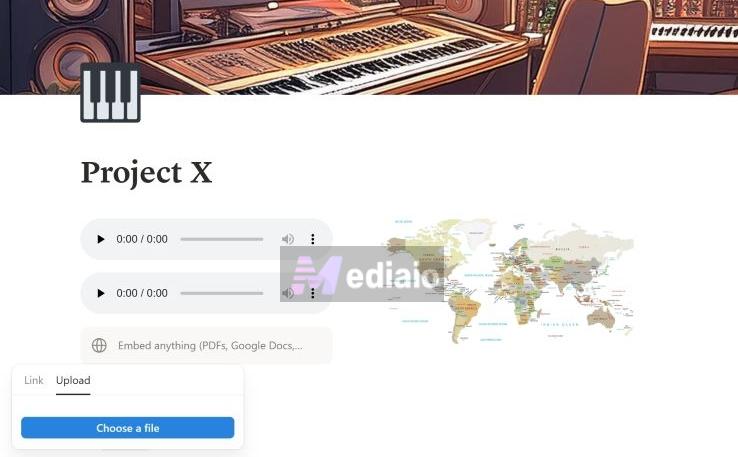
Step 3. Type /audio or /embed and press Enter. The audio block will open with two options: Link or Upload.
Step 4. Choose Upload. Then click Choose a file.
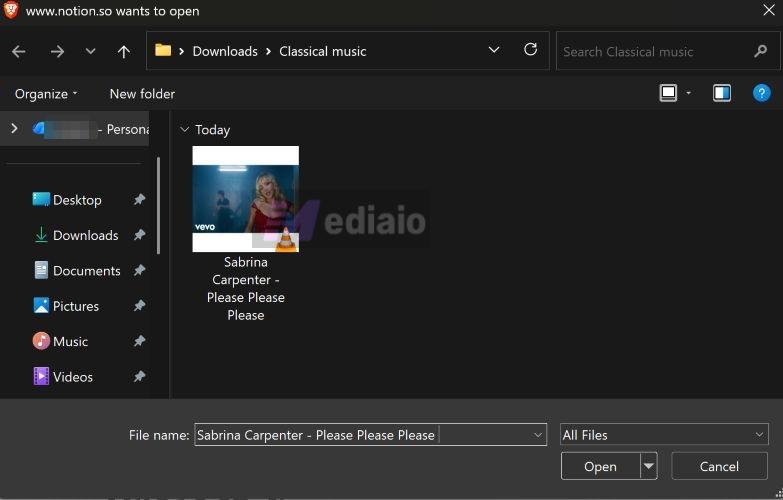
Step 5. Your computer’s file explorer will open and show the songs you saved with Mediaio. Select the track and click Open.
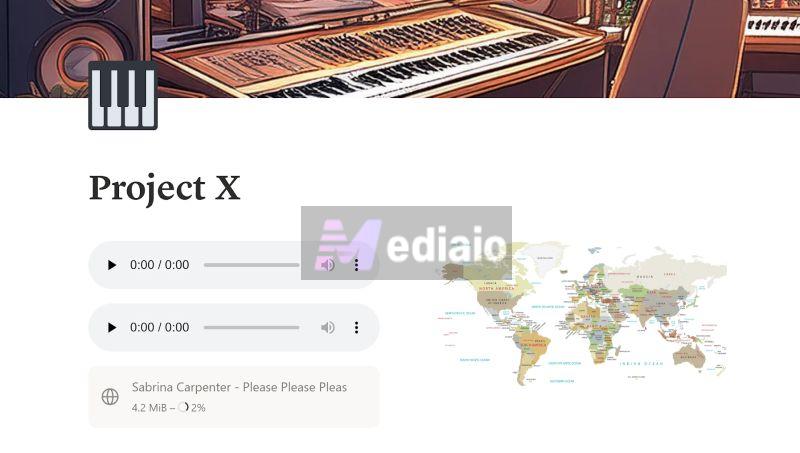
Notion will upload the file.
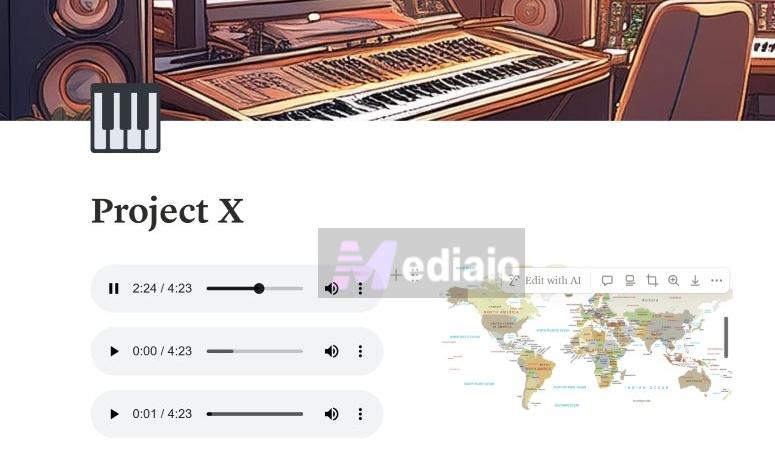
Now, the Spotify music will play till the end inside your workspace instead of stopping after 30 seconds.
Pros and Cons
This method is the only reliable way to play Spotify songs in full inside Notion. But like any workaround, it comes with a trade-off.
Minimal aesthetics. The player appears as a simple audio block with a play button and scrubber bar. This usually blends better with Notion’s clean interface. And it is better than a bright Spotify widget, which only suits certain page designs.
No app switching. You do not need to jump between Notion and Spotify to keep the music playing. The 5 MB upload limit on Notion Free. Some songs exported at 320kbps can exceed this size.
Manual conversion. You must convert the songs and upload them to your workspace.
Album art is not shown inside Notion’s audio player, though it’s fully saved with Mediaio.
FAQ: Can You Change Spotify Playlist on Notion?
No. The playlist you embed in Notion is simply a live sync between Notion page and your Spotify account. It is not a separate playlist. Because of this, you cannot modify the playlist from the Notion interface. The widget only lets you press play and preview the tracks. In fact, you cannot even reorder the list.
To make any changes: update the playlist directly inside Spotify. And the embedded widget will reflect those changes automatically when you refresh the workspace.
Conclusion
Notion and Spotify songs work great together. The native Spotify embed via the live link is quick and looks fantastic. However, songs will preview only for 30 seconds and stop.
If you want to listen beyond that point, embedding the music as an audio file is much better. That is why we introduced you to Mediaio Audio Converter. It lets you save any song from Spotify, whether it is a regular track or even a three-hour white-noise recording. Once saved to your computer, you can upload those Spotify files to Notion easily and play them till the end.