

Despite many requests, Spotify still hasn’t built a widget for Mac. Newer Macs do let you add the Spotify widget through your iPhone, but that route comes with many requirements. At this point, you may be thinking of the Mini Player, but it only works with a Premium account and is no match for a widget.
Don’t worry. You can use a third-party Spotify widget for Mac and we will introduce five of the best ones, including both free and paid options, and walk you through how to set them up here.
5 Spotify Widgets for Mac (Free Ones Included)
The Spotify widgets for Mac aren't all the same. Some of them sit on the desktop. A few display the currently playing song in the menu bar. And some even fit into the notch, mimicking the look of the iPhone's Dynamic Island.
The way they can be customized and designed varies from one to the other as well. Of course, not all of them are completely free, but there are advantages associated with the paid ones.
We have included a great deal of variety since there isn't a single option that suits everyone. You'll need to choose based on your requirements and the overview table of all five will make it easy.
US$6.99 for extras • 5 player styles• Drag-and-drop menu bar• Global shortcuts • Menu bar• Floating player • Custom themes• Retro and Liquid Glass skins Not needed(a Spotify login is enough)
Now, let’s look at them in detail.
1. Silicio

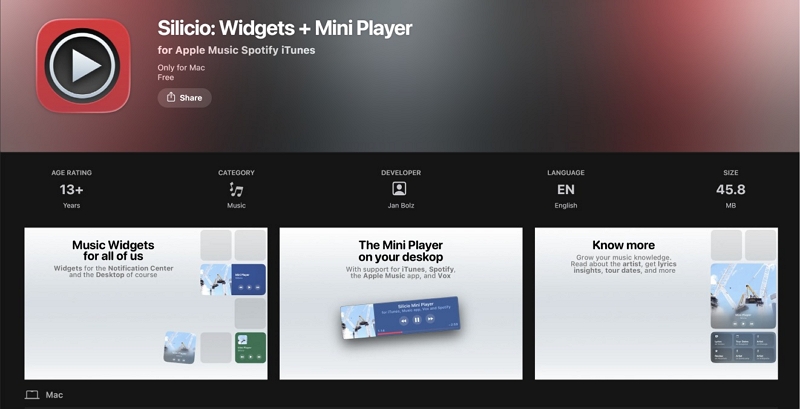
Silicio is the first on our list, for obvious reasons. It is a completely free Spotify widget and you can get it safely from the Mac App Store like any other app. It asks for nothing in return. As long as the Spotify app is on your Mac, it will work.
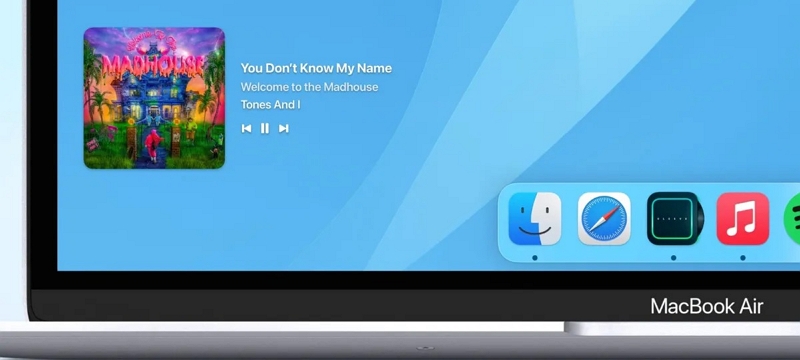
Silicio comes in two forms: a widget and a desktop mini player. You can stick the widget anywhere on your desktop or in Notification Center, just like your clock or weather widget. Or you can use the mini player, but it will always float on top of your screen and take up some of your screen. You can pick one or keep both. Either way, both the mini player and widget look clean. They show sharp album art right next to the controls.
Silicio also has a few extras that many widgets don't offer. For instance, it will show you a notification with the next song as soon as it starts. The most important one is the pair of forward and back buttons right inside the widget. So you don’t have to open Spotify to skip 10 seconds.
How to Get Spotify Widget on Mac Desktop Using Silicio
Step 1. Head to the App Store on your Mac and search for Silicio. Choose Silicio: Widgets + Mini Player, then hit Get and Install.
Step 2. Launch the Spotify app and play a song of your liking.
Step 3. Set up Silicio. Start it from your Applications folder. macOS will ask whether Silicio can control Spotify. Choose OK, or Silicio will not work.
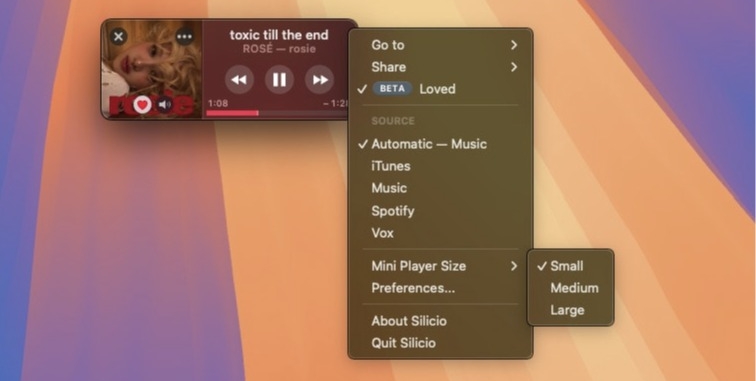
Step 4. The Silicio mini player will show up on your desktop. Tap Preferences on it and pick Spotify under Source. You can also change the size under Mini Player Size from the same menu.
If you are on macOS Sonoma or later, you can add the widget too. For that, right-click an empty spot on your desktop and choose Edit Widgets. Search for Silicio, pick a size, drag it onto your desktop, and hit Done.
2. SpotMenu

SpotMenu is different, which isn't in the App Store. It is a free, open-source app, so you will have to install it from GitHub. It also doesn't sit on your screen as a widget. Instead, it lives in your menu bar, which makes it ideal if you have a small MacBook screen, like the 13-inch MacBook Air or the MacBook Neo.
SpotMenu lets you customize almost everything. You can set how wide the text runs in the menu bar. Or you can simply switch to a compact mode when your menu bar is too crowded. You can also set global keyboard shortcuts for playback.
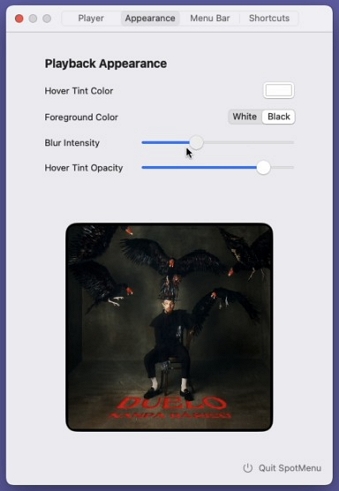
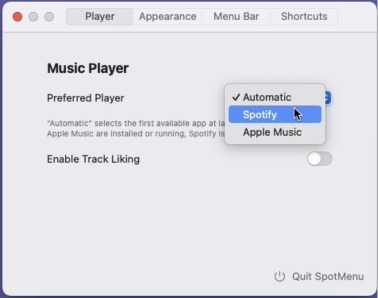
More importantly, SpotMenu can detect any music playing on your Mac on its own. So it will keep working even when you play music from another app. But you can also manually pick Spotify or Apple Music for a steadier connection.
How to Add Spotify to Desktop on Mac with SpotMenu
Step 1. Go to the SpotMenu releases page on GitHub. Download the latest file and drag SpotMenu into your Applications folder. If you use Homebrew, you can open Terminal and run this instead: brew install --cask spotmenu
Step 2. Open SpotMenu from Applications. If macOS warns you that the app is from the internet, click Open. The song name will appear in your menu bar.
Step 3. Click the song name in the menu bar and go to Preferences. Set the music player to Spotify. That is enough to play, pause, and skip.
3. Sleeve
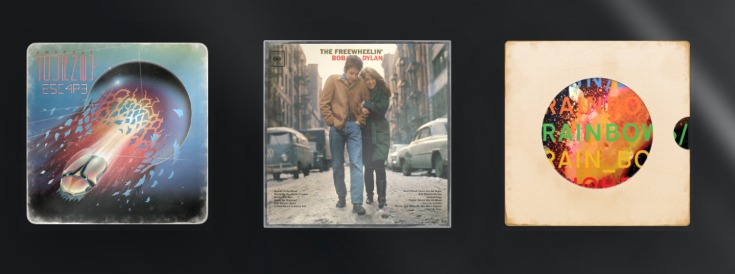
Sleeve is the paid option on this list. Its customization and premium-looking design are the reason for that. It comes with 7 built-in themes and you can try each one out. If none of them feels right, you can make your own theme. You can sync it across all your Macs through iCloud, share it with a friend, or take a theme from them and apply it to yours.
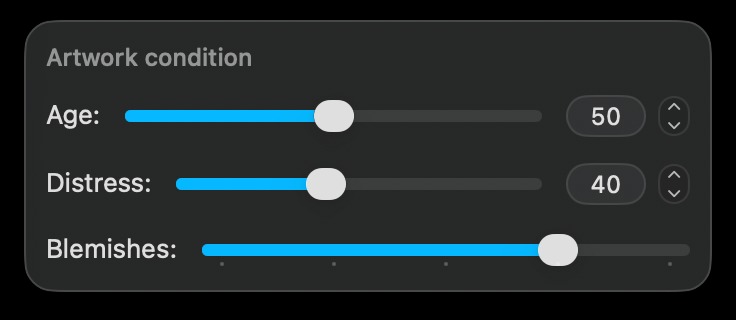
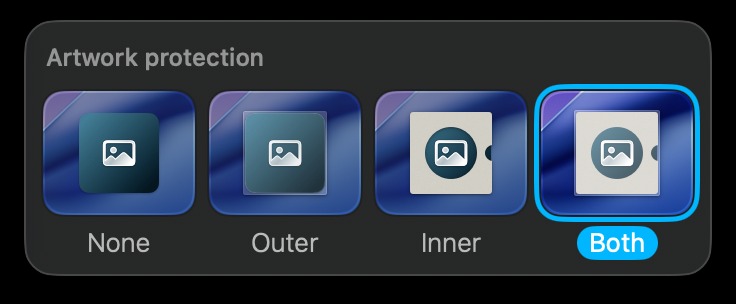
Beyond these themes, you will find hundreds of other ways to style it. You can change the text size, the font, the shadow behind it, and even how the corners look. One cool feature we found lets you make the cover look like an old, worn vinyl sleeve. And there are plenty more touches like that.
How to Put Spotify Widget on Mac Desktop via Sleeve
Step 1. Buy Sleeve from the Mac App Store or the Replay Software website. Once it installs, launch it and a short setup will walk you through the rest.
Step 2. When Sleeve asks for your music app, go with Spotify. A Spotify login page will pop up in your browser. Sign in and hit Agree. Your current song will land on your desktop.
Step 3. Now head to Sleeve’s Settings. Every change here shows up on the widget live. Start with a built-in theme. You can customize the artwork size, font, and shadow.
Step 4. Last, decide where Sleeve should sit. Pick a corner of the screen. You can even add it to the additional display if you use one. And if you want a clean desktop between songs, turn on the option to hide Sleeve when the music is paused.
4.Tuneful
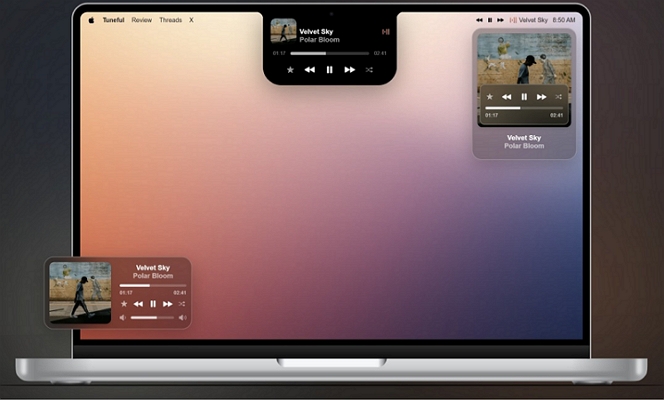
The widgets above live either on your screen or in the menu bar. Tuneful covers both, with a floating mini player and a menu bar player. But it goes a step further: it can put your music right in the notch, just like the Dynamic Island on iPhone. When your cursor hovers over the notch, the controls will slide out.
However, Tuneful is a paid-only app, with a one-time fee of $4.99. But in return, you can use your widgets in any spot. Plus, you can personalize nearly every part of each one, from how it looks to how it behaves. It's even Liquid Glass ready. And your setup will sync across all your Macs through iCloud and carry over to your additional displays.
Another impressive thing about Tuneful is how smooth it feels. It runs like an app Apple built itself. That is, it really works efficiently without any lag and it's easy on your battery.
How to Add Spotify Widget on Mac with Tuneful
Step 1. Get Tuneful from the Mac App Store and open it. A setup window will walk you through the first screens.
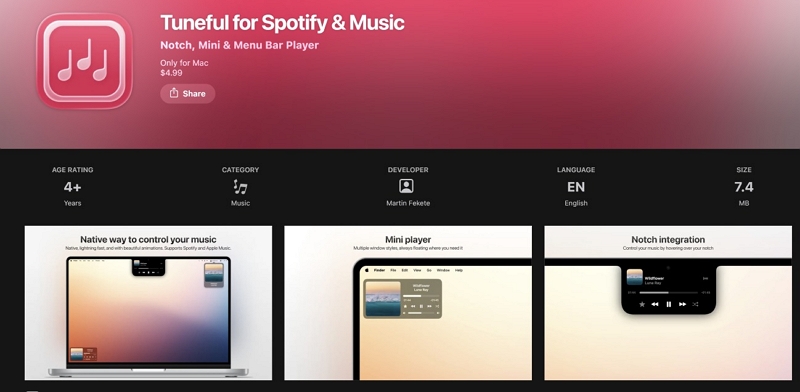
Step 2. Choose where you want Tuneful to show up: the Notch, the Menu Bar, the Mini Player, or all three. You can change this later.
Step 3. Now play any song in Spotify. Tuneful will pick it up right away. For instance, if you have selected the notch, just move your cursor there. Your song will be waiting with the controls.

5. Spotica Menu

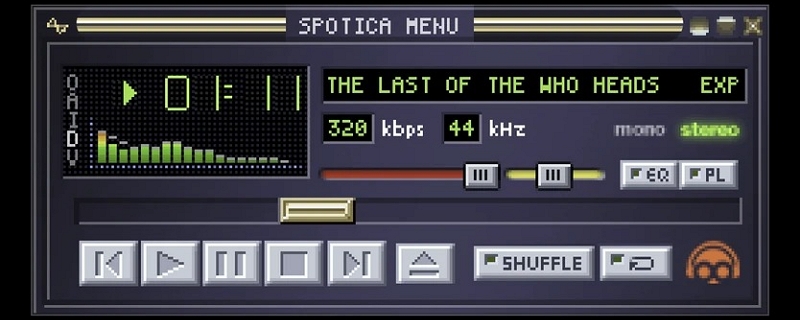
Spotica Menu is another good option. You can use it as a Spotify widget that lives in your menu bar or pop out its mini player onto your desktop.
Its real charm is the design. For the menu bar, you will find custom themes to match with your style. The mini player only comes with five styles, including a retro Llama skin and a Liquid Glass skin. But within those designs, you can customize nearly every part.
The good thing is that most of these features are free. But for extra features, such as custom color themes and media icon themes, you will have to pay US$6.99.
How to Get Spotify Widget on Mac Desktop with Spotica Menu
Step 1. Get Spotica Menu from the Mac App Store and open it. The Spotica icon will appear in your menu bar.
Step 2. If the icon doesn’t show up, your menu bar is probably full. This happens a lot on a 13-inch MacBook Air with the notch.
Step 3. Click the Spotica icon, go to Preferences > Spotify, and log in. The song name and cover will start showing in your menu bar.
Step 4. Drag the song name, the cover, or the buttons into the order you like.
Step 5. You can also pick one of the five mini player styles. To see the mini player, click the album cover in your menu bar and your mini player will pop up on the desktop.
How to Add Spotify Widget to Your Mac Without Third-Party Apps
On macOS Sonoma or later, you have the option to put your iPhone’s widgets on your Mac’s screen via Continuity. And the Spotify widget is supported one. But you must meet a few requirements for it to work smoothly:
- Your iPhone runs iOS 17 or later and has Spotify installed.
- The iPhone and Mac must use the same Apple Account.
- Keep both devices nearby or on the same Wi-Fi.
However, you won’t need to add the widget to your iPhone’s home screen first. As long as Spotify is on your iPhone, its widget will show up on your Mac. Here’s how it works.
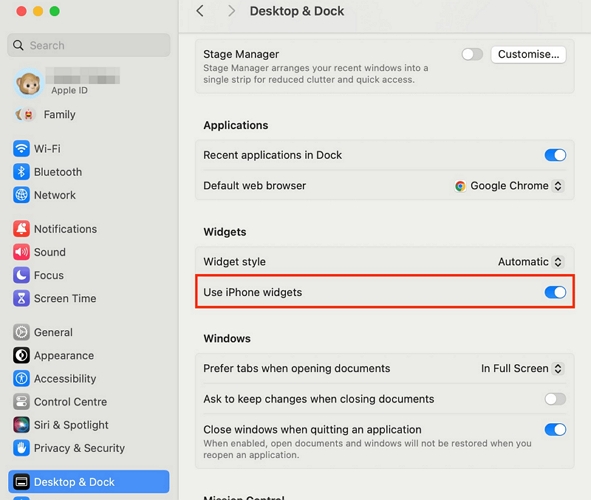
Step 1. Click the Apple menu and open System Settings. Go to Desktop & Dock and scroll down to Widgets. Turn on Use iPhone widgets.
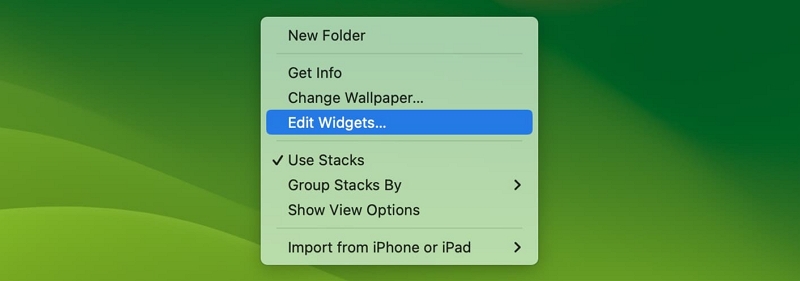
Step 2. Right-click an empty spot on your desktop and choose Edit Widgets. The widget gallery will open.
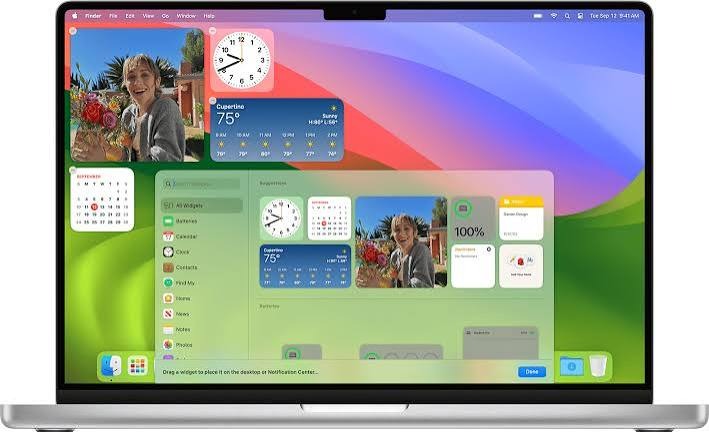
Step 3. Find Spotify in the list of apps. It will show that it comes “From iPhone”.
Step 4. Pick a size. Drag the widget onto your desktop and click Done.
The catch is that these iPhone widgets depend on your iPhone. The Spotify widget will stop updating when your iPhone is away from your Mac or off the Wi-Fi.
How to Use Mac Widgets with Local Music
Most of the above widgets are not tied to Spotify alone. Silicio, SpotMenu, Sleeve, and Tuneful all work with Apple Music too. So you can even play the local Spotify songs on your Mac through the Music app and your widget will show it just like a Spotify song.
Playing local music comes with some real benefits. For instance:
- Your music will play without the internet.
- If your files carry proper names and cover art, your widget will look just as good offline.
- You will not hear a single ad. For instance, on a Free Spotify account, ads still play through when using the above widget and no widget can skip them.
To save Spotify music locally, MedVioo Audio Converter comes in.
MedVioo lets you save songs directly from Spotify in local formats like MP3. It comes with integrated support for Spotify, as well as other major platforms like YouTube Music and Apple Music. So you can convert your favorite songs from any of them into high-quality MP3s and save them to your Mac’s Downloads folder. Then you can bring them into the Music app and play them like any other song. Your widget will show them as usual.
The good thing is that MedVioo keeps every song’s title, artist name, and cover art intact. So even when playing offline, the widget will display all the details and look crisp.
Steps to Play Spotify Songs Offline on Your Widgets
Step 1. Install and open MedVioo on your Mac. From the main screen, select Spotify.

Step 2. Log in to your Spotify account. A Free account works just as well as Premium.
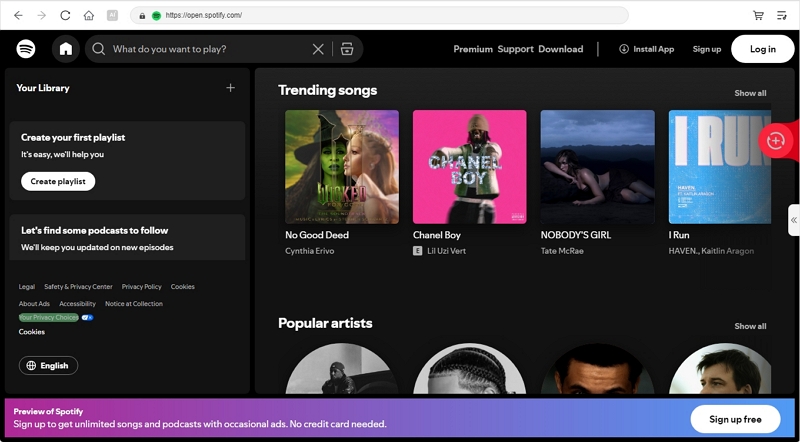
Step 3. Find the songs, albums, or playlists you want and drag them to the + button on the right.

Step 4. In the conversion window, pick MP3 as the output format, set the desired audio quality and then click Convert All.

Step 5. Once the download finishes, switch to the Finished tab and click View Output File. You will see your songs neatly sorted in their folder.
Step 6. Now open the Music app. Go to File > Import, and select that folder. Your songs will land in your library.

Play any of them and your widget will pick it up right away. If you use Silicio, just switch its Source to Music.
Difference Between Spotify Widget and Spotify Mini Player on Mac
Spotify’s Miniplayer is nowhere near what the widgets above can offer. For instance, the widgets above can live on your desktop, in your menu bar, or even in the notch of your Mac. Plus, you can play a song with them without opening the Spotify app. You just have to log in to your Mac, click play on the widget, and your song will start as usual.
Spotify’s Miniplayer, on the other hand, always requires the Spotify app to be open first. That is, you will log in to your Mac, open the Spotify app, play a song, and only then will you reach the Miniplayer.
How to Use the Spotify Miniplayer on Mac
Step 1. Open Spotify on your Mac. You must be logged in to a Premium account.
Step 2. Play a song or a podcast.
Step 3. Look at the bottom right corner of the Spotify window, next to the volume bar. Click the Miniplayer icon, a square with a smaller square inside it.
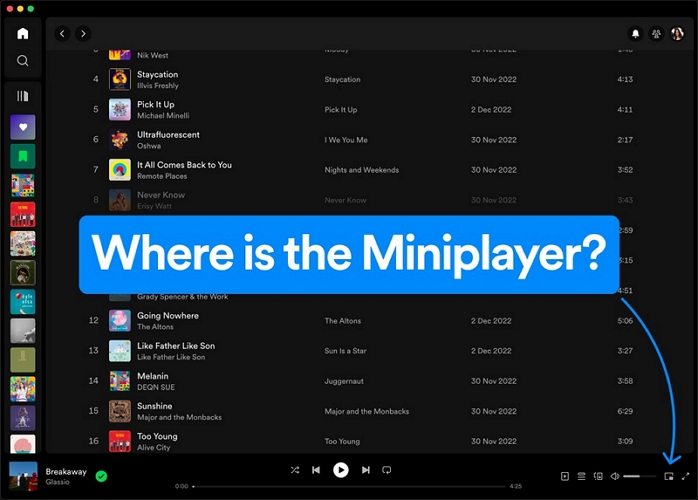
Step 4. The Miniplayer will pop out. Click and hold the small row of dots at the top, then move it anywhere on your screen. You can also drag its edges to make it bigger or smaller. You can even shrink it all the way down to a slim bar where only the album art and controls show.
Step 5. To go back, click the album art or the song name. The main Spotify window will open. You can also close the Miniplayer with the X at its top left. The main Spotify window will open on its own and your song will not stop.

Conclusion
Those are the five best Spotify widgets for Mac. We’ve included both the free and paid options, so all that’s left is to make your pick.
The good thing about most of these widgets is that they also support local music. You can convert your favorite Spotify songs and playlists into MP3 with MedVioo Audio Converter, even without Premium, and play them as local music.