

Many of us leave Spotify playing in the background while we work. That’s when the next song notification feature is helpful. It helps you know what song is playing or who the artist is. Spotify already offers this feature, but only for Windows users. On macOS, Spotify removed this option for reasons that are unclear. Even after many requests in the Spotify Community, it still hasn’t come back to the Mac app.
In this article, we’ll explain how to get next-song notifications on both Mac and Windows. We’ll also cover how to receive these notifications when you play local music.
How to Get Next Song Notifications Spotify on Mac for Free
Let’s start with the Mac, since Spotify removed this option here and it takes a bit more effort to get next song notifications. You’ll need to use a third-party tool for this and there are several available.
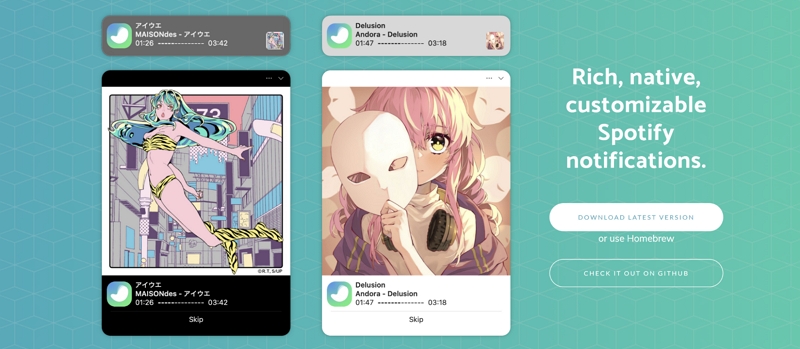
Now Playing Notify is a popular and free choice. It’s available on the Mac App Store, so it’s safe to use. The app is simple: whenever a song changes, it shows a banner with the song name, artist, and album cover in the top right corner of your Mac screen, just like Spotify’s feature on Windows. However, it doesn’t have a Skip button to go to the next song.
You can click the banner to open the Spotify app and change the song yourself. If you don’t click it, the banner will disappear on its own after a few seconds, just like other notifications.
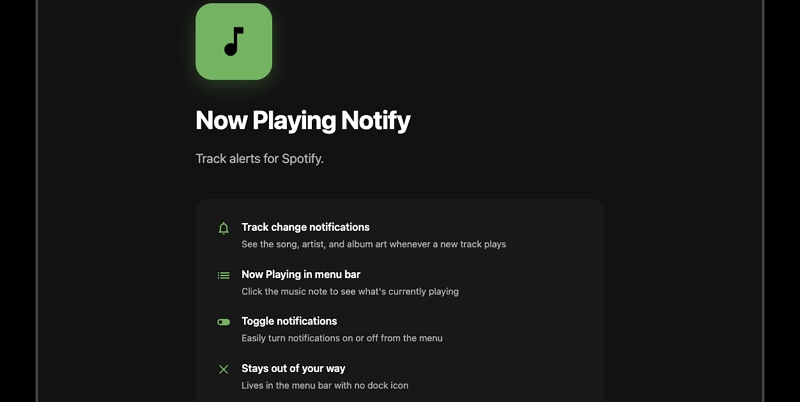
Now Playing Notify also adds a music note icon to your menu bar. You can click it anytime to see the current song or return to Spotify without opening it from the Dock. You can also turn the banners off easily when you need to focus.
How to Install and Use Now Playing Notify
Step 1. Open the App Store and search for Now Playing Notify. Install the app.
Step 2. Head to your Applications folder and open the app. Nothing will show up on the screen. Instead, a music note icon will appear in your menu bar.
Step 3. Play any song on Spotify. macOS will then ask you two things for the first time:
- whether the app can show notifications
- whether it can control Spotify
Allow both. Now Playing Notify needs these two permissions to read the song and show the banner.
Step 4. Skip to the next song. A banner will slide in at the top right of your screen with the song details. Click it to open the song in Spotify.

Step 5. Click the music note icon in the menu bar and make sure Show Notifications and Launch at Login are both turned on. The banners will then keep coming, even after you restart your Mac.
Besides Now Playing Notify, you'll also find two other tools with “Notify” in their names. Are they different versions of the same tool, or do they offer different features? The table below will help you find out.
• Family Sharing lets up to six people use it • Free and open source
• Run on Apple Silicon too • macOS 13 Ventura
• Homebrew
• A click opens the song in Spotify • Song, artist and album
• A Skip button on the right • Song, artist and cover
• A progress bar for the song
• A Skip button when you expand it
• Start on its own when you log in • A mini player in the menu bar with the album cover
• Previous, pause and next buttons • Apple Music support
• A history of the songs you played
• The current song around the notch on macOS 26
So Notify for Spotify — the paid one, is good for you when you are on an older Mac. It goes further with a few playback controls in the menu bar—you can go back to the previous song, skip to the next one, and pause or play the music. However, it doesn’t work if you use Spotify in a web browser.
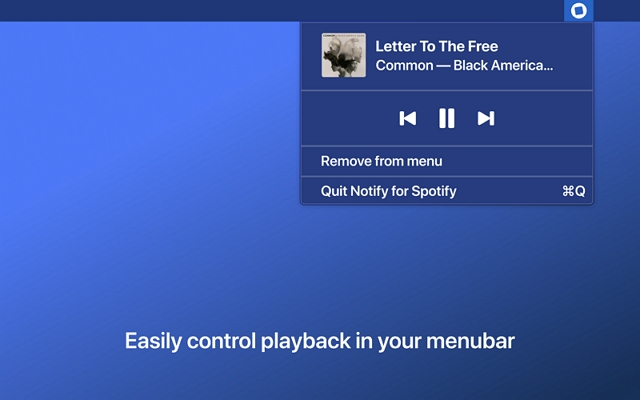
Notify is a good choice if you want even more control over what you see on the banner. For example, you can turn the album cover on or off and set a global shortcut to show the notification again.
How to See the Next Song on Spotify Mac Without Notifications
If you’d rather not use the tools mentioned earlier, there are other ways to see the next song. These methods may not be as straightforward as notifications, but they offer some extra perks. Here are a few alternatives.
Option 1. Use a Now Playing Widget
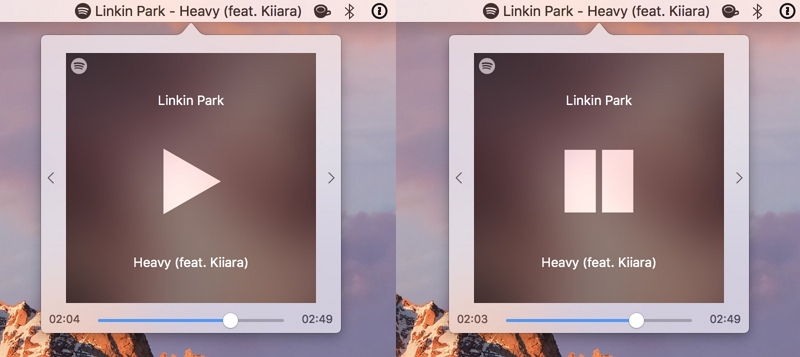
If you want something more than just a banner, try using a widget. Apps like Silicio and Sleeve work similarly to banner apps, but they look nicer and stay on your Mac desktop. They always show the song name, artist, and album cover. You also get controls to play, pause, or skip songs. For more details, check out our guide to Spotify Widgets for Mac.
Option 2. Check Control Center
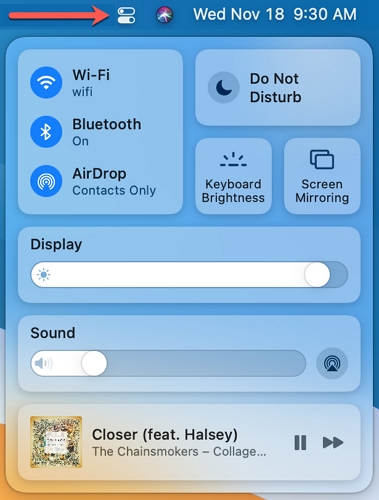
A lot of people skip third-party tools and just use the Control Center. The Now Playing box there shows the current Spotify song. This option is less distracting than notifications, since you can check the song only when you want. That is, you can just click the Control Center icon at the top right of your menu bar while music is playing to see the Now Playing box.
How to Get Next Song Notifications Spotify on Windows
On Windows, this is much simpler. Spotify for Windows already has a switch to turn on next-song notifications. Once it is on, a banner will slide in at the bottom right of your screen each time a new song plays. It will show you the song that is playing, along with a Skip button to move to the next one.
How to Enable Next Song Notifications on Spotify Windows
Step 1. Open Spotify on your PC. Click your profile picture at the top right and choose Settings.
Step 2. Scroll down to the Display section.
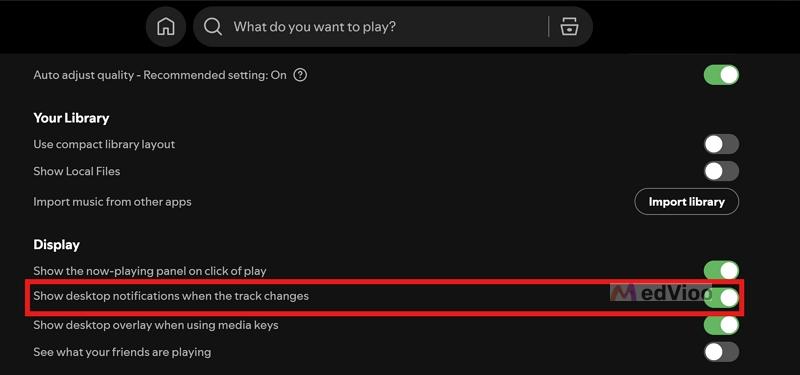
Step 3. Find Show desktop notifications when the track changes and turn the switch on.
Step 4. Play a song and skip to the next one. A banner will appear at the bottom right with the song details.
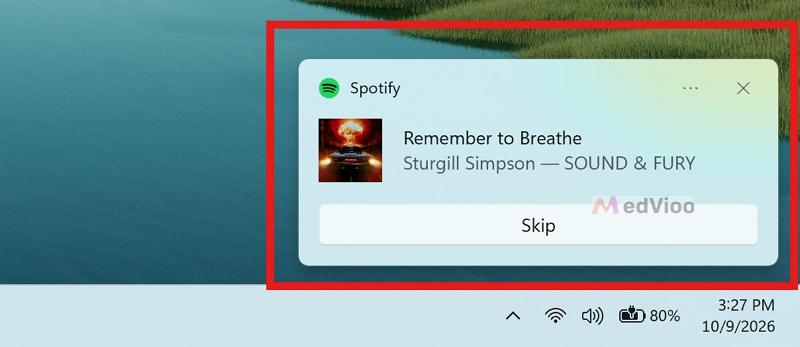
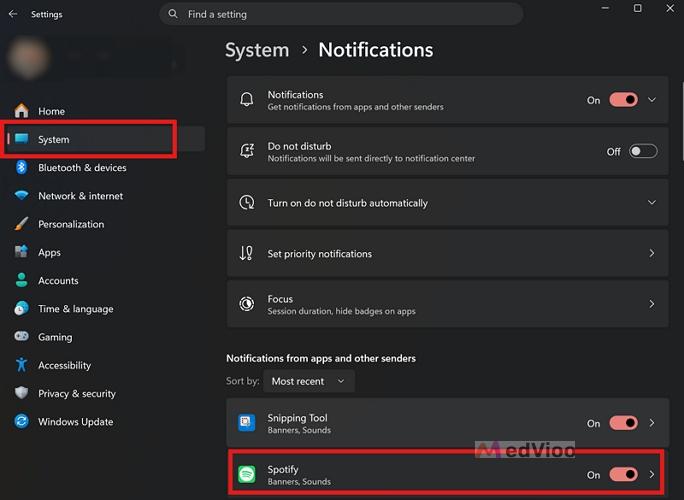
Note: If no banner appears, Windows may be hiding it. To fix that:
- In the Windows Settings app, go to System > Notifications and check that notifications from Spotify are allowed.
- Do Not Disturb (Windows 11) or Focus Assist (Windows 10) also hides banners. You can turn it off or add Spotify to its priority list so the banners still come through.
How to Get Next Song Notifications for a Local Music Player on Windows or Mac
Most local music players, whether free or paid, offer a next song notification feature. For example, VLC lets you turn on notifications in its Preferences menu. Once you enable this, you'll see a notification each time the next song plays.
If you don’t have local songs, you can bring your Spotify tracks over. This is simple if you use an audio converter like MedVioo.
MedVioo Audio Converter lets you turn your favorite Spotify songs, playlists, and albums into local files like MP3. All the metadata will be kept while exporting the files to your computer. Each file will carry its song title, artist name, and HD cover art. So when the next song notification appears in VLC or other players like Strawberry and Clementine, you'll see a clear name and full song details.

If you already have local music, here’s how to turn on the notifications in VLC.
On Windows
Step 1. Open VLC and drag your music folder into it. Your songs will appear in the playlist.
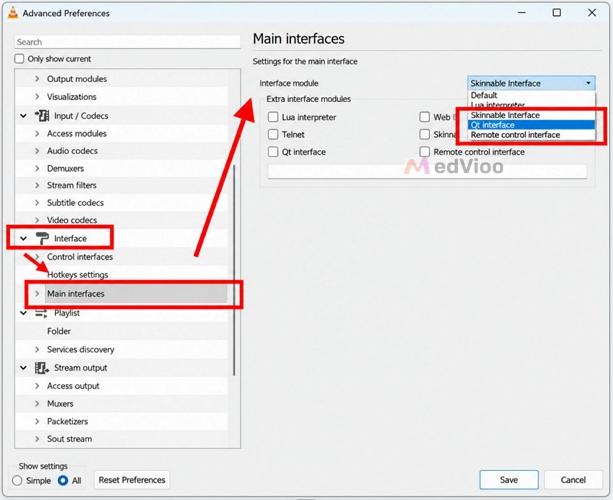
Step 2. Go to Tools > Preferences. In the bottom-left corner, set Show settings to All.
Step 3. Head to Interface > Main interfaces > Qt. Set Show notification popup on track change to Always.
Step 4. Click Save and restart VLC. Play your music and a small pop-up will show you the song each time a track changes.
On Mac
Step 1. Open VLC and drag your music folder into it.
Step 2. Go to VLC > Settings in the menu bar and click Show All at the bottom left.
Step 3. Head to Interface > Control interfaces and tick the macOS notifications option. Click Save.
Step 4. Restart VLC and play your music. A macOS banner will notify you when a new song plays.
Final Words
That’s how you can turn on next song notifications whether you are on a Mac or Windows. We have shown you how to do this not only when you play music through Spotify, but also when you play your local music in apps like VLC.
And if you don’t have many local songs yet, you can easily convert a few withMedVioo Audio Converter. It will save your favorite Spotify songs to your local computer in just a few clicks.