

Falling asleep to music, ambient sounds, or white noise is a nightly ritual for many people. Whether it’s a calming playlist or gentle rain sounds, audio can help you unwind and drift off. However, a common frustration among many Apple Music users is that the Service doesn’t offer a clearly labeled built-in sleep timer, leaving them unsure how to stop playback automatically. The good news is that there are simple and effective ways to set this up across different devices. In this guide, you’ll learn how to create a sleep timer for Apple Music on iPhone, iPad, Android, and desktop - so your music fades out exactly when you need it to.
Quick Answer by Device
Set Apple Music “Sleep Timer” on iPhone and iPad
Apple Music for iOS has no sleep timer inside the app. The workaround uses the iOS Clock app's "Stop Playing" option, which stops all media playback system-wide—not just Apple Music.
Method 1: Clock App (Quickest Option)
- Start playing music in Apple Music
- Open the Clock app → tap Timer (bottom right)
- Set your desired duration using the scroll wheel (30 minutes is a common choice for falling asleep)
- Tap When Timer Ends → scroll all the way to the bottom → select Stop Playing
- Tap Set → tap Start
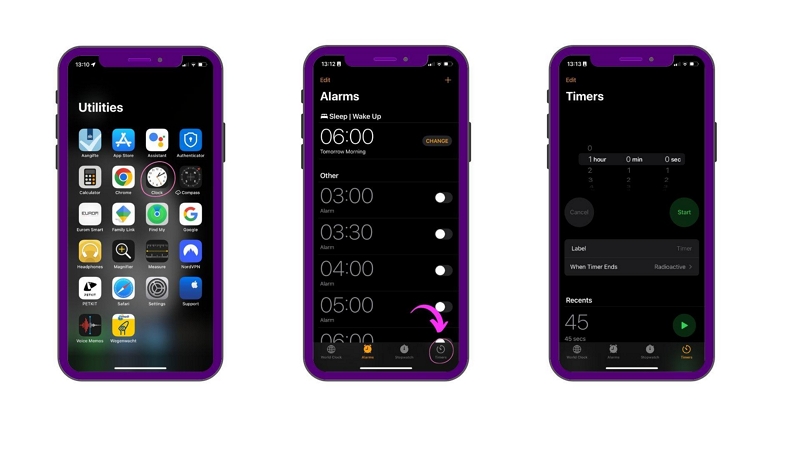
When the timer ends, all audio stops—Apple Music, podcasts, videos, everything playing on the device.
One useful detail: Once you've set "Stop Playing" as your timer end action, the Clock app remembers it. Next time you open the Timer tab, it will already show "Stop Playing" as the selected action. You only need to set the duration and tap Start for future uses.
Real experience: The Clock app method is genuinely reliable for occasional use. The friction is that you need to open a separate app while already in bed—a minor annoyance that the Shortcuts method below solves.
Method 2: Shortcuts Automation (Set Once, Use Every Night)
If you fall asleep to music regularly, creating a Shortcuts automation removes the need to remember setting a timer each night.
1. Open the Shortcuts app → tap the Automation tab
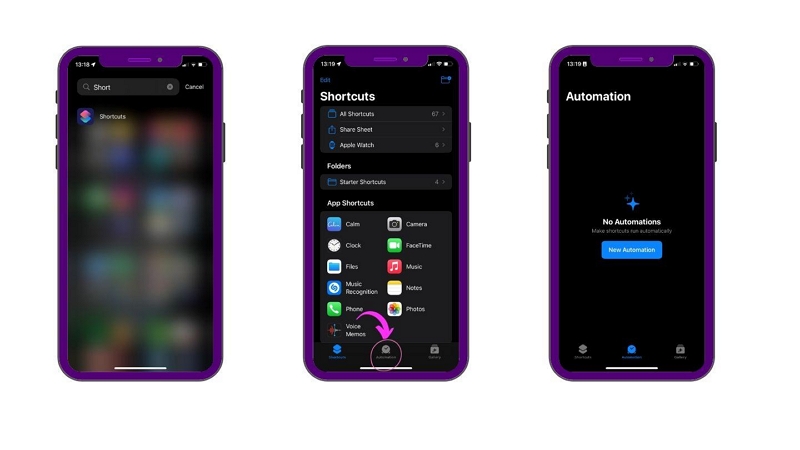
2. Tap + → Create Personal Automation
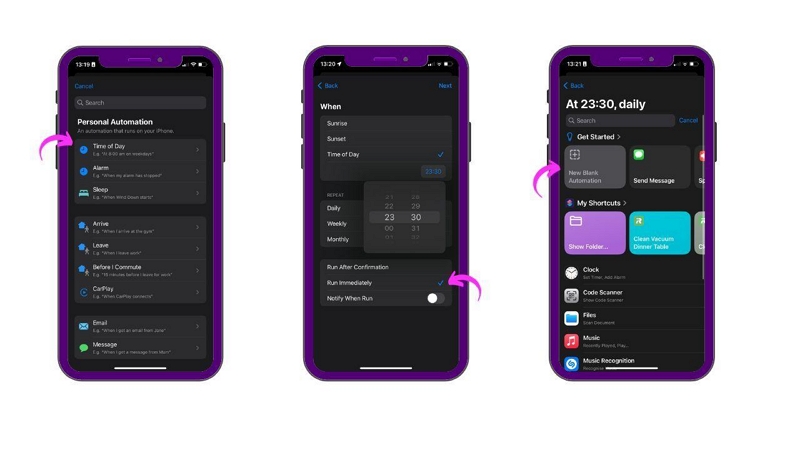
3. Select Time of Day as the trigger
4. Set the time you want music to stop (e.g., 11:00 PM) → set it to repeat Daily
5. Tap Next → tap Add Action
6. Search for Play/Pause → select it → tap the action and change it to Pause
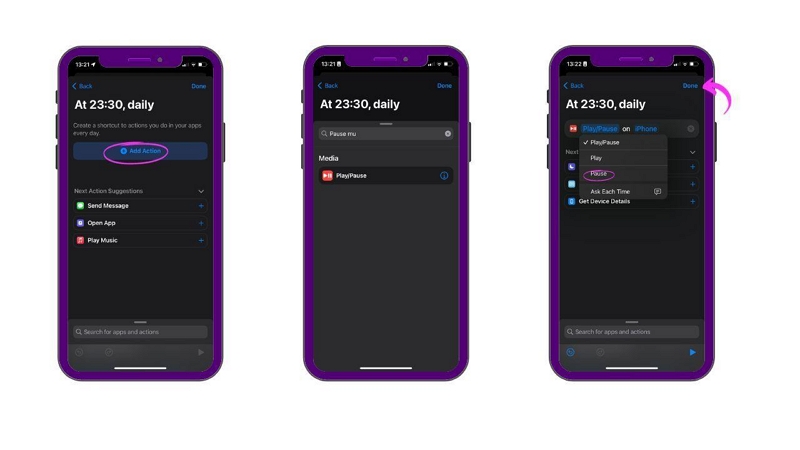
7. Tap Next → turn off "Ask Before Running" → tap Done
The automation runs silently at the set time and pauses Apple Music without any interaction.
When to use Clock vs. Shortcuts:
- Clock app: you want to set a specific countdown tonight (30 minutes, 45 minutes)
- Shortcuts: you always want music to stop at the same time each night
How to Turn on Apple Music Sleep Timer on Android
The Apple Music Android app includes a built-in sleep timer feature directly within the app, which is notably more convenient than the iOS workaround.
1. Open Apple Music on your Android device
2. Start playing a song or playlist
3. Tap the Now Playing screen to expand it
4. Tap the three-dot menu (top right)
5. Select Sleep Timer
6. Choose a duration: 15 minutes, 30 minutes, 45 minutes, 1 hour, or "When Current Song Ends" / "When Current Album Ends"
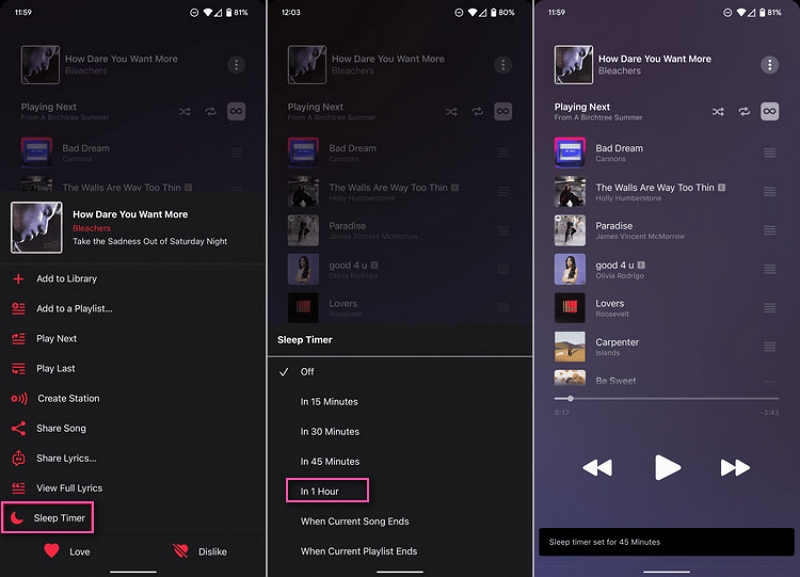
A confirmation appears at the bottom of the screen. Apple Music pauses automatically when the timer expires.
To cancel a running timer: Go back to Now Playing → three-dot menu → Sleep Timer → select Off.
This is the cleanest sleep timer implementation across all platforms—it's integrated directly into the playback interface without needing any system-level workaround.
How to Set Apple Music Sleep Timer on Mac & Windows
This is where most guides give misleading advice. Adjusting "Turn off display" in System Settings only turns off your screen—Apple Music continues playing with the display off. Configuring Energy Saver to put your Mac to sleep will eventually stop audio, but it affects your entire system, not just music playback.
With the introduction of revamped System Settings in macOS Ventura, setting a sleep timer in Apple Music is not possible through any native app integration.
The options that actually work on Mac:
Option A: Shortcuts Automation (Free, Built-in)
The same Shortcuts approach from iPhone works on Mac:
- Open Shortcuts → Automation → +
- Choose Time of Day as the trigger
- Set the stop time, repeat daily
- Add action: Play/Pause → set to Pause
- Disable "Ask Before Running" → Done
This stops Apple Music at a fixed time each night. It doesn't support countdown timers—if you want music to stop after 30 minutes rather than at a specific clock time, use Option B.
Option B: Terminal AppleScript Command (Free, One-Time)
For a countdown from now, you can run a simple AppleScript command in Terminal. This is a one-time command, not a permanent setup: sleep 1800 && osascript -e 'tell application "Music" to pause'
Replace 1800 with your desired number of seconds (1800 = 30 minutes, 3600 = 1 hour). Run this in Terminal while Apple Music is playing. After the specified time, the Music app pauses.
This is a clean, free solution that works on any macOS version and doesn't require any third-party software.
Option C: Third-Party Menu Bar Apps
Several small menu bar utilities are designed specifically for this use case:
Lungo combined with a media key shortcut, or SleepTimer for Mac (App Store, small fee) provide a dedicated sleep timer interface without Terminal commands.
Windows
Apple Music on Windows (and iTunes) has no built-in sleep timer, and there's no equivalent to the iOS Clock app's "Stop Playing" option.
Practical options:
Sleep Timer Ultimate (Microsoft Store, free) is a standalone timer app that can pause media playback system-wide. Set a countdown, and it sends a media pause command when the timer ends—this works with Apple Music on Windows.
Windows Task Scheduler can run a command to stop a process at a scheduled time, but this is significantly more technical and overkill for most users.
For regular use, Sleep Timer Ultimate is the most straightforward solution.
HomePod
Siri handles sleep timers on HomePod directly: "Hey Siri, set a sleep timer for 30 minutes"
HomePod stops playing after the specified time. You can also say "Hey Siri, stop playing in 45 minutes" or "stop playing when this song ends." To cancel: "Hey Siri, cancel the sleep timer."
Practical Tips for Better Sleep Listening
Create a dedicated sleep playlist: Curate tracks specifically for sleep use—consistent tempo, no sudden volume changes, no jarring transitions. Having a dedicated playlist means you don't have to think about what to play when you're already tired.
Use Do Not Disturb: Enable Sleep Focus on iPhone before starting your music. This prevents notifications from waking you up before the timer ends, and automatically dims the screen.
Lower the volume before starting: Apple Music remembers your last volume setting. Set it lower than you think you need—audio that sounds comfortable while awake often feels too loud when you're half asleep.
Sleep music recommendation from Apple: Apple Music's curated "Sleep" playlists (searchable directly in the app) are specifically designed for this use case—lower BPM, no vocals on many tracks, gradual energy reduction.
Battery consideration: Playing music through your phone speaker all night while the screen is off uses moderate battery. If you do this regularly, plugging in while sleeping extends both your phone's battery health and its lifespan.
How to Save Apple Music Sleep Playlists for Offline Playback Anywhere
If you regularly fall asleep to music, relying on streaming alone may not always be the best experience. Network interruptions, app crashes, or background playback issues can easily disrupt your sleep routine. A more reliable solution is to download your Apple Music sleep playlists for offline playback. Once your audio is saved locally, you can play it anytime using any compatible music player.
The Mediaio Audio Convertersoftware is a powerful audio converter app that can help you convert Apple Music into popular audio formats like MP3, M4A, WAV, and more that can be played on different devices and media players.
This software allows you to batch download Apple Music playlists 30x faster without restrictions. And it boasts powerful features that ensure your downloaded songs retain their original metadata, including ID3 tags.
FAQs
No—not within the Apple Music app itself. iPhone users need to use the iOS Clock app's "Stop Playing" timer option, which stops all media playback system-wide after the countdown ends.
Yes. The "Stop Playing" option stops any audio playing on your iPhone—Apple Music, Spotify, podcasts, YouTube, or any other media app. It works as a system-wide media pause.
Yes. The Clock app timer and Shortcuts automation both work whether you're streaming music online or playing downloaded songs stored on your device.
On Android devices, Apple Music offers options such as "When Current Song Ends" or "When Current Album Ends." On iPhone, however, only countdown timers are available through the Clock app. The Shortcuts app cannot natively count songs, but you can set a time estimate instead.
Some users have reported intermittent issues after certain iOS updates. Try restarting the Music app, restarting your iPhone, and setting the timer again. In some cases, removing and reinstalling the Clock app from the App Store can resolve persistent issues.
Not directly inside Apple Music. However, you can say "Hey Siri, set a timer for 30 minutes," which triggers the Clock app timer. If you previously set the timer's end action to "Stop Playing," Siri can start the countdown hands-free and your music will stop when the timer ends.