

Apple Music Family Sharing seems like an easy win for any family looking to save costs - one subscription, multiple users. However, this feature only works properly when a long list of requirements, such as setting up Apple IDs correctly, matching regions, shared payment methods, and more, is fully met. And this is where many users' troubles begin.
If you're considering Apple Music Family Sharing, this guide explains how it actually works, why it often fails, and whether it’s worth it.
Part 1: Is Apple Music Family Sharing Worth It?
Apple Music Family Sharing is worth it if you want to reduce your household's overall spending on music streaming. It allows up to six members to share a single subscription while still keeping separate libraries, playlists, and personalized recommendations, which is CHEAPER than paying for individual plans.
This feature is a good fit for any household (such as families with children or couples) where everyone lives together, uses Apple devices, and is comfortable sharing one payment method under a single organizer.
On the other hand, Family Sharing might not be a good idea for friends or extended family members who do not live together. If the people you want to add to family sharing are not in the same location or country as you, the feature may not work properly.
Part 2: How Apple Music Family Sharing Works (Quick Overview)
Family Sharing is a feature that allows you to share subscriptions, purchases, iCloud storage, locations, and more with up to five other people in your household. And it comes with Apple’s family plan (including Apple Music Family, Apple One Family, and Premiere plans).
With Apple Music Family Sharing, you can share a single subscription with your family members in the same household, and everyone gets to retain their individual music libraries, playlists, personalized recommendations, and offline downloads.
Moreover, the pricing for using Family Sharing is cheaper compared to individual plans. The Family plan costs $28.95/month(which can be split among the members added to the plan), while the Individual plan costs $22.95/month.
We did a quick cost breakdown for using the Individual plan and Family Sharing plan to help you understand the difference.
Part 3: Why Apple Music Family Sharing Often Fails
Many users experience problems with Apple Music Family Sharing not because they set it up incorrectly, but because the system is built around strict rules that aren’t always clearly explained. Below are the most common reasons why Apple Music Family Sharing often fails for many users.
Apple ID region mismatch
Apple ID region mismatch is one of the most common reasons Apple Music Family Sharing doesn’t work for many users. According to Apple’s requirements, all members in a Family Sharing group must have Apple IDs registered in the same country. So, if someone in the group changes their Apple ID location, they may be unable to access Apple Music properly.
Family organizer limitations
As stated earlier, Apple Music Family Sharing revolves around a single organizer’s account. This person controls the payment method, subscriptions, and approval of members. So, if the organizer's payment method fails or changes settings, access can be disrupted for the entire group.
Can’t add friends (and why)
While it’s technically possible to add friends to Family Sharing, it’s generally not advisable. Family Sharing isn’t designed for friends—Apple expects all members to belong to the same household, and adding friends often leads to limitations or unexpected issues.
Part 4: Requirements & Limitations You Should Know First
Apple Music Family Sharing comes with strict rules that aren’t clearly explained during the sign-up process, which is why many users run into problems later. Before we show you how to set it up, let’s take a closer look at the requirements and limitations you should be aware of.
Apple ID rules
Every member in a Family Sharing group must have their own Apple ID, and all accounts must be active and registered in the same country. In addition, an Apple ID can only belong to one family group at a time, meaning it can’t be used across multiple Family Sharing setups.
Age & region restrictions
Apple Music Family Sharing also comes with strict age and region requirements that often catch users off guard.
To join a family group, members must meet Apple’s minimum age requirements - 13 years old. Children under 13 must be added as child accounts by the family organizer, and these accounts are tied to parental controls, which limit the type of content children can access.
In terms of Region restrictions, every member’s Apple ID must be set to the same country or region as the family organizer. If someone’s account is registered in a different country (maybe due to travel, relocation, or past App Store purchases), they won’t be able to join or use Apple Music through Family Sharing.
Part 5: How to Set Up Apple Music Family Sharing
In this part, we’ve discussed the steps to set up Apple Music Family Sharing on iPhone/iPad or Mac and the common setup mistakes to avoid.
4.1 Set Up Apple Family Sharing on iPhone
Step 1: Go to the “Settings” app on your iPhone/iPad and tap on your name.
Step 2: Tap on “Family.”
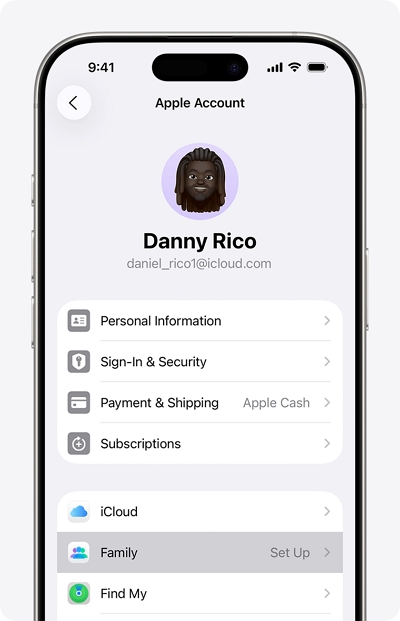
Step 3: Follow the on-screen instructions to complete the setup process.
4.2 Set Up Apple Family Sharing on Mac
Step 1: Click on the “Apple Logo” at the top-left corner to access your computer’s menu.
Step 2: Choose “System Settings.”
Step 3: Click on “Your Name.”
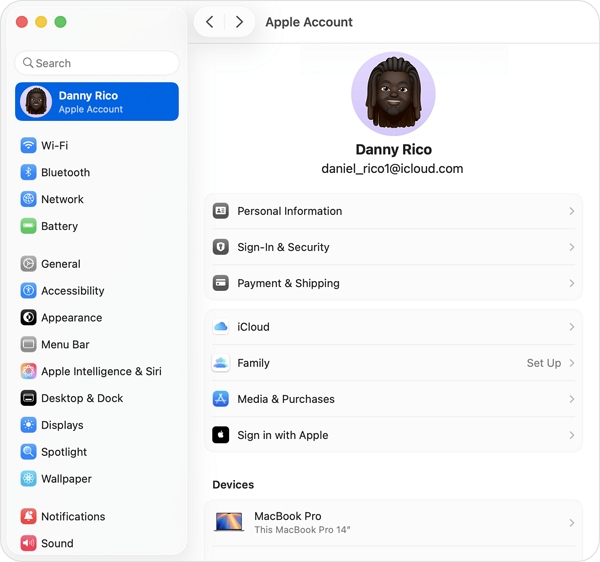
Step 4: Click on “Family” and select “Set Up.”
Step 5: Follow the onscreen instructions to complete the setup process.
Once you finish setting up Family sharing, you can start inviting members to join immediately.
4.3 Common setup mistakes to avoid
- Do not add members before setting up Apple Music under Family Sharing.
- Ensure all invited members' Apple IDs are set to the same country as the family organizer’s.
Part 6: Managing Members (Add / Remove Without Breaking Things)
Managing members in a family shating group is not difficult. In this section, we’ve outlined the steps to add members to a Family Sharing group and explained what happens when you remove someone from the group.
How to Add Members
Step 1: Navigate to “Family Sharing” via your Mac or iPhone “Settings” using the steps shared above.
Step 2: Click the icon that says “Add Family Members,” then follow the onscreen instructions to compllete the set up process.
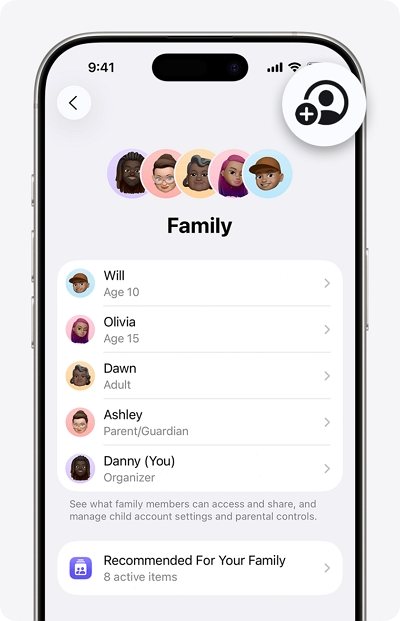
Additional tip: You can also invite members by choosing the “Invite others” option. This allows you to share the person an invitation link that can be used to join the family sharing group.

Step 1: Navigate to the “Family Sharing” settings.
Step 2: Select the members you want to remove from the group.

Step 3: Choose “Remove” to remove the family members.
What happens when someone leaves?
When a member leaves or is removed from a Family Sharing group, they immediately lose access to all shared subscriptions, including Apple Music. However, there’s an important detail to keep in mind: other members also lose access to anything that was being shared by the departing member. If that person was the one paying for the Apple Music Family plan, the remaining members will lose Apple Music access as well, and they’ll need to subscribe again to regain access.
Data & playlist impact
Leaving a Family Sharing group does not delete your Apple Music data or playlist, but it does affect access. Your personal playlist, libraries, and downloaded songs remains linked to your Apple ID, but you will be unable to access them until you switch to an individual subscription plan or another family plan.
Part 7: Family Sharing Isn’t for Everyone — A Practical Alternative for Specific Needs
Apple Music Family Sharing works well only when your household fully meets Apple’s requirements. However, it may not be the best option in the following situations:
- There are fewer than three Apple Music users in your household.
- Family members live in different locations or countries.
- You want independent control over your music without relying on a family organizer.
- You need long-term offline access to your Apple Music library across different devices.
In these cases, using Apple Music’s official Family Sharing plan may feel restrictive rather than convenient.
A Complementary Option for Offline & Device Flexibility
For users who prioritize offline playback and device flexibility, tools like Mediaio Audio Converter can serve as a supplementary option, rather than a replacement for Apple Music subscriptions.
Mediaio allows users to convert Apple Music tracks into common audio formats such as MP3, WAV, or FLAC, making it easier to listen to their music offline on non-Apple devices or in environments where streaming access is limited.
Important note:
This approach is best suited for users who mainly value offline listening and file portability.
If you prefer Apple’s streaming ecosystem, frequently update playlists, or rely on real-time recommendations, maintaining an Apple Music subscription may still be the better choice.
FAQs
Technically, yes—you can add friends to an Apple Music Family Sharing plan. However, it’s not recommended. Family Sharing is designed for people in the same household, and Apple enforces restrictions around regions, payment methods, and account roles.
If the Family Sharing plan is canceled, all members immediately lose access to Apple Music through the shared subscription. Though their libraries and playlists remain linked to their Apple IDs, downloaded music and streaming access stop.
Apple Music Family Sharing is worth it only if your household fits Apple’s requirements. It works best for families or couples living together, using Apple devices, and sharing one payment method.
Conclusion
Apple Music Family Sharing can be a great way to save money, but only under the right circumstances.
While it offers real value for households that meet Apple’s strict requirements, it’s not the flexible, universal solution many users expect. Region restrictions, organizer dependency, and limited control make it unsuitable for friends, remote families, or users who want simplicity. A more reliable way to save money and enjoy access to your Apple Music library is to download the songs offline using Mediaio Audio Converter software.