

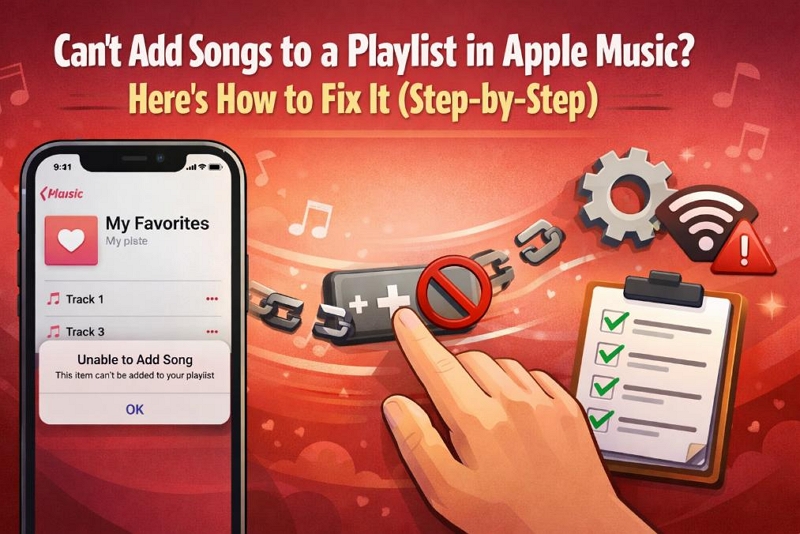
If you tap “Add to Playlist” in Apple Music and nothing happens — or the option is missing entirely — you’re not alone.
This issue usually comes down to account status, sync settings, or playlist limitations, not the song itself.
Below, we’ll walk through the most common reasons this happens and how to fix each one, starting with the solutions that work for most users.
Quick Answer: Why Can’t I Add Songs to an Apple Music Playlist?
In most cases, Apple Music prevents songs from being added to playlists for one of these reasons:
- Your Apple Music subscription has expired
- The song hasn’t been added to your library yet
- Sync Library (iCloud Music Library) is turned off
- There’s a temporary app glitch
- The playlist is read-only
- Your internet connection or device restrictions are interfering
Try This First (Works for Most Users)
Before digging into detailed fixes, try these quick checks — they solve the problem for a large number of users:
- Make sure you’re signed in with the correct Apple ID
- Confirm your Apple Music subscription is active
- Try adding a different song to the same playlist
- Restart the Apple Music app and try again
If the issue persists, move on to the fixes below.
Fix 1: Add the Song to Your Library First
Unlike Spotify or YouTube Music, Apple Music requires songs to be in your library before they can be added to playlists in many cases.
If “Add to Playlist” doesn’t work directly:
- Tap the three-dot menu (⋯) next to the song
- Select Add to Library
- Open the menu again and choose Add to Playlist
- Pick your desired playlist
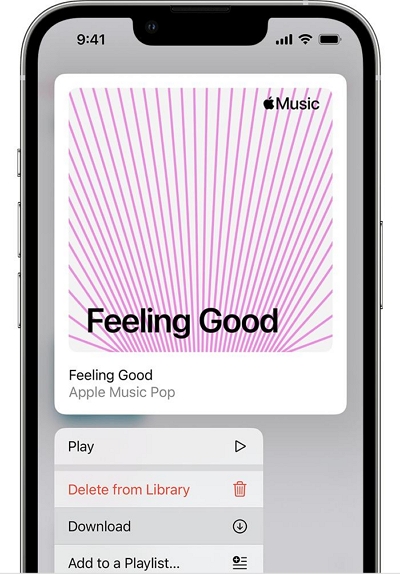
If this works, the issue was simply that the song wasn’t saved to your library yet.
Fix 2: Check Your Apple Music Subscription
Editing playlists — including adding or removing songs — requires an active Apple Music subscription.
If your free trial ended or a payment failed, playlists become read-only.
On iPhone or Android:
1. Open the Apple Music app
2. Tap the account icon / three-dot menu
3. Go to Manage Subscriptions
4. Renew your plan if it has expired
On Mac or Windows:
1. Open Apple Music
2. Click your name (bottom-left)
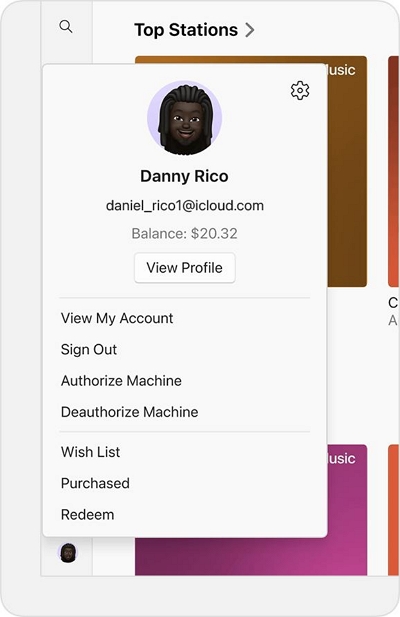
3. Check your subscription status from there
Once your subscription is active again, playlist editing should return immediately.
Fix 3: Turn On Sync Library (iCloud Music Library)
If playlists stop working suddenly — or work on one device but not another — Sync Library is usually the cause.
On your iPhone, go to Settings → Music → Sync Library and toggle it on.
On your computer, follow the steps below:
Step 1: Open the Apple Music app and tap the three dots menu on the top left.

Step 2: Go to the Library, click Update Cloud Library, and you're done.
Fix 4: Restart or Update the Apple Music App
Temporary app glitches can prevent playlists from being edited.
Try this:
- Fully close Apple Music
- Reopen the app and try again
If that doesn’t work:
- Check your device’s app store
- Update Apple Music to the latest version
App updates often fix background sync and permission bugs.
Fix 5: Check Content Restrictions
On family-shared or restricted devices, Screen Time limits can block playlist changes.
Check this on iPhone or iPad:
- Go to Settings → Screen Time
- Review App Restrictions and Content Limits
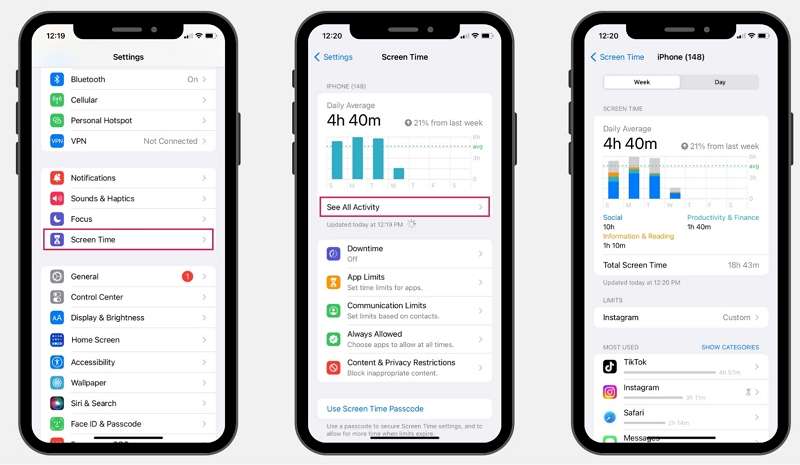
If you’ve reached a daily limit or restrictions are enabled, try removing them or waiting until the limit resets.
Fix 6: Try Another Device or the Apple Music Web Player
To determine whether the issue is device-specific:
- Sign in to Apple Music Web using any browser
- Try adding the same song to the same playlist
If it works on the web but not on your device, the problem is likely related to:
- App cache
- Device settings
- OS-specific bugs
Part 3: Platform-Specific Notes
iPhone / iPad
Most issues come from:
- Sync Library being turned off
- Screen Time restrictions
Check both before troubleshooting further.
Android
Try:
- Logging out and back in
- Clearing the app cache
- Updating the app to the latest version
Mac / Windows
Make sure iCloud Music Library is enabled and fully synced.
Part 4: When Apple Music Playlists Are Read-Only
Not all playlists can be edited.
You cannot add songs if:
- The playlist is curated by Apple
- The playlist belongs to another user, and you’re not a collaborator
- The playlist is radio-based or algorithm-generated
Only playlists you create — or are invited to collaborate on — can be edited.
Part 5: FAQs
This issue can occur for several reasons:
- The song is not available in your current region.
- The track has not been added to your Apple Music library.
- There is a temporary account, sync, or network issue.
If a song was imported as a local file and was not matched or uploaded to iCloud Music Library,
it may not be available on mobile devices or eligible for playlists.
Apple Music playlists can only include tracks recognized by Apple’s official music catalog.
This message usually indicates a subscription issue, a sync problem,
or that the playlist is set to read-only.
Trying the troubleshooting steps above should help identify and resolve the issue.
Apple Music tracks are protected by DRM, which limits how they can be used outside the app.
If your goal is personal offline playback on unsupported devices or long-term access to your playlists,
some users choose third-party tools like Mediaio Audio Converter to convert Apple Music tracks for
personal use.
Note: Always comply with local laws and Apple’s terms of service when handling converted files.
Conclusion
When Apple Music won’t let you add songs to a playlist, the issue is usually account-related or settings-related, not a permanent limitation.
In most cases, checking your subscription, enabling Sync Library, or adding the song to your library first resolves the problem quickly. If you need more flexibility with your playlists beyond the Apple Music app, tools like Mediaio Audio Converter can help — especially for offline listening.