

OBS streamers spend hours on alerts, panels, and scene transitions. Then they leave the soundtrack completely unlabelled. A Spotify overlay for OBS fixes that. It puts the track, artists, and artwork on the screen and turns the background music into the part of the stream itself. When you search for one, most guides will point you to the same kind of browser-based OBS overlays that need Spotify Premium to run.
Here, we will discuss the Spotify overlays for OBS that work even with a free account, and even the ones that do not need any kind of Spotify connection at all. Don't worry, they still give you advanced colour and customization options to suit the mood of any kind of stream.
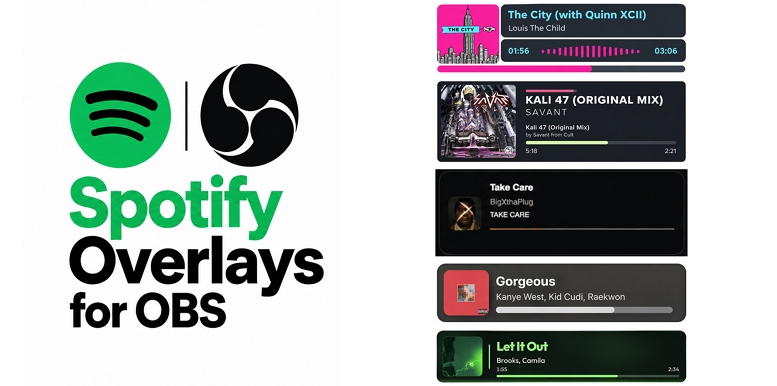
Types of Spotify Overlays for OBS
The right Spotify overlay for you will depend on your OBS and Spotify setup.
For instance, with a Spotify Premium tag, you can easily pick a tool that requires developer credentials to work. Without Premium, your options will shrink. And on a Mac OBS setup, fewer still will be left standing.
No matter what you need, we have included every type here. So here is how all of them compare.
Developer credentials — the Client ID and Client Secret, OAuth sign-in or nothing. The quickest of the lot. Free to begin with, though several tools keep their advanced customizations behind a paywall. Getting your song on screen within five to ten minutes.
7 Best Spotify Overlays for OBS: Overview and Setup
Depending on your needs, you can jump straight to the Spotify overlay you want. We have also included the detailed steps, so you can get yours to run on a Windows, Mac, or Linux OBS setup.
1. Amuse

Amuse is one of the most popular Spotify overlays for OBS. The reason is simple: there is a style for every stream, whether you game, teach, vlog, or just chat. For instance, you can use the minimal or compact styles if you do not want the widget to distract your viewers. Or you can go with the big, bulky designs if they suit your streams or listening sessions.
Its strongest feature is Spotify Canvas support. That is, instead of the still album cover, the widget will play the looping video that artists attach to their songs on Spotify. So your overlay will move with the music.
One thing to know before you start: Amuse needs a Spotify developer account, which means a Client ID and Client Secret. And starting from March 2026, Spotify has limited developer accounts to Premium users only. That means: if you don't use Spotify Premium, Amuse is off-limits.
How to Add Spotify Overlay to OBS with Amuse
Step 1. Go to 6klabs.com and click Get Started. Sign in with your Google or Twitch account.
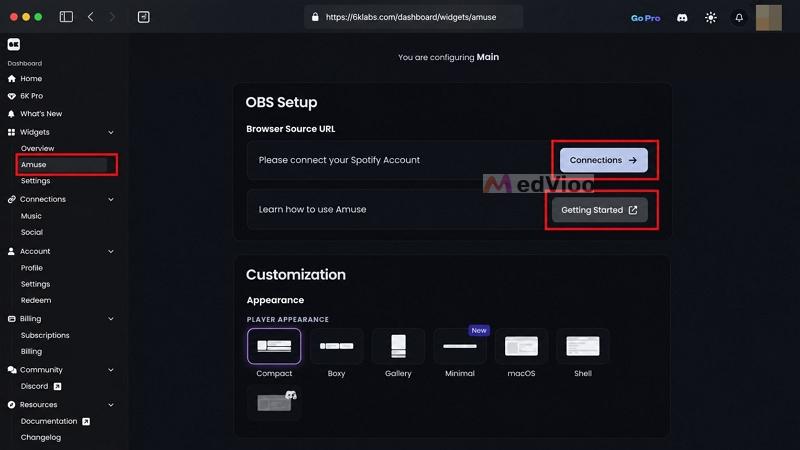
Step 2. You will land on the dashboard. From the sidebar, expand Widgets and choose Amuse.
Step 3. Scroll down to the OBS Setup section. Click Connections next to "Please connect your Spotify account."
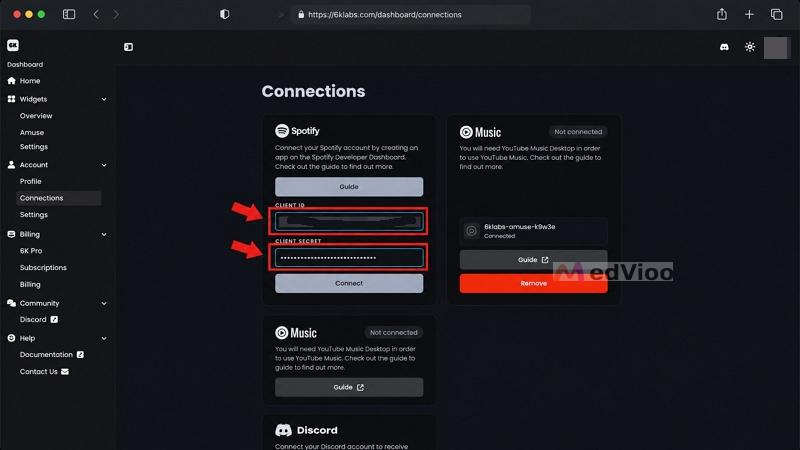
Step 4. Enter your Client ID and Client Secret in the Spotify fields. Then click Connect.
Tip: If you do not have a developer account yet, click Guide. Amuse will walk you through creating one.
Step 5. Return to OBS Setup. You will now see a Browser Source URL field. Click Copy to Clipboard.
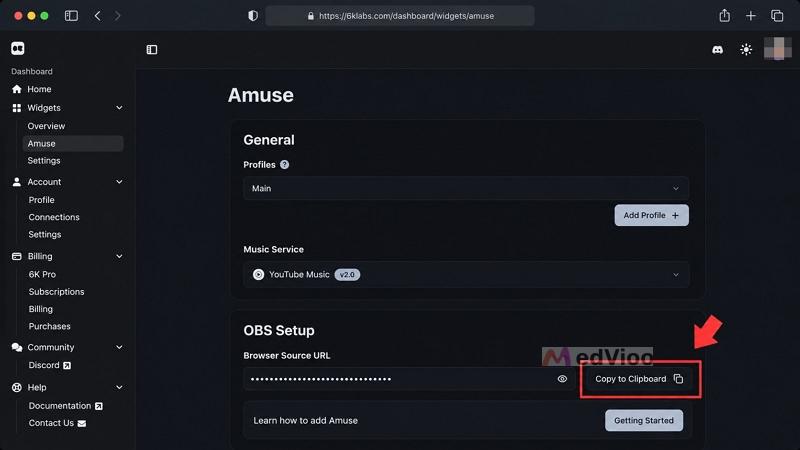
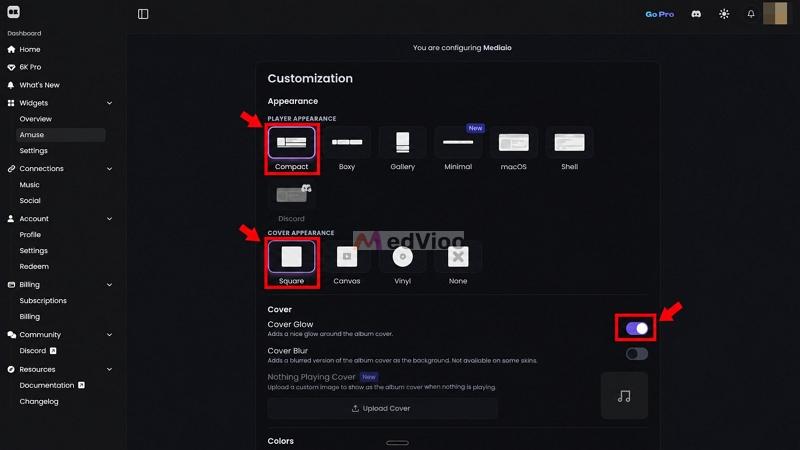
Step 6. Under General, you will find your profile. Keep the default one, or click Add Profile to build your own. Here you can set the appearance and the cover art. Then click Copy to Clipboard again.
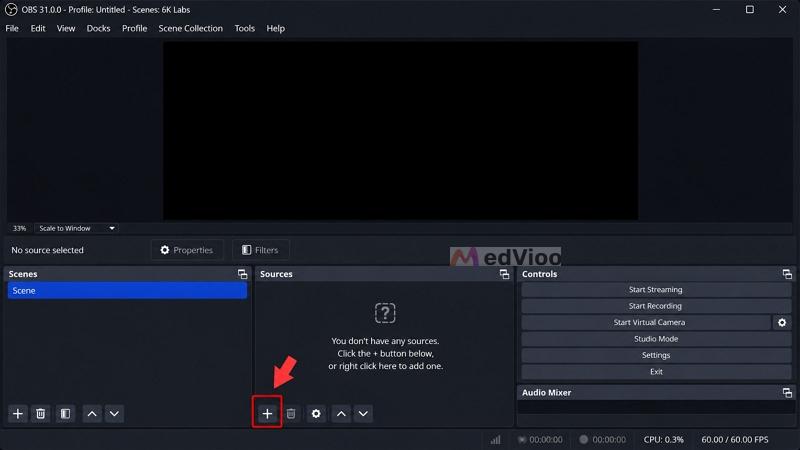
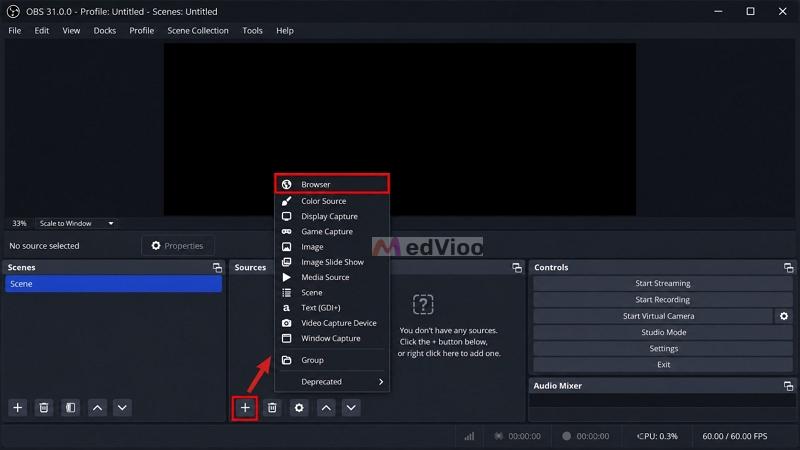
Step 7. Open OBS. Under Sources, click the plus icon and choose Browser.
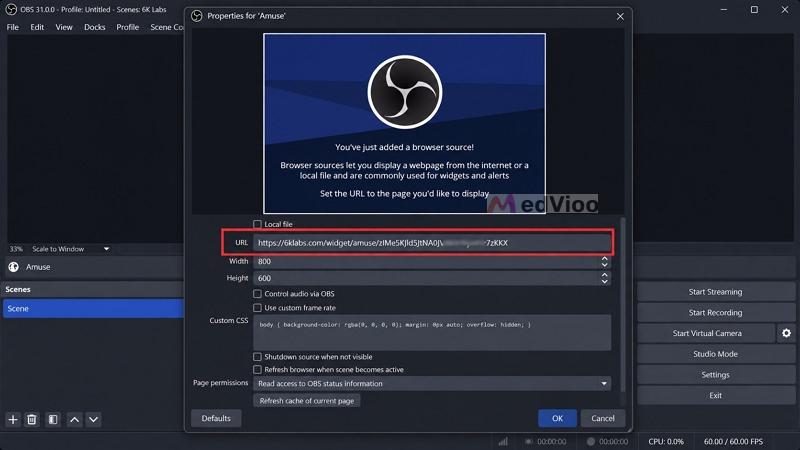
Click Add a New Browser Source and paste the URL you copied. You can leave the Custom CSS as it is, since OBS already keeps the background transparent.
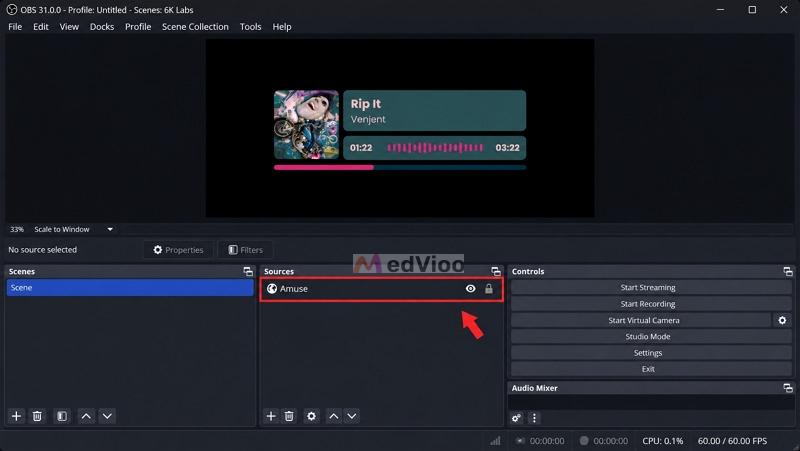
Note: If the widget stays blank, right-click the source, open Properties, and click Refresh cache of current page.
2. NowPlaying

NowPlaying does not require a Spotify developer account at all. It runs Spotify as its own registered app. So all you have to do is connect your account via Spotify's standard OAuth screen. And as long as Spotify is open in your browser and you are logged in — free or premium, you can link it to your NowPlaying’s widget with one click.
As for the designs, you will get a range of options. You can pick from different styles like Experimental, Rainbow, Aiden Wallis, and Rotating (Dark). You can even see what each style actually looks like on the right, so you can judge which one will fit your streaming session better. There are also premium designs like Aurora and Prism, locked behind a US$5-per-month paywall.
The Canvas option is also there, like Amuse, so you can get the looping video instead of the still image. And it also gives you other styles, like Classic Animation and Command Popup.
How to Set Up Spotify Now Playing Widget in OBS with NowPlaying
Step 1. Head over to nowplaying.site and sign in. Make sure Spotify is already logged into the same browser.
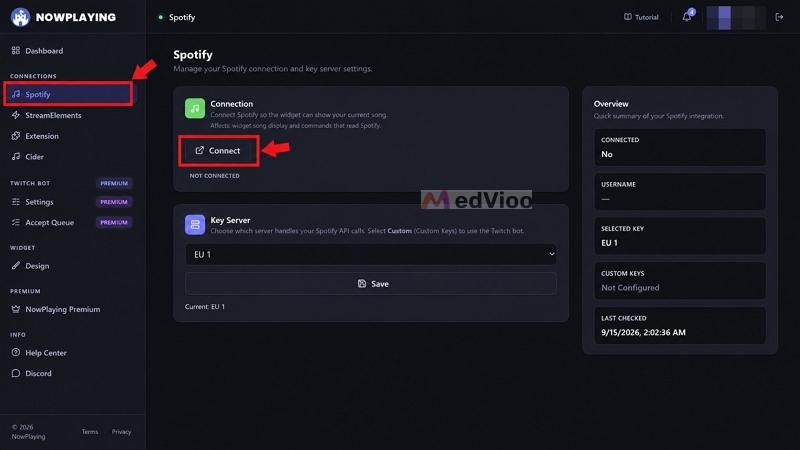
Step 2. From the sidebar under Connections, choose Spotify. Then click the Connect button.
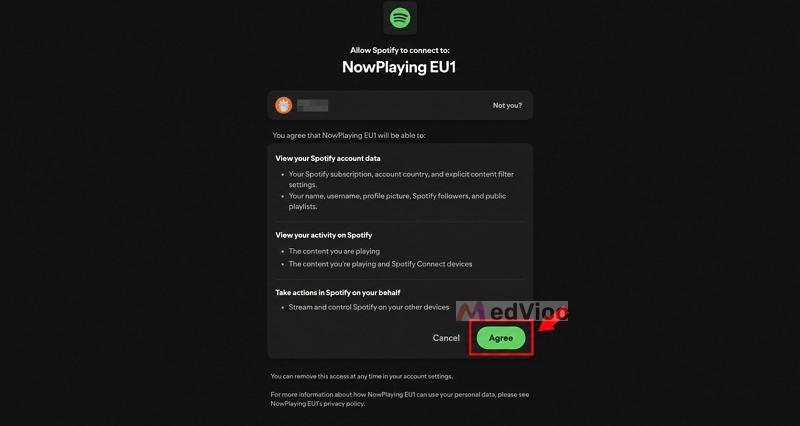
Step 3. Spotify will ask for permissions. Click Agree. You will come back to the dashboard with the connection marked as Connected.
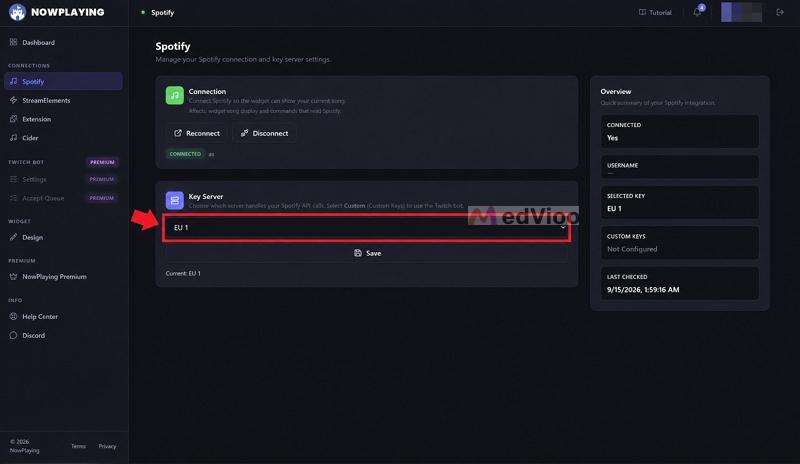
Step 4. Below that, leave the Key Server on EU 1 and click Save.
Step 5. From the sidebar, open Design. Pick any of the designs, depending on your account type. You can watch the preview on the right as you click each one.
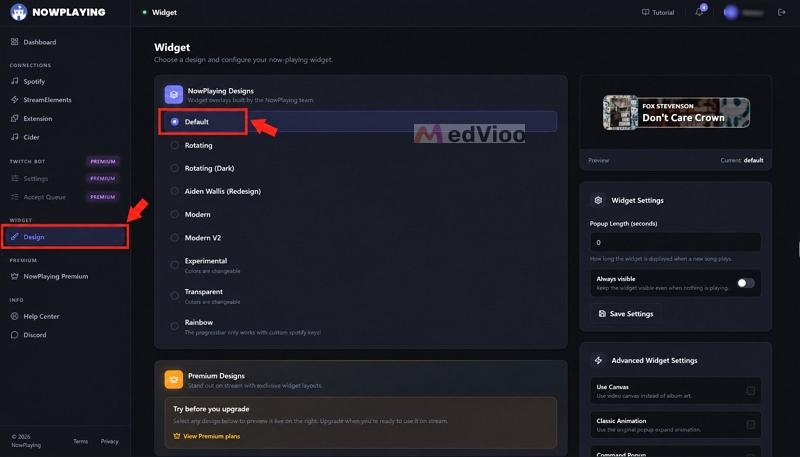
Step 6. In Widget Settings, set your Popup Length in seconds or leave it at 0 to keep the widget on screen. Click Save Settings.
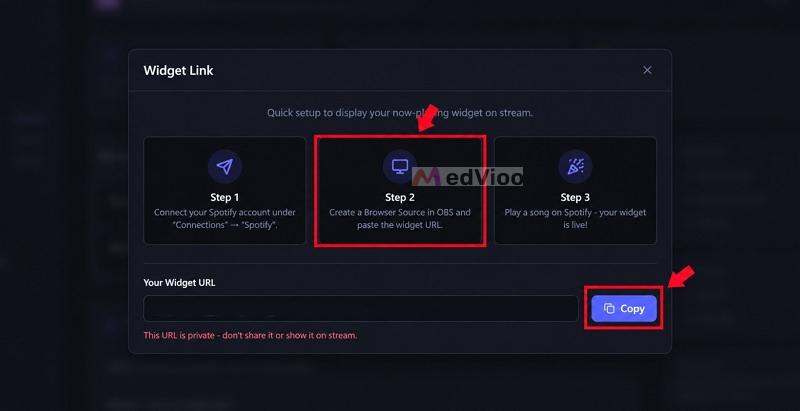
Step 7. Open the Widget Link and click Copy. Then add it to OBS as a browser source, the same way you did with Amuse.
3. Sound Alerts
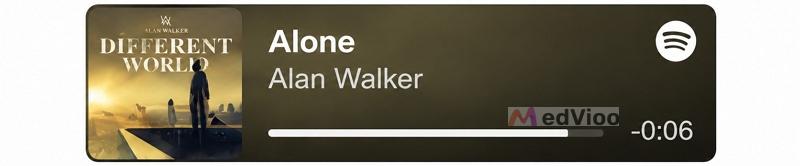
Sound Alerts is not a tool focused on OBS. It is an all-in-one toolkit for Twitch users. If you already use it for text-to-speech, animations, channel point rewards, or alerts on your stream, you know what it does.
The Spotify Now Playing widget is one small part of it, sitting inside the Scene Editor. That comes with its own advantage. Being a side offering, the Spotify widget does not hold any features behind a premium paywall. So even on a free account, you can customize your widget however you want or choose from a range of premade designs. There is also a Custom CSS option. So you can describe what you want to ChatGPT or Claude, get the CSS back, and drop it into that box. This will let you design a now-playing box suited to your needs well.
How to Show Your Spotify Song in OBS with Sound Alerts
Step 1. Visit soundalerts.com and open the Streamer Dashboard. Sign in with your Twitch account.
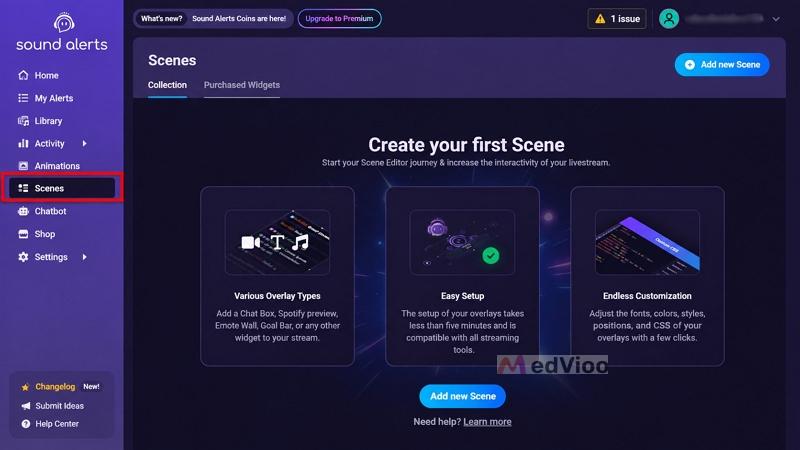
Step 2. From the sidebar, select Scenes. Then click Add new Scene.
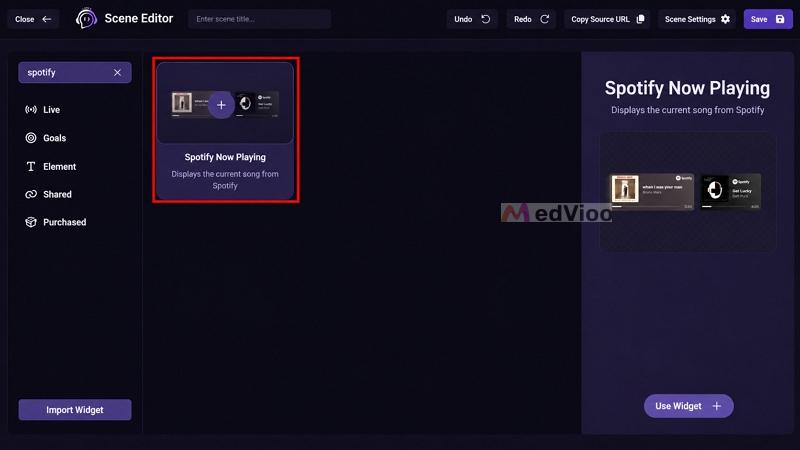
Step 3. Inside the Scene Editor, click Add Widget. A pop-up will open — search for Spotify, select Spotify Now Playing, and click Use Widget.
Step 4. The widget will land on your canvas with a warning that Spotify is not connected. Ignore it. That message only shows inside the editor.
Step 5. In the settings panel on the right, click Connect Spotify. Approve the permission screen and you will come back with the connection live.
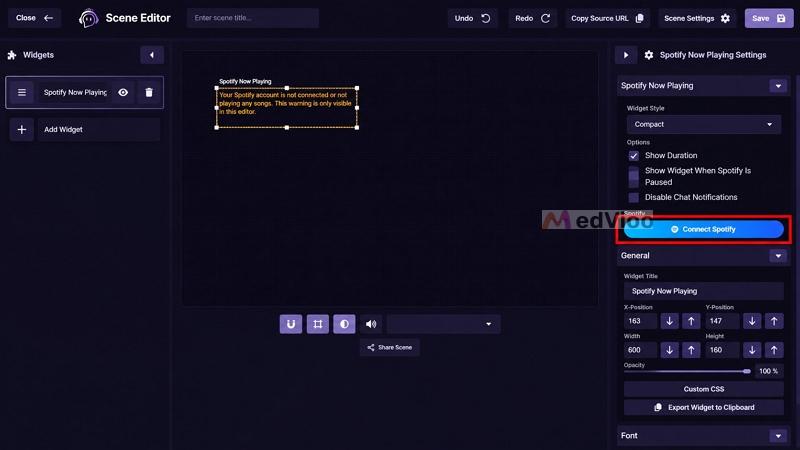
Step 6. Set your options here. Tick Show Duration for the track timer or Show Widget When Spotify Is Paused if you want it on screen between songs.
Adjust the position, size, and opacity under General, and open Custom CSS if you have your own styling ready.
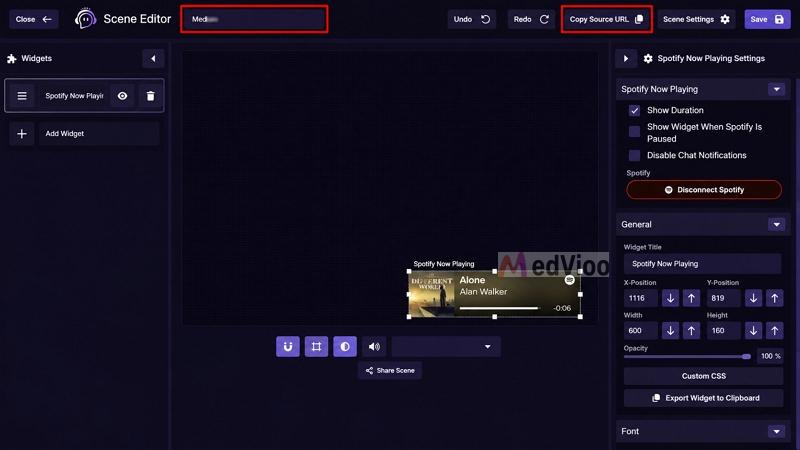
Step 7. Enter a name for your scene in the title field at the top, then click Save.
Step 8. Click Copy Source URL, then add it to OBS as a browser source. Start a song and your widget will display it live.
4. Nowify
You will come across several GitHub projects named Nowify when you do a Google search and all of them do different things. Make sure to choose the link that mentions KelvinPH. That is the one that offers you the Spotify overlay. And yes, it is the same developer who built SpotiStream. Nowify is the new version of it.
As for the overlay itself, Nowify is browser-based. You will just have to copy the URL and paste it into OBS or any other streaming platform you want to use. It will show your Spotify music as it plays.
Nowify really shines in the flexibility it offers. For instance, you can connect your music in three different ways which are direct Spotify connection, Last.fm and local music.
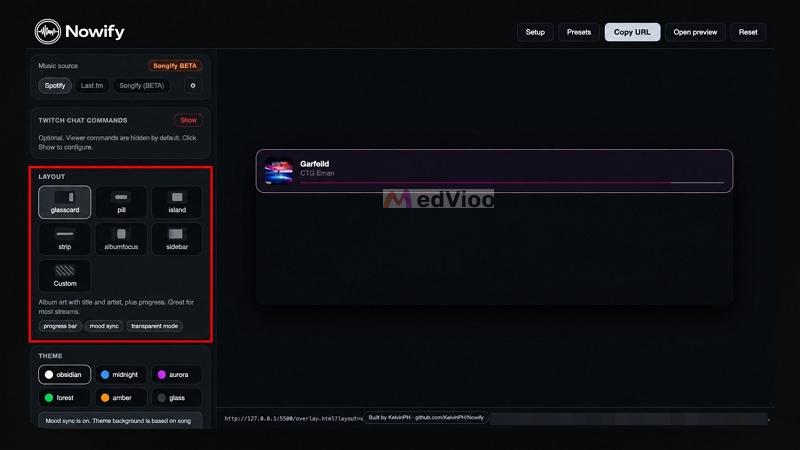
Pick the route that suits you. And Nowify's real power shows in the widget's customization. You will get advanced layouts like glasscard, pill, island, and more. You will also find unique presets — vinyl, terminal, cassette, Game Boy.
How to Add a Spotify Overlay to OBS with Nowify
Step 1. Open the Nowify Configurator at kelvinph.github.io/Nowify/config.html. The setup wizard will open on the first visit.
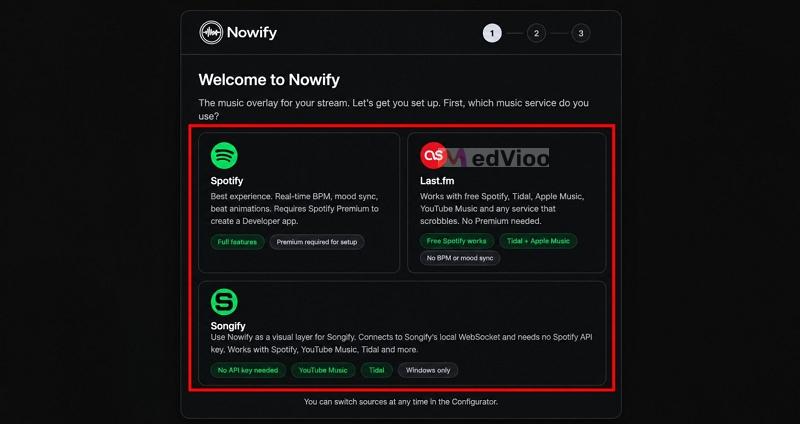
Step 2. Choose your music source: Spotify, Last.fm or Songify. Each card on this screen explains what it needs and what you give up, so read them before choosing.
Step 3. Enter your credentials for that source. Spotify will need a Client ID, Last.fm will need your username and API key, and Songify will require its local port (usually 4002).
Step 4. Pick a Layout from the left sidebar. Watch the preview panel update as you click each one.
Step 5. Choose a Theme below it. Turn on mood sync if you are on Spotify and want the colors to follow the track.
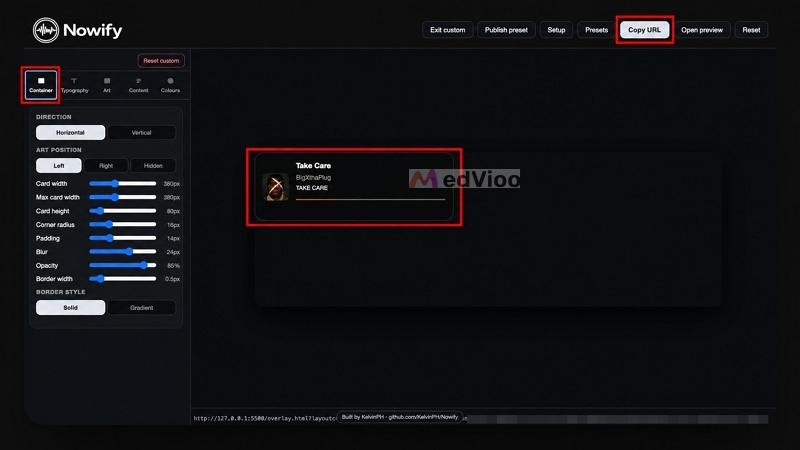
Step 6. You can get more controls by selecting the Custom layout. This opens the editor with its Container, Typography, Art, Content, Transitions, and Colors tabs.
Step 7. Scroll down to set your playback transitions, animated background, and album art backdrop.
Step 8. Open Twitch Chat Commands and click Show if you want viewers to request songs. Set your commands, roles, and cooldowns here.
Step 9. Click Copy URL at the top. Then add it to OBS as a browser source. Start around 900 by 300 for the default card, and adjust from there depending on your layout.
Tip: Use Open preview before you leave the configurator. It loads the overlay exactly as OBS will render it.
5. Tuna
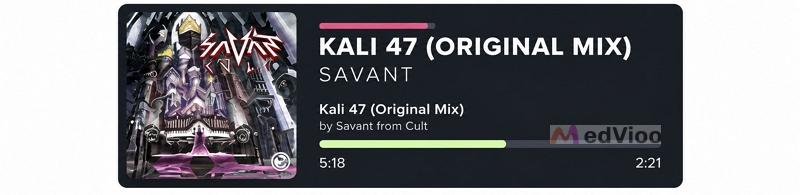
Every Spotify overlay for OBS that we have covered so far runs as a browser source. Tuna is different, which comes as an OBS plugin. Needless to say, it is entirely free. Plus, it carries more features than the widgets above.
However, it also demands more work up front. For instance, Tuna does not simply render a finished widget on its own server like Amuse or NowPlaying. Instead, it writes the song information as plain text and saves the cover art as an image in a folder on your computer. So you will need to use OBS Text and Image sources to build the overlay yourself.
The good thing is that you only need to do this setup once. You can save the finished overlay as an OBS scene and reuse it in future streams.
How to Get a Spotify Overlay in OBS with Tuna
You need to install and set up Tuna first.
1. Download Tuna from the OBS forum and run the installer for your platform. Reopen OBS afterward and find Tuna settings under the Tools menu.
2. Stay on the Basics tab. Set your Song cover path. This is where Tuna will save the cover art of whatever is playing. Create a folder first, like Documents\Tuna\cover.png. Use that folder for your Tuna files.
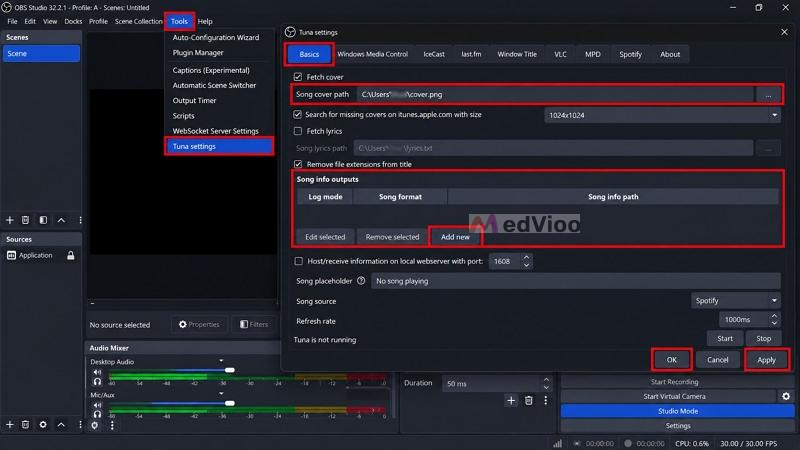
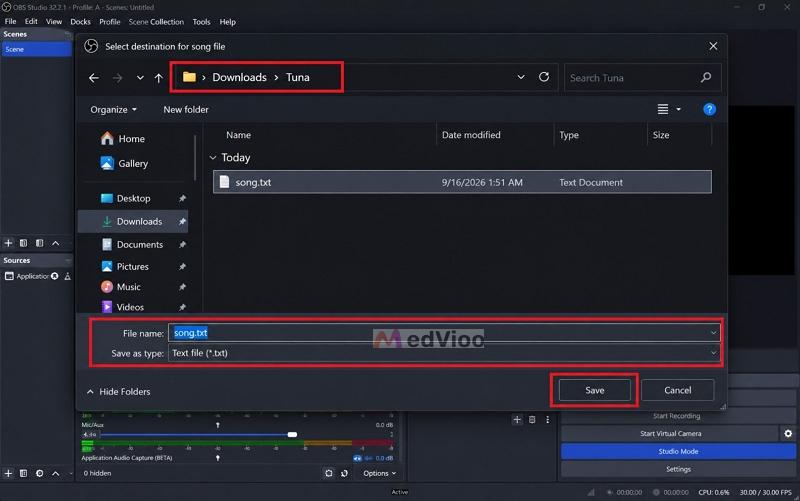
3. Under Song info outputs, choose Add new. Pick a file path for the text file, such as Documents\Tuna\song.txt. Then enter what you want on screen in the format box, like {artists} - {title}. Select OK, then Apply.
From here, Tuna gives you several ways to feed it music that shows up in the OBS overlay.
Play Spotify Music as Local Songs
You can convert your Spotify songs to MP3s, play them through VLC Media Player and Tuna will read the track information from there. This route takes longer to set up, but it will remove the Spotify dependency entirely. So you don’t have to worry about expired authentication codes or ads breaking your overlay mid-song during streams.
To convert your Spotify music to a local format, MedVioo Audio Converter makes that part easy. MedVioo Audio Converter comes with built-in Spotify support, so you can log in with your own free or paid account and save your favorite songs and albums as local MP3s. During the conversion, it will preserve the original song title, artist name, album information, and HD album art. That way, Tuna will find every detail it needs for your music overlay in OBS.
That said, here are the exact steps to download Spotify music as local MP3s and add it to Tuna.
Step 1. Download and install StreamFox for Music on your Windows or Mac.
Step 2. On the landing page, you will find 9 supported platforms. Choose Spotify here.

Step 3. Log in through your Spotify account, free or paid, using the built-in browser.
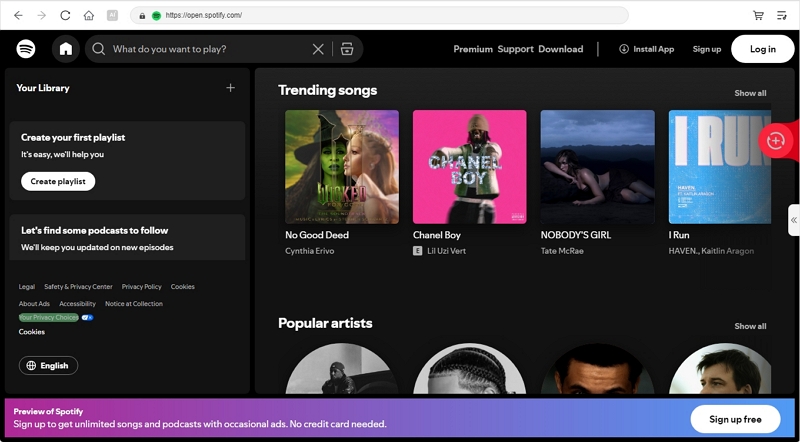
Step 4. Open the playlist or album you want, then drag it onto the + icon in the corner. You can also drag individual songs.

Step 5. Open the full conversion pane. Choose your output format and bitrate for each track, then select Convert All.

Your songs will land in the MedVioo folder inside Downloads.
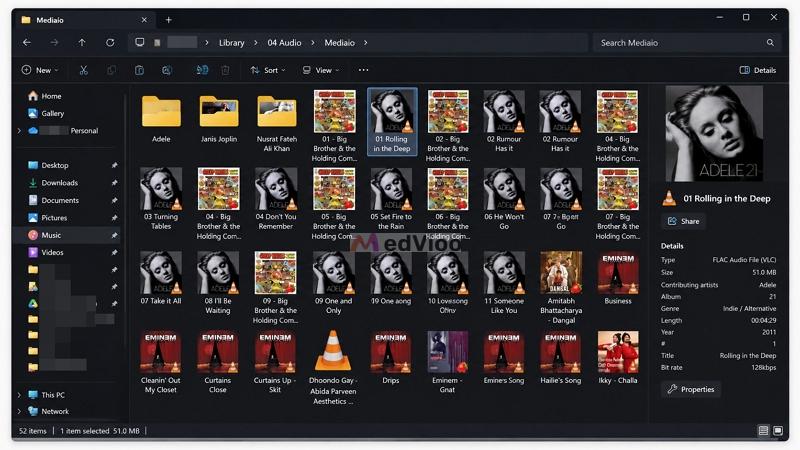
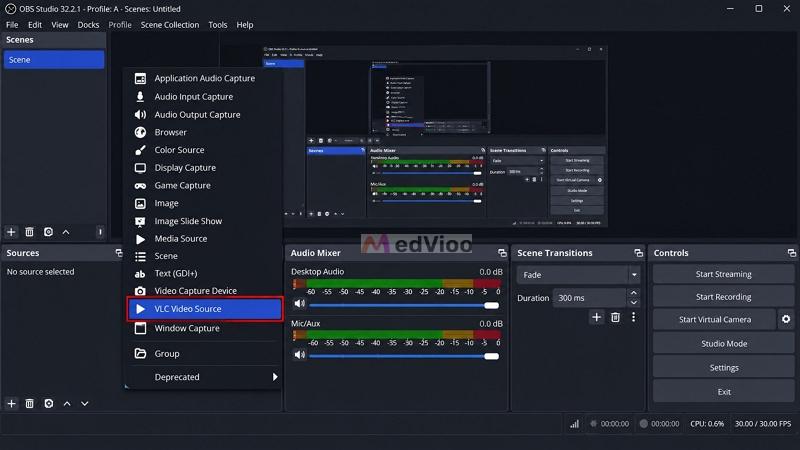
Step 6. Return to OBS, click the plus icon under Sources and add a VLC Video Source. Load your converted files into its playlist.
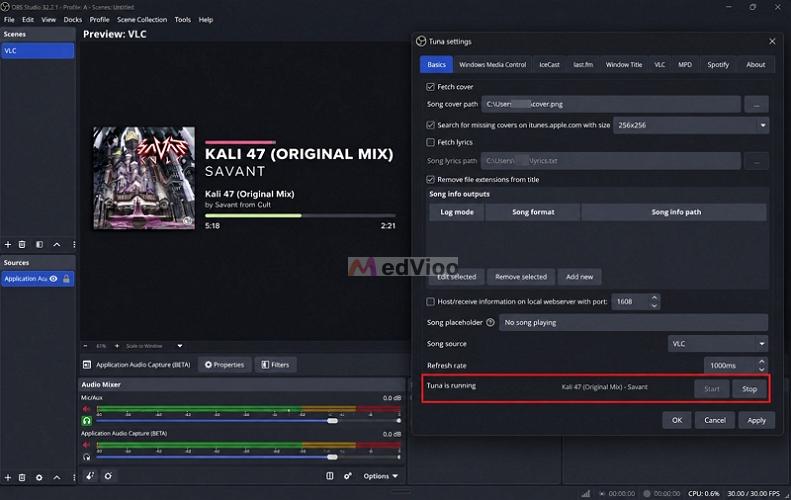
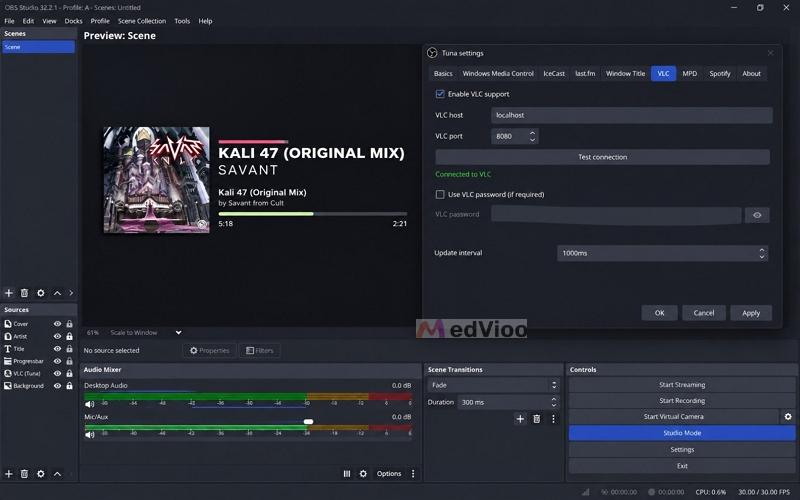
Step 7. Go back to Tuna settings through the Tools menu and set Song source to VLC. Then move to the VLC tab, choose your scene from the drop-down, choose your VLC source below it, and select Add.
Step 8. Return to the Basics tab and select Start. Play the music from your VLC source and the track will appear next to "Tuna is running."
Set up Spotify Overlay in OBS
Step 1. In OBS, add an Image source and point it to the cover path you set earlier. Your current album art will load.
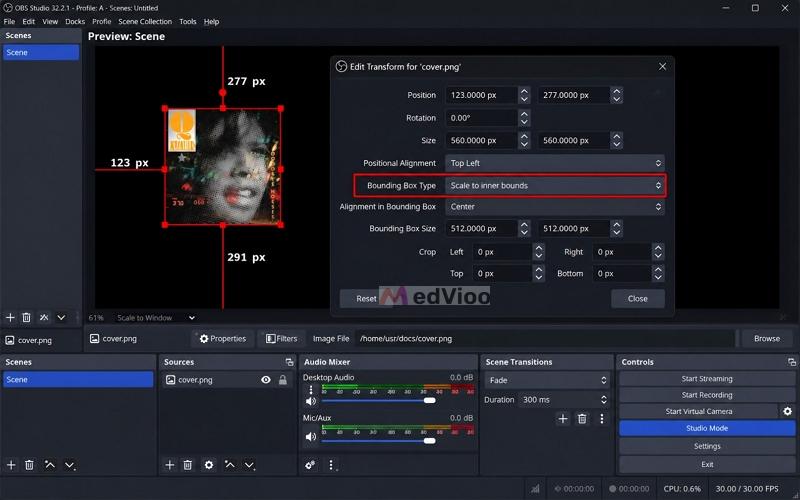
Tip: Open the source properties and set the bounding box to Scale to inner bounds. Otherwise, your cover art will resize itself every time a new song starts.
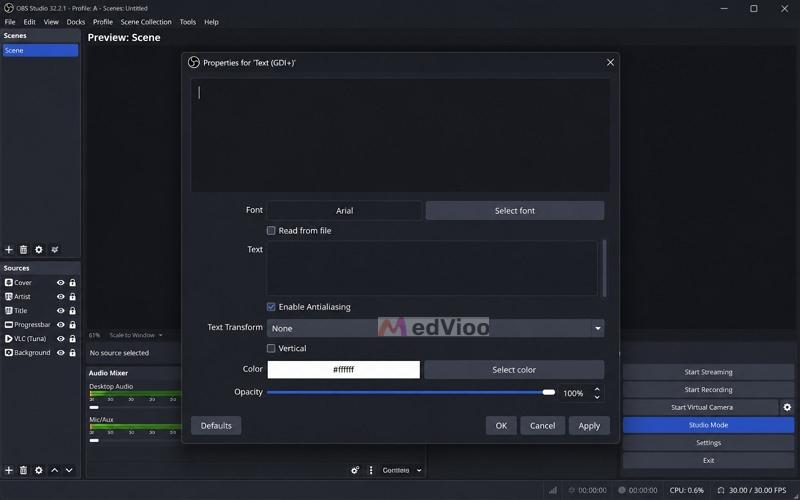
Step 2. Add a Text (GDI+) source. Tick Read from file, then select the text file you created earlier. Your song title and artist will appear on the canvas.
Step 3. Drag the cover art and text into position on your canvas, wherever you want them. Your Spotify music overlay will be live.
6. OBS Music Widget

The OBS Music Widget, earlier known as spotify-obs.com, is another browser-based OBS overlay. It will also give you a browser URL to drop into OBS. However, it works a little differently than the methods above. It doesn't connect directly to Spotify. Instead, it relies on the Spotify-Discord partnership.
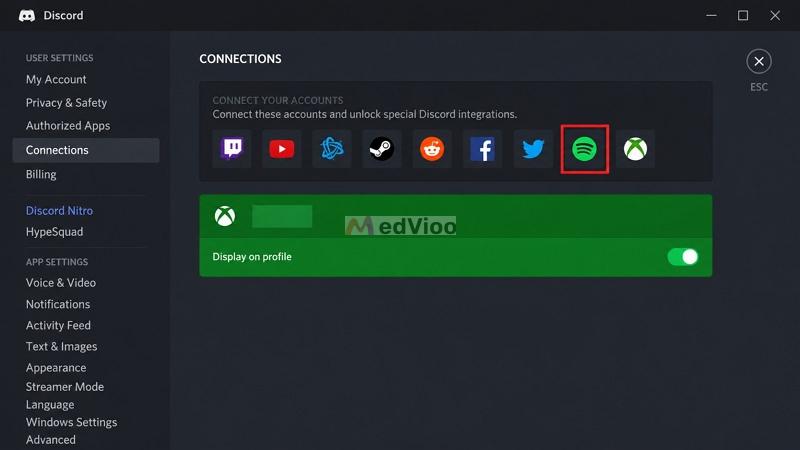
So you will first have to connect Spotify to Discord through the Discord settings. The OBS Music Widget will then read the currently playing song information from Spotify via the Lanyard API, which runs silently in the background. And it will show the music you are playing in your overlay.
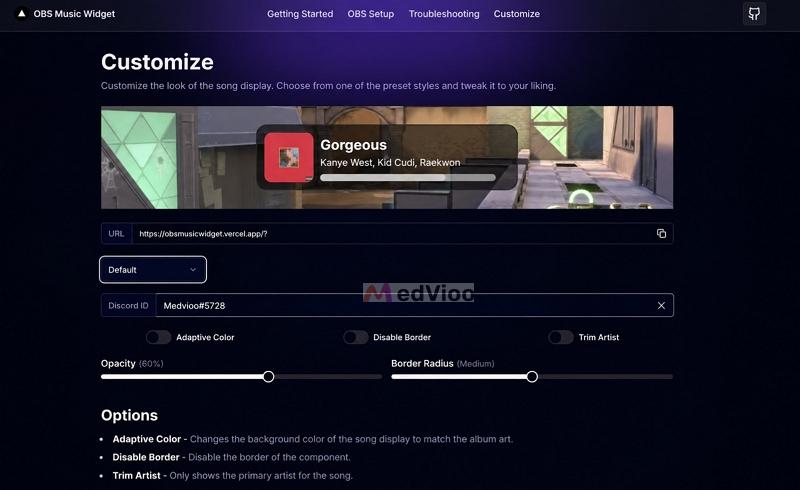
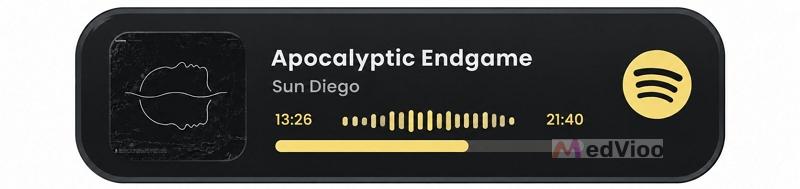
This setup is very simple and does not require any money or a Spotify Premium account. As for the look, you will need to keep your expectations modest. You have only two design choices: Default (the classic widget) or Text. Aside from that, you can work on smaller things like adjusting colors, opacity, border radius, etc.
How to Use OBS Music Widget to Add Spotify Overlay to OBS
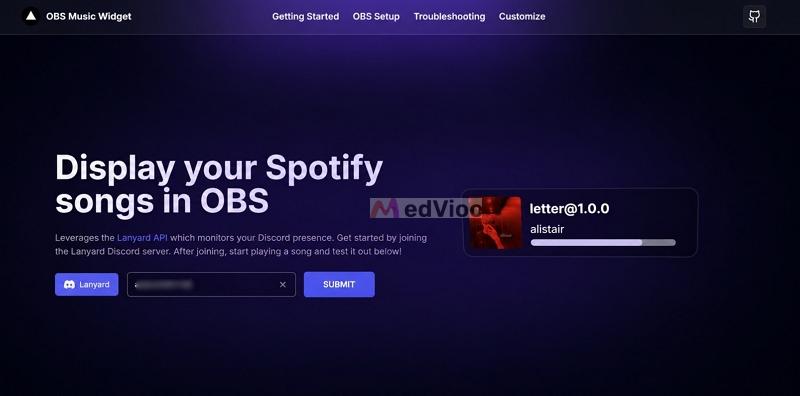
Step 1. Join the Lanyard Discord server through the link on obsmusicwidget.vercel.app.
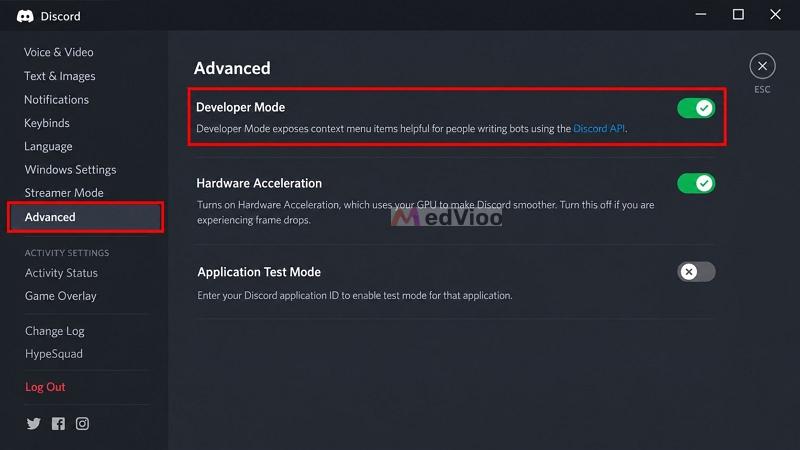
Step 2. In Discord, open Settings, scroll to Advanced, and turn on Developer Mode.
Step 3. Click your own profile at the bottom left. Then, choose Copy User ID.
Step 4. Still in Discord settings, open Connections and confirm Spotify is linked. If it is not, click the Spotify icon and approve the connection.
Note: Keep Display on profile switched on for that connection. Discord will not broadcast your track without it.
Step 5. Return back to obsmusicwidget.vercel.app site. Drop the copied Discord ID.
Open the customize page on the widget site and pick your look. Adjust the opacity, border radius, and adaptive color until it suits your scene.
Step 6. OBS Music Widget does not give you a copy-paste URL like the others. Instead, you will have to build it yourself using this: https://obsmusicwidget.vercel.app/@@@. Simply replace the @@@ with your actual Discord ID.
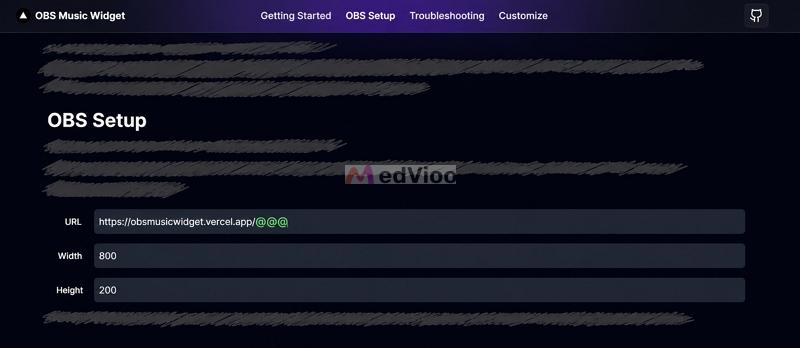
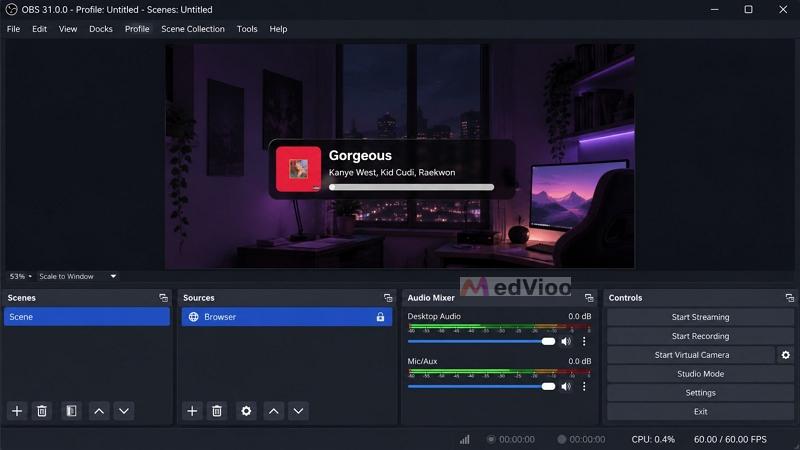
Step 7. In OBS, click the plus icon under Sources and choose Browser. Paste your URL, set the width to 800 and the height to 200.
Step 8. Play a song on Spotify and your track will appear on the canvas. Drag it into position and resize it to taste.
Note: Keep Discord running while you stream and set your status to anything except Invisible. Your overlay will go blank otherwise.
7. StreamSpell Music Widget
This one is paid, costing US$14 as a one-time payment. If you are willing to buy it, you can get colorful Spotify overlays with enough customization to match the mood of any streaming session. It comes from the StreamSpell stream asset store, where you can also purchase overlays, transitions, Stream Deck packs, and other things in the catalog.
Once you buy it, it is yours to shape. You can go with endless customizations, change its looks and colors with simple switches, and decide how it will sit in your streams.
The upside is that its reach is immense. It does not stop at Spotify. It supports YouTube Music, Apple Music, iTunes, Amazon Music, Windows Media Player (for local music), mpv, and more.
How to Add a Spotify Overlay to OBS with StreamSpell
Step 1. Buy the Spotify Widget from the StreamSpell store. You will get the StreamSpell Music Widget installer along with a setup guide.
Step 2. Run the installer and open the app. It will launch as a small window where you control everything.
Step 3. Open Spotify Desktop and play a track. The app will read directly from the desktop player.
Step 4. Build your widget in the Widget Builder panel on the right. Pick Compact or Circular for the layout, then set your corner roundness and switch the background, album art, and progress bar on or off.
Step 5. Choose your background type. Dynamic Gradient, Manual Gradient, or Solid. You can also upload your own image instead.
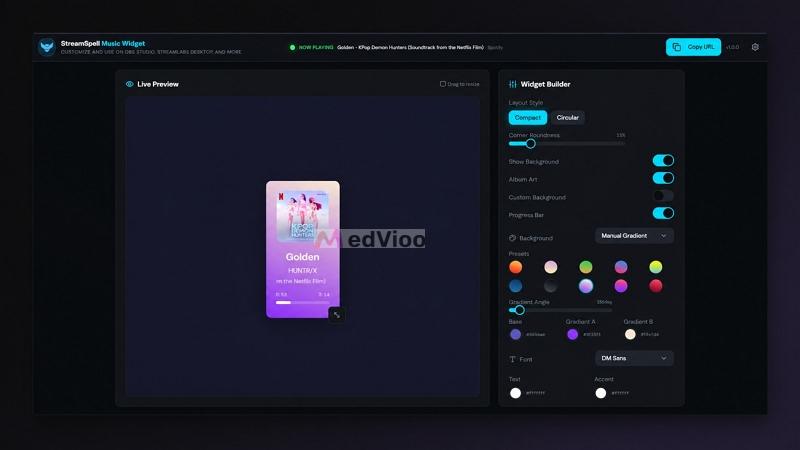
Step 6. Set your font, text color, and accent color. Watch the live preview on the left as you go, since it updates with every change.
Step 7. Click Copy URL at the top right of the app.
Step 8. In OBS, click the plus icon under Sources and choose Browser. Paste your URL, then set the width to 400 and the height to 120. Adjust those to fit your layout. Click OK, then drag the widget wherever you want it in your scene.
Conclusion
These are the best Spotify OBS overlays you can pick from in 2026. If you hold a Spotify Premium account, a simple option like Amuse will do the job.
For something more customizable, go with Nowify, Tuna, or StreamSpell. The good thing about these three is that they can play local music too. So you can convert your Spotify songs into MP3s with MedVioo Audio Converter, play them through local media player and remove your dependency on Spotify completely.