

When a song is stuck in your head and all you have is a hum, you don’t have many options. Music apps can’t help because you don’t know the title. Google or ChatGPT can’t help either because you don’t remember the lyrics. Still, that doesn’t mean the song is lost. Even a short melody, a rough hum, or a few remembered seconds are enough to find the exact song you’re looking for.
It doesn’t matter whether the song is popular, regional, or folk. In this guide, we’ll show you the best tools available online and on iPhone and Android to find a song by humming. Some of them rely on technology, and some even rely on real people to help identify the song.
How to Find a Song by Humming [Online]
These are the three best online tools to find a song by humming. Whether you are seeking a song or you’re simply testing how humming search works, these options give you the best chance, either through technology or with help from real people.
Way 1. Through AHA Music
AHA Music is an online song recognition tool that works best when used through its Chrome or Edge browser extension. AHA Music claims that it can identify any audio playing on a webpage, along with humming, ambient sounds, or short melodic fragments. In practice, the second part is unreliable.
It is powered by ACR Cloud, so AHA Music is optimized for digitally released music. That database is massive—over 150 million officially released tracks, which is why recognition is usually fast and accurate when the song is playing from YouTube, Spotify Web, SoundCloud, or social media clips.
When a song belongs to mainstream categories like pop, rock, film music, or older chart releases, results often appear within a few seconds. However, humming, rough singing, native melodies, or folk music rarely produce consistent matches. The tool simply isn’t tuned for those inputs.
Claim support for humming or singing
Best with clean digital audio
High when music is playing from web sources
Very low for humming, rough singing, or folk music
Direct links to streaming platforms
Browser-level audio capture
Hum to Find a Song with AHA Music
Step 1. Open aha-music.com and switch to Hum/Sing from the top. For live detection, leave it on Record and tap the large circular button in the center.
Step 2. Allow microphone access when prompted. Then hum the tune of the song you want to find.
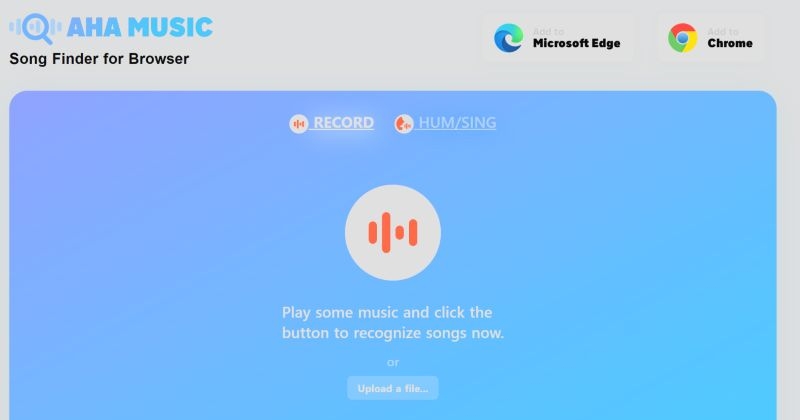
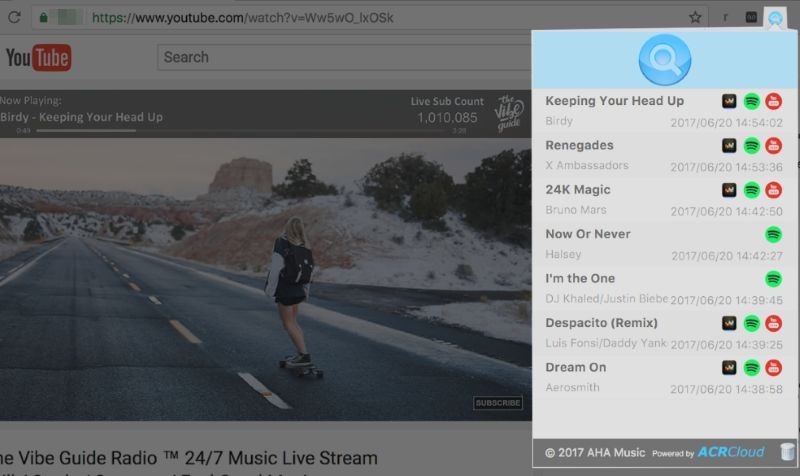
Step 3. The results panel will show the matching track name. You’ll also find direct links to platforms like Spotify, Apple Music, or YouTube.
Step 4. Use the history list to revisit past recognitions or clear it before starting a new search.
Way 2. Through Vercel
This is not a consumer-ready song finder like Google or SoundHound. It’s an experimental web project that often gets shared online.
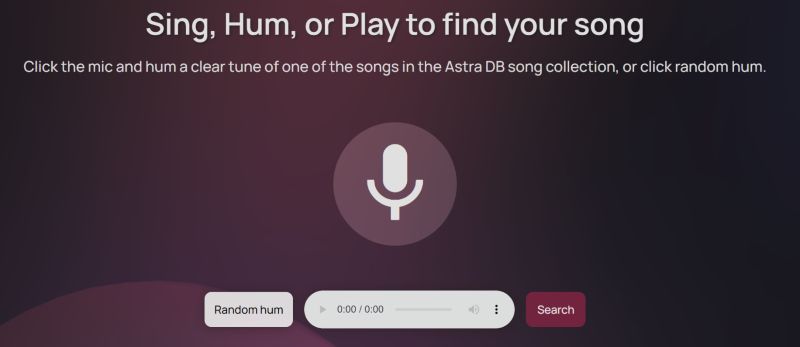
The tool runs on a simple melody-matching idea. Instead of scanning the entire music universe, it compares your hum against a very small, predefined song collection stored in its own database (often referred to as an Astra DB collection on the site). Because of this limitation, it can only recognize a handful of already-indexed melodies. Anything outside that narrow list simply won’t match.
Find a Song by Humming with Vercel
Step 1. Open hum-search.versal.app in your browser and allow microphone access when prompted.
Step 2. Click the large microphone icon in the center of the screen and start humming a melody.
Step 3. Stop recording and wait while the app analyzes the input. Processing usually takes a few seconds.
Step 4. Review the suggested matches.
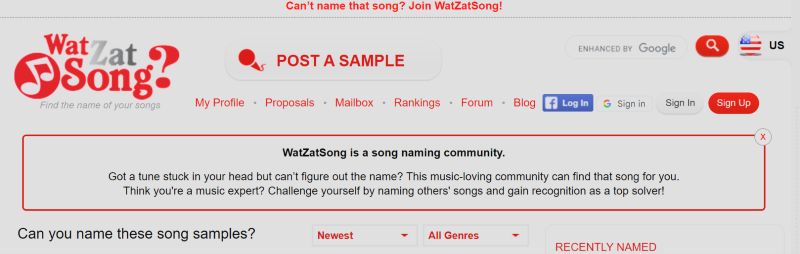
Way 3. Through WatZatSong
When technology hits a wall, people don’t. That’s exactly where WatZatSong fits.
Unlike AHA Music or experimental humming tools, WatZatSong does not rely on audio fingerprints, melody-matching models, or recognition databases. Instead, the platform works the old-school way—real humans listening to your sample and identifying it for you.
You record whatever you remember. A hum, a whistle, a half-sung chorus, a noisy clip recorded from a shop or TV. You post it. Then, other users listen, discuss, ask follow-up questions if needed, and suggest matches.
This is why WatZatSong works so well for regional music, 2000s ad jingles, TV serial themes, folk songs, and obscure tracks.
Ask Real People to Identify a Song Using WatZatSong
Step 1. Visit watzatsong.com and create an account. Email confirmation is required.
Step 2. Once logged in, click Post a sample. Choose whether you want to directly record or upload a recording.
Step 3. Record your hum, whistle or short singing sample. Clarity matters more than perfection. Even rough recordings are fine.
Step 4. Add context before posting. Select the genre and language if you know them. Mention where you heard the song or what it reminded you of.
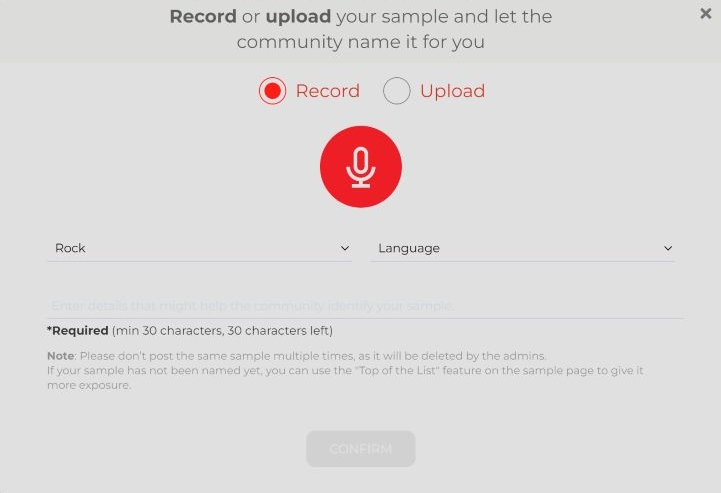
Step 5. Submit the sample and let the community take over. Users respond through comments with suggestions, questions, and links. You’ll usually know when the right answer appears.

How to Find a Song by Humming [Android/iPhone]
Here are the most reliable humming-based song finder tools available on Android and iPhone.
Way 1. Use Google App
If you’re trying to find a song by humming on a phone, the Google app is currently the most capable option available to everyday users. There’s no separate setup, no experimental interface, and no learning curve. You just use Google the same way you already do.
What sets Google apart is how it listens. Instead of trying to match your voice to an exact recording, Google’s model tracks relative pitch movement over time. In simple terms, it follows how the melody goes up and down rather than how good your humming sounds. That’s why it works even with mistakes, accents, uneven rhythm, or imperfect humming.
Scale also matters here. Google’s system is trained on real-world queries from across regions and languages. For popular songs and widely known tracks, the success rate is consistently high.
Identify a Song Using Google Hum
Step 1. Bring up the Google app on your phone.
Step 2. In the search bar, tap the mic icon and switch over to Search a song when the option appears.
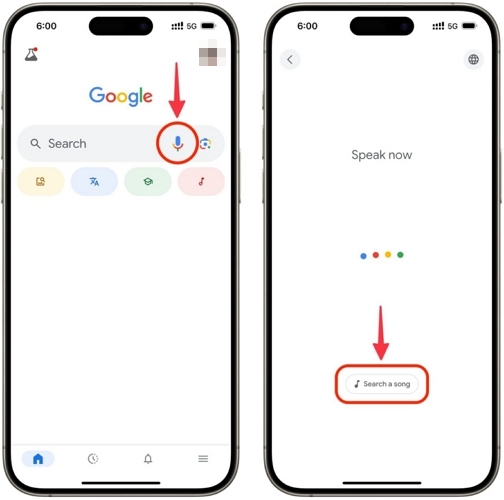
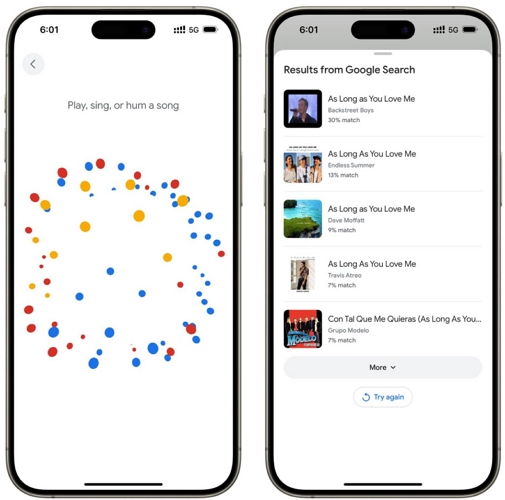
Step 3. Let the tune out by humming it, singing it or whistling it for a few seconds.
Step 4. Look through the results Google lines up, starting from the closest match.
Way 2. Use YouTube Music App
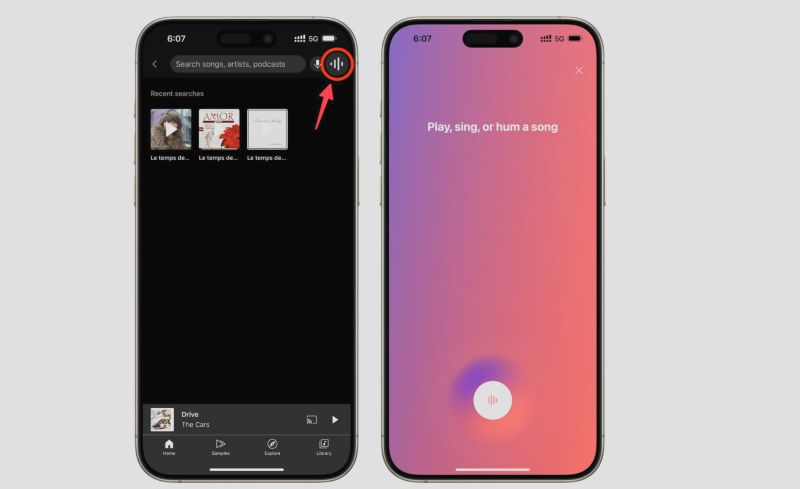
The YouTube Music app comes with its own humming and singing feature called Sound Search. It looks similar to Google’s hum search on the surface, but the intent is different. This feature isn’t designed to send you to a search results page. Instead, it tries to identify the song and immediately route you into playback inside YouTube Music itself.
That focus is both its strength and its limitation. Sound Search only works within the YouTube Music catalog, not across the broader Google search index. The library is still massive, but the recognition model is narrower. Because of that, accuracy can feel slightly lower than Google’s standalone hum feature, especially when the melody is vague or the song isn’t well represented on YouTube.
Look for a Song via YouTube Music Sound Search
Step 1. Open the YouTube Music app and tap the Search icon at the top.
Step 2. Tap the waveform/sound icon next to the search bar. This opens the Sound Search screen with the “Play, sing, or hum a song” prompt.
Step 3. Hum, sing, or play the melody for a few seconds.
Step 4. If a match is found, playback starts immediately, with options to save or add the song to your library.
Way 3. Use Shazam
Shazam is still the industry benchmark when the song is actually playing around you. There’s no melody interpretation here like the Google Hum or YouTube Music’s Sound Search. Shazam relies on audio fingerprinting (beats, frequencies, and timing patterns) to match the sound against its database.
That difference matters. When music is coming from a speaker, TV, car stereo, or another phone, Shazam’s accuracy is extremely high. When you try to hum or sing, results drop sharply.
Seek a Song with Shazam
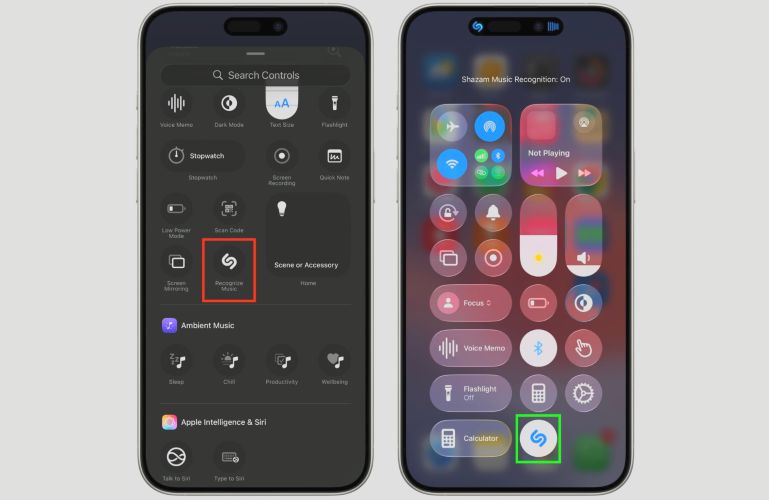
Step 1. If you’re on iPhone or iPad, add Recognize Music to the Control Center if it’s not already there. On Android, install the Shazam app.
Step 2. Open Control Center on iOS or tap the Shazam button inside the Android app. Next, hum into the phone's mic.
Step 3. Let Shazam listen for a few seconds. You don’t need to keep the screen open once detection starts.
Step 4. View the identified song along with direct links to Apple Music or Spotify. The track is saved automatically to your Shazam history.
Way 4. Use SoundHound
Long before humming-based search became mainstream, SoundHound was already built around human input—not just clean studio audio. And its algorithms are actually designed to tolerate imperfect sounds. So humming, singing, half-remembered melodies stand a chance.
That design choice shows in real use. You open the app, hum or sing, and SoundHound tries to follow your intent rather than waiting for a perfect signal.
Find a Song by Humming with SoundHound
Step 1. Open SoundHound after installing it on your phone.
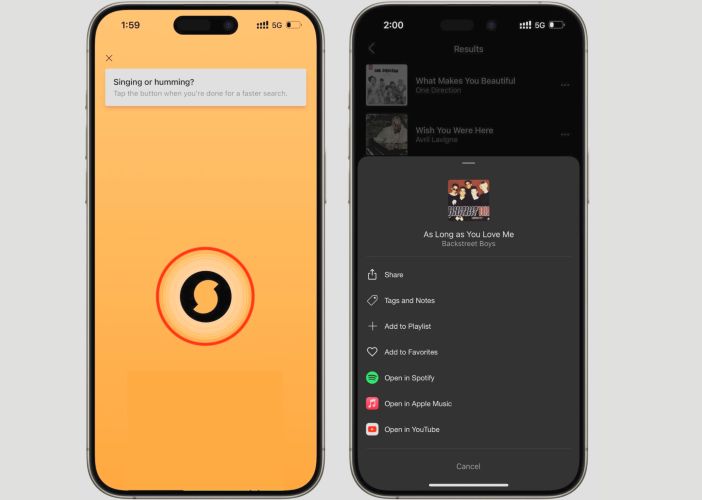
Step 2. Hit the big button in the center and let it listen.
Step 3. Hum the melody the way it’s stuck in your head.
Step 4. Pick the closest match and play it on your preferred app.
How to Download Songs Found by Hum as MP3
Finding a song by humming is only half the job. You should also back them up so it never gets stuck in your head again. And the best way to do it is download it as a local file (as MP3 and M4A) and save it on your device in a dedicated folder.
That’s exactly what Mediaio Audio Converter is built for. After identifying a song, you can let Mediaio download it directly from major platforms—Spotify, YouTube Music, Apple Music, Amazon Music, Pandora, and Deezer, in high quality.
Mediaio also preserves all the metadata, like song names, artist details, album info, and cover art. So your library stays organized even when you download multiple tracks. There are no download limits either, so you can back both the songs you identified and your favorites.
FAQs
Here are some common questions users have when trying to find songs by humming.
It depends. Siri’s “What is this song?” is powered by Shazam Music Recognition. Because of this, it’s very reliable when a song is playing nearby, but far less reliable with pure humming or singing.
Also, the feature became usable only in newer iOS versions (post-iOS 14 era), so older versions won’t support it properly.
Most humming-based tools don’t match your voice directly. The core is: You hum into the microphone. The system extracts melody features, such as pitch movement and timing. Those patterns are then compared against a database of known songs. Finally, closest matches are ranked and shown to you.
Final Words
These tools give you the best chance of finding a song when it’s stuck in your head and all you have is a hum. It doesn’t matter whether the song is popular, regional, or something old you only vaguely remember.
Once you’ve found the song, backing it up is the smart next step. Mediaio Audio Converter lets you save it in high-quality MP3 as a local file, so you don’t have to search for it again or depend on any music app to keep it available.