

Spotify’s shuffle feature can make your playlist feel different, but it does not always create a truly random listening experience. You may notice that the same favorite tracks keep appearing while some songs are rarely played, making the shuffle feel meaningless. This is why many users search for Spotify playlist randomizers to get a more personalized way to rearrange their music. These tools can shuffle your playlist in a more flexible way, so you can enjoy a wider variety of songs. In this guide, we’ll introduce 5 best and free Spotify playlist randomizers and show you how to manually reorder your playlists for a more balanced listening experience.

5 Best Spotify Playlist Randomizers Online (Free)
All five playlist randomizers bring something unique to the mix. Certainly, the mix will depend on the size of your playlist and how each tool approaches the shuffle. Some make use of algorithms to level things up, others are designed to focus on instant results. However, one thing is for sure: they are powerful enough to go through large collections and shake things up.
1. Stevenaleong.com
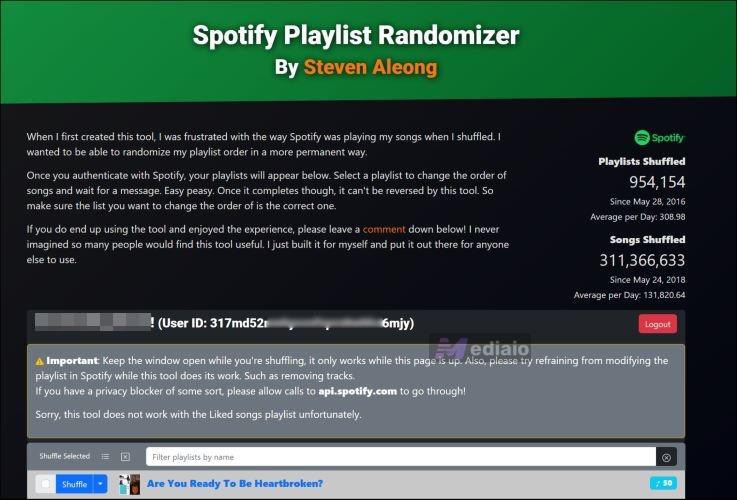
Steven Aleong’s Spotify Playlist Randomizer has shuffled close to a million playlists so far, which is a true staple for playlist lovers everywhere. It’s simple yet reliable and offers unmatched flexibility. You can use it to mix up a single playlist, select a few favorites, or go bold and randomize your entire Spotify library. Each click will give you a fresh order and it will be locked permanently. Therefore, if you want to keep the original, be sure to make a backup copy first.
This playlist randomizer has a few limitations. It cannot randomize your Liked Songs directly, but Steven himself suggests copying them into a new playlist for it to reflect on his website. Collaborative playlists are fair game, too, as long as you’ve got editing rights. The best thing is that it’s fast. A 200-song playlist reshuffles in about 35 seconds, so there is no long waiting.
How to Use Steven Aleong’s Playlist Randomizer:
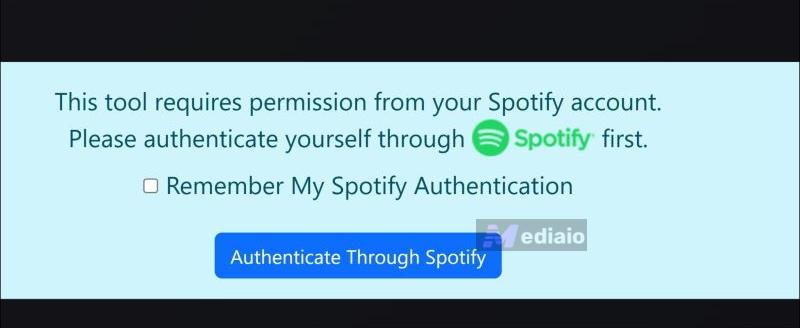
Step 1. Head to Steven Aleong’s Playlist Randomizer in any browser. Click on the Authenticate with Spotify button. If you’d like the tool to remember you next time, just check the Remember My Spotify box.
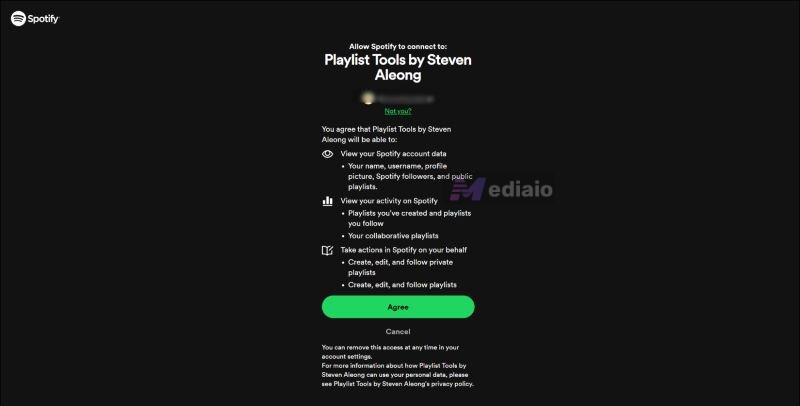
Step 2. You’ll be directed to the Spotify login screen. Enter your credentials and then confirm by clicking Agree to let the tool read your library.
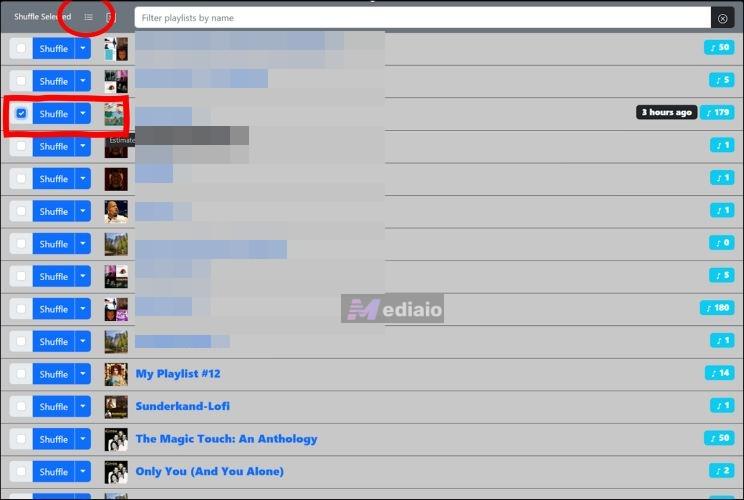
Step 3. At the top, use the Select All button to shuffle your entire library at once. You can also be specific by choosing individual playlists or filtering playlists by name using the search bar. With the playlist selected, hit the Shuffle button.
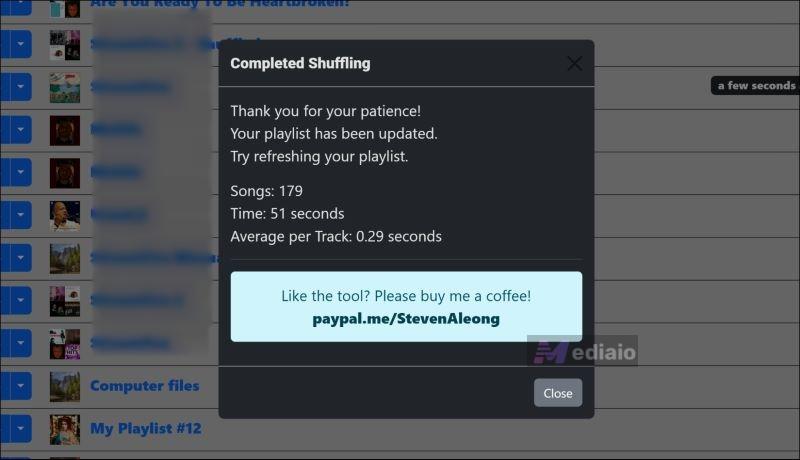
Step 4. You’ll see a confirmation dialog with the total time taken. Head back to Spotify and you’ll find your freshly shuffled playlists.
2. Spotifyshuffler.com
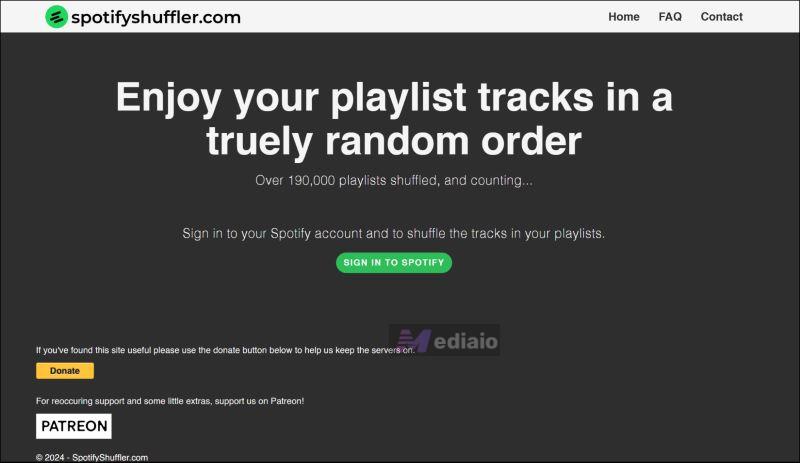
SpotifyShuffler.com keeps things refreshingly straightforward. In fact, it has gained a solid reputation in Spotify forums and is praised for fast and reliable shuffling. Like Aleong’s website, it uses Spotify’s official API and remembers your login for next time. And here is a perk: you can keep your original playlist intact by making a copy, labeled “shuffled”.
There’s no preview, but the shuffle happens instantly: a quick remix and zero hassle. You won’t even find extra stats or post-shuffle details like Steven’s Randomizer. Still, it nails the basics with ease. The best thing is that it works on personal and shared playlists (even collaborative one with no editing permissions) in your library, an edge over other tools.
How to Shuffle Spotify Playlists via SpotifyShuffler.com
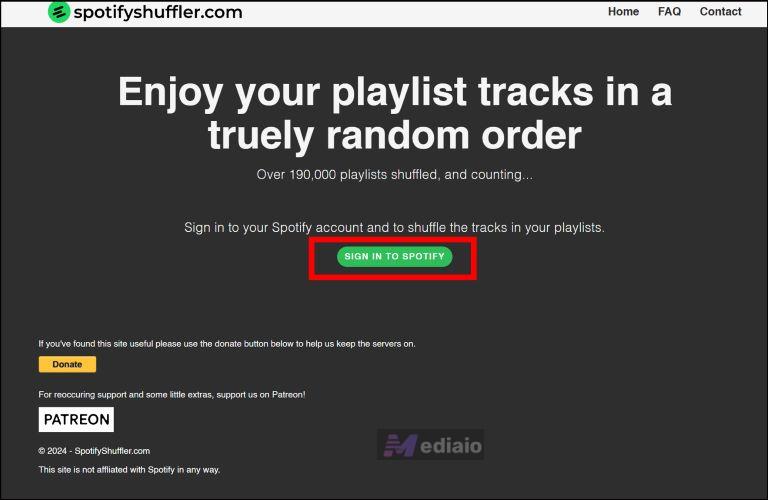
Step 1. Open SpotifyShuffler.com, sign in to Spotify, and complete authentication.
Step 2. Pick a playlist and decide between shuffling it directly or creating a separate Shuffled version.
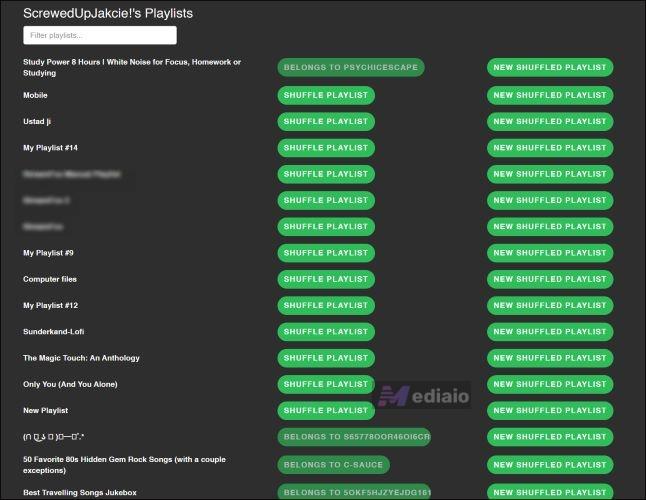
Step 3. Tap Shuffle and your playlist will be instantly refreshed.

3. TrueShuffle.top
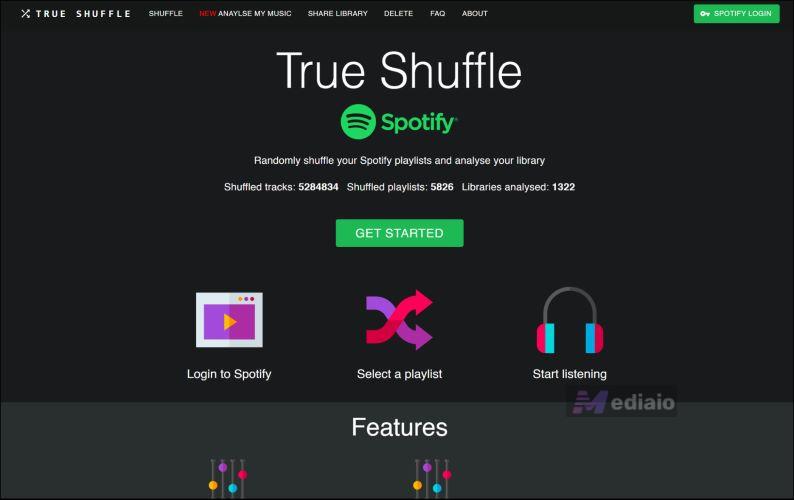
TrueShuffle isn’t here for simple remixing but crafts an experience. Spotify’s default shuffle or even SpotifyShuffler randomizer mixes things up in straightforward ways, TrueShuffle layers in a bit more magic.
It links directly to your Spotify account, with corresponding permissions needed. It only reorganizes playlists and your originals stay intact. If you have already shuffled once, no worries, TrueShuffle doesn’t stack up duplicates. It will just reshuffle the last version, keeping your library clutter-free.
How to Use True Shuffle to Randomize Spotify Playlists
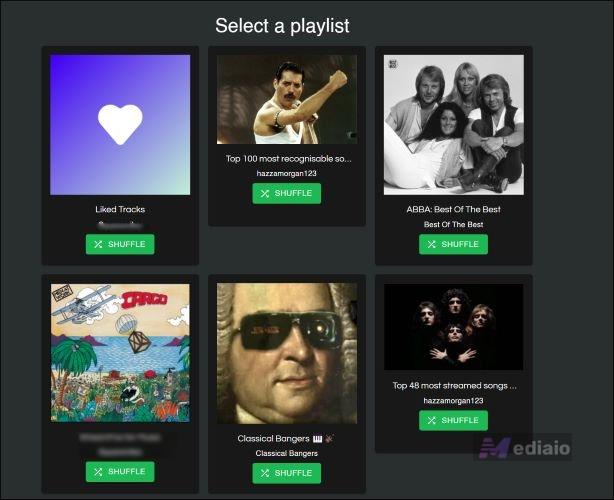
Step 1. Click Get Started on the website’s homepage and connect TrueShuffle with your Spotify account. It will display all your playlists and simply press the Shuffle button next to the desired one. Before this, make sure that the Shuffle mode in Spotify is turned off.
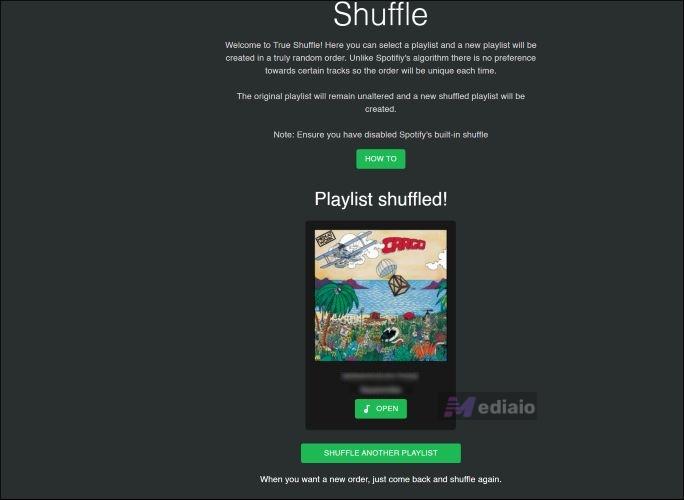
Step 2. Once the shuffling wraps up, hit Open to directly visit the shuffled playlist in a new tab.
4. Trackify Playlist Randomizer
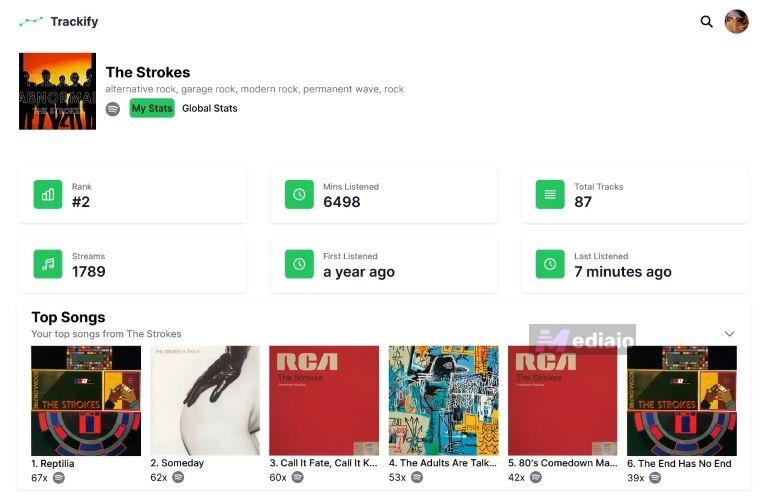
Trackify Playlist Randomizer stands out in this list, because it’s part of a larger suite of Spotify tools. In fact, you might already recognize it, if you’ve ever searched for detailed playlist stats or Spotify insights. Yet, beyond its tracking powers, it offers a no-fuss playlist shuffle experience.
Unlike the playlist randomizers above, Trackify doesn’t try to reinvent your playlist. There are no deep algorithms or genre-specific matching involved here. It just rearranges your songs in a collection and leaves cover art, descriptions, and metadata untouched. This way, even your Liked status for tracks remains the same. It’s more suitable if you’re bored of complex reconfigurations.
Steps to Reorder Spotify Playlists with Trackify Playlist Randomizer
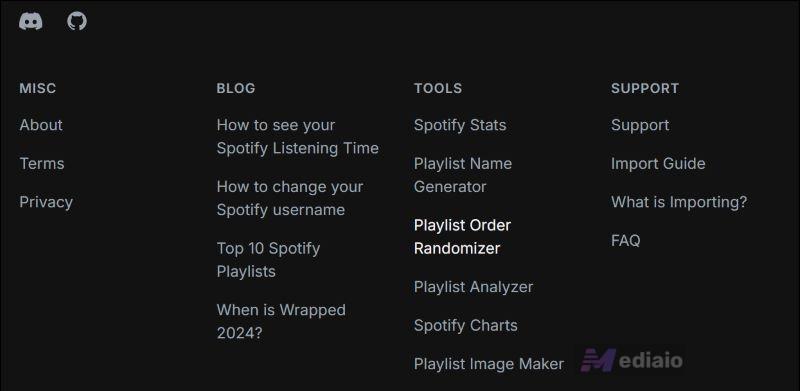
Step 1. Go to Trackify and log in it using your Spotify account. Scroll down to the bottom of the landing page. Under the Tools section, click Playlist Order Randomizer to get started.
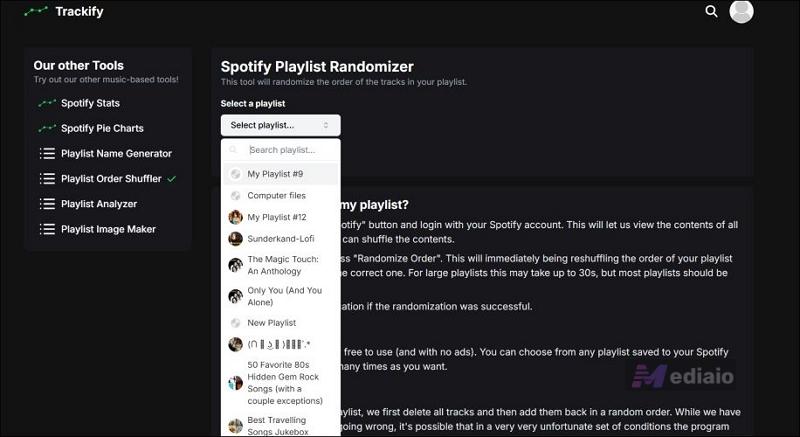
Step 2. Click Shuffle Playlist. A drop-down menu displays all your Spotify playlists. Simply pick one and hit Randomize Order. Trackify will quickly remix the selection.
5. Spotify Shuffler (Chrome Extension)

As an extension for shuffling Spotify playlists directly in Chrome, Spotify Shuffler is more of a mixed bag. It is bold in appearance but is straightforward in performance. There aren’t frills or heavy features. Just pick a playlist, click a few times, and the playlist will be shuffled right from the browser.
Plus, it is Chrome-only on desktop, so no mobile or even cross-browser access. Still, for heavy browser users, Spotify Shuffler is a perfect fit due to its true simplicity and minimal interface. It quietly sits in your extension bar, ready whenever you need a fresh mix.
Rearrange Spotify Playlists Using Spotify Shuffler
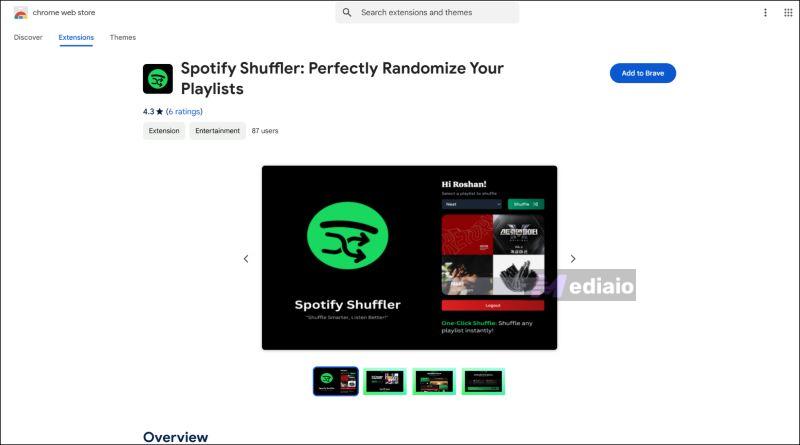
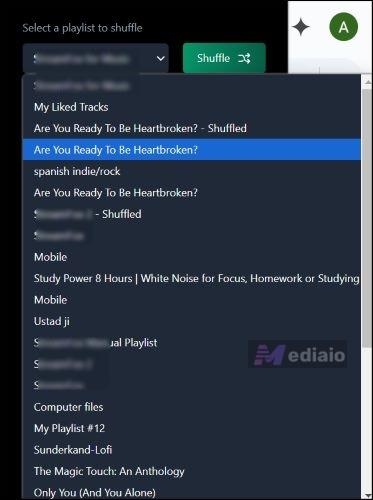
Step 1. Visit the Chrome Web Store and search for Spotify Shuffler. Click Add to Chrome.
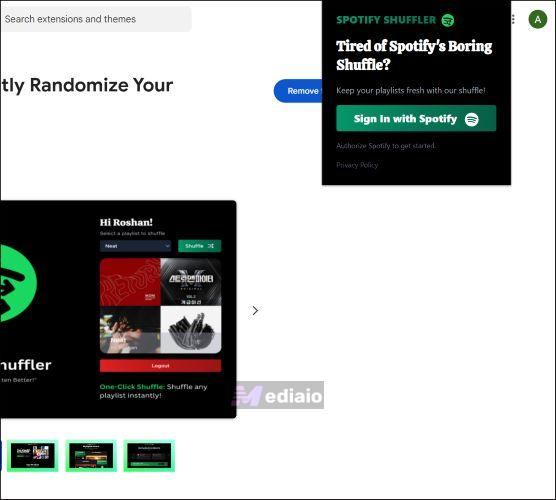
Step 2. Pin the extension to your toolbar so it’s within reach. Next, click the icon and hit Sign In with Spotify.
Step 3. Choose your playlist from the drop-down, hit Shuffle, and you’re set for instant variety.
How to Shuffle Spotify Playlists Without Randomizers
While the automatic randomizers above really do wonders, they can miss a few tricks. They all ignore the Not Recently Played list. Yes, automatic shuffles don’t always catch that and leave overplayed songs in heavy rotation while fresh tracks go untouched. When you do things manually, you can spotlight hidden gems.
So, here’s a mixed bag of manual methods: two are Spotify-native and three are creative alternatives. Let’s dive into these hands-on techniques:
Way 1. Spotify’s Built-In Shuffle
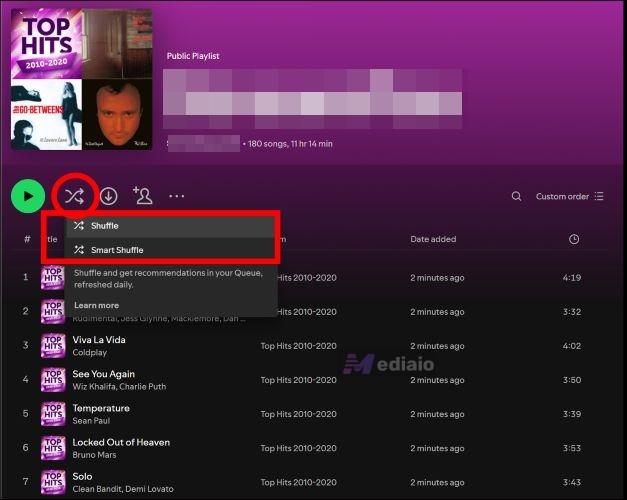
Certainly, the very things you wanted to avoid and the reason you opted to read this list. However, Spotify’s shuffle feature doesn’t get true appreciation. Spotify Shuffle is more about playback than variety. It’s instant and gives you a fresh list with a single tap, so you’ll have a new list every time.
Plus, it works across all devices seamlessly and leaves playlist order untouched for the next listen. Free users, unfortunately, are locked to shuffle entirely. Still, MedVioo Audio Converter is suggested for that very reason.
Way 2. Use Another Media Player
For free Spotify users, shuffling is limited. You cannot shuffle playlists like Made for You. For premium Spotify users, you might think the Smart Shuffle feature is not random. Here, MedVioo Audio Converter opens new doors. MedVioo can convert your Spotify music and export them as 320kbps MP3, lossless FLAC, or other formats in your desired audio quality. This way, you can add your favorite Spotify music to another local media player with a more advanced Shuffle feature and shuffle your playlist in a way that better fits your preferences. From then on, you don't need to worry about Spotify shuffle issues and can get more control over playback even if you are a free user.
Besides the high quality, each exported song comes with full ID3 tags, such as song names, artist names, and cover art, saving you from manual editing. Meanwhile, MedVioo not only ensures high output quality but also efficient conversion. It can save large Spotify playlists quickly at a speed of up to 30x.
Steps to Shuffle Spotify Playlists with Another Media Player:
Step 1. Start by downloading MedVioo Audio Converter. It runs smoothly on both Mac and Windows and offers the same set of features across both setups. Open it up and pick Spotify from the main menu.

Step 2. Once prompted, enter your Spotify login details to connect. You can use either Free or Premium account credentials.
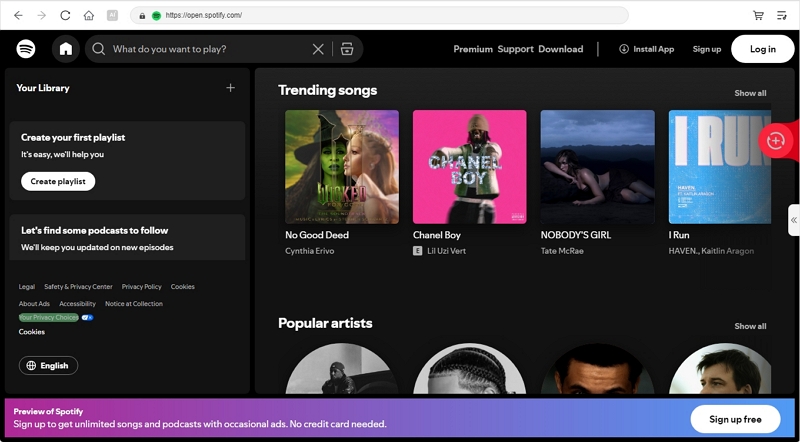
Step 3. Choose any playlist you desire for offline listening. Drag and drop them into the red Add section on the top-right corner to line up them for conversion.

Step 4. The selected playlists will be displayed in the right conversion section. You can directly click Convert to export them as MP3. Alternatively, you can expand the conversion pane and set the desired output settings (e.g. audio format and audio quality) and then click Convert.

Step 5. Go to the Finished tab to see your downloads from the top. You’ll find each track carefully tagged with song titles, album names, and cover art intact, just like in your Spotify library. Click the View Output File option to locate them on your computer.
Step 6. Now, you can import the music downloads into the media player on your computer and use the Shuffle option to play you music randomly.
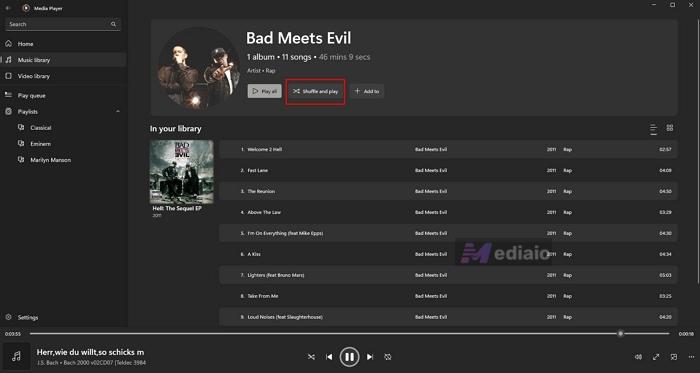
If you don't know which media players have a Shuffle feature, the table below lists some popular options to help you choose.
Way 3. Sort Feature
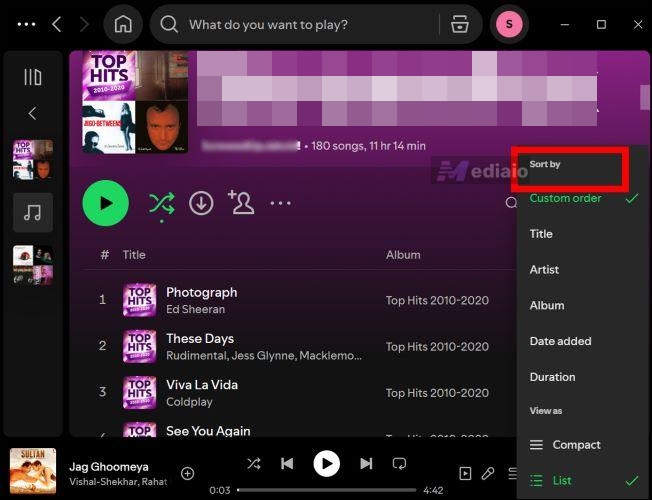
Another native option that’s quietly powerful is Spotify’s Sort feature. It’s not a randomizer, but it gives your playlist a fresh vibe by reordering based on parameters like artist, album, or recently added. So, you will get a quick shuffle feel by arranging playlists alphabetically or by album.
While this feature offers variety, it isn’t exactly flexible. You can’t arrange specific songs within each category or even switch up genres. If you are aiming for a simple reshuffle that doesn’t need any effort, it offers a neat way to change things up.
Way 4. Drag and Drop Method
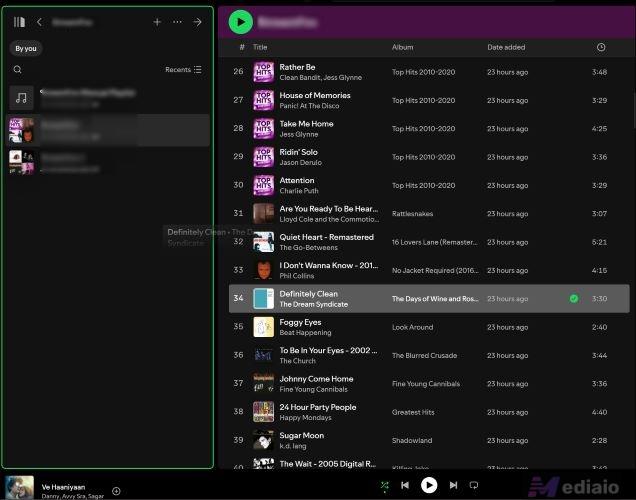
If you crave a little more hands-on control, there is the not-so-famous Drag-and-Drop method. Within Spotify, you can manually reorder your playlist by dragging each song into the position you want. It’s as personal as it gets.
For fair warning: it’s only best for smaller playlists. Rearranging hundreds of songs will take time and is only suitable if you’re in the mood for meticulous playlist crafting.
Way 5. Text Mechanic
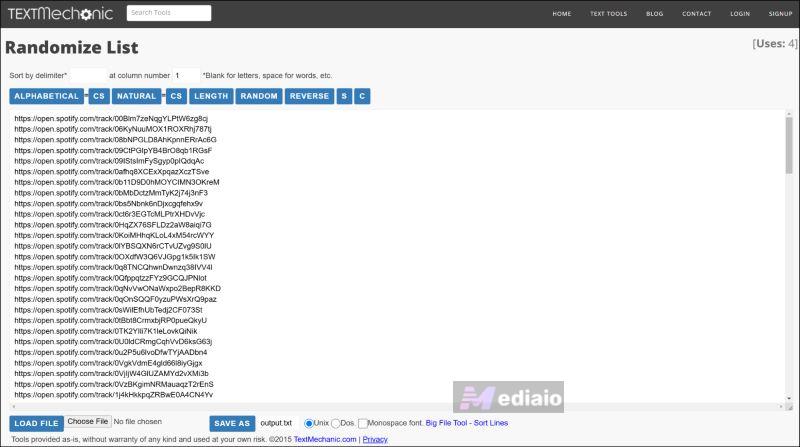
Text Mechanic is an unexpected entry here, but it’s surprisingly effective for those who want a true shuffle. It’s not related to Spotify at all and is designed to shuffle any list you copy-paste into it. So, it is ideal if you’re after a true reordering without Spotify’s built-in limitations.
To use it, copy all songs in your playlist, paste them into Text Mechanic, and select the randomizer options to reorganize. It gives a lot of flexibility by allowing alphabetical or even length-based order if you’re feeling creative. Once done, you can simply copy the shuffled list back into Spotify as a new playlist.
Conclusion
This guide covered every base: introduced you to the five best Spotify playlist randomizers for an instant mix-up. And even the manual approaches that are often overlooked for shuffling your Spotify library.
If you want to go beyond the realm of online tools or randomize Spotify playlists without the native Shuffle feature, MedVioo Audio Converter is your answer. It lets you keep your favorite playlists offline, ad-free, and fully in your control. All the downloads will come in popular formats, so you can use any offline media player to curate the perfect shuffle. Moreover, the output quality remains uncompromised, so you won’t be missing anything.