

Looking for a Spotify playlist finder that can help you find a song you can’t remember or discover music that matches your taste? Different playlist finders take different approaches. Some let you enter a song and find playlists created by other users that include it, while others help you explore new music based on keywords such as genre, mood, or theme. In this article, we’ve tested 9 Spotify playlist finders to see how they work and what makes each one useful. We’ll also cover a simple way to save your favorite playlists offline as MP3, along with a few practical tips to make discovering and managing Spotify music easier.
Top 4 Spotify Playlist Finders for Finding a Specific Song
Each option here unlocks a new way to find the music you're looking for and each has its own approach. The goal isn’t to overwhelm you with a list that overlaps, but to offer options that work together. Let’s dive in.
1. Spotify Inbuilt Search Function
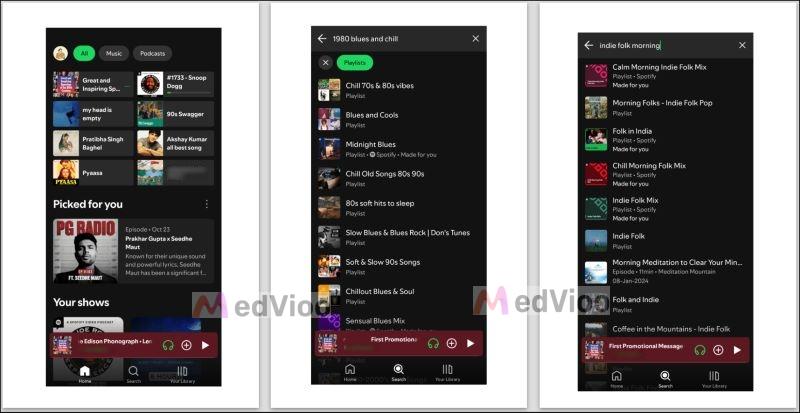
Start with Spotify’s universal search bar. Positioned right at the center of your bottom menu, it is aimed to be straightforward. However, you can enter strategic keywords to sharpen the suggestions. For instance:
- Add specifics like genres, years, or moods: “1970s Blues” or “Chill Study Beats”.
- Combine genres and themes: “American folk” + “morning energy”.
2. Chosic Playlist Finder by Song or Artist
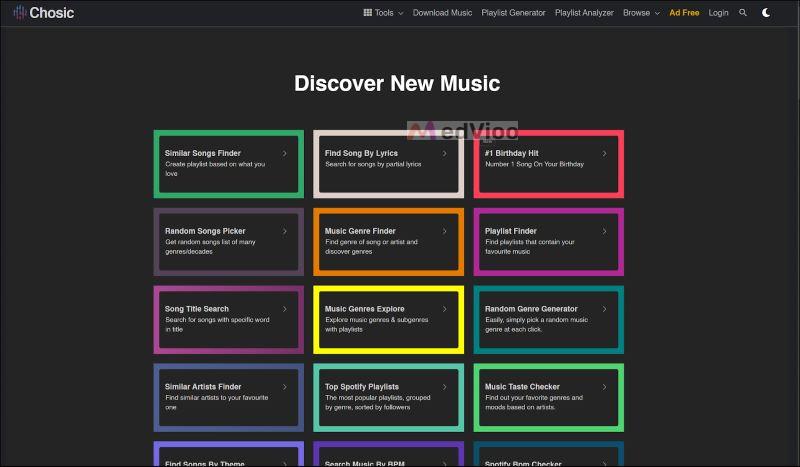
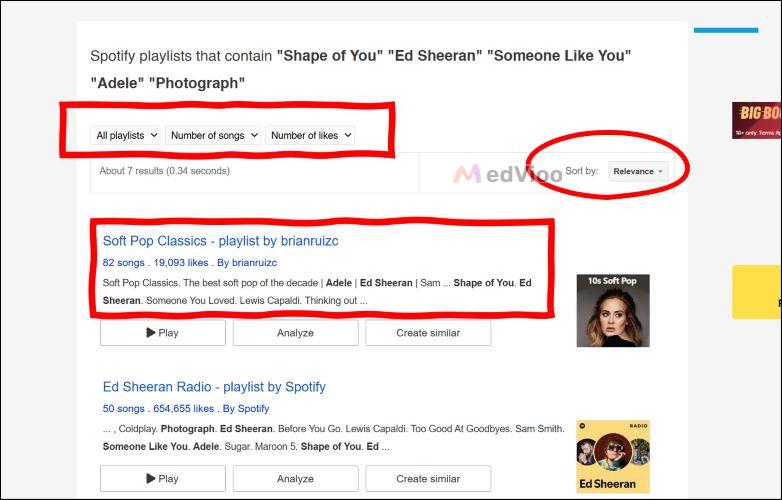
Inspired by Google’s layout, Chosic Playlist Finder acts as a search engine and is tailored for Spotify playlists. You can search for new playlists by entering one, two, or multiple song names (or Artists’ names). After you press search, it gets right to work. And in seconds, playlists with your chosen tracks will appear.
Once your results load, you can refine the results by filtering playlists (made by Spotify itself or by individual users). You can also sort results by “relevance” (closest matches) or “date” (newest finds). Or use other filters to narrow down the recommendations, such as the number of likes and number of songs, among other things.
How to Use Chosic
Step 1. Begin by opening the Chosic Playlist Finder tool. Enter the songs or artists you’d like to find. And click the Search icon.
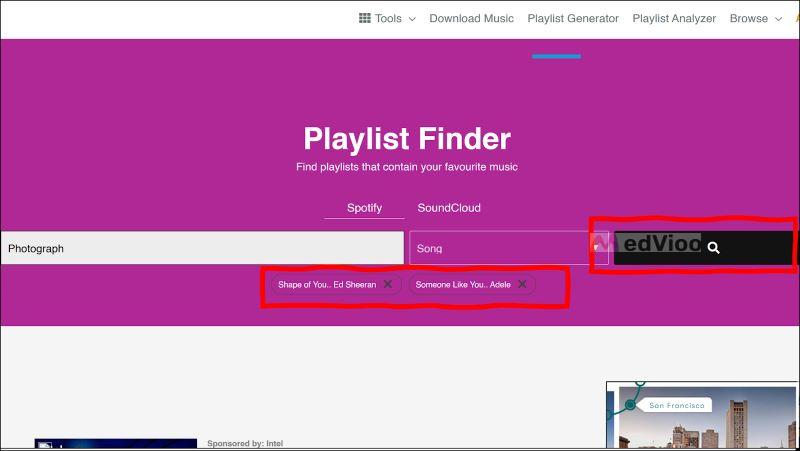
Step 2. Scroll through the results that show each playlist’s details, like its creator, track count, and a preview of the album art. When you spot one that calls to you, click to open it directly in Spotify.
3. Vibify

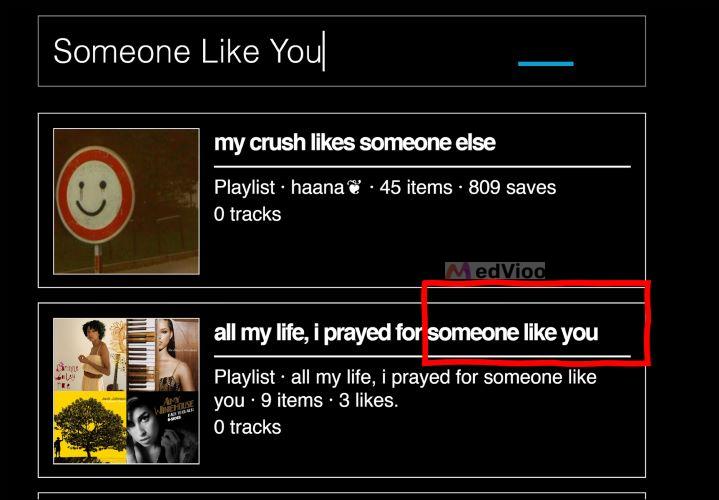
Unlike Chosic, which focuses on specific songs, Vibify focuses on keywords. Its results prioritize playlist titles that match your search terms first. Then, it expands the recommendations that feature your chosen songs. Still, each search will load a bounty of playlists you can scroll through. Vibify also doesn’t crowd the screen with filters or previews like Chosic results. Instead, it shows just the essentials: the playlist title, creators, track count, and the number of saves.
Its charm lies in its democratic approach that presents both widely followed playlists and hidden gems in its curation.
How Vibify Works
Step 1. Head over to Vibify main page. In the search field, type the song title, artist name, or keyword that speaks to you. Next, hit Enter.

Step 2. Playlists that fit your keywords will appear one after another, along with titles, creators, and track counts. Tap on any playlist title to jump right into Spotify.
4. Script Raccoon
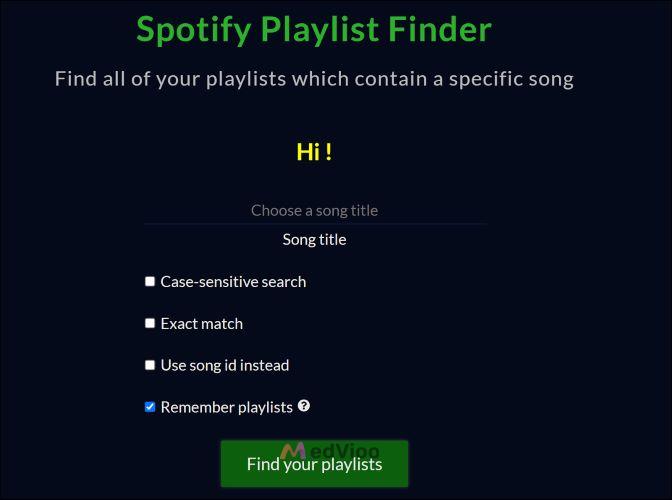
Script Raccoon carves its niche by turning inward. The above two Spotify playlist finders look outward when you search a song. Script
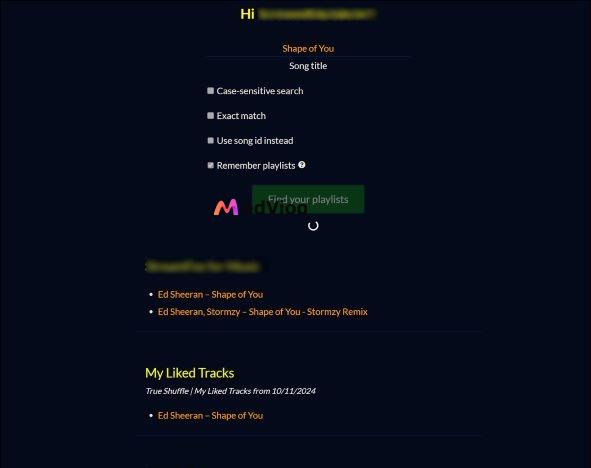
Raccoon’s results, on the other hand, will list all the playlists featuring that song, even if they’re only close matches. However, even for such a simple job, it offers some customizations, like the “sensitive” search option to find similar songs without losing different versions. Or, you can locate exact duplicates through song ID.
How to Find a Song Using Script Raccoon
Step 1. Go to the Script Raccoon site. Start it by clicking the Authorize button.
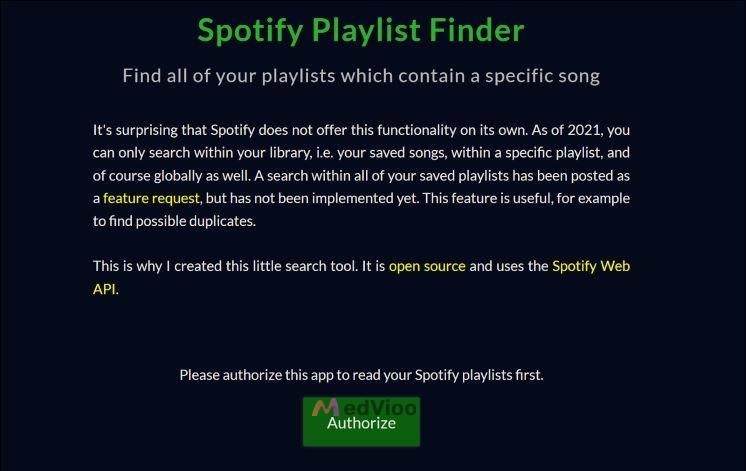
Step 2. Log in with your Spotify details and allow Script Raccoon to work with your library.
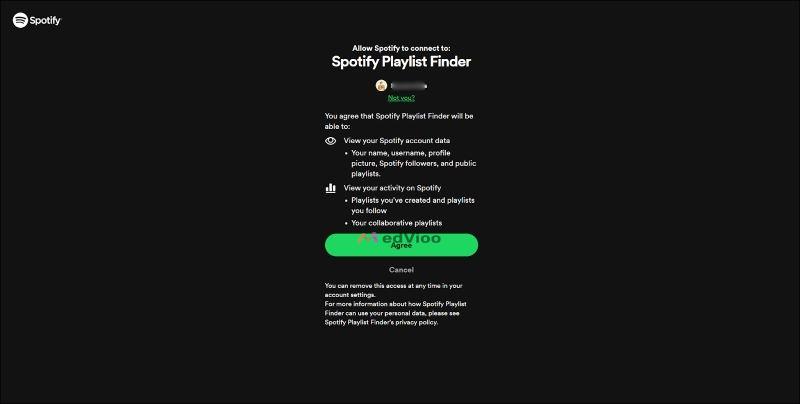
Step 3. In the search box, enter a song title or song ID. Then, click Find your playlists and it will show you all the playlists that include that song.
Top 5 Spotify Playlist Finders for Discovering New Songs
Here is a look at 5 tools that blend data and creativity to uncover music that aligns with your unique taste.
1. Spotify Browse Section
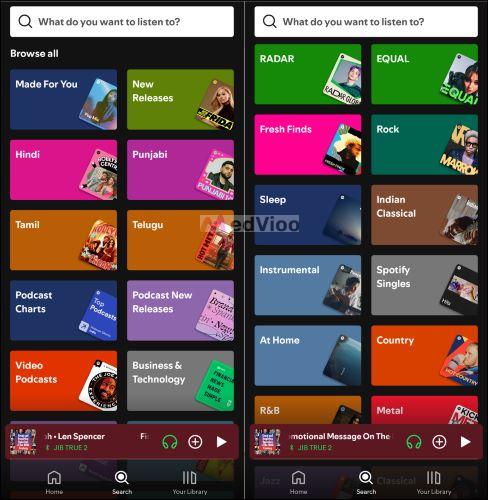
Once you land on the search page, you'll see Spotify's rich Browse section. Simply scroll down to reach the Browse All section and Spotify will line up curated playlists based on themes. Within Browse All:
- You’ll find playlists updated to reflect what’s currently buzzing in the music world: from Global Top 50 to new singles and remixes.
- There’s also room for genre enthusiasts, with playlists like Rock Classics or Rap Caviar.
2. Spotify Made for You
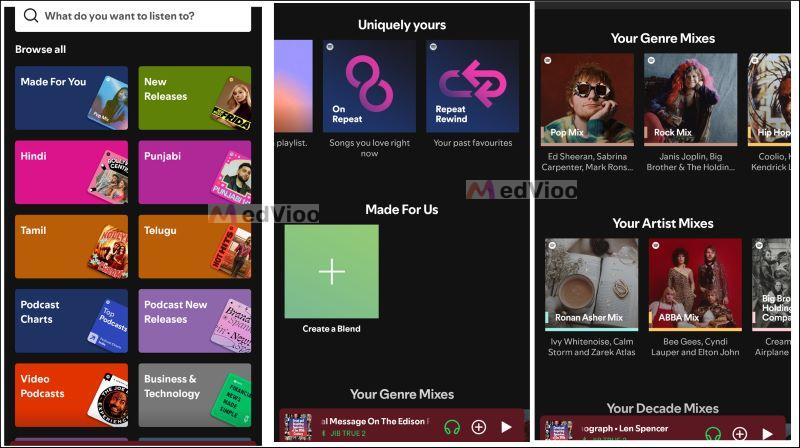
Deep within the Browse section lies Made for You card: Spotify’s most personalized playlists. This section pulls together Discover Weekly, Release Radar, and Daily Mixes, and all crafted to mirror your unique listening habits.
- Discover Weekly updates every Monday.
- Release Radar refreshes every Friday.
- Daily Mixes blend your most-listened-to-genres with new suggestions every day.
3. Magic Playlist Creator
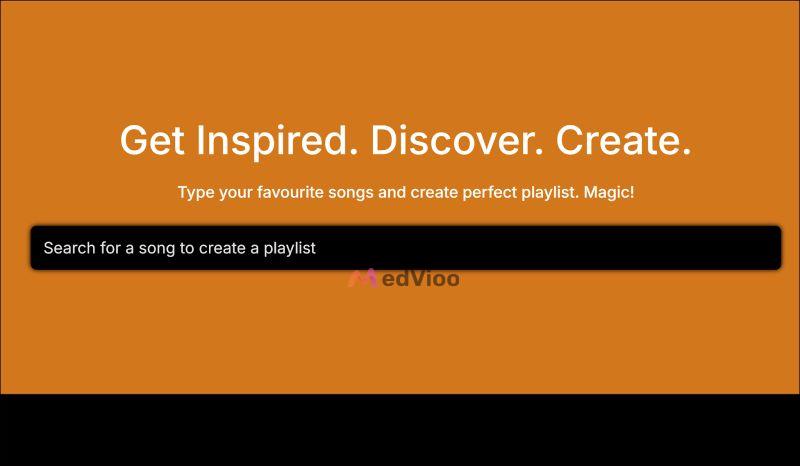
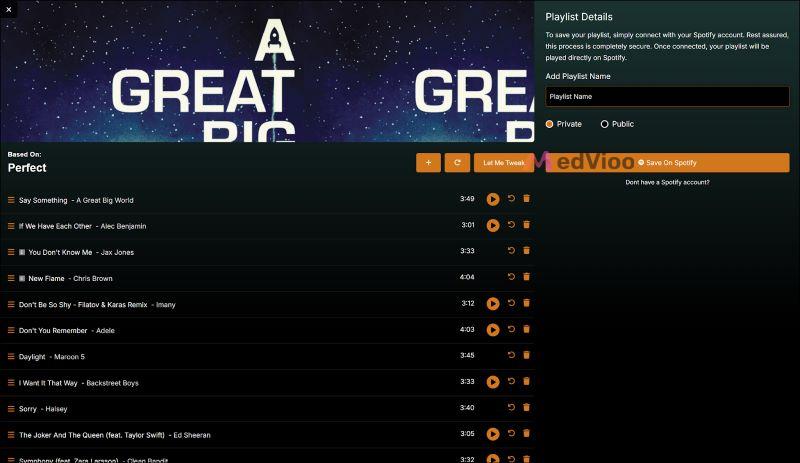
Magic Playlist Creator spins a single song into a world of tracks. You can drop in a song and it will curate a lineup that echoes its style and mood. It gives you full control too. For instance, there is a “Let Me Tweak” button that opens up a world of customization sliders.
The interface is clean and quick. You can even choose a mood directly from the main page and create a new playlist with a single click (even without entering a song name).
Steps to Use Magic Playlist Creator
Step 1. Jump into Magic Playlist and type a song name.
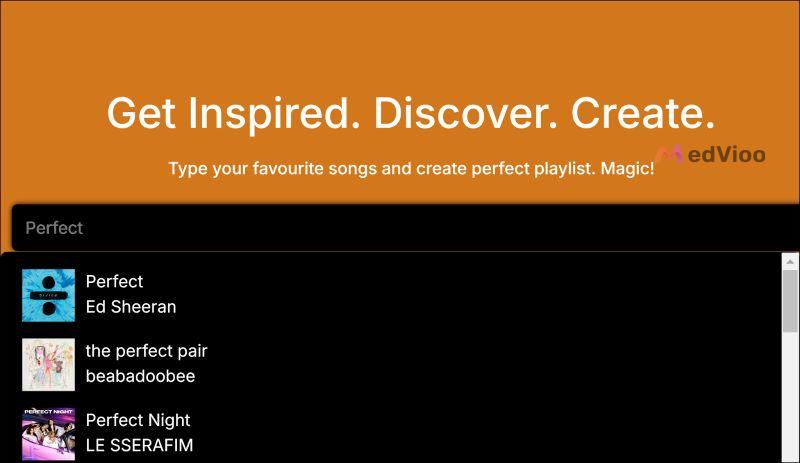
Step 2. Magic Playlist will generate a list. You can tweak the recommendations and lock it in by clicking Save on Spotify.
4. Playlist Miner
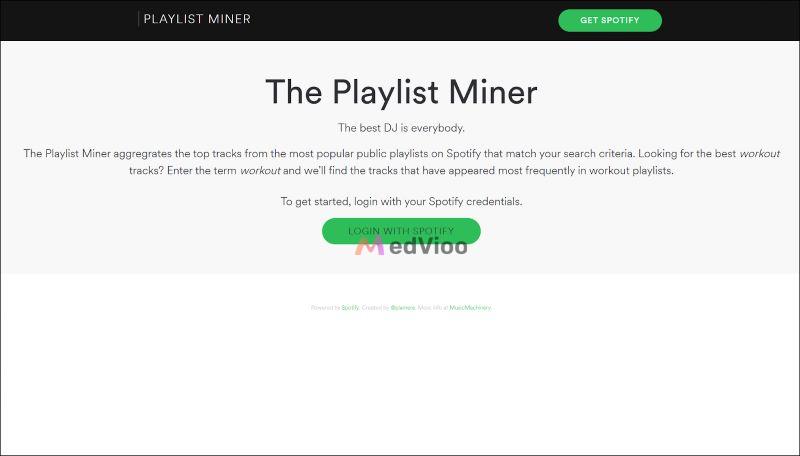
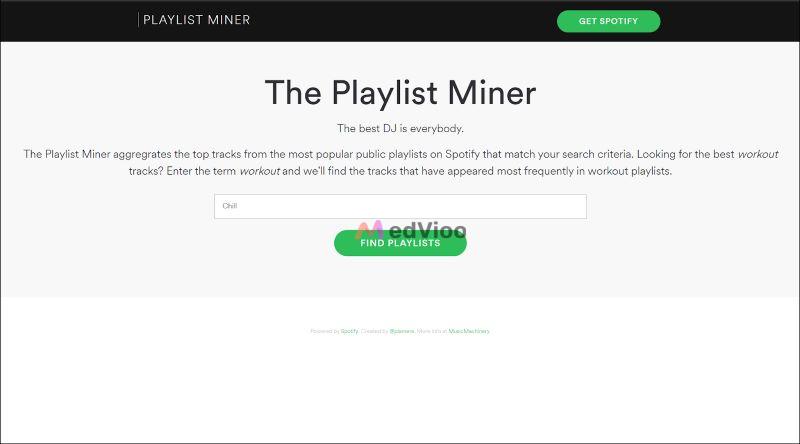
Compared to Magic Playlist, Playlist Miner isn’t just some standard recommendation engine. It’s more like a popularity radar that will highlight the songs everyone agrees on. All you have to do is type in a theme and it will allow you to capture the crowd’s choices.
Steps to Find New Tracks with Playlist Miner
Step 1. Visit the Playlist Miner site via your preferred browser. Define your playlist theme (Chill, Workout, etc.) in the search box. Then, click the Find Playlists button.
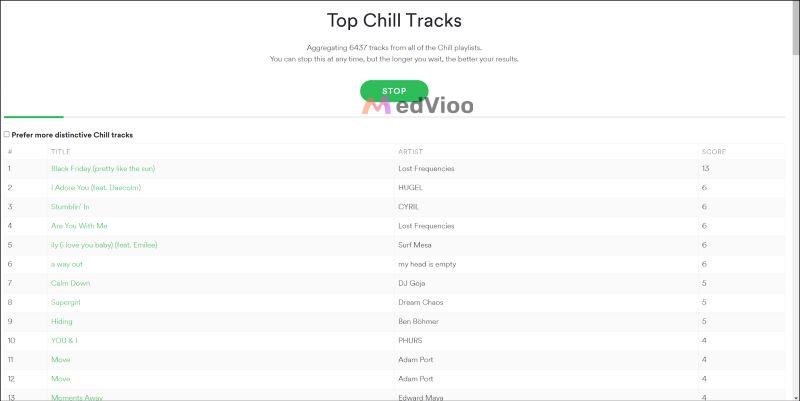
Step 2. You’ll see a list of playlist titles and track counts. Click Find Top Tracks to generate a consolidated list of songs (the most featured ones in that genre).
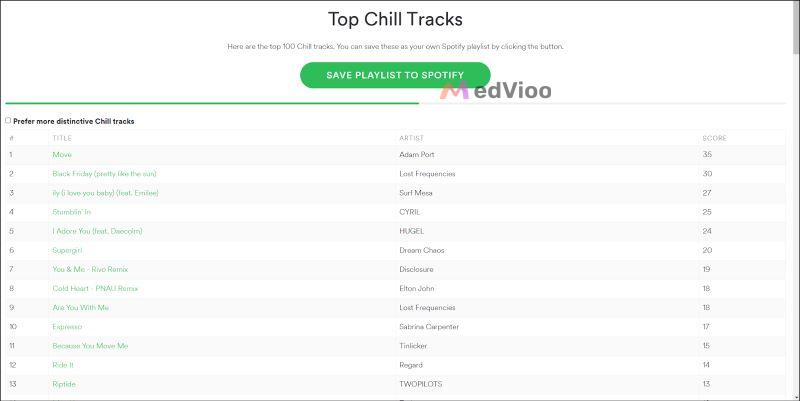
Step 3. Once the search is complete, click Save Playlist to Spotify.
5. Discover Quickly
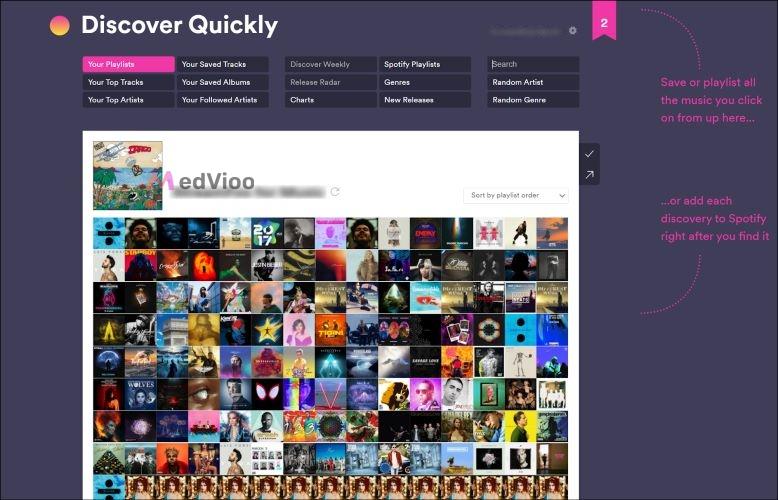
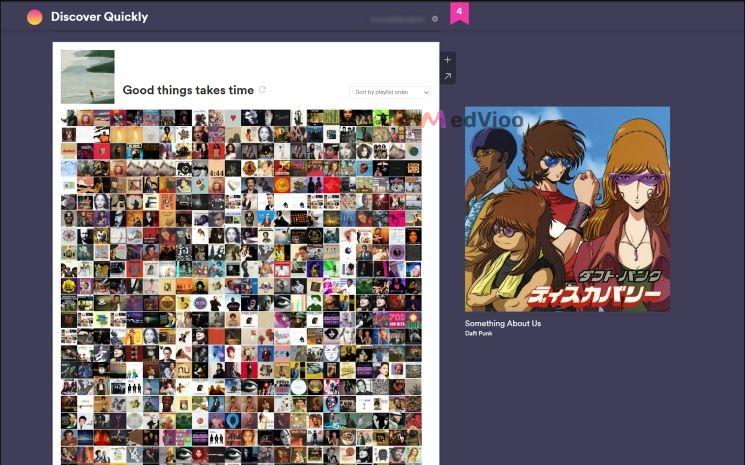
Created by Aliza and Edward during a Spotify hackathon, Discover Quickly brings Spotify's discovery feature to life on a single page. As soon as you land, you’ll be greeted with the lineup of Spotify categories. Nothing unusual.
Discover Quickly is more about the interface: the way things are presented. There is no clicking from page to page, making it easy to explore new tunes.
Steps to Use Discover Quickly
Step 1. Head over to discoverquickly.com and log in with Spotify.

Step 2. On the main interface, use the search bar to explore. To save a track, simply click the + button or open it on Spotify directly.
How to Save Finded Spotify Playlists Offline
You've found the perfect playlist and now you’ll want it with you wherever you go. With MedVioo Audio Converter, that playlist doesn’t have to stay online only within the Spotify app. Instead, you can convert and export the entire playlist as MP3 and listen to it offline on your phone, MP3 player, car or a device that isn't compatible with Spotify.
And there’s more. MedVioo Audio Converter gives you the premium audio quality, with no compromises. You can choose sound quality from standard (128 kbps) to high (320 kbps), or even lossless formats like FLAC and WAV. This output sound quality depends on your choice: a full yet high-fidelity sound or smaller-sized local music file. You’ll have full control over file formats too, choosing between well-known formats like MP3, M4A, FLAC or WAV.
How to Export Spotify Playlist as MP3 with MedVioo
Step 1. Click the download icon with your device’s logo above to get MedVioo installation package on your computer. Once installed, open it and select Spotify from the main menu.

Step 2. In the embedded Spotify web page, click Log In at the top-right and enter your details (both Free or Premium work) to connect.
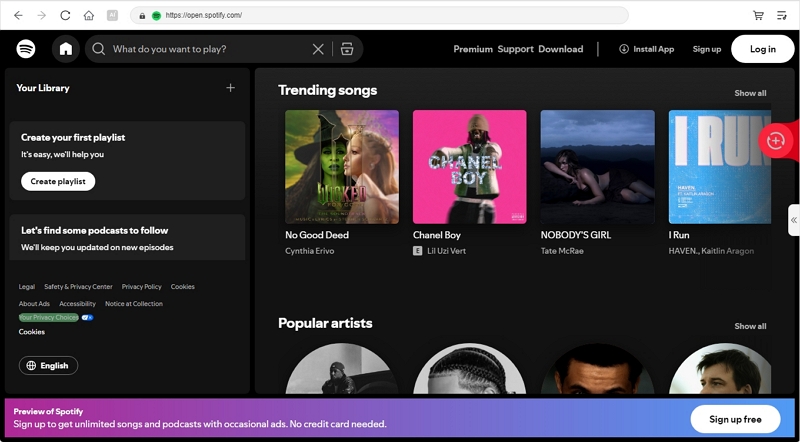
Step 3. Choose what to save offline and locally. Drag and drop the selection (whether playlists, albums, or individual tracks) into the red Add area in the top-right corner.

Step 4. Expand the conversion pane, select an output format - MP3 for your music selection and click Convert All at the bottom of the screen. MedVioo will quickly download and convert each track for your offline listening.

Tricks to Find Spotify New Playlists
These methods are some of the best ways to find playlists crafted by real music lovers, not algorithms.
Follow Friends and Influencers for Fresh Finds
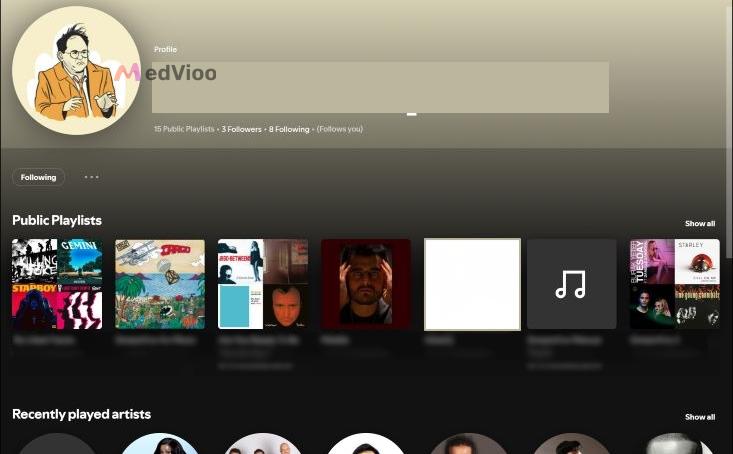
Spotify lets you follow your friends’ public profiles. So, head to their profiles and take a look at their public playlists, which are often filled with personal favorites. Plus, you’re not limited to friends alone. You can also follow influencers and music critics.
Join Spotify Communities and Forums
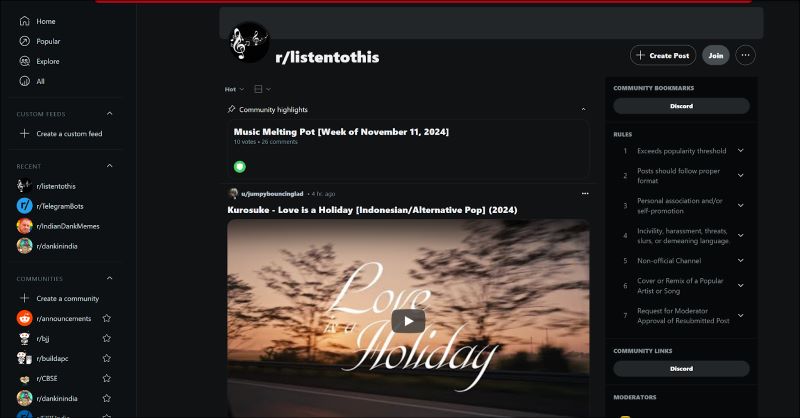
Online communities are hotspots for finding new playlists (the best ones too!). For instance, users on subreddits like r/Spotify and r/listentothis actively share and discuss playlists (curated around unique themes, moods, and genres). Besides, don’t forget that these spaces are updated constantly.
Discover Playlists via Social Media Hashtags
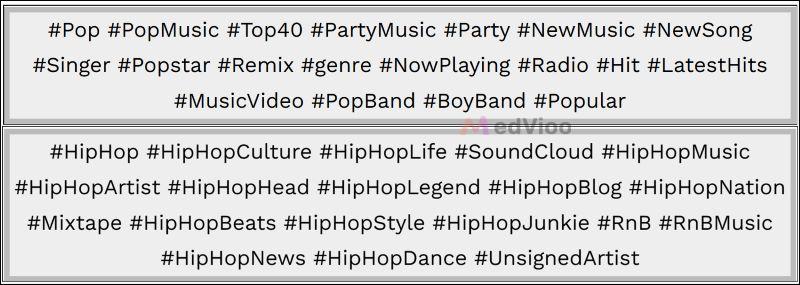
On Facebook and Twitter, hashtags like #SpotifyPlaylist and #MusicDiscovery will connect you directly with playlists posted by enthusiasts. Adding the right hashtags, such as a specific genre, artist, or mood, will narrow down the results even further.
Explore External Music Blogs for Spotify Playlist Recommendations
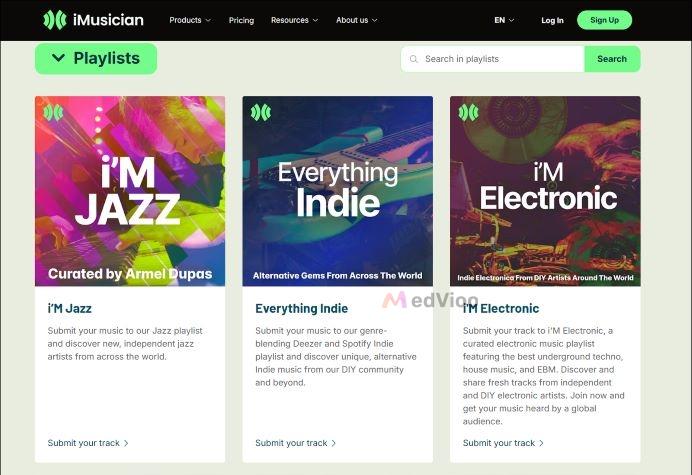
Sites like Pitchfork, NME, iMusician, and Bandcamp Daily are known for their deep dives into specific genres and emerging artists. Each blog has its own unique voice. For instance, iMusician’s weekly and monthly updates on Spotify playlists pull in tracks from both mainstream and lesser-known artists and create a unique mix that’s hard to find elsewhere.
Conclusion
That’s a wrap on music discovery! With these Spotify playlist finders, Spotify built-in tools, and unique methods, you can design a music library that caters to your taste.
And for those Spotify playlists you want offline, MedVioo Audio Converter has you covered: high-speed downloads, crystal-clear audio, and flexible format options.