

Sometimes you may need to listen to a Spotify song repeatedly. Perhaps you’re trying to learn the lyrics or the track simply suits your current mood. Thankfully, Spotify has a button to loop a song. So you don’t have to tap on the play button again and again to play it on repeat. However, the problem is that the On Repeat option isn’t easy to find.
Don’t worry, this guide will help you out, which shows you how to repeat a song on Spotify, whether you’re on mobile or desktop, and whether you’re using a free or Premium account.
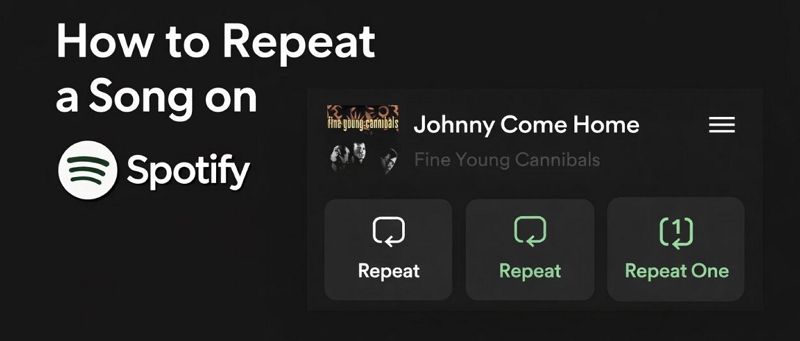
How to Repeat a Song on Spotify iPhone/Android
Let’s start with how to repeat a song on Spotify mobile, because that’s where most of the confusion lies.
The On Repeat feature is somewhat hidden, so it’s not always easy to locate. And in some cases, for certain users, the button doesn’t appear on the screen at all. We’ll explain why that happens and show you how to repeat or loop a song on both Android and iOS, whether you’re using a free account or Premium account.
Requirements
There’s one hard rule here: you must be a Spotify Premium subscriber to get this control. Once that single requirement is met, Spotify lets you loop any song, album, or playlist on demand. And this will even work when you’re listening offline with downloaded songs.
For free accounts, things are more restrictive. You can skip to the next section where we’ll cover what you can do about it.
Steps to Have the Same Song on Repeat on Spotify Mobile
Both iPhone and Android users can follow the same steps. The interface is identical.
From Now Playing Screen
Step 1. Start playing the song you want to repeat.
Step 2. Tap the mini player at the bottom. This will open the full-screen view with album art and full media controls.
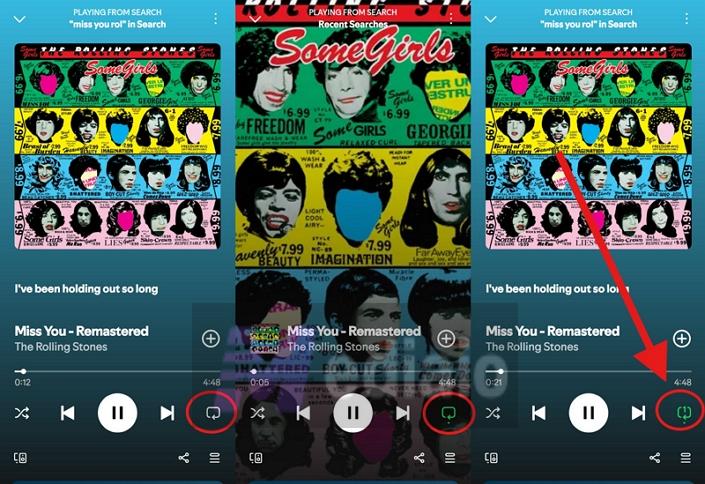
Step 3. On the Now Playing screen, look at the row of the playback controls near the button. Tap on the rounded rectangular loop icon next to the skip forward button.
Spotify uses the same button for two different behaviors and what it does depends on how many times you tap it.
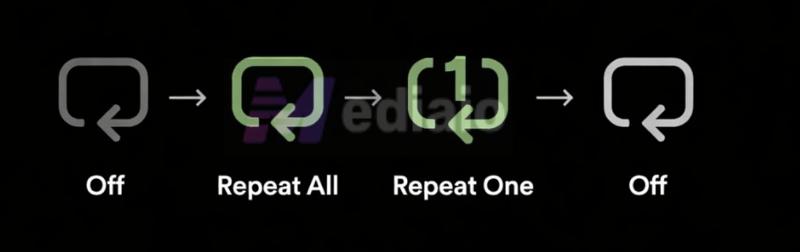
- Tap it once to enable Repeat, turning it green. This means Spotify will repeat your entire current queue.
- Tap the same icon again to enable Repeat One to lock in one song.
The current playing track is now on infinite repeat and will play back-to-back endlessly. You’ll now also see a small “1” inside the green loop. That’s your confirmation that the song loop is turned on.
Tap on the same icon again (the third time) to manually disable the loop. The icon will turn grey again.
From Queue Screen
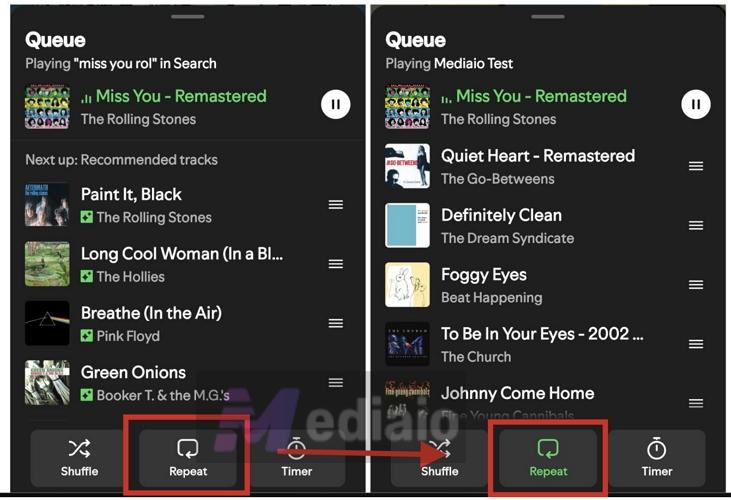
Tap on the queue icon on the Now Playing screen. This opens your current queue, where the Repeat button is much easier to spot at the bottom. Still, the behavior will stay the same:
- Tap it once to enable repeat for the full queue.
- Tap it again to switch to Repeat One. You’ll see a small “1” appear on the icon. The current song will be put on loop.
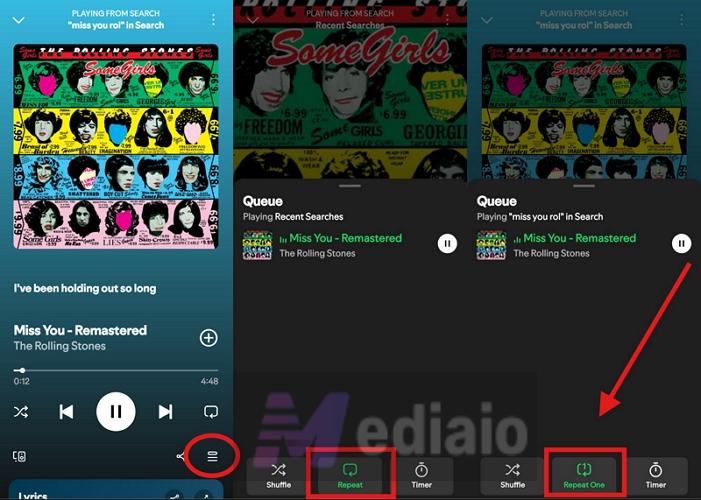
To turn off the infinite loop, tap the repeat button one more time. This will return the icon to grey, so all repeat modes will be turned off. Alternatively, you can also tap the skip forward button. This will automatically break the Repeat One loop and move playback to the next track.
Why Can't I Loop Songs on Spotify Mobile
There are times when the repeat button is missing on the Now Playing screen or doesn’t respond at all (just stays greyed out). Here’s why that happens and what you can do.
Reason 1. You are using a free Spotify account
Spotify Free users do not have “repeat” in their toolkit and they are not allowed to use this feature when listening on mobile. In fact, on the updated Now Playing screen, the repeat icon doesn’t appear at all.
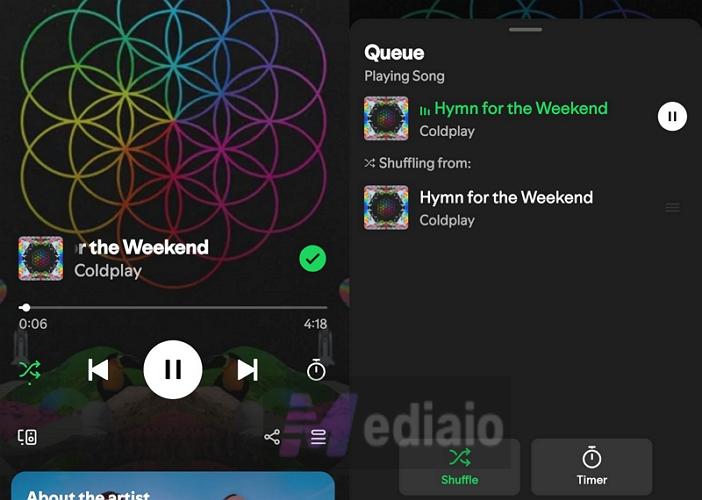
Still, here’s how you can break this behavior.
Solution 1. Upgrade Your Account
Subscribing to any paid tier will give you access to the repeat function. Even the affordable plans, like Premium Lite plan offered in selected countries unlock this.
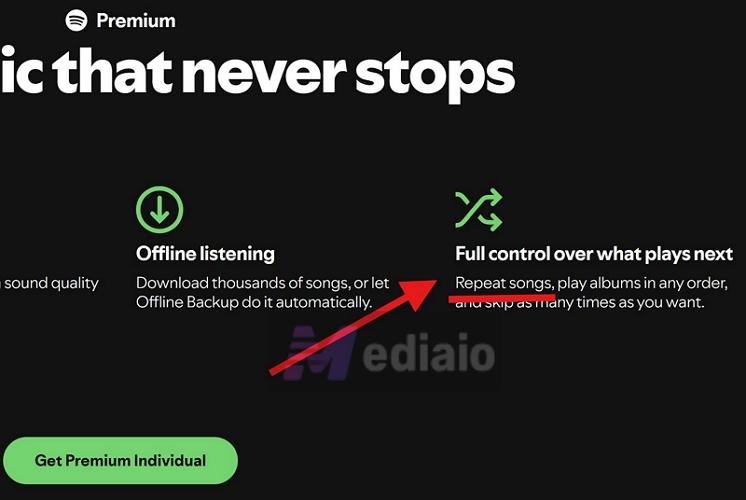
Solution 2. Use the Spotify Connect Workaround
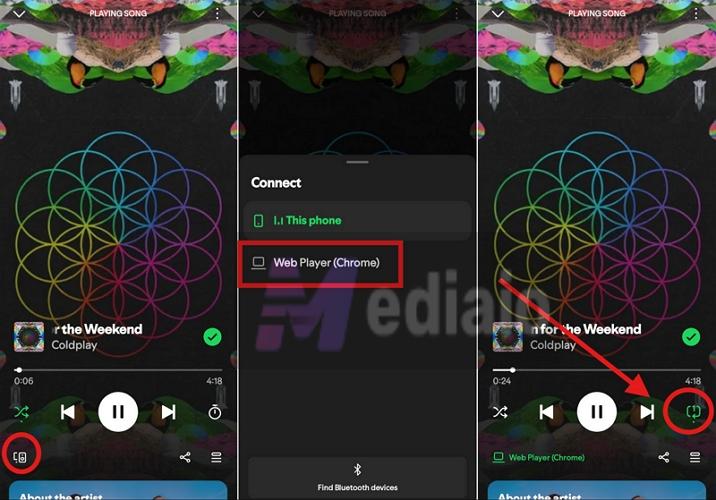
You can shift the song playback to your computer. Here’s how this trick works:
- Play the song on your phone.
- Switch the output to your computer (desktop app or web player) via Spotify Connect.
- Once the audio is routed to your computer, the repeat icon will appear on the Now Playing screen, just like it does for Premium members. Tap it twice to loop a single track.
Of course, the limitation here is that the sound will play through your computer speakers. The moment you switch playback back to your phone or a connected device (like Bluetooth headphones), the repeat option will disappear again.
Solution 3. Convert and play songs using another media player
You can also export Spotify songs using Mediaio Audio Converter and play them on any music player like VLC. Most good music players come with a built-in loop, so you can repeat songs freely. Here’s how this works in practice:
Step 1. Export Spotify Songs as Local Files
You can install Mediaio Audio Converter on your Windows or Mac. It lets you save Spotify songs in local formats, like MP3, M4A, FLAC, etc.
The conversion process is seamless. Mediaio comes with an integrated Spotify player, so you can log into your own account and access your library easily. From there, you can pick all the songs you want to keep on loop. And you don’t have to save songs one by one. Mediaio supports batch downloads, so you can export multiple playlists in one go.
Step 2. Play Spotify Files Using VLC
You can play Mediaio’s exported files using any music player since they are saved in open formats. The default options like Windows Media Player or Apple Music work perfectly fine on a computer.
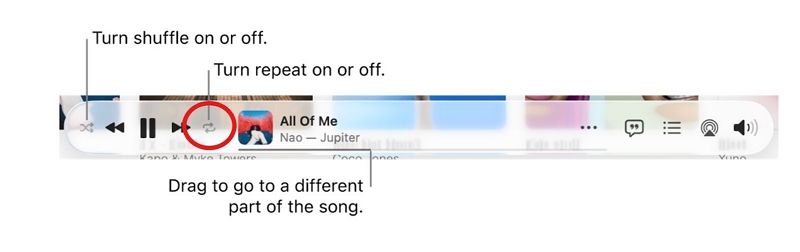
You can also transfer the Mediaio exports to your phone. And play the music via free players like VLC. The behavior there is very similar to Spotify. For instance, here’s how you can loop a track inside VLC:
- Play the song.
- Open the Now Playing screen. At the bottom-right, you’ll see the repeat icon — a square loop made with two arrows, quite similar to Spotify.
- Tap it once — it will turn from grey to yellow.
- Tap it again to repeat just one track — a small “1” will appear on the icon.
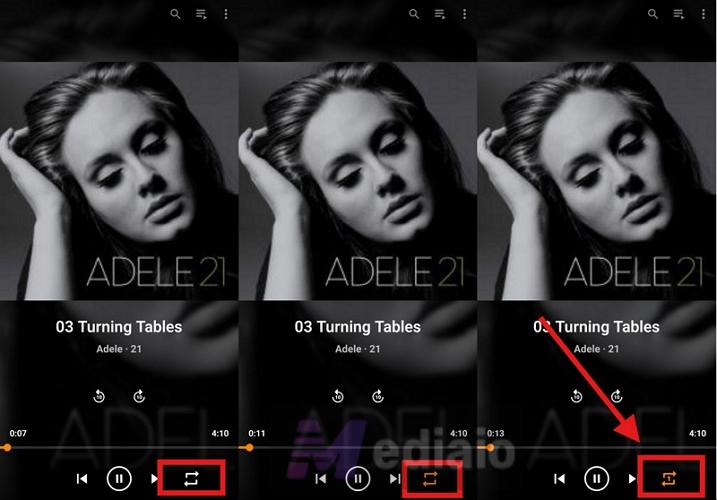
VLC also gives you something more advanced — an A–B repeat option. This lets you loop only a specific part of the song — say one minute or even a few seconds instead of listening to the full song. To turn this on:
- Tap the three dots on the Now Playing screen.
- Select A–B repeat.
- Then:
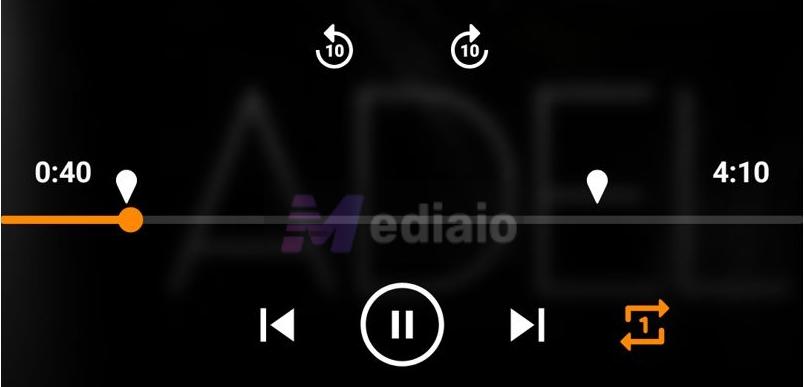
- Move the slider to the start point and tap Set Start Point. This will mark the beginning of your loop.
- Move the slider again to where you want the loop to end. Then tap Set End Point.
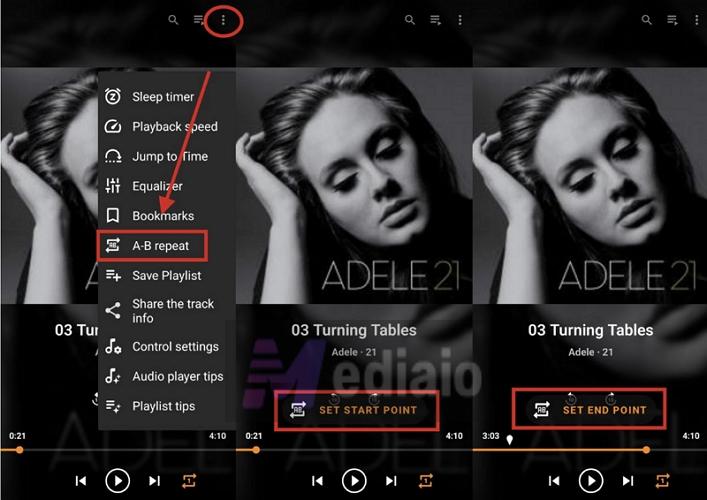
The song will now keep repeating only between those two points until you turn it off.
Reason 2. You are playing something that Spotify does not recognize as a song
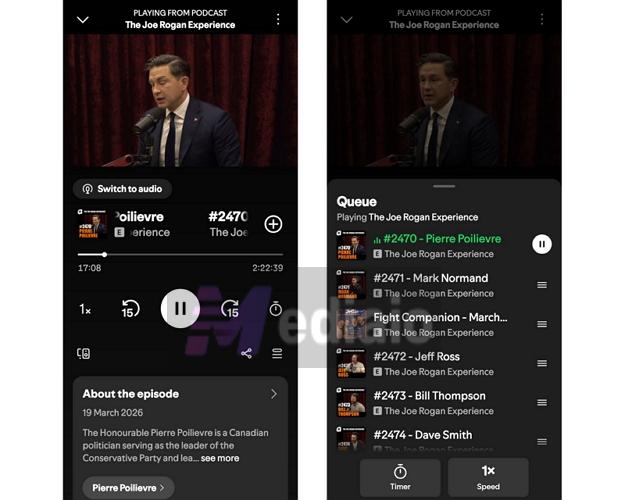
Make sure you’re playing something Spotify actually recognizes as a song. Only music tracks show the repeat button on the Now Playing screen. Podcasts and audiobooks don’t have it by design. Instead, you’ll see the 15 sec forward and Sleep Timer buttons.
There’s another detail many people miss. Sometimes what you think is a song may not have been categorized by Spotify as one, like long DJ mixes or unofficial uploads. So in these cases, the interface behaves like a podcast. So the repeat button won’t appear at all.
Reason 3. The repeat icon is visible but greyed out or not responding
If the repeat icon is there but it’s grey, or it simply doesn’t react when you tap it, it means the app is frozen or glitching. In this state, the song will still keep playing normally. Only the controls stop responding. This is quite common after long sessions or on older Android and iOS devices. Here’s how to reset things.
Fix 1. Close and Refresh Spotify
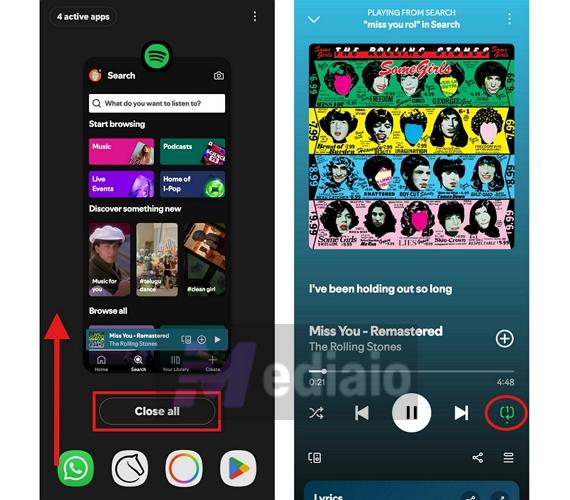
Step 1. Remove Spotify from the recent apps screen by swiping up from the bottom and clearing it completely. Don’t just minimize it. Make sure it’s fully closed.
Step 2. Launch Spotify again from your home screen.
Step 3. Go back to the Now Playing screen and tap the repeat icon. This time, it should register your taps normally.
Fix 2. Clear Temporary Cache
There could be temporary or corrupted data causing this behavior. Clearing the cache will fix it. Do this:
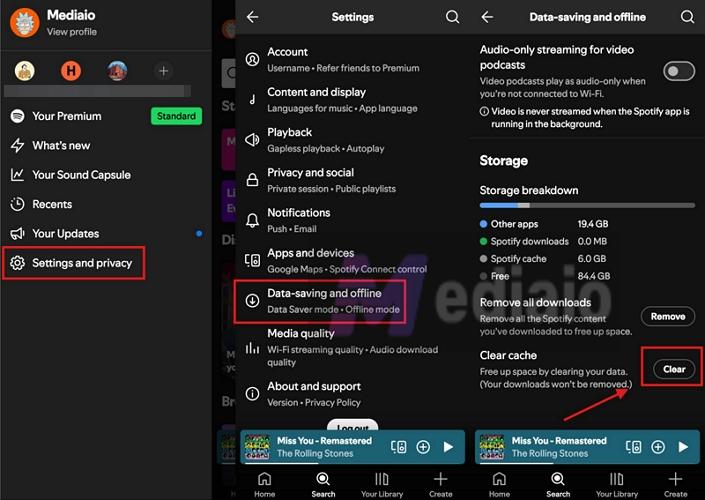
Step 1. Tap your avatar at the top-left. Choose Settings & Privacy.
Step 2. Scroll down until you reach the Storage section (or Data Saver & Offline inside settings).
Step 3. Tap the Clear button next to the Clear cache option. This will remove the temporary files that could be interfering with playback controls.
Now, restart the app, tap on the repeat icon and it will respond normally.
If the repeat still doesn’t register inputs, do this:
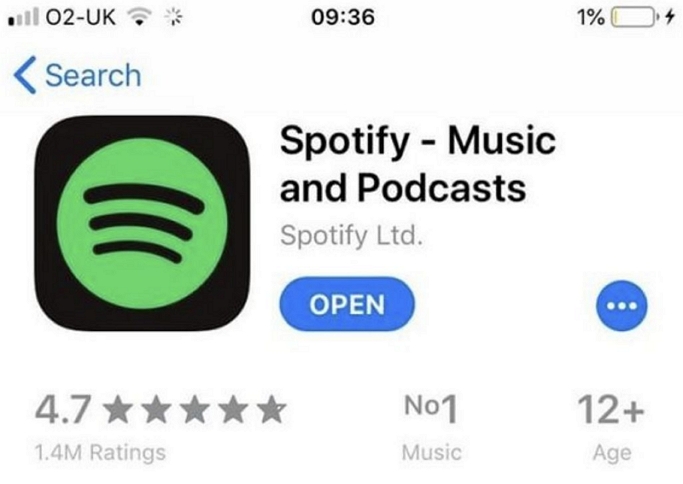
- Update the Spotify app (via App Store or Play Store).
- Reinstall the Spotify app to clear any deeper glitches.
How to Repeat a Song on Spotify PC/Mac
Now let’s come to how Spotify behaves on desktop and how you can keep a single song on loop on the Spotify web player or on the Spotify app on your Windows or Mac device.
What You Need
You do not need a Spotify Premium subscription to use the repeat function here. The experience is the same for all users.
Steps to Play a Song on Repeat on Spotify PC/Mac
Step 1. Play the song you want. Move to the Now Playing bar at the bottom.
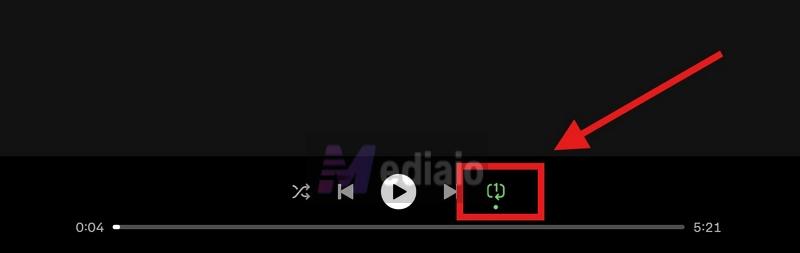
Step 2. You’ll see the repeat icon next to the skip forward button.

- Click it once. It will turn green, which means your current queue is now set to repeat.
- Click it again. This will switch it to repeat one. You’ll see a small “1” appear on the icon, confirming that the current track is now locked for a back-to-back to playback until you turn it off.
How to Repeat a Playlist on Spotify Phone/Computer
Many of you also expect Spotify to return to #1 song in the playlist after it has played the last song in the list. Once again, free Spotify users can only do this while listening via the computer, and Premium users can repeat a playlist anywhere. Do this:
- Click on the repeat button once — it will change from grey to green. That means repeat is now enabled for your current queue (playlist or album).
That’s all you need here. Spotify will loop the full list. You can also freely skip songs and the repeat for the queue will stay active.
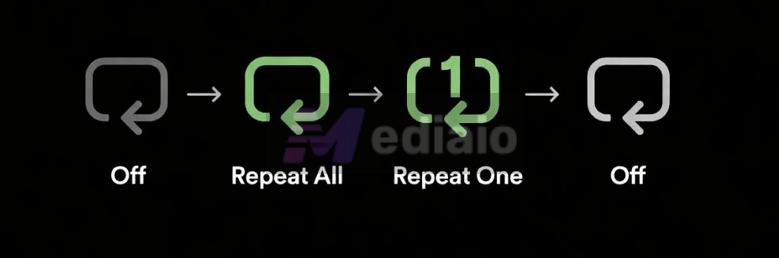
To turn off the repeat for playlist: tap it two more times so it becomes grey (off) again. The cycle always goes in this order:
To Sum Up
Whether you’re on a free or Premium account, you now know how to repeat a song on Spotify across mobile and desktop. On the desktop, it’s straightforward and available to everyone.
On mobile, though, the restrictions do apply for free users and that’s where things get limited.
- Upgrading to Premium is one way to gain full control inside Spotify.
- Or you can use Mediaio Audio Converter. It lets you export your favorite Spotify songs in formats like MP3 or M4A, so you can play them on any music player that supports built-in repeat.