

Over time, Spotify playlists tend to get messy. Although you add songs carefully, there’s a chance that you add different versions of the same track. As a result, you hear the same songs multiple times even when you are using the Shuffle feature.
This guide helps you clean things up. You’ll learn how to remove a single song or multiple tracks from a Spotify playlist. It also covers what to do when the Remove option doesn’t appear or stops working.
How to Remove Songs from a Spotify Playlist on Mobile
Spotify mobile app doesn’t support multi-select yet, so you have to remove them one at a time. The rule applies to all playlist types:
- normal playlists
- Liked Songs
- collaborative playlists
Steps to Follow:
Step 1. Head to Your Library and then enter the playlist you want to tidy up.
Step 2. Tap the three dots next to the track you want to remove.
Step 3. Choose Remove from this playlist.
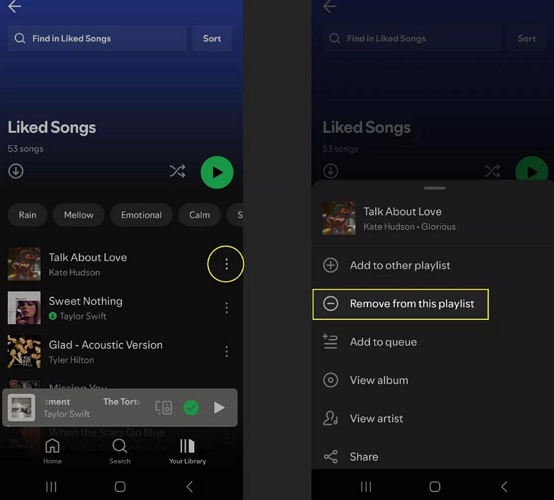
Repeat the same steps for other tracks you want to remove from the playlist.
How to Remove Songs from a Spotify Playlist on Desktop
Besides usual options, Spotify desktop apps support multi-select. Follow these steps on Windows, macOS, and the Spotify web player.
To Delete a Single Song
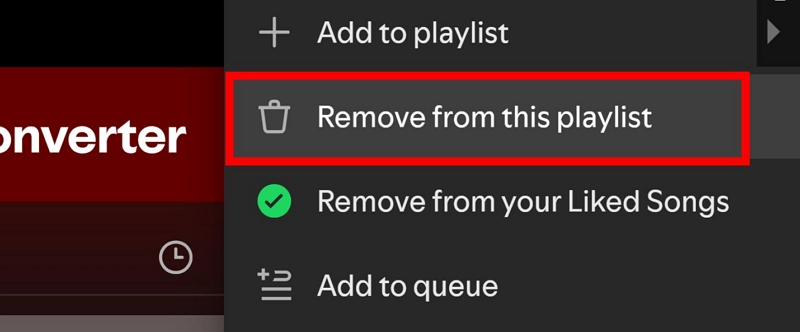
Step 1. Find the track inside the playlist. Right-click it or click the three dots.
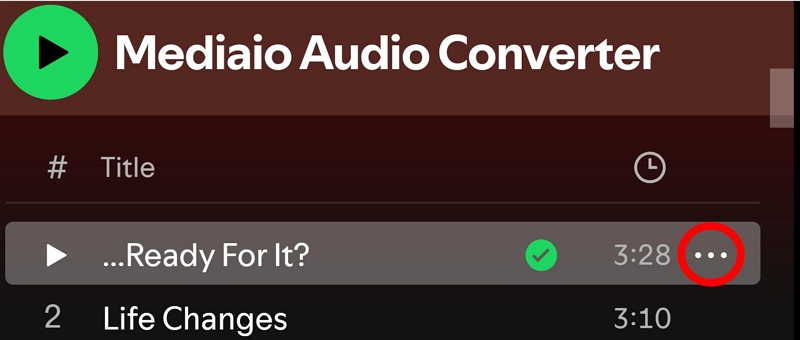
Step 2. Choose Remove from this playlist. Done.
To Remove Multiple Songs at Once
Here are the two ways that actually matter.
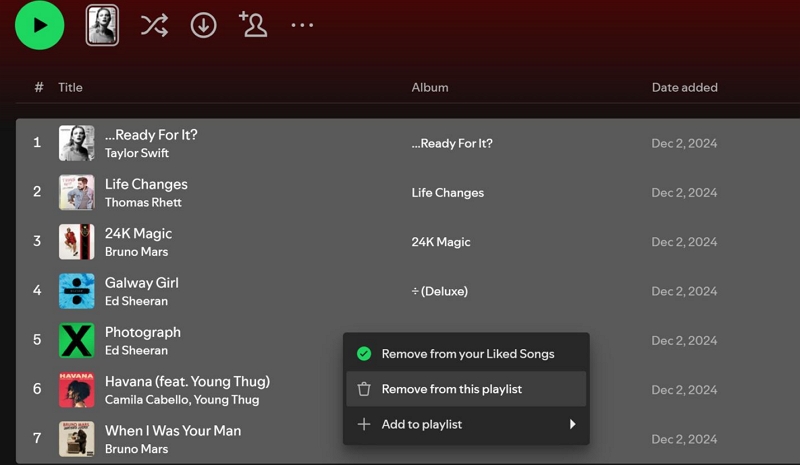
For a continuous group of songs:
- Click the first track.
- Hold Shift.
- Click the last track in the range.
- Right-click the selection and remove it.
For scattered songs:
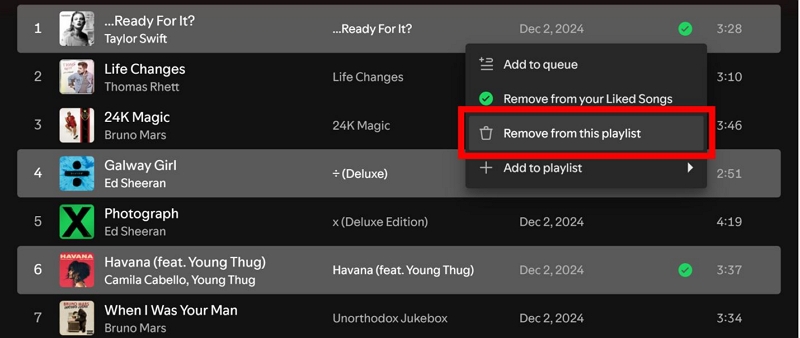
- Hold Ctrl (Windows) or Command (macOS).
- Click each track you want gone.
- Right-click and delete them together with the Remove option.
Fixed: Can’t Remove Songs from a Spotify Playlist
When you open the menu options inside a playlist, you expect to see Remove from this playlist. But sometimes it’s just not there. Other times, the option does show up and reacts when you trigger, but the song comes back after a refresh. Even worse, sometimes nothing changes at all after clicking the Remove button.
These aren’t rare edge cases. Spotify Community threads are full of users running into the same problems across mobile, desktop and the web player.
Fixes for Can't Remove Songs from Your Spotify Playlist
When the Remove from this playlist doesn’t appear or work on your own playlist, it typically comes down to one of these:
- Outdated Spotify app
- Corrupted or stuck cache files
- Spotify failing to sync local actions back to its servers
You can use quick workarounds, like the Delete key on desktop or the Now Playing menu on mobile, to remove songs from the playlist for urge usage. Here’s how they work:
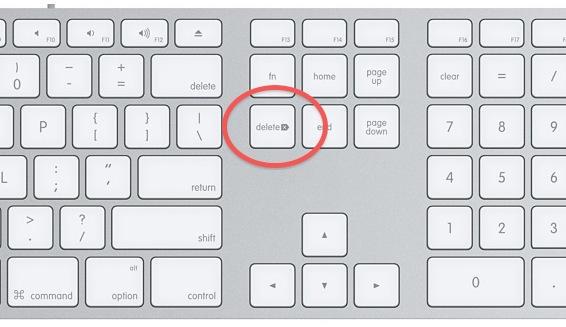
Trick 1. Use Keyboard Delete Key [Desktop]
This is the fastest way to remove songs when the inbuilt Remove menu option is missing.
- Click once on a song so it highlights. If needed, highlight multiple tracks together.
- Press the Delete key on your keyboard. Spotify will remove the track instantly.
Trick 2. Remove Songs from the Now Playing Screen [Mobile]
On mobile, the Now Playing screen often shows options that don’t appear inside the playlist view.
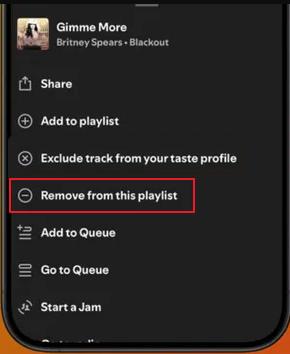
- Play the song you want gone and open its Now Playing screen.
- Tap the three-dot menu and choose Remove from this playlist.
These workarounds help in the moment. So, it’s better to fix the cause. Here are the fixes that actually bring the option back.
Fix 1. Re-login to Force a Clean Sync
If you’ve deleted some tracks from a Spotify playlist on your desktop but still see them on your Spotify mobile app, the issue may be due to account sync. Simply sign out of the Spotify app where the playlist hasn’t updated, then log in again. Your updated playlist should now appear on your mobile app.
On Mobile:
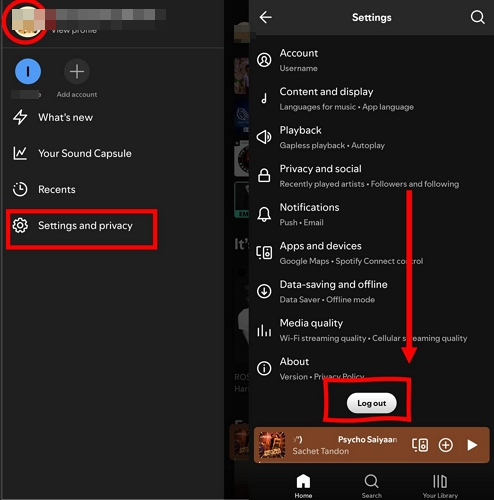
- Tap your profile picture and select Settings and privacy.
- Scroll all the way down. Then, choose Log out.
On Desktop:
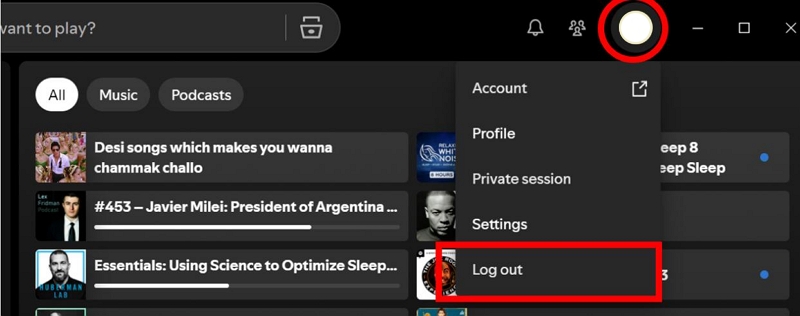
- Click your profile image. From the drop-down, select Log out.
After logging out, close Spotify completely and restart the device once. Now log back in and you will see that the deleted songs have disappeared.
Fix 2. Clear Spotify Cache
Corrupted or old cache files commonly break playlist actions, so clear them can help fix the issue.
On iPhone/Android:
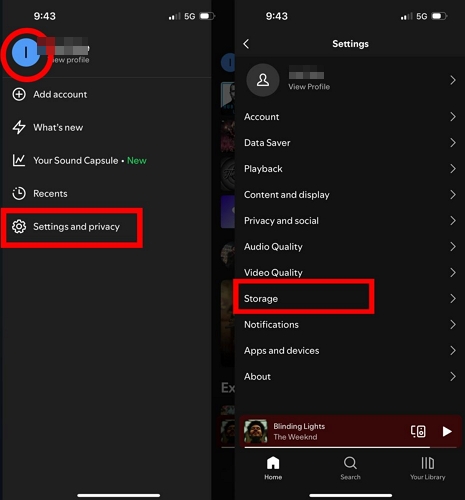
- Expand the profile pane and open Settings and privacy (or Data-saving and offline).
- Scroll down to Storage.
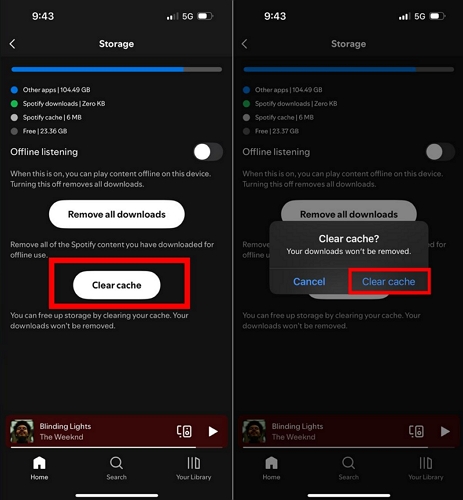
- Select Clear cache. Confirm when prompted.
On Windows or Mac:
- Click your avatar, followed by Settings.
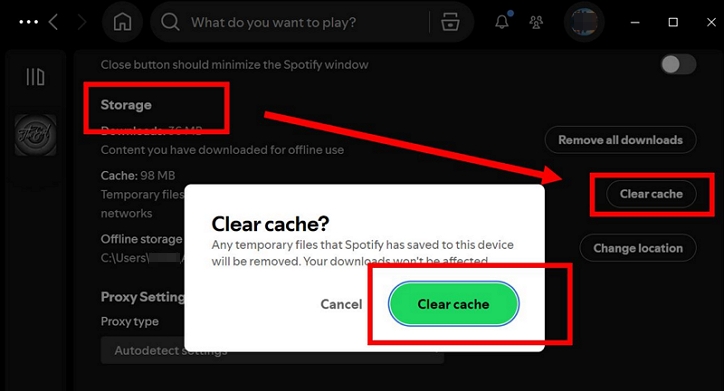
- Scroll to the Storage section and choose Clear cache.
Close Spotify fully after this. Reopen it and you will be able to edit the playlist.
Fix for Can't Remove Songs from a Spotify Collaborative Playlist
In a collaborative playlist, the Remove from playlist option appears only if you are the playlist creator or collaborator with editing access. Spotify hides the Remove option completely if your role is set as Listener. This usually happens when:
- You were invited to a playlist but not added as a collaborator.
- The playlist owner changed permissions later.
- Collaborative mode was turned off at some point.
How to Confirm your Role
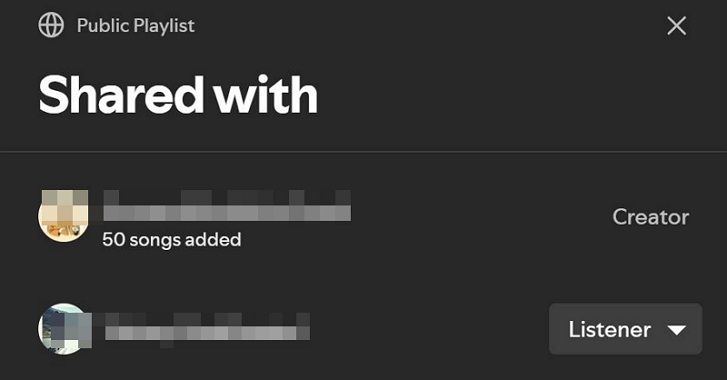
Open the playlist and look just under the playlist title. If your name appears as Listener, editing is restricted by design.
How to Get the Remove from Playlist Option Back
Ask the playlist owner to check the playlist settings.
They need to:
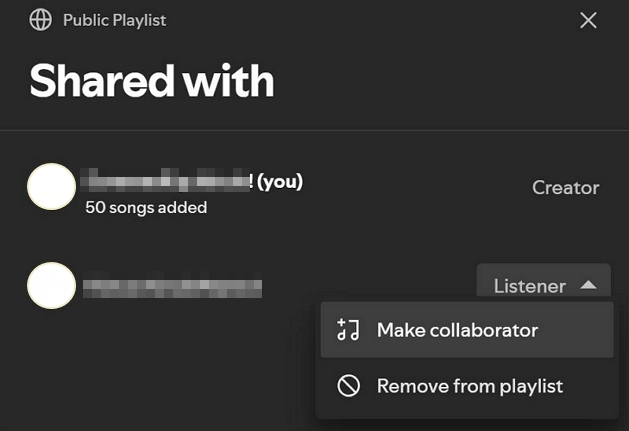
- Open the playlist details by clicking the names shown under the playlist title.
- Change your role to Make collaborator.
Once this is done, the Remove from playlist option appears instantly on mobile, desktop, and web without needing a refresh or restart.
Tip: If you fail to remove songs from your Spotify playlists, you can try the same steps on another device, such as switching to Spotify desktop from Spotify mobile.
Fix for Can't Remove Songs from a Spotify Recently Played Playlist
Earlier Spotify builds had a Recently Played section. It appeared directly inside Your Library and showed what you had listened to. More importantly, it lets you clear or reset that list.
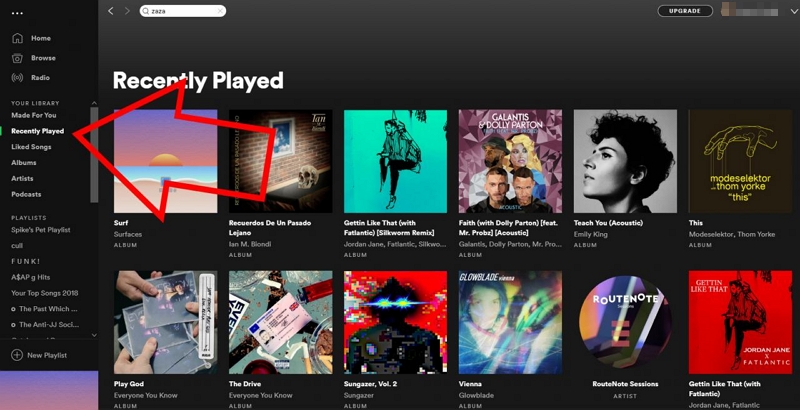
That option no longer exists.
Today, Spotify only shows Listening History(or Recents). This list is read-only. You can’t remove items from it.
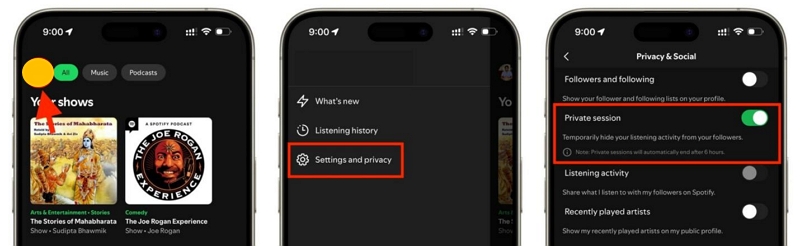
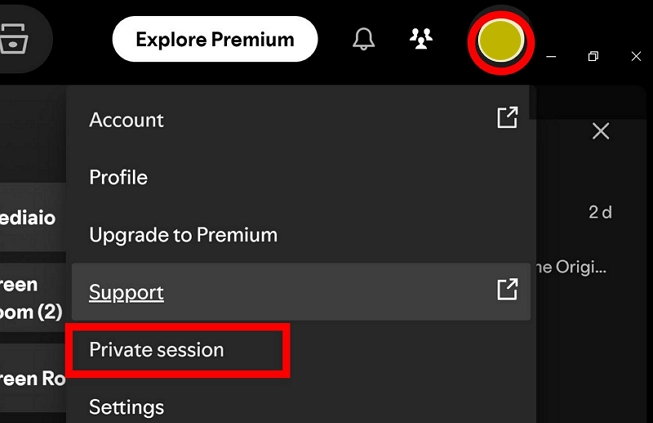
Still, if you don’t want a certain listening activity to show up, you can use Private Session instead. Private Session works before you start listening. Once enabled, anything you play won’t appear in your activity or affect suggestions. It runs for six hours and then turns off automatically.
Turn on Private Session (Mobile)
- Go to Settings and privacy in the profile menu.
- Open Privacy & Social.
- Turn on Private Session.
Turn on Private Session (Desktop)
- Click the lock icon next to your profile or click your avatar and choose Private Session.
FAQ: Why Is Spotify Removing Songs from My Playlists?
When songs disappear from a playlist or turn grey and unplayable, it is usually due to licensing availability.
Most music on Spotify exists under licensing agreements. Artists and record labels don’t hand over their catalogs forever. Tracks are licensed for specific periods, regions, or both. When an agreement expires or a label pulls its catalog, those songs vanish from Spotify entirely. This is also why a song might play in one country but not another. Regional licensing limits can block tracks based on where you’re listening from.
How to See Which Songs Were Removed from Your Playlist
Spotify doesn’t delete them silently. The removed songs can be visible after adjusting specific settings.
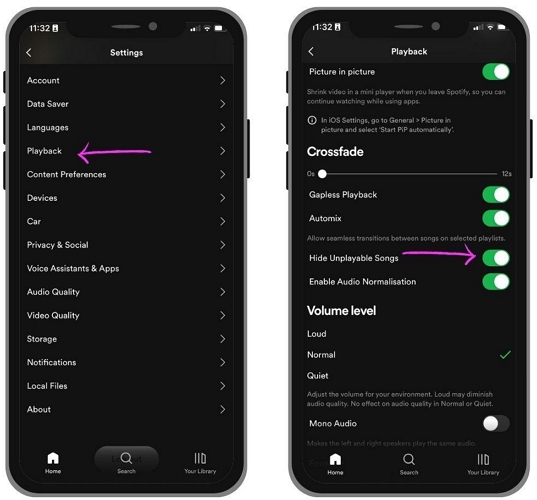
- Access the Profile menu and open Settings and privacy.
- Tap Playback and turn off Hide unplayable songs.
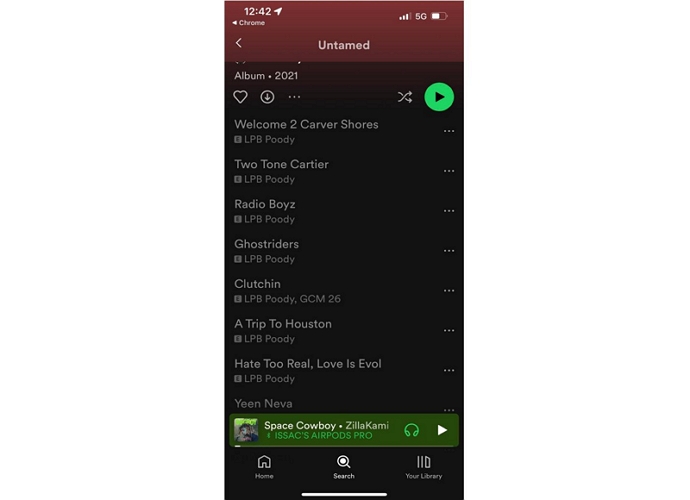
Go back to your playlist. Songs that are no longer available will appear greyed out.
What You Can Do Next
1. Wait it out: Many songs return once licensing renews.
2. Listen elsewhere: A greyed-out song on Spotify is often still available somewhere else. Check platforms like Apple Music or YouTube Music and play it there instead.
3. Keep a Local Copy: If the song is still available on another platform, you can back it up as a local MP3. Mediaio Audio Converter supports multiple music services and lets you save tracks directly through its built-in player. Once stored locally, the file is independent of Spotify’s catalog and can be played in any music app at any time.
Final Words
We’ve shown you how to remove songs from a Spotify playlist on both mobile and desktop. Spotify desktop app gives you multi-select, so you can remove songs and declutter a playlist quickly. We’ve also covered what to do when the Remove from this playlist option doesn’t appear, along with the fixes that usually solve it.